Important Notes:
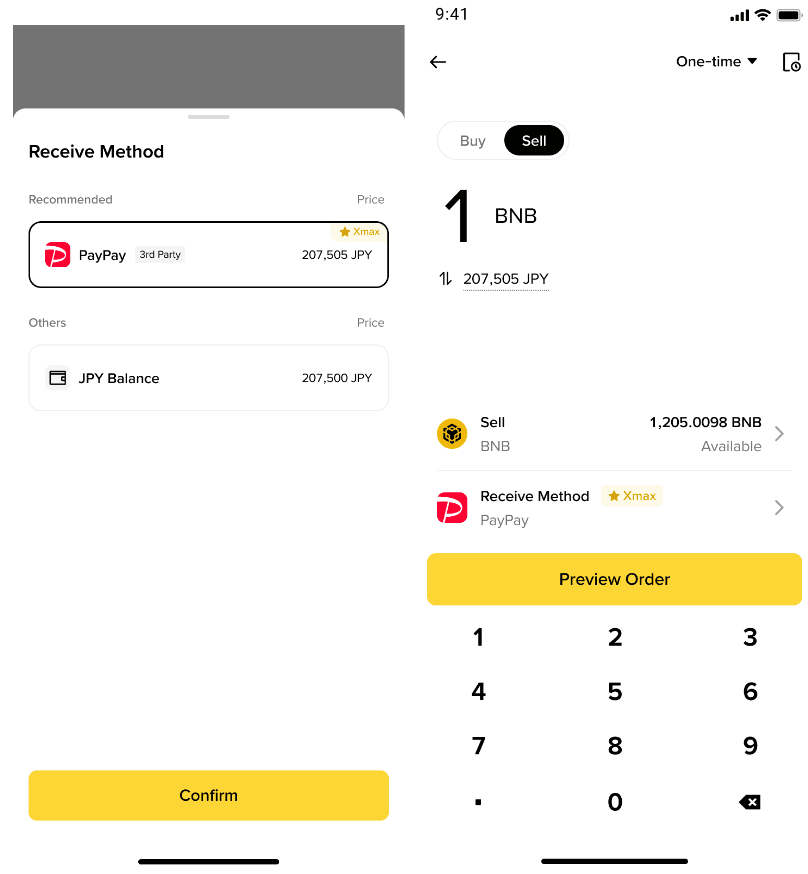
1. Log in to your Binance app and tap [Trade] - [PayPay].
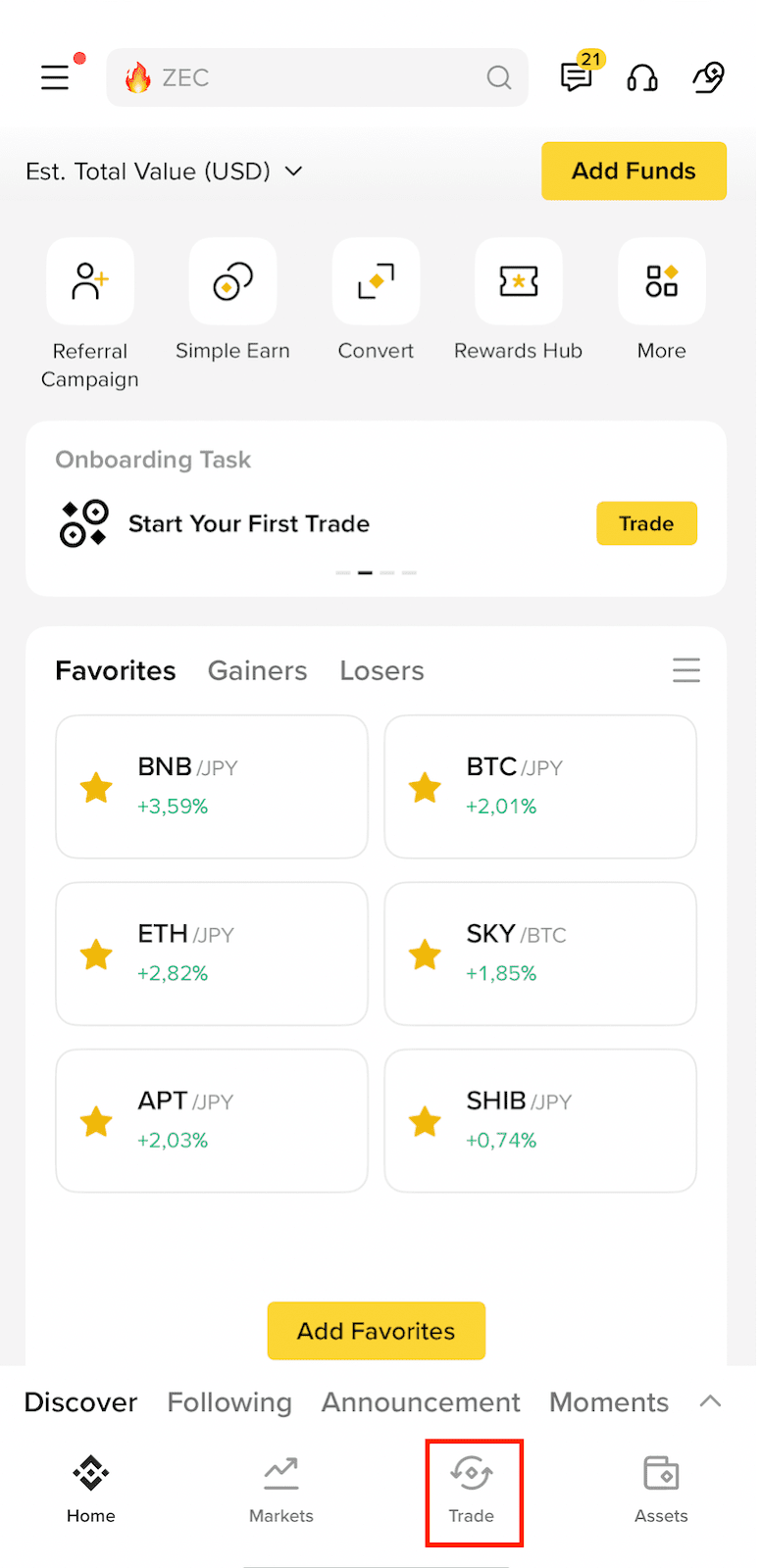
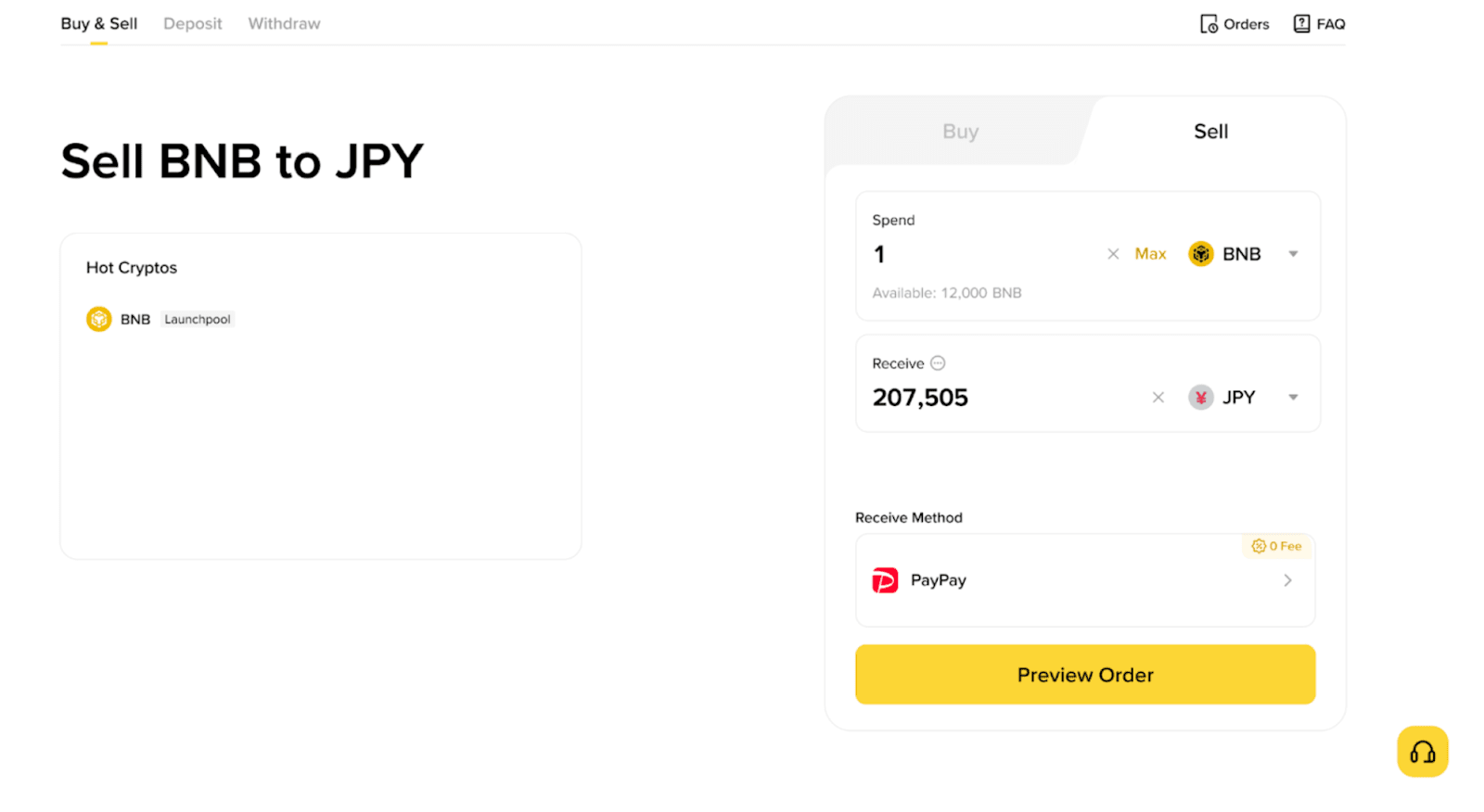
2. Choose the cryptocurrency you want to sell under the [Sell] tab. Enter the amount you want to sell and tap [Verify and Sell].
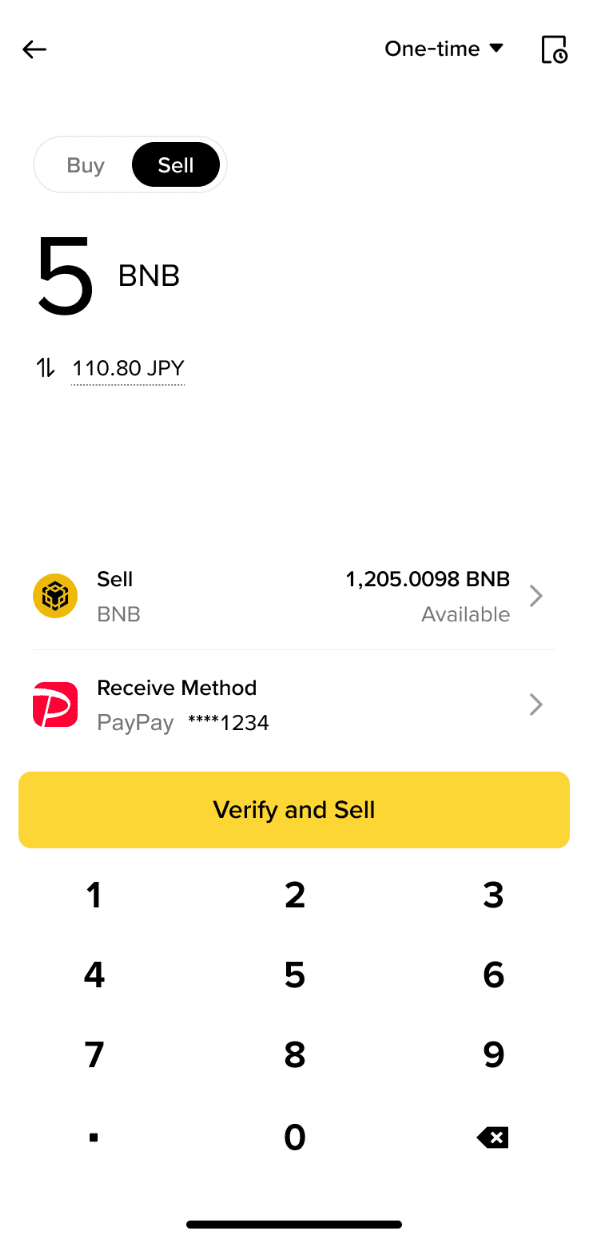
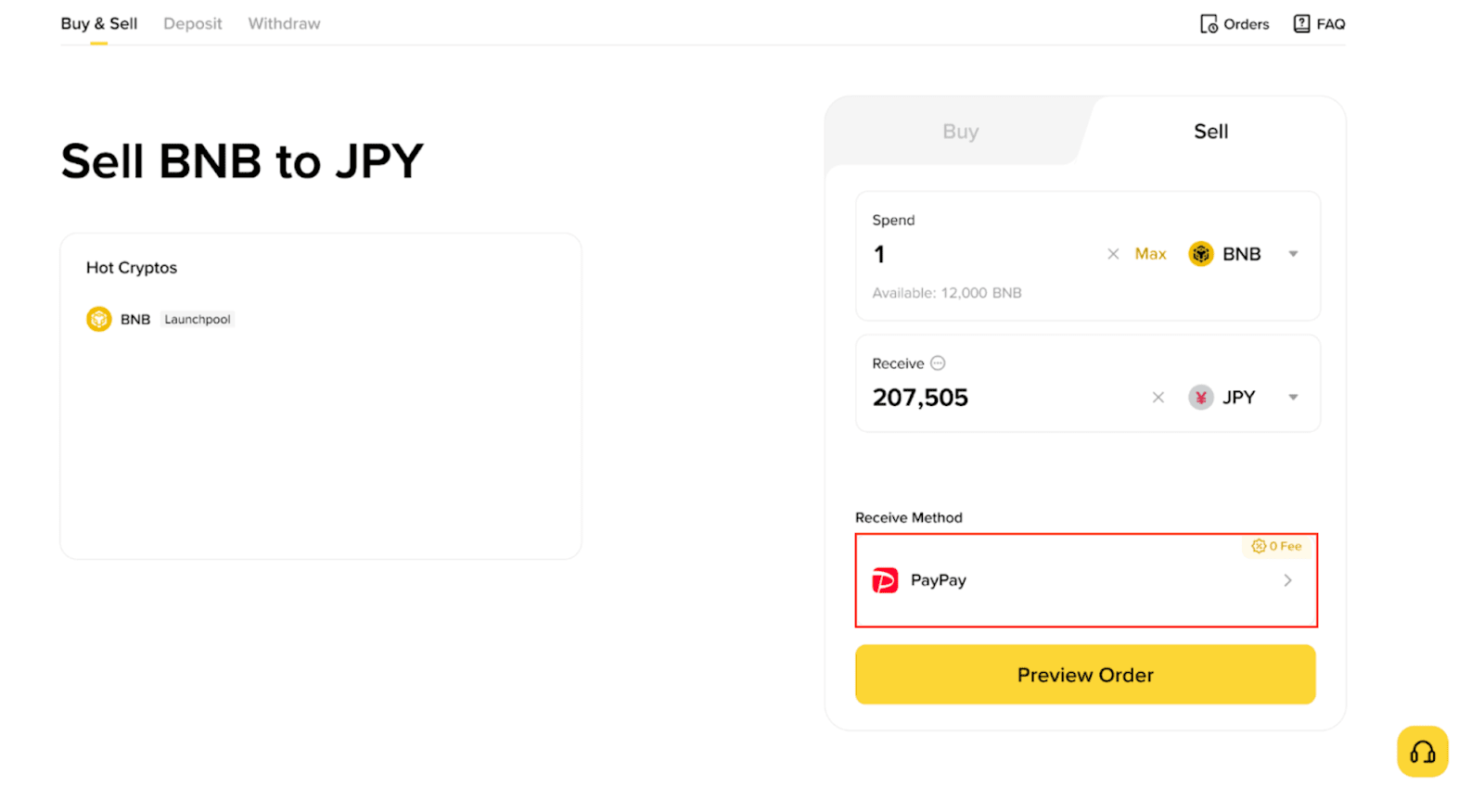
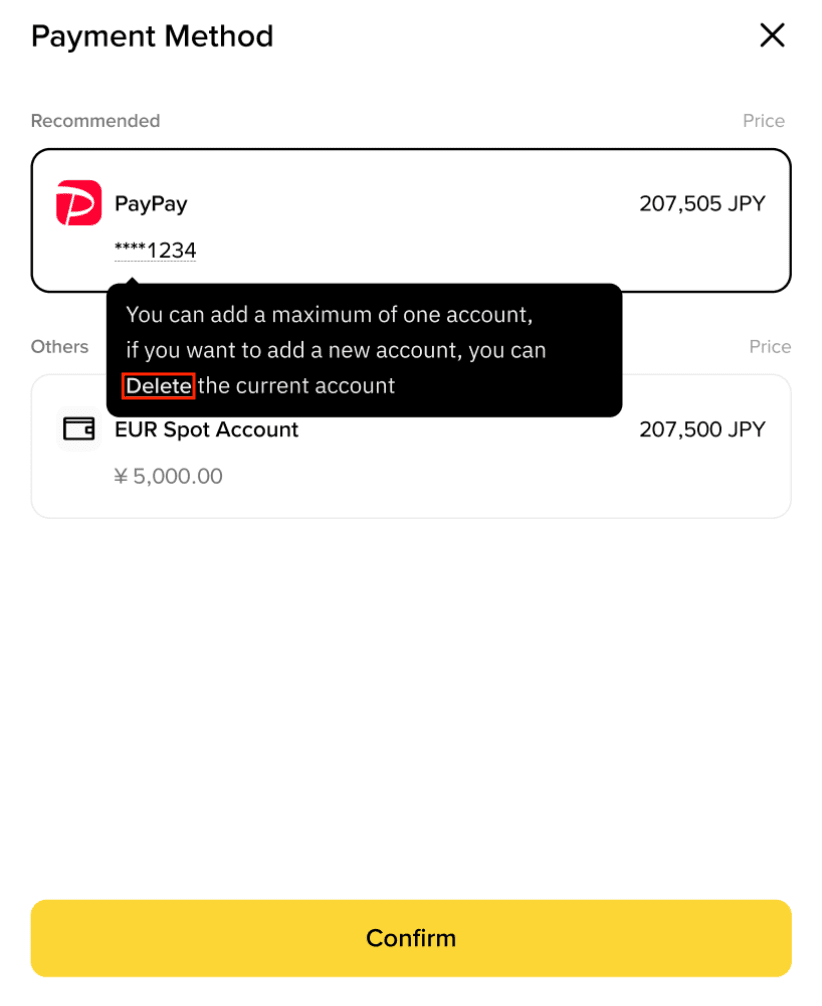
3. Select [PayPay] under [Payment Method]. Tap [Preview Order] to continue
Note: If you select ‘JPY Balance’ as your ‘Receive Method’, automatic top-ups to PayPay will not occur; funds will be reflected in your Binance account instead.
If this is your first time using the service, you must link your PayPay account. For detailed instructions on how to link, please refer to this page.
4. Sell Processing:
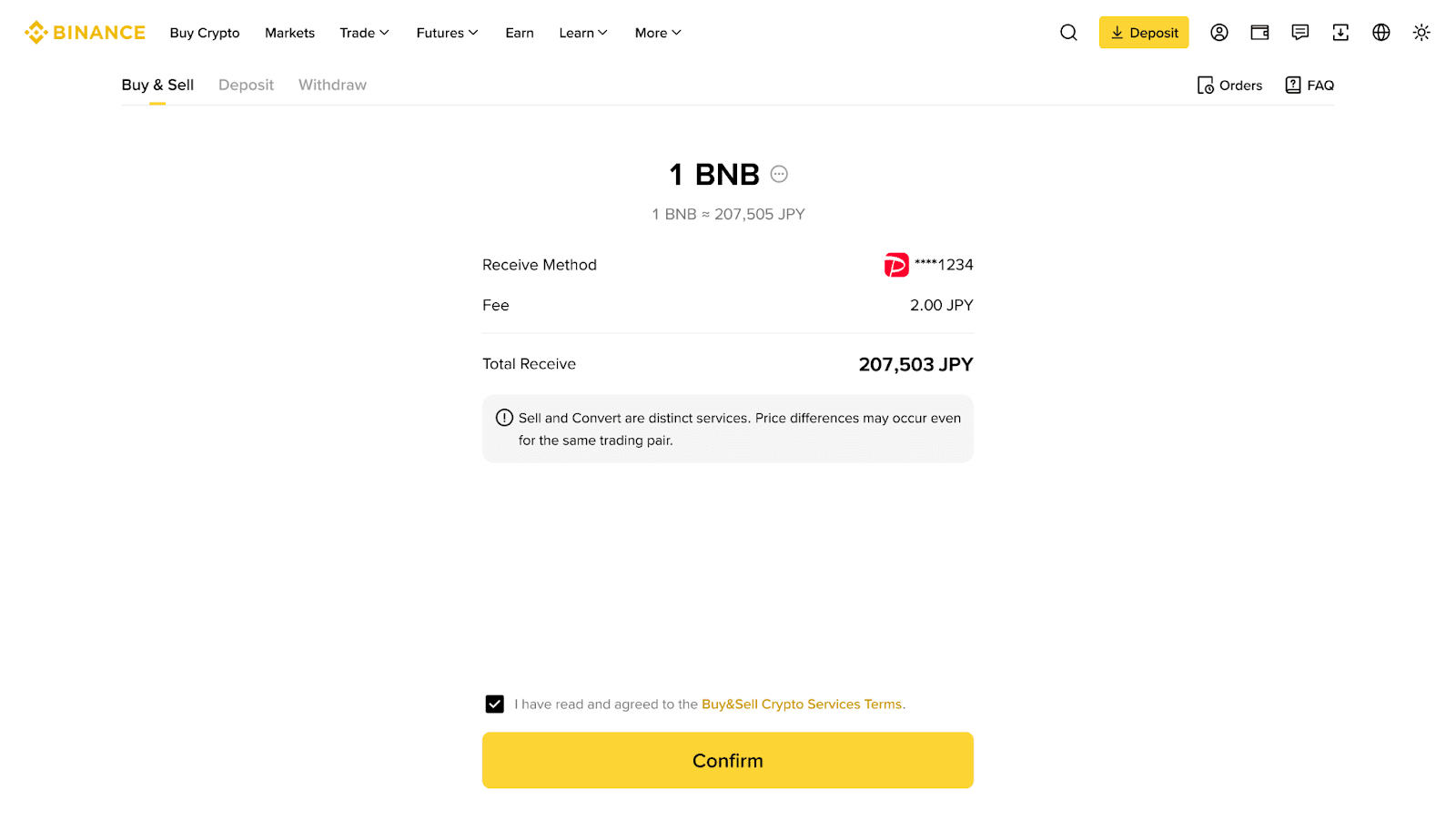
Upon linking your PayPay account, review the transaction details and tap [Confirm] to finalize your sell order.
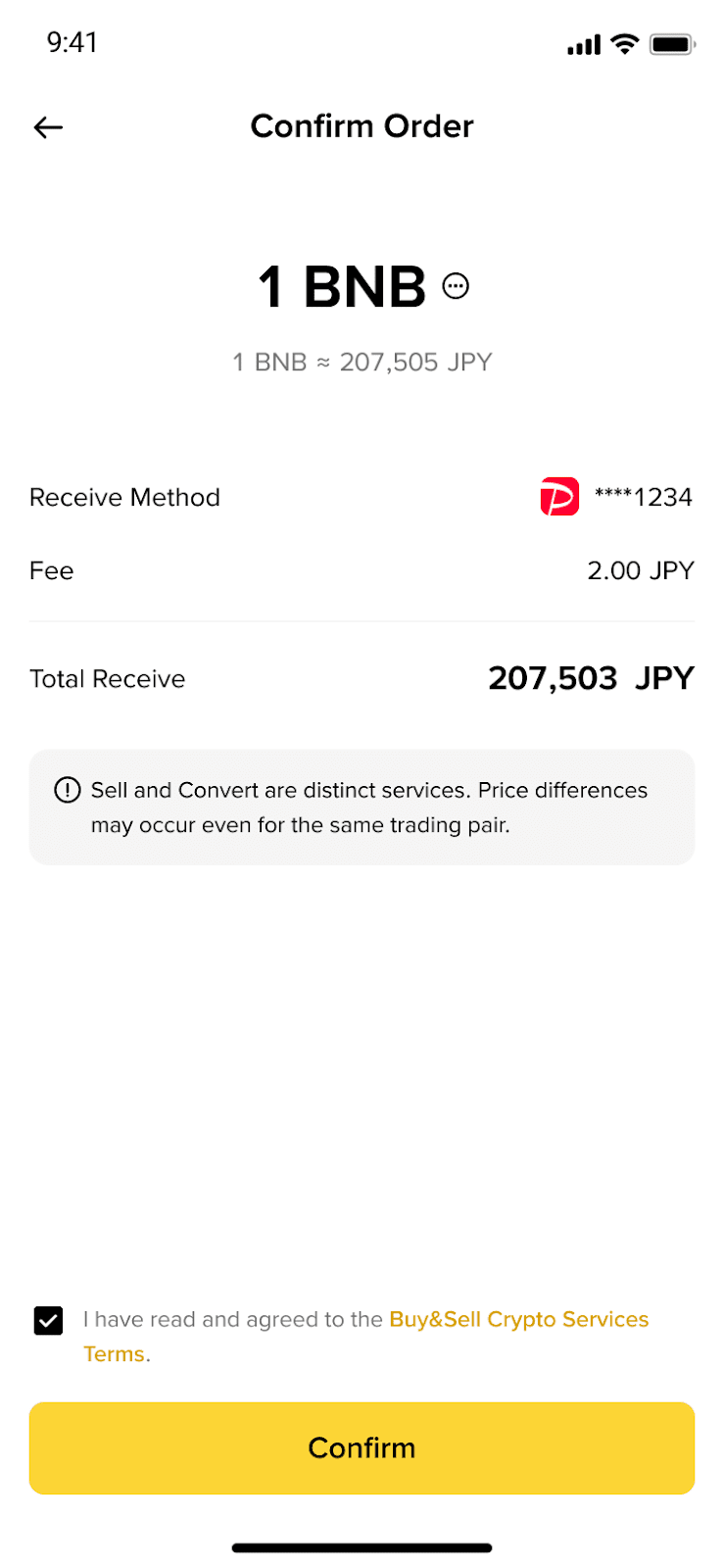
The maximum balance for your PayPay Wallet is 1 million yen (see here for details on PayPay Wallet's maximum balance). If you see an “Exceeded Limit” error, we recommend adjusting the amount of cryptocurrency you wish to sell.
(Please note that only the Japanese language is supported in PayPay.)
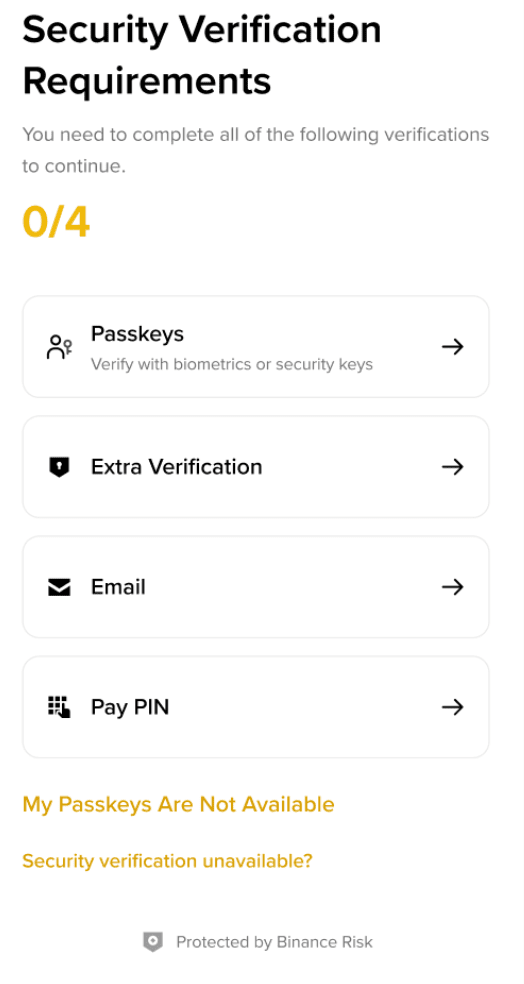
5. You are required to complete additional security verifications, including 2FA (two-factor authentication), before continuing with your transaction.
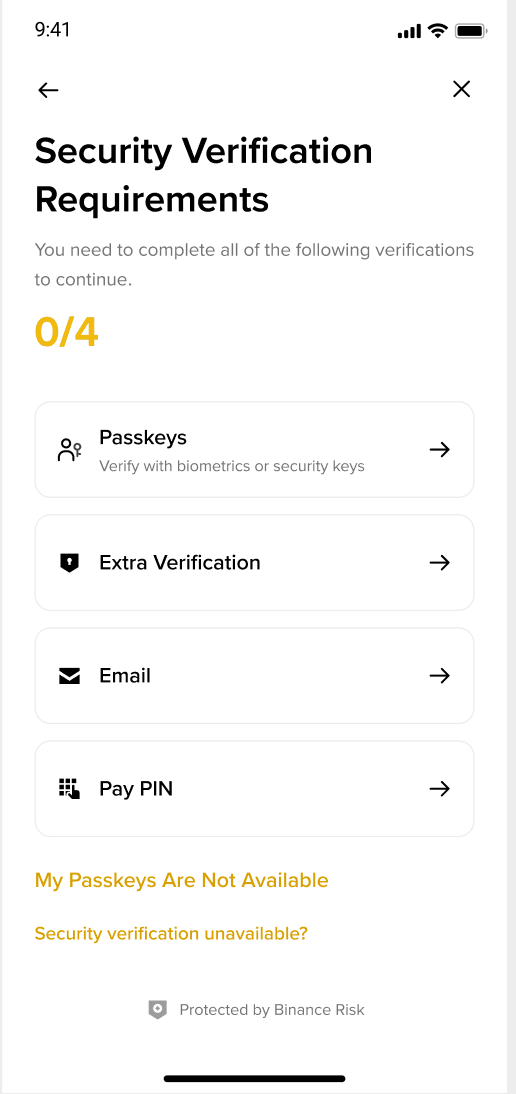
6. Please wait some time for the payment to be processed. Once the payment has been confirmed, JPY will be credited to your PayPay account.