Binance Japan has launched PayPay Money integration service, allowing you to Buy/Sell cryptocurrencies using PayPay Money and PayPay Points.
Important Notice: The app version supporting PayPay purchases will be rolled out starting November 20, 2025. However, depending on your region, it may take several days before it becomes available for download.
If you cannot update the app, please try using the service via a web browser.
By linking your Binance account to your PayPay account, you can use your PayPay account balance for the following services:
Feature (1) Purchase cryptocurrency using PayPay balance
The PayPay balance usable for purchasing cryptocurrency consists of PayPay Money and PayPay Points within the “PayPay Asset Balance” of your PayPay account.
Note 1: PayPay Money Lite cannot be used for this service.
Note 2: PayPay Points are limited to those granted as “PayPay Points (Standard)” within your PayPay account.
Additionally, points marked as “In Use,” “Pending,” or “Time-Limited” (awarded for other services) cannot be used.
No separate “Deposit” action is required to purchase cryptocurrency using your PayPay balance.
If Auto-Charge is enabled in your PayPay account, PayPay will automatically add funds to complete the purchase.
Feature (2) Automatically charge Japanese yen earned from selling cryptocurrency to your PayPay account
When selling cryptocurrency held in your Binance account for Japanese yen, selecting [PayPay] as the payment method allows the proceeds to be automatically charged (auto-withdrawn) to your PayPay account. A fee of 110 yen per transaction applies for this auto-withdrawal.
The charged Japanese yen will be reflected in your PayPay balance as “PayPay Money”.
If you select [JPY Balance] as the payment method, the Japanese yen will be reflected in your Binance account.
Important Notes
Please be aware that the following actions are not possible:
| Available Balance | Available | Payment Methods | ||
| PayPay Balance | Deposit to Binance | X | - | |
| Purchase Cryptocurrency | O | Select PayPay | PayPay Money and PayPay Points balances can be used | |
| Binance Balance (Japanese Yen) | Charge to PayPay | X | - | |
| Binance Balance (Crypto Assets) | Sell Crypto Assets for Japanese Yen | O | Select PayPay | Can be charged as PayPay Money (Withdrawal fee: ¥110 per transaction) |
O | Select Binance | Remains within your Binance account |
You can link your PayPay account via the Binance App or website.
[Important] To link your PayPay account, (1) the katakana name used for identity verification on your PayPay account; (2) the katakana name on the financial institution account used for Binance deposits and withdrawals, and (3) the registered date of birth must be identical.
1. If you haven’t registered your katakana name on the identity information page before, you will be prompted to enter before using this channel. If registration is required, please contact Binance Customer Support.
Please ensure that the katakana name you register is the same as in PayPay.
If the katakana name on your PayPay account does not match the katakana name registered in your Binance identity verification information, the linking will fail.
2. If you have already registered your katakana name, you will be redirected to the PayPay linking page within your Binance account. Complete the required steps on PayPay and select [Continue].
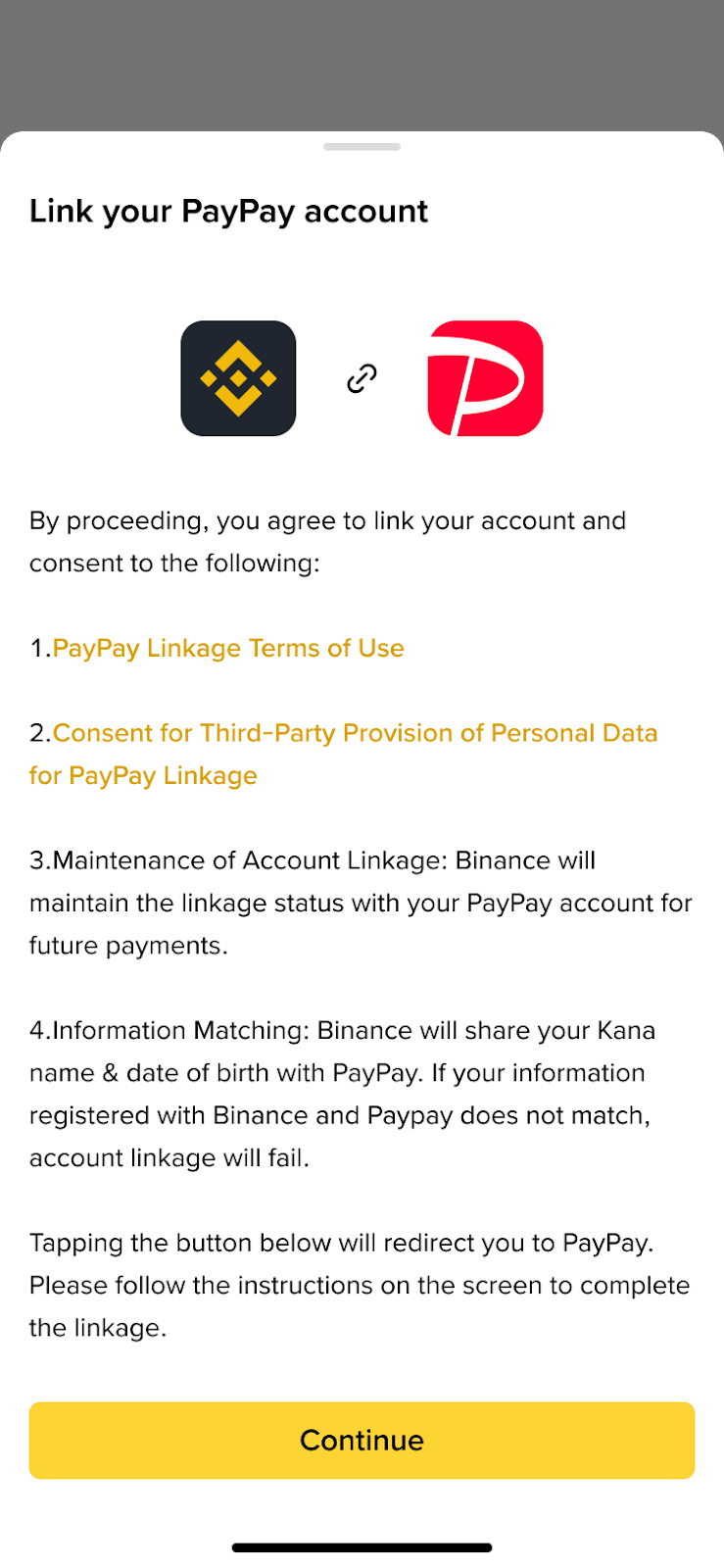
Account Linking will fail if the katakana name on your PayPay account does not match the katakana name registered in your Binance identity verification information.
Please confirm that the katakana names on PayPay, Binance, and your bank account are all up-to-date and identical.
If you need to update your katakana name on PayPay or your bank, please contact PayPay or your bank as necessary.
To change the katakana name on the financial institution account used for deposits and withdrawals on Binance, please contact Binance Customer Support. Please note that changes to Katakana names will only be made after confirming that it is the same person.
You can check the katakana name registered on Binance here.
For detailed usage instructions for PayPay Money, please refer to the link below:
