A Sub-Merchant is a virtual account created under a Channel Partner’s main account to manage acquired merchants or subsidiary companies. Note that a Sub-Merchant account is virtual and cannot be used to log in.
There are two ways to create a Sub-Merchant:
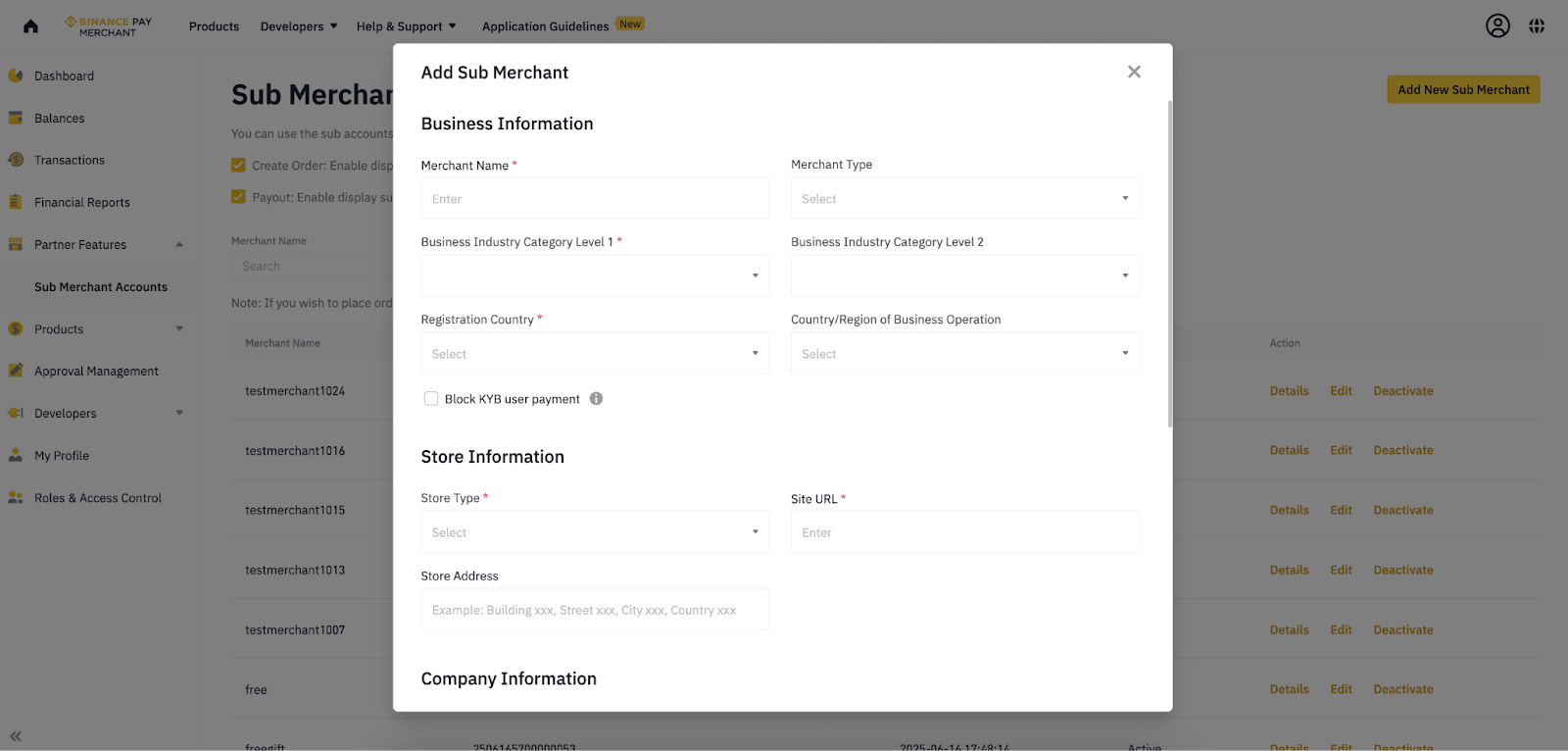
The following fields are mandatory (as of December 2024)
Note: Mandatory fields may be updated to comply with regulatory requirements.
After sub-merchant is created successfully, you will see a “subMerchantId” returned. Capture the “subMerchantId” and pass the “subMerchantId” in the Create Order API when creating a new order for your sub-merchant, refer to [How do I use the Sub-Merchant ID when creating orders?] below for more information.
You can manage and view all orders for each Sub-Merchant directly in the Merchant Dashboard and in the exported transaction reports.
If you need to update or change any Sub-Merchant information, you can do so either by using the Modify Sub-Merchant API or manually through the Merchant Dashboard.
Send a POST request to the endpoint:
| POST /binancepay/openapi/submerchant/add |
Request Example
Response Example
In addition to using the “Create SubMerchant” API, Sub-Merchants can also be created via the Merchant Management Platform (MMP).
Under the [Partner Feature] tab - Sub Merchant Accounts
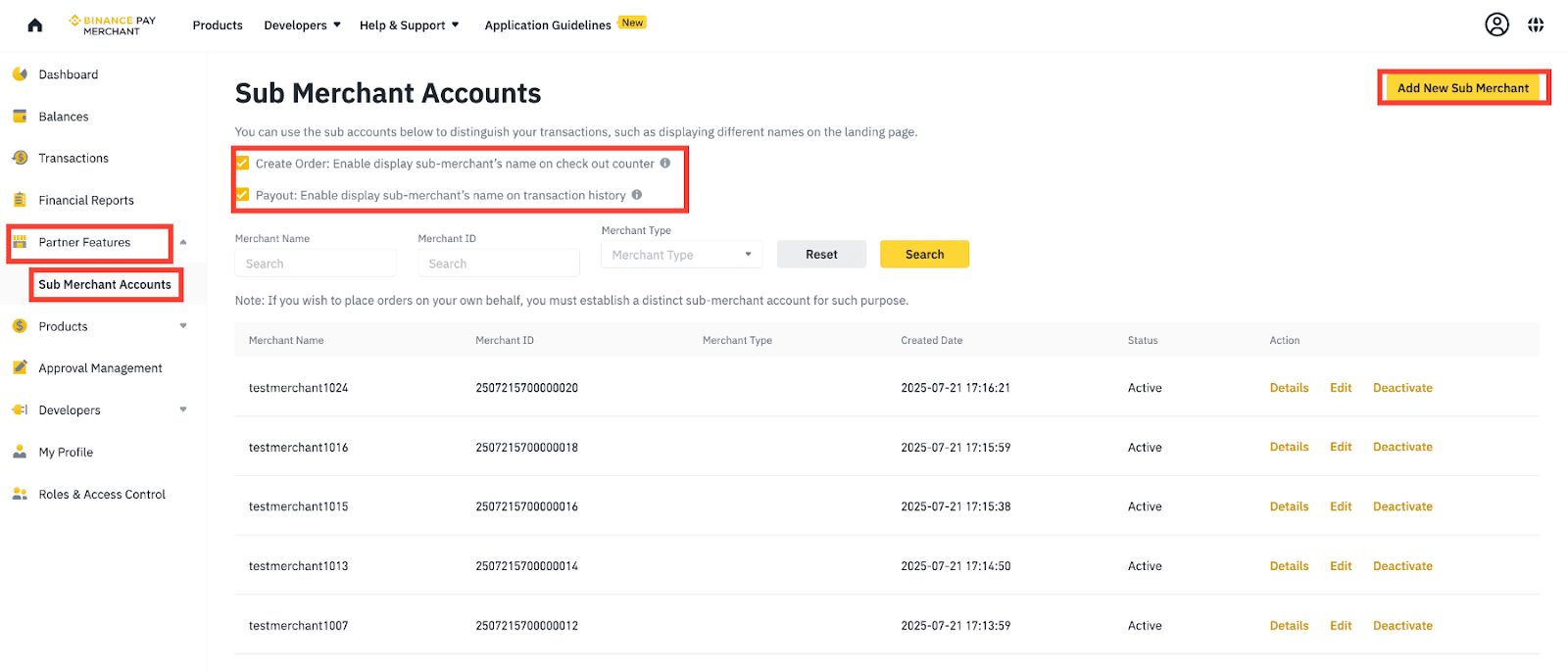
Please note that the “Business Brand Logo” is optional.
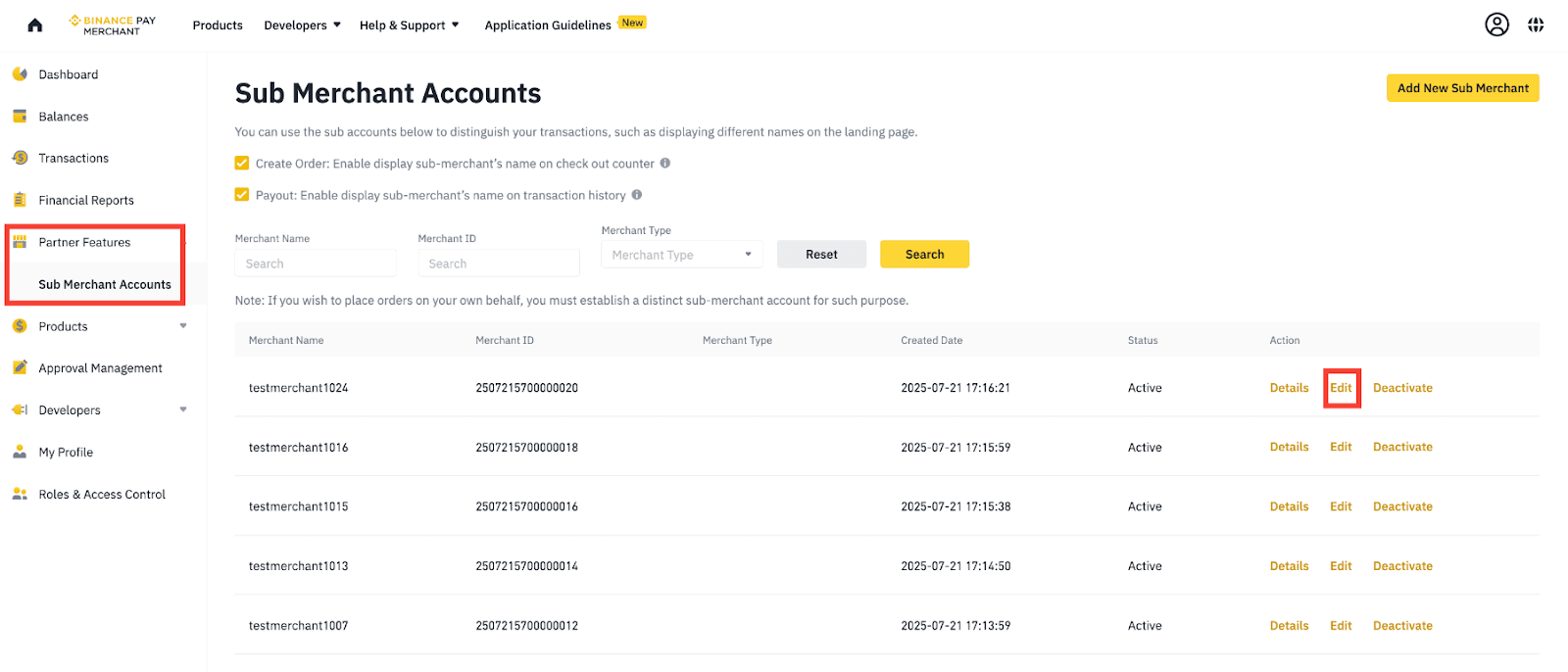
You can modify sub-merchant information via API and MMP:
1. Via Sub-merchant API to update submerchant details
Send a POST request to the endpoint:
| POST /binancepay/openapi/submerchant/modify |
Request Example
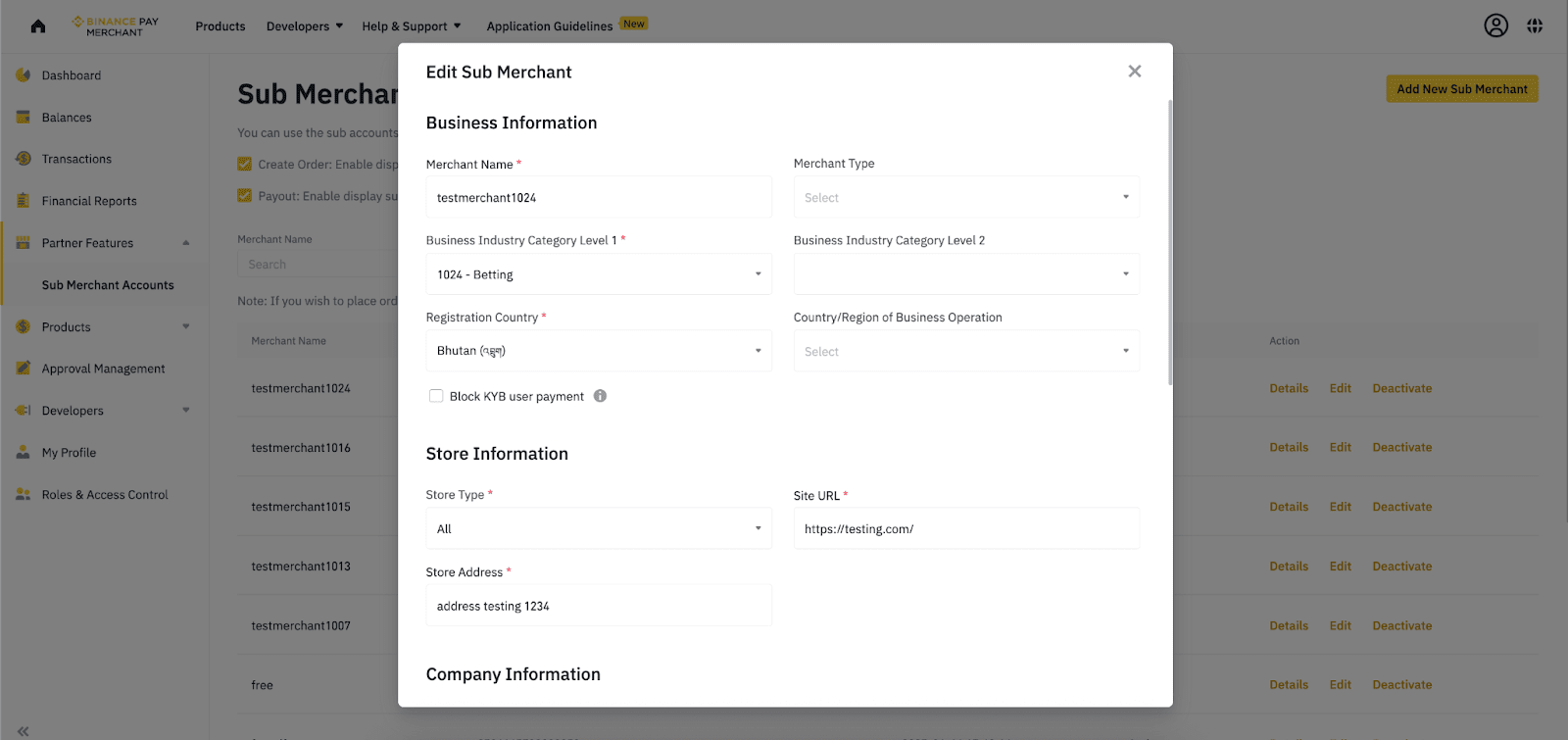
2. Via MMP - Merchant Dashboard, navigate to the [Sub Merchant Accounts] tab. Locate the Sub-Merchant you wish to modify and select “Edit” to update the details accordingly.
Edit and input the information accordingly and scroll to the bottom, select [Confirm] to save it.
When creating an order via the Create Order API, include the subMerchantId in the request to associate the order with the correct Sub-Merchant.

Request Example
