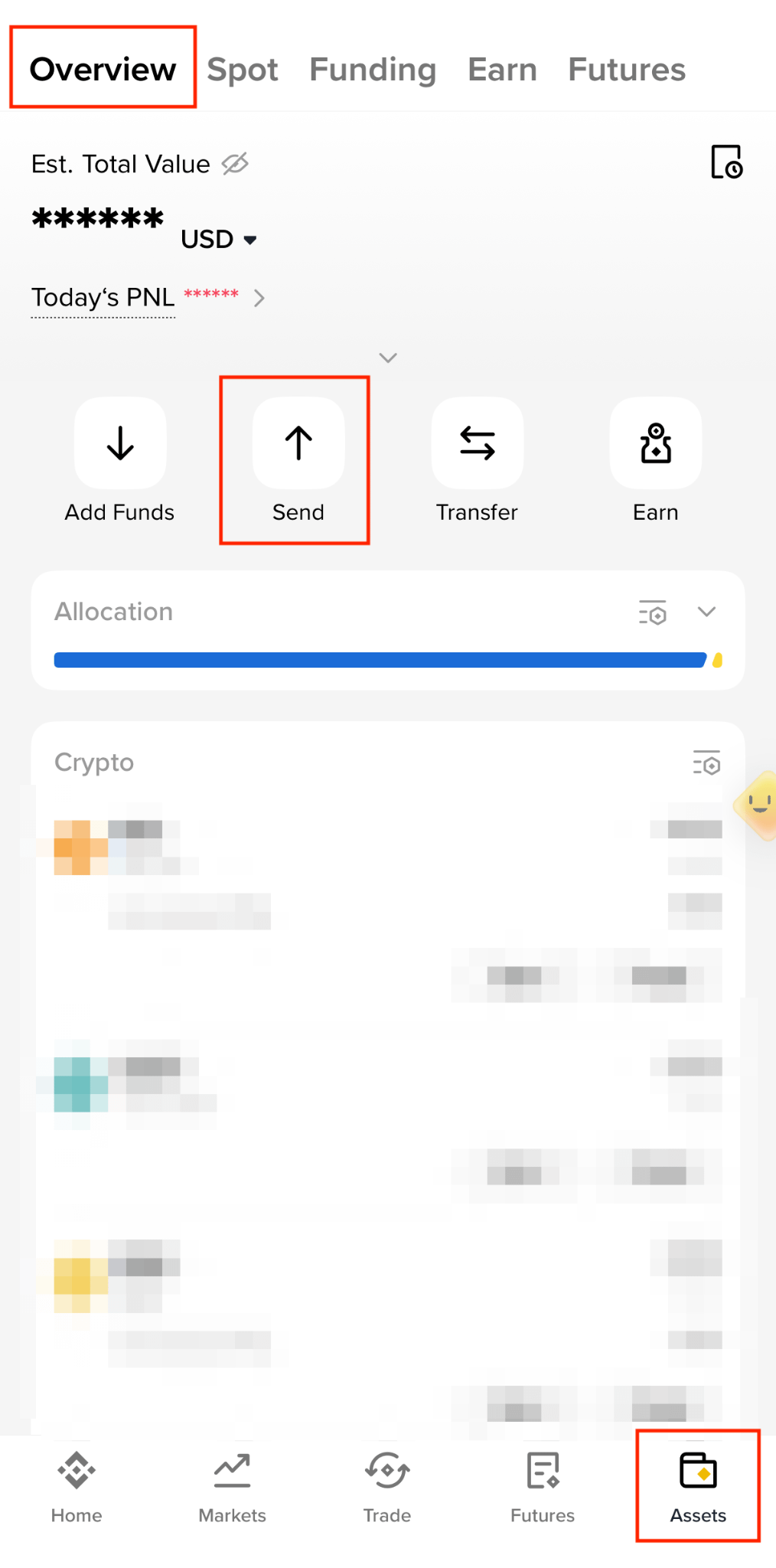
1. Log in to your Binance app and go to [Assets] - [Overview] - [Send].
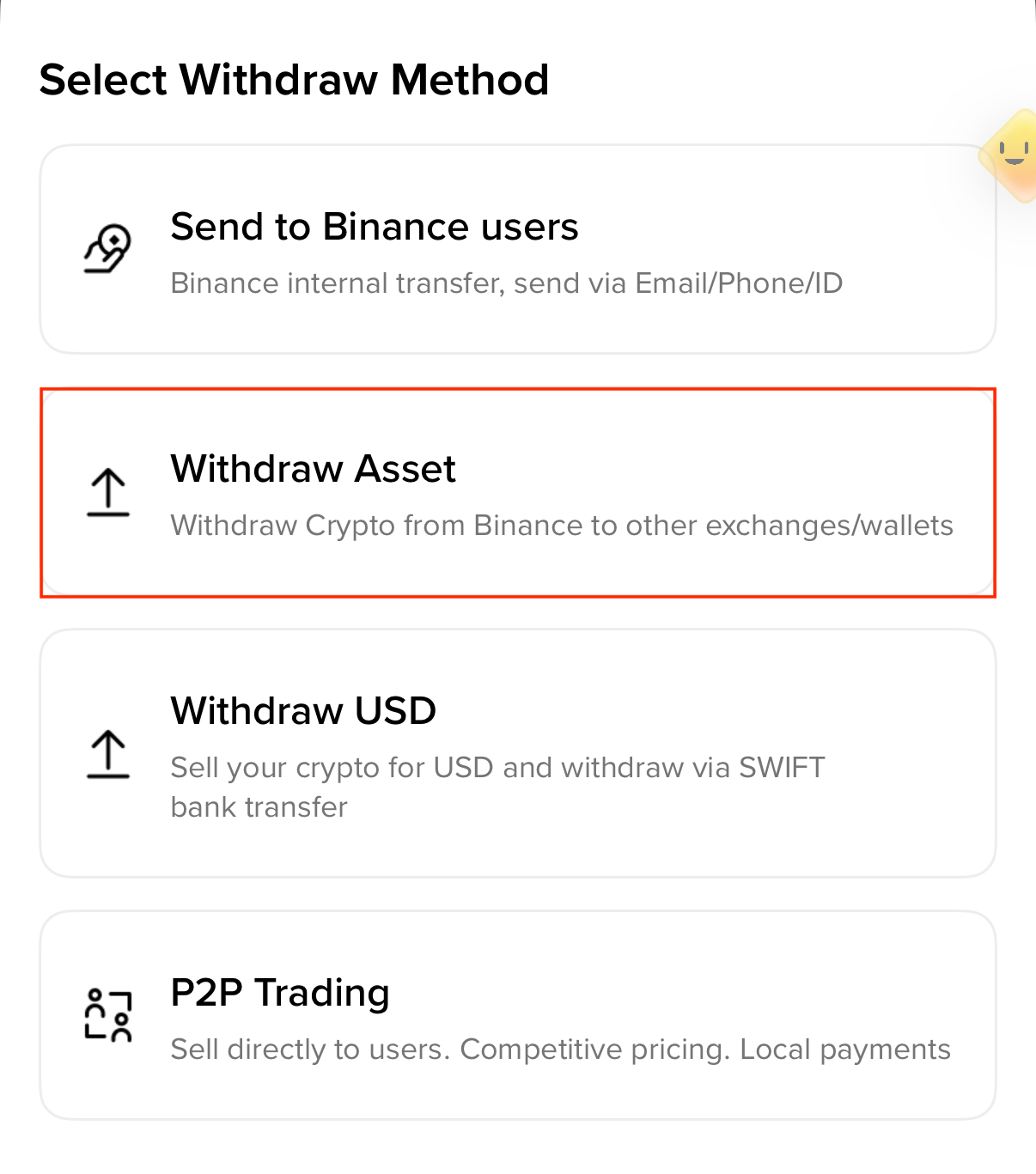
2. Tap [Withdraw Asset].
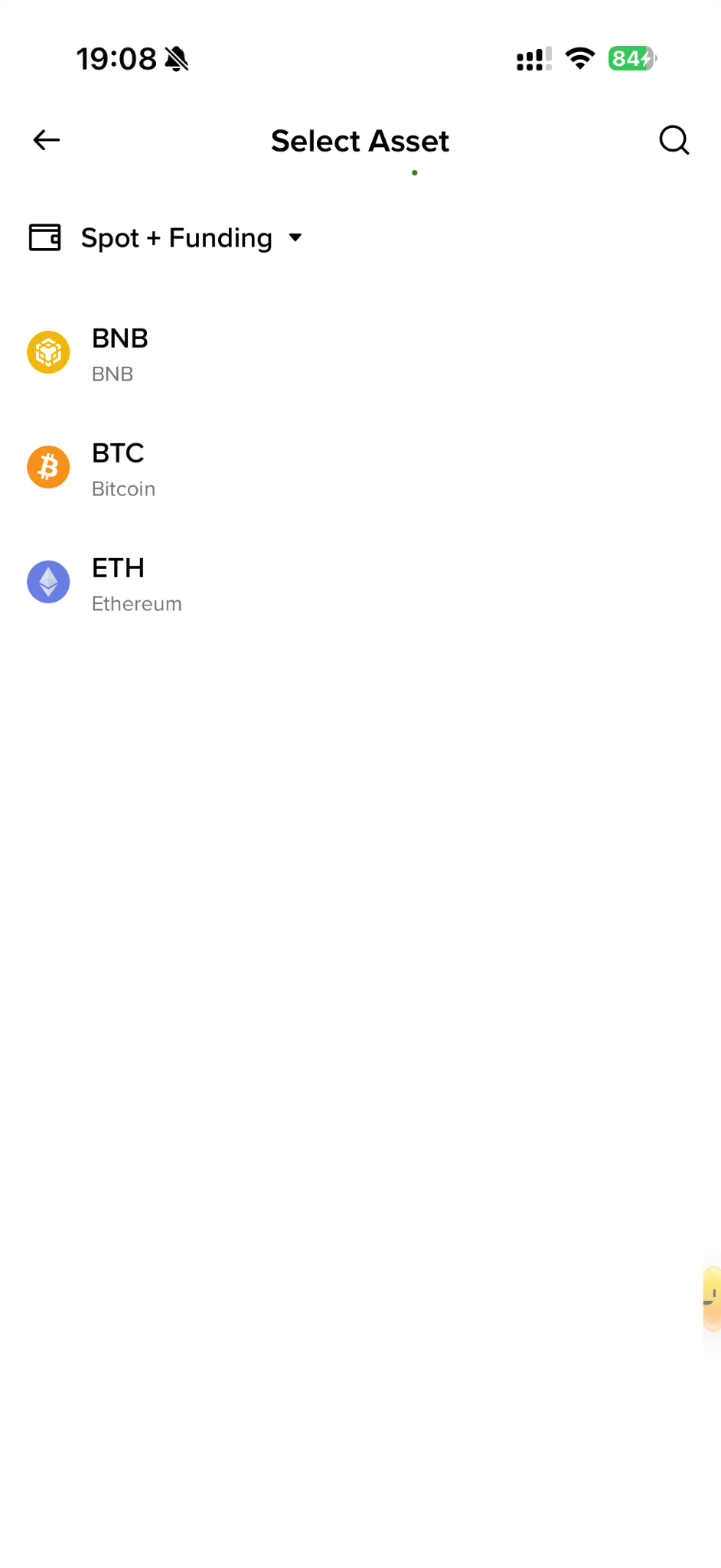
3. Choose the account to send from and the asset to send.
4. Paste the address you want to withdraw to and select the network.
Please choose the network carefully and make sure that the selected network is the same as the network of the platform you are withdrawing funds to. If you select the wrong network, your funds might be lost and will not be able to be recovered.
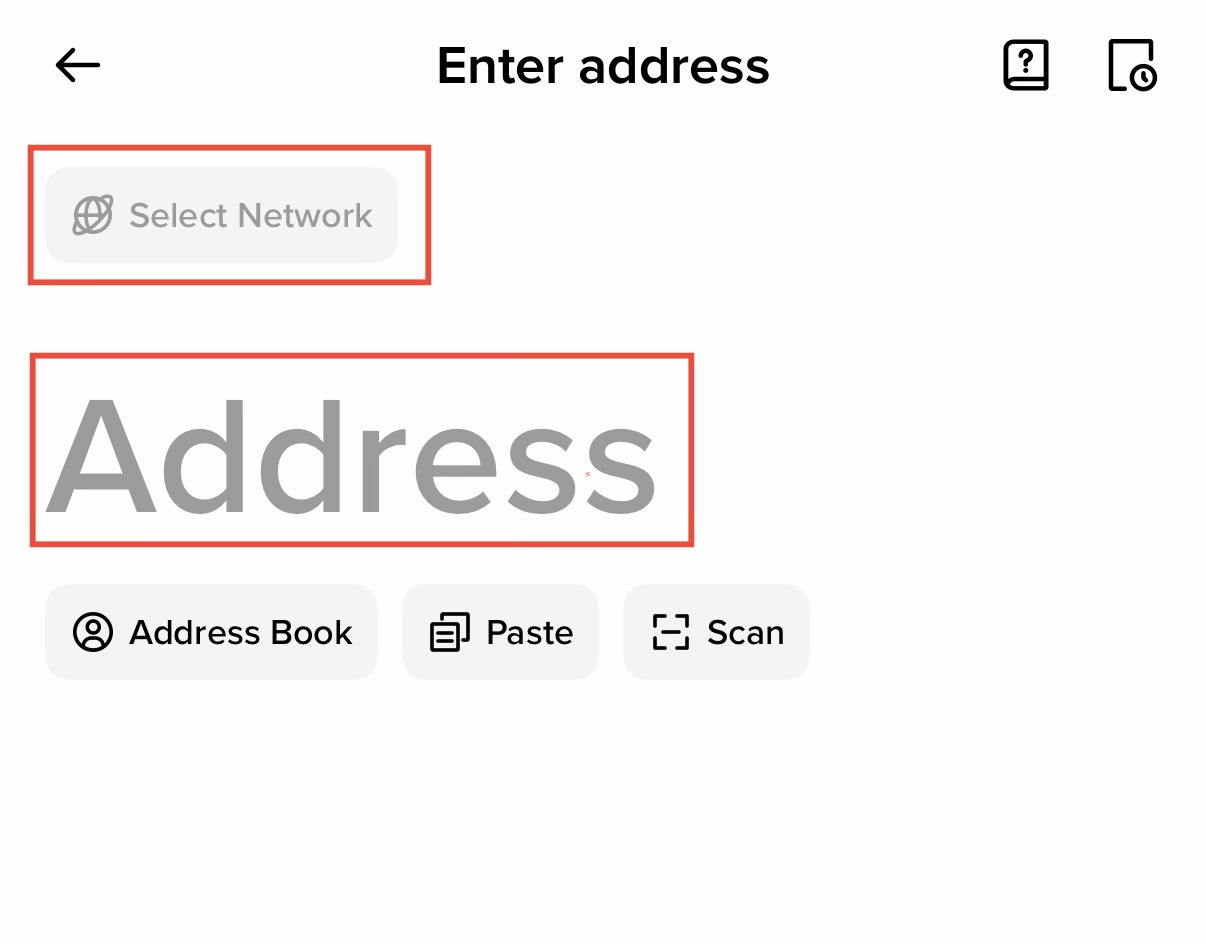
Some of the common networks include:
Please note: For certain networks, such as XRP or EOS, you must fill in the Memo when making a transfer, or your address cannot be detected. Sending funds to the wrong network will result in permanent loss. Always confirm with the receiving platform which network they support before withdrawing.
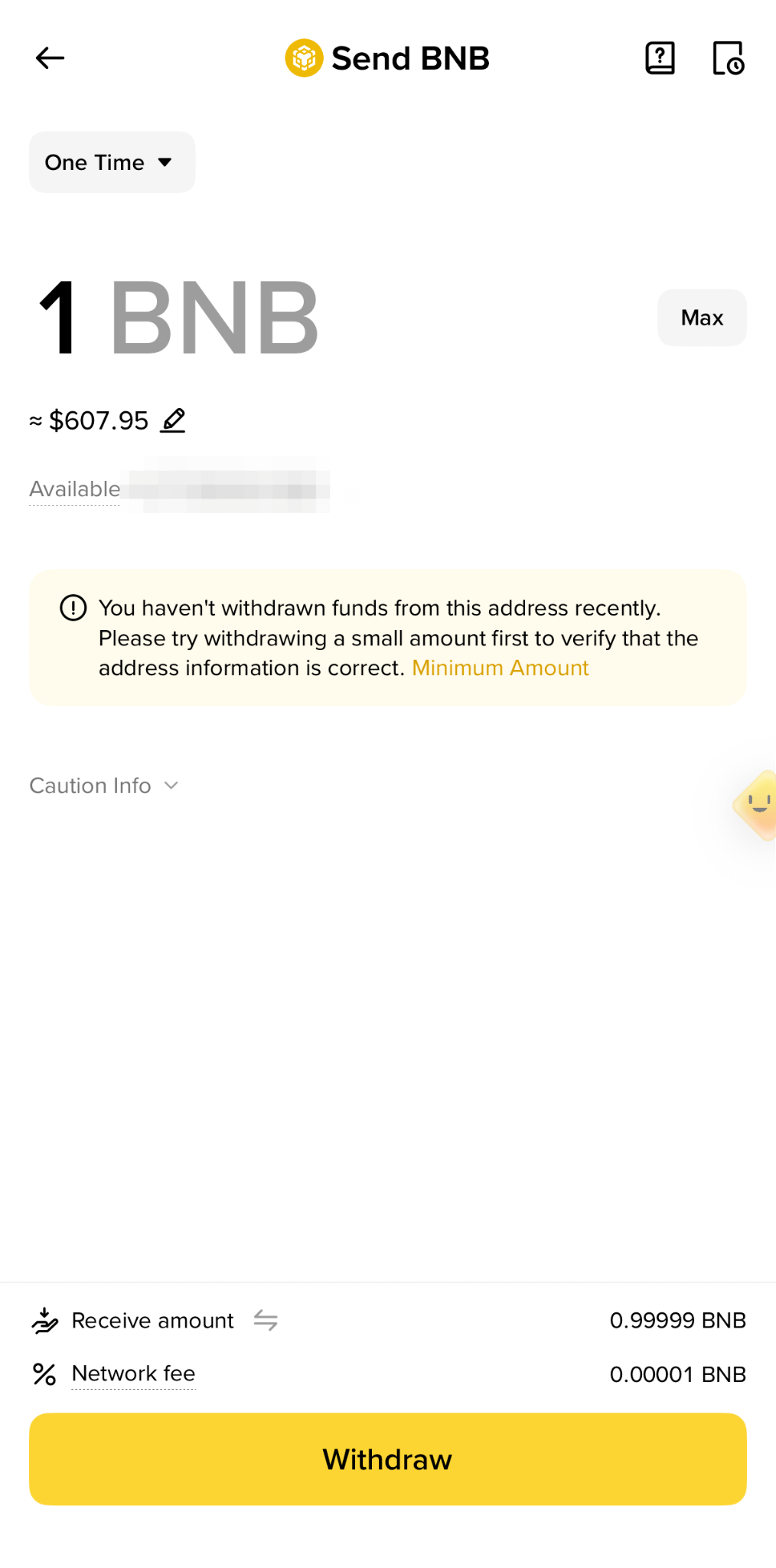
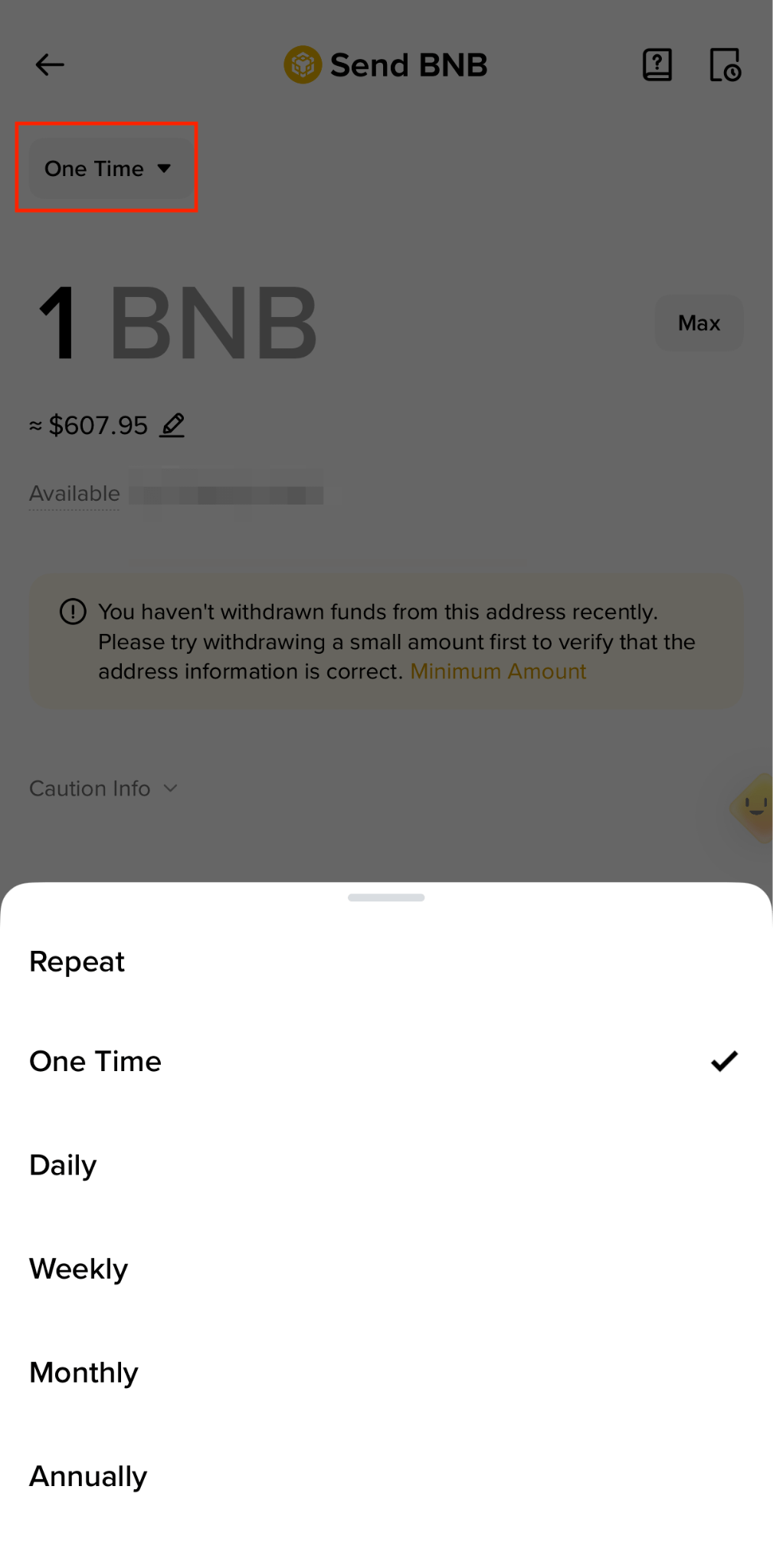
5. Enter the withdrawal amount, and you will see the corresponding transaction fee and the final amount you will receive. You can also tap [One Time] to choose the frequency of withdrawal to the same address. Tap [Withdraw] to proceed.
Note: If this is the first time you make a withdrawal to the entered address, you’ll see a safety pop-up. We suggest sending a small amount of assets first to verify that the address information is correct.
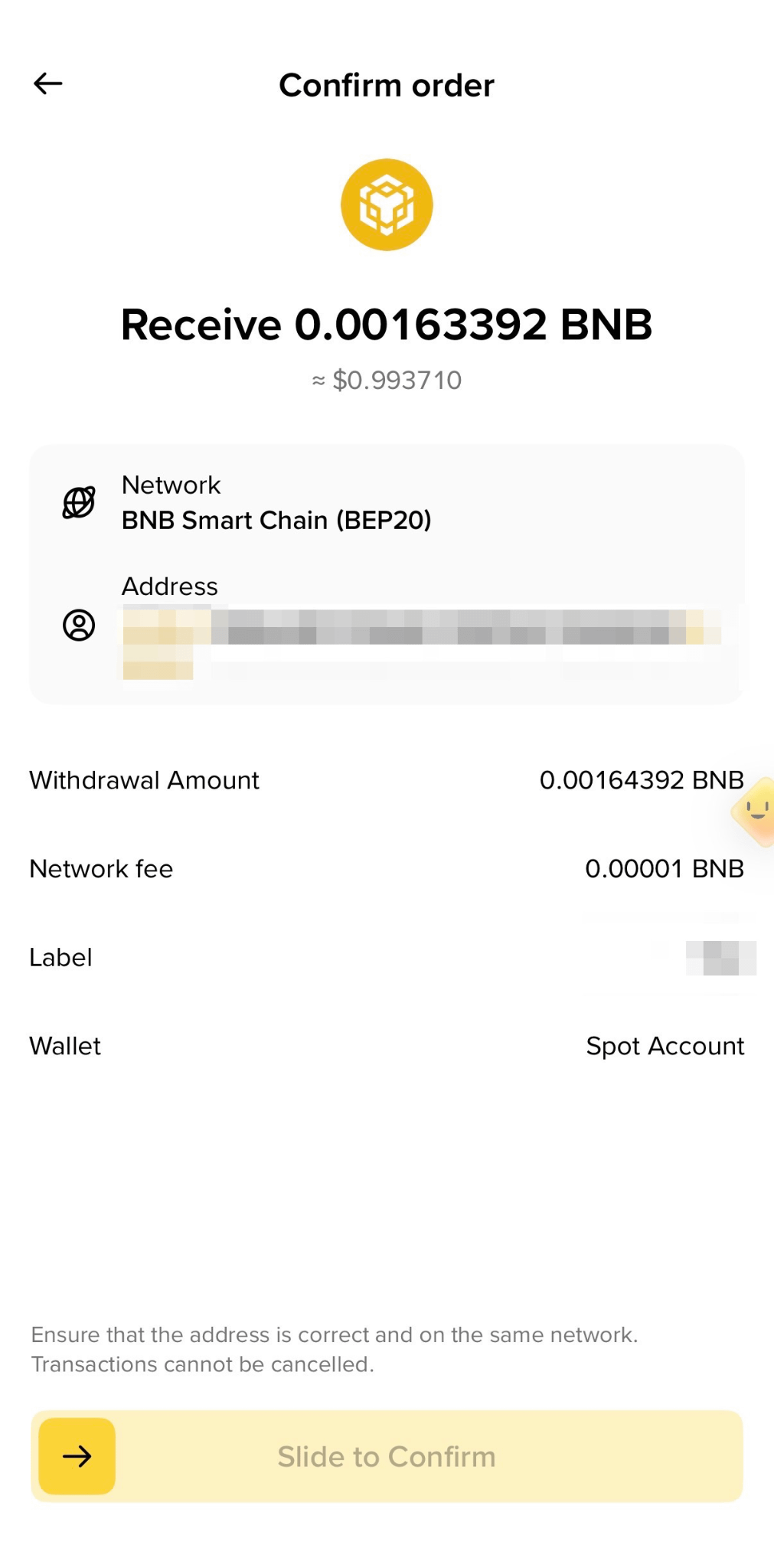
6. You’ll be prompted to confirm the transaction again. Please check the withdrawal address and network carefully before sliding to confirm.
If you enter the wrong information or select the wrong network when making a transfer, your assets will be permanently lost. Please make sure the information is correct before you confirm the transaction.
7. Verify the transaction with your passkey or 2FA devices. After confirming the withdrawal request, please wait patiently for the transfer to be processed.
Let’s use BNB to illustrate how to transfer crypto from your Binance account to an external platform or wallet.
1. Log into your Binance account and go to [Assets] - [Overview].
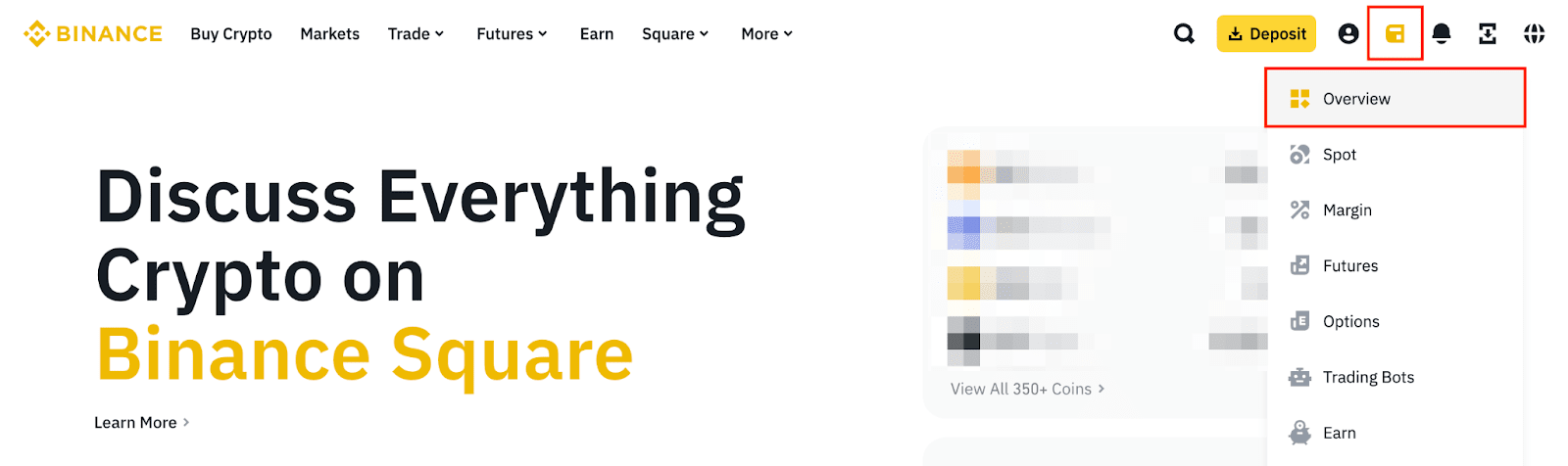
2. Click [Withdraw].
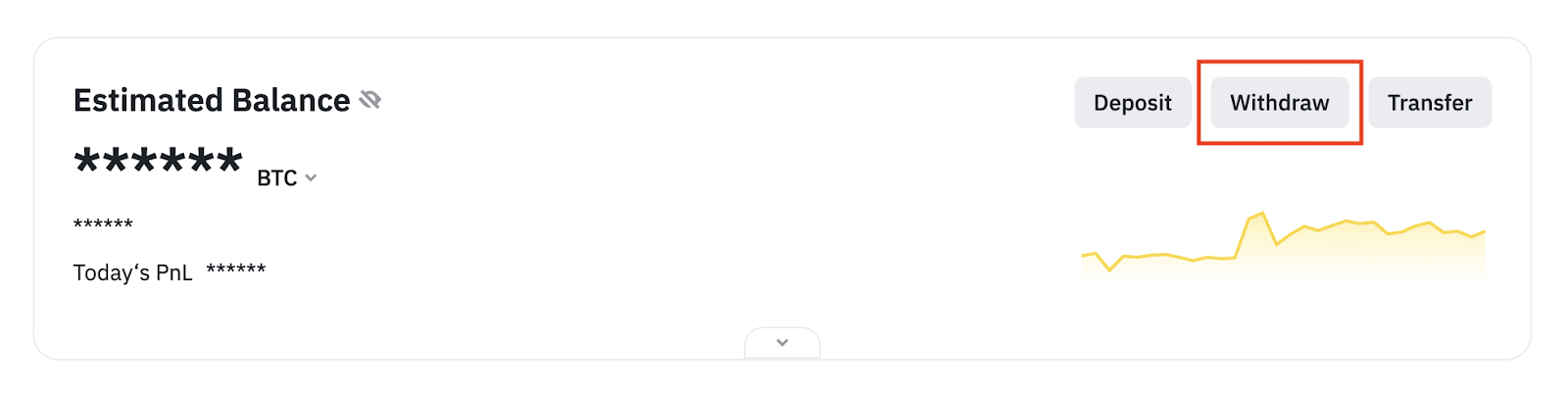
3. You’ll be redirected to the withdrawal page. Click [Withdraw Asset].
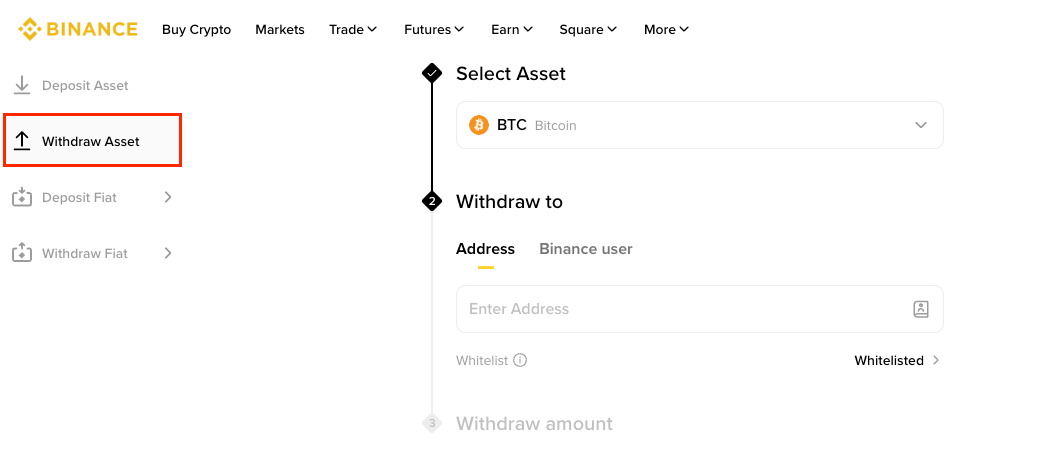
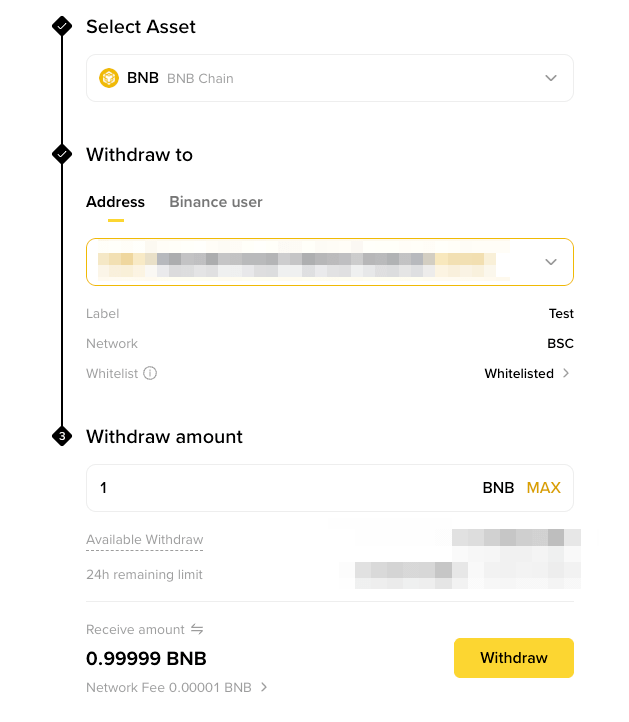
4. Select the cryptocurrency you want to withdraw, for example, BTC.
Click [Address] and paste the recipient address, or select a saved address by clicking the address field. To add a new withdrawal address to your address book, please refer to How to Manage Withdrawal Settings for My Binance Account?.
The network should be automatically selected based on the address you entered. Please make sure that the network matches the address entered, or your funds might be lost and couldn’t be recovered.
Click [Withdraw] to proceed.
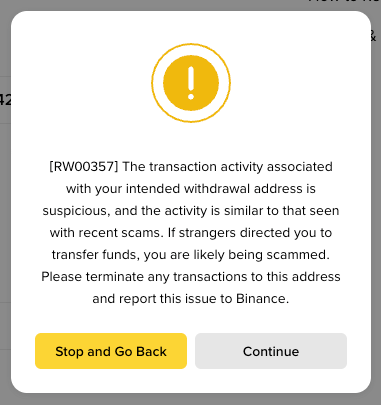
You may see the below prompt if the address you entered is suspicious. Click [Stop and Go Back] to verify the address is correct before proceeding.
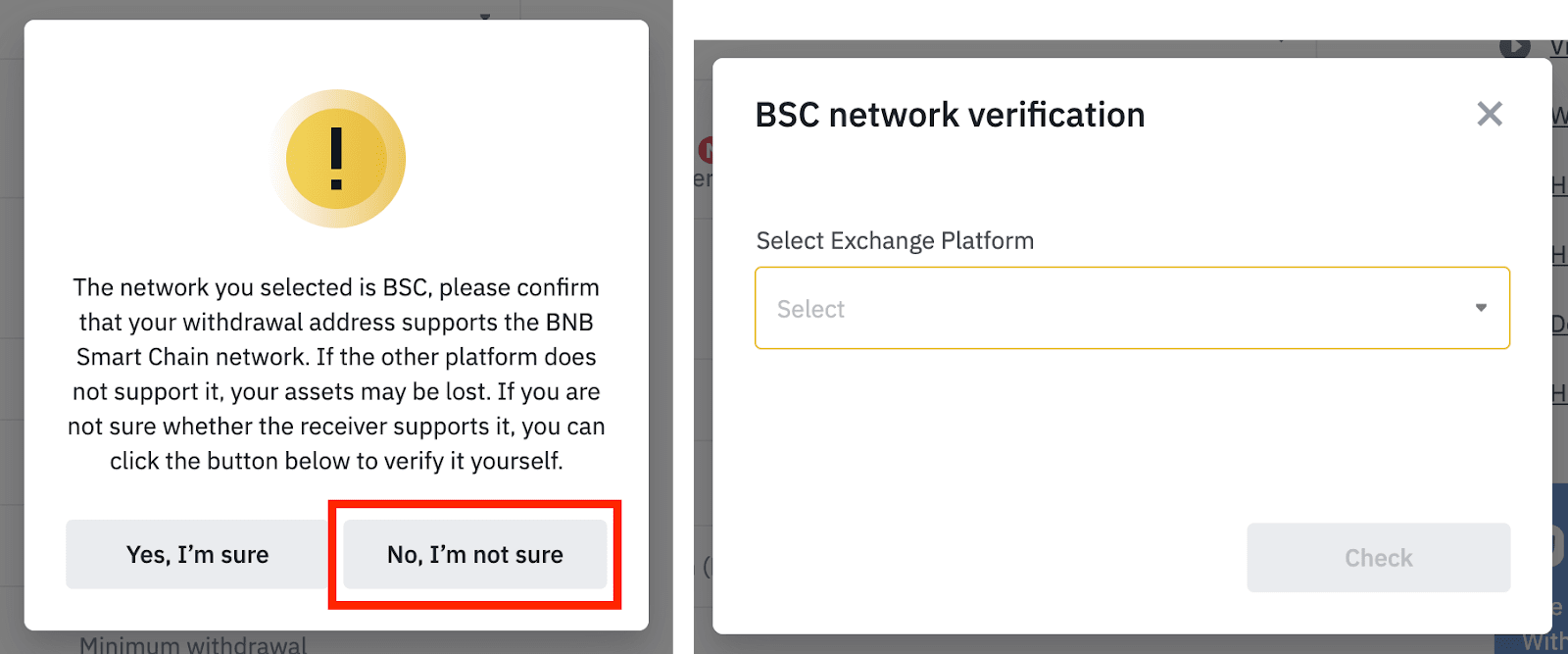
You’ll be prompted to confirm that the receiving address supports the selected network. If you’re unsure, click [No, I’m not sure], select the exchange/platform you’re withdrawing to, and click [Check].
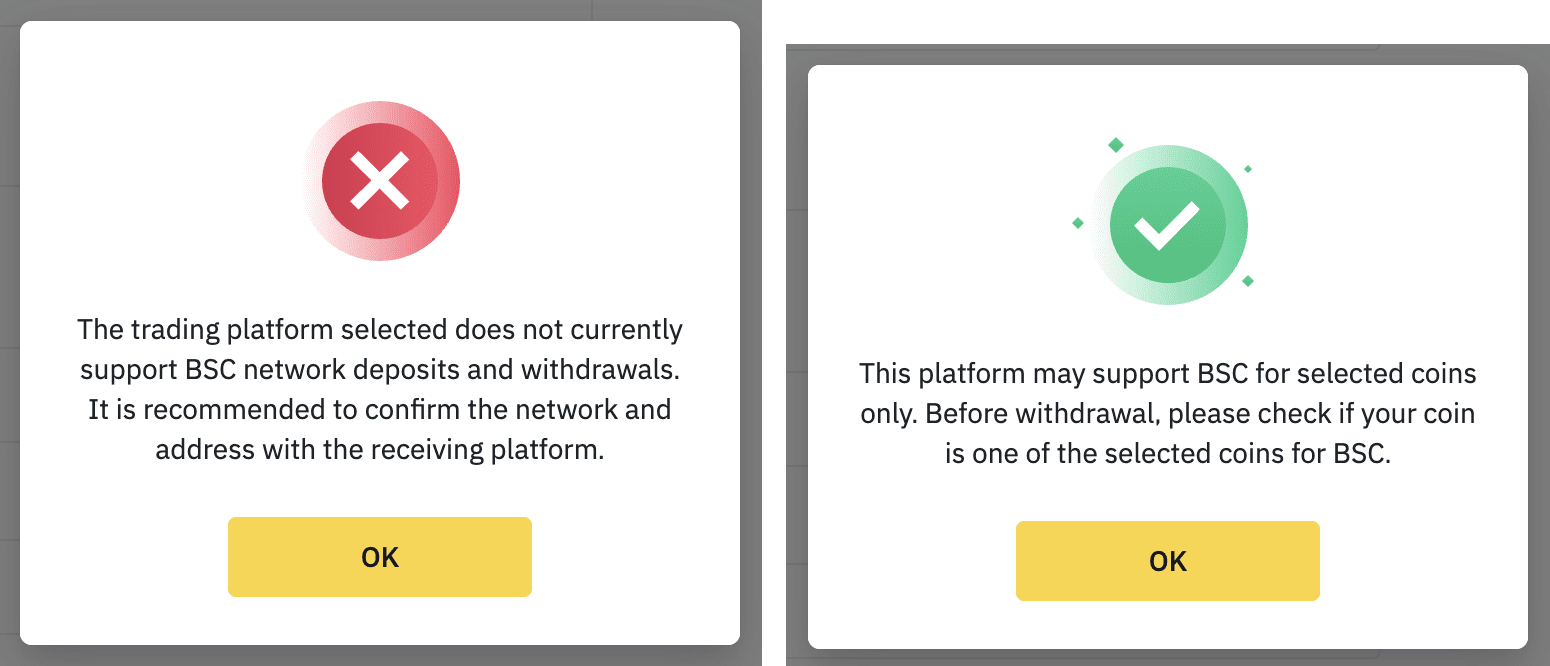
If the exchange/platform doesn’t support the token, please select another network. You are recommended to confirm the supported networks with the receiving exchange/platform before proceeding, or your assets might be lost and couldn’t be recovered.
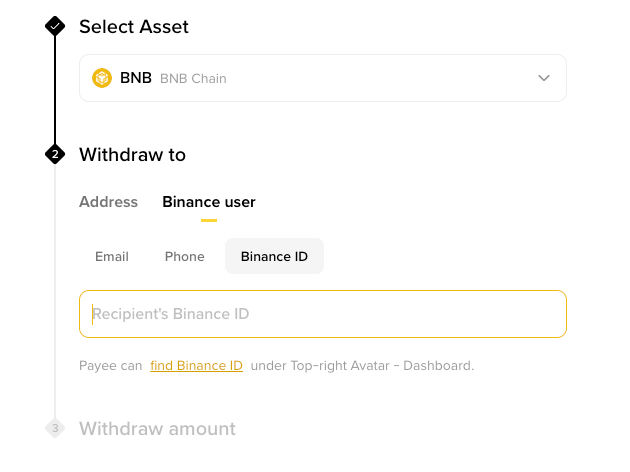
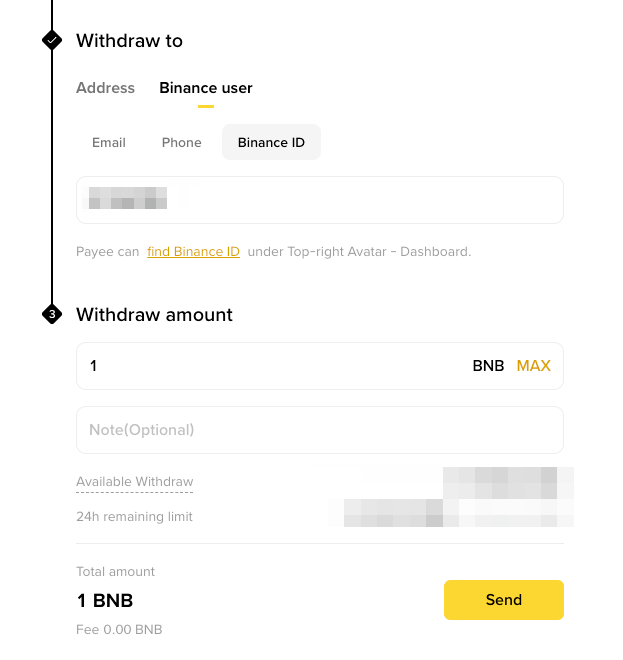
Click [Binance User]. Choose [Email], [Phone], or [Binance ID] and enter the recipient’s information.
Enter the withdrawal amount and a note to the recipient (optional). You’ll see the transaction fee and the final amount the recipient can receive. Click [Send] to proceed.
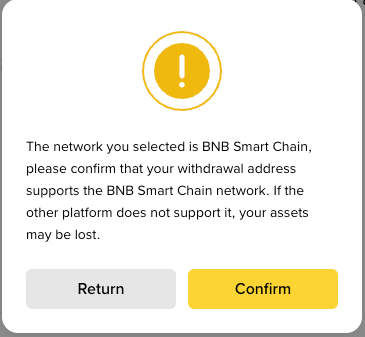
6. You’ll be prompted to confirm that the receiving address supports the selected network. If you’re unsure, click [Return] and verify. Otherwise, click [Confirm].
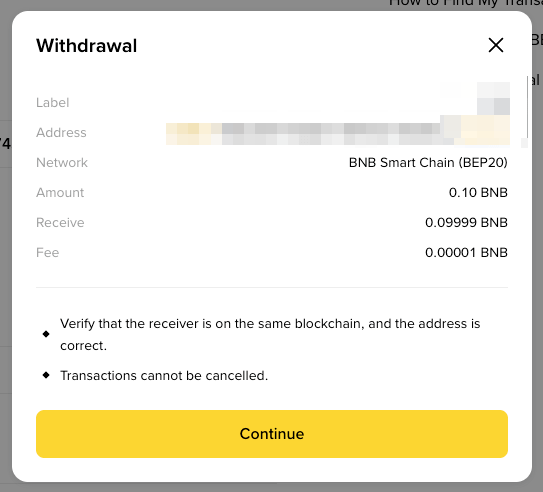
7. Check the withdrawal details carefully before clicking [Continue].
8. Complete security verifications for the withdrawal request.
9. Your withdrawal request has been submitted. After confirming your request on Binance, it takes time for the transaction to be confirmed on the blockchain. The confirmation time varies depending on the blockchain and its network traffic. Please wait patiently for the transfer to be processed.
After confirming your request on Binance, it takes time for the transaction to be confirmed on the blockchain. The confirmation time varies depending on the blockchain and its current network traffic.
You can check the status of your deposit or withdrawal from [Orders] - [Transaction History].
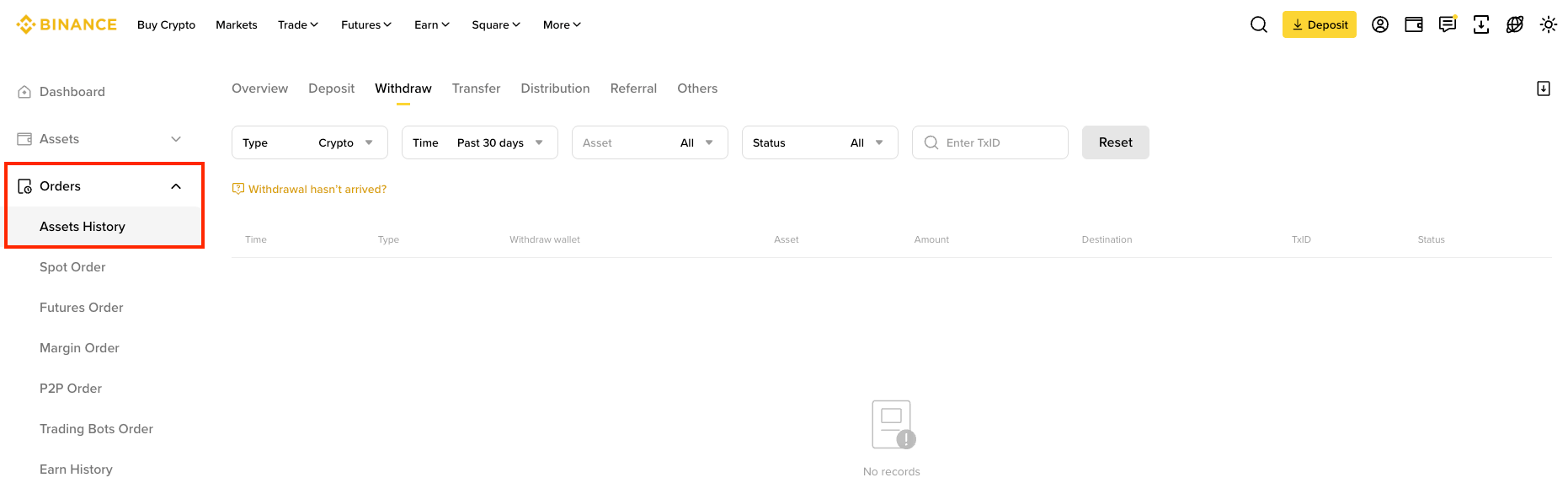
If you’re using the app, go to [Assets] - [Overview] and tap the [Transaction History] icon on the right.
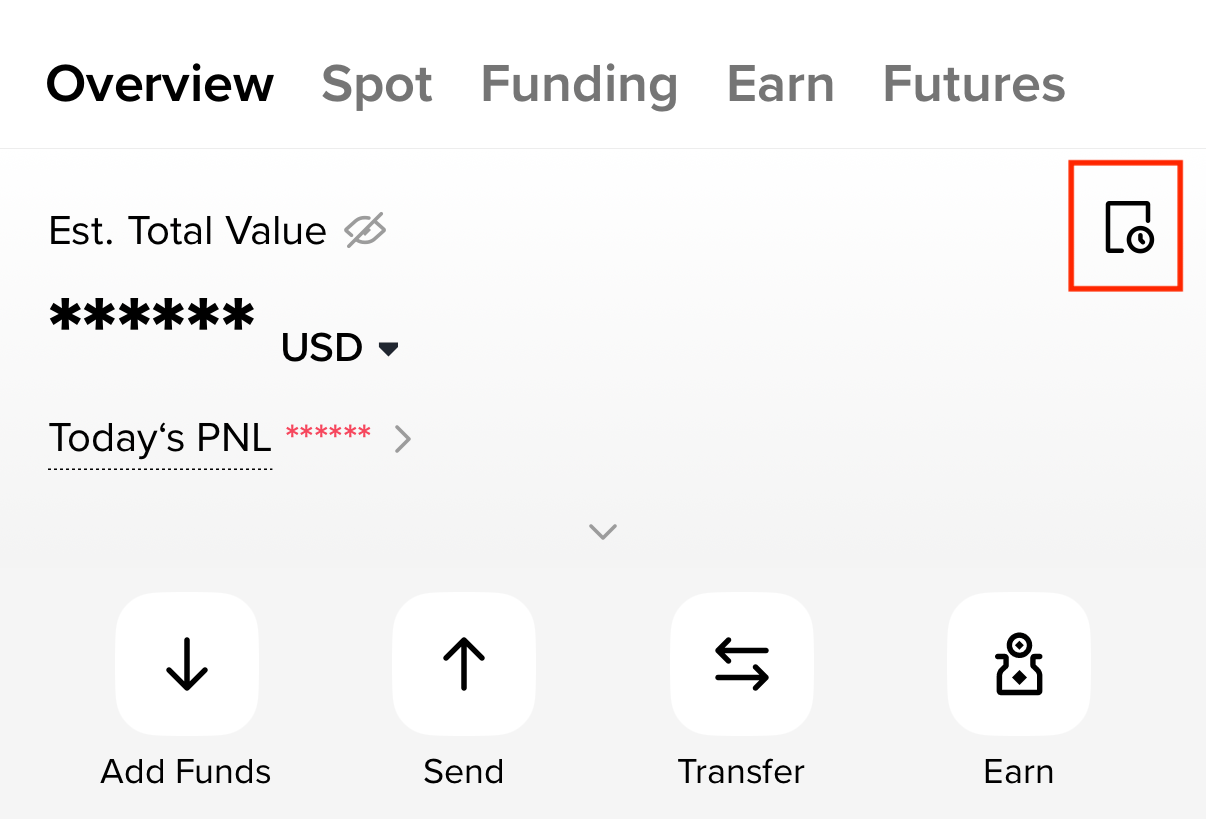
To add a new withdrawal address to your address book, please refer to How to Manage Withdrawal Settings for My Binance Account?
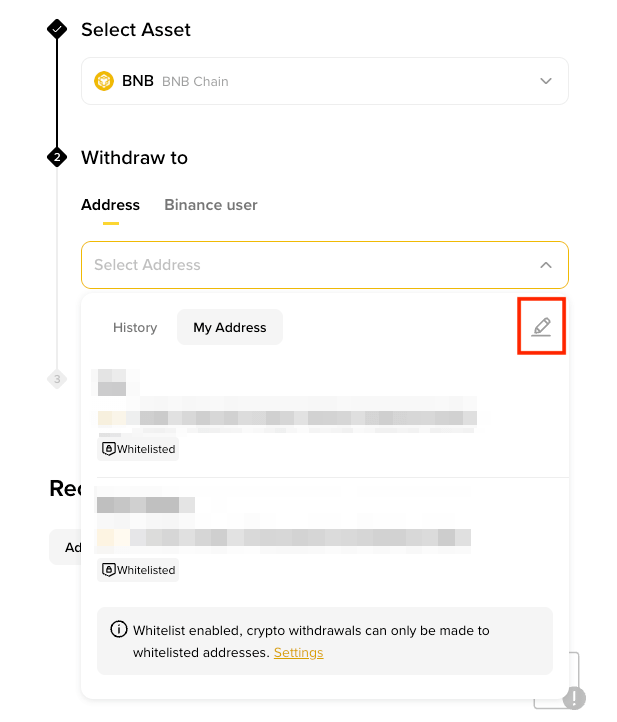
1. To add a new address, click the address field, then click the edit icon.
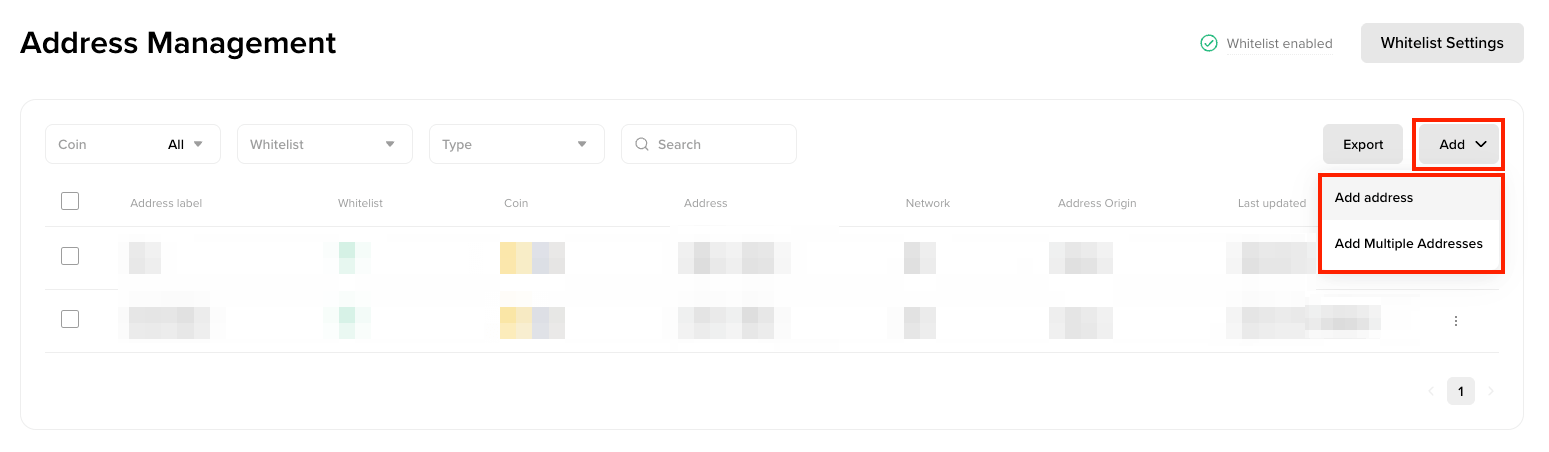
2. You’ll be redirected to the Address Management page. Click [Add], then choose [Add address] or [Add multiple addresses].
3. Enter an address label (a customized name for your own reference). Then, select the coin and network. You may also save it as a universal address without specifying the coin.
A universal address is saved without a specific coin, so you can reuse it for any coin that runs on the same network. For example, an ERC20 universal address works for USDT (ERC-20), ETH, and any other ERC-20 token. A universal address can be used to withdraw all coins that match its network.
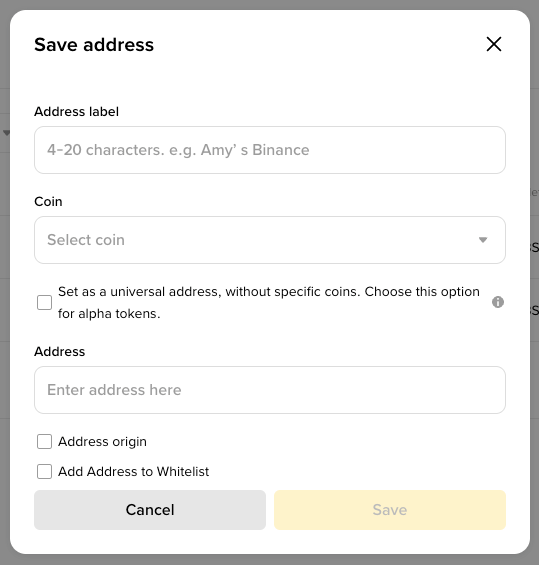
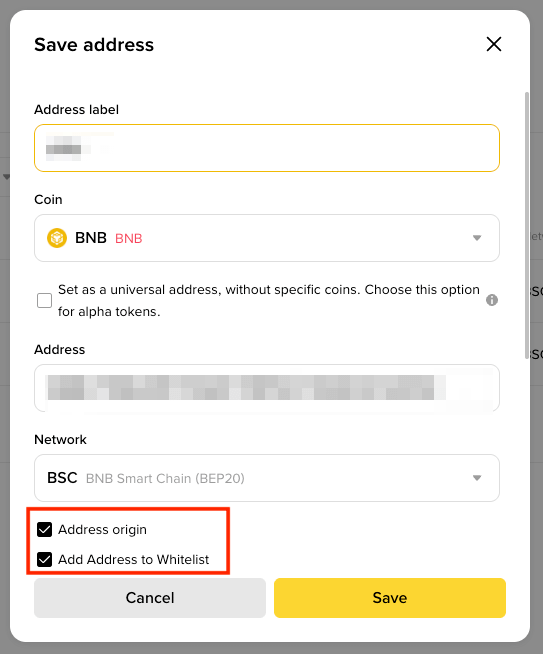
4. Paste the withdrawal address and select the network. Check the box next to [Address origin] to identify whether the address is from an exchange or a wallet.
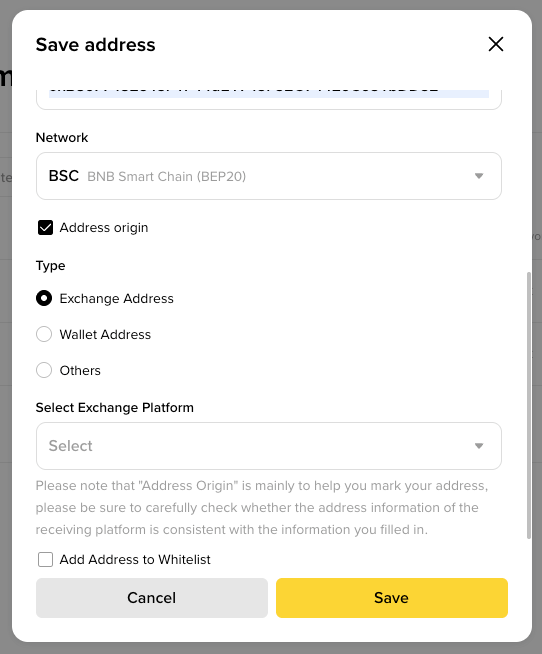
You might need to enter a MEMO. For example, you need to provide the MEMO when sending funds to another Binance account or to another exchange.
Make sure to double-check if a MEMO is required or not. If a MEMO is required and you fail to provide it, you may lose your funds. Note that some platforms and wallets refer to the MEMO as Tag or Payment ID.
5. You can also add the address to your whitelist by checking the box next to [Add Address to Whitelist].When whitelist is enabled, your account will only be able to withdraw to whitelisted withdrawal addresses. Click [Save] and complete 2FA to add the address.