
#codex
codex
5,391 views
54 Discussing
Hot
Latest


🧠 Lawyers are suddenly using Codex like crazy.
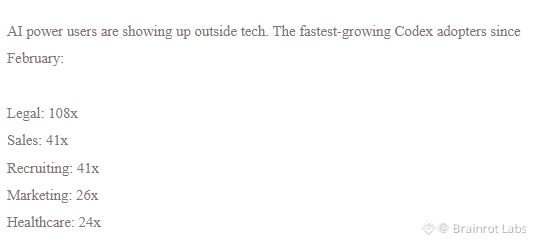
New data from a16z shows that the number of active enterprise users of OpenAI Codex is growing rapidly across many industries.
⚡ Lawyers: +108x
⚡ Sales: +41x
⚡ Recruiting: +41x
⚡ Marketing: +26x
⚡ Healthcare: +24x
⚡ Engineers: +5x
Most notably, lawyers are growing at a rate many times higher than engineers.
Codex is gradually moving beyond its role as mere code-writing and is becoming a digital coworker that can analyze tasks and handle work over long periods of time.
Lawyers are using AI to process large volumes of documents, read materials, and compare contracts.
I think this is the interesting part:
AI adoption isn’t just coming for programmers anymore.
The office workers have entered the chat. 💀
If this trend continues, will lawyers become prompt engineers before engineers become unemployed? 😭
Which profession do you think AI will transform next?
#Aİ #OpenAI #codex #tech
New data from a16z shows that the number of active enterprise users of OpenAI Codex is growing rapidly across many industries.
⚡ Lawyers: +108x
⚡ Sales: +41x
⚡ Recruiting: +41x
⚡ Marketing: +26x
⚡ Healthcare: +24x
⚡ Engineers: +5x
Most notably, lawyers are growing at a rate many times higher than engineers.
Codex is gradually moving beyond its role as mere code-writing and is becoming a digital coworker that can analyze tasks and handle work over long periods of time.
Lawyers are using AI to process large volumes of documents, read materials, and compare contracts.
I think this is the interesting part:
AI adoption isn’t just coming for programmers anymore.
The office workers have entered the chat. 💀
If this trend continues, will lawyers become prompt engineers before engineers become unemployed? 😭
Which profession do you think AI will transform next?
#Aİ #OpenAI #codex #tech


$CODEX USAGE LIMITS FIXED AFTER CREDITS BURNED TOO FAST 💡
Some users on the $200 plan saw a week's worth of Codex usage evaporate in a single day. Background subagents and auto-review ran too often, eating through quotas like a stop loss getting swept.
OpenAI reset caps and deployed fixes after a Sunday warroom. The dashboard even showed activity that wasn't charged — but the trust hit is real. When a paid tool feels unreliable, traders don't hesitate to step out.
Are you back on Codex now or waiting for the next quarterly report?
Not financial advice. Always manage your risk.
#CODEX #AI #UsageFix #Coding #TechNews
💎
Some users on the $200 plan saw a week's worth of Codex usage evaporate in a single day. Background subagents and auto-review ran too often, eating through quotas like a stop loss getting swept.
OpenAI reset caps and deployed fixes after a Sunday warroom. The dashboard even showed activity that wasn't charged — but the trust hit is real. When a paid tool feels unreliable, traders don't hesitate to step out.
Are you back on Codex now or waiting for the next quarterly report?
Not financial advice. Always manage your risk.
#CODEX #AI #UsageFix #Coding #TechNews
💎

Hamster Kombat has recently gotten a bit of traction. $HMSTR saw a 20% gain in a single day; the move is clearly linked with Magma Finance, and market sentiment has been reignited.
The underlying logic is actually straightforward: g-token was added to the popular copy-trading/followers list, and CODEX ecosystem capital and attention flowed in accordingly. For a project that was once viewed as a “receding-tide TG bag,” it isn’t easy to find a new narrative anchor again.
At the current price of $0.00019, its market cap is about $12 million, and the 24-hour trading volume has surpassed $6 million. Liquidity isn’t low relative to its market cap, suggesting this isn’t just a dead shell rebounding—it’s real people moving in and out.
The key question is the sustainability of the CODEX ecosystem. If the g-token copy-trading effect can keep going, HMSTR won’t be just a sentiment coin; if it’s only a one-off linkage, then that 20% may be the peak.
For the short term, watch whether the funds can hold. For the mid term, watch whether the ecosystem narrative can actually land.
#HamsterKombat #CODEX
The underlying logic is actually straightforward: g-token was added to the popular copy-trading/followers list, and CODEX ecosystem capital and attention flowed in accordingly. For a project that was once viewed as a “receding-tide TG bag,” it isn’t easy to find a new narrative anchor again.
At the current price of $0.00019, its market cap is about $12 million, and the 24-hour trading volume has surpassed $6 million. Liquidity isn’t low relative to its market cap, suggesting this isn’t just a dead shell rebounding—it’s real people moving in and out.
The key question is the sustainability of the CODEX ecosystem. If the g-token copy-trading effect can keep going, HMSTR won’t be just a sentiment coin; if it’s only a one-off linkage, then that 20% may be the peak.
For the short term, watch whether the funds can hold. For the mid term, watch whether the ecosystem narrative can actually land.
#HamsterKombat #CODEX
$CODEX $85M ON-CHAIN FLAG – INVESTIGATOR WARNS OF FUND MISUSE 🚨
On-chain investigator Specter just dropped a red flag on CodexField. Over $85M raised, but yesterday $17.3M USDT started moving — bridged from TRON to Ethereum, then swapped to DAI and sent toward a centralized exchange. $6.5M already gone, $10.8M still in transit.
The source wallet traces back to CodexField’s own deposit contract. That’s not standard fund management. When a project starts pushing user funds cross-chain through intermediary wallets, it’s worth paying attention.
Are you holding any exposure here or have you already pulled back?
Not financial advice. Always manage your risk.
#CODEX #SecurityAlert #OnChain #BNBChain #ScamWarning
💎
On-chain investigator Specter just dropped a red flag on CodexField. Over $85M raised, but yesterday $17.3M USDT started moving — bridged from TRON to Ethereum, then swapped to DAI and sent toward a centralized exchange. $6.5M already gone, $10.8M still in transit.
The source wallet traces back to CodexField’s own deposit contract. That’s not standard fund management. When a project starts pushing user funds cross-chain through intermediary wallets, it’s worth paying attention.
Are you holding any exposure here or have you already pulled back?
Not financial advice. Always manage your risk.
#CODEX #SecurityAlert #OnChain #BNBChain #ScamWarning
💎

$CODEX FUNDS ON THE MOVE – $17.3M CROSS-CHAIN TRANSFER DETECTED ⚠️
On-chain data reveals a wallet linked to CodexField's deposit contract moved $17.3M USDT from TRON to Ethereum, then swapped to DAI on Polygon. Over $6.5M has already been transferred, with $10.8M still in transit.
This follows $85M raised by the project. The deposit contract has been flagged as suspicious by security tools, and the fund flow deviates from standard management — involving cross-chain bridging and routing through intermediary wallets to a centralized exchange.
Are you monitoring this situation?
Not financial advice. Always manage your risk.
#CODEX #SecurityAlert #OnChain #Crypto #Investigation
⚡
On-chain data reveals a wallet linked to CodexField's deposit contract moved $17.3M USDT from TRON to Ethereum, then swapped to DAI on Polygon. Over $6.5M has already been transferred, with $10.8M still in transit.
This follows $85M raised by the project. The deposit contract has been flagged as suspicious by security tools, and the fund flow deviates from standard management — involving cross-chain bridging and routing through intermediary wallets to a centralized exchange.
Are you monitoring this situation?
Not financial advice. Always manage your risk.
#CODEX #SecurityAlert #OnChain #Crypto #Investigation
⚡

Day by Day: Install 4 Front-End Plugins for Codex 5.6—finally, the resulting webpages don’t look like “plastic parts from an AI pipeline.”
The problem with AI writing code is this: while the logic may be correct, the aesthetics default to whatever the system ships with. The default is mediocre. Those 4 plugins, in essence, inject “an engineer with taste’s instincts” into the AI workflow—not to make the AI smarter, but to turn the AI’s default output from “it runs” into “it looks good.”
That’s the real bottleneck of AI-assisted development: it’s not capability—it’s taste. Capability can be scaled, but taste can’t. There are AI coders everywhere; there aren’t yet AI designers with taste.
#AI #Codex #Front-End Development
The problem with AI writing code is this: while the logic may be correct, the aesthetics default to whatever the system ships with. The default is mediocre. Those 4 plugins, in essence, inject “an engineer with taste’s instincts” into the AI workflow—not to make the AI smarter, but to turn the AI’s default output from “it runs” into “it looks good.”
That’s the real bottleneck of AI-assisted development: it’s not capability—it’s taste. Capability can be scaled, but taste can’t. There are AI coders everywhere; there aren’t yet AI designers with taste.
#AI #Codex #Front-End Development

Codex App Launches Windows PC Control and Cross-Device Remote Control Features
OpenAI's Agent tool Codex App has officially unlocked computer usage capabilities on Windows, allowing direct manipulation of desktop applications through screen visuals, mouse clicks, and keyboard inputs. It also introduces cross-device remote control, enabling developers to dispatch tasks to Windows devices from Mac or mobile ChatGPT and monitor progress in real-time. The new Profile panel integrates a real-time audit chart for Token consumption.
Why it matters: This is a pivotal step in the evolution of AI Agents from "conversational assistants" to "physical world operators." The cross-device remote control capability truly positions AI as a multi-platform productivity tool.
#Codex #OpenAI #AI #Agent #ArtificialIntelligence
OpenAI's Agent tool Codex App has officially unlocked computer usage capabilities on Windows, allowing direct manipulation of desktop applications through screen visuals, mouse clicks, and keyboard inputs. It also introduces cross-device remote control, enabling developers to dispatch tasks to Windows devices from Mac or mobile ChatGPT and monitor progress in real-time. The new Profile panel integrates a real-time audit chart for Token consumption.
Why it matters: This is a pivotal step in the evolution of AI Agents from "conversational assistants" to "physical world operators." The cross-device remote control capability truly positions AI as a multi-platform productivity tool.
#Codex #OpenAI #AI #Agent #ArtificialIntelligence
How to Use Codex on Your Computer? A Deep Dive into Three Operational Interfaces and Permission Boundaries
OpenAI's Codex isn't just about one way to "use your computer". Depending on the task scenario and permission needs, Codex provides three different interfaces: Computer Use (desktop-level operations), Chrome Extension (browser multi-tab operations), and In-App Browser (development debugging).
• Computer Use: This has the broadest coverage, allowing direct manipulation of native applications on macOS/Windows, system settings, iOS simulators, etc. It's suitable for GUI processes without API support, but it's slower and has the widest permission boundary.
• Chrome Extension: This leverages the logged-in state of the browser to handle multi-tab tasks for Gmail, LinkedIn, Salesforce, etc., which require authentication. It carries the user's identity, making it more powerful but also more sensitive.
• In-App Browser: This has the strongest isolation, not inheriting the user's browser configuration, making it ideal for local development, visual bug reproduction, and responsive layout debugging.
Core Principle: If plugins or MCP can be used, avoid visual control; prioritize In-App Browser for web development tasks; switch to Chrome when user browser identity is needed; and only use Computer Use as a last resort when structured tools cannot cover the task.
Why It Matters: The key to AI Agent productization isn't about giving the model unlimited permissions, but rather continually narrowing those permissions and clarifying boundaries for specific tasks, while allowing users to retain review rights over critical actions. This layered design represents a significant milestone in the evolution of AI programming tools from "command line assistants" to "full-stack operating systems".
#Codex #AI #编程 #人工智能 #OpenAI
OpenAI's Codex isn't just about one way to "use your computer". Depending on the task scenario and permission needs, Codex provides three different interfaces: Computer Use (desktop-level operations), Chrome Extension (browser multi-tab operations), and In-App Browser (development debugging).
• Computer Use: This has the broadest coverage, allowing direct manipulation of native applications on macOS/Windows, system settings, iOS simulators, etc. It's suitable for GUI processes without API support, but it's slower and has the widest permission boundary.
• Chrome Extension: This leverages the logged-in state of the browser to handle multi-tab tasks for Gmail, LinkedIn, Salesforce, etc., which require authentication. It carries the user's identity, making it more powerful but also more sensitive.
• In-App Browser: This has the strongest isolation, not inheriting the user's browser configuration, making it ideal for local development, visual bug reproduction, and responsive layout debugging.
Core Principle: If plugins or MCP can be used, avoid visual control; prioritize In-App Browser for web development tasks; switch to Chrome when user browser identity is needed; and only use Computer Use as a last resort when structured tools cannot cover the task.
Why It Matters: The key to AI Agent productization isn't about giving the model unlimited permissions, but rather continually narrowing those permissions and clarifying boundaries for specific tasks, while allowing users to retain review rights over critical actions. This layered design represents a significant milestone in the evolution of AI programming tools from "command line assistants" to "full-stack operating systems".
#Codex #AI #编程 #人工智能 #OpenAI
Attach 4 front-end plugins to Codex 5.6 and the web pages finally don’t look like plastic parts from an AI assembly line.
The most comfortable Codex aesthetic combo from real-world testing, sorted by importance:
1. Front-end framework constraints—so the AI knows what ecosystem it’s working in
2. Design system binding—don’t let the AI freely “wing” color schemes and spacing
3. Component library lock-in—use proven components instead of random divs invented by the AI
4. Visual reference injection—show the AI good examples, and it can output good results
Key insight: The ability of AI to generate code is already sufficient; the bottleneck is aesthetics and design judgment.
The value of a toolchain isn’t to make the AI “smarter,” but to set boundaries for the AI—quality is far higher when it can be free within those boundaries than when it’s endlessly unrestrained.
This logic applies to AI creation in general: the quality of the constraints you give the AI determines the quality of what it outputs.
#AI #Codex #前端开发 #toolchain
The most comfortable Codex aesthetic combo from real-world testing, sorted by importance:
1. Front-end framework constraints—so the AI knows what ecosystem it’s working in
2. Design system binding—don’t let the AI freely “wing” color schemes and spacing
3. Component library lock-in—use proven components instead of random divs invented by the AI
4. Visual reference injection—show the AI good examples, and it can output good results
Key insight: The ability of AI to generate code is already sufficient; the bottleneck is aesthetics and design judgment.
The value of a toolchain isn’t to make the AI “smarter,” but to set boundaries for the AI—quality is far higher when it can be free within those boundaries than when it’s endlessly unrestrained.
This logic applies to AI creation in general: the quality of the constraints you give the AI determines the quality of what it outputs.
#AI #Codex #前端开发 #toolchain

$CODEX RAISED $85M THEN WENT DARK — FULL EXIT SCAM 🚨
60-100 words, 2-3 short paragraphs. One data point: $85 million raised. End with one question.
On-chain investigator Specter flagged abnormal fund flows yesterday. Today the project's X account is dead and the website is gone. Over $85M in investor funds — moved without warning.
This is what happens when teams control your liquidity. No transparency, no audits, just a slow rug that finished overnight.
Were you holding this bag?
Not financial advice. Always manage your risk.
#CODEX #ScamAlert #BNBChain #CryptoWarning #DYOR
⚡
60-100 words, 2-3 short paragraphs. One data point: $85 million raised. End with one question.
On-chain investigator Specter flagged abnormal fund flows yesterday. Today the project's X account is dead and the website is gone. Over $85M in investor funds — moved without warning.
This is what happens when teams control your liquidity. No transparency, no audits, just a slow rug that finished overnight.
Were you holding this bag?
Not financial advice. Always manage your risk.
#CODEX #ScamAlert #BNBChain #CryptoWarning #DYOR
⚡
Day by day, one soldier at a time: the great Codex hasn’t made money for others yet—those selling skins were the first to cash in
A batch of Codex desktop skinning services has appeared on Xianyu. For a few bucks you can buy the tutorial, or pay a custom price of 66–99 yuan. The seller will replace backgrounds, sidebars, buttons, and avatars—star, game, and anime-themed styles can all be done.
The underlying tool, Codex Dream Skin, has been open-sourced on GitHub with 6,800 stars. It supports macOS and Windows, injects themes via local CDP, doesn’t modify the official installer package, and allows one-click restoration.
The AI programming tools industry has already split into segments: those who build models make money from computing power; those who build tools make money from subscriptions; and those who sell skins earn the most honest kind of money—an aesthetic premium. Human needs hierarchy still holds in the AI era: first use it, then use it well, and finally make it look good.
#Codex #AI tools
A batch of Codex desktop skinning services has appeared on Xianyu. For a few bucks you can buy the tutorial, or pay a custom price of 66–99 yuan. The seller will replace backgrounds, sidebars, buttons, and avatars—star, game, and anime-themed styles can all be done.
The underlying tool, Codex Dream Skin, has been open-sourced on GitHub with 6,800 stars. It supports macOS and Windows, injects themes via local CDP, doesn’t modify the official installer package, and allows one-click restoration.
The AI programming tools industry has already split into segments: those who build models make money from computing power; those who build tools make money from subscriptions; and those who sell skins earn the most honest kind of money—an aesthetic premium. Human needs hierarchy still holds in the AI era: first use it, then use it well, and finally make it look good.
#Codex #AI tools
Codex can automatically find support and resistance levels & mark high-volume (order-dense) trading zones. AI tools are evolving from “help you write code” to “help you do technical analysis.”
When Codex can automatically identify support/resistance levels and order-dense zones, the barrier to technical analysis is dropping fast. What used to require manually drawing lines and judging actively traded dense areas is now done with a single command.
But there’s a paradox here: if everyone uses AI to draw the same support and resistance levels, does their reliability increase or decrease?
My take: AI increases the efficiency of technical analysis by 10x, but it also drives the alpha of “simple technical analysis” to nearly zero. The real alpha lies in what the AI hasn’t drawn yet—on-chain data, fund flow, and extreme sentiment values.
$BTC #AI #技术分析 #Codex
When Codex can automatically identify support/resistance levels and order-dense zones, the barrier to technical analysis is dropping fast. What used to require manually drawing lines and judging actively traded dense areas is now done with a single command.
But there’s a paradox here: if everyone uses AI to draw the same support and resistance levels, does their reliability increase or decrease?
My take: AI increases the efficiency of technical analysis by 10x, but it also drives the alpha of “simple technical analysis” to nearly zero. The real alpha lies in what the AI hasn’t drawn yet—on-chain data, fund flow, and extreme sentiment values.
$BTC #AI #技术分析 #Codex


$HMSTR Recently getting a bit interesting—following Magma Finance, it surged 20%. The underlying logic is that its g-token has been included in the popular copy-trading list, along with the continued push from the CODEX ecosystem.
Current price is $0.00019, market cap is about $12 million. 24h trading volume is $6.11 million. Judging from the data, capital still appears to be flowing in.
A small market cap + an ecosystem narrative + exposure from copy-trading—this kind of combination often amplifies short-term sentiment. The real thing to watch is whether the CODEX ecosystem can consistently bring real use cases to the g-token, or if it’s just a one-off hype cycle.
Sentiment rallies can come fast and leave just as fast—make sure you know your position sizing and take-profit line yourself.
#HamsterKombat #CODEX
Current price is $0.00019, market cap is about $12 million. 24h trading volume is $6.11 million. Judging from the data, capital still appears to be flowing in.
A small market cap + an ecosystem narrative + exposure from copy-trading—this kind of combination often amplifies short-term sentiment. The real thing to watch is whether the CODEX ecosystem can consistently bring real use cases to the g-token, or if it’s just a one-off hype cycle.
Sentiment rallies can come fast and leave just as fast—make sure you know your position sizing and take-profit line yourself.
#HamsterKombat #CODEX

$HMSTR quietly followed Magma Finance and surged 20%. This wave isn’t mindless FOMO.
If you break down the logic, it’s actually pretty clear: Hamster’s g-token was placed into the trending copy-trading list, while the CODEX ecosystem keeps “feeding” it in the background. Naturally, capital is more willing to bet early on assets that have been “exposed.”
On the data side: the current price is about $0.00019, with $6.11 million in 24h trading volume and a market cap of $12 million. The ratio of market cap to trading volume suggests the capital rotation efficiency isn’t low, and the short-term upside volatility is noticeably stronger than that of older GameFi tokens with similar market caps.
My view is that $HMSTR is currently more like an emotion proxy for the CODEX sector. As long as Magma and the copy-trading narrative don’t go out, there’s a window for a second ignition; conversely, if the main trend weakens, the pullback will be just as decisive.
Instead of obsessing over the K-line, focus on changes in its position on the copy-trading leaderboard and any new moves from CODEX.
#HMSTR #CODEX #GameFi
If you break down the logic, it’s actually pretty clear: Hamster’s g-token was placed into the trending copy-trading list, while the CODEX ecosystem keeps “feeding” it in the background. Naturally, capital is more willing to bet early on assets that have been “exposed.”
On the data side: the current price is about $0.00019, with $6.11 million in 24h trading volume and a market cap of $12 million. The ratio of market cap to trading volume suggests the capital rotation efficiency isn’t low, and the short-term upside volatility is noticeably stronger than that of older GameFi tokens with similar market caps.
My view is that $HMSTR is currently more like an emotion proxy for the CODEX sector. As long as Magma and the copy-trading narrative don’t go out, there’s a window for a second ignition; conversely, if the main trend weakens, the pullback will be just as decisive.
Instead of obsessing over the K-line, focus on changes in its position on the copy-trading leaderboard and any new moves from CODEX.
#HMSTR #CODEX #GameFi



$HMSTR quietly surged 20%; many people still haven’t reacted.
This time isn’t just pure meme momentum—it’s moving along with Magma Finance. The g-token has been placed into the trending copy-trading leaderboard, and clearly, liquidity from the CODEX ecosystem is flowing toward this direction.
Current price: $0.00019. Market cap: just $12 million. 24h trading volume: $6.11 million. The turnover rate isn’t low either. With a small market cap, an ecosystem narrative, and copy-trading exposure—all three legs are in place—short-term upside has more elasticity than it looks.
Risks are also straightforward: the Hamster Kombat narrative is relatively thin by itself and relies heavily on external ecosystem momentum. If Magma’s pace slows or breaks, pullbacks can happen quickly. If you want to get involved, mark your stop-loss clearly—don’t carry it on faith.
#HMSTR #CODEX #on-chain copy-trading
This time isn’t just pure meme momentum—it’s moving along with Magma Finance. The g-token has been placed into the trending copy-trading leaderboard, and clearly, liquidity from the CODEX ecosystem is flowing toward this direction.
Current price: $0.00019. Market cap: just $12 million. 24h trading volume: $6.11 million. The turnover rate isn’t low either. With a small market cap, an ecosystem narrative, and copy-trading exposure—all three legs are in place—short-term upside has more elasticity than it looks.
Risks are also straightforward: the Hamster Kombat narrative is relatively thin by itself and relies heavily on external ecosystem momentum. If Magma’s pace slows or breaks, pullbacks can happen quickly. If you want to get involved, mark your stop-loss clearly—don’t carry it on faith.
#HMSTR #CODEX #on-chain copy-trading
$HMSTR surged 20% suddenly, and moved in sync with Magma Finance—this linkage isn’t a coincidence.
The underlying logic is actually pretty clear: g-token was added to the popular copy-trading list, and with CODEX ecosystem’s ongoing user inflow, short-term capital has started to watch this former Meme flagship again.
Current data:
· Price $0.00019
· 24h trading volume $6.05 million
· Market cap $12.03 million
Once the market cap is compressed into the ten-million range, any marginal change in ecosystem narrative will be amplified. What copy-trading mechanisms bring is passive buying pressure, and the strength of CODEX’s correlation determines whether the move can transition from "short-term sentiment" to "capital staying power".
We also need to call out the risks: Hamster Kombat’s token-holding structure is relatively dispersed, and a 20% gain in low market-cap coins isn’t necessarily a strong signal. Before chasing, check whether the trading volume can continue.
In the short term, watch the synchronized move with Magma Finance. If that side loses momentum, HMSTR will most likely follow with a pullback.
#HMSTR #CODEX
The underlying logic is actually pretty clear: g-token was added to the popular copy-trading list, and with CODEX ecosystem’s ongoing user inflow, short-term capital has started to watch this former Meme flagship again.
Current data:
· Price $0.00019
· 24h trading volume $6.05 million
· Market cap $12.03 million
Once the market cap is compressed into the ten-million range, any marginal change in ecosystem narrative will be amplified. What copy-trading mechanisms bring is passive buying pressure, and the strength of CODEX’s correlation determines whether the move can transition from "short-term sentiment" to "capital staying power".
We also need to call out the risks: Hamster Kombat’s token-holding structure is relatively dispersed, and a 20% gain in low market-cap coins isn’t necessarily a strong signal. Before chasing, check whether the trading volume can continue.
In the short term, watch the synchronized move with Magma Finance. If that side loses momentum, HMSTR will most likely follow with a pullback.
#HMSTR #CODEX

Log in to explore more content