

#wolfbot
wolfbot
51 views
35 Discussing
Hot
Latest

·
--
Tired of choosing between deep firewall dives or stalled strategy development due to server maintenance? ⚙️
Deciding between WolfBot Community and Cloud is less about capability and more about operational preference.
Both paths offer the same core features:
• Unified crypto, futures, and MT5 support
• Portfolio-level risk management
• One unified review surface
The difference is who manages the underlying infrastructure.
Choose Community if:
• You are comfortable running your own PC or VPS.
• You want full control over data location, API keys, and firewall settings.
• You are willing to commit to weekly maintenance.
Choose Cloud if:
• Minimizing system administration tasks is your top priority.
• You need the bot available without constant infrastructure monitoring.
• You prefer dedicating more time to strategy development than server upkeep. 🚀
To finalize your choice, weigh these three points:
1. Your tolerance for system administration.
2. The trade-off between your time and hardware/VPS cost.
3. Whether absolute control over data location is required.
If avoiding server management is key, Cloud is recommended. If self-ownership matters most, Community offers that flexible alternative. 🧠
The operational model is designed to be consistent, making migration straightforward. For a detailed comparison of technical aspects, check out this deep dive: https://community.wolfbot.io/docs/community-or-cloud-deep-dive
#WolfBot #TradingAutomation #CryptoInfrastructure #SystemAdmin #BotDevelopment
Tired of choosing between deep firewall dives or stalled strategy development due to server maintenance? ⚙️
Deciding between WolfBot Community and Cloud is less about capability and more about operational preference.
Both paths offer the same core features:
• Unified crypto, futures, and MT5 support
• Portfolio-level risk management
• One unified review surface
The difference is who manages the underlying infrastructure.
Choose Community if:
• You are comfortable running your own PC or VPS.
• You want full control over data location, API keys, and firewall settings.
• You are willing to commit to weekly maintenance.
Choose Cloud if:
• Minimizing system administration tasks is your top priority.
• You need the bot available without constant infrastructure monitoring.
• You prefer dedicating more time to strategy development than server upkeep. 🚀
To finalize your choice, weigh these three points:
1. Your tolerance for system administration.
2. The trade-off between your time and hardware/VPS cost.
3. Whether absolute control over data location is required.
If avoiding server management is key, Cloud is recommended. If self-ownership matters most, Community offers that flexible alternative. 🧠
The operational model is designed to be consistent, making migration straightforward. For a detailed comparison of technical aspects, check out this deep dive: https://community.wolfbot.io/docs/community-or-cloud-deep-dive
#WolfBot #TradingAutomation #CryptoInfrastructure #SystemAdmin #BotDevelopment
Deciding between WolfBot Community and Cloud is less about capability and more about operational preference.
Both paths offer the same core features:
• Unified crypto, futures, and MT5 support
• Portfolio-level risk management
• One unified review surface
The difference is who manages the underlying infrastructure.
Choose Community if:
• You are comfortable running your own PC or VPS.
• You want full control over data location, API keys, and firewall settings.
• You are willing to commit to weekly maintenance.
Choose Cloud if:
• Minimizing system administration tasks is your top priority.
• You need the bot available without constant infrastructure monitoring.
• You prefer dedicating more time to strategy development than server upkeep. 🚀
To finalize your choice, weigh these three points:
1. Your tolerance for system administration.
2. The trade-off between your time and hardware/VPS cost.
3. Whether absolute control over data location is required.
If avoiding server management is key, Cloud is recommended. If self-ownership matters most, Community offers that flexible alternative. 🧠
The operational model is designed to be consistent, making migration straightforward. For a detailed comparison of technical aspects, check out this deep dive: https://community.wolfbot.io/docs/community-or-cloud-deep-dive
#WolfBot #TradingAutomation #CryptoInfrastructure #SystemAdmin #BotDevelopment

1
63
·
--
Seeing your automated strategy work perfectly on paper, but hesitating to use real money? You're not alone. 😅
We structured the WolfBot demo process so you can test every logic gate safely before going live.
Here’s how to get started:
1. Connect a Demo/testnet API key for your exchange in the WolfBot Community interface. (Use the dedicated partner link for Bybit).
2. Use the Smart Terminal to place manual test orders. Watch how they appear in the Positions panel, funded by your virtual Demo balance.
3. Practice setting and reviewing all risk controls—Position Limits, Drawdown Guards, and Cooldowns—on the Demo account. These settings transfer exactly to live trading! ⚠️
4. To test automation, go to Bots, select a strategy template, configure parameters, and point the bot to your Demo account to watch it run automatically.
5. For a deeper dive into simulation mechanics, review the documentation here: https://community.wolfbot.io/docs/simulation 📚
6. When you are ready to go live, connect a separate account with a Live, trade-only API key. Start small with minimum position sizes and tight stop-losses. ✅
#WolfBot #DemoTrading #AutomatedTrading #CryptoAutomation #RiskManagement
Seeing your automated strategy work perfectly on paper, but hesitating to use real money? You're not alone. 😅
We structured the WolfBot demo process so you can test every logic gate safely before going live.
Here’s how to get started:
1. Connect a Demo/testnet API key for your exchange in the WolfBot Community interface. (Use the dedicated partner link for Bybit).
2. Use the Smart Terminal to place manual test orders. Watch how they appear in the Positions panel, funded by your virtual Demo balance.
3. Practice setting and reviewing all risk controls—Position Limits, Drawdown Guards, and Cooldowns—on the Demo account. These settings transfer exactly to live trading! ⚠️
4. To test automation, go to Bots, select a strategy template, configure parameters, and point the bot to your Demo account to watch it run automatically.
5. For a deeper dive into simulation mechanics, review the documentation here: https://community.wolfbot.io/docs/simulation 📚
6. When you are ready to go live, connect a separate account with a Live, trade-only API key. Start small with minimum position sizes and tight stop-losses. ✅
#WolfBot #DemoTrading #AutomatedTrading #CryptoAutomation #RiskManagement
We structured the WolfBot demo process so you can test every logic gate safely before going live.
Here’s how to get started:
1. Connect a Demo/testnet API key for your exchange in the WolfBot Community interface. (Use the dedicated partner link for Bybit).
2. Use the Smart Terminal to place manual test orders. Watch how they appear in the Positions panel, funded by your virtual Demo balance.
3. Practice setting and reviewing all risk controls—Position Limits, Drawdown Guards, and Cooldowns—on the Demo account. These settings transfer exactly to live trading! ⚠️
4. To test automation, go to Bots, select a strategy template, configure parameters, and point the bot to your Demo account to watch it run automatically.
5. For a deeper dive into simulation mechanics, review the documentation here: https://community.wolfbot.io/docs/simulation 📚
6. When you are ready to go live, connect a separate account with a Live, trade-only API key. Start small with minimum position sizes and tight stop-losses. ✅
#WolfBot #DemoTrading #AutomatedTrading #CryptoAutomation #RiskManagement
1
51
·
--
WolfBot's core components are online and active, providing a solid base for your automation needs. 🛠️
Understanding the current operational status is key to deploying your strategy correctly.
• Connectivity: WolfBot supports major exchanges including Binance, Bybit, BingX, KuCoin, and Bitget. 🌐
• Trading Types: Spot, Futures, and Demo trading are supported across all listed exchanges.
• Traditional Markets: Stability is confirmed for Forex, Metals, and Indices via the MT5 bridge. 💱
• Access: Use it natively on Windows or via the built-in terminal container on Linux.
• Key Features: Demo Accounts, Smart Terminal, Automated Strategies, and Risk Controls are all stable. ✅
• Management: The system handles portfolio management and auto-updates automatically.
• Important Note: You must manually select your trading environment (crypto exchange or MT5 instrument) and set initial risk parameters. ⚠️
• Versioning: Linux is currently at v0.1.0-beta.15. Windows is at v0.1.0-beta.10. 💻
• Roadmap: Targeting v0.9.0 as First Release Candidate in Q3 2026, with v1.0.0 in Q4 2026. 🚀
For the most detailed, up-to-date overview of our operational status, please review the documentation here: https://community.wolfbot.io/docs/community-status
#WolfBot #CryptoAutomation #MT5 #TradingTech #Crypto
WolfBot's core components are online and active, providing a solid base for your automation needs. 🛠️
Understanding the current operational status is key to deploying your strategy correctly.
• Connectivity: WolfBot supports major exchanges including Binance, Bybit, BingX, KuCoin, and Bitget. 🌐
• Trading Types: Spot, Futures, and Demo trading are supported across all listed exchanges.
• Traditional Markets: Stability is confirmed for Forex, Metals, and Indices via the MT5 bridge. 💱
• Access: Use it natively on Windows or via the built-in terminal container on Linux.
• Key Features: Demo Accounts, Smart Terminal, Automated Strategies, and Risk Controls are all stable. ✅
• Management: The system handles portfolio management and auto-updates automatically.
• Important Note: You must manually select your trading environment (crypto exchange or MT5 instrument) and set initial risk parameters. ⚠️
• Versioning: Linux is currently at v0.1.0-beta.15. Windows is at v0.1.0-beta.10. 💻
• Roadmap: Targeting v0.9.0 as First Release Candidate in Q3 2026, with v1.0.0 in Q4 2026. 🚀
For the most detailed, up-to-date overview of our operational status, please review the documentation here: https://community.wolfbot.io/docs/community-status
#WolfBot #CryptoAutomation #MT5 #TradingTech #Crypto
Understanding the current operational status is key to deploying your strategy correctly.
• Connectivity: WolfBot supports major exchanges including Binance, Bybit, BingX, KuCoin, and Bitget. 🌐
• Trading Types: Spot, Futures, and Demo trading are supported across all listed exchanges.
• Traditional Markets: Stability is confirmed for Forex, Metals, and Indices via the MT5 bridge. 💱
• Access: Use it natively on Windows or via the built-in terminal container on Linux.
• Key Features: Demo Accounts, Smart Terminal, Automated Strategies, and Risk Controls are all stable. ✅
• Management: The system handles portfolio management and auto-updates automatically.
• Important Note: You must manually select your trading environment (crypto exchange or MT5 instrument) and set initial risk parameters. ⚠️
• Versioning: Linux is currently at v0.1.0-beta.15. Windows is at v0.1.0-beta.10. 💻
• Roadmap: Targeting v0.9.0 as First Release Candidate in Q3 2026, with v1.0.0 in Q4 2026. 🚀
For the most detailed, up-to-date overview of our operational status, please review the documentation here: https://community.wolfbot.io/docs/community-status
#WolfBot #CryptoAutomation #MT5 #TradingTech #Crypto
1
64
·
--
Choosing between Community and Cloud in WolfBot feels less like a feature difference and more like choosing your operational mindset. 🧐
Both editions offer the same core operating model:
• Unified crypto support
• Futures integration
• MT5 compatibility
• Portfolio-level risk management on one surface
The real divergence point is who handles the 'boring work.' 🛠️
Community requires you to own the host, updates, backups, and uptime. You manage the infrastructure.
Cloud delegates all that infrastructure management entirely to WolfBot.
How to decide? Weigh these three factors:
1. Your tolerance for system administration tasks.
2. The value of your time vs. the cost of hardware/VPS.
3. Whether you need absolute control over data location.
If you are comfortable running your own PC or VPS and commit to weekly maintenance, Community is flexible.
If your time is better spent on strategy development than system administration, and you prefer hands-off, Cloud is recommended. ☁️
Good news: migrating between editions is straightforward because the operating model is the same—your strategies translate directly.
Review this deep dive to help weigh the factors against your technical comfort level:
https://community.wolfbot.io/docs/community-or-cloud-deep-dive
If avoiding server management is key, Cloud is the path. If autonomy matters most, Community is ready. ✅
#WolfBot #CryptoAutomation #TradingStrategy #SelfHosting #CryptoTech
Choosing between Community and Cloud in WolfBot feels less like a feature difference and more like choosing your operational mindset. 🧐
Both editions offer the same core operating model:
• Unified crypto support
• Futures integration
• MT5 compatibility
• Portfolio-level risk management on one surface
The real divergence point is who handles the 'boring work.' 🛠️
Community requires you to own the host, updates, backups, and uptime. You manage the infrastructure.
Cloud delegates all that infrastructure management entirely to WolfBot.
How to decide? Weigh these three factors:
1. Your tolerance for system administration tasks.
2. The value of your time vs. the cost of hardware/VPS.
3. Whether you need absolute control over data location.
If you are comfortable running your own PC or VPS and commit to weekly maintenance, Community is flexible.
If your time is better spent on strategy development than system administration, and you prefer hands-off, Cloud is recommended. ☁️
Good news: migrating between editions is straightforward because the operating model is the same—your strategies translate directly.
Review this deep dive to help weigh the factors against your technical comfort level:
https://community.wolfbot.io/docs/community-or-cloud-deep-dive
If avoiding server management is key, Cloud is the path. If autonomy matters most, Community is ready. ✅
#WolfBot #CryptoAutomation #TradingStrategy #SelfHosting #CryptoTech
Both editions offer the same core operating model:
• Unified crypto support
• Futures integration
• MT5 compatibility
• Portfolio-level risk management on one surface
The real divergence point is who handles the 'boring work.' 🛠️
Community requires you to own the host, updates, backups, and uptime. You manage the infrastructure.
Cloud delegates all that infrastructure management entirely to WolfBot.
How to decide? Weigh these three factors:
1. Your tolerance for system administration tasks.
2. The value of your time vs. the cost of hardware/VPS.
3. Whether you need absolute control over data location.
If you are comfortable running your own PC or VPS and commit to weekly maintenance, Community is flexible.
If your time is better spent on strategy development than system administration, and you prefer hands-off, Cloud is recommended. ☁️
Good news: migrating between editions is straightforward because the operating model is the same—your strategies translate directly.
Review this deep dive to help weigh the factors against your technical comfort level:
https://community.wolfbot.io/docs/community-or-cloud-deep-dive
If avoiding server management is key, Cloud is the path. If autonomy matters most, Community is ready. ✅
#WolfBot #CryptoAutomation #TradingStrategy #SelfHosting #CryptoTech
1
69
·
--
Encountering an 'Access denied' error can instantly stop your automation workflow. 🛑
Don't let small technical hiccups sideline your trading strategy. Mastering these troubleshooting steps keeps WolfBot running smoothly and securely.
• 1. For initial setup problems, run the built-in diagnostic tool in your terminal: wolfbot doctor. This checks integrity without making changes. ✅
• 2. If connection issues pop up, manually verify your API keys are valid. Also, check required permissions (like Trade access) and confirm services like MT5 are running. ⚠️
• 3. For specific errors, follow documented fixes precisely. For 'Access denied,' right-click the installer and select 'Run as Administrator.' 🛠️
• 4. To keep performance high, if you see high CPU/memory, reduce active trading pairs or increase the bot's operational interval. ⚙️
• 5. If the dashboard is slow, clear your browser cache and use a modern browser.
• 6. If configuration data is lost, first try restoring from a backup. If that fails, reconfigure manually, or run the repair command: wolfbot repair. 💾
For a comprehensive, step-by-step reference covering all these points, please visit: https://community.wolfbot.io/docs/troubleshooting
#WolfBot #TradingAutomation #CryptoBot #TechnicalSupport #SystemMaintenance
Encountering an 'Access denied' error can instantly stop your automation workflow. 🛑
Don't let small technical hiccups sideline your trading strategy. Mastering these troubleshooting steps keeps WolfBot running smoothly and securely.
• 1. For initial setup problems, run the built-in diagnostic tool in your terminal: wolfbot doctor. This checks integrity without making changes. ✅
• 2. If connection issues pop up, manually verify your API keys are valid. Also, check required permissions (like Trade access) and confirm services like MT5 are running. ⚠️
• 3. For specific errors, follow documented fixes precisely. For 'Access denied,' right-click the installer and select 'Run as Administrator.' 🛠️
• 4. To keep performance high, if you see high CPU/memory, reduce active trading pairs or increase the bot's operational interval. ⚙️
• 5. If the dashboard is slow, clear your browser cache and use a modern browser.
• 6. If configuration data is lost, first try restoring from a backup. If that fails, reconfigure manually, or run the repair command: wolfbot repair. 💾
For a comprehensive, step-by-step reference covering all these points, please visit: https://community.wolfbot.io/docs/troubleshooting
#WolfBot #TradingAutomation #CryptoBot #TechnicalSupport #SystemMaintenance
Don't let small technical hiccups sideline your trading strategy. Mastering these troubleshooting steps keeps WolfBot running smoothly and securely.
• 1. For initial setup problems, run the built-in diagnostic tool in your terminal: wolfbot doctor. This checks integrity without making changes. ✅
• 2. If connection issues pop up, manually verify your API keys are valid. Also, check required permissions (like Trade access) and confirm services like MT5 are running. ⚠️
• 3. For specific errors, follow documented fixes precisely. For 'Access denied,' right-click the installer and select 'Run as Administrator.' 🛠️
• 4. To keep performance high, if you see high CPU/memory, reduce active trading pairs or increase the bot's operational interval. ⚙️
• 5. If the dashboard is slow, clear your browser cache and use a modern browser.
• 6. If configuration data is lost, first try restoring from a backup. If that fails, reconfigure manually, or run the repair command: wolfbot repair. 💾
For a comprehensive, step-by-step reference covering all these points, please visit: https://community.wolfbot.io/docs/troubleshooting
#WolfBot #TradingAutomation #CryptoBot #TechnicalSupport #SystemMaintenance

72
·
--
Encountering cryptic errors or unexpected performance dips with your automation scripts? 📉 Don't let technical hurdles derail your strategy.
We've compiled this guide to help you diagnose and resolve the most common issues with WolfBot. 👇
1. **Initial Diagnostics:** Always start by running the built-in tool in your terminal: `wolfbot doctor`. This read-only check verifies installation integrity, service status, and network connections without making changes.
2. **Installation Errors?** 🛠️
* For permission issues, right-click the installer and select 'Run as Administrator'.
* If you suspect a corrupt download, re-download the files and verify the SHA256 checksum.
3. **Connection Troubleshooting:** 🔗
* **Broker Issues:** Verify your API key is still valid and that required permissions (like Trade) are active.
* **Connection Refusals:** Check your local internet connection and consider if the exchange might be geo-blocking you.
4. **Performance Optimization:** ⚙️
* High CPU usage? Try reducing active trading pairs or increasing the bot's operational interval.
* Memory issues? Restarting WolfBot is recommended, especially if it has run for over seven days.
5. **Persistent Issues:** 📋
* Gather detailed logs from the specified directories (Windows: `C:\'Program Files\WolfBot\logs\`; Linux: `~/.wolfbot/logs/`).
* When reporting on GitHub, include your WolfBot version, OS details, and the exact error code/message.
For a deeper dive into these steps and troubleshooting workflows, check out our resource center: https://community.wolfbot.io/docs/troubleshooting
#WolfBot #CryptoAutomation #TradingBot #TechnicalSupport #Crypto
Encountering cryptic errors or unexpected performance dips with your automation scripts? 📉 Don't let technical hurdles derail your strategy.
We've compiled this guide to help you diagnose and resolve the most common issues with WolfBot. 👇
1. **Initial Diagnostics:** Always start by running the built-in tool in your terminal: `wolfbot doctor`. This read-only check verifies installation integrity, service status, and network connections without making changes.
2. **Installation Errors?** 🛠️
* For permission issues, right-click the installer and select 'Run as Administrator'.
* If you suspect a corrupt download, re-download the files and verify the SHA256 checksum.
3. **Connection Troubleshooting:** 🔗
* **Broker Issues:** Verify your API key is still valid and that required permissions (like Trade) are active.
* **Connection Refusals:** Check your local internet connection and consider if the exchange might be geo-blocking you.
4. **Performance Optimization:** ⚙️
* High CPU usage? Try reducing active trading pairs or increasing the bot's operational interval.
* Memory issues? Restarting WolfBot is recommended, especially if it has run for over seven days.
5. **Persistent Issues:** 📋
* Gather detailed logs from the specified directories (Windows: `C:\'Program Files\WolfBot\logs\`; Linux: `~/.wolfbot/logs/`).
* When reporting on GitHub, include your WolfBot version, OS details, and the exact error code/message.
For a deeper dive into these steps and troubleshooting workflows, check out our resource center: https://community.wolfbot.io/docs/troubleshooting
#WolfBot #CryptoAutomation #TradingBot #TechnicalSupport #Crypto
We've compiled this guide to help you diagnose and resolve the most common issues with WolfBot. 👇
1. **Initial Diagnostics:** Always start by running the built-in tool in your terminal: `wolfbot doctor`. This read-only check verifies installation integrity, service status, and network connections without making changes.
2. **Installation Errors?** 🛠️
* For permission issues, right-click the installer and select 'Run as Administrator'.
* If you suspect a corrupt download, re-download the files and verify the SHA256 checksum.
3. **Connection Troubleshooting:** 🔗
* **Broker Issues:** Verify your API key is still valid and that required permissions (like Trade) are active.
* **Connection Refusals:** Check your local internet connection and consider if the exchange might be geo-blocking you.
4. **Performance Optimization:** ⚙️
* High CPU usage? Try reducing active trading pairs or increasing the bot's operational interval.
* Memory issues? Restarting WolfBot is recommended, especially if it has run for over seven days.
5. **Persistent Issues:** 📋
* Gather detailed logs from the specified directories (Windows: `C:\'Program Files\WolfBot\logs\`; Linux: `~/.wolfbot/logs/`).
* When reporting on GitHub, include your WolfBot version, OS details, and the exact error code/message.
For a deeper dive into these steps and troubleshooting workflows, check out our resource center: https://community.wolfbot.io/docs/troubleshooting
#WolfBot #CryptoAutomation #TradingBot #TechnicalSupport #Crypto
1
96
·
--
When your alpha signal comes from outside WolfBot—like a custom backtest or specialized indicator—the real challenge isn't generating the signal. It's securely translating that instruction into an executable trade command. 💡
Here’s the breakdown for connecting external signals:
1. **Determine Intake Path:**
* Use the dedicated TradingView simple alert route if you're pasting JSON into TradingView.
* OR, use the signed Strategy OS webhook route if your custom service can compute per-request signatures.
2. **Setup Details:**
* For TradingView alerts, follow the specific integration steps.
* For custom services, computing HMAC signatures is needed for the richer Strategy OS webhook path.
3. **Security First:** 🔒
* Every external source needs its own unique secret or signing key (treat it like a highly sensitive API key!).
* While WolfBot handles authentication, you must host the webhook route behind your own HTTPS host.
4. **The Internal Pipeline:** ✅
* Every signal passes through WolfBot's standardized, multi-step internal pipeline: source lookup/auth $\rightarrow$ signal parsing (symbol, action, size) $\rightarrow$ symbol normalization $\rightarrow$ identity attachment $\rightarrow$ queuing through the risk/execution layer. This ensures consistent guarantees!
5. **Always Test:** 🧪
* When setting up any new source, *always* test it first using a Simulation strategy.
* Confirm the test signal lands authenticated on the correct symbol and that the risk-gated entry works as expected before going Live.
For the complete technical breakdown, review our documentation here: https://community.wolfbot.io/docs/external-signals
#WolfBot #ExternalSignals #TradingAutomation #CryptoTrading #WebhookSecurity
When your alpha signal comes from outside WolfBot—like a custom backtest or specialized indicator—the real challenge isn't generating the signal. It's securely translating that instruction into an executable trade command. 💡
Here’s the breakdown for connecting external signals:
1. **Determine Intake Path:**
* Use the dedicated TradingView simple alert route if you're pasting JSON into TradingView.
* OR, use the signed Strategy OS webhook route if your custom service can compute per-request signatures.
2. **Setup Details:**
* For TradingView alerts, follow the specific integration steps.
* For custom services, computing HMAC signatures is needed for the richer Strategy OS webhook path.
3. **Security First:** 🔒
* Every external source needs its own unique secret or signing key (treat it like a highly sensitive API key!).
* While WolfBot handles authentication, you must host the webhook route behind your own HTTPS host.
4. **The Internal Pipeline:** ✅
* Every signal passes through WolfBot's standardized, multi-step internal pipeline: source lookup/auth $\rightarrow$ signal parsing (symbol, action, size) $\rightarrow$ symbol normalization $\rightarrow$ identity attachment $\rightarrow$ queuing through the risk/execution layer. This ensures consistent guarantees!
5. **Always Test:** 🧪
* When setting up any new source, *always* test it first using a Simulation strategy.
* Confirm the test signal lands authenticated on the correct symbol and that the risk-gated entry works as expected before going Live.
For the complete technical breakdown, review our documentation here: https://community.wolfbot.io/docs/external-signals
#WolfBot #ExternalSignals #TradingAutomation #CryptoTrading #WebhookSecurity
Here’s the breakdown for connecting external signals:
1. **Determine Intake Path:**
* Use the dedicated TradingView simple alert route if you're pasting JSON into TradingView.
* OR, use the signed Strategy OS webhook route if your custom service can compute per-request signatures.
2. **Setup Details:**
* For TradingView alerts, follow the specific integration steps.
* For custom services, computing HMAC signatures is needed for the richer Strategy OS webhook path.
3. **Security First:** 🔒
* Every external source needs its own unique secret or signing key (treat it like a highly sensitive API key!).
* While WolfBot handles authentication, you must host the webhook route behind your own HTTPS host.
4. **The Internal Pipeline:** ✅
* Every signal passes through WolfBot's standardized, multi-step internal pipeline: source lookup/auth $\rightarrow$ signal parsing (symbol, action, size) $\rightarrow$ symbol normalization $\rightarrow$ identity attachment $\rightarrow$ queuing through the risk/execution layer. This ensures consistent guarantees!
5. **Always Test:** 🧪
* When setting up any new source, *always* test it first using a Simulation strategy.
* Confirm the test signal lands authenticated on the correct symbol and that the risk-gated entry works as expected before going Live.
For the complete technical breakdown, review our documentation here: https://community.wolfbot.io/docs/external-signals
#WolfBot #ExternalSignals #TradingAutomation #CryptoTrading #WebhookSecurity

1
86
·
--
Automated Telegram alerts fail if you skip verifying the entire delivery path. 🚨 Don't rely only on the 'Linked' badge!
Keeping your non-custodial monitoring active demands surgical precision during connection setup. 🛠️
Here’s what you need to know for reliable setup:
1. **Initial Connection:** Complete the setup by connecting Telegram to the WolfBot Community.
2. **Understand Components:** Know the three parts: the Telegram bot token (authorization), the linked chat (destination), and the command listener (command receipt).
3. **Verify Everything:** Always run the 'Send test' action. This confirms both the stored link AND current bot authorization—it’s more reliable than just checking the 'Linked' badge.
4. **Uptime Requirement:** For 24/7 operation, the machine running WolfBot must stay powered on, avoid sleep modes, and maintain outbound HTTPS access to Telegram.
5. **Token Rotation:** When rotating a token, generate the new one via @BotFather, update it in WolfBot, and run 'Send test' to confirm.
6. **New Bot Setup:** If moving to a new bot, save its token, start it in Telegram, create a fresh link code, send `/link`, and *then* revoke the old bot.
7. **Security First:** Treat the bot token with extreme care: never screenshot, commit to Git, or share in logs. Rotate it immediately if exposed! ⚠️
8. **Post-Change Check:** After any major system change (update/network), perform a full health check: confirm the token, check command warnings, verify 'Linked' status, and run 'Send test'.
For a comprehensive refresher covering these exact steps, review the detailed guide here: https://community.wolfbot.io/docs/telegram-notifications-guide 📚
#WolfBot #TelegramBot #AutomationSecurity #CryptoAlerts #NonCustodial
Automated Telegram alerts fail if you skip verifying the entire delivery path. 🚨 Don't rely only on the 'Linked' badge!
Keeping your non-custodial monitoring active demands surgical precision during connection setup. 🛠️
Here’s what you need to know for reliable setup:
1. **Initial Connection:** Complete the setup by connecting Telegram to the WolfBot Community.
2. **Understand Components:** Know the three parts: the Telegram bot token (authorization), the linked chat (destination), and the command listener (command receipt).
3. **Verify Everything:** Always run the 'Send test' action. This confirms both the stored link AND current bot authorization—it’s more reliable than just checking the 'Linked' badge.
4. **Uptime Requirement:** For 24/7 operation, the machine running WolfBot must stay powered on, avoid sleep modes, and maintain outbound HTTPS access to Telegram.
5. **Token Rotation:** When rotating a token, generate the new one via @BotFather, update it in WolfBot, and run 'Send test' to confirm.
6. **New Bot Setup:** If moving to a new bot, save its token, start it in Telegram, create a fresh link code, send `/link`, and *then* revoke the old bot.
7. **Security First:** Treat the bot token with extreme care: never screenshot, commit to Git, or share in logs. Rotate it immediately if exposed! ⚠️
8. **Post-Change Check:** After any major system change (update/network), perform a full health check: confirm the token, check command warnings, verify 'Linked' status, and run 'Send test'.
For a comprehensive refresher covering these exact steps, review the detailed guide here: https://community.wolfbot.io/docs/telegram-notifications-guide 📚
#WolfBot #TelegramBot #AutomationSecurity #CryptoAlerts #NonCustodial
Keeping your non-custodial monitoring active demands surgical precision during connection setup. 🛠️
Here’s what you need to know for reliable setup:
1. **Initial Connection:** Complete the setup by connecting Telegram to the WolfBot Community.
2. **Understand Components:** Know the three parts: the Telegram bot token (authorization), the linked chat (destination), and the command listener (command receipt).
3. **Verify Everything:** Always run the 'Send test' action. This confirms both the stored link AND current bot authorization—it’s more reliable than just checking the 'Linked' badge.
4. **Uptime Requirement:** For 24/7 operation, the machine running WolfBot must stay powered on, avoid sleep modes, and maintain outbound HTTPS access to Telegram.
5. **Token Rotation:** When rotating a token, generate the new one via @BotFather, update it in WolfBot, and run 'Send test' to confirm.
6. **New Bot Setup:** If moving to a new bot, save its token, start it in Telegram, create a fresh link code, send `/link`, and *then* revoke the old bot.
7. **Security First:** Treat the bot token with extreme care: never screenshot, commit to Git, or share in logs. Rotate it immediately if exposed! ⚠️
8. **Post-Change Check:** After any major system change (update/network), perform a full health check: confirm the token, check command warnings, verify 'Linked' status, and run 'Send test'.
For a comprehensive refresher covering these exact steps, review the detailed guide here: https://community.wolfbot.io/docs/telegram-notifications-guide 📚
#WolfBot #TelegramBot #AutomationSecurity #CryptoAlerts #NonCustodial

74

Power flickers shouldn't stop your trading strategy. ⚡️ True 24/7 operation requires a stable server environment like a VPS.
Here is the precise sequence to get WolfBot running reliably around the clock:
1. Ensure you have a VPS running Ubuntu 22.04 or 24.04, allocating at least 4 GB of RAM and 4 GB of disk space.
2. Connect via SSH and install WolfBot Community using the provided .deb package. This automatically handles the necessary Docker setup.
3. To view the dashboard securely, establish an encrypted SSH tunnel: `ssh -L 8080:127.0.0.1:8080 your-user@your-server-ip`. Access it at http://localhost:8080. 🔒
4. For long-term stability, run the backup command on the server: `wolfbot backup --install-root /opt/wolfbot --data-root /var/lib/wolfbot --execute`, and then manually copy the archive off. 💾
5. To maintain system integrity, check for updates on the server using: `/opt/wolfbot/launcher/wolfbot-updater.sh check`. ✅
For a detailed walkthrough covering all these steps, check out this guide: https://community.wolfbot.io/docs/run-24-7-on-a-vps
#WolfBot #VPS #AutomatedTrading #CryptoAutomation #TradingBots
Power flickers shouldn't stop your trading strategy. ⚡️ True 24/7 operation requires a stable server environment like a VPS.
Here is the precise sequence to get WolfBot running reliably around the clock:
1. Ensure you have a VPS running Ubuntu 22.04 or 24.04, allocating at least 4 GB of RAM and 4 GB of disk space.
2. Connect via SSH and install WolfBot Community using the provided .deb package. This automatically handles the necessary Docker setup.
3. To view the dashboard securely, establish an encrypted SSH tunnel: `ssh -L 8080:127.0.0.1:8080 your-user@your-server-ip`. Access it at http://localhost:8080. 🔒
4. For long-term stability, run the backup command on the server: `wolfbot backup --install-root /opt/wolfbot --data-root /var/lib/wolfbot --execute`, and then manually copy the archive off. 💾
5. To maintain system integrity, check for updates on the server using: `/opt/wolfbot/launcher/wolfbot-updater.sh check`. ✅
For a detailed walkthrough covering all these steps, check out this guide: https://community.wolfbot.io/docs/run-24-7-on-a-vps
#WolfBot #VPS #AutomatedTrading #CryptoAutomation #TradingBots
Here is the precise sequence to get WolfBot running reliably around the clock:
1. Ensure you have a VPS running Ubuntu 22.04 or 24.04, allocating at least 4 GB of RAM and 4 GB of disk space.
2. Connect via SSH and install WolfBot Community using the provided .deb package. This automatically handles the necessary Docker setup.
3. To view the dashboard securely, establish an encrypted SSH tunnel: `ssh -L 8080:127.0.0.1:8080 your-user@your-server-ip`. Access it at http://localhost:8080. 🔒
4. For long-term stability, run the backup command on the server: `wolfbot backup --install-root /opt/wolfbot --data-root /var/lib/wolfbot --execute`, and then manually copy the archive off. 💾
5. To maintain system integrity, check for updates on the server using: `/opt/wolfbot/launcher/wolfbot-updater.sh check`. ✅
For a detailed walkthrough covering all these steps, check out this guide: https://community.wolfbot.io/docs/run-24-7-on-a-vps
#WolfBot #VPS #AutomatedTrading #CryptoAutomation #TradingBots
1
1
90
Hitting an error code during WolfBot setup can feel like a brick wall, but the code actually tells you exactly what failed—saving you guesswork! 💡
Here is your quick fix reference guide for the most common issues:
1. **Windows 'Access denied':** Right-click the installer and select 'Run as Administrator.' ✅
2. **Corrupt Download:** Re-download the files from the official community site and manually verify the SHA256 checksum against the published value. ⚠️
3. **Linux 'Port 8765 already in use':** Use `sudo lsof -i :8765` to identify the conflicting service, stop it, and then restart WolfBot. 🐧
4. **Windows 'VCRUNTIME140.dll not found':** Install the Visual C++ Redistributable package before restarting the application. 💻
5. **Linux 'Docker is not installed':** Run `sudo apt-get install docker.io` or simply re-run the installer, which will handle the setup automatically. ⚙️
For a comprehensive breakdown of every possible error, always refer to the main documentation here: https://community.wolfbot.io/docs/error-codes
#WolfBot #TradingAutomation #ErrorFix #CryptoTools #BotSetup
Hitting an error code during WolfBot setup can feel like a brick wall, but the code actually tells you exactly what failed—saving you guesswork! 💡
Here is your quick fix reference guide for the most common issues:
1. **Windows 'Access denied':** Right-click the installer and select 'Run as Administrator.' ✅
2. **Corrupt Download:** Re-download the files from the official community site and manually verify the SHA256 checksum against the published value. ⚠️
3. **Linux 'Port 8765 already in use':** Use `sudo lsof -i :8765` to identify the conflicting service, stop it, and then restart WolfBot. 🐧
4. **Windows 'VCRUNTIME140.dll not found':** Install the Visual C++ Redistributable package before restarting the application. 💻
5. **Linux 'Docker is not installed':** Run `sudo apt-get install docker.io` or simply re-run the installer, which will handle the setup automatically. ⚙️
For a comprehensive breakdown of every possible error, always refer to the main documentation here: https://community.wolfbot.io/docs/error-codes
#WolfBot #TradingAutomation #ErrorFix #CryptoTools #BotSetup
Here is your quick fix reference guide for the most common issues:
1. **Windows 'Access denied':** Right-click the installer and select 'Run as Administrator.' ✅
2. **Corrupt Download:** Re-download the files from the official community site and manually verify the SHA256 checksum against the published value. ⚠️
3. **Linux 'Port 8765 already in use':** Use `sudo lsof -i :8765` to identify the conflicting service, stop it, and then restart WolfBot. 🐧
4. **Windows 'VCRUNTIME140.dll not found':** Install the Visual C++ Redistributable package before restarting the application. 💻
5. **Linux 'Docker is not installed':** Run `sudo apt-get install docker.io` or simply re-run the installer, which will handle the setup automatically. ⚙️
For a comprehensive breakdown of every possible error, always refer to the main documentation here: https://community.wolfbot.io/docs/error-codes
#WolfBot #TradingAutomation #ErrorFix #CryptoTools #BotSetup

1
107
·
--
Navigating the right build for your automation risk? Understanding WolfBot's release channels is key! 🤖
We've broken down which channel suits your needs, whether you're observing or live trading.
Here’s your guide:
1. **Official Path:** Builds progress sequentially: Dev Preview $\rightarrow$ Alpha $\rightarrow$ Beta $\rightarrow$ RC $\rightarrow$ Stable. Remember, every release is immutable; bugs get a new version, never an update to an old one.
2. **For Live Trading:** Always aim for the **Stable** channel. These are production-ready, low-risk, and backed by full community support. 🛡️
3. **Testing New Features:** The **Beta** channel is recommended. It's feature-complete but might still have edge cases.
4. **Bleeding Edge:** For the absolute latest tests, use **Dev Preview**. This carries medium risk and is best for developers.
5. **Switching Channels:** You must manually download and install the build from the GitHub Releases page—there is no in-app switch. Always test experimental channels first on a Demo account. ⚠️
6. **Version Tracking:** Look for the version number format: MAJOR.MINOR.PATCH-channel.NUMBER (e.g., v0.1.0-beta.9). Stable versions will eventually adopt a clean format like 1.0.0.
For a comprehensive overview of all available channels and builds, check out:
https://community.wolfbot.io/releases/channels
#WolfBot #TradingAutomation #CryptoTrading #BotDevelopment #Crypto
Navigating the right build for your automation risk? Understanding WolfBot's release channels is key! 🤖
We've broken down which channel suits your needs, whether you're observing or live trading.
Here’s your guide:
1. **Official Path:** Builds progress sequentially: Dev Preview $\rightarrow$ Alpha $\rightarrow$ Beta $\rightarrow$ RC $\rightarrow$ Stable. Remember, every release is immutable; bugs get a new version, never an update to an old one.
2. **For Live Trading:** Always aim for the **Stable** channel. These are production-ready, low-risk, and backed by full community support. 🛡️
3. **Testing New Features:** The **Beta** channel is recommended. It's feature-complete but might still have edge cases.
4. **Bleeding Edge:** For the absolute latest tests, use **Dev Preview**. This carries medium risk and is best for developers.
5. **Switching Channels:** You must manually download and install the build from the GitHub Releases page—there is no in-app switch. Always test experimental channels first on a Demo account. ⚠️
6. **Version Tracking:** Look for the version number format: MAJOR.MINOR.PATCH-channel.NUMBER (e.g., v0.1.0-beta.9). Stable versions will eventually adopt a clean format like 1.0.0.
For a comprehensive overview of all available channels and builds, check out:
https://community.wolfbot.io/releases/channels
#WolfBot #TradingAutomation #CryptoTrading #BotDevelopment #Crypto
We've broken down which channel suits your needs, whether you're observing or live trading.
Here’s your guide:
1. **Official Path:** Builds progress sequentially: Dev Preview $\rightarrow$ Alpha $\rightarrow$ Beta $\rightarrow$ RC $\rightarrow$ Stable. Remember, every release is immutable; bugs get a new version, never an update to an old one.
2. **For Live Trading:** Always aim for the **Stable** channel. These are production-ready, low-risk, and backed by full community support. 🛡️
3. **Testing New Features:** The **Beta** channel is recommended. It's feature-complete but might still have edge cases.
4. **Bleeding Edge:** For the absolute latest tests, use **Dev Preview**. This carries medium risk and is best for developers.
5. **Switching Channels:** You must manually download and install the build from the GitHub Releases page—there is no in-app switch. Always test experimental channels first on a Demo account. ⚠️
6. **Version Tracking:** Look for the version number format: MAJOR.MINOR.PATCH-channel.NUMBER (e.g., v0.1.0-beta.9). Stable versions will eventually adopt a clean format like 1.0.0.
For a comprehensive overview of all available channels and builds, check out:
https://community.wolfbot.io/releases/channels
#WolfBot #TradingAutomation #CryptoTrading #BotDevelopment #Crypto
1
82
·
--
Encountering a cryptic 'Connection Refused' error when your automation stops? 🛑 Don't panic; diagnosing platform hiccups requires a structured approach.
Here is a step-by-step guide to troubleshooting common issues:
1. **Initial Diagnostics:** Always start by running the built-in diagnostic tool from your terminal: `wolfbot doctor`. This checks installation integrity without making changes. ✅
2. **Installation Errors:** Be ready to address specific issues like insufficient disk space (needs 2GB+), permission denials (run as Administrator), or missing dependencies (e.g., Visual C++ Redistributable). ⚠️
3. **Connection Checks:** Verify multiple external factors:
* Is your API key valid and does it have the required permissions (e.g., Trade ✅, Withdrawal ❌)?
* Is your IP address restricted?
* Is the target exchange's API status page operational?
4. **Persistent Issues:** Manually check your local internet connection. Also, consider if the exchange might be geo-blocking your region, potentially requiring a VPN.
5. **Performance Bottlenecks:** If you see high CPU usage, reduce active trading pairs or increase the bot's interval. High memory usage often just needs a restart, especially after running for over seven days.
6. **Corruption:** If you suspect configuration loss or database corruption, try restoring from a backup archive, or run the repair command: `wolfbot repair`.
7. **Reporting Bugs:** When reporting complex bugs, gather detailed logs from the specified directories (Windows: `C:\Program Files\WolfBot\logs\`; Linux: `~/.wolfbot/logs/`) and attach them to a new GitHub issue, remembering to redact sensitive credentials. 🕵️
For a comprehensive, step-by-step reference guide covering these and more scenarios, visit https://community.wolfbot.io/docs/troubleshooting. 📚
#WolfBot #TradingAutomation #CryptoTroubleshooting #BotSetup #Crypto
Encountering a cryptic 'Connection Refused' error when your automation stops? 🛑 Don't panic; diagnosing platform hiccups requires a structured approach.
Here is a step-by-step guide to troubleshooting common issues:
1. **Initial Diagnostics:** Always start by running the built-in diagnostic tool from your terminal: `wolfbot doctor`. This checks installation integrity without making changes. ✅
2. **Installation Errors:** Be ready to address specific issues like insufficient disk space (needs 2GB+), permission denials (run as Administrator), or missing dependencies (e.g., Visual C++ Redistributable). ⚠️
3. **Connection Checks:** Verify multiple external factors:
* Is your API key valid and does it have the required permissions (e.g., Trade ✅, Withdrawal ❌)?
* Is your IP address restricted?
* Is the target exchange's API status page operational?
4. **Persistent Issues:** Manually check your local internet connection. Also, consider if the exchange might be geo-blocking your region, potentially requiring a VPN.
5. **Performance Bottlenecks:** If you see high CPU usage, reduce active trading pairs or increase the bot's interval. High memory usage often just needs a restart, especially after running for over seven days.
6. **Corruption:** If you suspect configuration loss or database corruption, try restoring from a backup archive, or run the repair command: `wolfbot repair`.
7. **Reporting Bugs:** When reporting complex bugs, gather detailed logs from the specified directories (Windows: `C:\Program Files\WolfBot\logs\`; Linux: `~/.wolfbot/logs/`) and attach them to a new GitHub issue, remembering to redact sensitive credentials. 🕵️
For a comprehensive, step-by-step reference guide covering these and more scenarios, visit https://community.wolfbot.io/docs/troubleshooting. 📚
#WolfBot #TradingAutomation #CryptoTroubleshooting #BotSetup #Crypto
Here is a step-by-step guide to troubleshooting common issues:
1. **Initial Diagnostics:** Always start by running the built-in diagnostic tool from your terminal: `wolfbot doctor`. This checks installation integrity without making changes. ✅
2. **Installation Errors:** Be ready to address specific issues like insufficient disk space (needs 2GB+), permission denials (run as Administrator), or missing dependencies (e.g., Visual C++ Redistributable). ⚠️
3. **Connection Checks:** Verify multiple external factors:
* Is your API key valid and does it have the required permissions (e.g., Trade ✅, Withdrawal ❌)?
* Is your IP address restricted?
* Is the target exchange's API status page operational?
4. **Persistent Issues:** Manually check your local internet connection. Also, consider if the exchange might be geo-blocking your region, potentially requiring a VPN.
5. **Performance Bottlenecks:** If you see high CPU usage, reduce active trading pairs or increase the bot's interval. High memory usage often just needs a restart, especially after running for over seven days.
6. **Corruption:** If you suspect configuration loss or database corruption, try restoring from a backup archive, or run the repair command: `wolfbot repair`.
7. **Reporting Bugs:** When reporting complex bugs, gather detailed logs from the specified directories (Windows: `C:\Program Files\WolfBot\logs\`; Linux: `~/.wolfbot/logs/`) and attach them to a new GitHub issue, remembering to redact sensitive credentials. 🕵️
For a comprehensive, step-by-step reference guide covering these and more scenarios, visit https://community.wolfbot.io/docs/troubleshooting. 📚
#WolfBot #TradingAutomation #CryptoTroubleshooting #BotSetup #Crypto
1
114
·
--
Tired of paying for and managing a Windows VPS just for MT5 alongside your Linux stack? 🤯
We engineered a way to run MT5 natively within your existing Linux environment. Everything stays contained and cost-effective.
Here’s how it works:
• WolfBot Community integrates MT5 support directly into your Linux installation. No separate Windows environment needed.
• Instead of a Windows VPS, MT5 runs inside a Docker container on your current Linux machine. 🐳
• You activate the connection with just one command.
• Open a specific URL in your browser to log into your broker, and WolfBot's bridge communicates directly with that terminal.
This setup lets you run your crypto accounts, MT5, and WolfBot all on one Linux box. Save on the cost and management of a second OS or VPS. 💰
Functionally, the experience matches running MT5 on Windows—same risk controls and portfolio view—but it’s containerized and browser-accessible.
If you already use a Linux VPS for WolfBot 24/7, adding MT5 this way means it runs on the same box at no extra OS cost. 🐧
See the detailed steps and documentation here: https://community.wolfbot.io/docs/mt5-without-windows-vps
#MT5 #LinuxTrading #ForexAutomation #Containerization #WolfBot
Tired of paying for and managing a Windows VPS just for MT5 alongside your Linux stack? 🤯
We engineered a way to run MT5 natively within your existing Linux environment. Everything stays contained and cost-effective.
Here’s how it works:
• WolfBot Community integrates MT5 support directly into your Linux installation. No separate Windows environment needed.
• Instead of a Windows VPS, MT5 runs inside a Docker container on your current Linux machine. 🐳
• You activate the connection with just one command.
• Open a specific URL in your browser to log into your broker, and WolfBot's bridge communicates directly with that terminal.
This setup lets you run your crypto accounts, MT5, and WolfBot all on one Linux box. Save on the cost and management of a second OS or VPS. 💰
Functionally, the experience matches running MT5 on Windows—same risk controls and portfolio view—but it’s containerized and browser-accessible.
If you already use a Linux VPS for WolfBot 24/7, adding MT5 this way means it runs on the same box at no extra OS cost. 🐧
See the detailed steps and documentation here: https://community.wolfbot.io/docs/mt5-without-windows-vps
#MT5 #LinuxTrading #ForexAutomation #Containerization #WolfBot
We engineered a way to run MT5 natively within your existing Linux environment. Everything stays contained and cost-effective.
Here’s how it works:
• WolfBot Community integrates MT5 support directly into your Linux installation. No separate Windows environment needed.
• Instead of a Windows VPS, MT5 runs inside a Docker container on your current Linux machine. 🐳
• You activate the connection with just one command.
• Open a specific URL in your browser to log into your broker, and WolfBot's bridge communicates directly with that terminal.
This setup lets you run your crypto accounts, MT5, and WolfBot all on one Linux box. Save on the cost and management of a second OS or VPS. 💰
Functionally, the experience matches running MT5 on Windows—same risk controls and portfolio view—but it’s containerized and browser-accessible.
If you already use a Linux VPS for WolfBot 24/7, adding MT5 this way means it runs on the same box at no extra OS cost. 🐧
See the detailed steps and documentation here: https://community.wolfbot.io/docs/mt5-without-windows-vps
#MT5 #LinuxTrading #ForexAutomation #Containerization #WolfBot

1
81
·
--
When the market dips unexpectedly, committing all your capital to a single entry point feels like gambling on perfect timing. 📉
WolfBot helps you systematically build a position over time using Dollar-Cost Averaging (DCA). This means buying into an asset with several smaller purchases spread across different price levels, instead of one large transaction.
Here is how you can structure a DCA entry using WolfBot while maintaining rigorous risk control:
1. First, always set your total exposure limit, as the system will cap the combined size of all DCA slices. 🛡️
2. Next, remember you must still apply a stop-loss to the entire position, just as you would any other trade.
3. When setting up the sequence, WolfBot treats the entry as a series of smaller sub-orders; each slice is tracked individually with a unique dca_index (starting at 1).
4. The system automatically manages the sequence, ensuring the entire series of buys remains subject to your established risk limits, including the total position size cap, the drawdown guard, and overall Take Profit/Stop Loss settings. ✅
5. Use this strategy when you are confident in the long-term direction of an asset but are uncertain about the precise short-term entry timing, or when entering a highly volatile market.
For a deep dive into how this sequence works within our platform, check out this documentation:
https://community.wolfbot.io/docs/dca-strategy
#DCA #AutomatedTrading #RiskManagement #CryptoStrategy #WolfBot
When the market dips unexpectedly, committing all your capital to a single entry point feels like gambling on perfect timing. 📉
WolfBot helps you systematically build a position over time using Dollar-Cost Averaging (DCA). This means buying into an asset with several smaller purchases spread across different price levels, instead of one large transaction.
Here is how you can structure a DCA entry using WolfBot while maintaining rigorous risk control:
1. First, always set your total exposure limit, as the system will cap the combined size of all DCA slices. 🛡️
2. Next, remember you must still apply a stop-loss to the entire position, just as you would any other trade.
3. When setting up the sequence, WolfBot treats the entry as a series of smaller sub-orders; each slice is tracked individually with a unique dca_index (starting at 1).
4. The system automatically manages the sequence, ensuring the entire series of buys remains subject to your established risk limits, including the total position size cap, the drawdown guard, and overall Take Profit/Stop Loss settings. ✅
5. Use this strategy when you are confident in the long-term direction of an asset but are uncertain about the precise short-term entry timing, or when entering a highly volatile market.
For a deep dive into how this sequence works within our platform, check out this documentation:
https://community.wolfbot.io/docs/dca-strategy
#DCA #AutomatedTrading #RiskManagement #CryptoStrategy #WolfBot
WolfBot helps you systematically build a position over time using Dollar-Cost Averaging (DCA). This means buying into an asset with several smaller purchases spread across different price levels, instead of one large transaction.
Here is how you can structure a DCA entry using WolfBot while maintaining rigorous risk control:
1. First, always set your total exposure limit, as the system will cap the combined size of all DCA slices. 🛡️
2. Next, remember you must still apply a stop-loss to the entire position, just as you would any other trade.
3. When setting up the sequence, WolfBot treats the entry as a series of smaller sub-orders; each slice is tracked individually with a unique dca_index (starting at 1).
4. The system automatically manages the sequence, ensuring the entire series of buys remains subject to your established risk limits, including the total position size cap, the drawdown guard, and overall Take Profit/Stop Loss settings. ✅
5. Use this strategy when you are confident in the long-term direction of an asset but are uncertain about the precise short-term entry timing, or when entering a highly volatile market.
For a deep dive into how this sequence works within our platform, check out this documentation:
https://community.wolfbot.io/docs/dca-strategy
#DCA #AutomatedTrading #RiskManagement #CryptoStrategy #WolfBot

1
57
·
--
Verifying every detail when setting up a new exchange account is the most crucial step to prevent unauthorized access later on. 🛠️
Getting this foundational setup right for BingX means linking your automated trading power through WolfBot safely and correctly.
1. Start by accessing the designated WolfBot registration page. Verify the final destination URL uses HTTPS and belongs to an official BingX domain for correct referral attribution.
2. Preparation is key: Gather a personal email protected by 2FA, a unique password in a manager, an authenticator app, your phone camera, and an eligible ID. Remember to check regional rules and avoid VPNs.
3. Account creation: Select your contact method, enter your controlled details, and immediately enter the verification code. Then, create a unique password and sign in again to review login alerts.
4. Completing KYC: Go to the Identity Verification section. For Advanced Verification, select the issuing country/document type, capture the entire document clearly, and complete the selfie, ensuring all details match.
5. Security hardening is mandatory: Open Security settings to link an authenticator app, saving the recovery key offline. Enable anti-phishing code, the withdrawal whitelist, and device alerts, and always remove unknown sessions. 🛡️
6. Finalizing WolfBot: Ensure KYC and 2FA are complete. Store the recovery key separately from your password, review the API key guide, and plan for a new WolfBot-only API key with withdrawal/transfer disabled before connecting. ⚙️
For a detailed, step-by-step walkthrough covering the entire process, follow this guide: https://community.wolfbot.io/brokers/open-bingx-account
#BingX #CryptoSecurity #TradingAutomation #WolfBot #KYC
Verifying every detail when setting up a new exchange account is the most crucial step to prevent unauthorized access later on. 🛠️
Getting this foundational setup right for BingX means linking your automated trading power through WolfBot safely and correctly.
1. Start by accessing the designated WolfBot registration page. Verify the final destination URL uses HTTPS and belongs to an official BingX domain for correct referral attribution.
2. Preparation is key: Gather a personal email protected by 2FA, a unique password in a manager, an authenticator app, your phone camera, and an eligible ID. Remember to check regional rules and avoid VPNs.
3. Account creation: Select your contact method, enter your controlled details, and immediately enter the verification code. Then, create a unique password and sign in again to review login alerts.
4. Completing KYC: Go to the Identity Verification section. For Advanced Verification, select the issuing country/document type, capture the entire document clearly, and complete the selfie, ensuring all details match.
5. Security hardening is mandatory: Open Security settings to link an authenticator app, saving the recovery key offline. Enable anti-phishing code, the withdrawal whitelist, and device alerts, and always remove unknown sessions. 🛡️
6. Finalizing WolfBot: Ensure KYC and 2FA are complete. Store the recovery key separately from your password, review the API key guide, and plan for a new WolfBot-only API key with withdrawal/transfer disabled before connecting. ⚙️
For a detailed, step-by-step walkthrough covering the entire process, follow this guide: https://community.wolfbot.io/brokers/open-bingx-account
#BingX #CryptoSecurity #TradingAutomation #WolfBot #KYC
Getting this foundational setup right for BingX means linking your automated trading power through WolfBot safely and correctly.
1. Start by accessing the designated WolfBot registration page. Verify the final destination URL uses HTTPS and belongs to an official BingX domain for correct referral attribution.
2. Preparation is key: Gather a personal email protected by 2FA, a unique password in a manager, an authenticator app, your phone camera, and an eligible ID. Remember to check regional rules and avoid VPNs.
3. Account creation: Select your contact method, enter your controlled details, and immediately enter the verification code. Then, create a unique password and sign in again to review login alerts.
4. Completing KYC: Go to the Identity Verification section. For Advanced Verification, select the issuing country/document type, capture the entire document clearly, and complete the selfie, ensuring all details match.
5. Security hardening is mandatory: Open Security settings to link an authenticator app, saving the recovery key offline. Enable anti-phishing code, the withdrawal whitelist, and device alerts, and always remove unknown sessions. 🛡️
6. Finalizing WolfBot: Ensure KYC and 2FA are complete. Store the recovery key separately from your password, review the API key guide, and plan for a new WolfBot-only API key with withdrawal/transfer disabled before connecting. ⚙️
For a detailed, step-by-step walkthrough covering the entire process, follow this guide: https://community.wolfbot.io/brokers/open-bingx-account
#BingX #CryptoSecurity #TradingAutomation #WolfBot #KYC

1
70
·
--
Control vs. Convenience: Choosing your bot infrastructure. 🤔
Both WolfBot editions run on the same powerful, unified trading engine, giving you access to Crypto, Futures, and MT5 markets no matter which version you choose.
The main difference is infrastructure management:
1. Community Edition: Offers full control. You handle the installation, running on your own PC/VPS, and managing updates.
2. Cloud Option: Takes over everything. We handle server hosting, uptime, and maintenance automatically. ☁️
For maximum hands-off operation, Cloud manages server hosting, infrastructure maintenance, automatic updates, and disaster recovery—ensuring 24/7 operation without you needing to maintain hardware.
⚙️ Which path is right for you?
• Community: Ideal if cost and complete ownership are top priorities. It's free, keeps data on your machine, and offers full API access/open development via GitHub (but requires you to manage it).
• Cloud: Built for traders needing a managed, always-on solution with direct support and multi-account dashboard capabilities for advanced analytics.
The best part? You aren't locked in. Start with the free Community version to test strategies across all markets, and transition to Cloud when you need managed 24/7 uptime—or switch back when needed. ⚖️
See the full comparison detailing these trade-offs here: https://community.wolfbot.io/community-vs-cloud
#TradingBot #CryptoAutomation #AutomatedTrading #Crypto #WolfBot
Control vs. Convenience: Choosing your bot infrastructure. 🤔
Both WolfBot editions run on the same powerful, unified trading engine, giving you access to Crypto, Futures, and MT5 markets no matter which version you choose.
The main difference is infrastructure management:
1. Community Edition: Offers full control. You handle the installation, running on your own PC/VPS, and managing updates.
2. Cloud Option: Takes over everything. We handle server hosting, uptime, and maintenance automatically. ☁️
For maximum hands-off operation, Cloud manages server hosting, infrastructure maintenance, automatic updates, and disaster recovery—ensuring 24/7 operation without you needing to maintain hardware.
⚙️ Which path is right for you?
• Community: Ideal if cost and complete ownership are top priorities. It's free, keeps data on your machine, and offers full API access/open development via GitHub (but requires you to manage it).
• Cloud: Built for traders needing a managed, always-on solution with direct support and multi-account dashboard capabilities for advanced analytics.
The best part? You aren't locked in. Start with the free Community version to test strategies across all markets, and transition to Cloud when you need managed 24/7 uptime—or switch back when needed. ⚖️
See the full comparison detailing these trade-offs here: https://community.wolfbot.io/community-vs-cloud
#TradingBot #CryptoAutomation #AutomatedTrading #Crypto #WolfBot
Both WolfBot editions run on the same powerful, unified trading engine, giving you access to Crypto, Futures, and MT5 markets no matter which version you choose.
The main difference is infrastructure management:
1. Community Edition: Offers full control. You handle the installation, running on your own PC/VPS, and managing updates.
2. Cloud Option: Takes over everything. We handle server hosting, uptime, and maintenance automatically. ☁️
For maximum hands-off operation, Cloud manages server hosting, infrastructure maintenance, automatic updates, and disaster recovery—ensuring 24/7 operation without you needing to maintain hardware.
⚙️ Which path is right for you?
• Community: Ideal if cost and complete ownership are top priorities. It's free, keeps data on your machine, and offers full API access/open development via GitHub (but requires you to manage it).
• Cloud: Built for traders needing a managed, always-on solution with direct support and multi-account dashboard capabilities for advanced analytics.
The best part? You aren't locked in. Start with the free Community version to test strategies across all markets, and transition to Cloud when you need managed 24/7 uptime—or switch back when needed. ⚖️
See the full comparison detailing these trade-offs here: https://community.wolfbot.io/community-vs-cloud
#TradingBot #CryptoAutomation #AutomatedTrading #Crypto #WolfBot

1
73
·
--
Protecting your API keys is non-negotiable when using any automated trading tool like WolfBot. 🛡️
Securing your connection requires disciplined attention to key permissions and management steps. Here is what you must follow:
1. Permissions Check: Always ensure your API keys are strictly 'Trade-Only.' Never enable Withdrawal or Transfer permissions. ⚠️
2. Scope Limitation: Manually verify that granted permissions only include 'Trade' (for orders) and 'Read' (for balances/history). Disable everything else.
3. IP Binding: For maximum security, proactively bind your API keys to your specific IP address on the exchange. Update this if your IP changes! 📍
4. Compromise Protocol: If you suspect a key is compromised, immediately:
• Delete the key on the exchange.
• Check your account for unusual activity.
• Generate and implement a brand new, restricted key. 🚨
5. Your Responsibility: Remember, while WolfBot manages credentials securely internally, you own the external steps: creating the key, disabling sensitive permissions, and storing the material privately.
For a detailed walkthrough on these setup procedures, review this guide: https://community.wolfbot.io/brokers/api-key-guide ⚙️
#APIKeySecurity #CryptoAutomation #TradingSecurity #WolfBot #Crypto
Protecting your API keys is non-negotiable when using any automated trading tool like WolfBot. 🛡️
Securing your connection requires disciplined attention to key permissions and management steps. Here is what you must follow:
1. Permissions Check: Always ensure your API keys are strictly 'Trade-Only.' Never enable Withdrawal or Transfer permissions. ⚠️
2. Scope Limitation: Manually verify that granted permissions only include 'Trade' (for orders) and 'Read' (for balances/history). Disable everything else.
3. IP Binding: For maximum security, proactively bind your API keys to your specific IP address on the exchange. Update this if your IP changes! 📍
4. Compromise Protocol: If you suspect a key is compromised, immediately:
• Delete the key on the exchange.
• Check your account for unusual activity.
• Generate and implement a brand new, restricted key. 🚨
5. Your Responsibility: Remember, while WolfBot manages credentials securely internally, you own the external steps: creating the key, disabling sensitive permissions, and storing the material privately.
For a detailed walkthrough on these setup procedures, review this guide: https://community.wolfbot.io/brokers/api-key-guide ⚙️
#APIKeySecurity #CryptoAutomation #TradingSecurity #WolfBot #Crypto
Securing your connection requires disciplined attention to key permissions and management steps. Here is what you must follow:
1. Permissions Check: Always ensure your API keys are strictly 'Trade-Only.' Never enable Withdrawal or Transfer permissions. ⚠️
2. Scope Limitation: Manually verify that granted permissions only include 'Trade' (for orders) and 'Read' (for balances/history). Disable everything else.
3. IP Binding: For maximum security, proactively bind your API keys to your specific IP address on the exchange. Update this if your IP changes! 📍
4. Compromise Protocol: If you suspect a key is compromised, immediately:
• Delete the key on the exchange.
• Check your account for unusual activity.
• Generate and implement a brand new, restricted key. 🚨
5. Your Responsibility: Remember, while WolfBot manages credentials securely internally, you own the external steps: creating the key, disabling sensitive permissions, and storing the material privately.
For a detailed walkthrough on these setup procedures, review this guide: https://community.wolfbot.io/brokers/api-key-guide ⚙️
#APIKeySecurity #CryptoAutomation #TradingSecurity #WolfBot #Crypto

1
90
Starting fresh with a new Binance account can feel overwhelming, especially when connecting it to an automation platform like WolfBot without making security mistakes. 🛡️
Follow these precise steps to ensure your connection is secure and ready for automated trading:
1. **Open Account:** Start by opening your new Binance account via WolfBot's dedicated signup link. This ensures you follow the correct onboarding path, especially if using the 2-month platform trial.
2. **Security First:** Complete all basic exchange security measures *before* generating API access. This includes email verification, 2FA, and any required identity checks.
3. **Metadata:** When preparing your Binance metadata, only copy your Binance UID/BUID from the official profile area. ⚠️ Never enter sensitive credentials like your password, API key, or wallet address into the UID field.
4. **API Key Generation:** Generate a Binance API key, ensuring you only enable 'Read + Trade' permissions and keep withdrawal access disabled (since WolfBot is non-custodial).
5. **Connect Secrets:** Carefully copy your API secret (as exchanges usually only show it once). Then, enter both the key and secret into WolfBot's Connect Account form.
6. **Finalization:** Remember that even after entering all credentials, the account status in WolfBot might require an administrator to finalize activation.
7. **Start Small:** For initial setup, it's best practice to start with measured sizing while learning the platform. Treat the new exchange account as the foundational infrastructure layer for your workflow. 🏗️
For a deeper dive into the entire process, check out this guide: https://wolfbot.io/en/blog/how-to-use-wolfbot-platform-with-a-new-binance-account
#BinanceSetup #CryptoAutomation #TradingBot #WolfBot #CryptoSecurity
Starting fresh with a new Binance account can feel overwhelming, especially when connecting it to an automation platform like WolfBot without making security mistakes. 🛡️
Follow these precise steps to ensure your connection is secure and ready for automated trading:
1. **Open Account:** Start by opening your new Binance account via WolfBot's dedicated signup link. This ensures you follow the correct onboarding path, especially if using the 2-month platform trial.
2. **Security First:** Complete all basic exchange security measures *before* generating API access. This includes email verification, 2FA, and any required identity checks.
3. **Metadata:** When preparing your Binance metadata, only copy your Binance UID/BUID from the official profile area. ⚠️ Never enter sensitive credentials like your password, API key, or wallet address into the UID field.
4. **API Key Generation:** Generate a Binance API key, ensuring you only enable 'Read + Trade' permissions and keep withdrawal access disabled (since WolfBot is non-custodial).
5. **Connect Secrets:** Carefully copy your API secret (as exchanges usually only show it once). Then, enter both the key and secret into WolfBot's Connect Account form.
6. **Finalization:** Remember that even after entering all credentials, the account status in WolfBot might require an administrator to finalize activation.
7. **Start Small:** For initial setup, it's best practice to start with measured sizing while learning the platform. Treat the new exchange account as the foundational infrastructure layer for your workflow. 🏗️
For a deeper dive into the entire process, check out this guide: https://wolfbot.io/en/blog/how-to-use-wolfbot-platform-with-a-new-binance-account
#BinanceSetup #CryptoAutomation #TradingBot #WolfBot #CryptoSecurity
Follow these precise steps to ensure your connection is secure and ready for automated trading:
1. **Open Account:** Start by opening your new Binance account via WolfBot's dedicated signup link. This ensures you follow the correct onboarding path, especially if using the 2-month platform trial.
2. **Security First:** Complete all basic exchange security measures *before* generating API access. This includes email verification, 2FA, and any required identity checks.
3. **Metadata:** When preparing your Binance metadata, only copy your Binance UID/BUID from the official profile area. ⚠️ Never enter sensitive credentials like your password, API key, or wallet address into the UID field.
4. **API Key Generation:** Generate a Binance API key, ensuring you only enable 'Read + Trade' permissions and keep withdrawal access disabled (since WolfBot is non-custodial).
5. **Connect Secrets:** Carefully copy your API secret (as exchanges usually only show it once). Then, enter both the key and secret into WolfBot's Connect Account form.
6. **Finalization:** Remember that even after entering all credentials, the account status in WolfBot might require an administrator to finalize activation.
7. **Start Small:** For initial setup, it's best practice to start with measured sizing while learning the platform. Treat the new exchange account as the foundational infrastructure layer for your workflow. 🏗️
For a deeper dive into the entire process, check out this guide: https://wolfbot.io/en/blog/how-to-use-wolfbot-platform-with-a-new-binance-account
#BinanceSetup #CryptoAutomation #TradingBot #WolfBot #CryptoSecurity

82
Hitting the 'Could not set up the MT5 account' error can feel like a brick wall when you're ready to automate trades. 🧱
Mastering MT5 connectivity requires following a precise diagnostic sequence to keep your connection to WolfBot rock solid. ⚙️
Here are the key steps for troubleshooting:
1. Always start testing with a Demo (testnet) MT5 account first. Connecting a Live account can fail readiness checks and is riskier for initial testing.
2. If you see the 'Could not set up the MT5 account' error, the issue is often in the per-account provisioning step. Check the control/API logs to see if the failure is due to a missing Docker socket mount or an unpulled bridge image.
3. When connection drops or order errors happen early on, always verify the strategy is set to Simulation mode first. This prevents real trades from executing due to testing errors.
4. For complex issues, examine two log sets: the Control/API logs (for provisioning status) and the MT5 bridge logs (for terminal login/order state). Providing the specific error line with the matching log frame speeds up resolution.
5. Remember: WolfBot handles symbol resolution, but you must confirm the exact symbol spelling and check the symbol mapping guide for a valid instrument reference.
For a comprehensive walkthrough of these troubleshooting steps, consult the official guide: https://community.wolfbot.io/docs/mt5-troubleshooting
#MT5 #WolfBot #TradingAutomation #AlgorithmicTrading #Crypto
Hitting the 'Could not set up the MT5 account' error can feel like a brick wall when you're ready to automate trades. 🧱
Mastering MT5 connectivity requires following a precise diagnostic sequence to keep your connection to WolfBot rock solid. ⚙️
Here are the key steps for troubleshooting:
1. Always start testing with a Demo (testnet) MT5 account first. Connecting a Live account can fail readiness checks and is riskier for initial testing.
2. If you see the 'Could not set up the MT5 account' error, the issue is often in the per-account provisioning step. Check the control/API logs to see if the failure is due to a missing Docker socket mount or an unpulled bridge image.
3. When connection drops or order errors happen early on, always verify the strategy is set to Simulation mode first. This prevents real trades from executing due to testing errors.
4. For complex issues, examine two log sets: the Control/API logs (for provisioning status) and the MT5 bridge logs (for terminal login/order state). Providing the specific error line with the matching log frame speeds up resolution.
5. Remember: WolfBot handles symbol resolution, but you must confirm the exact symbol spelling and check the symbol mapping guide for a valid instrument reference.
For a comprehensive walkthrough of these troubleshooting steps, consult the official guide: https://community.wolfbot.io/docs/mt5-troubleshooting
#MT5 #WolfBot #TradingAutomation #AlgorithmicTrading #Crypto
Mastering MT5 connectivity requires following a precise diagnostic sequence to keep your connection to WolfBot rock solid. ⚙️
Here are the key steps for troubleshooting:
1. Always start testing with a Demo (testnet) MT5 account first. Connecting a Live account can fail readiness checks and is riskier for initial testing.
2. If you see the 'Could not set up the MT5 account' error, the issue is often in the per-account provisioning step. Check the control/API logs to see if the failure is due to a missing Docker socket mount or an unpulled bridge image.
3. When connection drops or order errors happen early on, always verify the strategy is set to Simulation mode first. This prevents real trades from executing due to testing errors.
4. For complex issues, examine two log sets: the Control/API logs (for provisioning status) and the MT5 bridge logs (for terminal login/order state). Providing the specific error line with the matching log frame speeds up resolution.
5. Remember: WolfBot handles symbol resolution, but you must confirm the exact symbol spelling and check the symbol mapping guide for a valid instrument reference.
For a comprehensive walkthrough of these troubleshooting steps, consult the official guide: https://community.wolfbot.io/docs/mt5-troubleshooting
#MT5 #WolfBot #TradingAutomation #AlgorithmicTrading #Crypto
2
98
·
--
🚀 Official Resource Hub Launch: community.wolfbot.io
Looking for a free, self-hosted, and non-custodial automated trading platform to consolidate both Crypto & Forex/MT5 (Gold, Indices) under one unified interface? This is your ultimate resource center!
🔥 What you'll find at community.wolfbot.io:
📚 In-Depth Documentation (/docs): Step-by-step guides from installation (Windows, Linux/Ubuntu) and broker setup to configuring the Risk Engine and running Simulation/Paper Trading before live execution.
🛠 Troubleshooting & Technical Guides: Fast-track solutions for API connections, order execution, and multi-market/multi-account position management.
💬 Community Support & Discussions: Direct links to GitHub Discussions / Issues to share ideas, contribute features, or report bugs.
👉 Head over to community.wolfbot.io to check out the Getting Started guide and master your own trading system today!
#WolfBot #TradingBot #AutomatedTrading #AlgorithmicTrading #SelfHosted
🚀 Official Resource Hub Launch: community.wolfbot.io
Looking for a free, self-hosted, and non-custodial automated trading platform to consolidate both Crypto & Forex/MT5 (Gold, Indices) under one unified interface? This is your ultimate resource center!
🔥 What you'll find at community.wolfbot.io:
📚 In-Depth Documentation (/docs): Step-by-step guides from installation (Windows, Linux/Ubuntu) and broker setup to configuring the Risk Engine and running Simulation/Paper Trading before live execution.
🛠 Troubleshooting & Technical Guides: Fast-track solutions for API connections, order execution, and multi-market/multi-account position management.
💬 Community Support & Discussions: Direct links to GitHub Discussions / Issues to share ideas, contribute features, or report bugs.
👉 Head over to community.wolfbot.io to check out the Getting Started guide and master your own trading system today!
#WolfBot #TradingBot #AutomatedTrading #AlgorithmicTrading #SelfHosted
Looking for a free, self-hosted, and non-custodial automated trading platform to consolidate both Crypto & Forex/MT5 (Gold, Indices) under one unified interface? This is your ultimate resource center!
🔥 What you'll find at community.wolfbot.io:
📚 In-Depth Documentation (/docs): Step-by-step guides from installation (Windows, Linux/Ubuntu) and broker setup to configuring the Risk Engine and running Simulation/Paper Trading before live execution.
🛠 Troubleshooting & Technical Guides: Fast-track solutions for API connections, order execution, and multi-market/multi-account position management.
💬 Community Support & Discussions: Direct links to GitHub Discussions / Issues to share ideas, contribute features, or report bugs.
👉 Head over to community.wolfbot.io to check out the Getting Started guide and master your own trading system today!
#WolfBot #TradingBot #AutomatedTrading #AlgorithmicTrading #SelfHosted
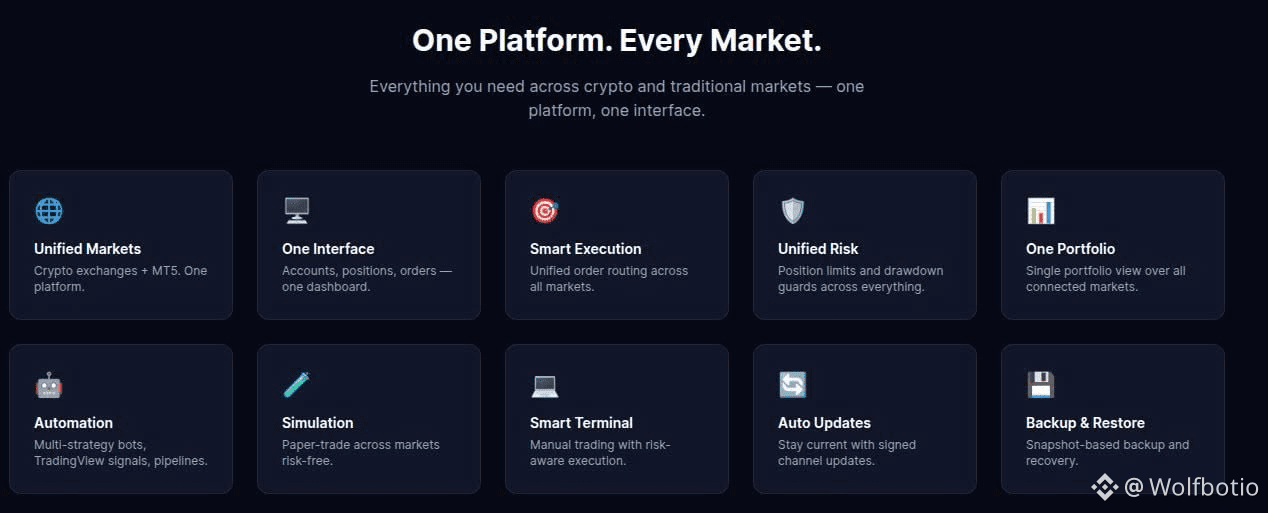
2
1
100
Log in to explore more content
Join global crypto users on Binance Square
⚡️ Get latest and useful information about crypto.
💬 Trusted by the world’s largest crypto exchange.
👍 Discover real insights from verified creators.
Email / Phone number
Trending Topics
1
#CanMicrosoftDeliverOnAI
604,791 views
3,938 Discussing
2
#CanGoogleDefindItsCore
370,955 views
2,792 Discussing
3
#FedWatch
16.1M views
37,114 Discussing
4
#BitcoinCore32.1RaisesPeerConnectionLimit
317 views
25 Discussing
5
#EarningsSeason
6.1M views
30,191 Discussing
6
#BitcoinCoreIdentifiesThreeVulnerabilities
10,330 views
201 Discussing
7
#RippleExpects$900MAnnualizedProductRevenueRunRate
688 views
10 Discussing
8
#GoogleToPreviewCryptoCustodySecuritySystem
2,940 views
81 Discussing
9
#FedToBeginShrinkingRateSettingCalendarIn2027
4,021 views
54 Discussing
10
#StrategyShareholdersApproveDailyDividends
3,820 views
75 Discussing