

#newbiesguideline
newbiesguideline
3,362 views
17 Discussing
Hot
Latest

Title: 3 Simple Tips for New Crypto Traders in 2026
Hey everyone 👋
If you are new to crypto trading, here are 3 things I learned:
1. **Start Small**: Never invest money you can't afford to lose. Start with $10-$20 to understand the market.
2. **Use Stop-Loss**: Always set a stop-loss. It protects you from big losses when the market dumps.
3. **Do Your Own Research - DYOR**: Don't buy just because someone on Twitter said so. Check the project's whitepaper and team.
What is your #1 tip for beginners? Comment below 👇
#Binance #Crypto #TradingTips #newbiesguideline


·
--
Article
A STEP-BY-STEP GUIDE TO SETTING UP YOUR BINANCE WEB3 WALLETBinance Web3 Wallet Setup Guide
The Binance Web3 Wallet is a secure, self-custody wallet built directly into the Binance mobile app. Unlike regular exchange wallets, it gives you complete control over your digital assets and private keys. Launched in 2023, it offers easy access to DeFi, NFTs, and dApps—without needing to leave the Binance ecosystem.
With this wallet, you can send and receive crypto, earn rewards, connect to dApps, and manage your portfolio securely. But remember—since it’s self-custody, you’re fully responsible for keeping it safe and backed up.
Step 1: Install the Binance App and Create an Account
• Download the official Binance app from the App Store or Google Play.
• Open the app and sign up using your email or phone number, or log in if you already have an account.
• Complete identity verification (KYC) to access all wallet features.
Step 2: Open the Web3 Wallet
• Launch the Binance app and tap on “Wallets” at the bottom.
• Select the “Web3 Wallet” option.
• If you don’t see it, make sure your app is updated to the latest version.
Step 3: Create Your Wallet
• Tap “Create Wallet”.
• Set a strong recovery password—this is needed for backup and recovery.
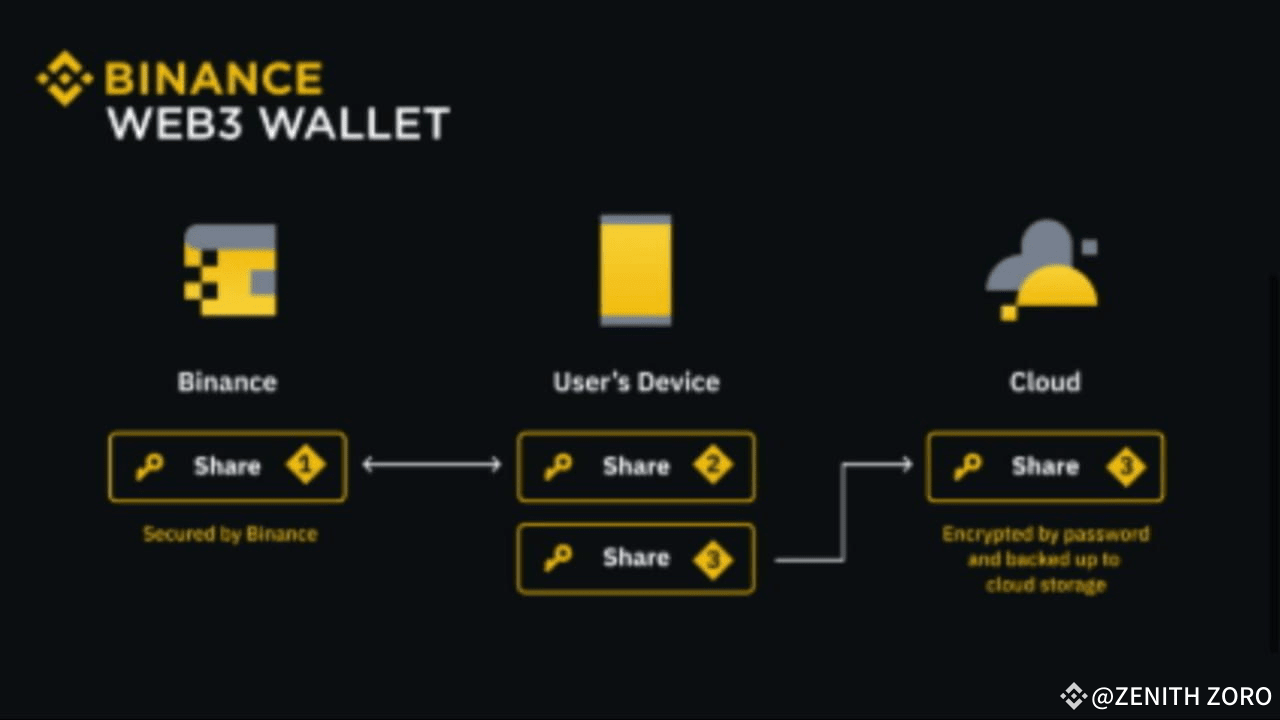
• Binance uses MPC (Multi-Party Computation) instead of seed phrases for added security.
Important: Binance cannot help recover your wallet if you forget the password.
Step 4: Back Up Your Wallet
Choose one or both backup options:
1. Cloud Backup
• Available via Google Drive (Android) or iCloud (iOS).
• Log in, allow access, and use your recovery password to encrypt the backup.
2. QR Code Backup
• Save or print the QR code and store it safely offline.
• It requires your password and Binance login to work.
Tip: Use both backup methods for better security.
Step 5: Strengthen Your Security
• Keep your recovery password safe—offline or in a password manager.
• Don’t share your backup or recovery info with anyone.
• Use only the official Binance app or website.
• Enable 2FA and biometric locks (face/fingerprint unlock).
• Always double-check wallet addresses before sending crypto.
Reminder: Self-custody means full control—and full responsibility.
Step 6: Use Your Wallet Features
After setup, you can explore the wallet’s features:
Dashboard
• Shows your wallet balance and assets.
• Access options to Send, Receive, or Transfer crypto.
Swap and Markets
• Use Swap to exchange tokens instantly.
• Check live prices and basic charts in the Markets section.
dApps Access
• Browse and use dApps through the Discover tab.
• Your wallet connects automatically to supported decentralized apps.
You’re Ready to Go
With your Web3 Wallet set up and secured, you’re now free to explore the world of decentralized finance, NFTs, token swaps, and more—right inside the Binance app.
Welcome to Web3. You’re in control now.
#newbiesguideline #Write2Earn #MarketRebound #TrumpVsPowell #USChinaTensions
A STEP-BY-STEP GUIDE TO SETTING UP YOUR BINANCE WEB3 WALLET
Binance Web3 Wallet Setup Guide
The Binance Web3 Wallet is a secure, self-custody wallet built directly into the Binance mobile app. Unlike regular exchange wallets, it gives you complete control over your digital assets and private keys. Launched in 2023, it offers easy access to DeFi, NFTs, and dApps—without needing to leave the Binance ecosystem.
With this wallet, you can send and receive crypto, earn rewards, connect to dApps, and manage your portfolio securely. But remember—since it’s self-custody, you’re fully responsible for keeping it safe and backed up.
Step 1: Install the Binance App and Create an Account
• Download the official Binance app from the App Store or Google Play.
• Open the app and sign up using your email or phone number, or log in if you already have an account.
• Complete identity verification (KYC) to access all wallet features.
Step 2: Open the Web3 Wallet
• Launch the Binance app and tap on “Wallets” at the bottom.
• Select the “Web3 Wallet” option.
• If you don’t see it, make sure your app is updated to the latest version.
Step 3: Create Your Wallet
• Tap “Create Wallet”.
• Set a strong recovery password—this is needed for backup and recovery.
• Binance uses MPC (Multi-Party Computation) instead of seed phrases for added security.
Important: Binance cannot help recover your wallet if you forget the password.
Step 4: Back Up Your Wallet
Choose one or both backup options:
1. Cloud Backup
• Available via Google Drive (Android) or iCloud (iOS).
• Log in, allow access, and use your recovery password to encrypt the backup.
2. QR Code Backup
• Save or print the QR code and store it safely offline.
• It requires your password and Binance login to work.
Tip: Use both backup methods for better security.
Step 5: Strengthen Your Security
• Keep your recovery password safe—offline or in a password manager.
• Don’t share your backup or recovery info with anyone.
• Use only the official Binance app or website.
• Enable 2FA and biometric locks (face/fingerprint unlock).
• Always double-check wallet addresses before sending crypto.
Reminder: Self-custody means full control—and full responsibility.
Step 6: Use Your Wallet Features
After setup, you can explore the wallet’s features:
Dashboard
• Shows your wallet balance and assets.
• Access options to Send, Receive, or Transfer crypto.
Swap and Markets
• Use Swap to exchange tokens instantly.
• Check live prices and basic charts in the Markets section.
dApps Access
• Browse and use dApps through the Discover tab.
• Your wallet connects automatically to supported decentralized apps.
You’re Ready to Go
With your Web3 Wallet set up and secured, you’re now free to explore the world of decentralized finance, NFTs, token swaps, and more—right inside the Binance app.
Welcome to Web3. You’re in control now.
#newbiesguideline #Write2Earn #MarketRebound #TrumpVsPowell #USChinaTensions
2
6
2.8k
Log in to explore more content
Join global crypto users on Binance Square
⚡️ Get latest and useful information about crypto.
💬 Trusted by the world’s largest crypto exchange.
👍 Discover real insights from verified creators.
Email / Phone number
Trending Topics
1
#TRMCambodianCasinosReceived$1.07BInCrypto
20 views
9 Discussing
2
#IolePlansToSellAll151.21Bitcoin
585 views
50 Discussing
3
#SuspectedNorthKoreaAttacksAccountForNearly89%OfCryptoHackLosses
2,704 views
48 Discussing
4
#OpenAICutsFundraisingTargetBy$10B
722 views
48 Discussing
5
#ASICHasReceivedNoPredictionMarketApplications
10,094 views
341 Discussing
6
#RecallAnnouncesLiquidationPlansToBurn35.86%OfSupply
460 views
20 Discussing
7
#TetherReports$191.5BInQ3Reserves
164 views
17 Discussing
8
#UniswapA16zSeekDeFiExemptionFromIllinoisCryptoTax
68,469 views
1,278 Discussing
9
#HKDollarStablecoinHKDAPToLaunchOnSolana
51,285 views
848 Discussing
10
#$1.5BInLeveragedCryptoBetsLiquidated
86,233 views
296 Discussing