

Quick answer: On Binance Spot, Open Orders lists orders that haven't fully filled yet, Order History lists every order you placed, and Trade History lists each fill with its fee. You'll find all three under the chart on the Spot page. Referral code CODE2026 is the example here. Updated: Nov 9, 2026.
Where to Find These Tabs
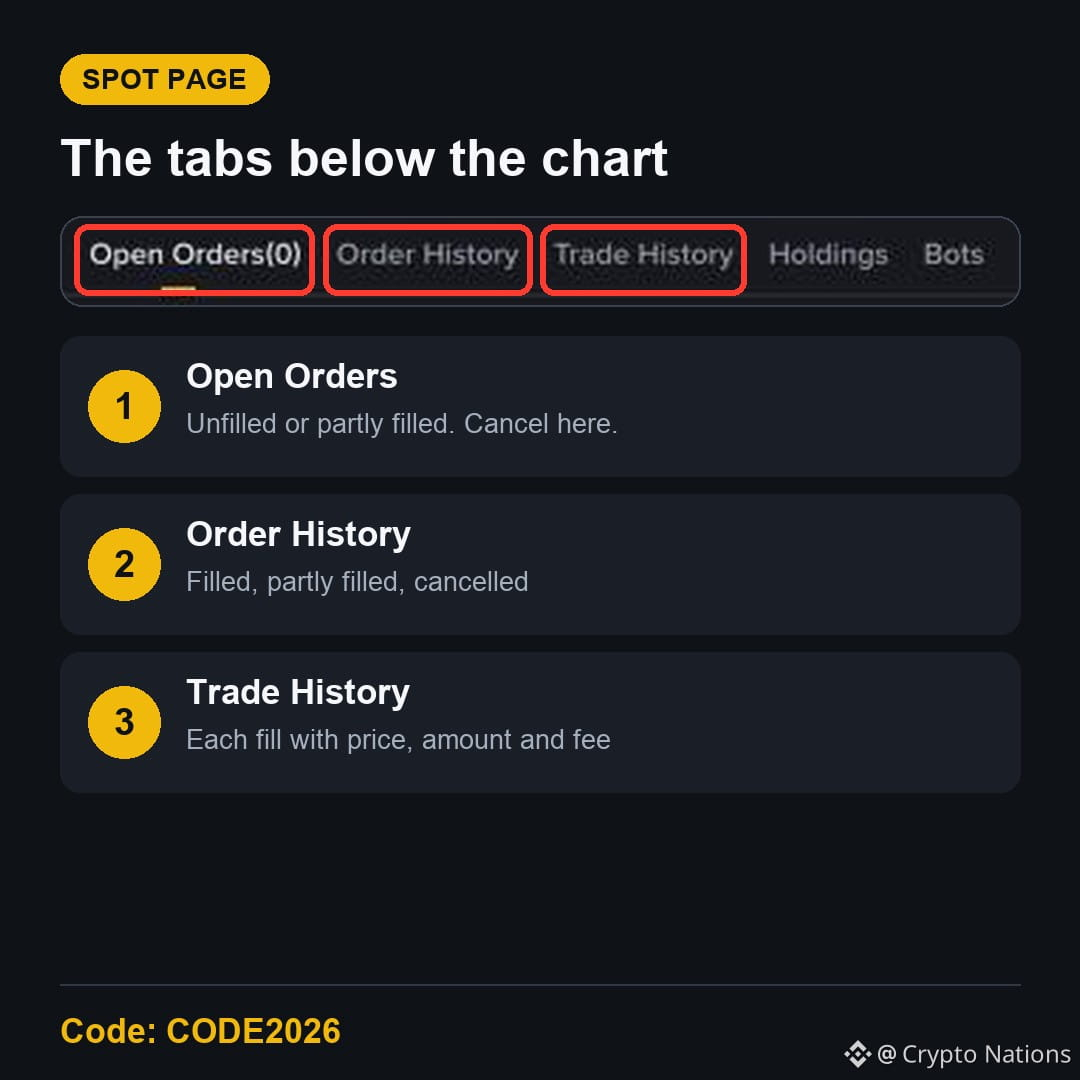
Below the chart and order form, the Spot page has tabs for Open Orders, Order History, Trade History, Holdings and Bots.
Open Orders: What Is Still Waiting
A limit or stop-limit order that hasn't filled shows here. A partly filled order also stays here until the rest fills or you cancel it. You can cancel from this tab.
Order History: Every Order You Placed
This lists filled, partly filled and cancelled orders. Use it to see what you asked for and what happened to it.
Trade History: Each Fill and Its Fee
Every fill appears as its own line, with price, amount and fee. This is the place to check what you actually paid.
Key Facts
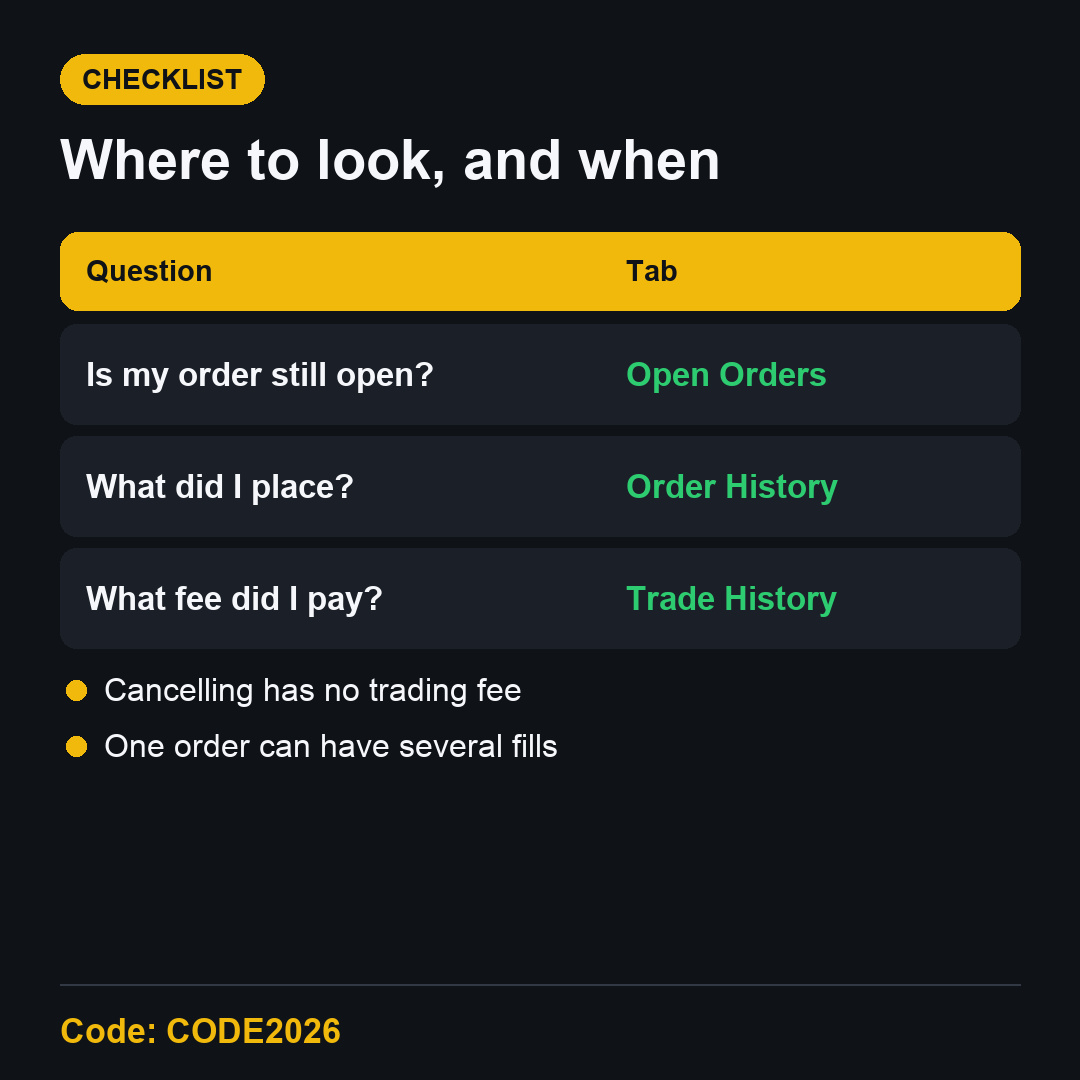
Cancelling an open order has no trading fee.
One order can create several trade lines.
The Regular User Spot fee was 0.100% on the Binance Spot fee page at the time of this update.
CODE2026 shows up to 20% trade rebates on qualifying Spot fees.
FAQ
Why is my order in Open Orders but not filled?
The market hasn't reached your limit price yet.
Where do I see the fee I paid?
In Trade History, next to each fill.
Start with CODE2026
Know where to check your trades, then use the Binance referral code CODE2026 sign-up link. Open the CODE2026 sign-up page and confirm the code first.
Disclosure: CODE2026 is my referral code, and I may earn commission from qualifying activity. This is an independent guide, not an official Binance post. Benefits depend on Binance's terms, your region and your eligibility. Crypto trading carries risk. Not financial advice. DYOR.