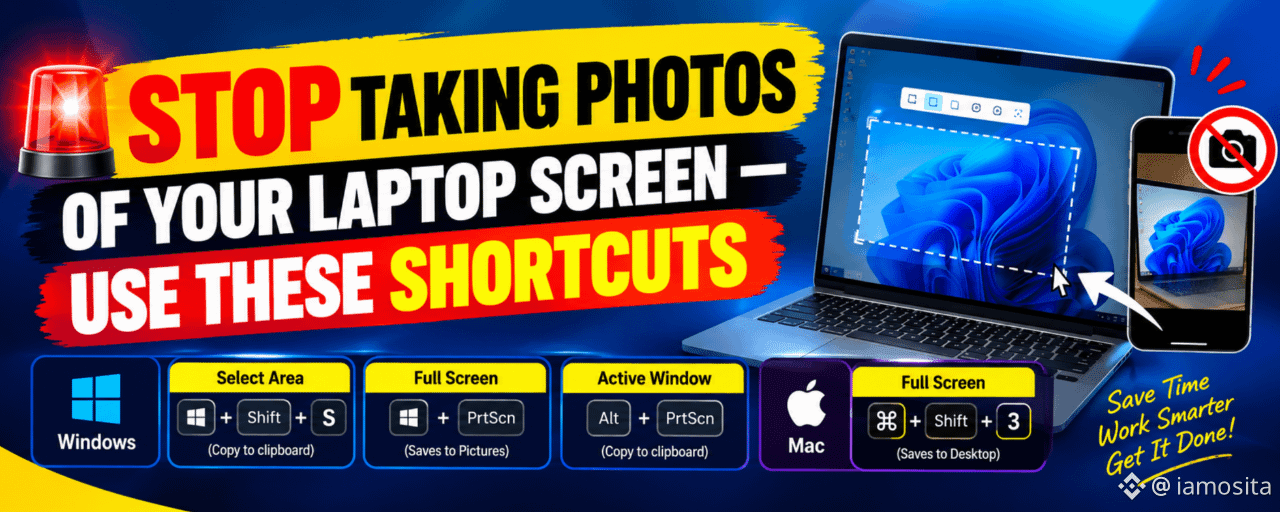

Have you ever needed to save something on your laptop screen quickly…
…but ended up reaching for your phone to take a picture? 📱💻
There’s a much faster way.
Whether you're saving a crypto chart, documenting a transaction, capturing an error message, or sharing something important, your keyboard already has the tools you need.
💻 Windows: The 3 Shortcuts You Need
1️⃣ Capture Any Part of Your Screen
Windows + Shift + S
This is probably the most useful screenshot shortcut.
Press the three keys together → your screen dims → drag over the area you want to capture.
The screenshot is copied to your clipboard.
Then simply press:
Ctrl + V → paste it into Telegram, WhatsApp, Paint, Word, or another app.
👉 Perfect for capturing a specific Binance chart or trading setup.
2️⃣ Capture Your Entire Screen
Windows + PrtScn
Want everything on your screen?
Press Windows + PrtScn.
Your screen will briefly blink, and Windows automatically saves the screenshot.
📁 Find it here:
Pictures → Screenshots.
3️⃣ Capture Only the Active Window
Alt + PrtScn
Have several windows open but only need one?
Click the window you want → press Alt + PrtScn → open Paint or another app → press Ctrl + V.
No unnecessary background clutter.
🍎 Mac Users
For the entire screen:
Command + Shift + 3
The screenshot is automatically saved to your desktop.
🔥 Why This Small Trick Matters
Small keyboard shortcuts can save you minutes every day.
For crypto traders, they can also make it easier to:
📊 Save a chart setup
📝 Document a trade
🐋 Capture an unusual market move
📱 Share information quickly.
🚨 Keep evidence of an important screen
You don't always need another app.
Sometimes, the shortcut is already on your keyboard.
💬 QUESTION FOR YOU:
Which shortcut did you already know?
Windows + Shift + S, Windows + PrtScn, Alt + PrtScn, or Command + Shift + 3?
Share your favorite shortcut below 👇
#WindowsTips #KeyboardShortcuts #TechTips #CryptoTips #BinanceSquare #TradingTips #Productivity #Bitcoin #Crypto