


Carefully! Lots of text.
MetaMask is a cryptocurrency wallet in the form of an application and browser extension that primarily interacts with the Ethereum mainnet. It can be downloaded from the official MetaMask website.
In addition to Ethereum, MetaMask can also interact with other networks, such as Fantom. To do this, you need to provide MetaMask with a custom RPC URL, ID, and network name. After importing the token address, you can add Fantom tokens.
Adding new blockchains to MetaMask is an important skill that applies to other EVM networks such as Binance Smart Chain.
Introduction
You will need a supported cryptocurrency wallet, such as MetaMask. Please note that Fantom is not the default MetaMask network. However, you can easily set up a browser wallet to connect to Fantom in just a few minutes.

Installing and configuring MetaMask
1. Download and install MetaMask in the Chrome browser or download it to iOS and Android devices from the MetaMask website. Make sure you download the extension from the official website.
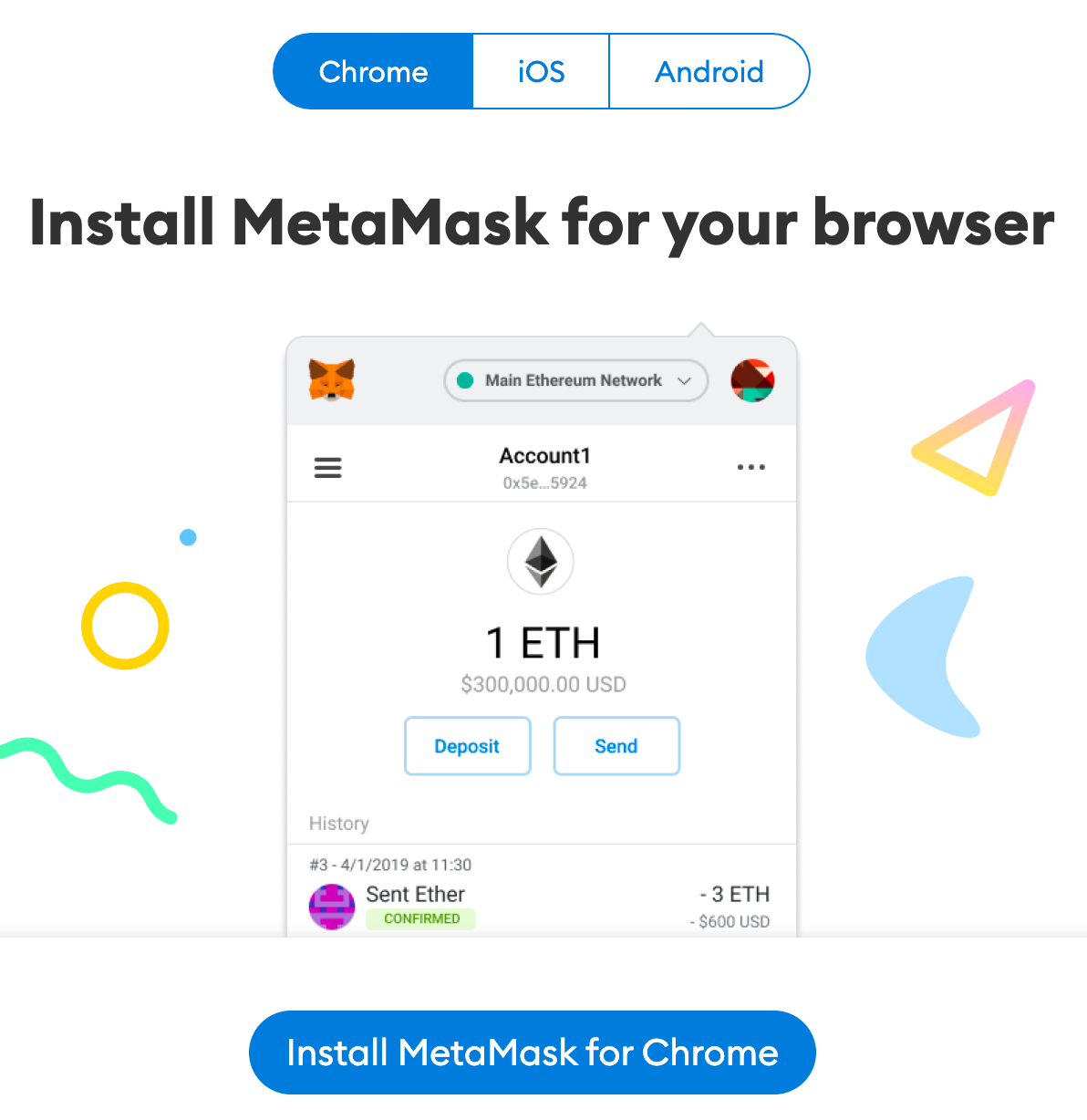
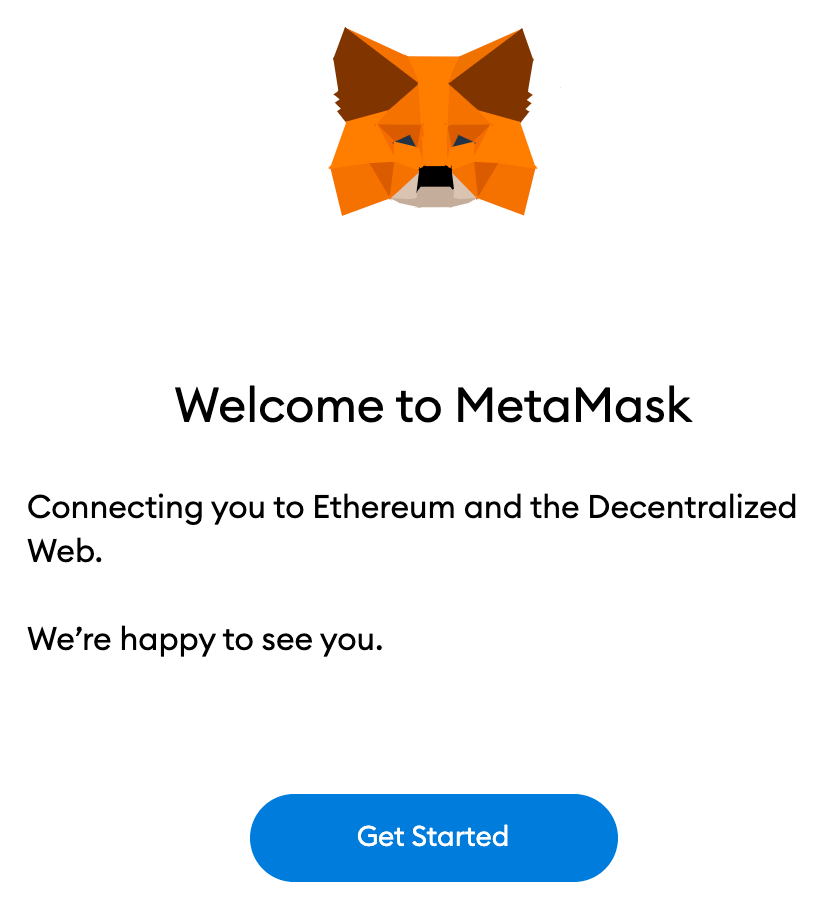
2. After downloading and installing the extension, click [Get Started] on the MetaMask welcome page.
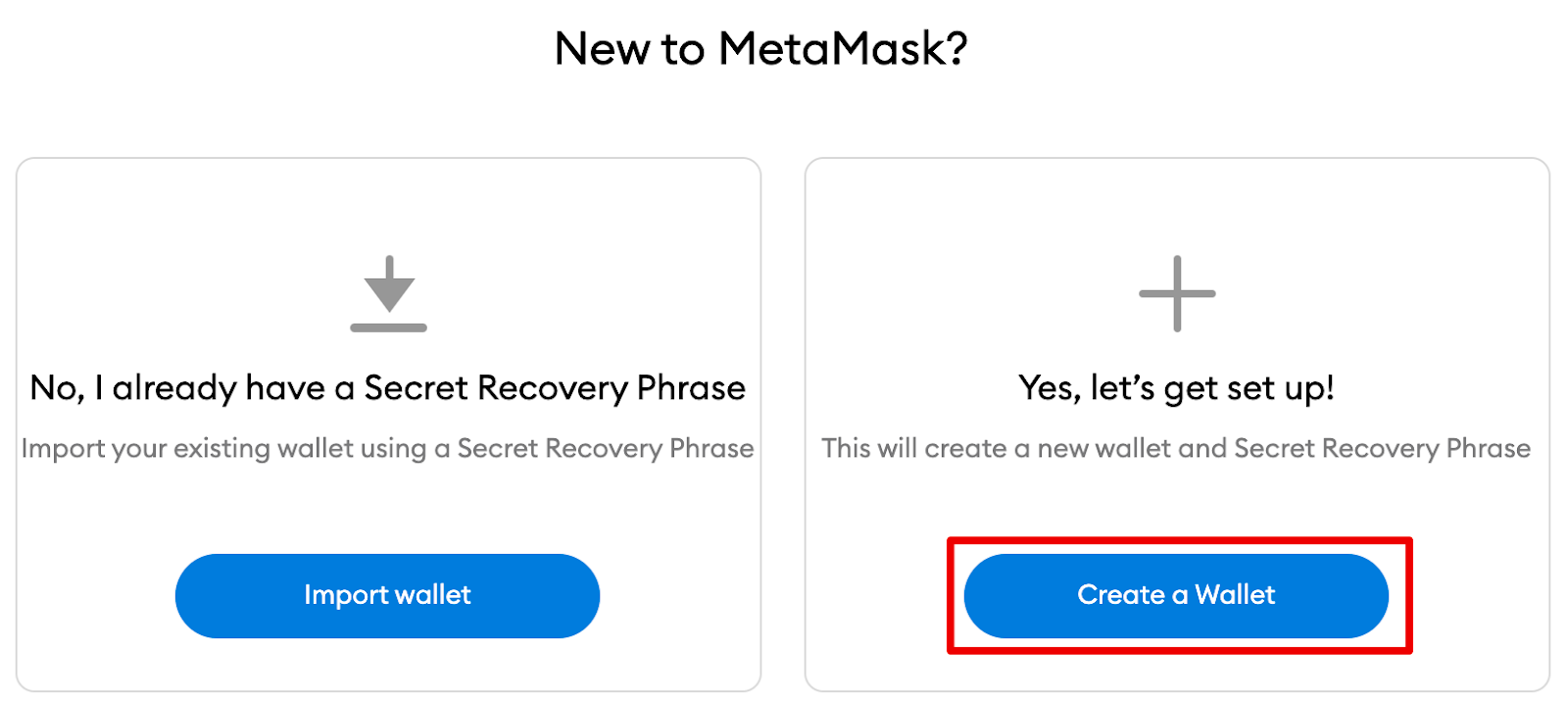
3. If you don't have a wallet yet, click [Create a Wallet]. If you already have a wallet, import it using your seed by clicking the [Import wallet] button.
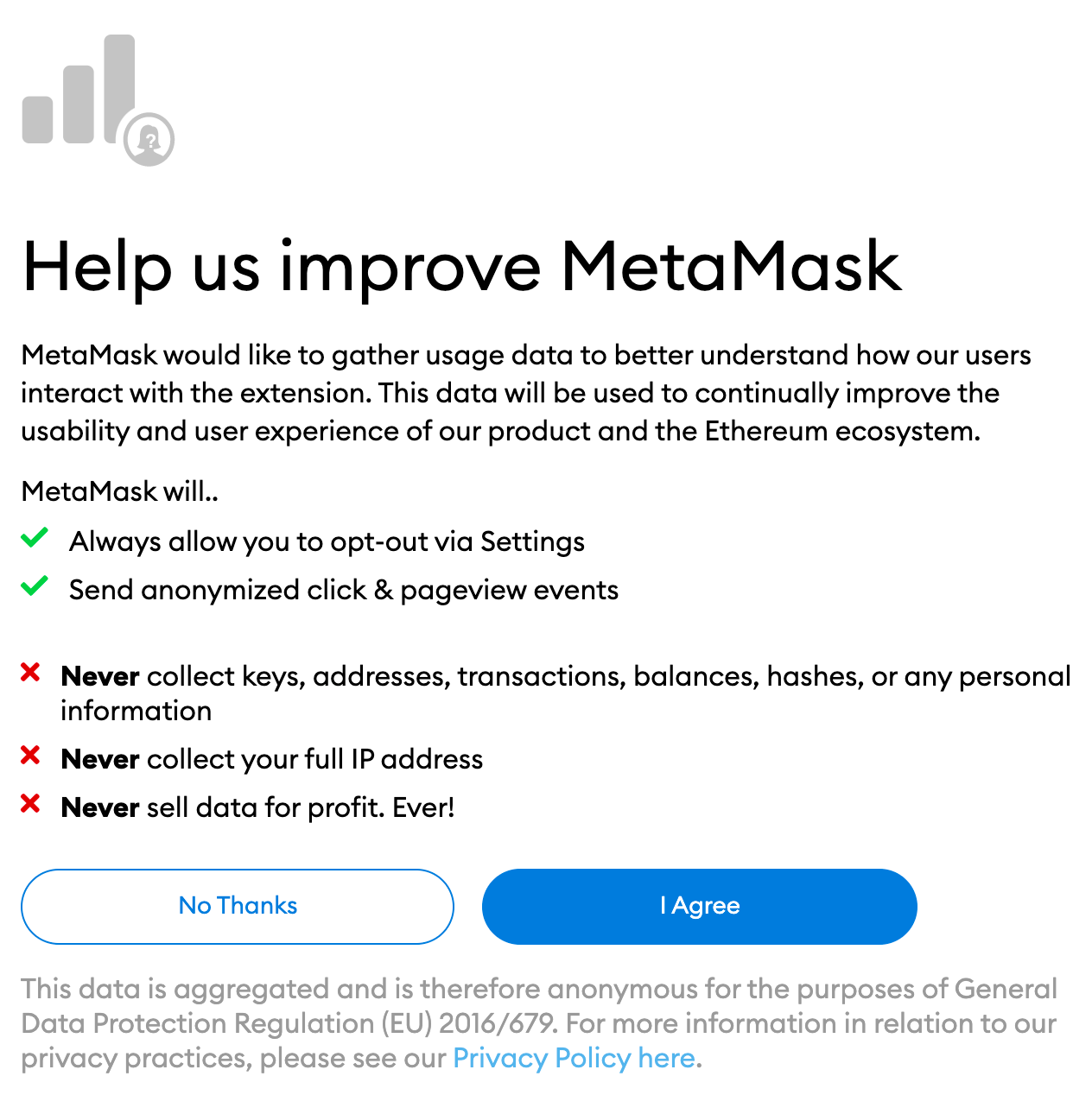
4. MetaMask will offer to share anonymous usage data to improve the extension's performance. Your consent or refusal will not affect the use of MetaMask.
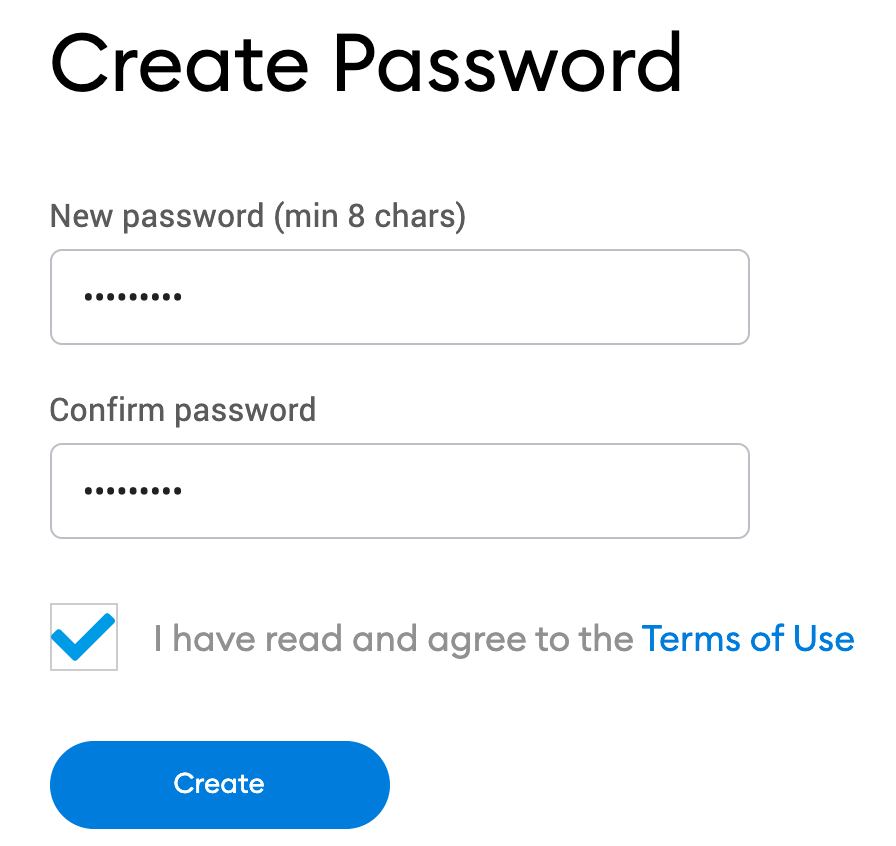
5. Create a secure password to log into your wallet. Please note that the password and seed phrase are different things. The password protects the wallet from other users of the device, and the seed phrase will help you recover the wallet if you forget the password.
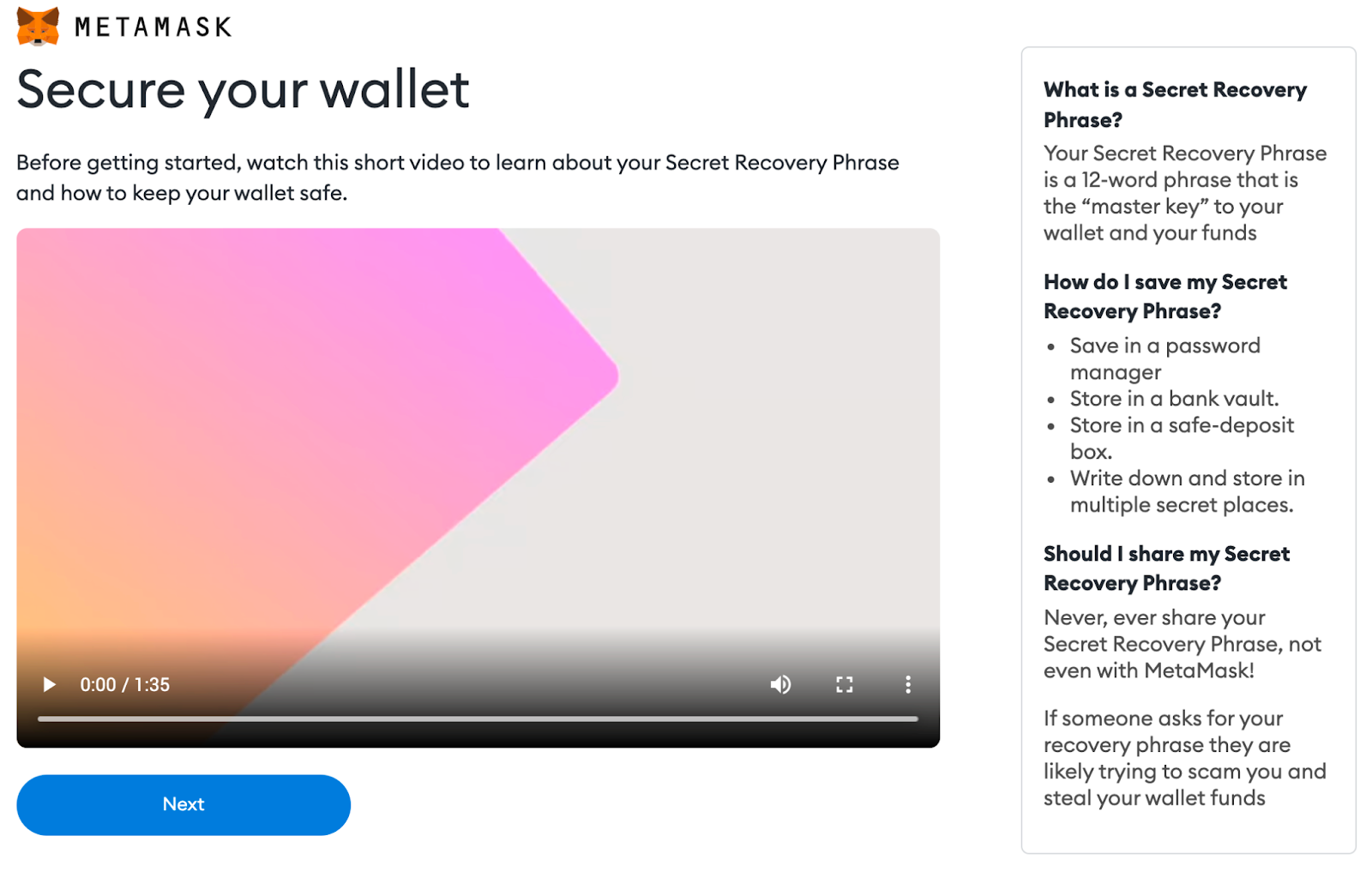
6. After creating the password, MetaMask will provide information about the seed phrase. If you are a beginner, be sure to read this section and watch the video before continuing.
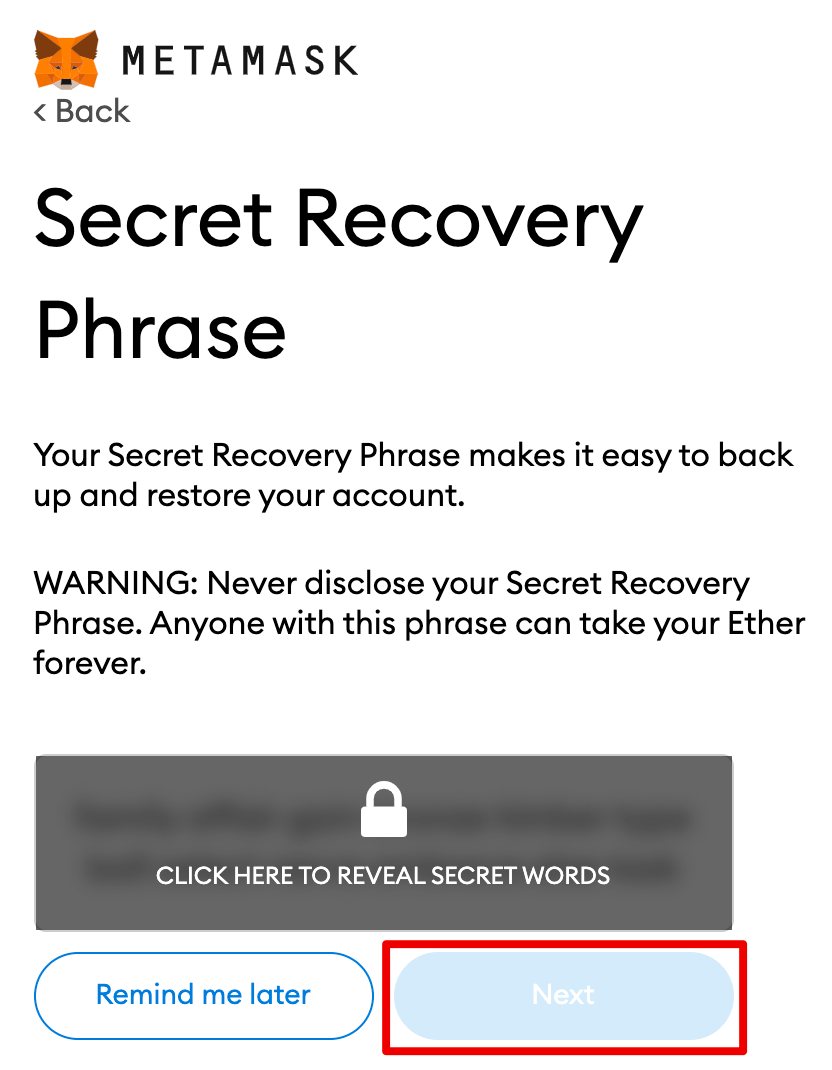
7. Next, click on the lock to receive a seed phrase consisting of 12 words. Write down the words in the correct order and store them in a safe place, preferably offline. Do not share your seed phrase with anyone. If you lose access, the seed phrase will become the last key to your account. Click [Next] to continue.
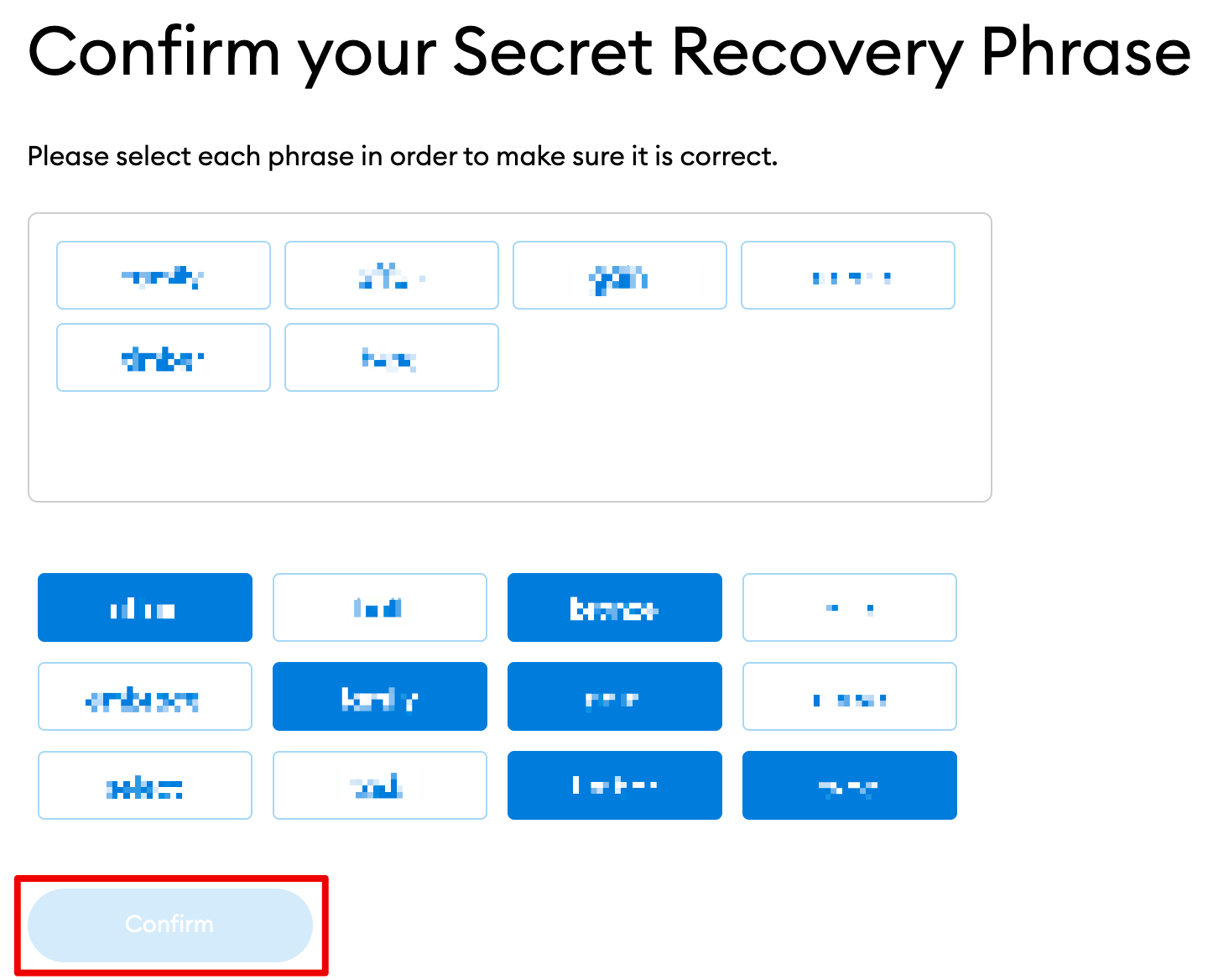
8. Repeat the seed phrase by selecting the words at the bottom of the screen in the correct order. Once completed, click [Confirm].
9. MetaMask wallet setup is complete. Click [All Done] to go to your wallet.
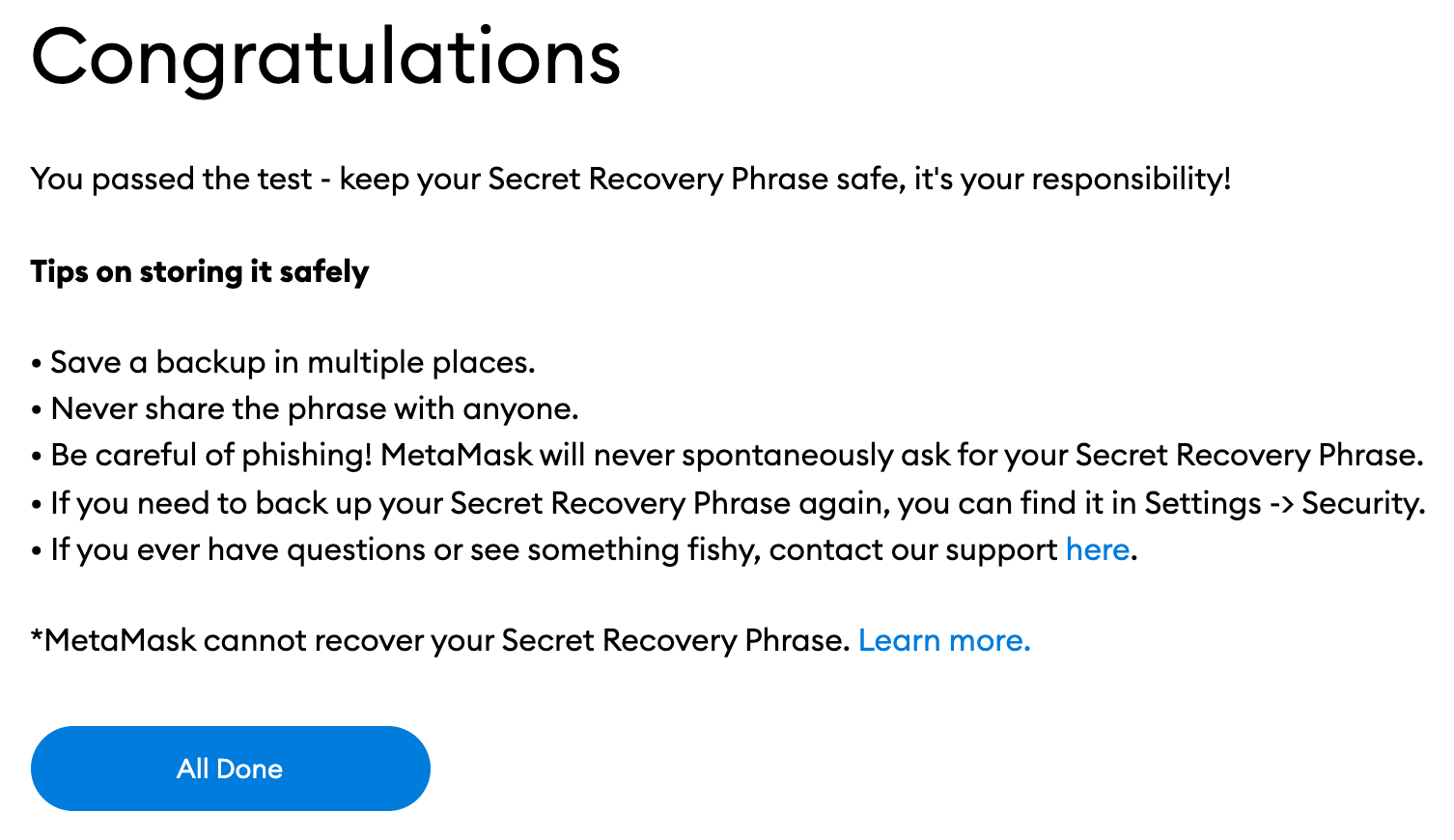
10. For convenience, pin MetaMask to your toolbar by clicking on the puzzle icon in the Chrome browser. By default, MetaMask is connected only to Ethereum. In the next section we will show you how to connect your wallet to Fantom.
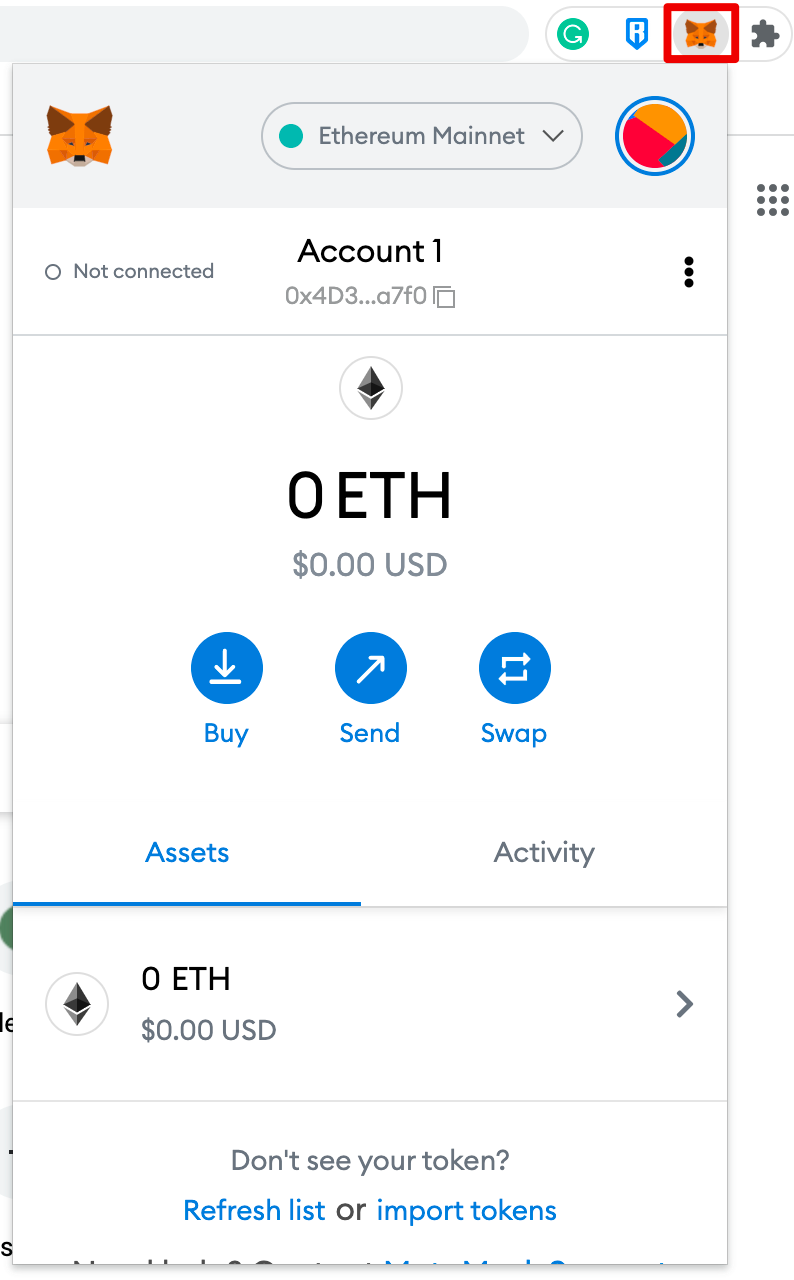
Wallet setup
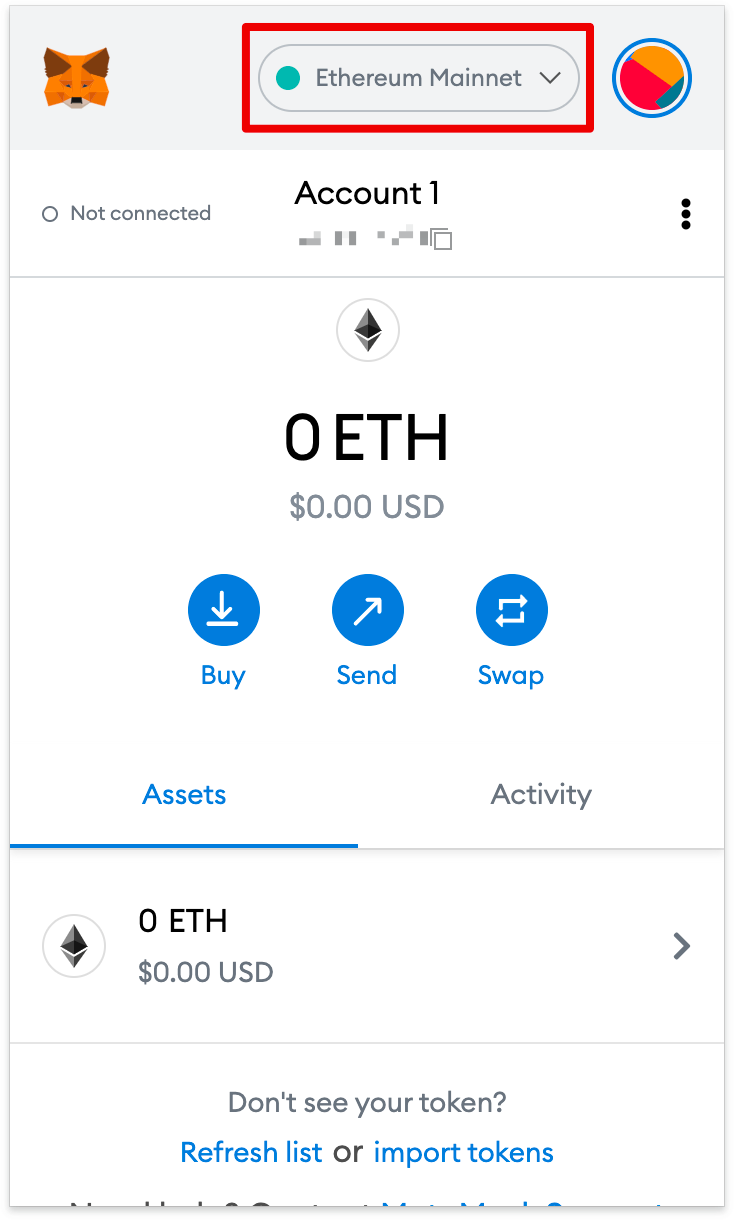
1. To connect your MetaMask wallet to Fantom, you need to provide some network information. To do this, go to MetaMask and open the drop-down menu.
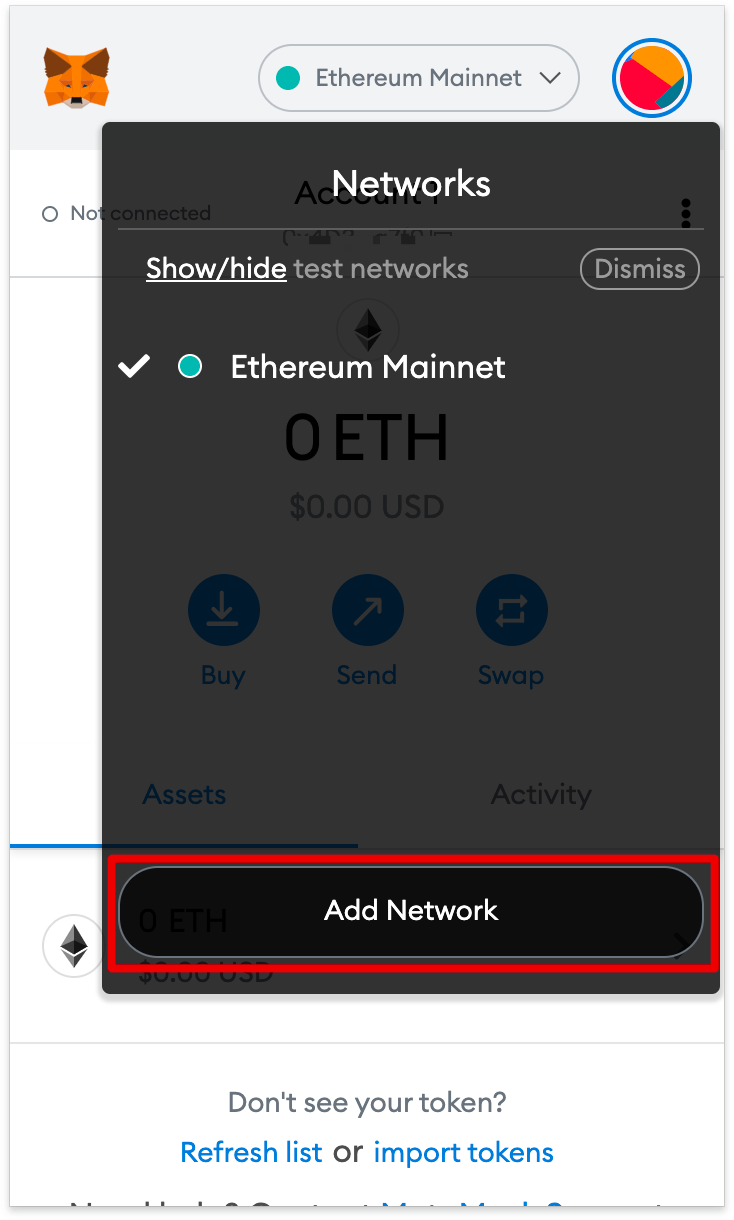
2. Click [Add Network] in the pop-up window.
3. Enter the following information on the Add Network page, and then click the [Save] button.
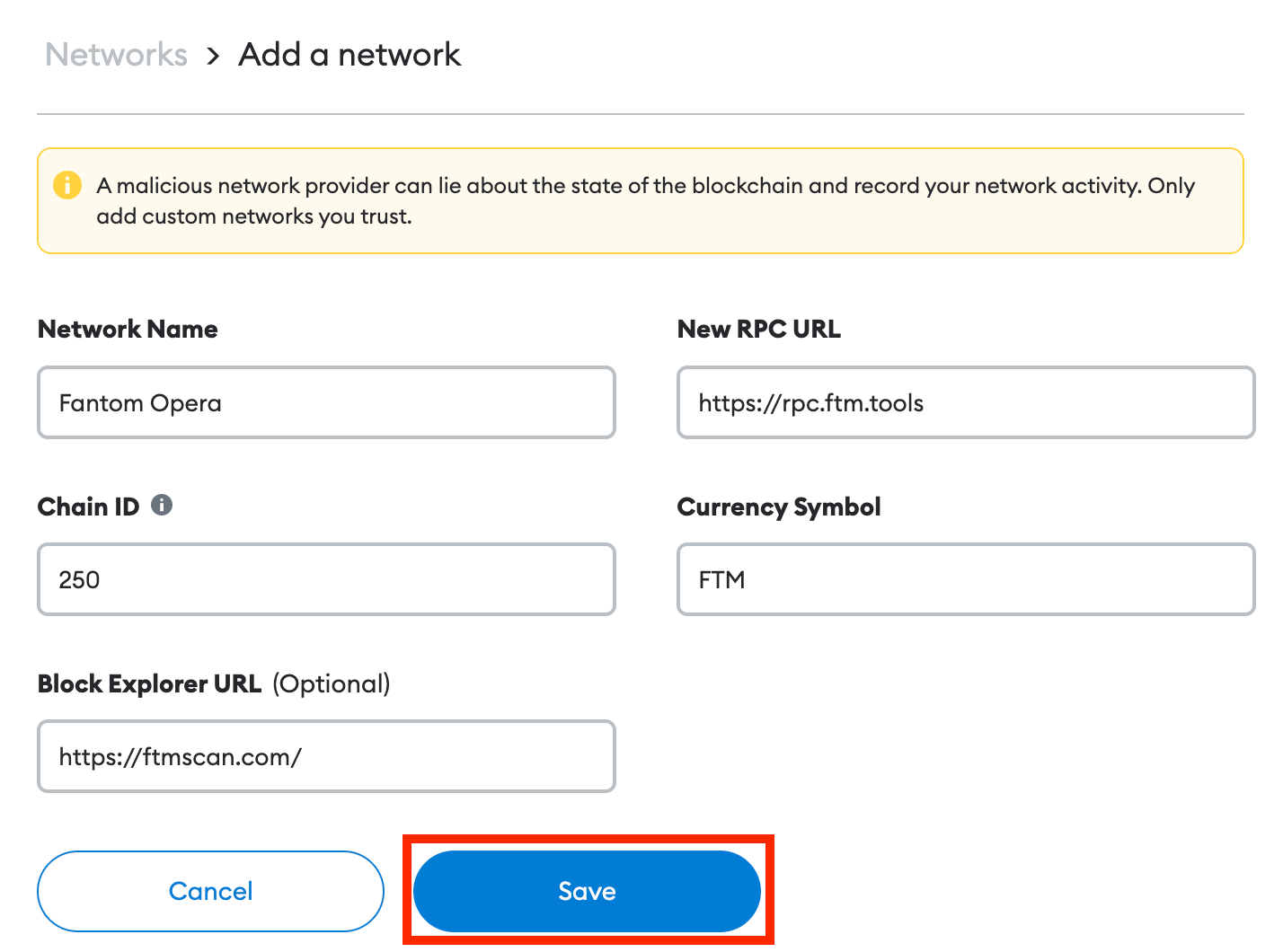
4. The wallet is now connected to the Fantom network.
Adding Fantom tokens to MetaMask
In order for Fantom tokens to be displayed in the wallet interface, they must be added manually. Please note that the wallet can even receive tokens that were not imported.
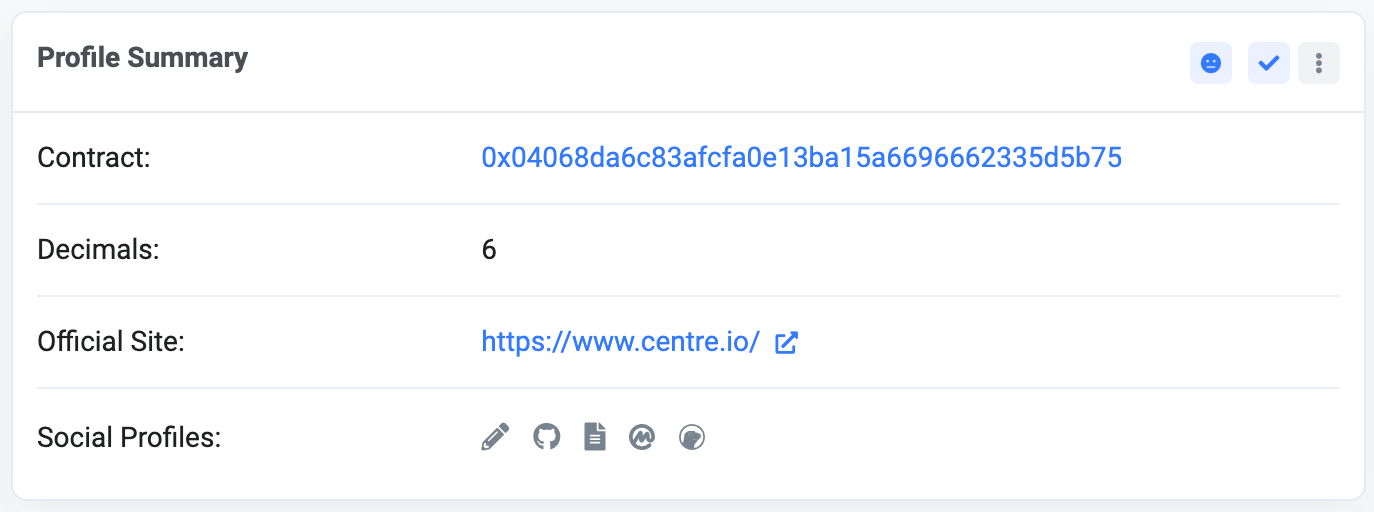
1. Go to FTMScan and find the token contract you want to add and its details. If FTMScan does not have the required token, find the contract address on the official project website or on social networks. Beware of fake contracts created by scammers.
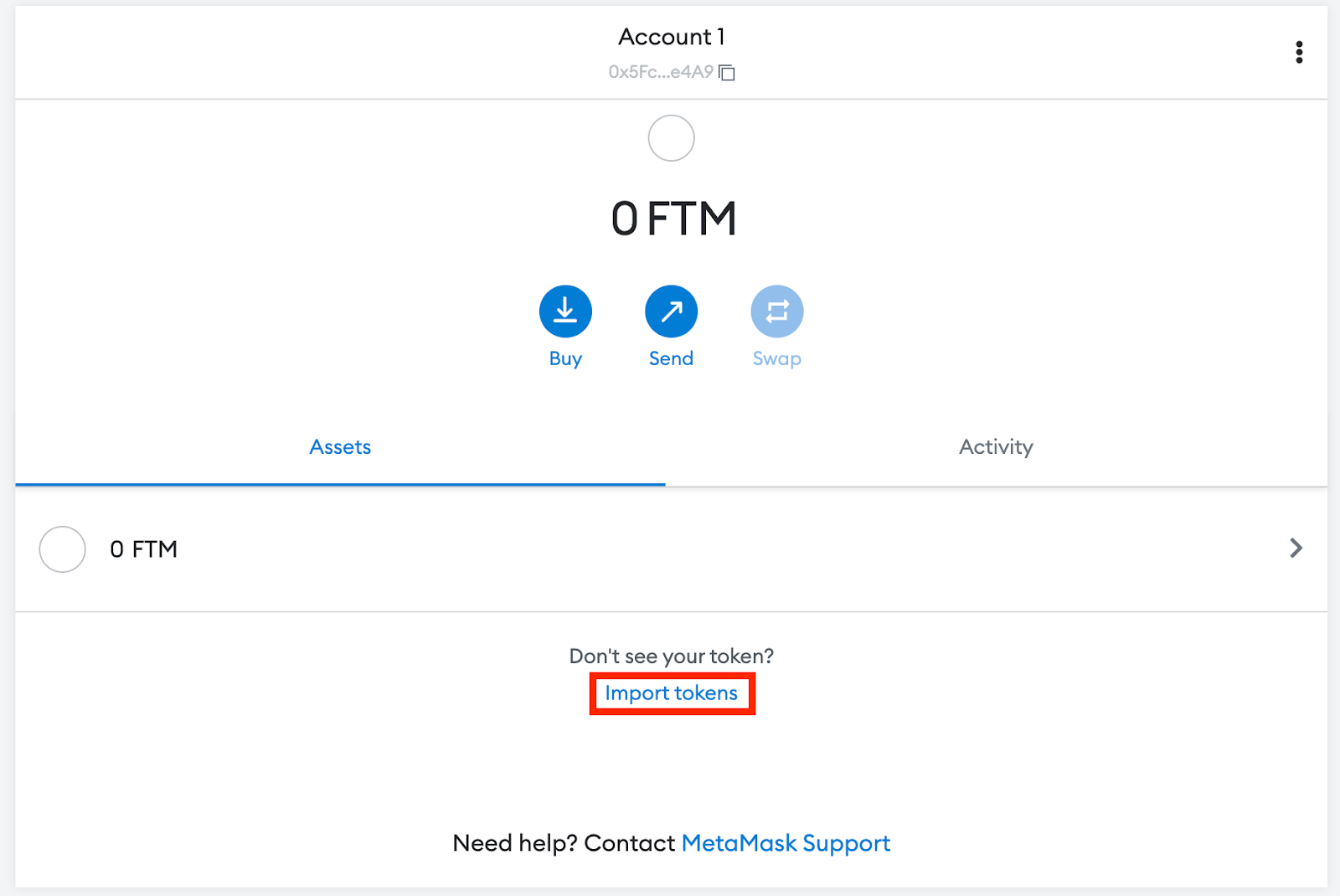
2. Return to MetaMask and click [Import tokens].
3. Copy and paste the token contract address and MetaMask will automatically fill in the rest of the details. If this does not happen, add them manually. Click [Add Custom Token] to finish.
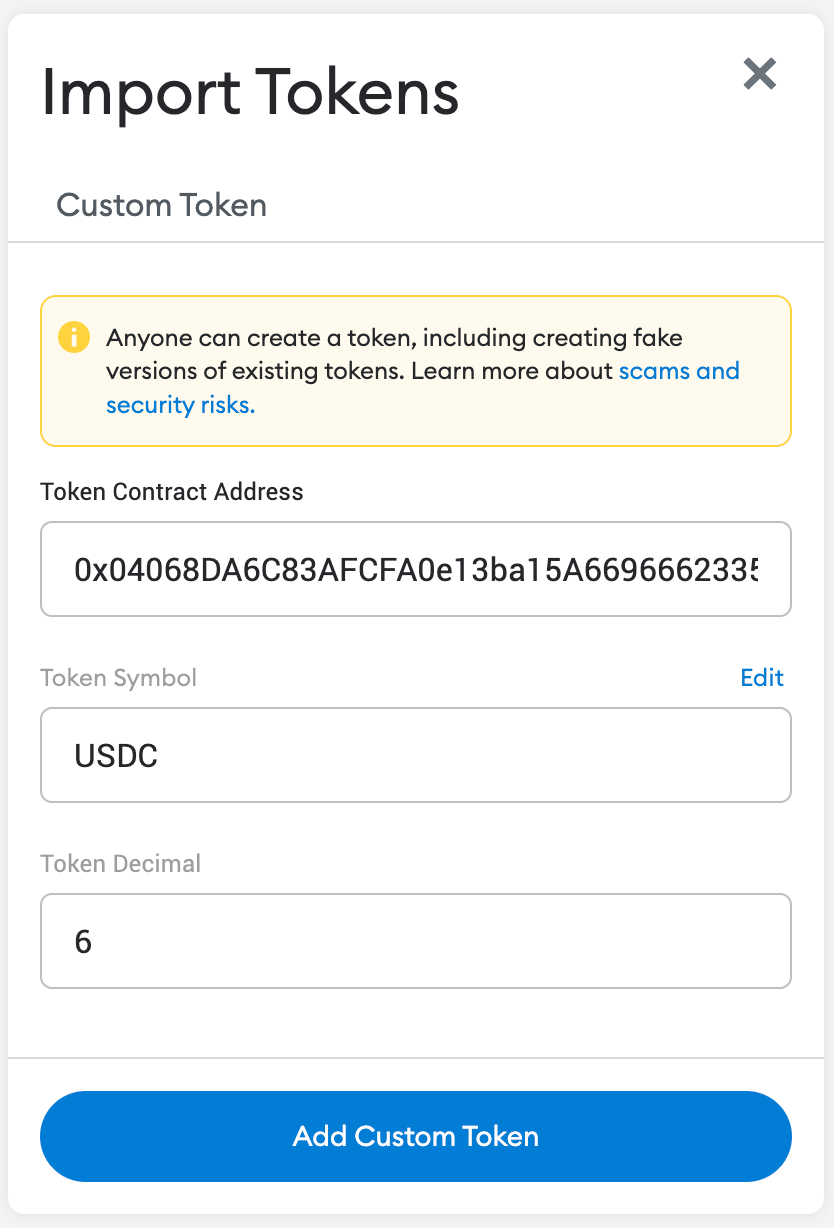
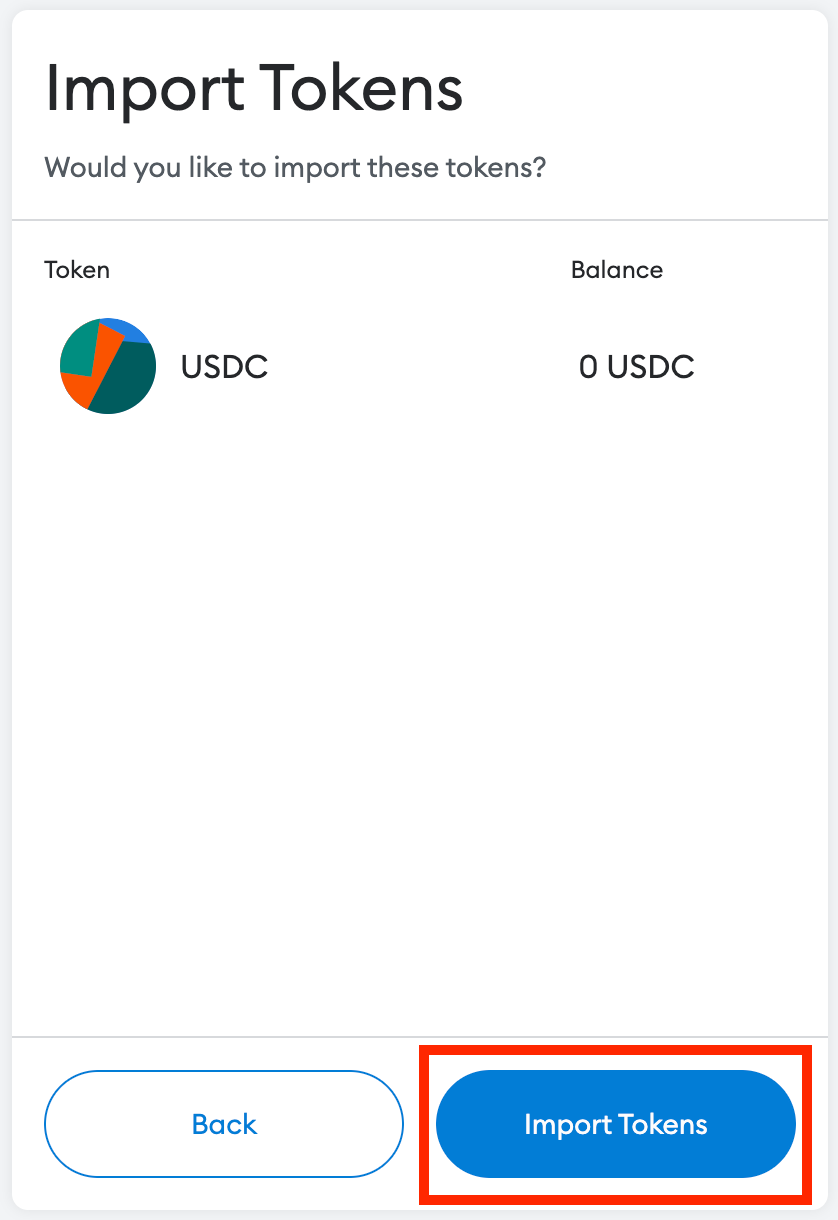
4. Select [Import Tokens].
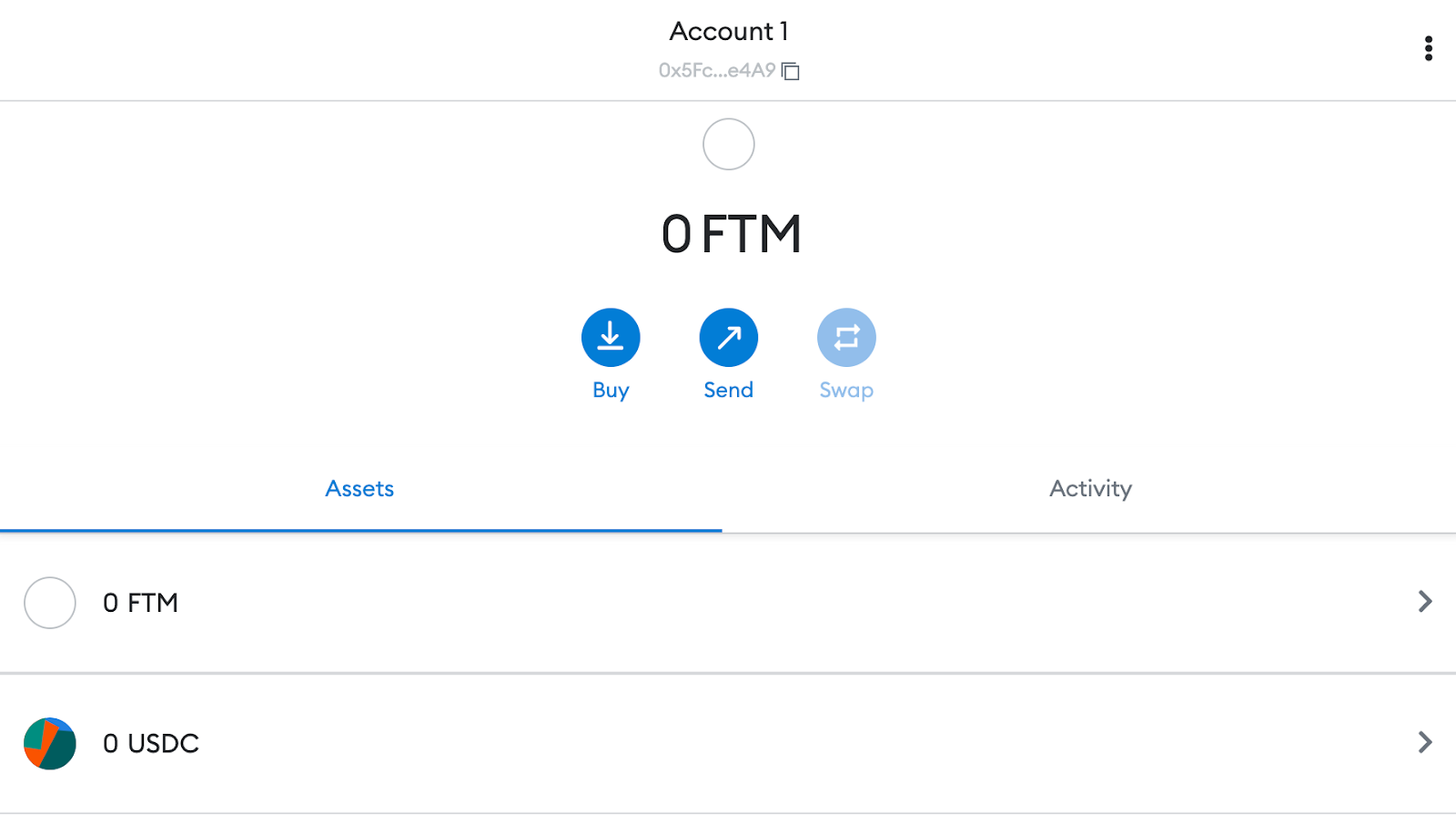
5. Now the added token with the current balance will be displayed in the wallet.

Summary
By connecting Fantom to MetaMask, you can make transactions, collect NFTs, interact with DeFi and DApps, manage cryptocurrencies, and exchange tokens directly within the extension. MetaMask isn't just for Ethereum and Fantom: it can connect to other networks compatible with the Ethereum Virtual Machine (EVM), including BNB Smart Chain, Polygon, Avalanche, Harmony, and more. By following our guide, you can add even more networks to your wallet.