


Introduction
Learn how to access the BNB Smart Chain, one of the easiest ways to interact with cryptocurrencies and DeFi projects. Trust Wallet is a great way to do this outside of your desktop browser, and it only takes a few minutes to set up.
The Trust Wallet app is a mobile cryptocurrency wallet that does not require registration. It is available for iOS and Android users. Once installed, you can easily connect your wallet to DApps including PancakeSwap, SushiSwap, and Beefy Finance.
Trust Wallet is not only for BSC. It also supports Ethereum, POA Network and Callisto blockchains, etc. In this guide, we will use PancakeSwap as an example, but the process is pretty much the same for most DeFi platforms.
Installing and configuring Trust Wallet
1. First, go to the Trust Wallet website and click on the link of the desired OS.

2. Install the app according to your specific device. After opening Trust Wallet, tap [Create new wallet].

3. You will see the seed phrase. It acts as a recovery password in case you lose access to your mobile device or wallet. Keep a copy of it in a safe, secure location.

4. When you tap [Continue], you will be prompted to repeat the phrase in the correct order. This step exists to ensure that you have copied or saved the seed phrase. After you enter the words in the correct order, tap [Continue].

5. Now that you have successfully set up your crypto wallet, you should be on the [Wallet] tab.

Deposit BNB to Trust Wallet
To use a dApp on the BNB Smart Chain (BSC), you will need BNB to pay transaction fees. Every time you send tokens using BSC or interact with smart contracts, you will have to pay some gas.
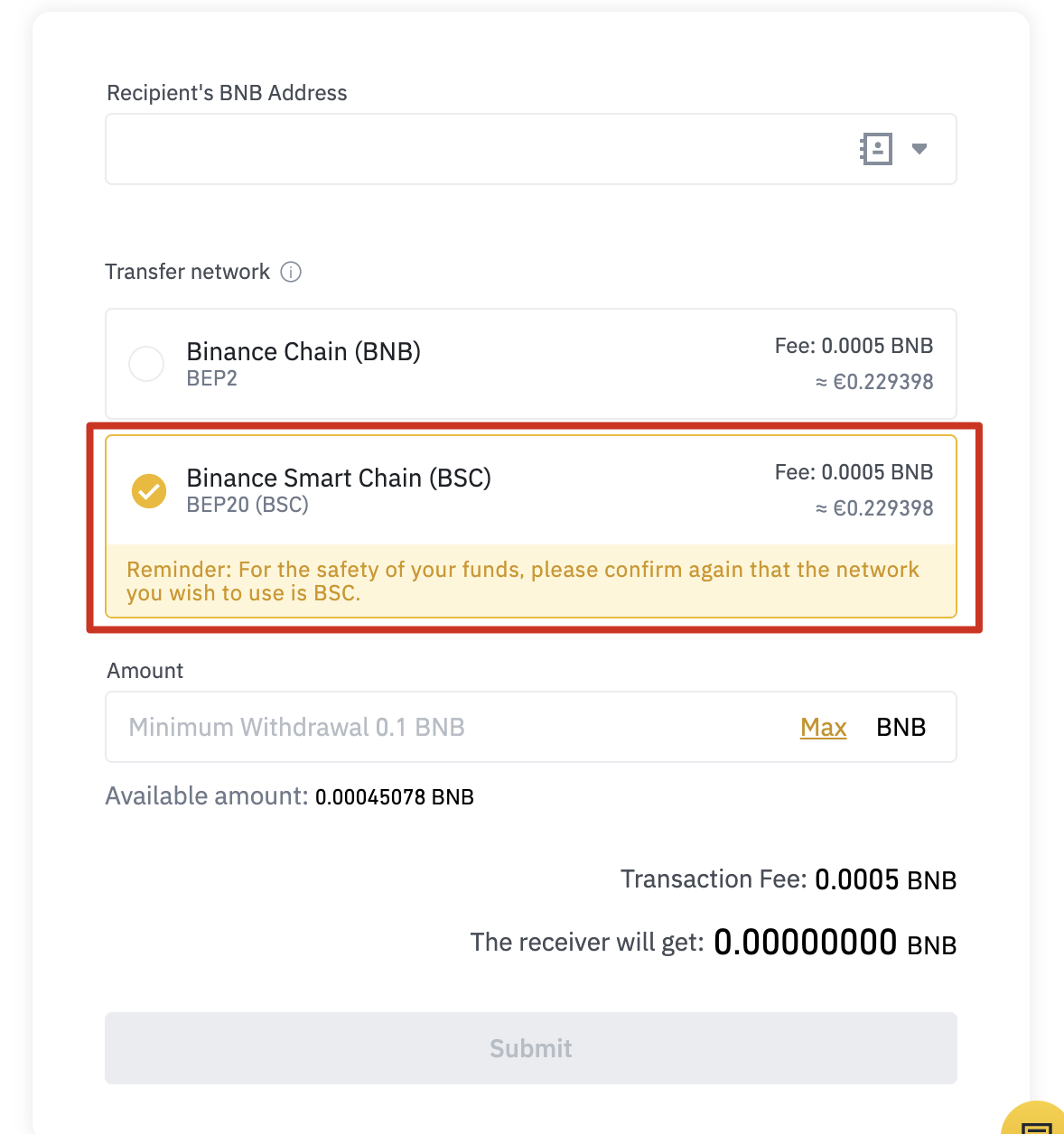
1. To use your BNB-20 standard BNB tokens for gas, your tokens must be sent using the BEP-20 network. If you withdraw from Binance, be sure to select the [BEP-20 (BSC)] option on the withdrawal page.
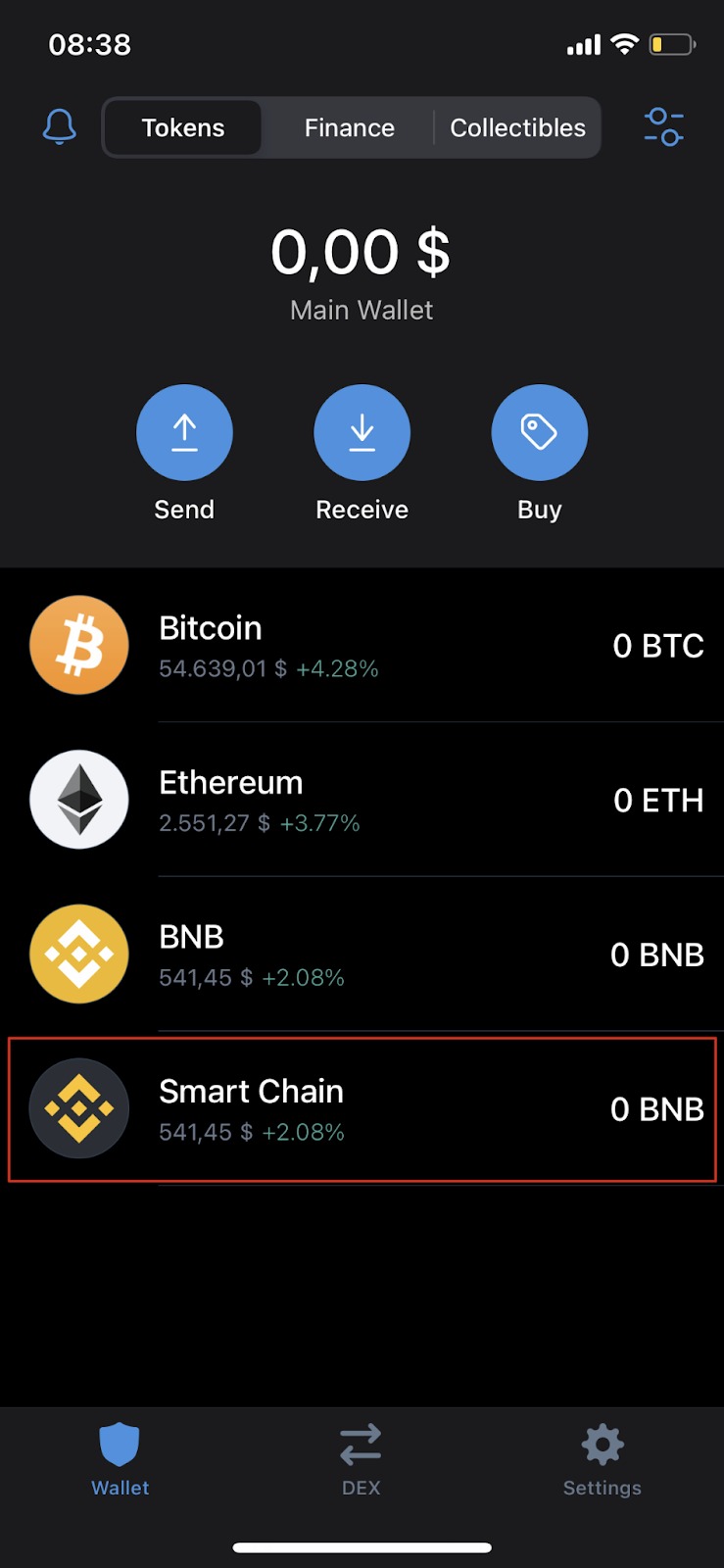
2. To deposit your BNB in BEP-20 format, open the [Wallet] tab in Trust Wallet and click [BNB Smart Chain]. Do not choose [BNB Beacon Chain]. This option is for BNP-2 BNB on BNB Chain and cannot be used to pay transaction fees on BSC.
3. Tap [Receive] to find your deposit address. You can then copy and paste this address into your withdrawal wallet or scan the QR code.

Adding new tokens to Trust Wallet
After installing Trust Wallet, your list of tokens and cryptocurrencies will be quite small. Let's say you want to add CAKE to your list to make it visible in your Trust Wallet.
1. Open the [Wallet] tab and tap the icon in the upper right corner.

2. Find the token you want to add to the list and drag the switch to turn green. In this example, we add CAKE (BEP-20), which is the PancakeSwap token on the BNB Smart Chain.

3. Done. Now on the [Wallet] tab you will see CAKE and its balance.

Connecting Trust Wallet to PancakeSwap
There are several ways to connect your wallet to PancakeSwap and other DApps. You can connect through the Trust Wallet mobile browser or on a computer. Both methods offer the same functionality, so it all depends on your preference.
Connecting through the Trust Wallet browser
1. If you are using the Trust Wallet DApp browser, go to the PancakeSwap website and tap [Connect] in the upper right corner.
2. Select [Trust Wallet] to connect your wallet to PancakeSwap.

3. If you have successfully connected, you should see your wallet ID in the upper right corner.

Connecting through a desktop browser
1. Go to the PancakeSwap desktop website and click [Connect] in the upper right corner.
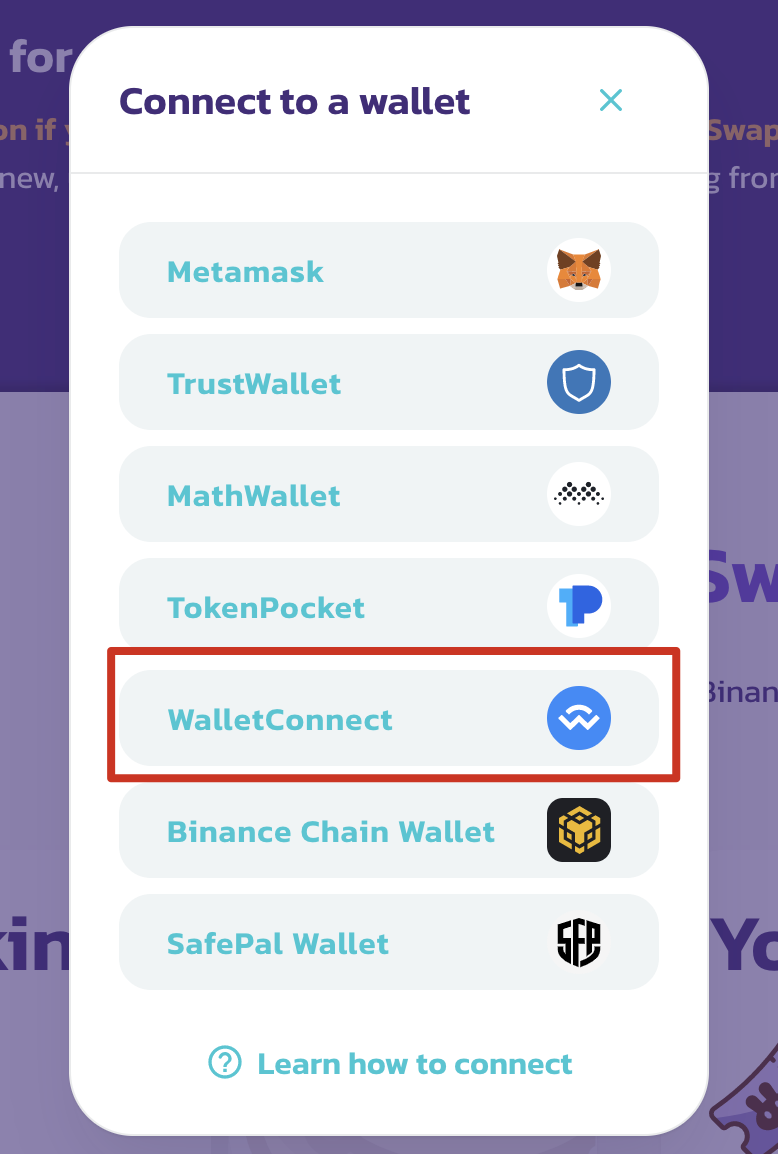
2. Click [WalletConnect] to start the connection process. The [Trust Wallet] button is currently only available for the Trust Wallet browser.
3. A QR code will appear that can be scanned using the Trust Wallet app. Go to [Settings] in the Applications tab and tap [WalletConnect]. Scan the QR code displayed on PancakeSwap and tap [Connect] in Trust Wallet.

4. If you have successfully connected, PancakeSwap should show you the beginning of your wallet ID in the upper right corner.

Results
Trust Wallet is one of the most popular mobile applications that supports a wide range of blockchains and tokens. It also acts as a gateway to NFTs and the entire DeFi ecosystem, so it's important to know how to use it. The steps described above apply to other dApps as well.