

Brief content
SolScan is an alternative blockchain explorer for Solana. It gives you access to blockchain data related to transactions, contracts, accounts and more. If you use Solana regularly or have any issues, understanding how to use the blockchain explorer is extremely helpful.
SolScan also has DeFi, NFT dashboards and an analytics platform to view. You can also use their API to create custom channels for yourself. All this information can be found in the top bar of the website.
Introduction
Solana is a Proof of Stake (PoS) consensus blockchain in which project developers can create DApps, tokens, and smart contracts. As with any other active chain, users need an intuitive way to access blockchain data. Similar to BscScan and EtherScan, Solana also has a dedicated blockchain explorer called SolScan. Let's take a look at its most important features and some basic guides.
What is SolScan?
SolScan is a blockchain explorer used to search for information on the Solana blockchain. It is a popular alternative to the official Solana explorer. SolScan transforms complex transactional data into easy-to-read data. Blockchain explorer provides access to everything recorded on the chain, including crypto transactions, addresses, smart contracts, blocks, tokens and more. It can be used for free and without creating an account, but you can create one and log in to get advanced functionality.
Why should I use SolScan?
The use of blockchain explorer is necessary for everyone who transacts on the network. If you're not sure where your staking funds went, or maybe the transaction hasn't gone through yet, you can use SolScan to find out what happened. All SolScan information comes directly from the Solana blockchain, so you can be sure of its accuracy. Using SolScan or any blockchain explorer will help you understand the mechanics of the DApps you interact with and the transactions you make.
SolScan uses the same format as EtherScan, which makes it easier to understand. Many users prefer its appearance as opposed to the official Solana blockchain explorer project. It is free to use and contains many useful tools, lists and analytical graphs. Explorer also includes a set of public APIs that can use SolScan data in real-time in user applications and third-party tools.
How to search for transactions and addresses in SolScan?
One of SolScan's most frequently used functions is the transaction and address search function. With the right hash, you can quickly access a large amount of information. This includes transaction fees, confirmations, timestamps, involved addresses, and more.
Transactions
1. Every transaction on the Solana network is recorded on the main network with a signature. It's a long string of numbers and letters that looks something like this:
5JLcGJQfZjEEuh1bSDqyw2iEfLuFRoYRJY1paoSwrZC8c8zZFW3VqvxsJgjW3bsUjTrpEUDEtvs83PxsuR6hUWqz
2. Copy and paste the signature into the SolScan search bar and press Enter.
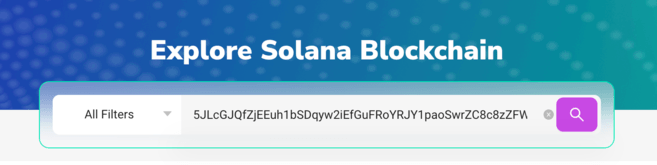
3. You will now see all available information about the transaction you were looking for. It is divided into three categories: Overview, SOL Balance Change, and Token Balance Change.

4. The [Overview] category will have most of the information you need. Let's go through the list:
5. For more information, the [SOL Balance Change] and [Token Balance Change] tabs provide information on transaction token balance changes for all involved parties.
Addresses
A similar method can be used to learn more about an individual address. Then you can check the detailed activity history of the address. This can give you an overview of transactions and smart contracts interactions of a particular wallet.
1. Find the Solana address you want to view. It is shorter than the signature and looks something like this:
138KHwTqKNWGLoo8fK5i8UxYtwoC5tC8o7M9rY1CDEjT
2. Copy and paste the address into the SolScan search bar and press Enter.

3. You will now see all available information about the account you were looking for. The [Overview] section shows the current balances on the accounts, and the lower tabs refer mainly to the transaction history.

How to find tokens on SolScan?
Tokens can be easily checked on SolScan and this will give you a complete picture of them. You just need:
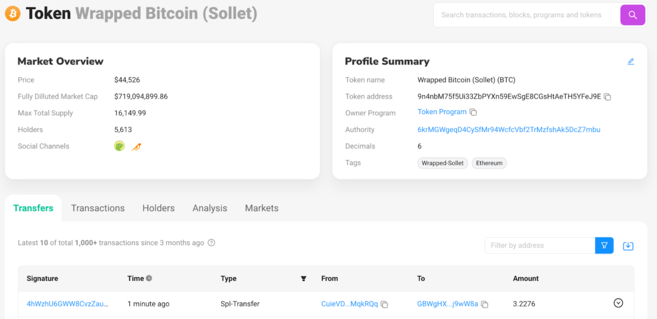
1. Copy and paste the token address into the SolScan search bar and press Enter. In this example, we used a wrapped version of Bitcoin (BTC), but you can also use a wrapped version of Ethereum (ETH) or any other SPL token on the Solana network.
The token address looks like this:
9n4nbM75f5Ui33ZbPYXn59EwSgE8CGsHtAeTH5YFeJ9E
2. If you entered the address correctly, you will see the following information.
Tokens
How to find active Solana accounts?
1. You can find out the number of active accounts and other key blockchain indicators by clicking [Analytics].
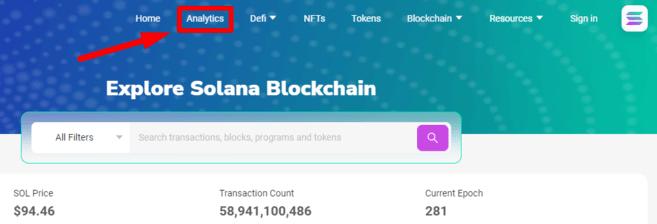
2. SolScan's analytics page contains a wide range of information about network nodes, transactions per second (TPS), new tokens, new NFTs and more. Under the heading [Accounts] you can find the number of daily active wallets.

3. Note that you can select different periods in the upper right corner.

How to access DeFi dashboards on SolScan
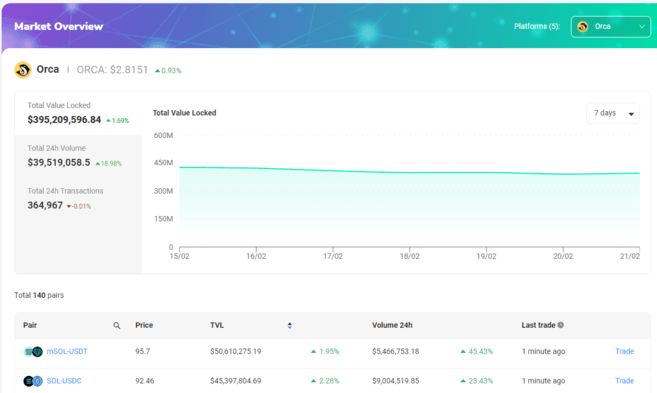
1. Some of the largest DEXs in the Solana ecosystem have dashboards built into the Solana blockchain explorer. You can quickly find them in the [Defi] tab.

2. Let's take a look at Orca. This dashboard shows basic information about Total Value Locked (TVL), volume and active trading pairs available in their liquidity pools.
How to access NFT dashboards on SolScan
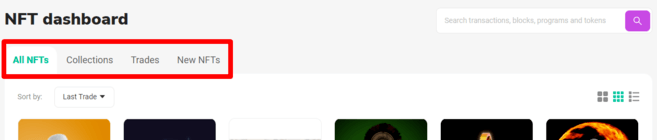
1. SolScan makes it easy to view new NFTs, deals and collections with the NFT Toolbar. You can find this section in the header of the website.

2. The NFT dashboard will allow you to find any NFT available on Solana. The [Collections] tab provides a list of NFT projects by volume. The [Trades] tab will show the latest sales and the [New NFT] tab will show the latest minted coins.

Final thoughts
If you want to check out your latest NFTs from the metaverse, explore nodes, or check out the wallets of a new startup, you need the Solana blockchain explorer. This tool is an integral part of the ecosystem of any blockchain network. SolScan has become one of the most used in the Solana community, so understanding its interface can certainly help.