

TL;DR
MetaMask is a cryptocurrency wallet that, by default, is connected to the Ethereum mainnet. The browser extension and application are available on the official MetaMask website.
To connect to networks like Arbitrum, you will need to add some blockchain information to MetaMask. This includes the blockchain ID, custom RPC URL, and network name. To add an Arbitrum token, you will also need to import the correct token address.
Adding new blockchains to MetaMask is a useful skill, which can also be used to add other EVM networks like BNB Smart Chain (formerly Binance Smart Chain) and Polygon.
Introduction
To use the Arbitrum blockchain, you will need a compatible cryptocurrency wallet like MetaMask. However, the standard version of MetaMask does not have the Arbitrum blockchain added. Setting up your wallet to connect to Arbitrum is a simple process and can be done quickly.

Installing and configuring the MetaMask application
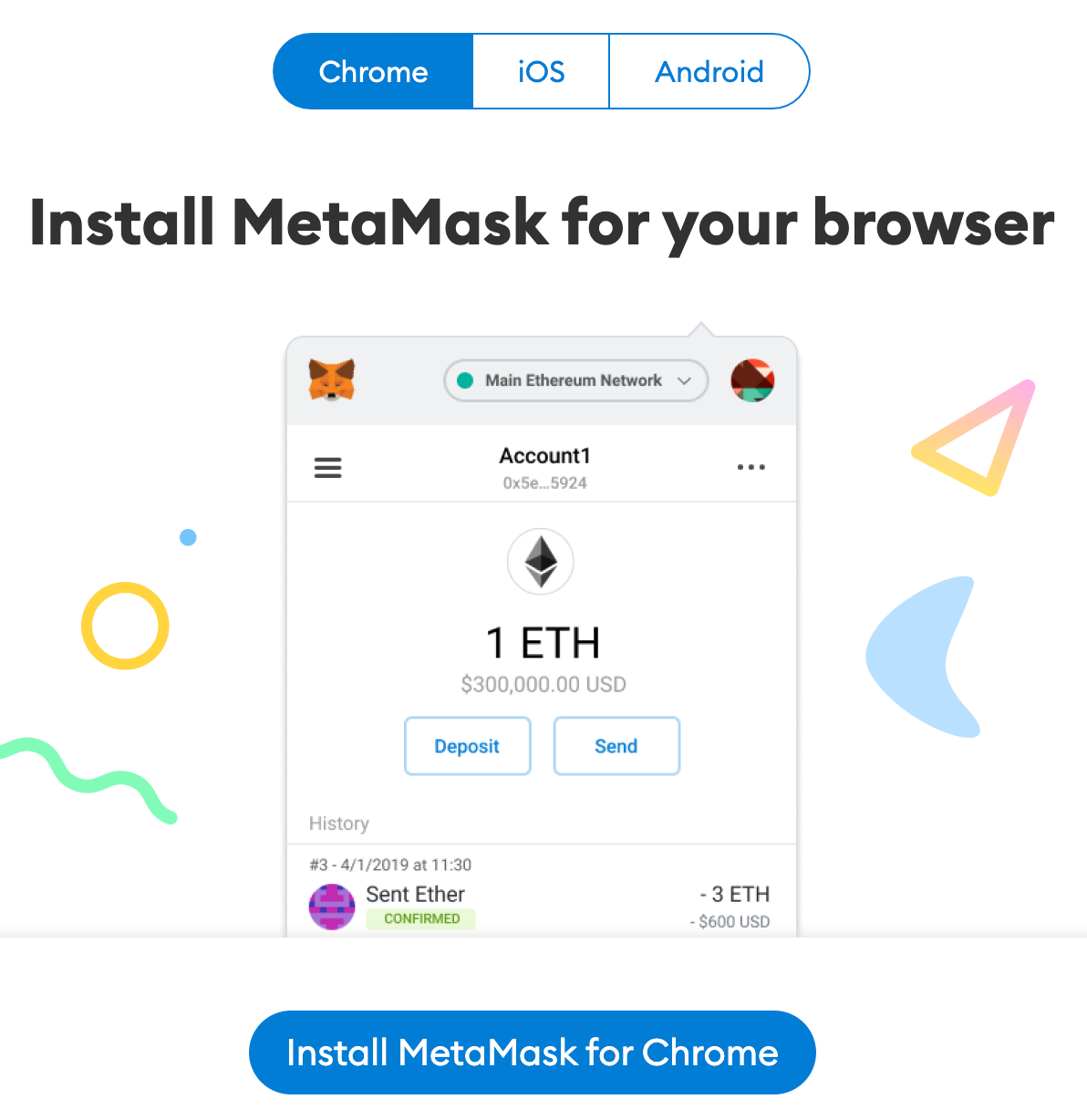
1. MetaMask is available on the MetaMask website and has versions for Chrome, iOS or Android. Make sure to go to the official website and download the legitimate version of MetaMask.
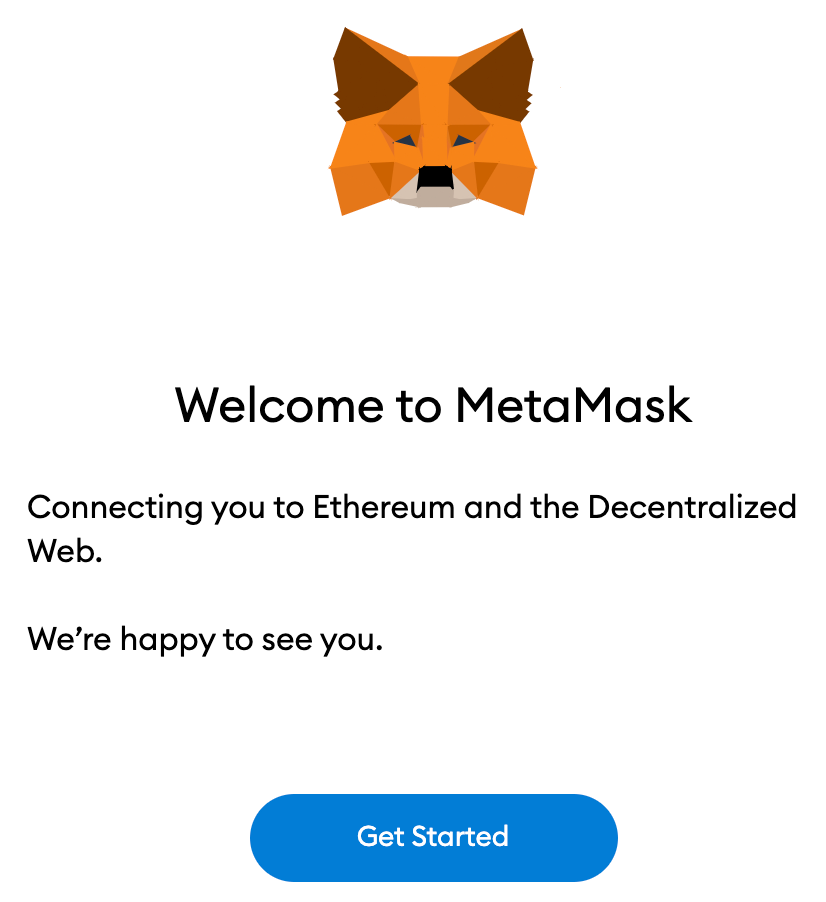
2. After installing the extension, you will see the MetaMask welcome page. Click [Start].
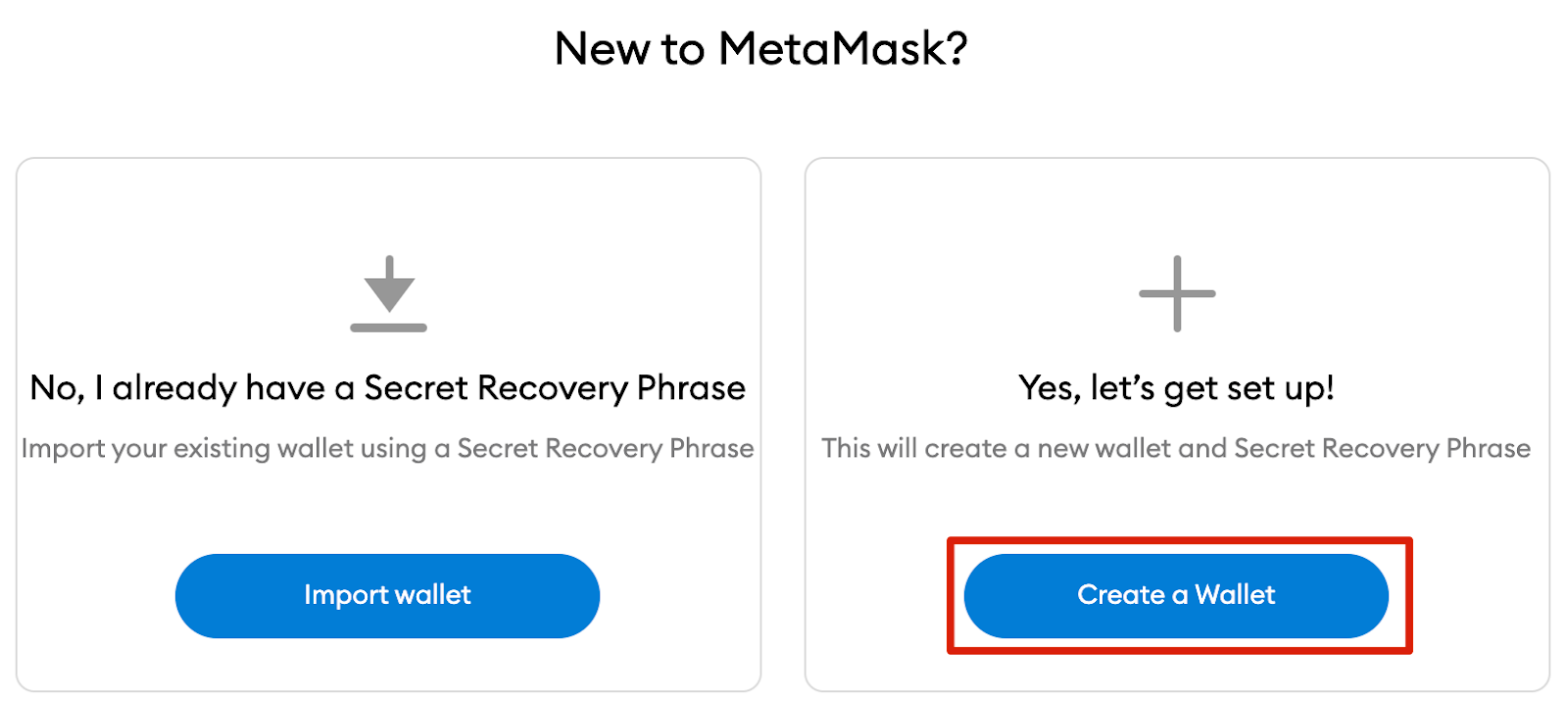
3. If you want to create a new wallet, click the [Create Wallet] button. It is also possible to import an old wallet using its seed phrase and the [Import wallet] option.
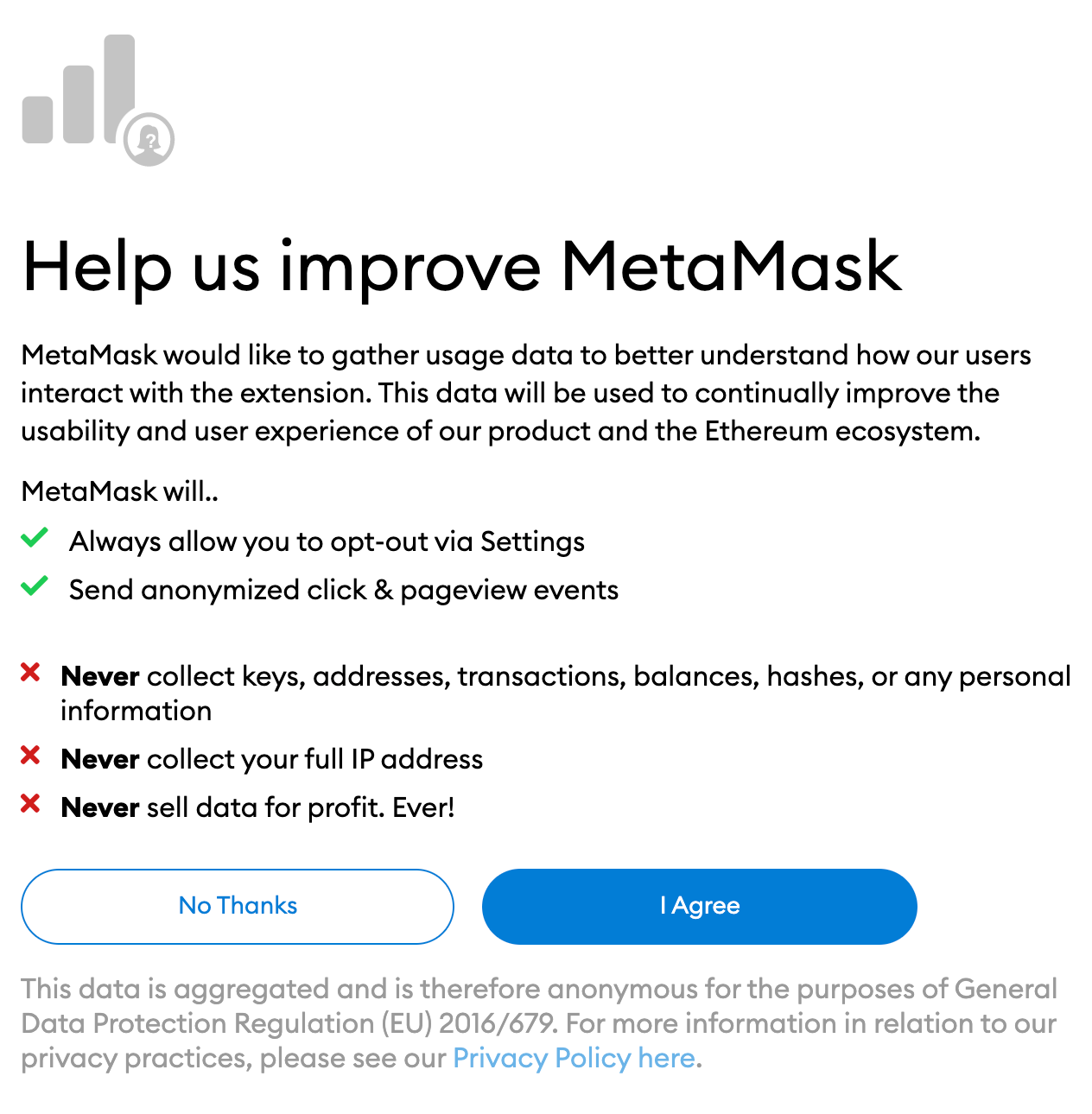
4. MetaMask will ask if you want to share anonymous usage data. Accepting or declining this will not affect the use of your MetaMask wallet.
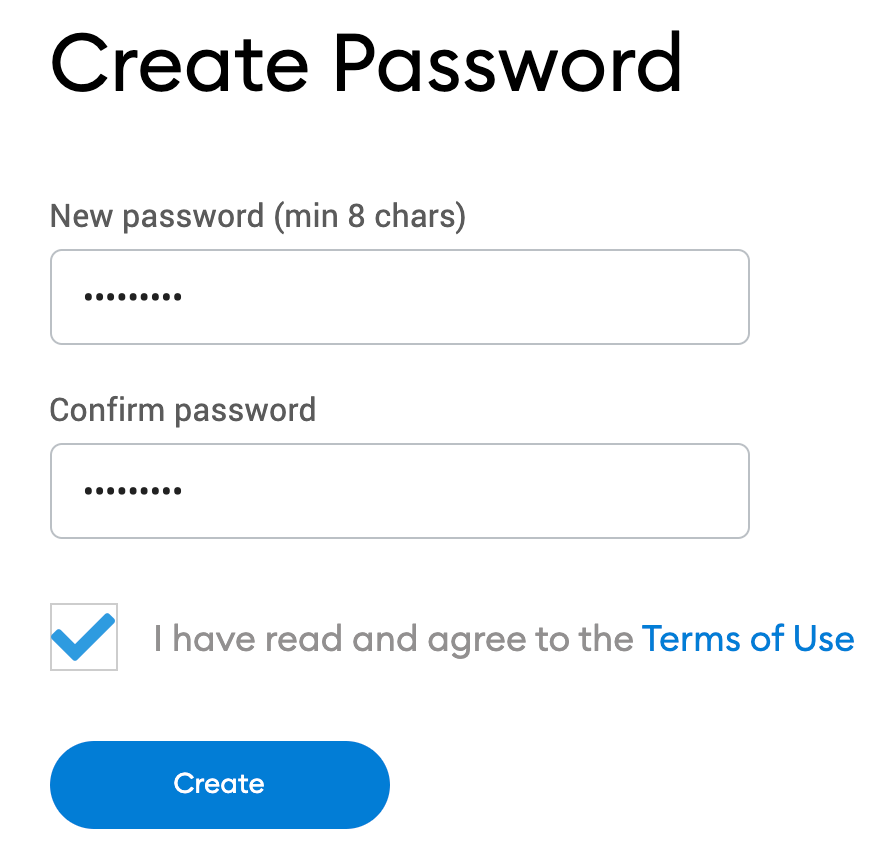
5. Create a secure password for your wallet. Note that this is not your seed phrase. The password is simply to prevent anyone using your device from accessing your wallet. If you forget your password, you will still have access to your cryptocurrencies through your seed phrase.
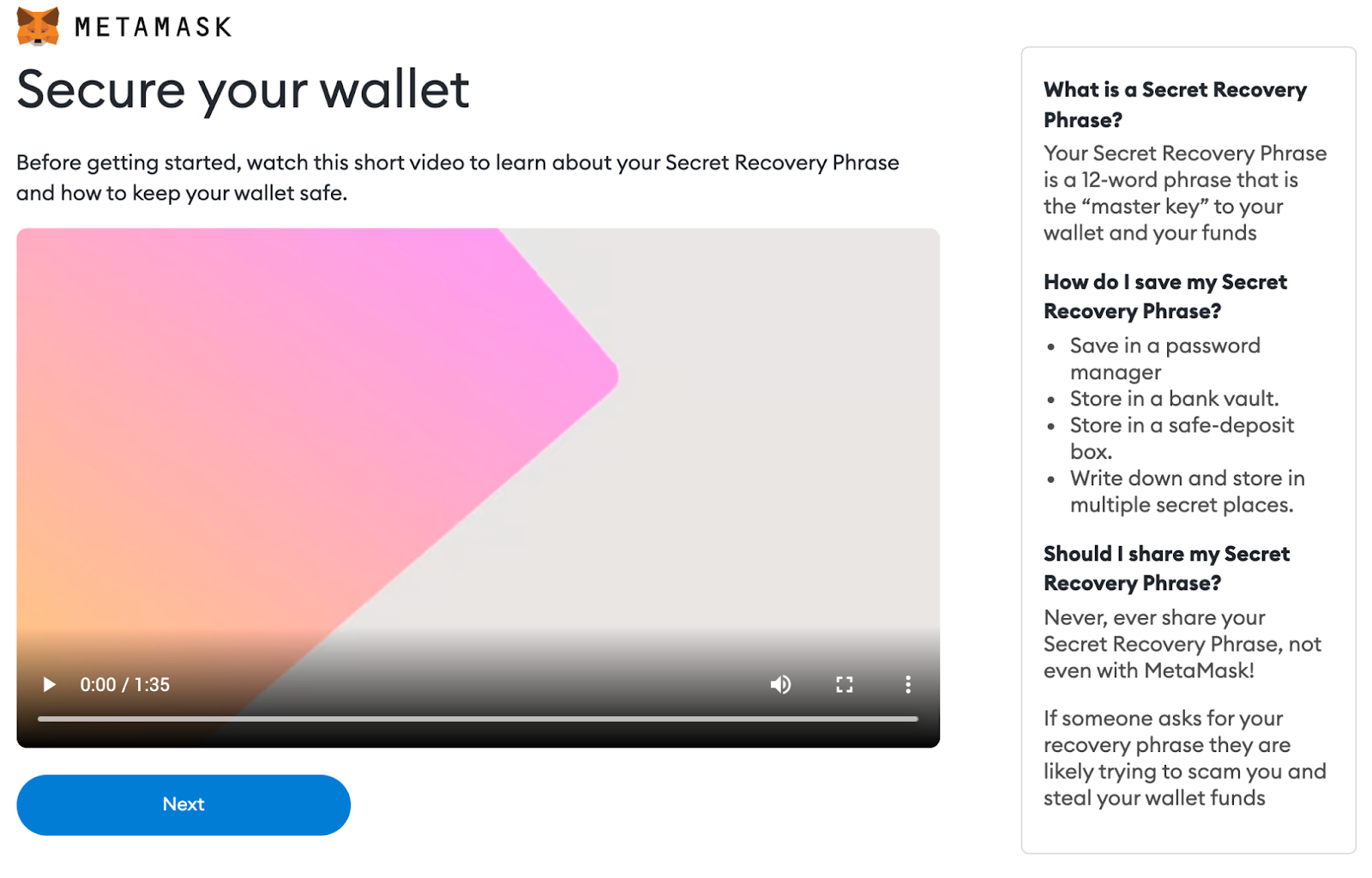
6. After setting your password, MetaMask will provide important information about your wallet's seed phrase. Please read the information carefully, especially if you are not familiar with how cryptocurrency wallets work.
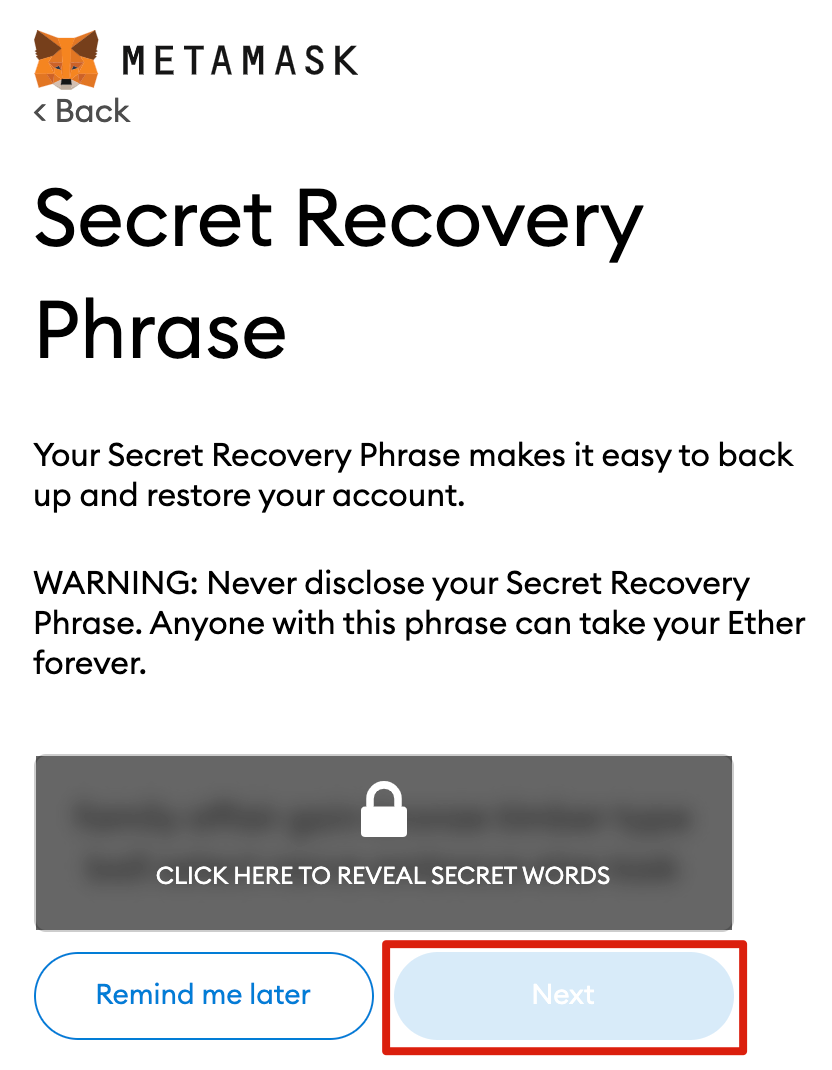
7. Your seed phrase will be displayed. Click on the padlock to see the sentence and write down the words in the correct order. Keep the quote in a safe place (preferably offline) and never share it with anyone. The seed phrase is the last resort for recovering the contents of your wallet. Click [Next] to continue.
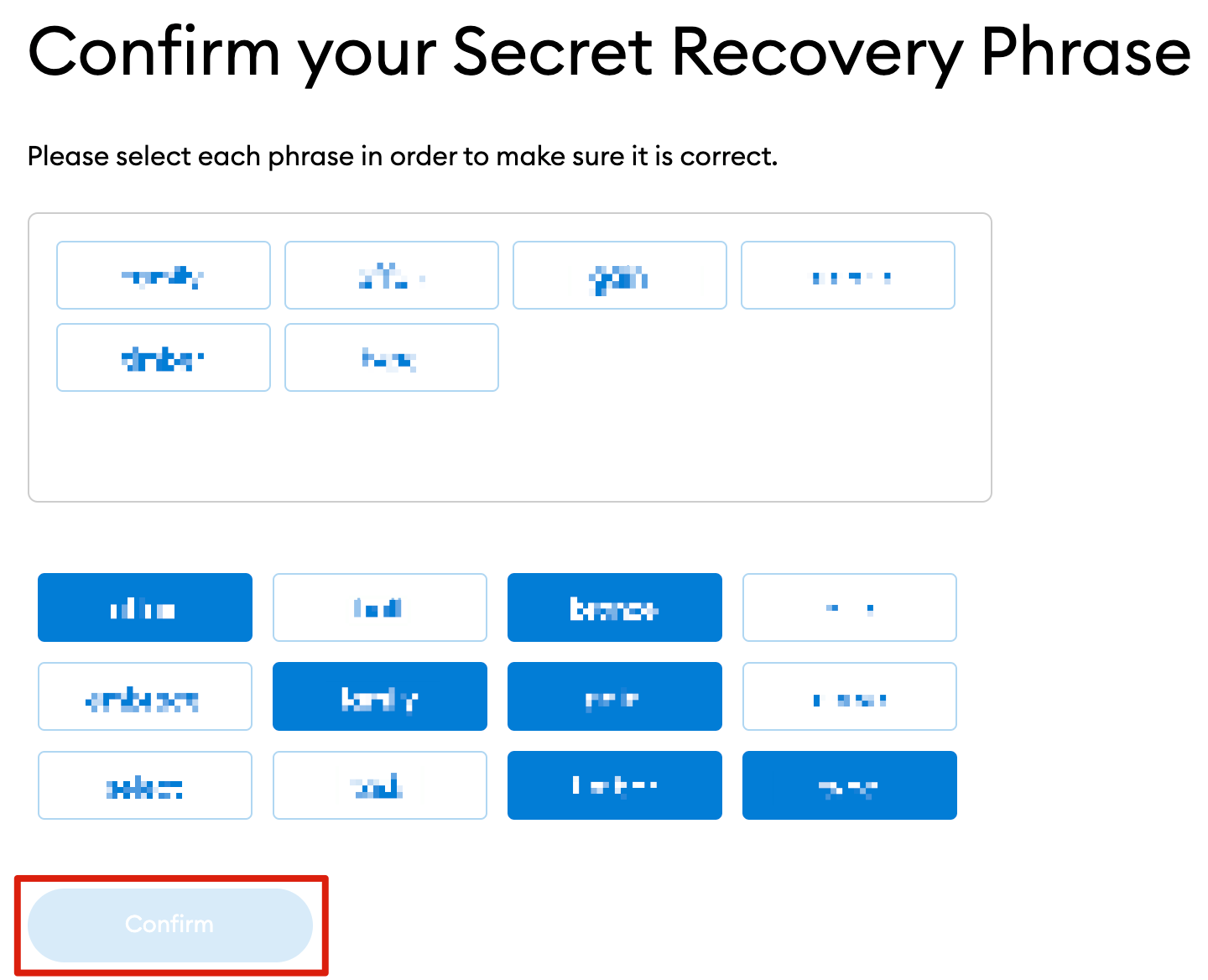
8. You will need to repeat your seed phrase by selecting the words in the correct order. When finished, click [Confirm].
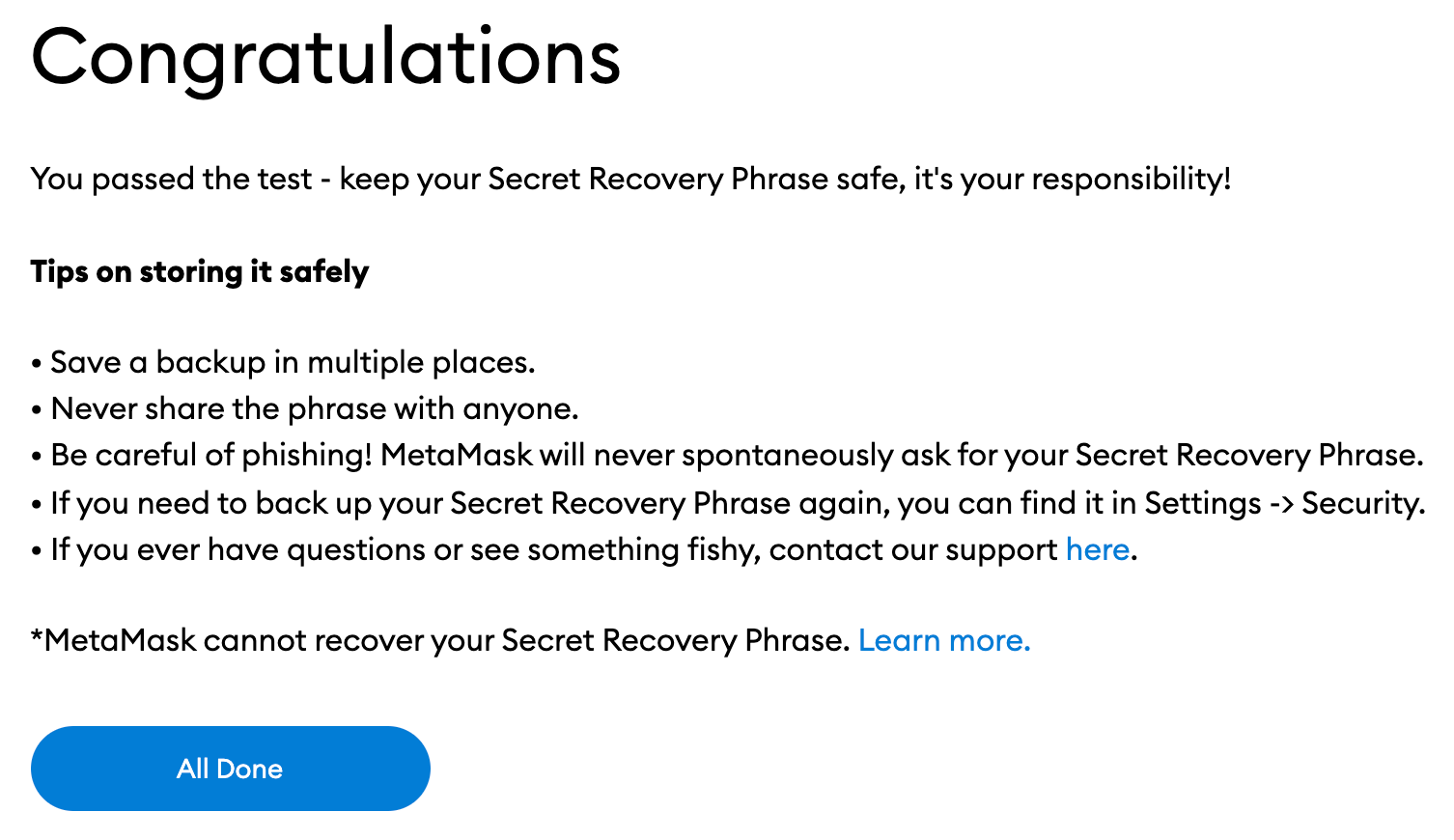
9. Now your MetaMask wallet will be ready to use. Click [All Ready] to view your portfolio.
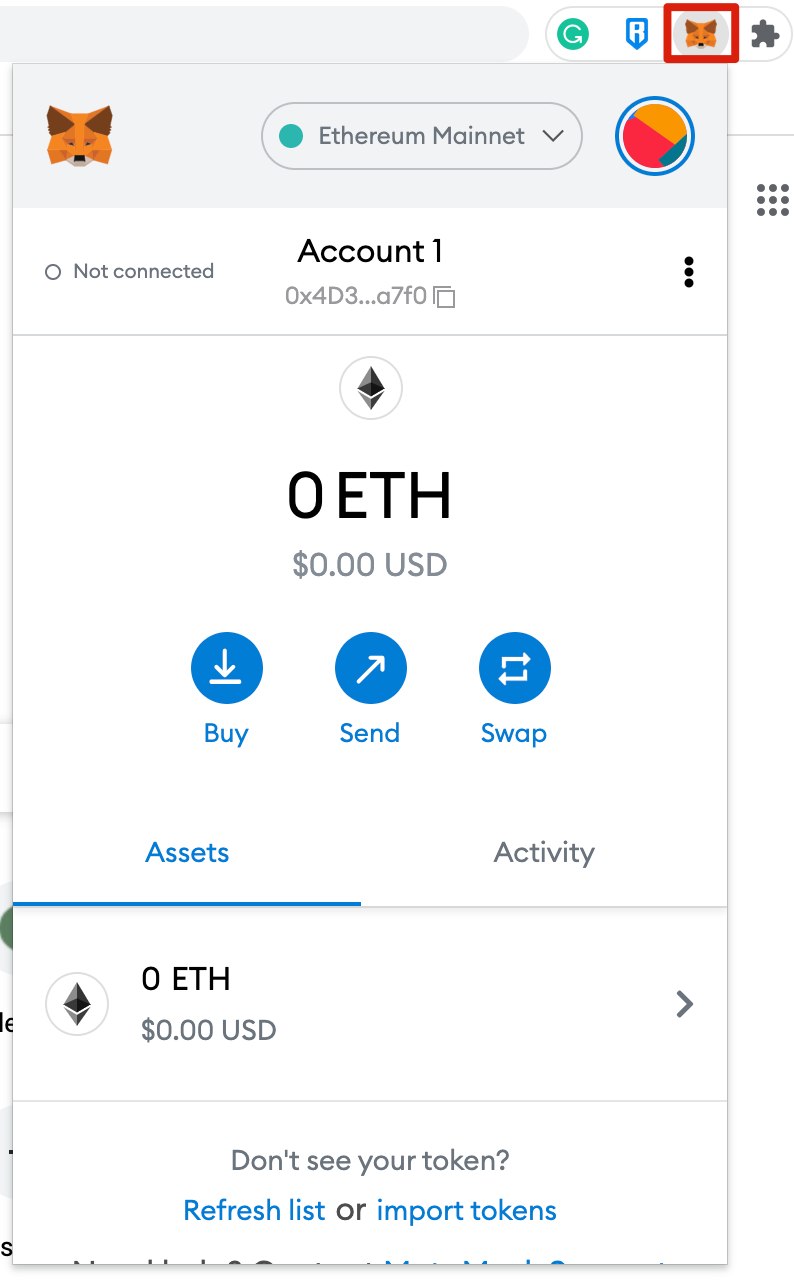
10. You can pin Metamask to the toolbar of your Chrome browser. Just click on the puzzle icon and select it. After initial setup, MetaMask will only be connected to Ethereum. Next, we will see how to connect Metamask to Arbitrum.
Setting up the wallet
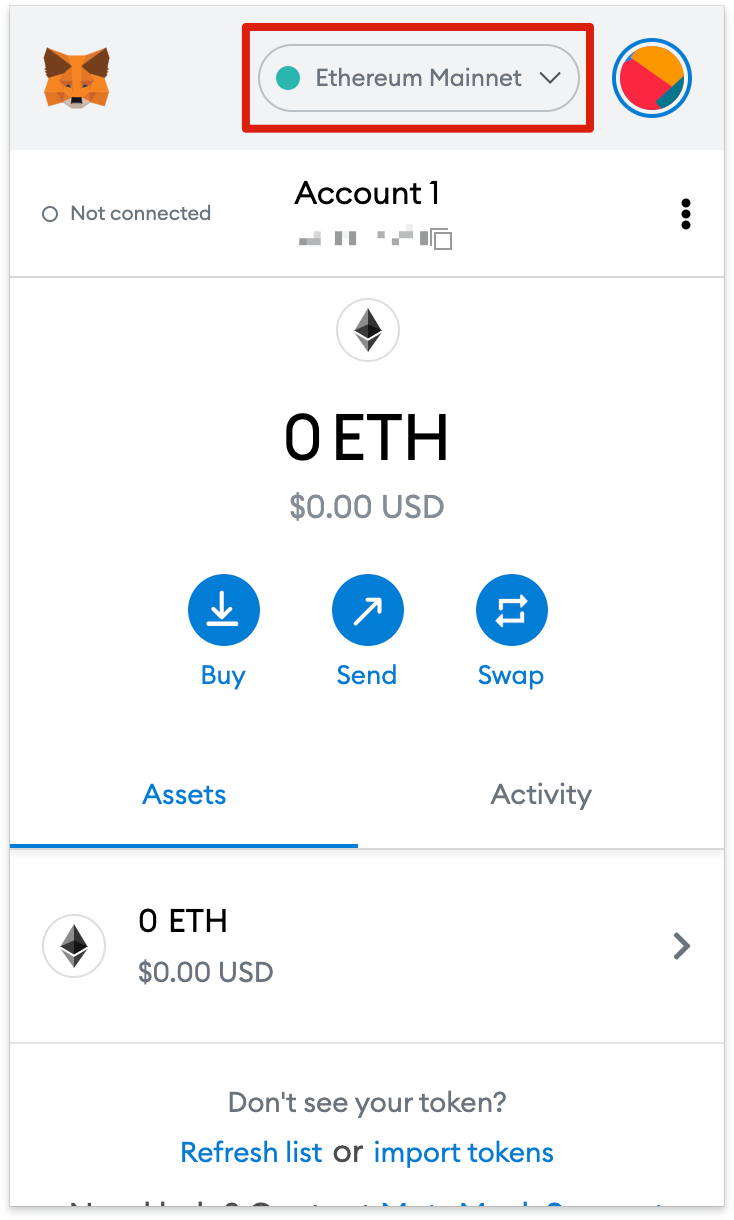
1. To add Arbitrum functionality to your wallet, you need to enter some network details into Metamask. Open MetaMask and click on the networks drop-down menu.
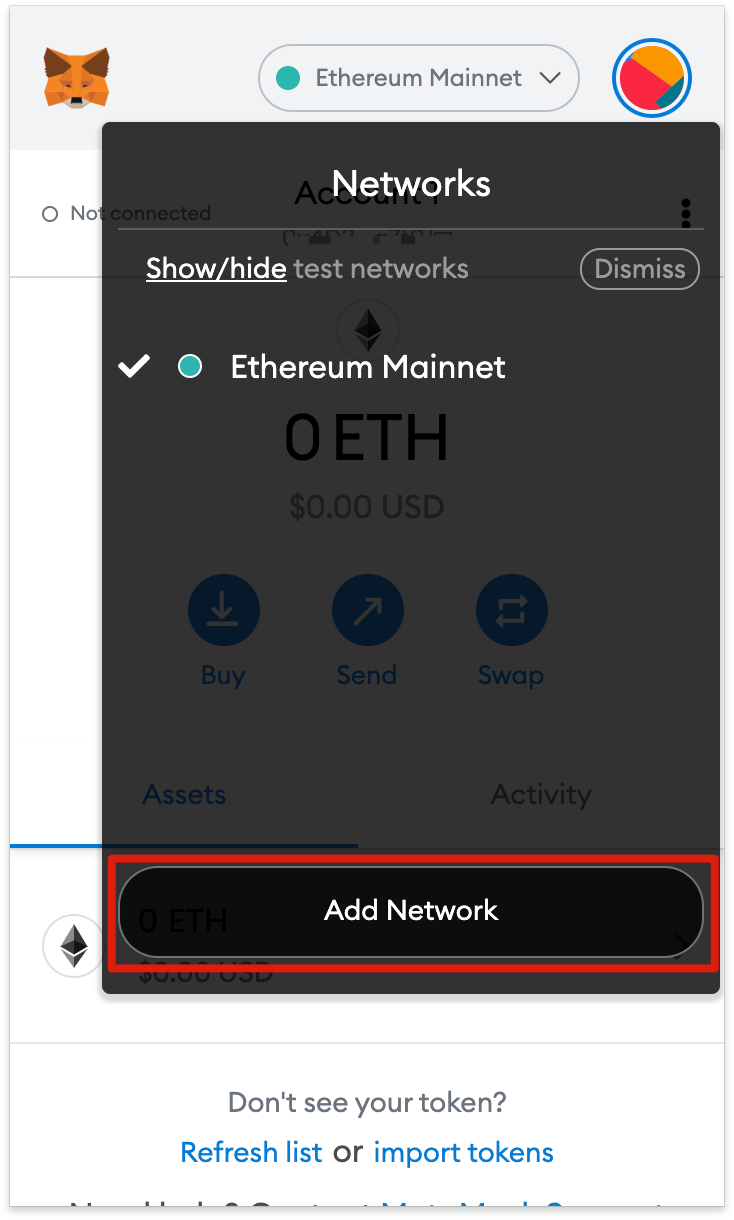
2. In the pop-up window, click [Add Network].
3. On the [Add a network] page, add the following details. Click [Save] when finished.
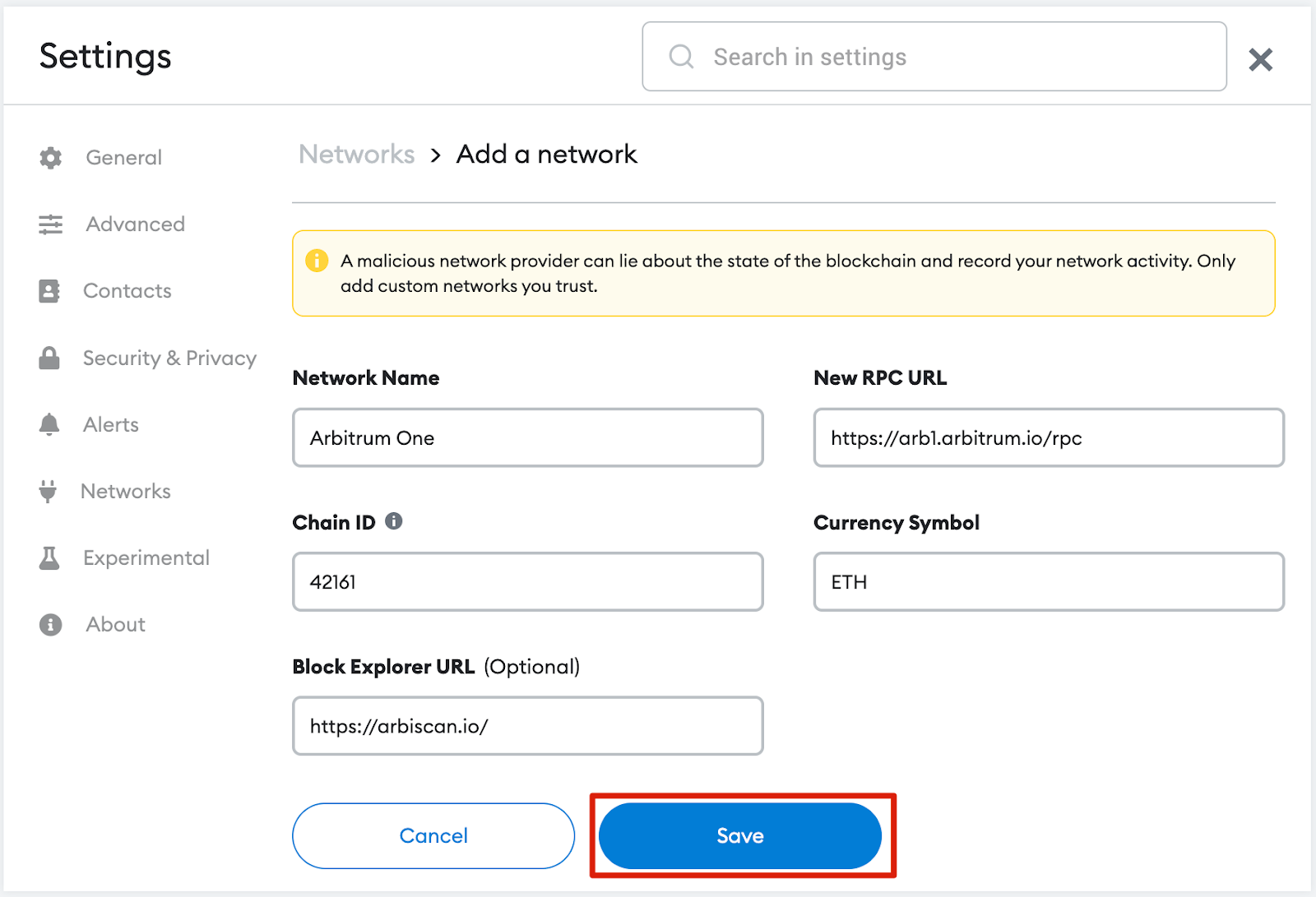
4. You will now be connected to the Arbitrum network.
Adding Arbitrary tokens to MetaMask
For Arbitrum tokens to appear in the wallet user interface, you need to add them manually. Note that your wallet may still receive tokens that were not imported, but without this manual addition they will not be displayed in the wallet interface.
1. Go to Arbiscan and find the details and contract of the token you want to add. If you can't find the token on Arbiscan, get the contract address on the project's official website. Be very careful with fake contracts created by scammers.
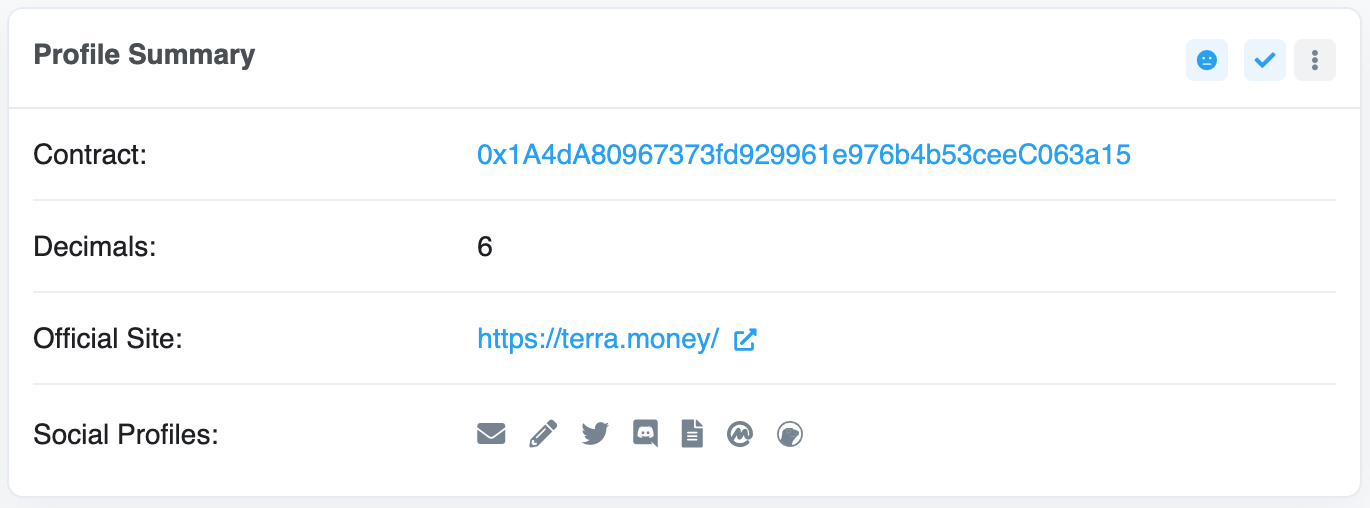
2. Return to MetaMask and click [Import Tokens].
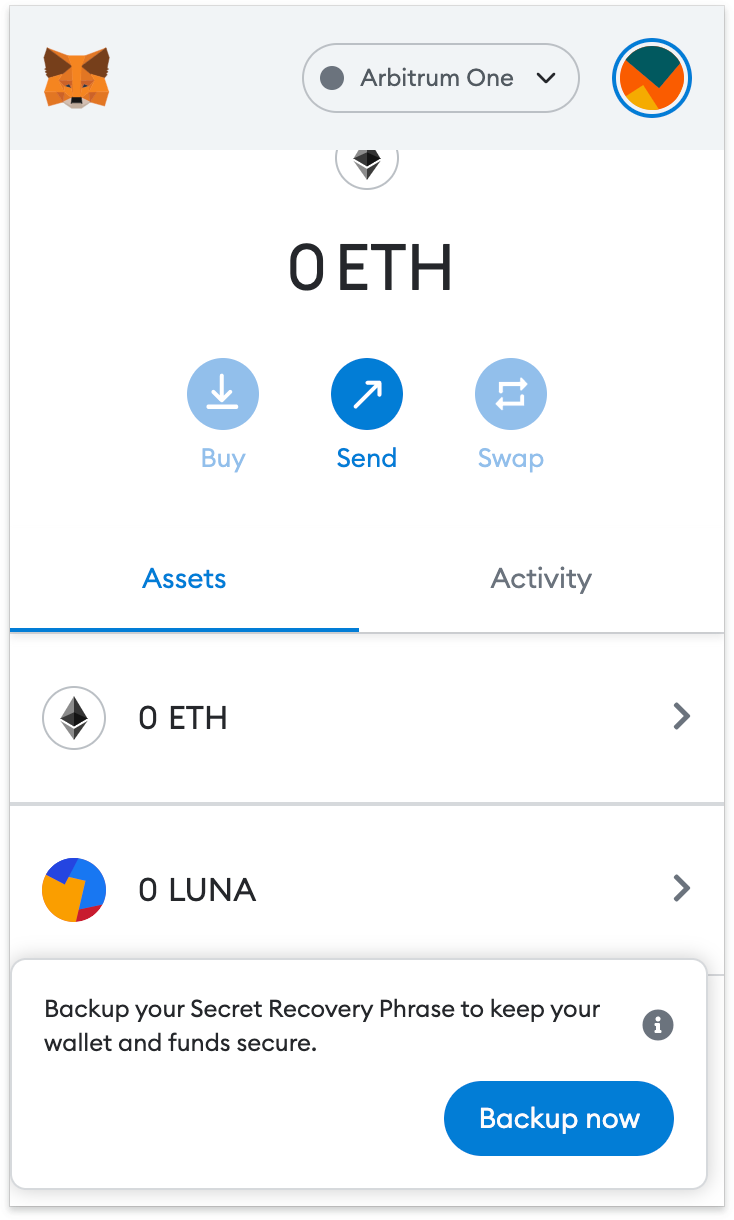
3. Enter the token contract address and the other details will be filled in by MetaMask. If this doesn't happen, add them manually. To finish, click [Add Custom Token].
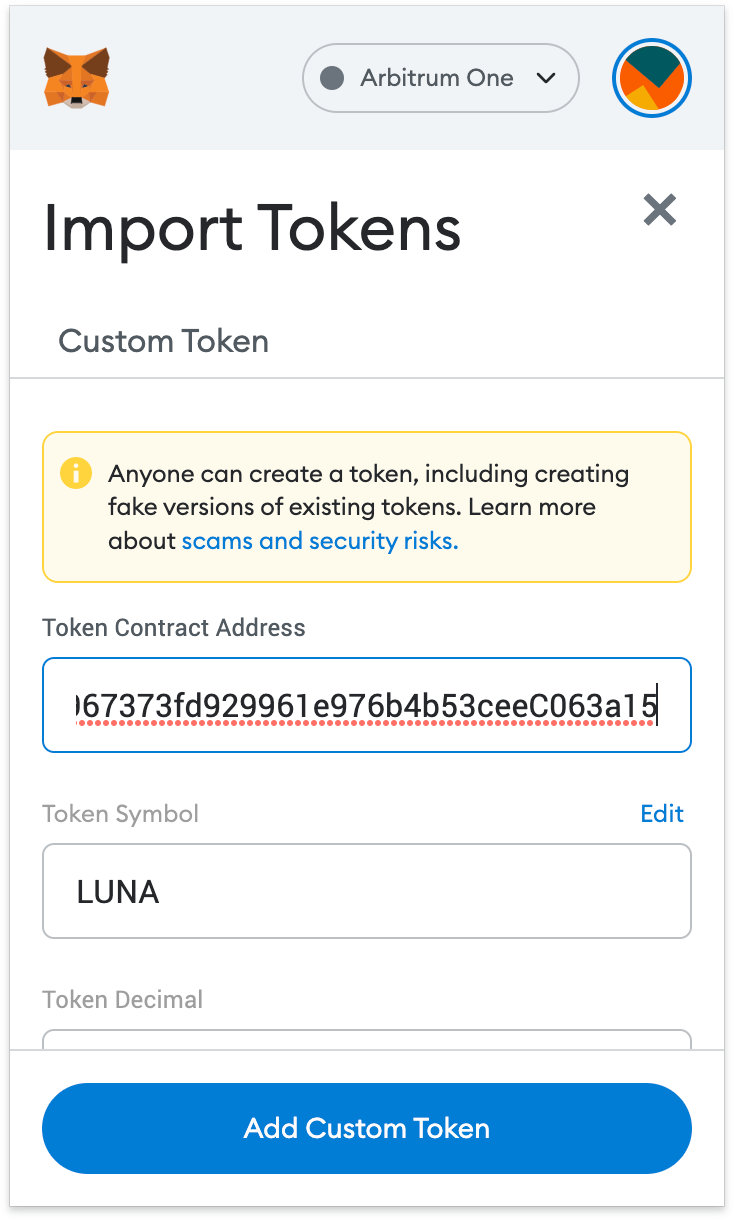
4. Click [Import Tokens].
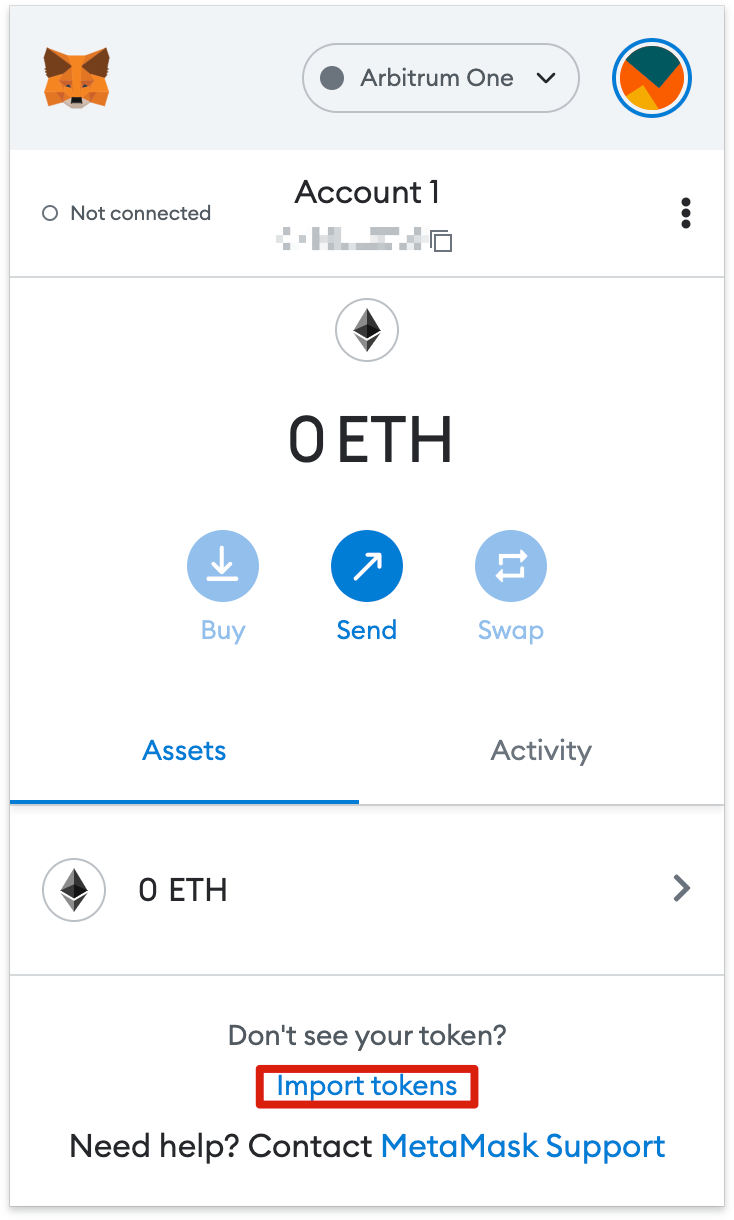
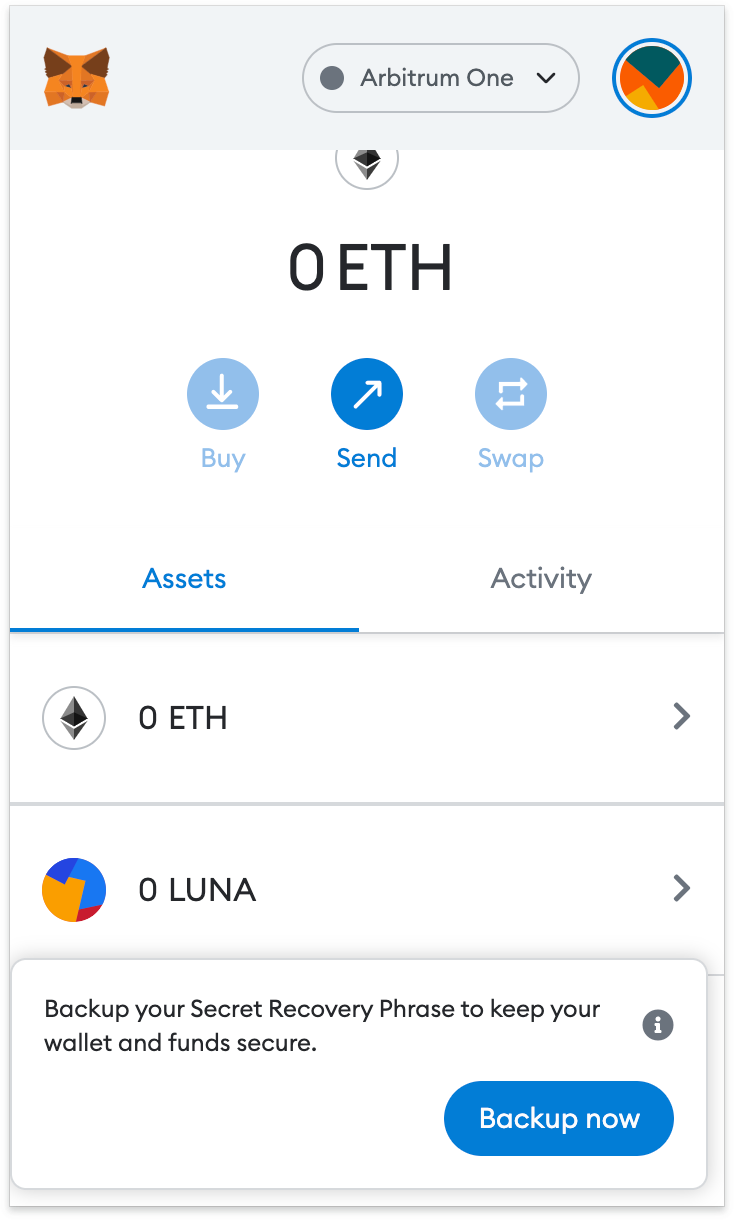
5. Your wallet will now display the balance of the added token.

Final considerations
After setting up the Arbitrum mainnet on MetaMask, you can now send cryptocurrencies, collect NFTs, and use smart contracts from DeFi DApps. It is also possible to swap tokens directly from MetaMask. But, make sure you have ETH in your wallet to pay transaction costs. You can use an Arbitrum bridging service to transfer your ETH on the Ethereum mainnet.
MetaMask is not only used for Ethereum and Arbitrum. In fact, the wallet supports the entire Ethereum Virtual Machine (EVM) ecosystem, including the BNB Smart Chain. With the tips in this tutorial, you will now be able to add more blockchains and use them with the correct parameters.