


Summary
MetaMask is a cryptocurrency wallet App and browser plug-in that connects to the Ethereum mainnet by default. You can find the plug-in on the official MetaMask website, which will direct you to the correct download address.
If connecting to other networks such as Polygon, you need to add some basic blockchain information to MetaMask. Including custom RPC URL, chain ID and network name. A token address must be entered in order to add Polygon tokens.
Learning to add MetaMask to a newly created blockchain is a skill that can be used to add Ethereum Virtual Machine (EVM) networks such as Binance Smart Chain.
Introduction
Interacting with the Polygon blockchain requires a compatible cryptocurrency wallet such as MetaMask. But by default, MetaMask does not add Polygon as a network. Setting up a browser wallet to connect with Polygon is easy and only takes a few minutes to complete.

MetaMask installation and settings
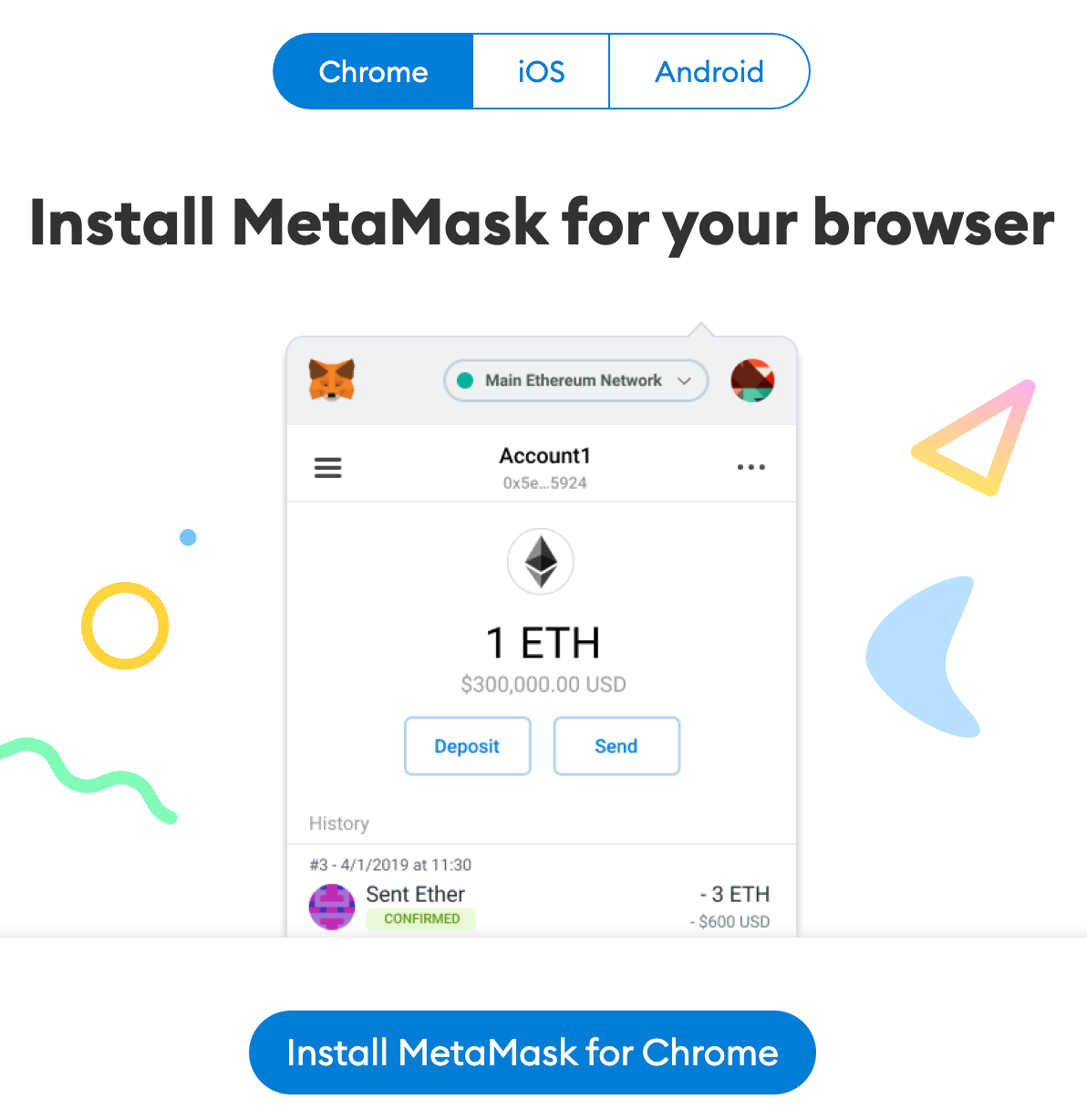
MetaMask can be downloaded from the MetaMask website and installed on Chrome, iOS or Android. Be sure to check whether you are using the official website and make sure you download the genuine MetaMask plug-in.
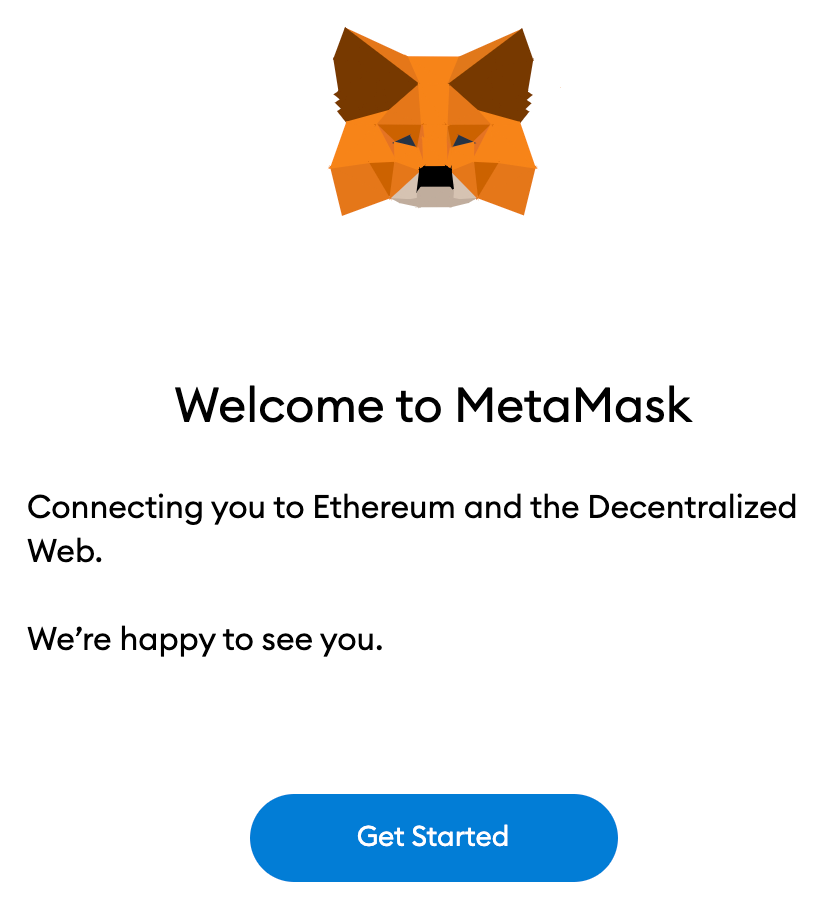
After downloading and installing the plugin, you will see the MetaMask welcome page. Click [Start] to experience it now.
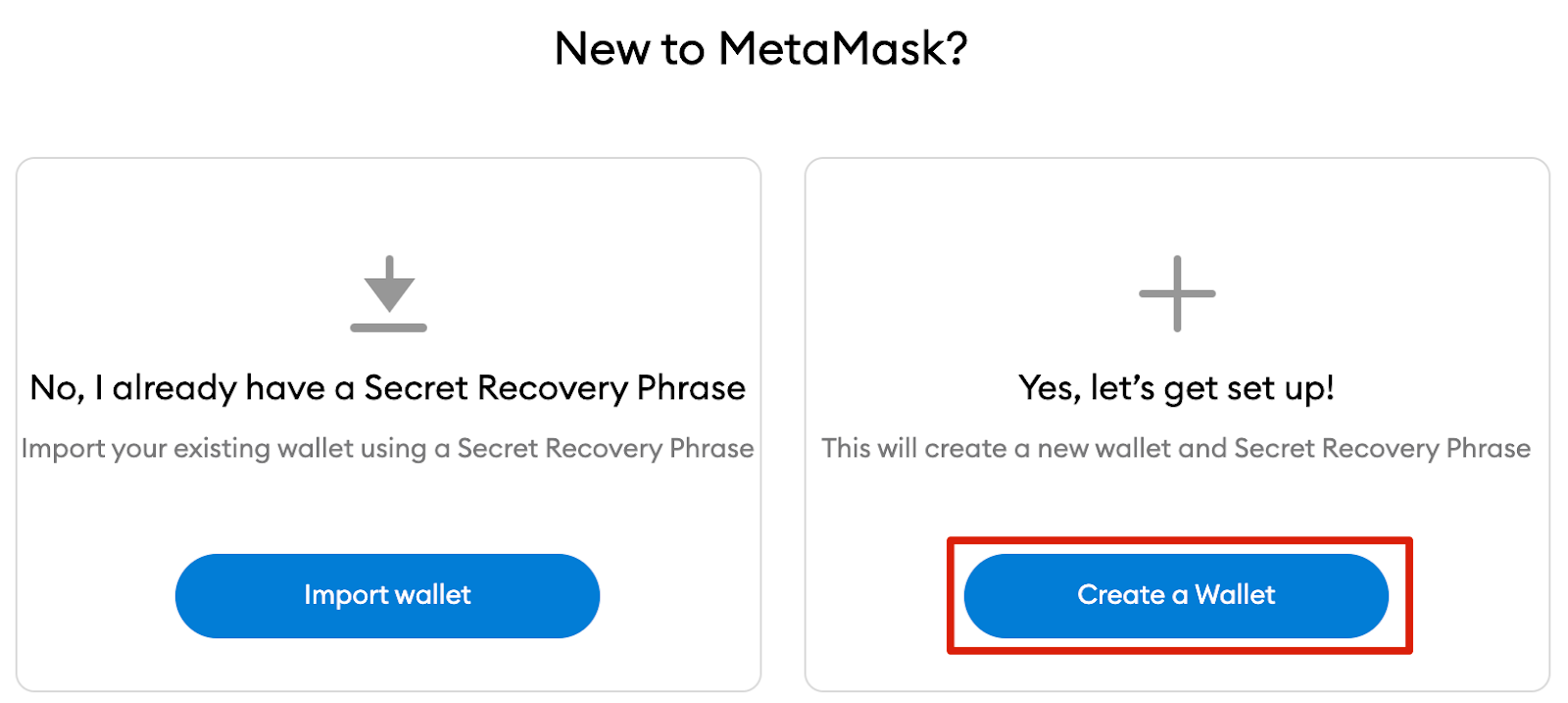
If you are creating a new wallet, click the [Create Wallet] button. You can also use the [Import Wallet] option to import an old wallet using a mnemonic phrase.
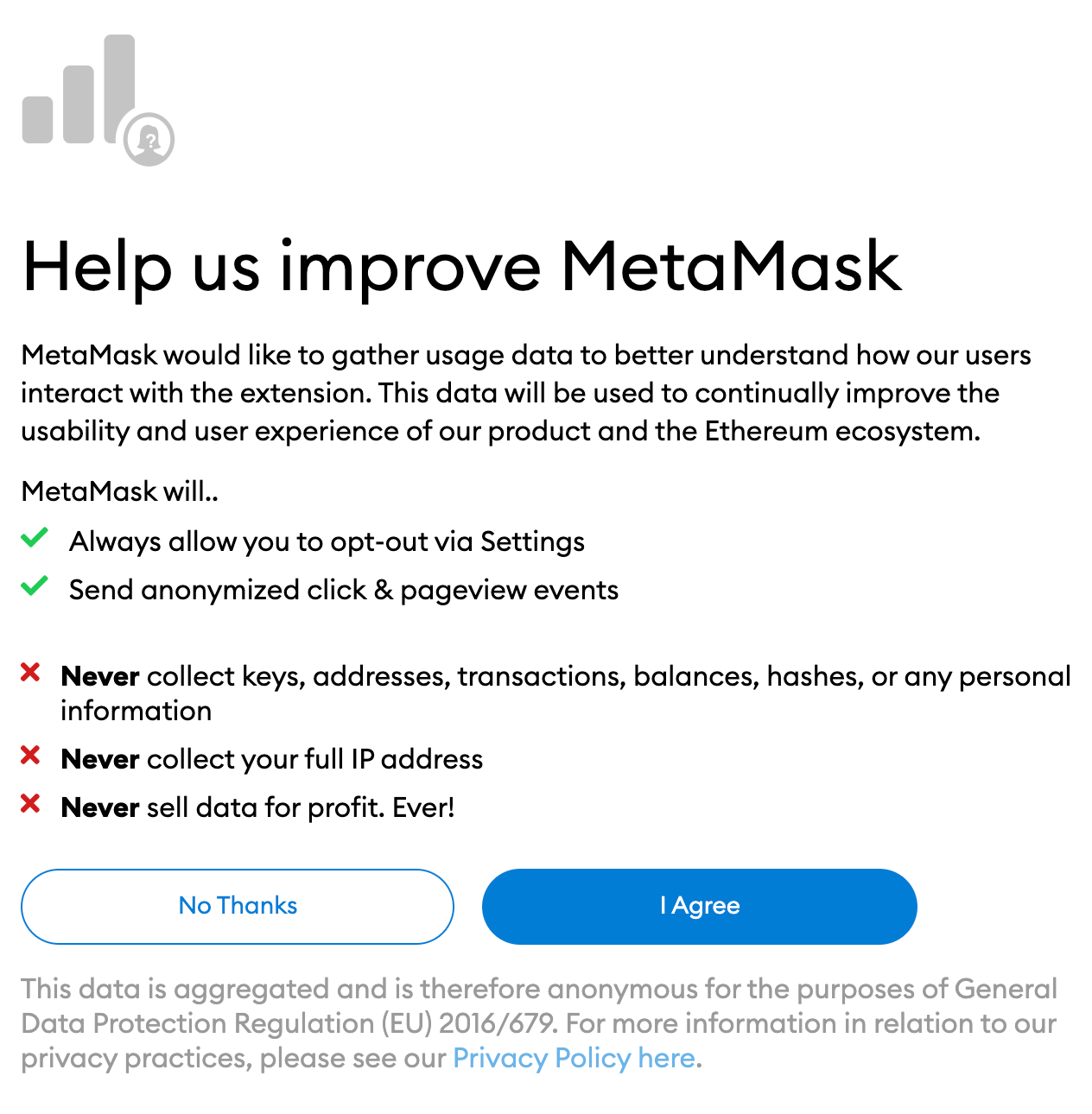
MetaMask will ask you if you would like to share anonymous usage data with them to help improve the plugin. Accepting or rejecting will not affect your normal use of MetaMask.
Choose to log in to the wallet from your browser with a secure password. Please note that this is not your mnemonic phrase. The password is a security measure to prevent someone from using the wallet through your device. If you forget your password, you can always use your cryptocurrency via a mnemonic phrase.
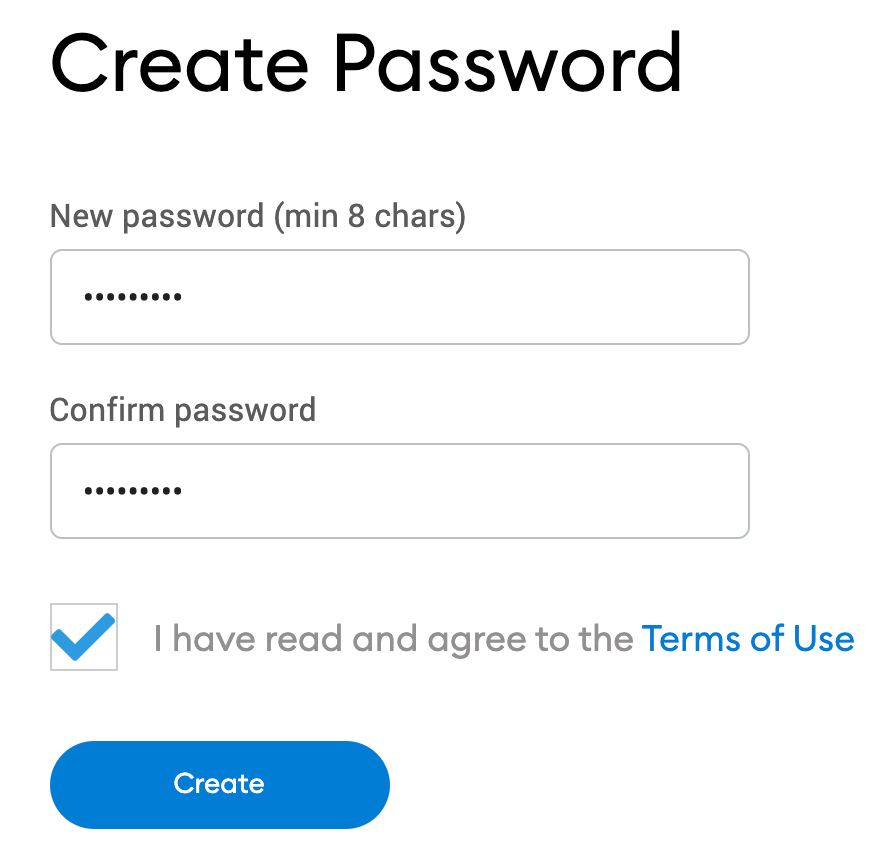
After selecting your password, MetaMask will show you information about your wallet mnemonic phrase. If you are not familiar with how cryptocurrency wallets work, make sure to read this article in its entirety.
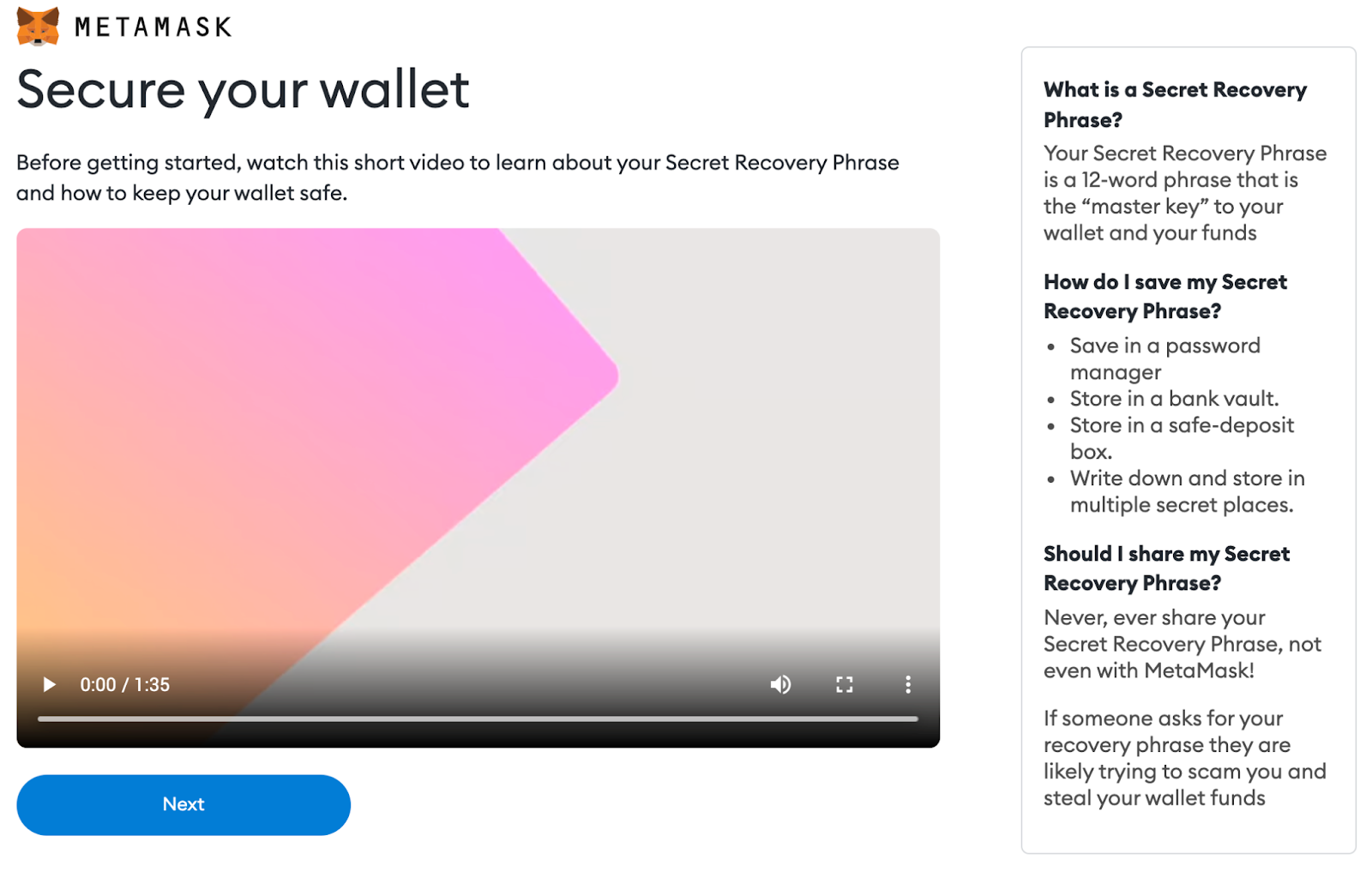
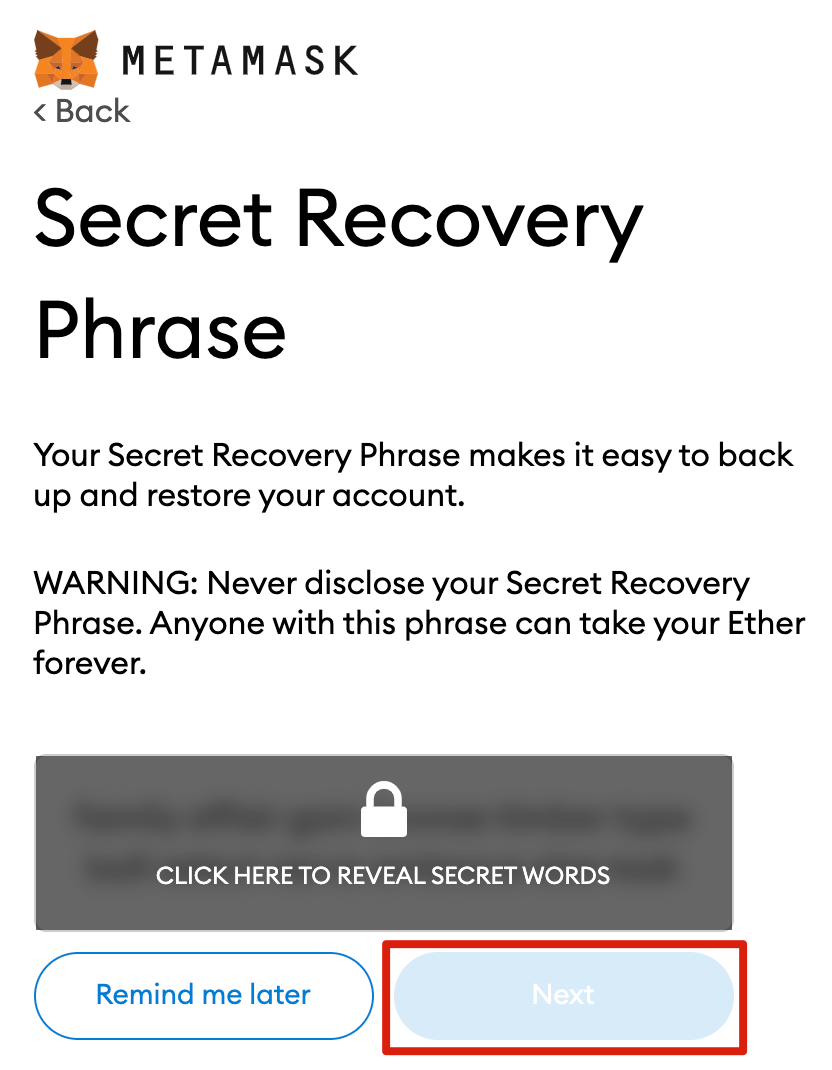
Now you will see the mnemonic phrase. Click Lock to view the mnemonic phrase and write it down in the correct order. Keep your mnemonic phrase in a safe place (preferably offline) and do not share it with others. This string of numbers is the ultimate backup of your wallet and its contents. Click [Next] to continue.
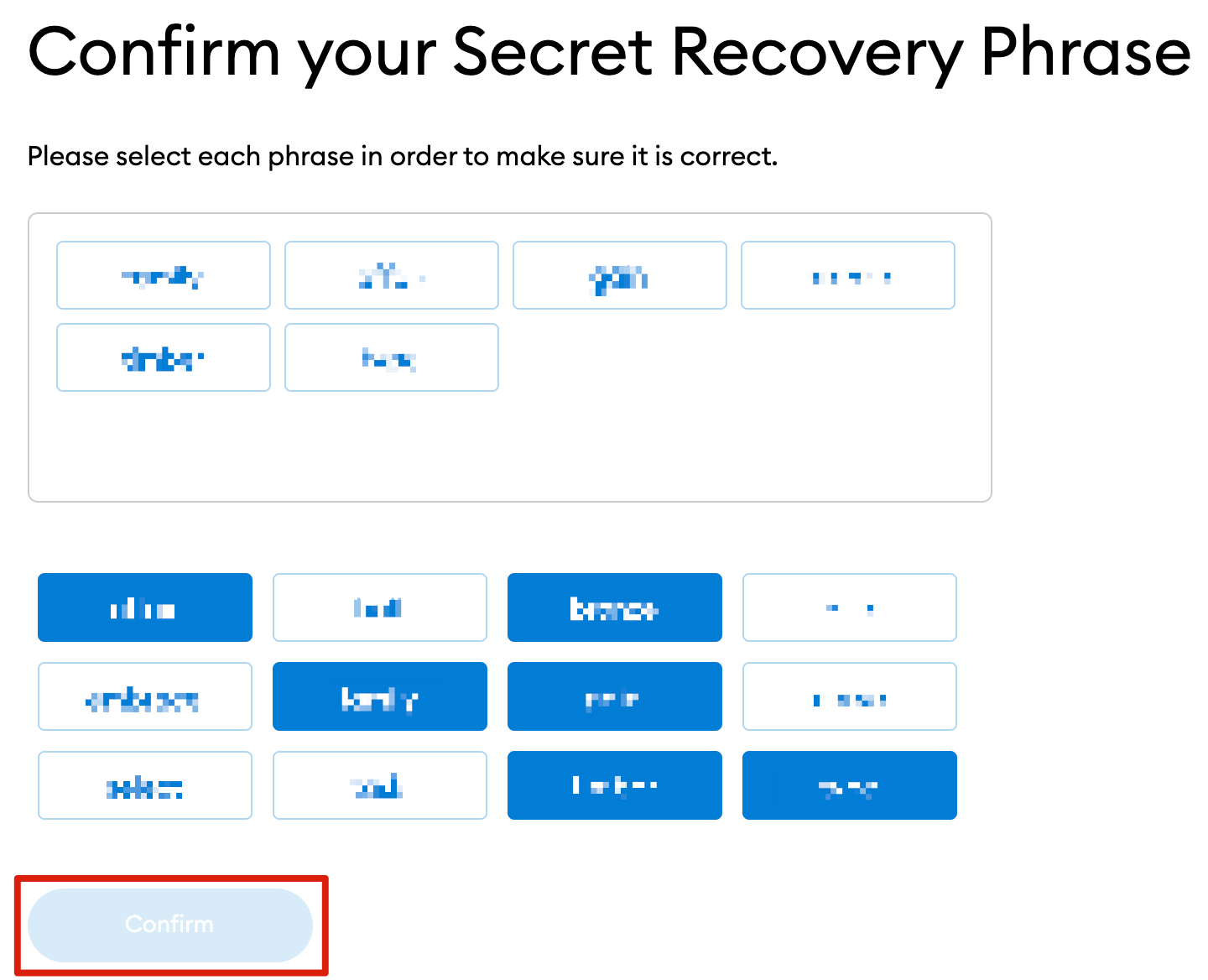
Now you have to repeat your mnemonic phrase by selecting the words at the bottom of the screen in the correct order. Click [Confirm] again to complete the settings.
Your MetaMask wallet is now set up and ready to use. Click [Complete All] to view your wallet.
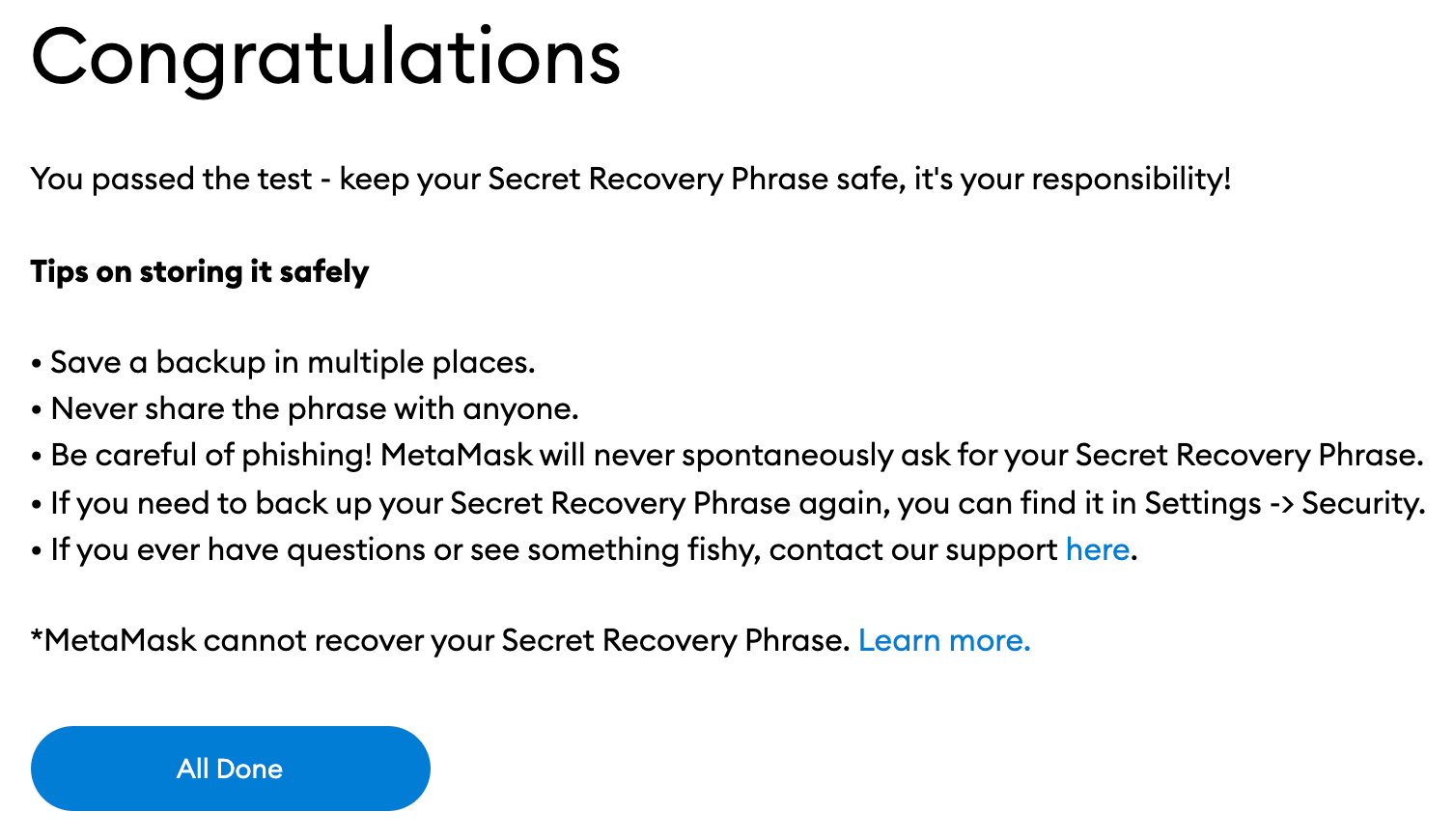
To make MetaMask easily accessible, you can pin MetaMask to your Chrome browser by clicking on the puzzle icon and pinning MetaMask to your toolbar. After the initial setup is complete, MetaMask only connects to Ethereum. Next, we will see how to connect Metamask to Polygon.
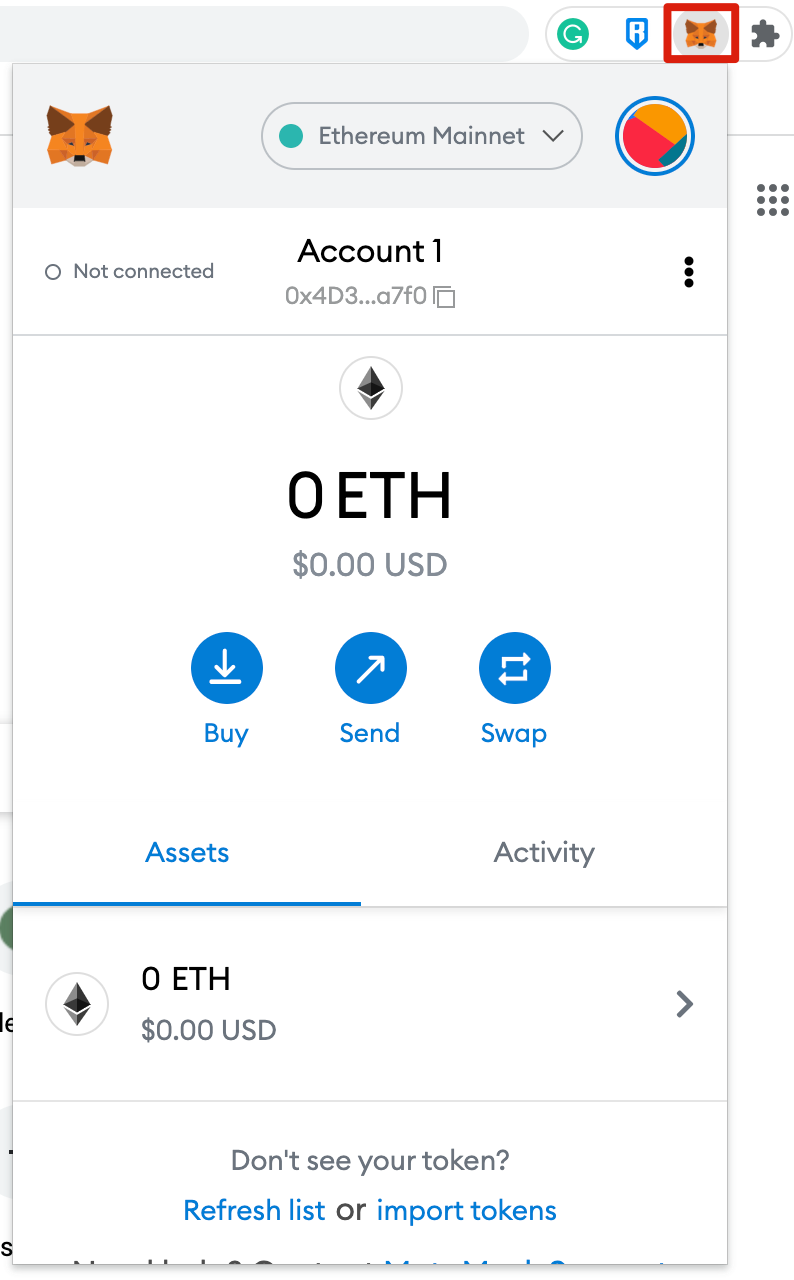
Configure wallet
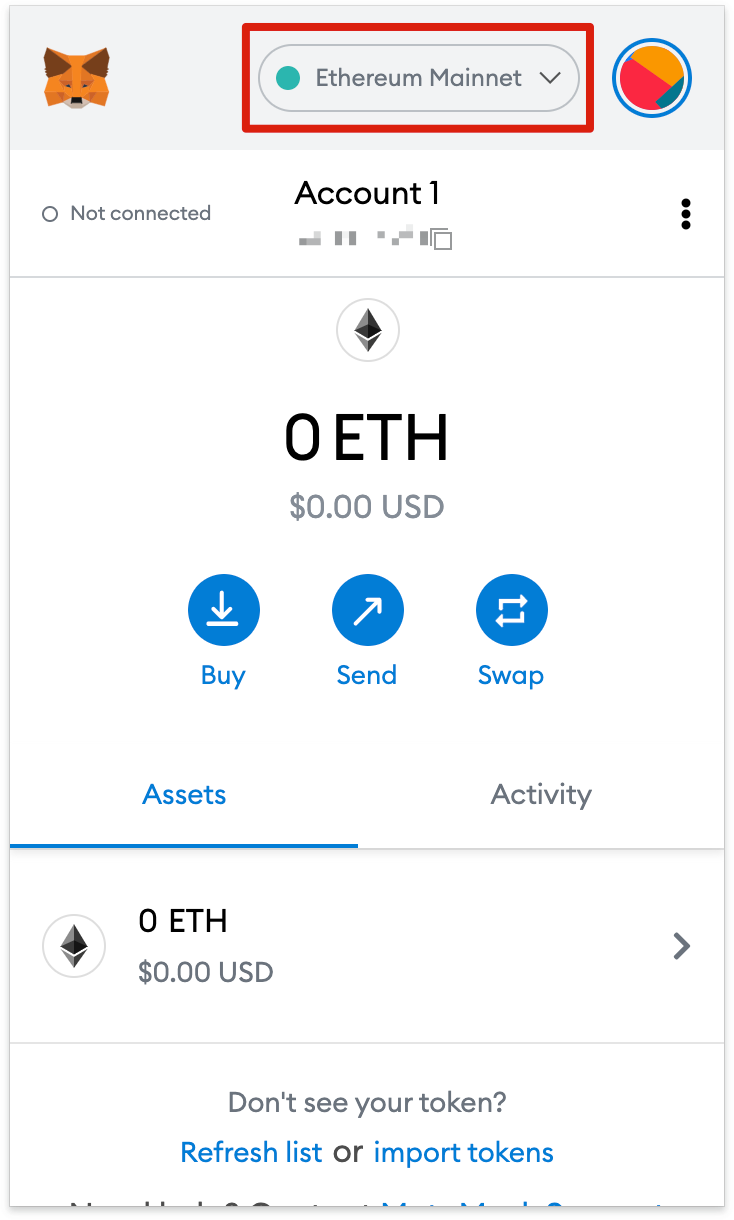
If you add Polygon to your wallet, you need to add some network details in the plugin. First, open MetaMask and click on the Network drop-down menu.
Now, click [Add Network] in the pop-up window.
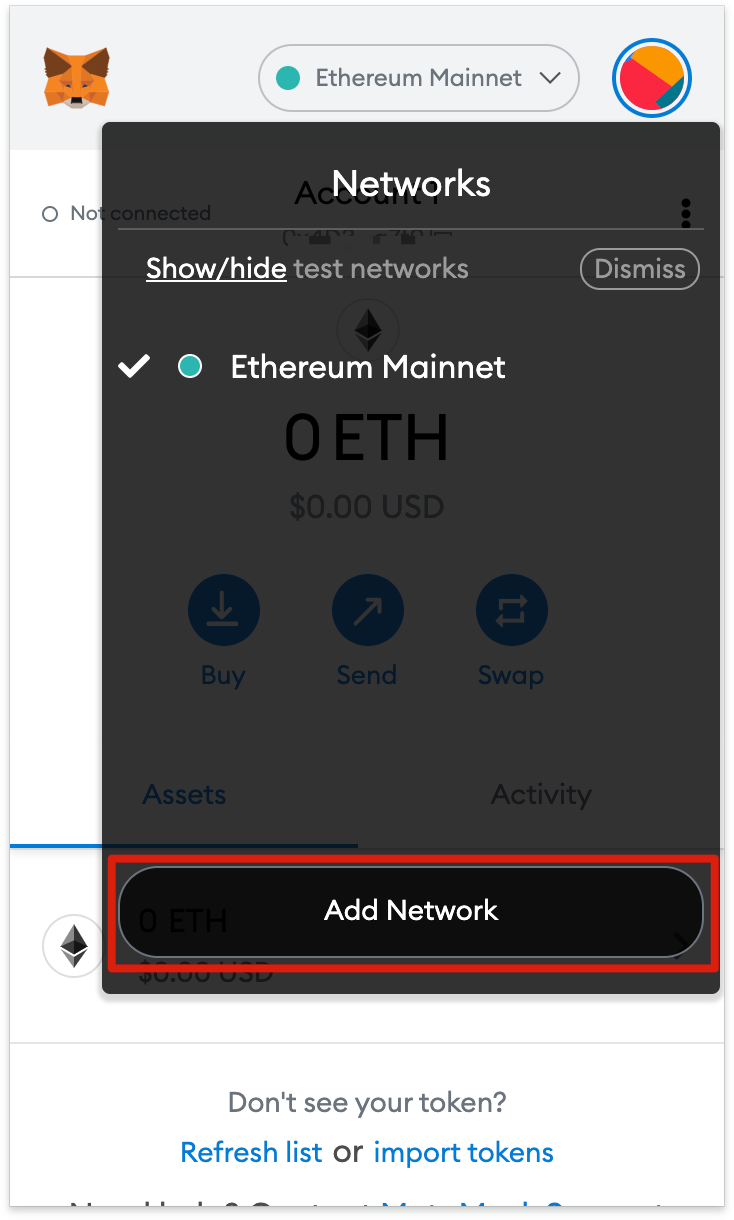
You need to add the following details in the [Add Network] page that opens. When finished, click [Save].
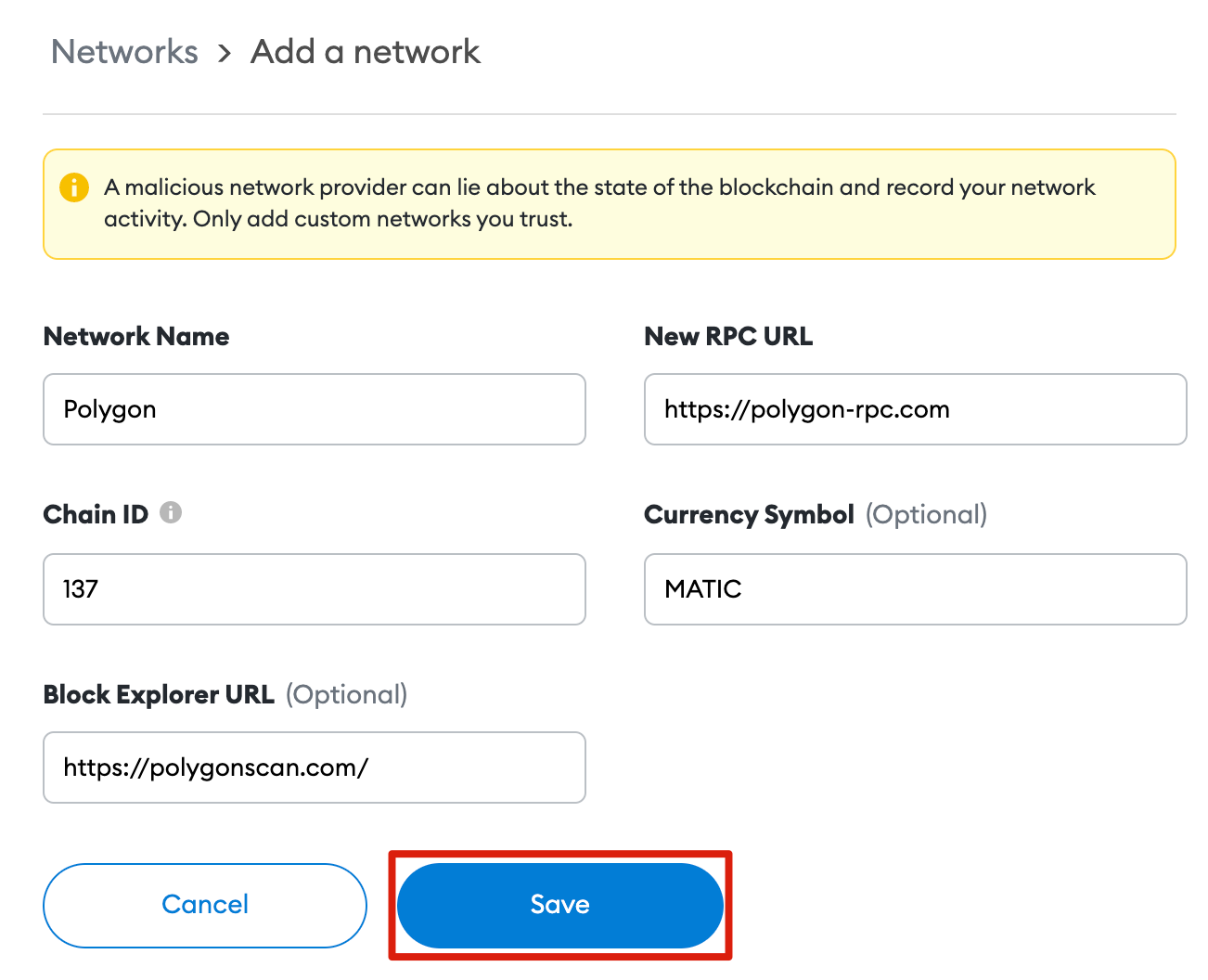
Now you will successfully connect to the Polygon network.
Add Polygon token to MetaMask
You need to add it manually in order for Polygon tokens other than MATIC to appear on the wallet user interface (UI). Please note that unimported tokens may still be received in your wallet.
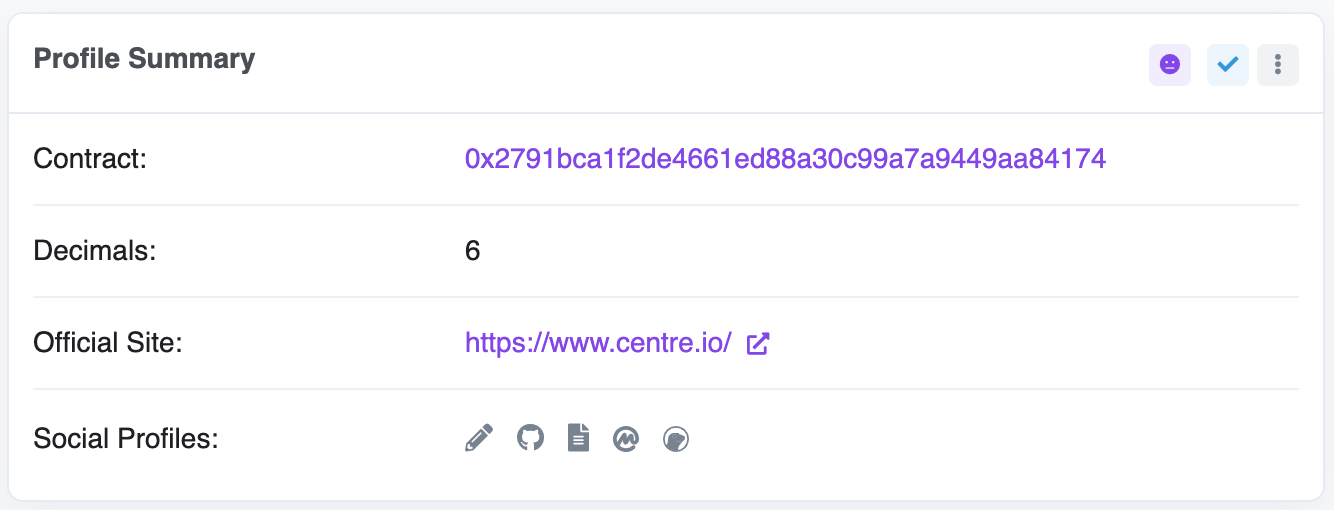
First, go to PolygonScan and find the token contract and token details you want to add. If the token is not on PolygonScan, be sure to obtain the contract address from the project's official website or social media channels. Beware of fake contracts created by bad actors.
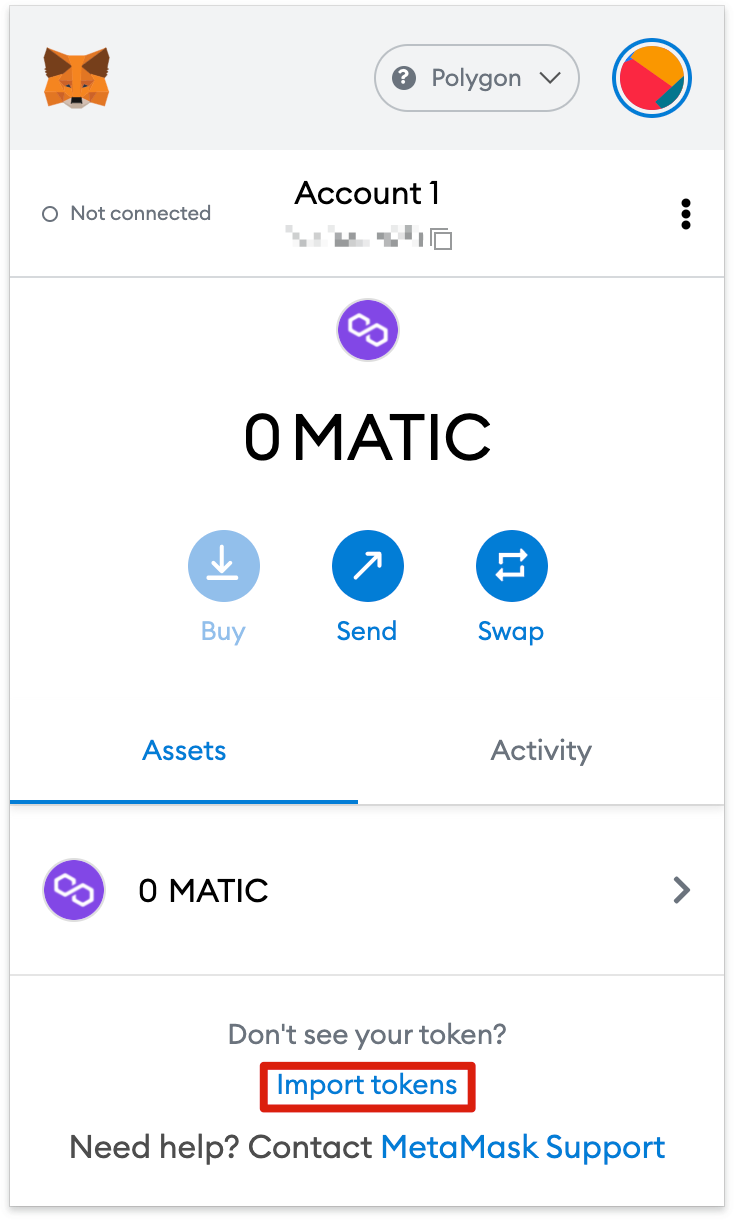
Return to MetaMask and click [Import Tokens].
Copy the token contract address and MetaMask will automatically fill in the remaining details. If not, add it manually. Please click [Add Custom Token] to complete.
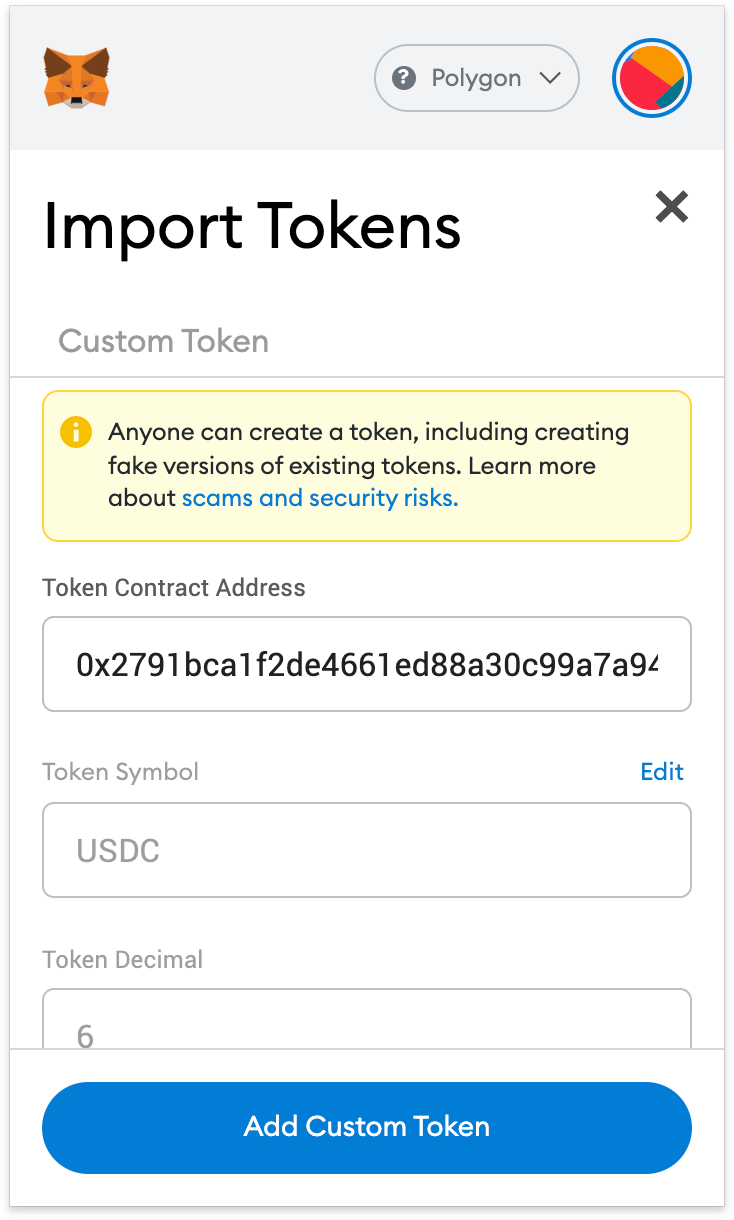
Click [Import Tokens].
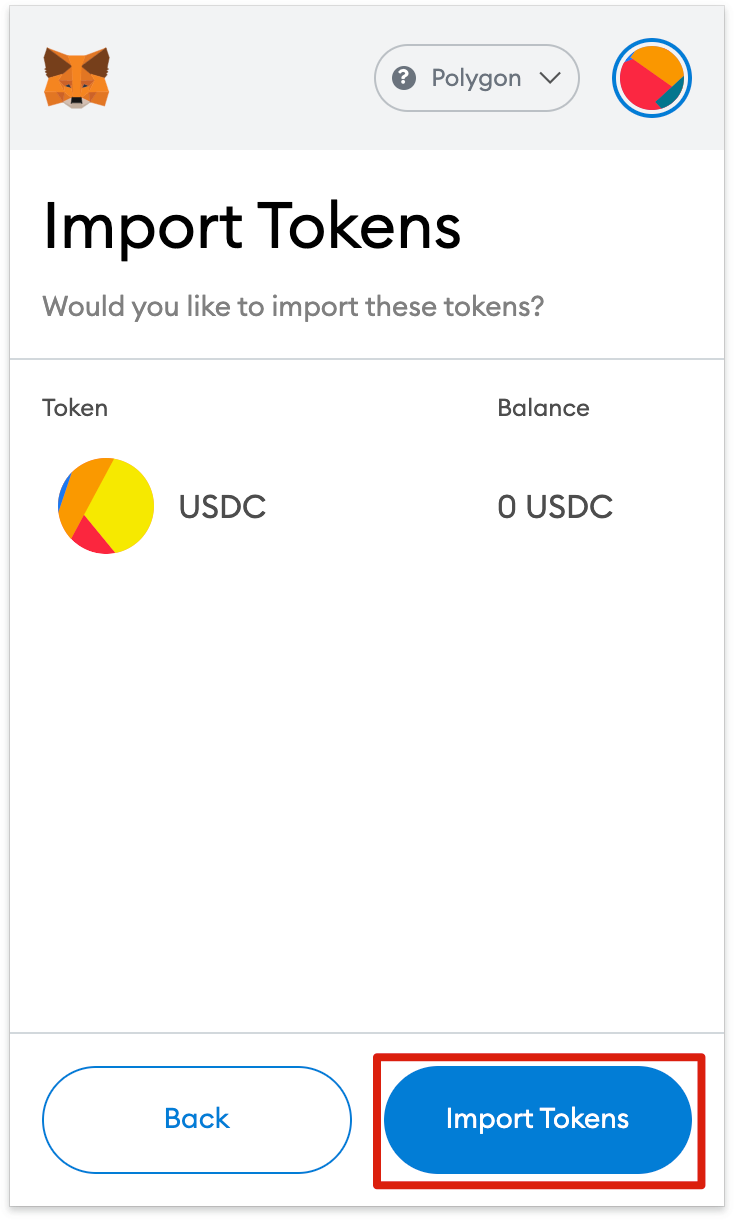
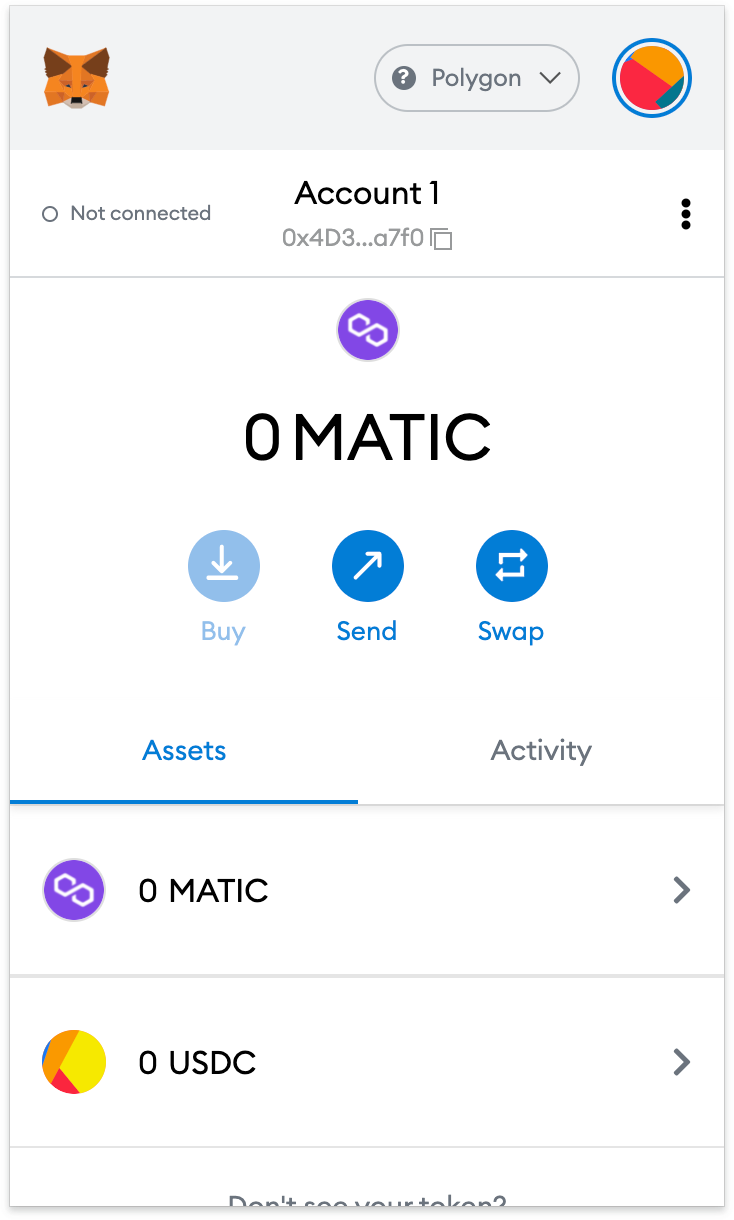
Your wallet will now show the balance of the added tokens.

Summarize
Once you set up Polygon in MetaMask, you can start trading for free, collect non-fungible tokens (NFTs), interact with decentralized finance (DeFi) DApps, and manage your cryptocurrencies. You can even exchange tokens without leaving the plugin. MetaMask doesn’t just work with the Ethereum network and Polygon; it actually supports the entire Ethereum Virtual Machine (EVM) blockchain ecosystem, including Binance Smart Chain. Follow our guide to add more blockchains and start exploring today.