How to Check STON.fi Pool Volume Before You Swap
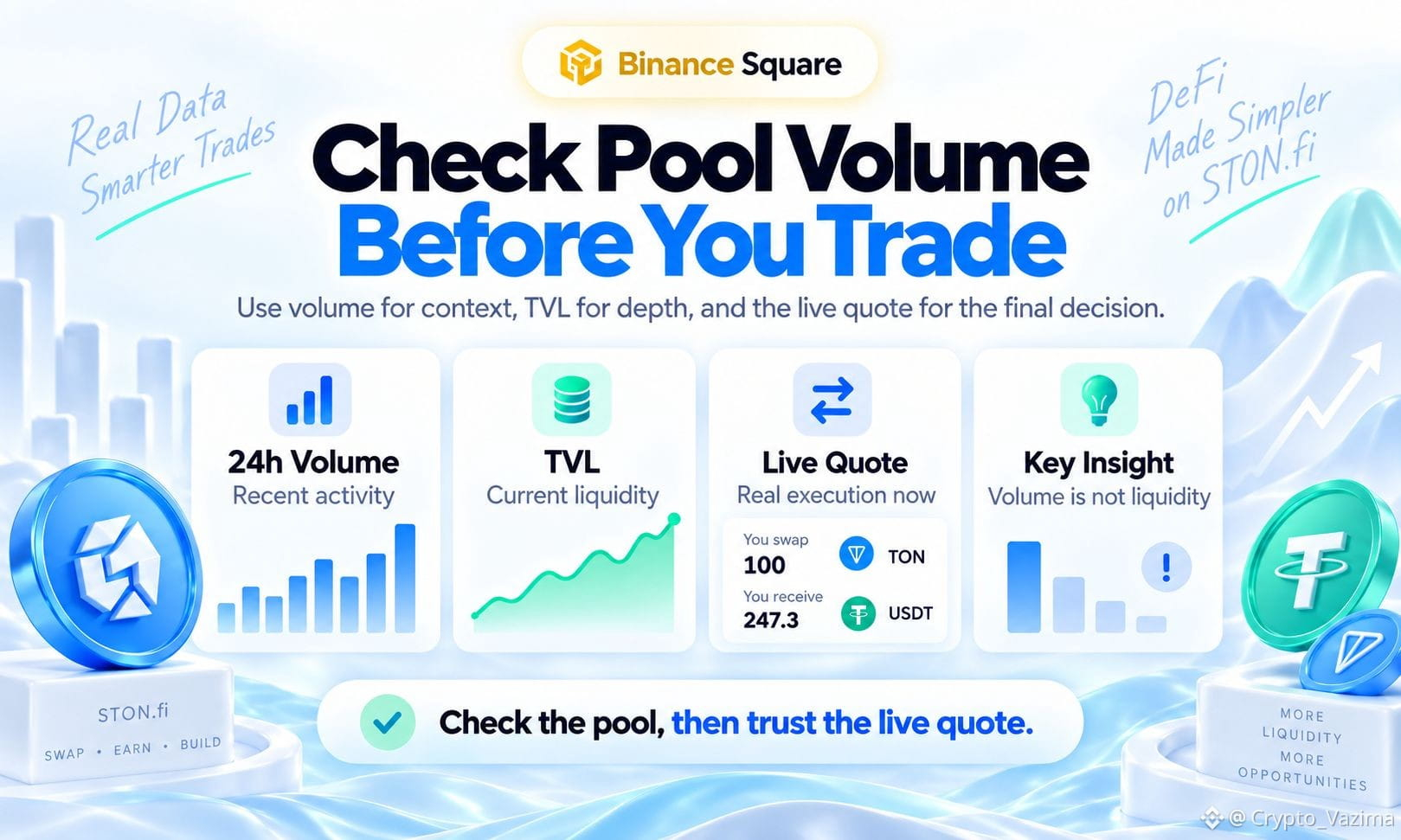
On STON.fi, Volume, 24h tells you how active a pool has been during the previous day. It does not tell you how much liquidity the pool holds now. Use that activity signal with TVL and the live quote for your actual trade size.
🔥 What the 24h Volume Number Shows
- Volume measures recent trading activity through that exact pair.
- TVL measures the value currently locked as liquidity.
- The swap quote measures rate, price impact and minimum received for your amount now.
🚀 A Simple Pre-Trade Flow on STON.fi
1. Open the STON.fi app and go to Pools.
2. Select the exact token pair you want to trade, not just familiar symbols.
3. Read Volume, 24h and compare it with TVL.
4. Enter your real swap amount and review rate, price impact, minimum received and fees before signing.
🧠 Why Busy Pools Can Still Slip
- Yesterday's volume cannot guarantee today's execution quality.
- A large order versus current reserves can still create high price impact.
- A 24h total can hide a burst that already passed, so refresh before you confirm.
⚡ Common Volume Mistakes
- Treating 24h volume as if it were liquidity.
- Judging one pool from protocol-wide DEX volume.
- Assuming high historical volume means low price impact.
- Checking once and signing much later without a fresh quote.
💬 My take
Treat STON.fi 24h volume as context, not a green light. A quick volume / TVL ratio can show whether activity looks large relative to that pool, but it is not an official score. Verify the right pool, then let the live quote decide.
Would you skip a STON.fi swap if price impact looked worse than the volume suggested? 👇
Share the first pool field you scan before confirming.
Not investment advice - research on your own! 🚀
$GRAM @STONfi DEX
On STON.fi, Volume, 24h tells you how active a pool has been during the previous day. It does not tell you how much liquidity the pool holds now. Use that activity signal with TVL and the live quote for your actual trade size.
🔥 What the 24h Volume Number Shows
- Volume measures recent trading activity through that exact pair.
- TVL measures the value currently locked as liquidity.
- The swap quote measures rate, price impact and minimum received for your amount now.
🚀 A Simple Pre-Trade Flow on STON.fi
1. Open the STON.fi app and go to Pools.
2. Select the exact token pair you want to trade, not just familiar symbols.
3. Read Volume, 24h and compare it with TVL.
4. Enter your real swap amount and review rate, price impact, minimum received and fees before signing.
🧠 Why Busy Pools Can Still Slip
- Yesterday's volume cannot guarantee today's execution quality.
- A large order versus current reserves can still create high price impact.
- A 24h total can hide a burst that already passed, so refresh before you confirm.
⚡ Common Volume Mistakes
- Treating 24h volume as if it were liquidity.
- Judging one pool from protocol-wide DEX volume.
- Assuming high historical volume means low price impact.
- Checking once and signing much later without a fresh quote.
💬 My take
Treat STON.fi 24h volume as context, not a green light. A quick volume / TVL ratio can show whether activity looks large relative to that pool, but it is not an official score. Verify the right pool, then let the live quote decide.
Would you skip a STON.fi swap if price impact looked worse than the volume suggested? 👇
Share the first pool field you scan before confirming.
Not investment advice - research on your own! 🚀
$GRAM @STONfi DEX