


TL;DR
MetaMask is a crypto wallet application and browser extension that interacts primarily with the Ethereum mainnet. To download this extension, you can visit the official MetaMask website.
Apart from Ethereum, MetaMask can also interact with other networks, such as Fantom. To do this, you have to provide some information to MetaMask. This includes the custom RPC URL, chain ID, and network name. Then, you will be able to add Fantom tokens once you import the token address.
Adding a new blockchain to MetaMask is an important crypto skill that applies to other EVM networks, such as Binance Smart Chain.
Introduction
To get started, you first need a supported crypto wallet, such as MetaMask. Note that Fantom is not the default network in MetaMask. However, you can easily set up this wallet to connect to Fantom in just a few minutes.

Install and setup MetaMask
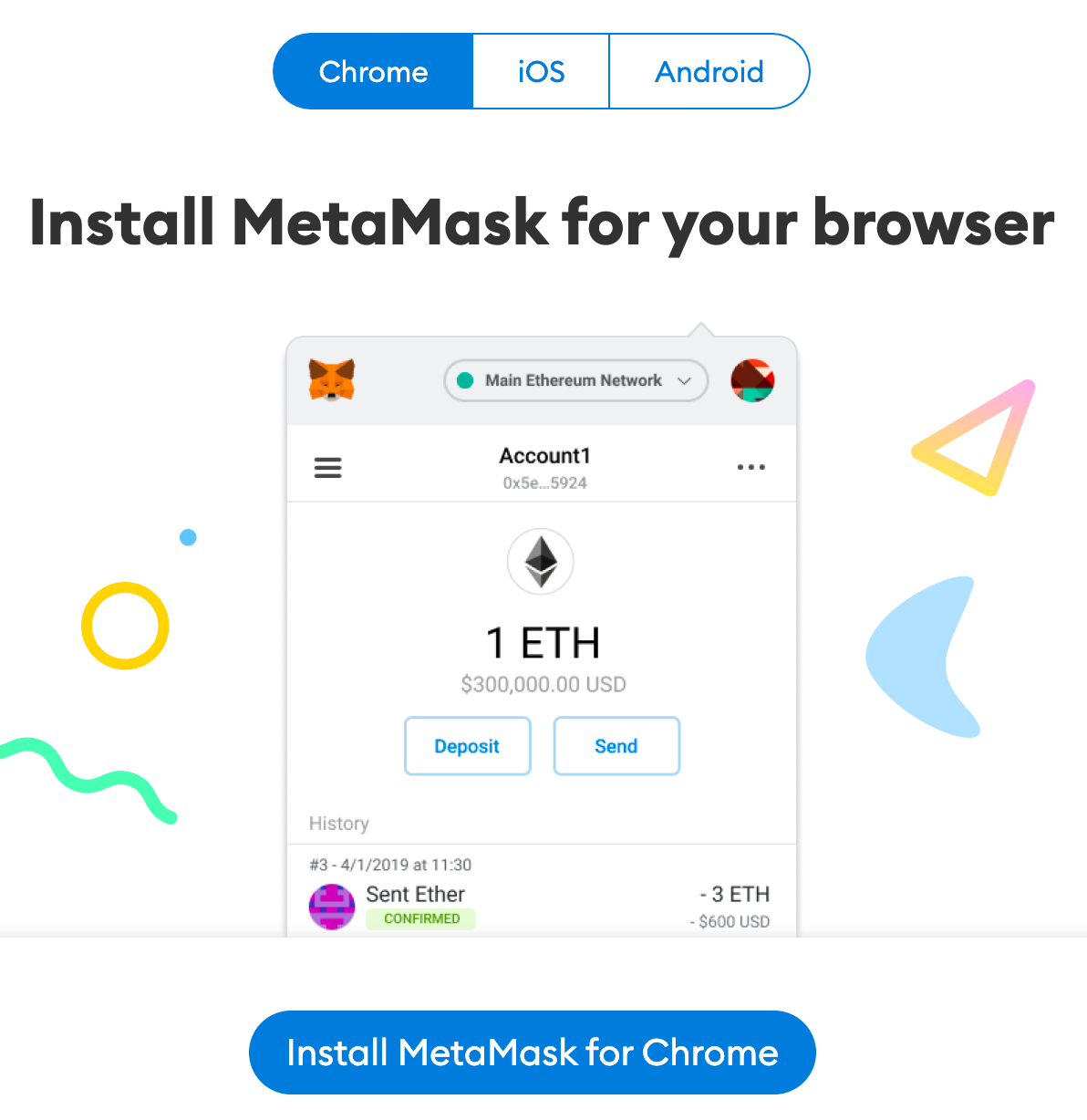
1. Download and install MetaMask on Chrome, iOS, or Android via the MetaMask website. To ensure that you are downloading the original version, double-check that you are on the official MetaMask website.
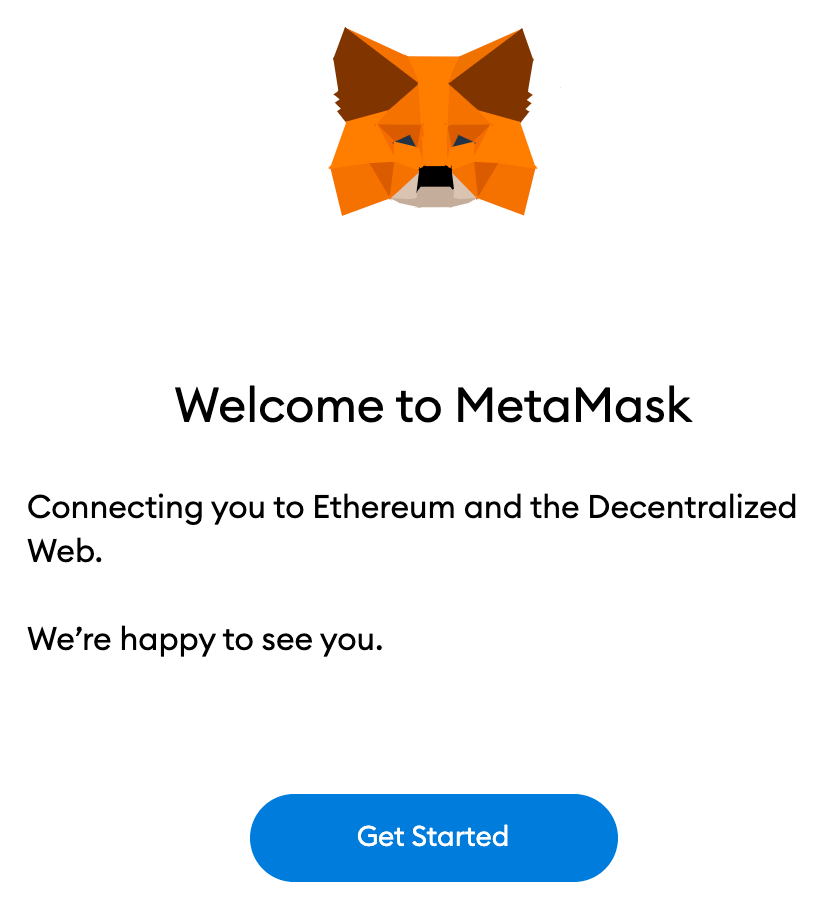
2. After downloading and installing the extension, click [Get Started] on the MetaMask welcome page.
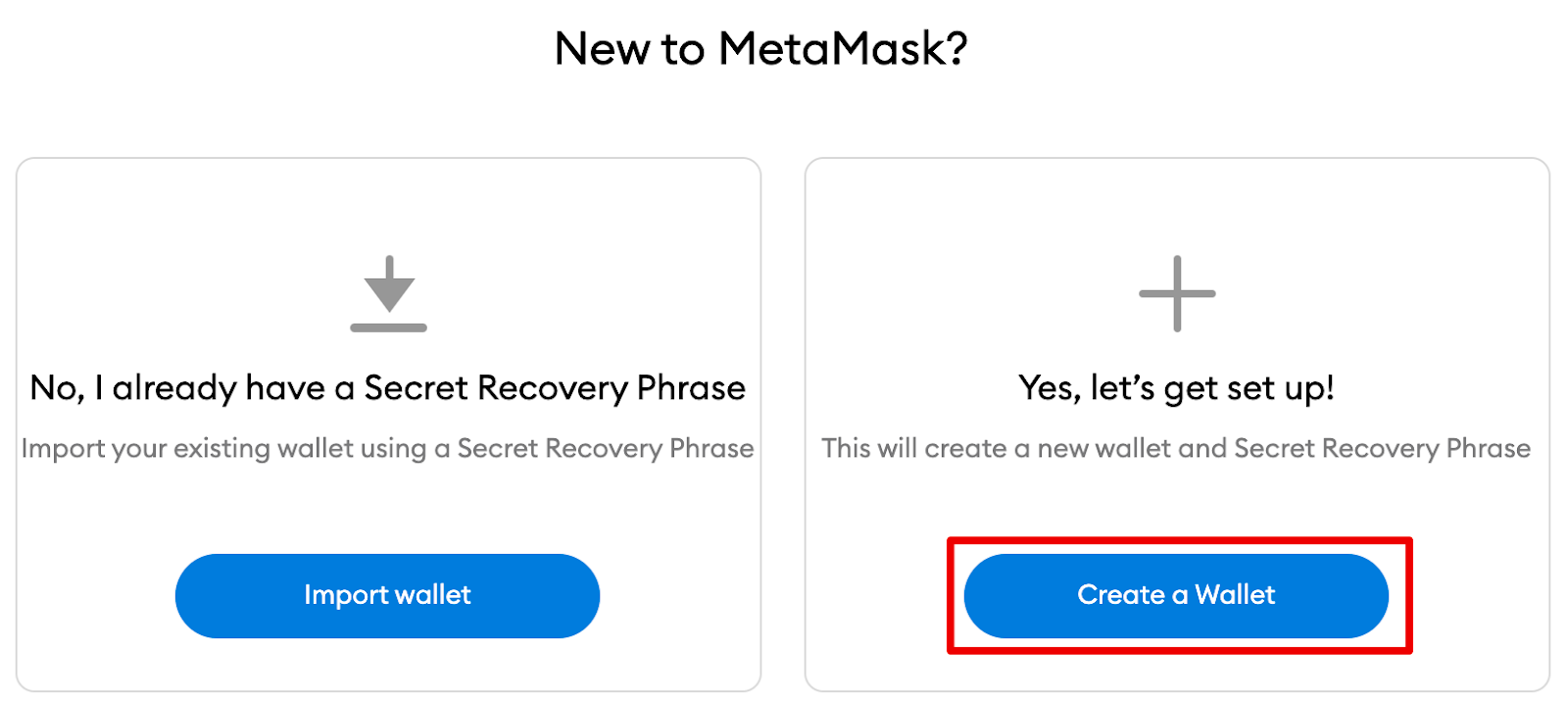
3. For new wallet users, click [Create a Wallet]. If you already have a wallet, you can import it using a seed phrase with the [Import wallet] option.
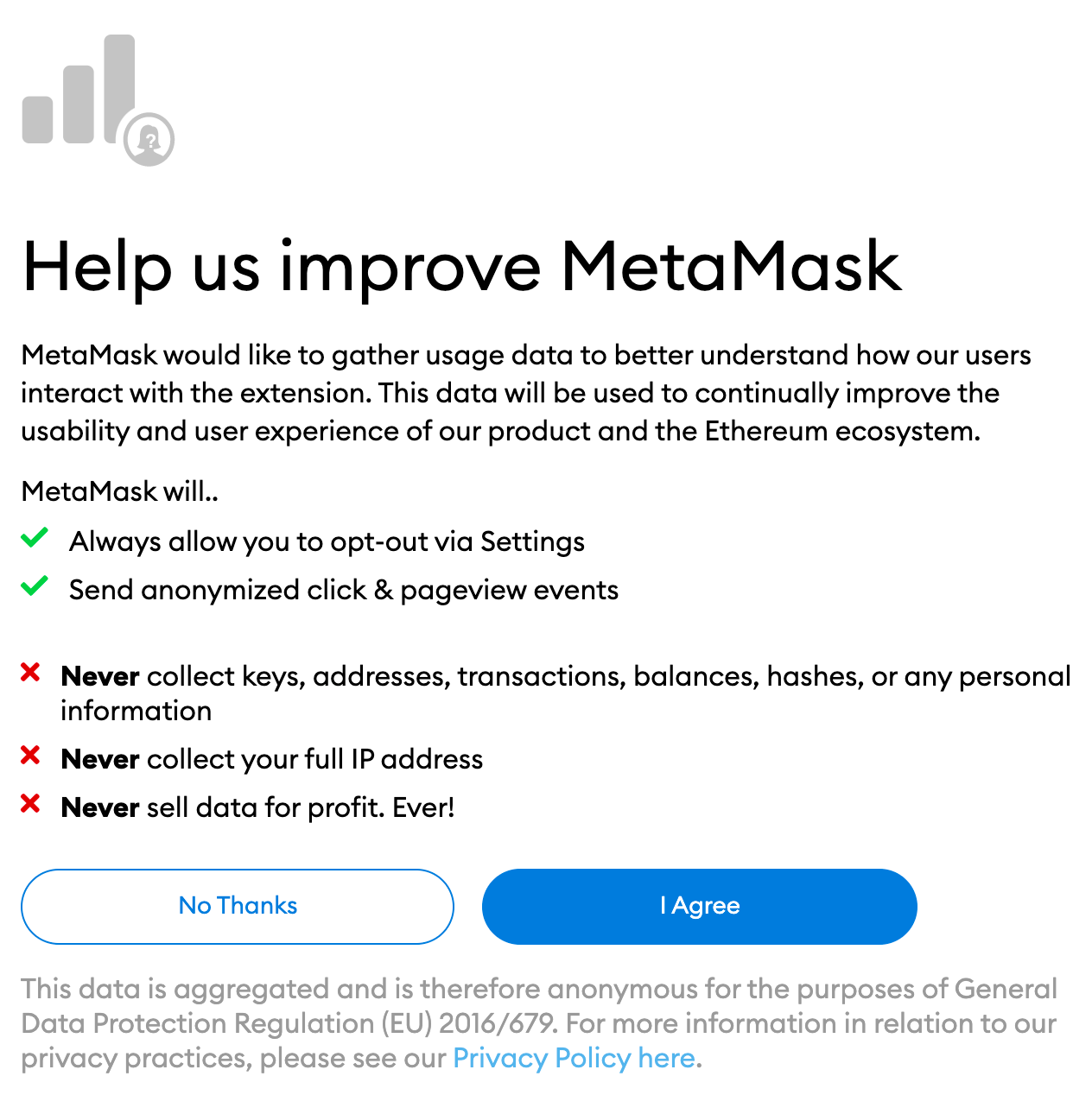
4. MetaMask will ask if you want to help improve the extension by sharing anonymous usage data. Accepting or rejecting it will not affect your experience of using MetaMask.
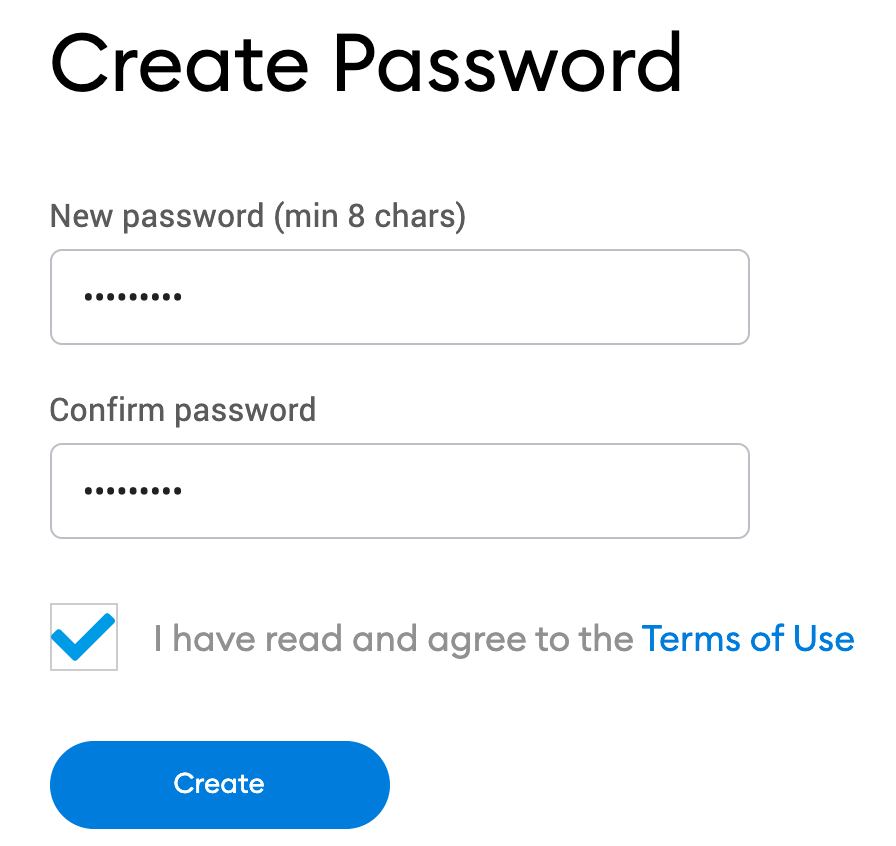
5. Create a secure password. This password will be used to log in to your wallet. Note that a password is not a seed phrase. Password protects your wallet from anyone using your device. Seed phrases allow you to access your crypto even if you forget your password.
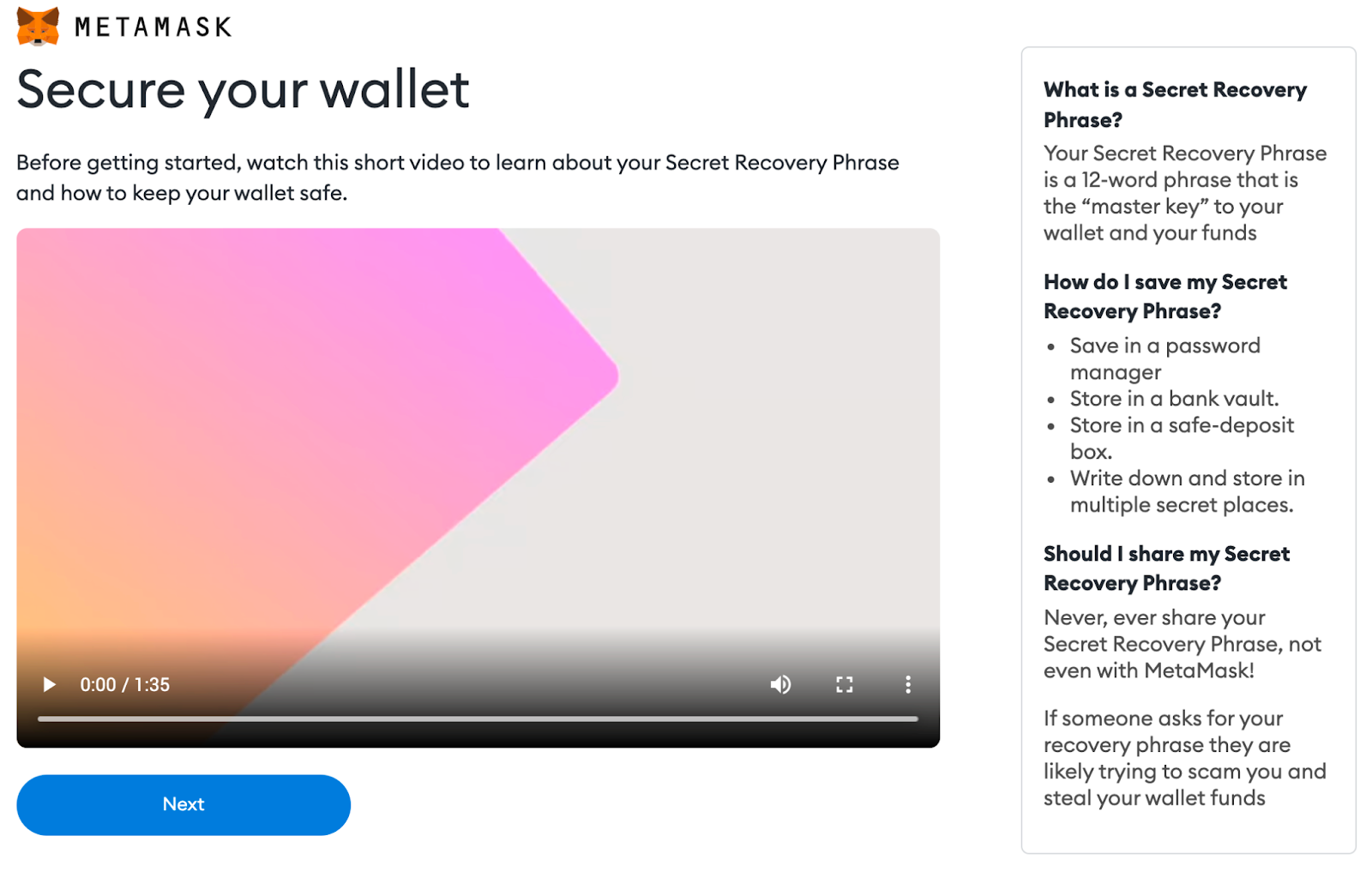
6. After creating a password, MetaMask will provide important information about your seed phrase. If you are new to crypto wallets, be sure to read this section and watch the video before continuing.
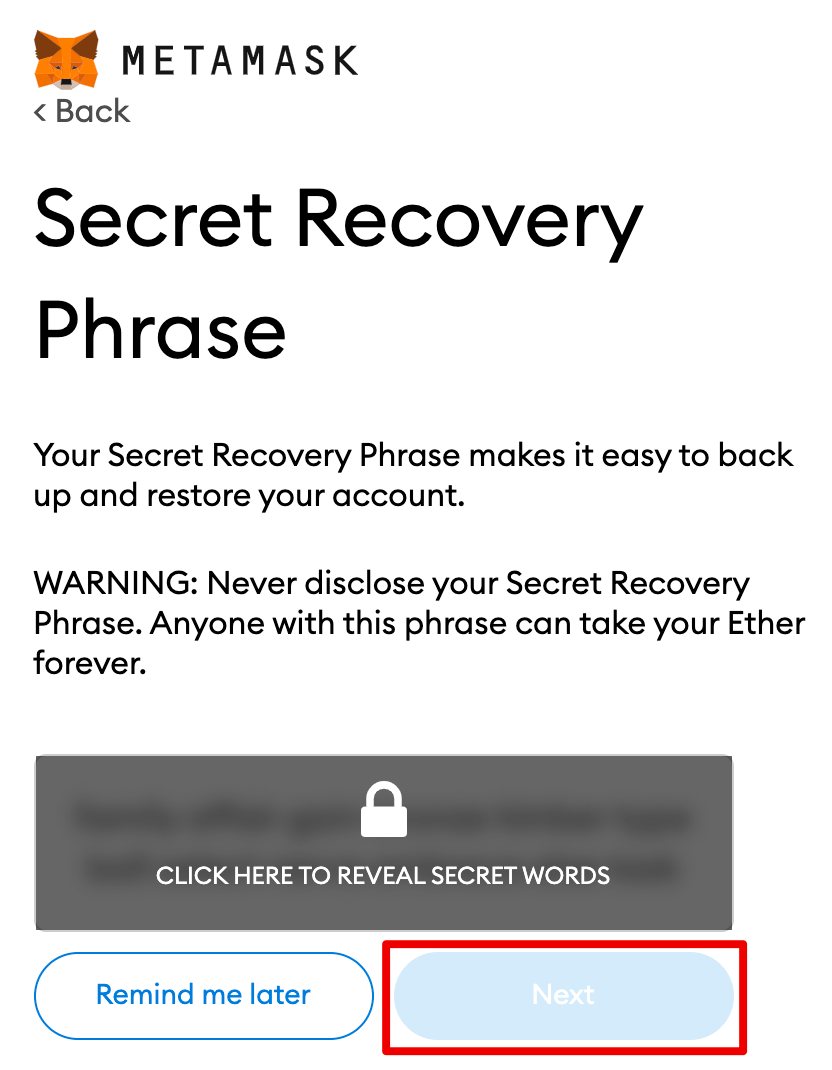
7. Next, click the padlock to get your 12-word seed phrase. Write the words in the correct order and save them in a safe location (preferably offline). Don't share your seed phrase with anyone else. If you lose access, the seed phrase is the last backup for your account. Click [Next] to continue.
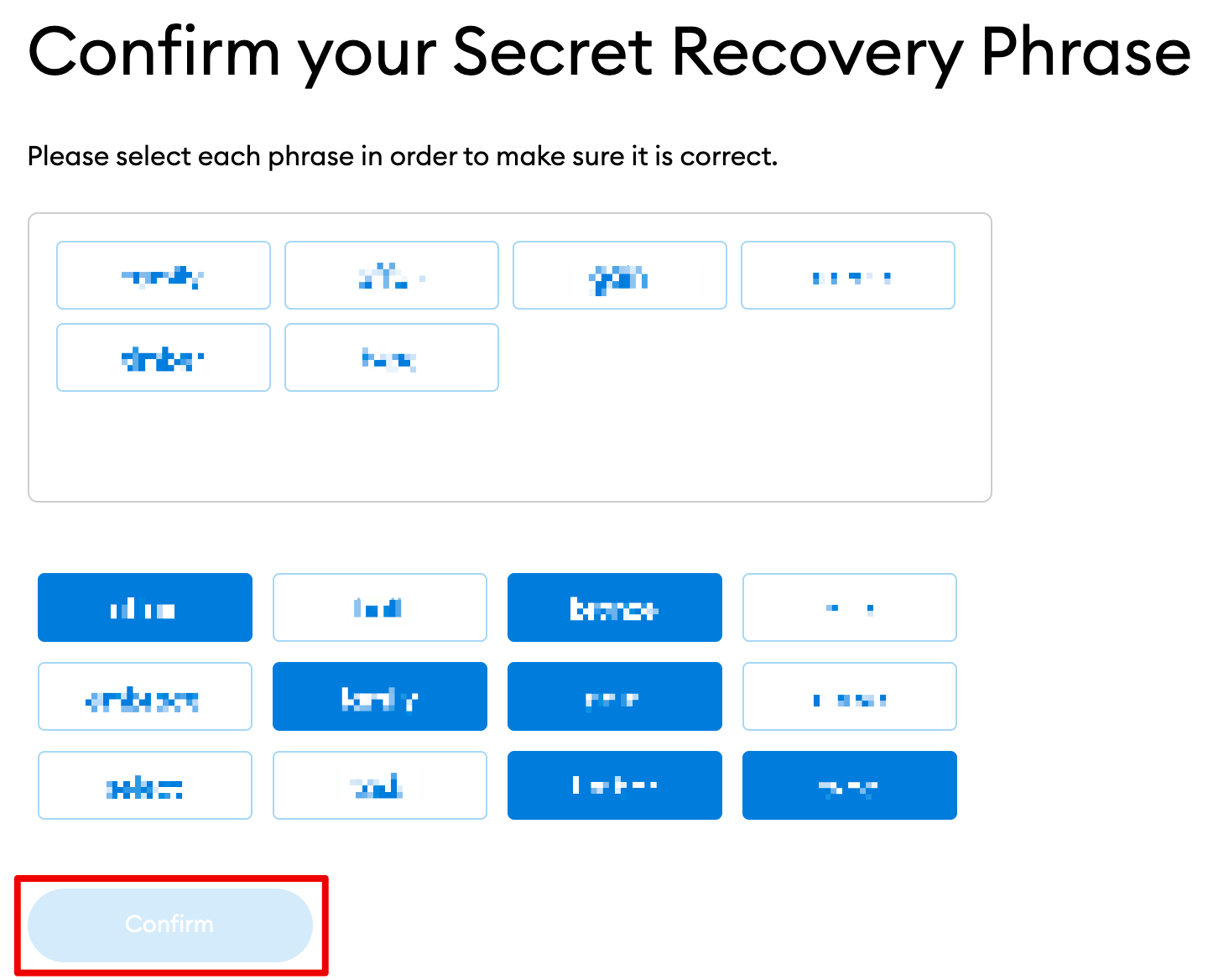
8. Confirm your seed phrase by selecting the words at the bottom of the screen in the correct order. When finished, click [Confirm].
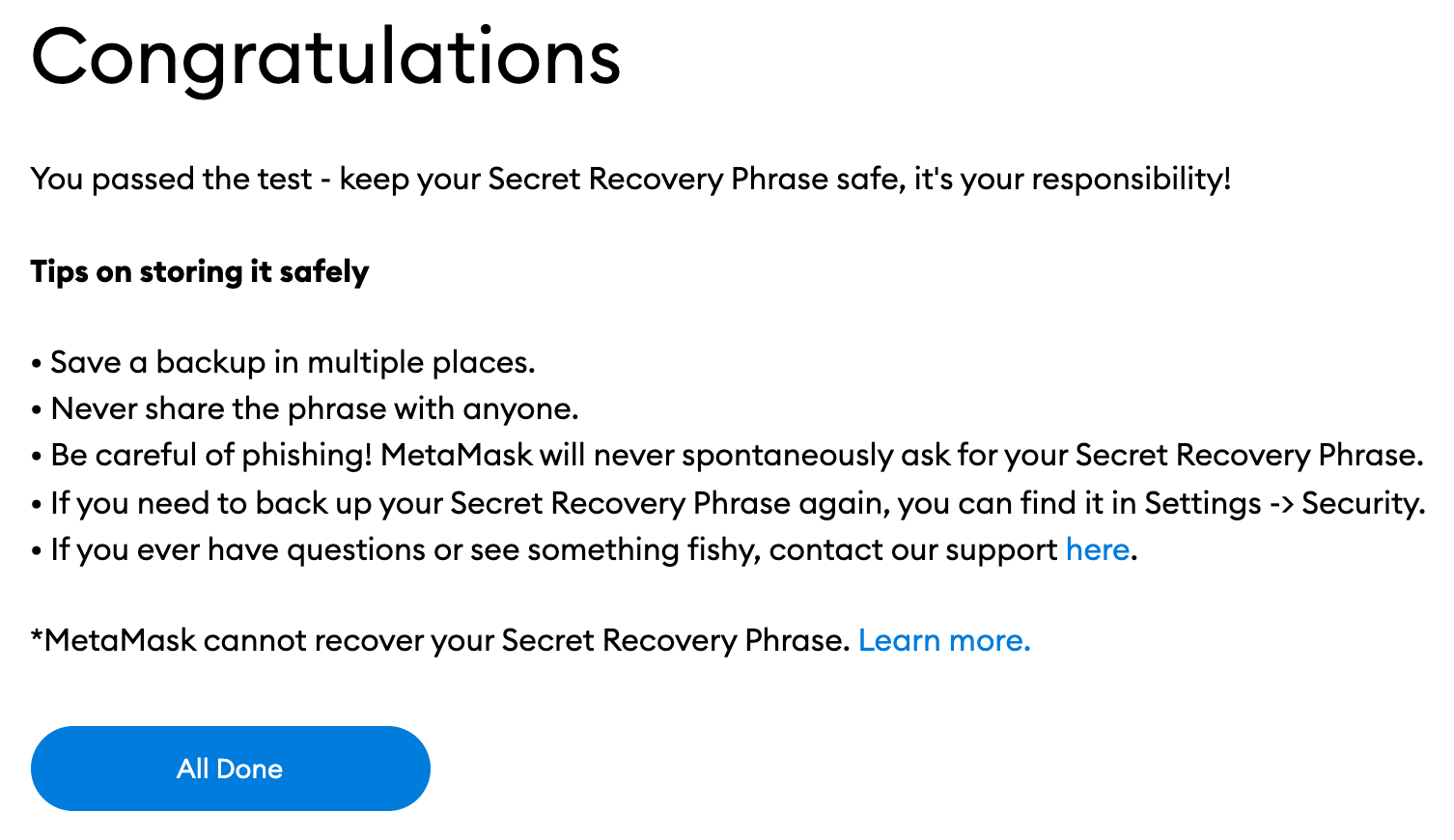
9. You have finished setting up the MetaMask wallet. To start using the wallet, click [All Done].
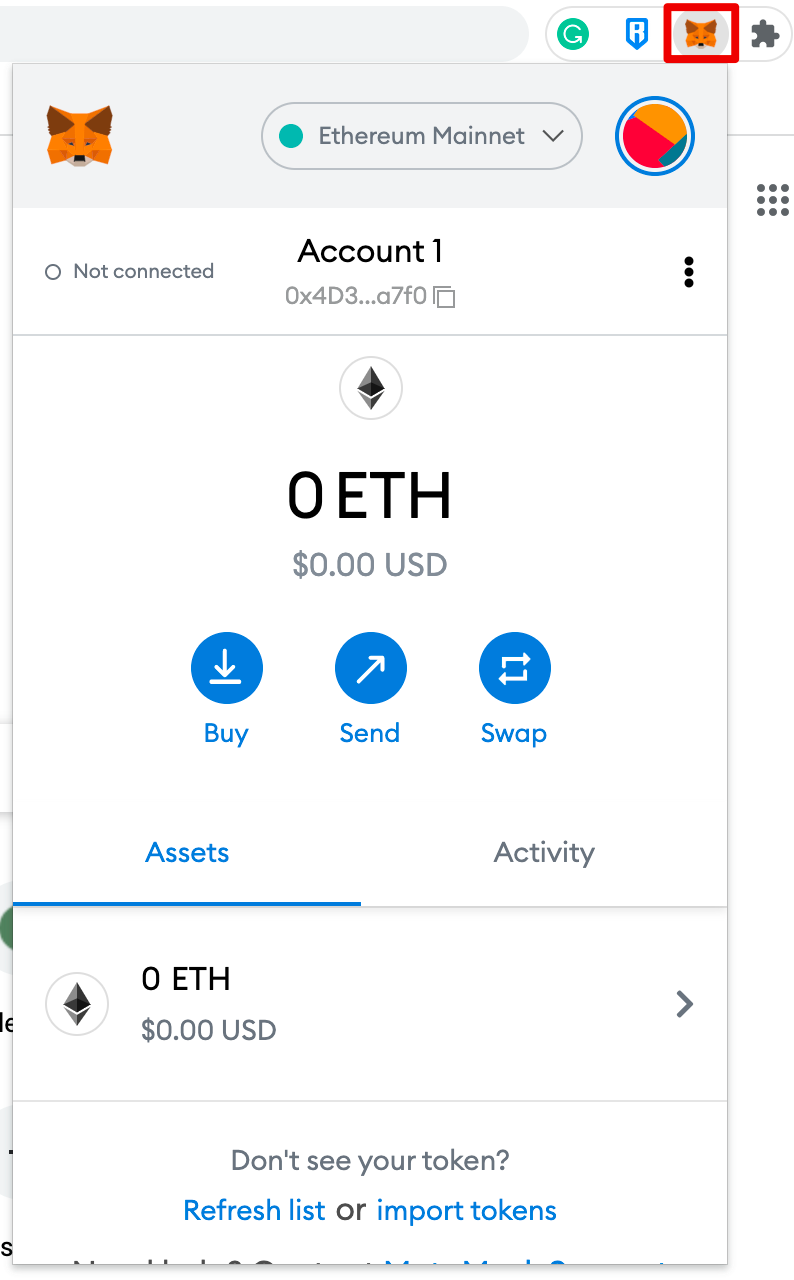
10. To get easy access, click the puzzle icon in the Chrome browser to pin MetaMask in your toolbar. By default, MetaMask only connects to Ethereum. In the next section, you'll learn how to connect MetaMask to Fantom.
Wallet configuration
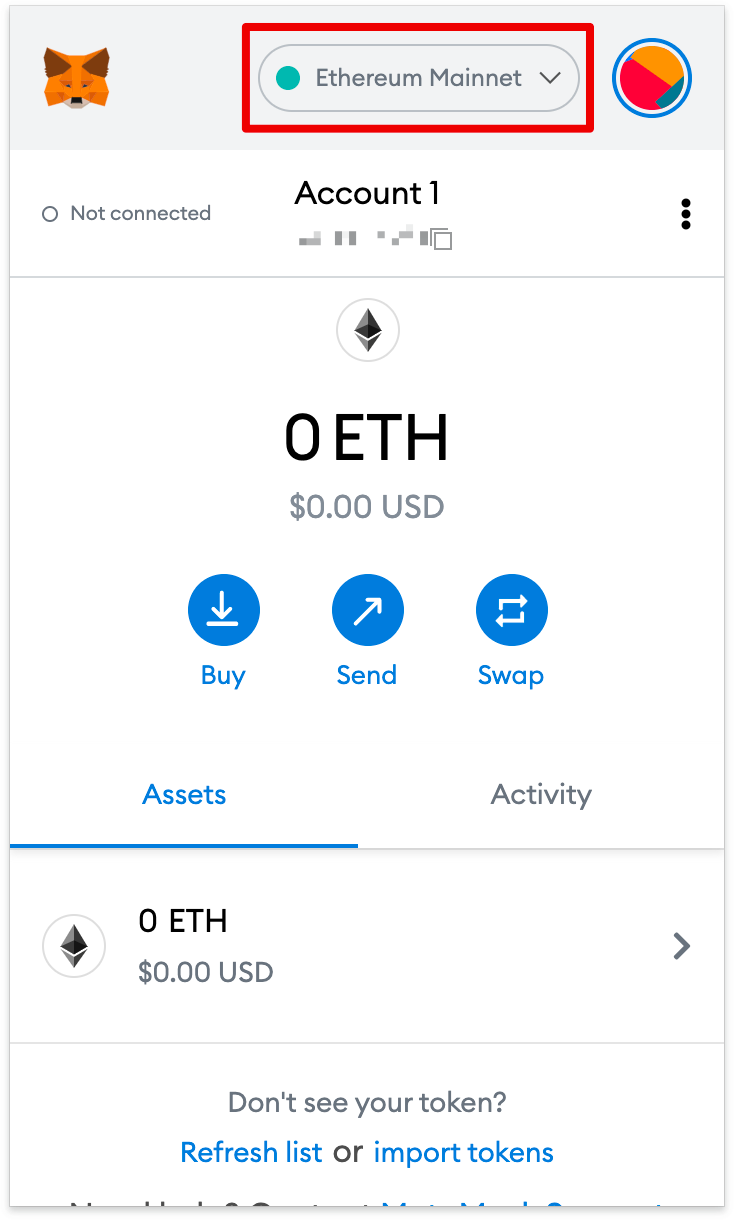
1. You have to provide some network details to add Fantom support to MetaMask wallet. First, open MetaMask, then click the network dropdown menu.
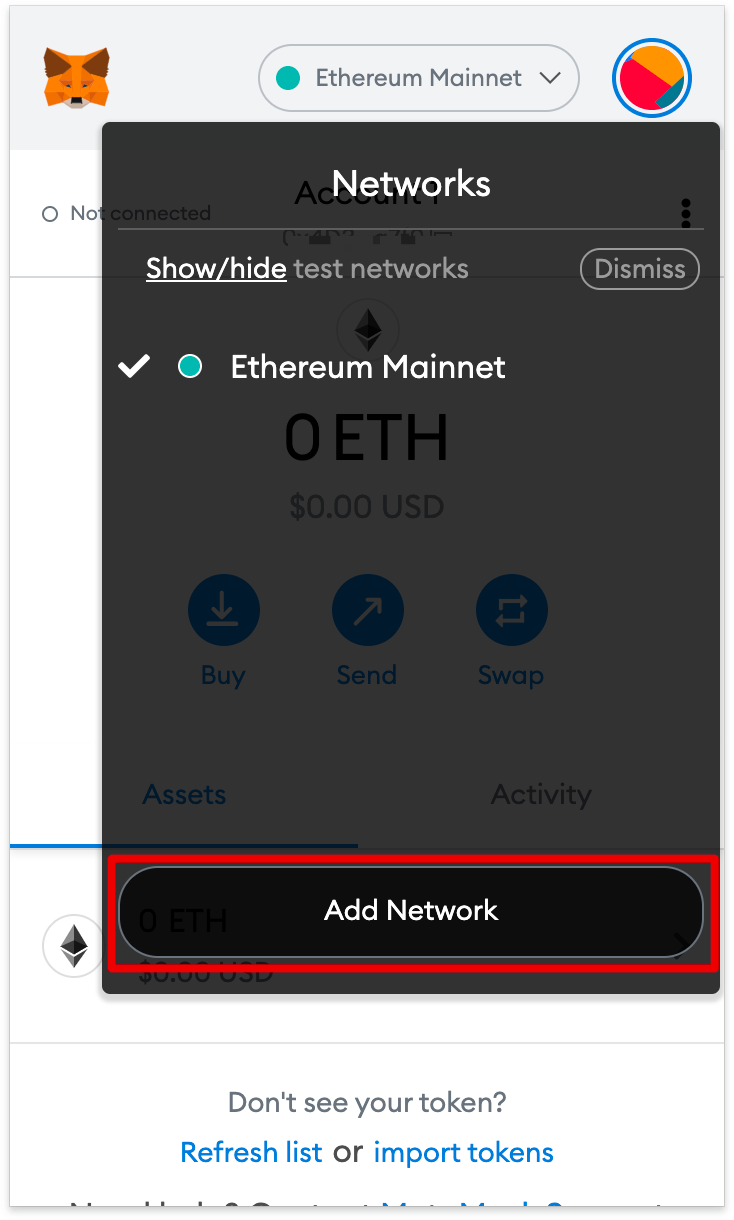
2. Click [Add Network] in the pop-up.
3. On the [Add a network] page, add the following details. Click [Save] when finished.
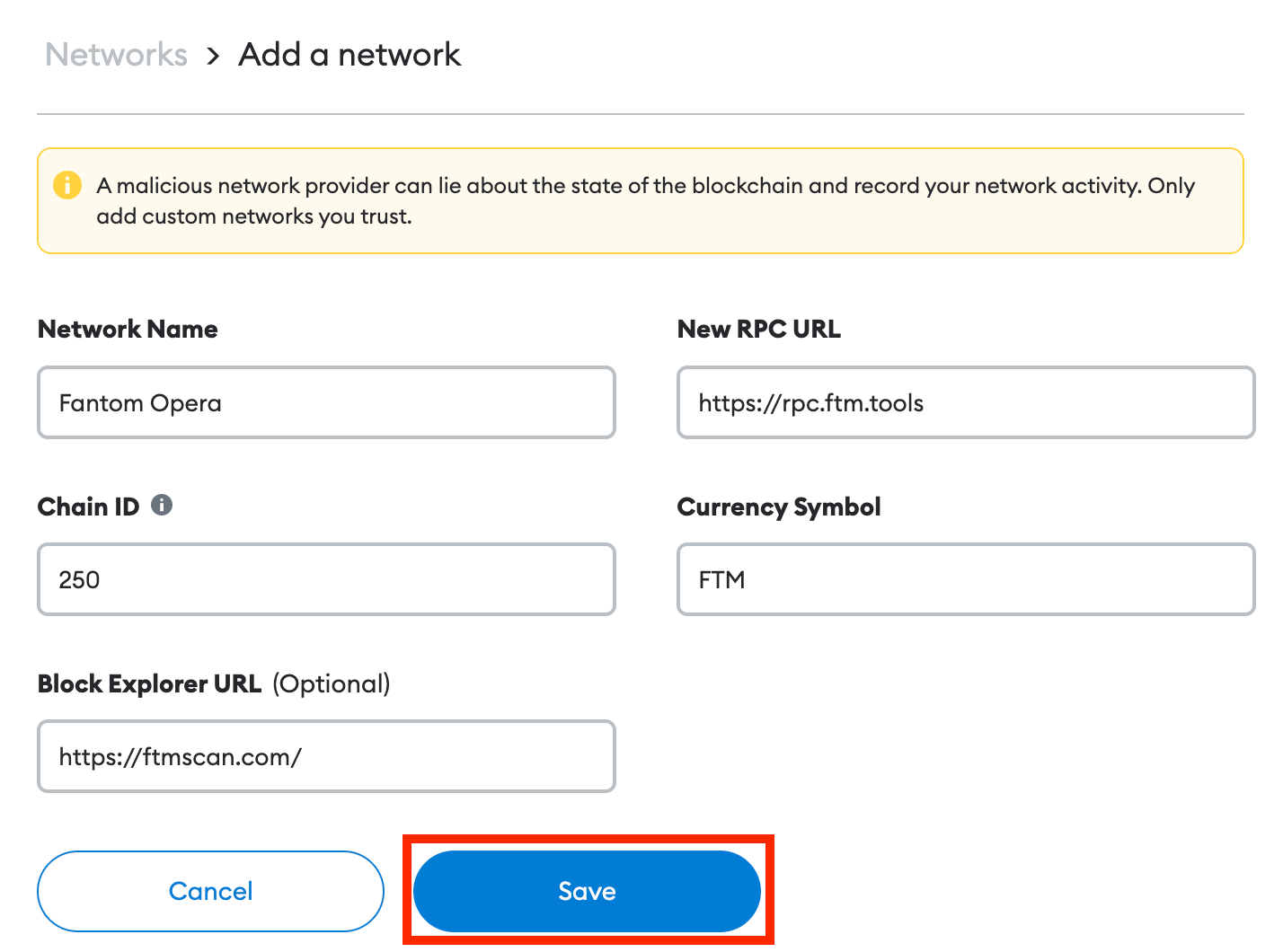
4. You have successfully connected to the Fantom network.
Added Fantom tokens to MetaMask
To add Fantom tokens other than FTM, you have to do it manually. Your wallet can still accept non-imported tokens.
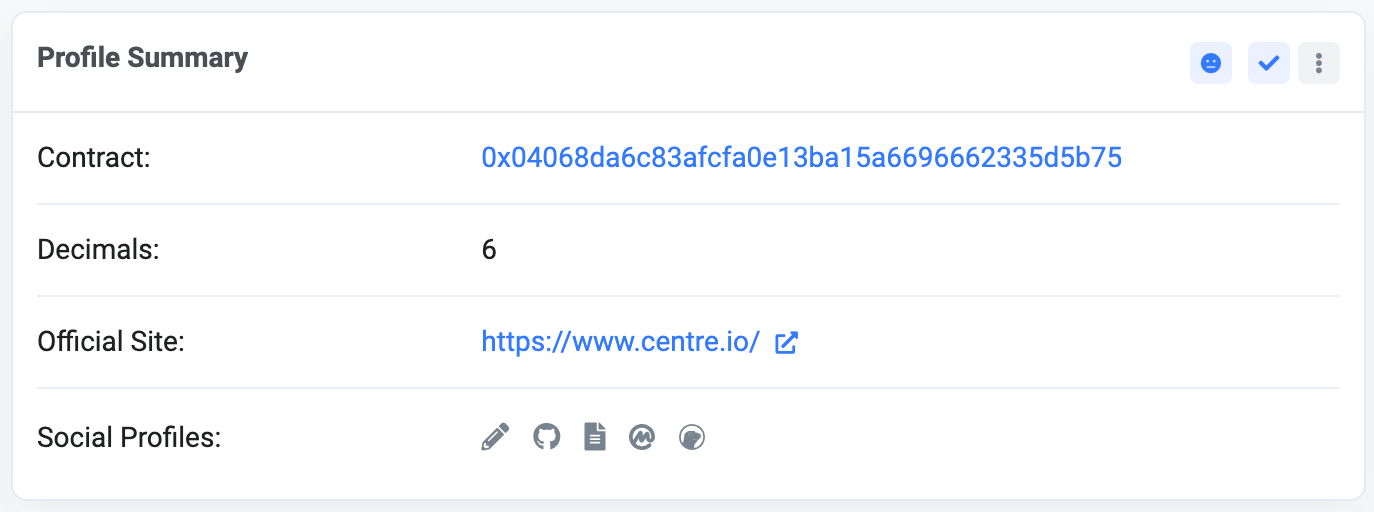
1. Visit FTMScan and find the token contract and details of the token you want to add. For tokens that are not on FTMScan, always look for the contract address from the project's official website or social media channels. Users should be wary of fake contracts created by fraudsters.
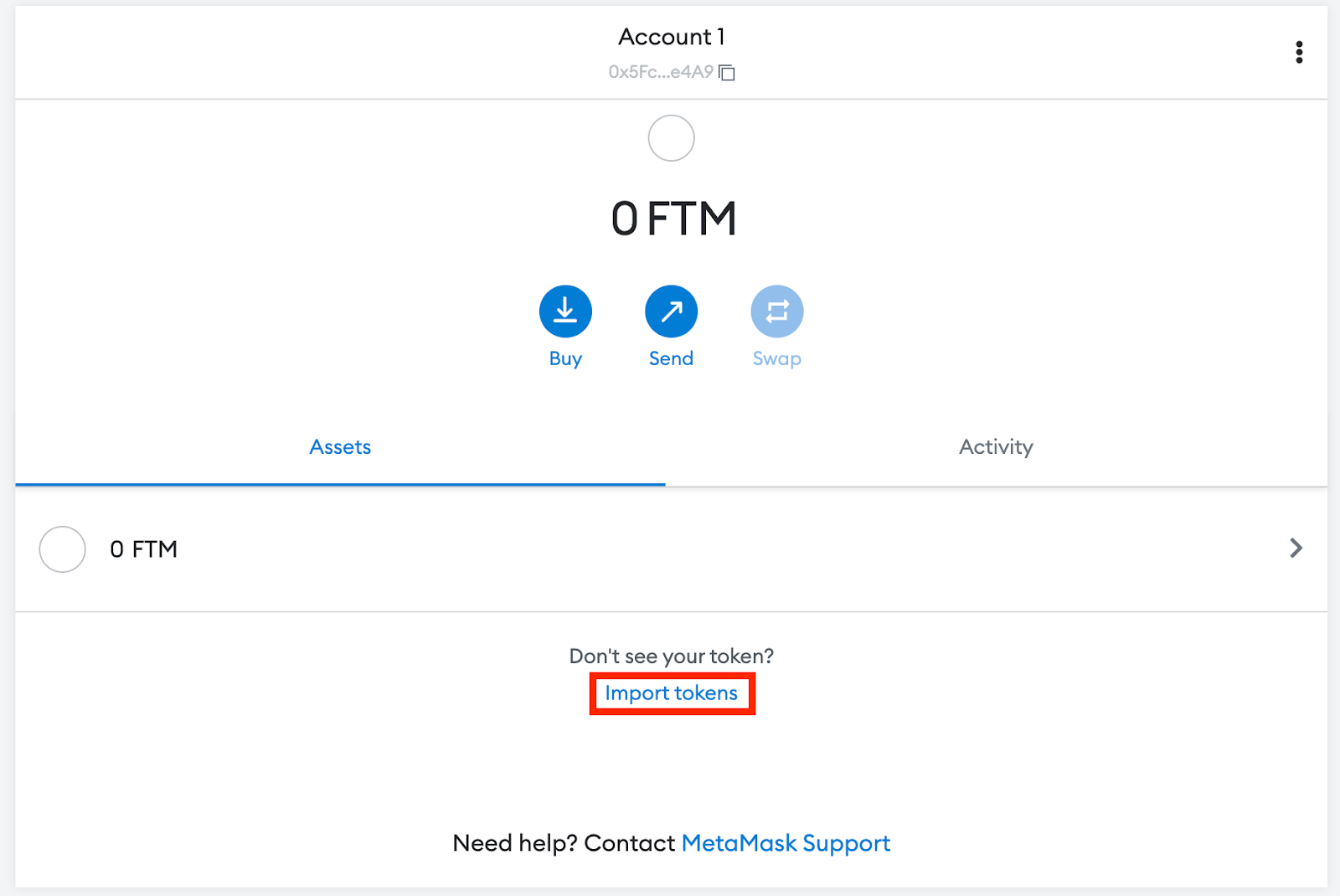
2. Return to MetaMask, then click [Import tokens].
3. Copy and paste the token contract address, and MetaMask will automatically fill in the remaining details. Add it manually if the information is not filled in. Click [Add Custom Token] to complete.
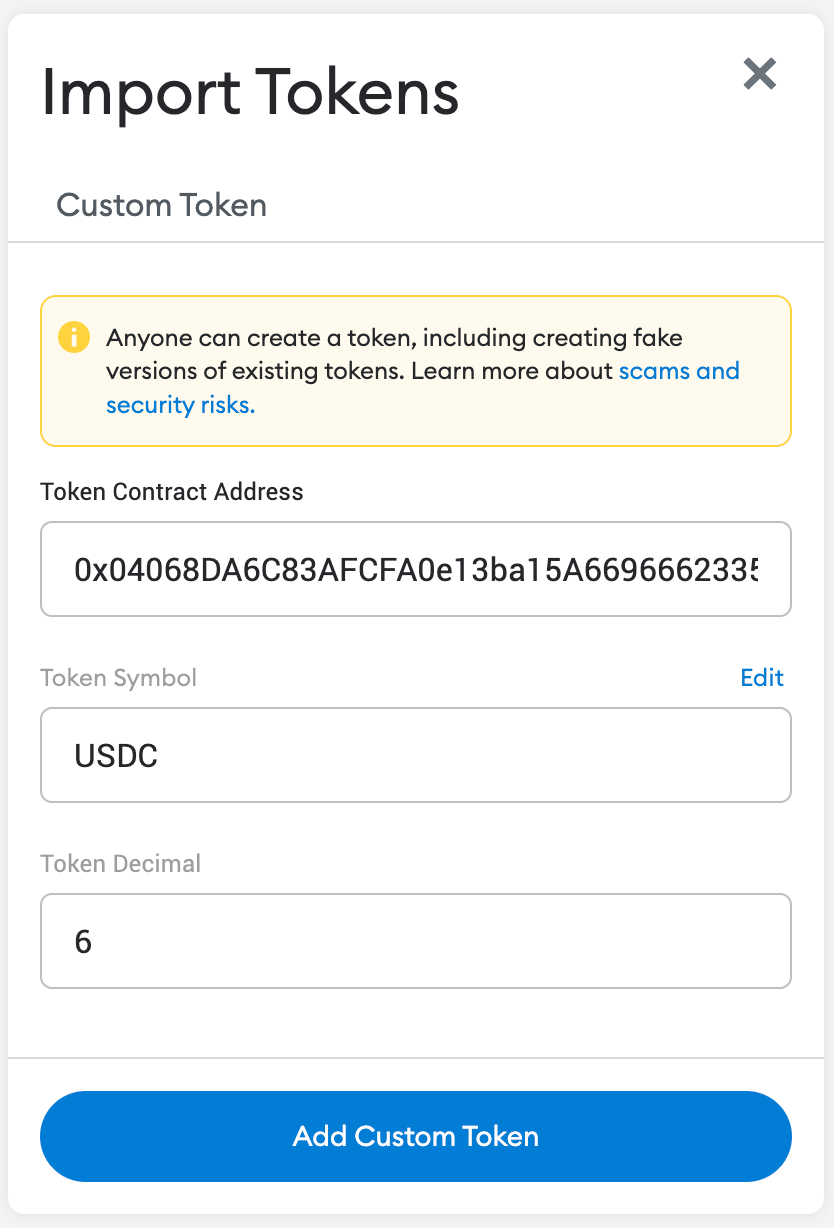
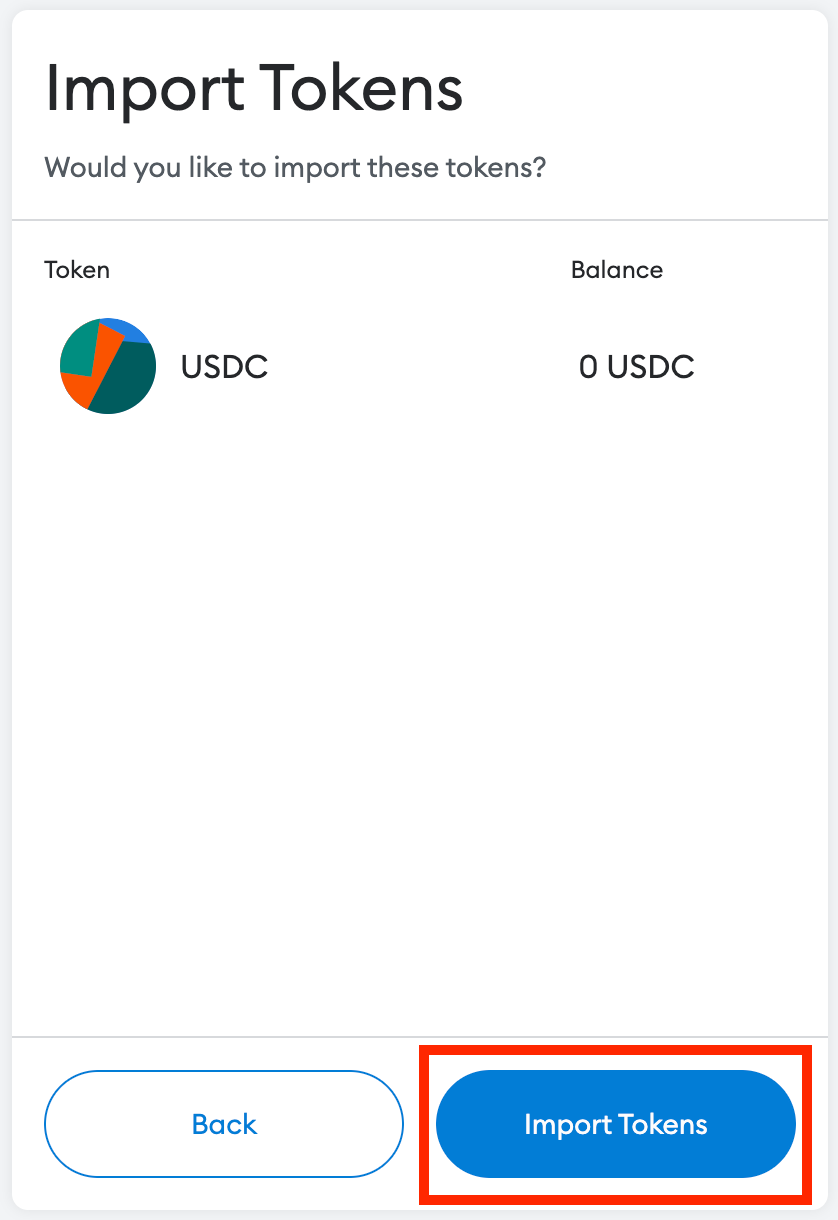
4. Click [Import Tokens].
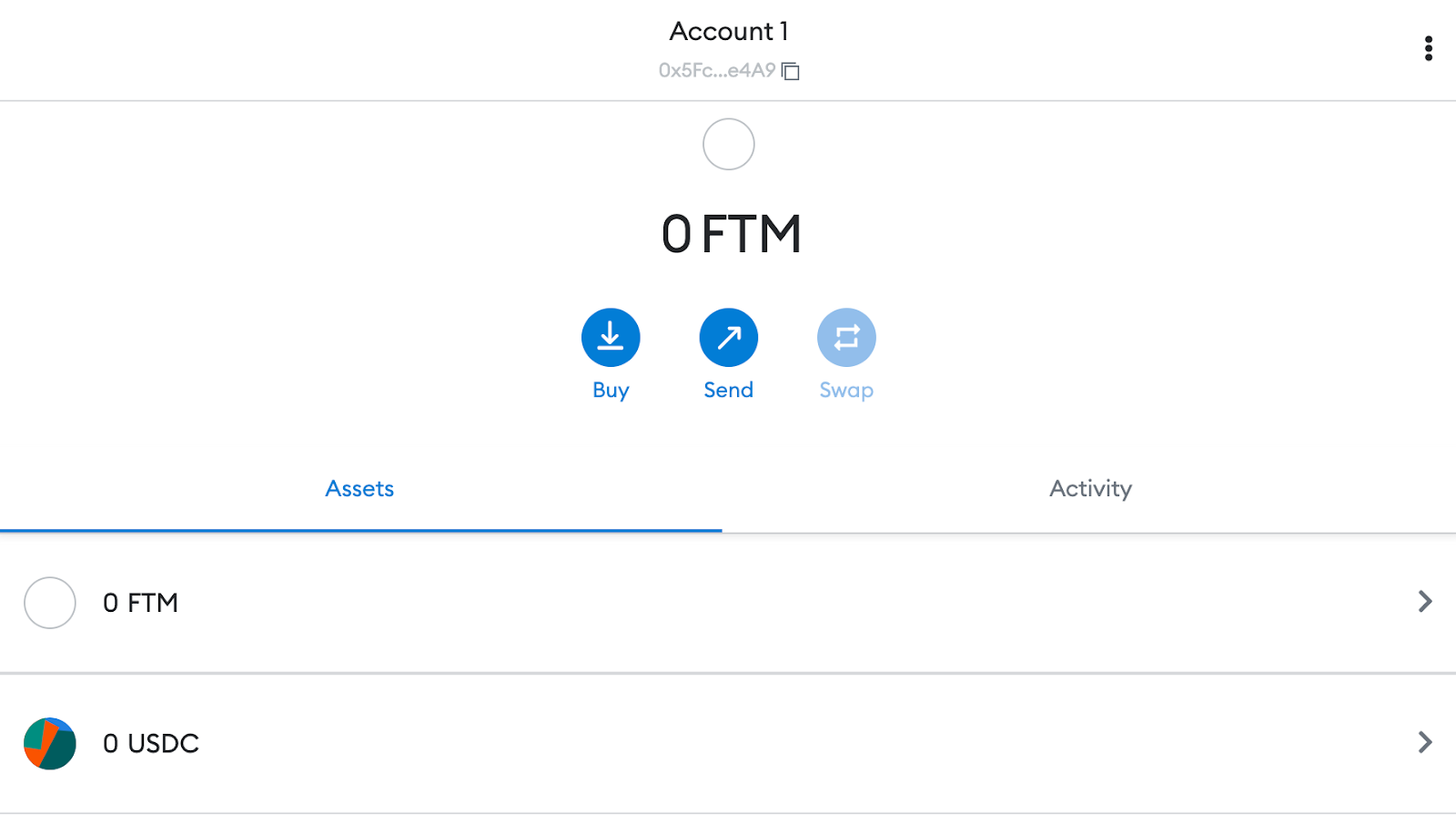
5. Your wallet will now display the added tokens with the correct balance.

Closing
Once Fantom is set up on MetaMask, you can start transacting, collecting NFTs, interacting with DeFi DApps, and managing crypto. Apart from that, you can also swap tokens in this extension. MetaMask is not exclusive to the Ethereum or Fantom networks. MetaMask can also connect with other networks that are compatible with the entire Ethereum Virtual Machine (EVM). This network includes BNB Smart Chain, Polygon, Avalanche, Harmony, and more. With our step-by-step guide, you are now ready to add more chains and start exploring.