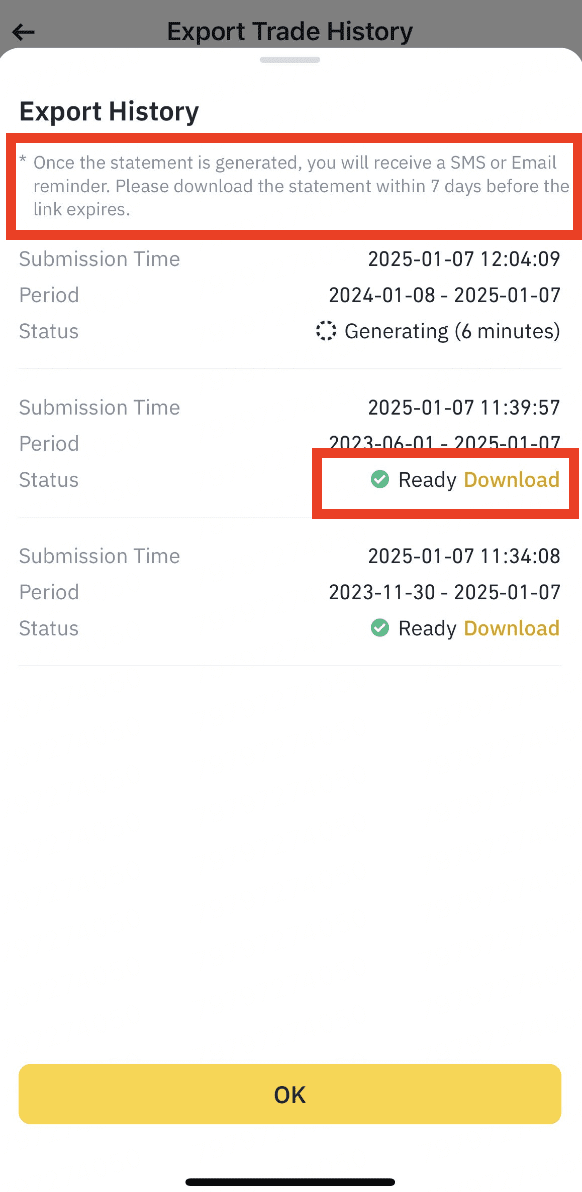
To help you keep track of your spot market crypto trades, you can generate an annual transaction report of your Binance spot trading history.
1. Log in to your Binance account and go to [Orders] - [Spot Order].
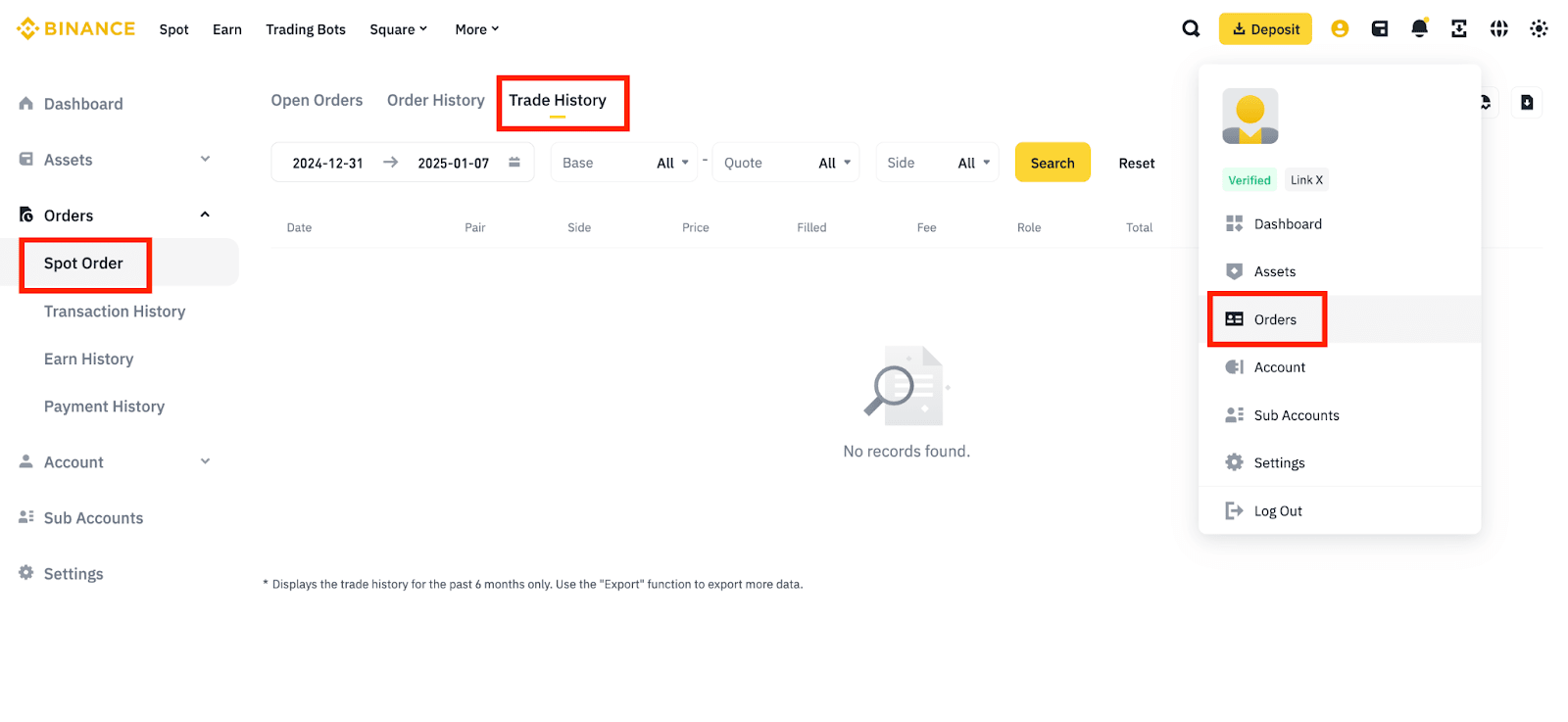
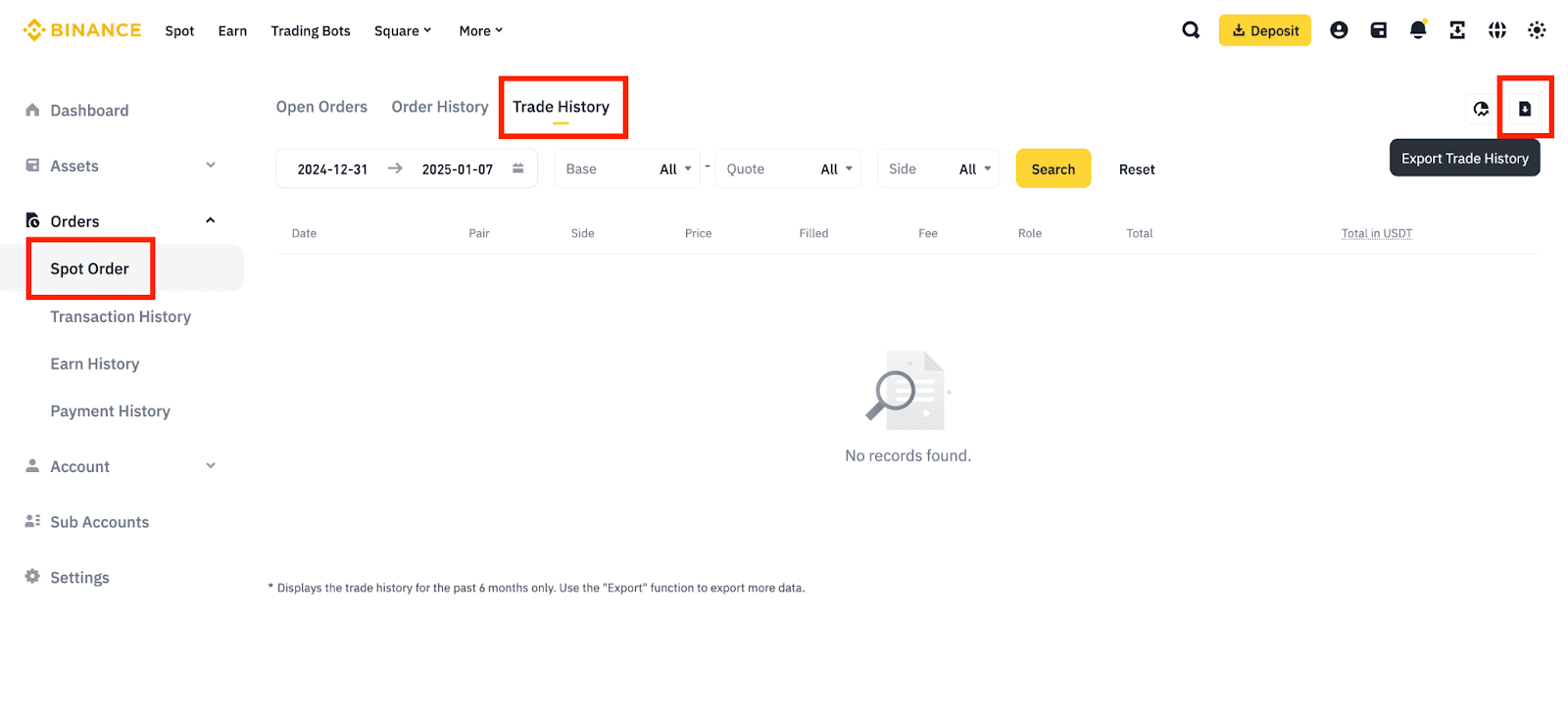
2. Click [Trade History] - [Export Trade History].
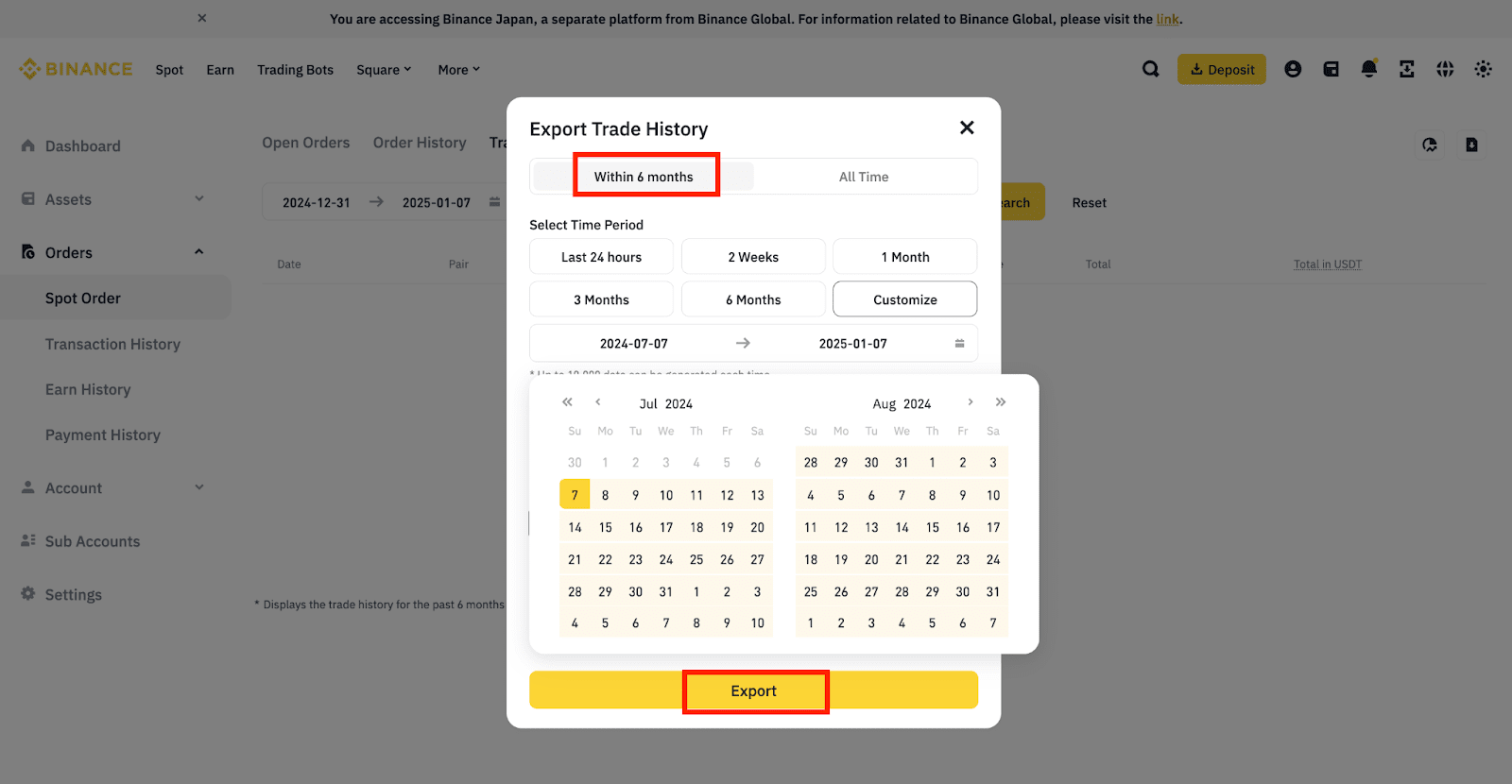
3. Select the export period. You can choose "Within 6 months" or "All time". For each, you can customize by clicking the calendar bar to adjust the dates.
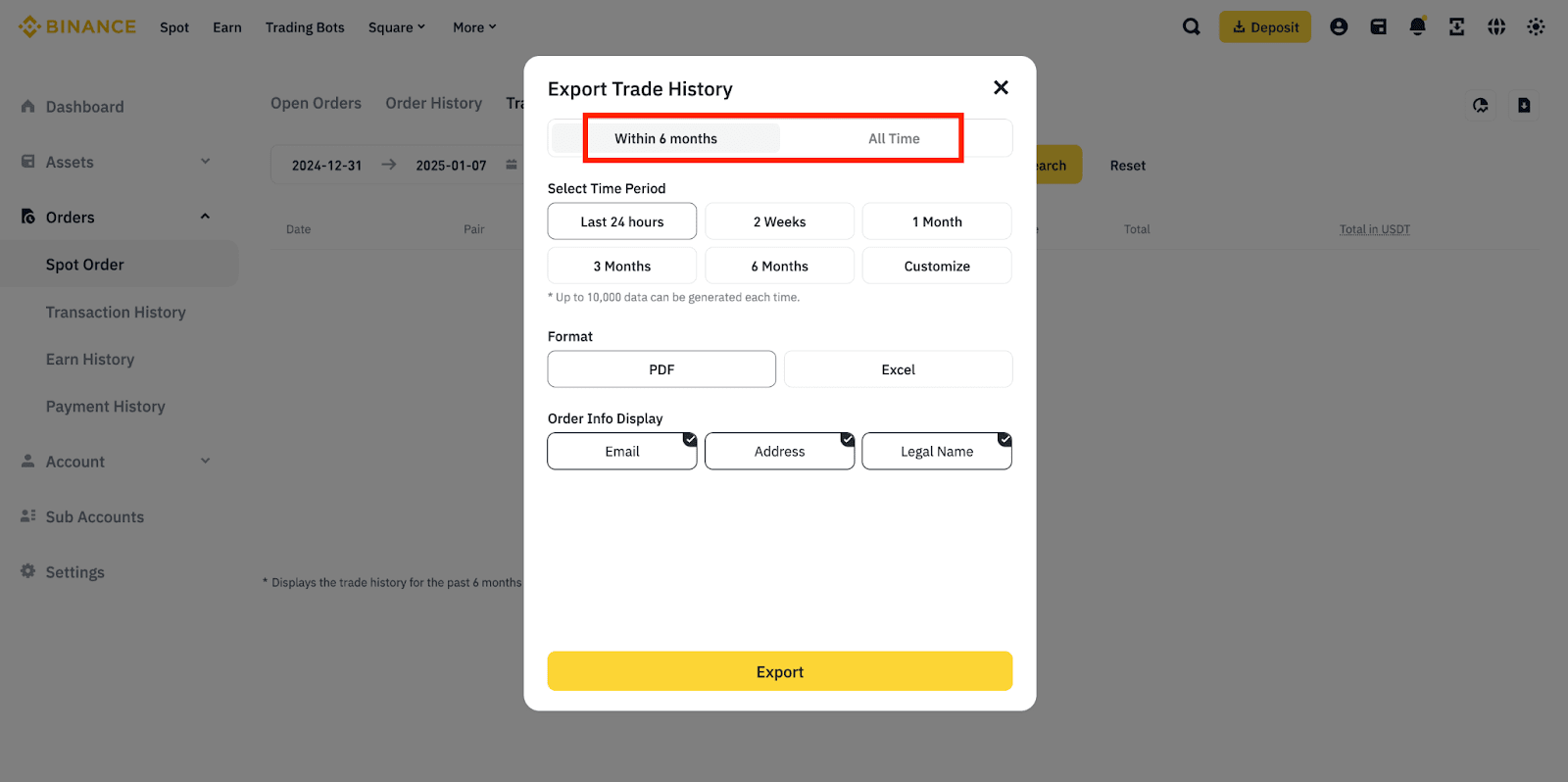
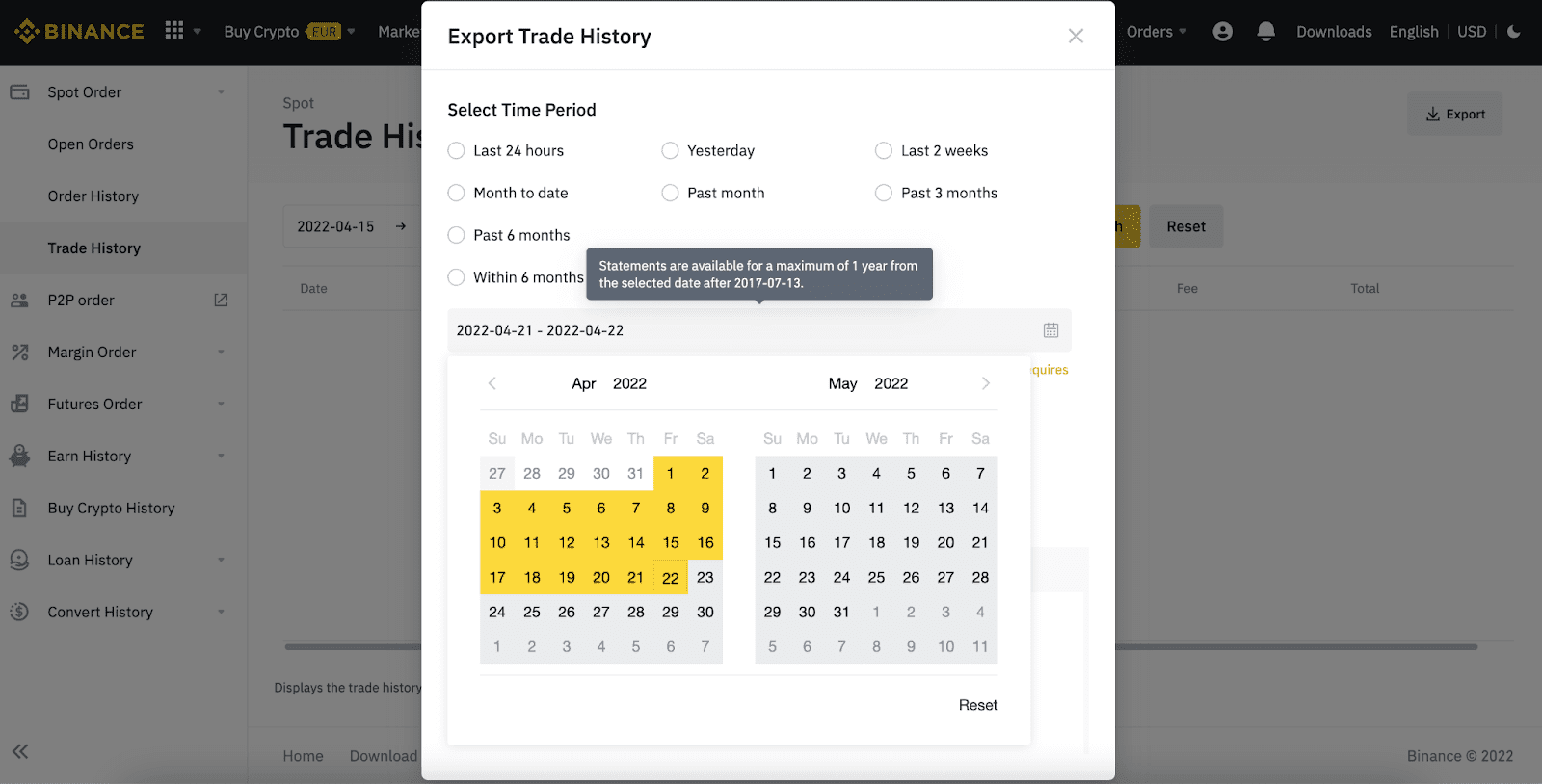
4. Depend on the time range selected you will have 2 available options.
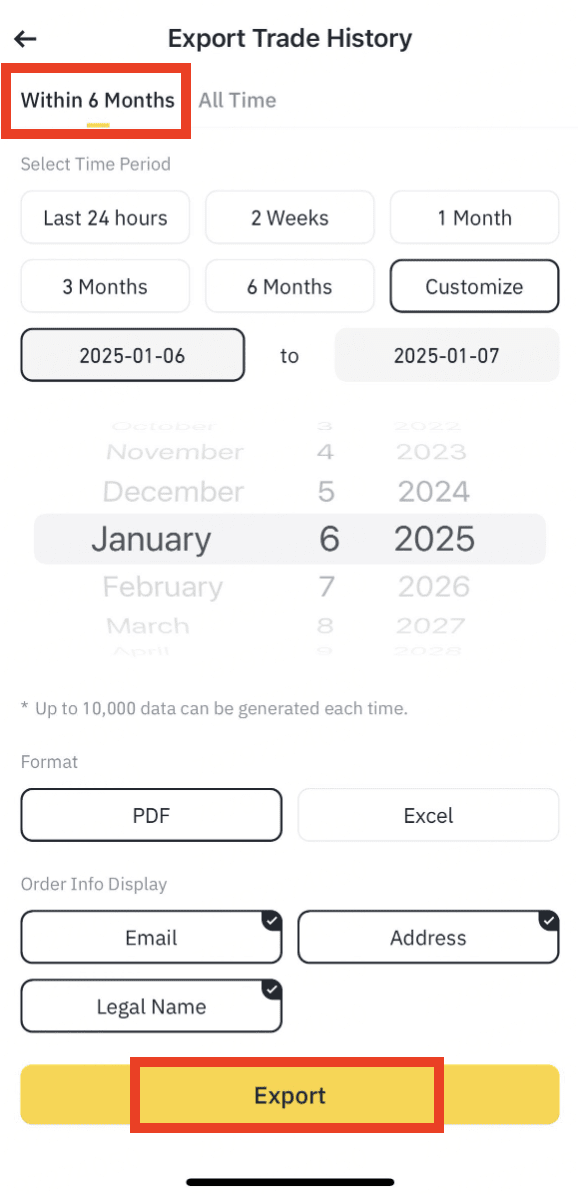
4.1. If you choose to download your Binance spot trading history within 6 months, the data will be immediately available and you can tap [Export] to download your transaction history statement.
Notes:
4.2. If you want to download your Binance spot trading history containing data beyond 6 months, please choose “All time”. It will take some time for the system to [Generate] your transaction history statement.
Notes:
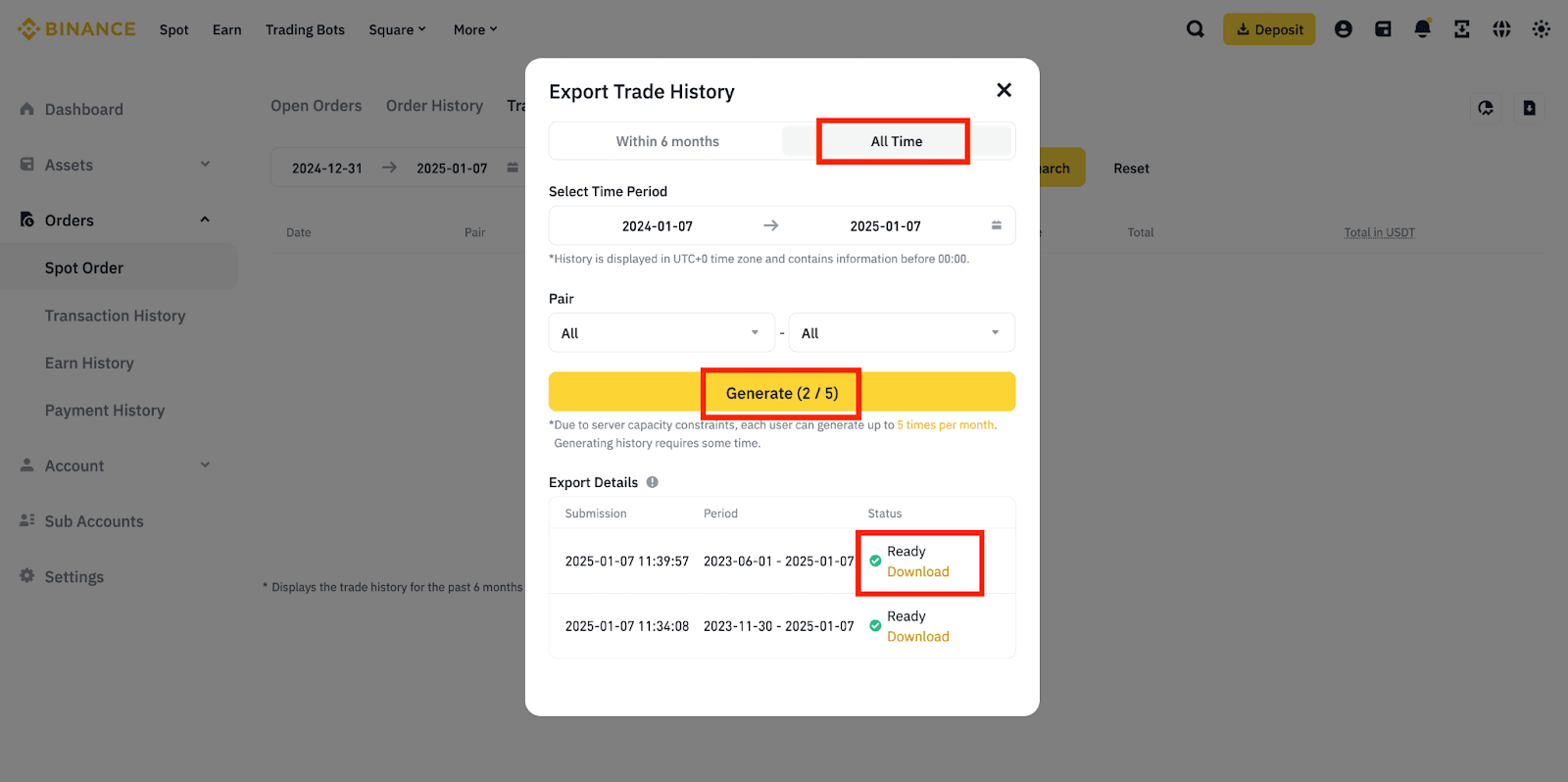
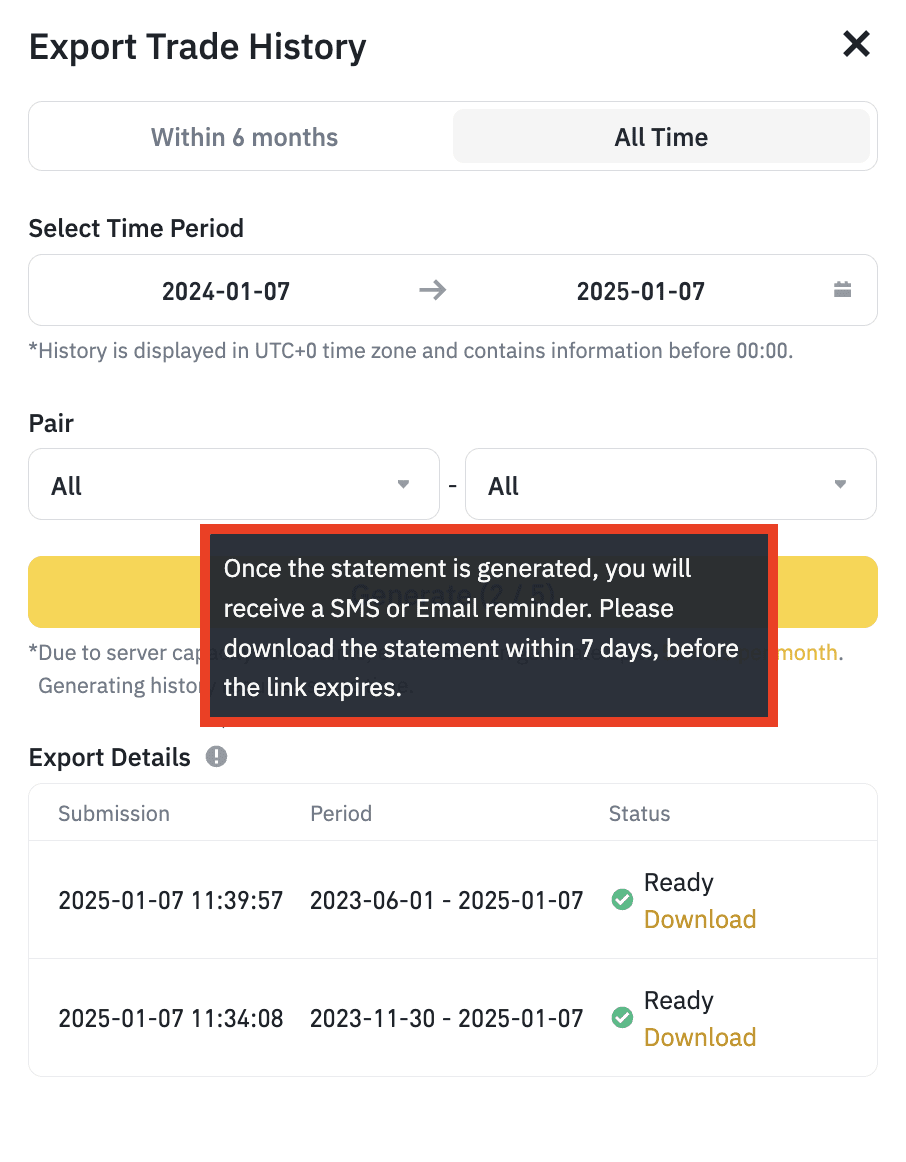
5. After the statement is ready, you will receive an SMS or an email reminder.
Please note that the statement download link will only be stored for 7 days. Please download it as soon as possible.
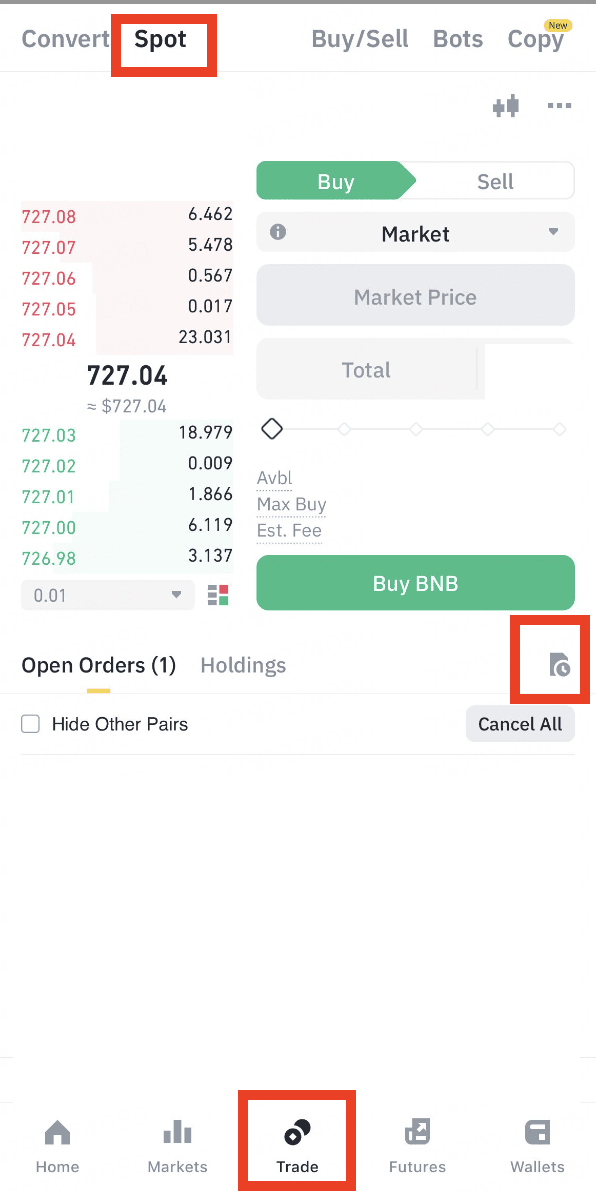
1. Go to [Trade] > [Spot] and scroll down to the [Open Orders] section. Tap the [Transaction History] icon on the top right
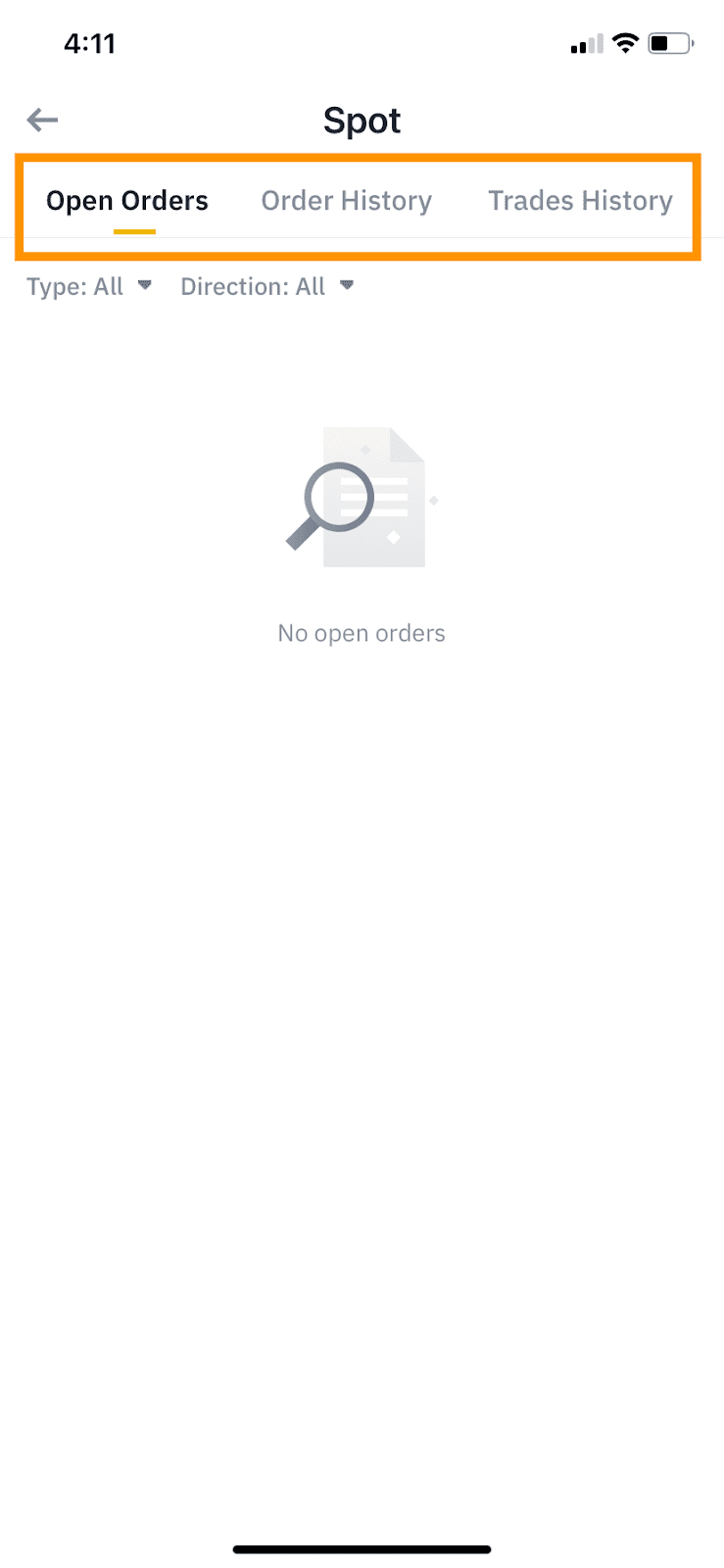
2. You’ll be directed to the [Open Orders] page. Select the [Order History] or [Trade History] tab.
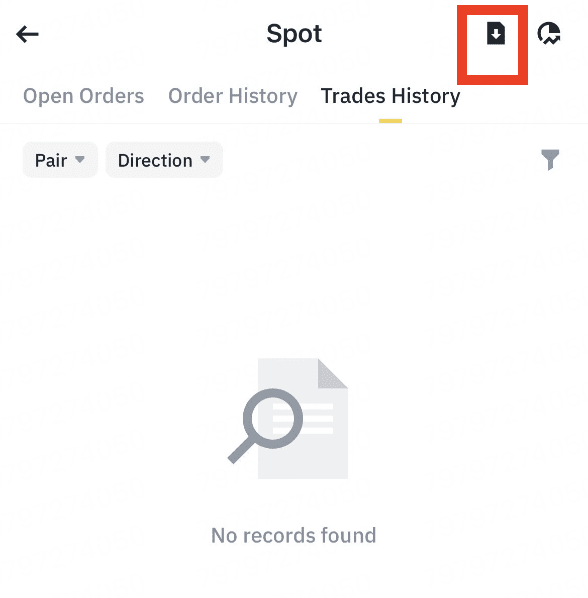
3. Tap the [Export] icon at the right top corner.
4. Choose the time range “Within 6 months” or “All time” to export trading history.
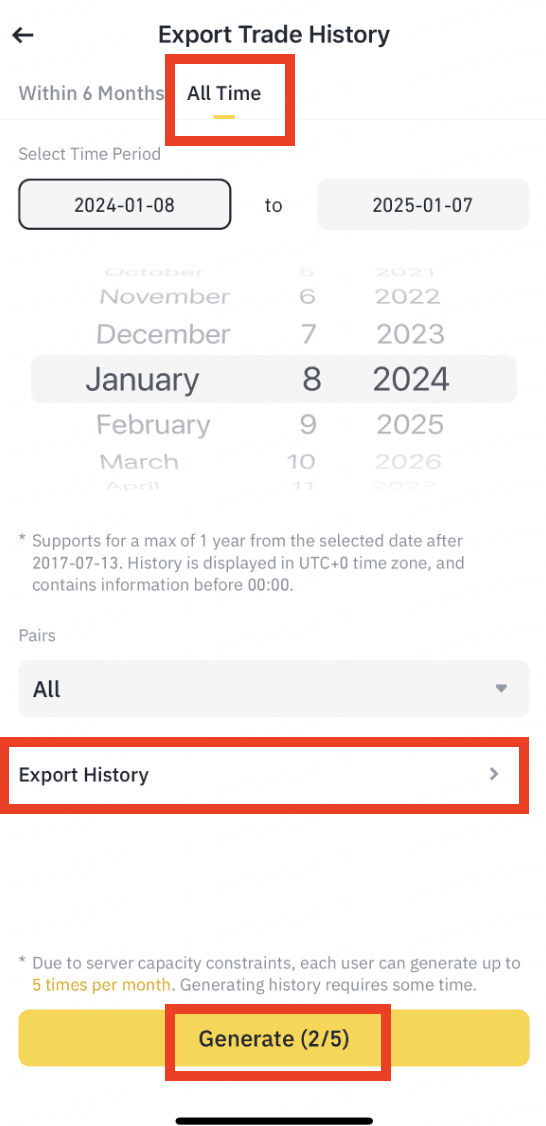
Click “Export History” to view and download generated trading history.