
Abhishek Baruri
3.6k Posts

Abhishek Baruri
369800
Open Trade
Frequent Trader
1.9 Years
2.9K+ Following
639 Followers
159 Liked
Posts
Portfolio
All
Quotes
Live
PINNED
NVDAUS-0.78%


Binance Square Official
·
--
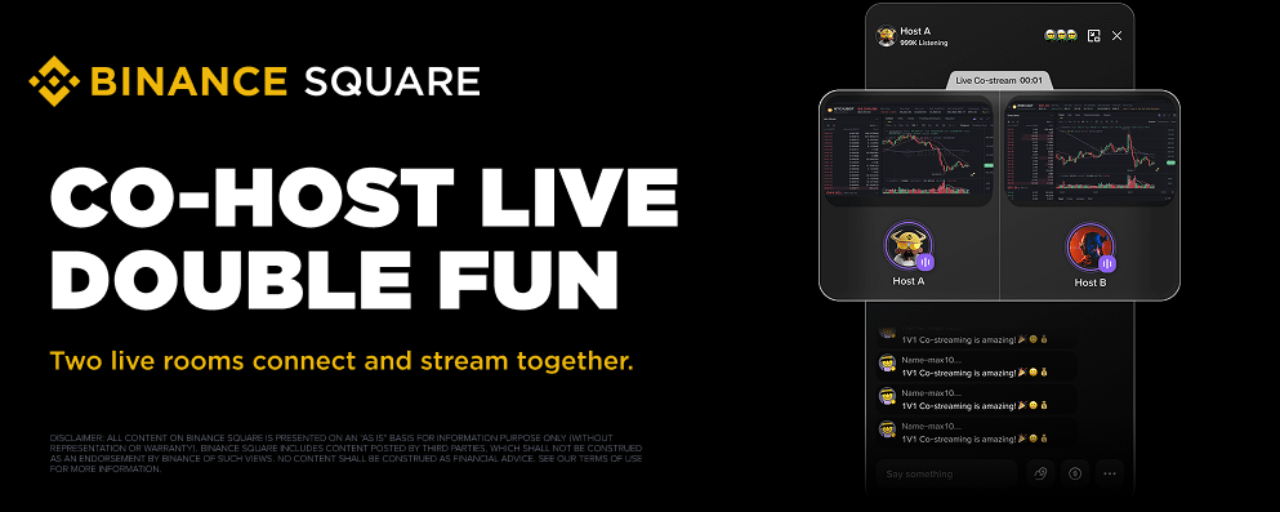
Binance Square Live Co-stream: Two Hosts, One Screen, More to Watch
Live Co-stream is a real-time interaction feature for Binance Square Live. Hosts can invite another live host to co-stream — once accepted, both appear on screen together, taking the conversation beyond a single room. Update your app to the latest version (V3.16.0 or later) to enjoy the new features.
Highlights
Two Hosts, One Stage Go live together across rooms — swap takes, break down markets, or just let the chemistry play out. Co-streaming turns a solo broadcast into a live dialogue worth watching.Discover More Easily Viewers can follow the guest host or drop into their room mid-stream — no need to leave the livestream they're already watching.Independent Data, Clear Results Viewer counts, comments, gifts, and trading data are separated by room, making stream results easy to review.
How to Use
For hosts: How to enable
Step 1: Tap the Co-stream button in the bottom toolbar.
Step 2: Select from mutuals/recommended hosts, or search by username.
Step 3: The guest host taps [Accept] to connect.
For viewers: How to view
Step 1: Find streams tagged Co-streaming.
Step 2: Tap to watch two hosts live together.
Step 3: Tap the other host’s avatar to follow or go to their live.
FAQ
Q1: Will data from both rooms be merged?
No. Viewer counts, comments, gifts, trades, and live trading data are always recorded separately for each room.
Q2: Can I send multiple co-stream invites at once?
No. Only one invite can be active at a time. Cancel the current one before sending a new invite.
Q3: Can other on-mic interactions happen during a co-stream?
Not during an active co-stream — they're temporarily paused to keep the experience smooth, and resume once the co-stream ends.
Q4: Are viewers moved to the guest host's room automatically?
No. Viewers stay in their current room and can choose to follow the guest host or visit their stream at any time.
Q5: How do I reject a co-stream invitation?
Just tap "Reject" on the invitation popup. No action? It'll auto-close when the countdown ends — that counts as a rejection too.
Q6: How do I report spam or abusive invitations?
If someone keeps spamming you with invites, the system will automatically pause them from inviting you again for a while. You can also report the user directly from their profile page.
Highlights
Two Hosts, One Stage Go live together across rooms — swap takes, break down markets, or just let the chemistry play out. Co-streaming turns a solo broadcast into a live dialogue worth watching.Discover More Easily Viewers can follow the guest host or drop into their room mid-stream — no need to leave the livestream they're already watching.Independent Data, Clear Results Viewer counts, comments, gifts, and trading data are separated by room, making stream results easy to review.
How to Use
For hosts: How to enable
Step 1: Tap the Co-stream button in the bottom toolbar.
Step 2: Select from mutuals/recommended hosts, or search by username.
Step 3: The guest host taps [Accept] to connect.
For viewers: How to view
Step 1: Find streams tagged Co-streaming.
Step 2: Tap to watch two hosts live together.
Step 3: Tap the other host’s avatar to follow or go to their live.
FAQ
Q1: Will data from both rooms be merged?
No. Viewer counts, comments, gifts, trades, and live trading data are always recorded separately for each room.
Q2: Can I send multiple co-stream invites at once?
No. Only one invite can be active at a time. Cancel the current one before sending a new invite.
Q3: Can other on-mic interactions happen during a co-stream?
Not during an active co-stream — they're temporarily paused to keep the experience smooth, and resume once the co-stream ends.
Q4: Are viewers moved to the guest host's room automatically?
No. Viewers stay in their current room and can choose to follow the guest host or visit their stream at any time.
Q5: How do I reject a co-stream invitation?
Just tap "Reject" on the invitation popup. No action? It'll auto-close when the countdown ends — that counts as a rejection too.
Q6: How do I report spam or abusive invitations?
If someone keeps spamming you with invites, the system will automatically pause them from inviting you again for a while. You can also report the user directly from their profile page.

Binance TG Community
·
--
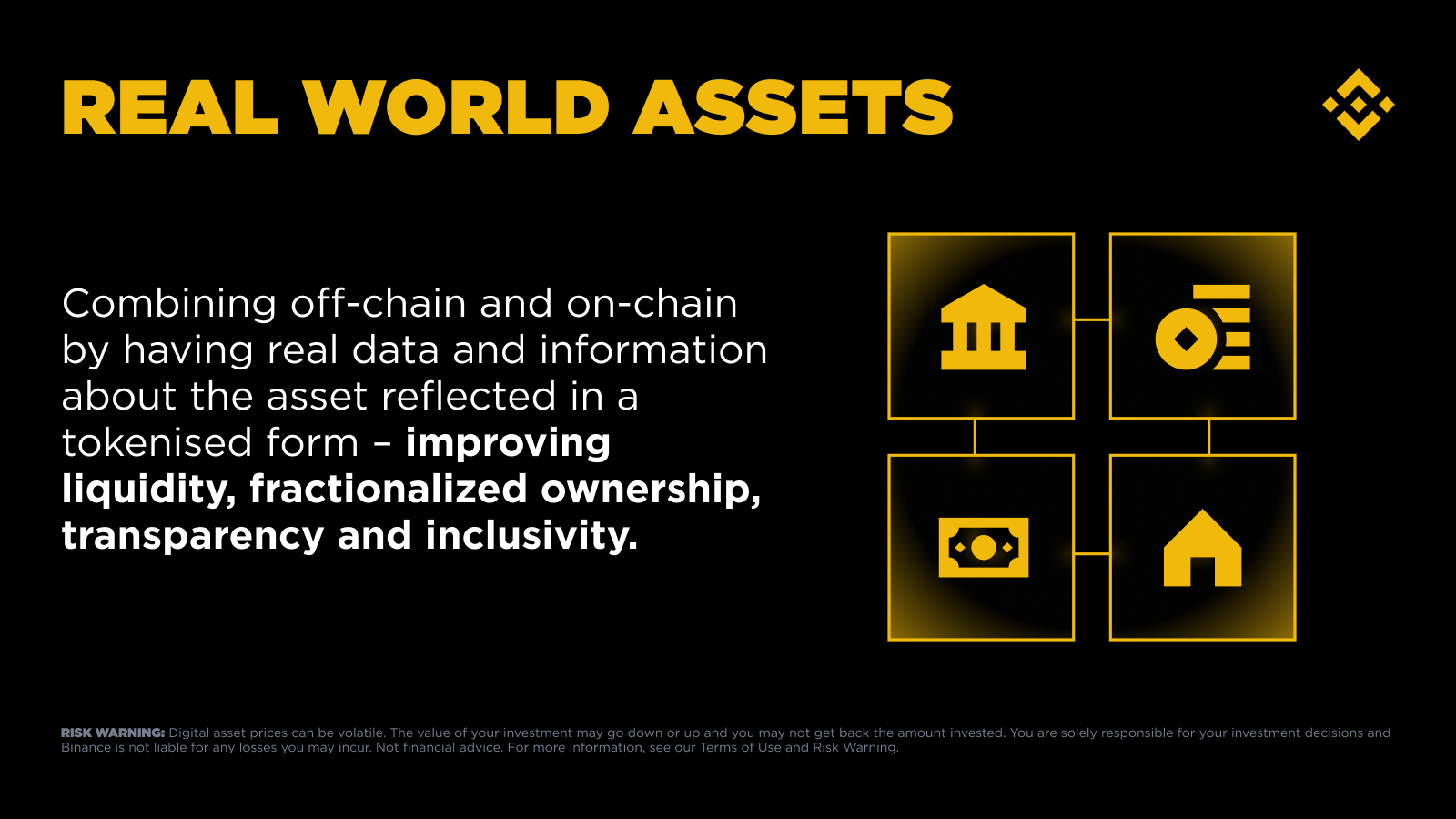
BullishBringing real assets into the digital economy.
#FOMCWatch #BinanceSquareTG
$BNB
#FOMCWatch #BinanceSquareTG
$BNB


TermMax
·
--
$BOB and $GAIB are now listed on TermMax Alpha!
💹 Choose bullish or bearish at will: no liquidation risk, maximum loss is only the premium
🤑 Stable returns: deposit USDT or tokens to earn ~50% APY + 60x XP daily points
No liquidation, pure options, the safest leveraged choice in the Binance Alpha ecosystem 🛡️
Visit the TermMax official website now to experience it
💹 Choose bullish or bearish at will: no liquidation risk, maximum loss is only the premium
🤑 Stable returns: deposit USDT or tokens to earn ~50% APY + 60x XP daily points
No liquidation, pure options, the safest leveraged choice in the Binance Alpha ecosystem 🛡️
Visit the TermMax official website now to experience it

Binance Square Official
·
--
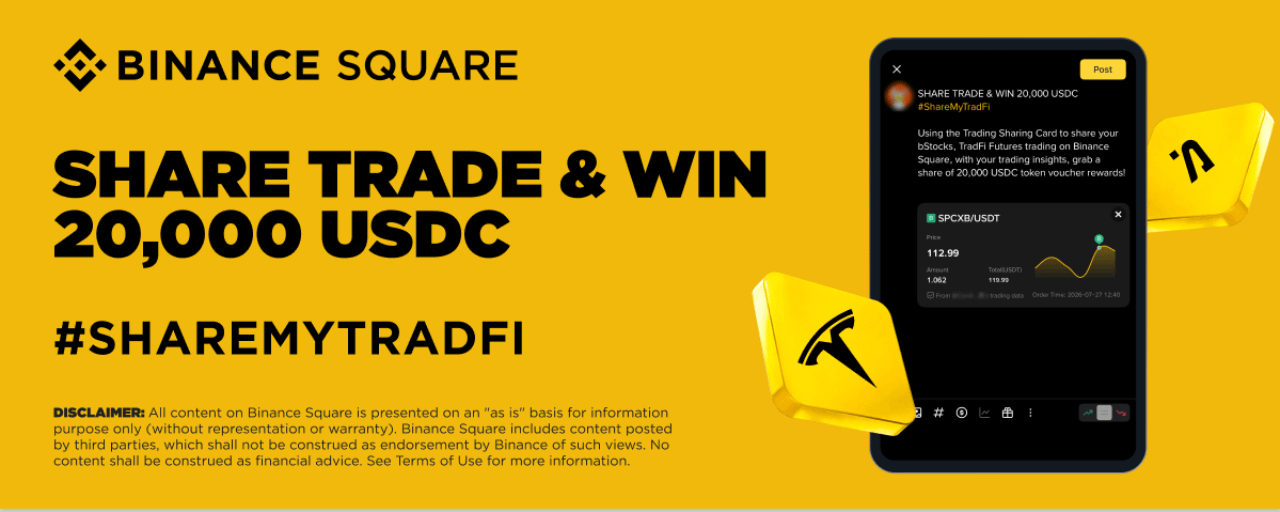
Share bStocks & TradFi Futures Trading, Grab a Share of 20,000 USDC Rewards
Binance Square is pleased to introduce a new campaign. Using the Trading Sharing Card widget to share your bStocks and/or TradFi Futures trading on Binance Square, alongside with your trading insights, grab a share of up to 20,000 USDC token voucher rewards!
Activity Period: 2026-07-28 12:00 (UTC) - 2026-08-05 23:59 (UTC)Token Rewards Distribution: before 2026-08-26
How to Participate:
Follow the steps below and share your bStocks and/or TradFi Futures trading on Binance Square with insights.
Step 1: Open the Post Editor and tap [Add Trades].Step 2: Filter by Spot or Futures, select bStocks trade and/or TradFi Futures trade and tap [Confirm] to insert the trade into your post. To share bStocks buy/sell trades, select from the [Trade History] under [Spot]. To share TradFi Futures opened/closed positions, select either current or history positions under [Futures].Step 3: Add your trading insights with #ShareMyTradFi (≥ 50 characters) and tap [Post].
Notes:
To make the content an eligible entry, the post and trade need to meet the following requirements:Include all 3 elements (i.e.bStocks or TradFi Futures trade sharing card, #ShareMyTradFi hashtag, and insights of ≥ 50 characters) in the content.The minimum qualified bStocks trading volume per trade-sharing post is 100 USD equivalent.The minimum qualified TradFi Futures trading volume per trade-sharing post is 200 USD equivalent.bStocks buy/sell transactions must be made between 2026-07-28 12:00 (UTC) and 2026-08-05 23:59 (UTC).TradFi Futures positions must be opened between 2026-07-28 12:00 (UTC) and 2026-08-05 23:59 (UTC). Only new TradFi positions opened/closed during the Activity Period are eligible. When sharing bStocks trades, make sure to toggle on the [Show Amount] button on the Trade Sharing Card.Trades shared with PNL hidden will not be counted as eligible entries.New order recognition in the Trade Sharing widget may take up to 5 - 10 minutes. Please wait a moment after trading before sharing your trade.
Reward Structure:
Dynamic Prize Pool:
Distribution Basis:
Rewards will be distributed based on the number of eligible trade-sharing posts published by eligible participants during the Activity Period. The more eligible trade-sharing posts published, the higher the user’s ranking, and the more rewards they can receive.
Reward Structure:
Notes:
The same KYC account can publish multiple bStocks and/or TradFi Futures trading sharing posts during the Activity Period, but the same bStocks buy/sell trade and/or TradFi Futures opened/closeed position shared via eligible entries will only be recognized and calculated once.For TradFi Futures positions opened during the Activity Period, adding to or partially closing the position without fully closing, the updated TradFi positions will be reflected in the same Trade Sharing Card, thus eligible posts containing the same Trade Sharing Cards will be counted as the same entry in the calculation of trade-sharing posts. Tradings of all bStocks and TradFi Futures tokens listed on Binance before the end of the Activity Period are eligible to be shared via Trade Sharing Card on Binance Square. Users should share their genuine trading experience. Participants found engaging in suspected use of automated bots will be disqualified from the Activity. Binance reserves the right to disqualify trades that are deemed to be wash trades, illegal bulk account registrations, self-dealing, or display signs of market manipulation, etc.Terms & Conditions
Activity Period: 2026-07-28 12:00 (UTC) - 2026-08-05 23:59 (UTC)Token Rewards Distribution: before 2026-08-26
How to Participate:
Follow the steps below and share your bStocks and/or TradFi Futures trading on Binance Square with insights.
Step 1: Open the Post Editor and tap [Add Trades].Step 2: Filter by Spot or Futures, select bStocks trade and/or TradFi Futures trade and tap [Confirm] to insert the trade into your post. To share bStocks buy/sell trades, select from the [Trade History] under [Spot]. To share TradFi Futures opened/closed positions, select either current or history positions under [Futures].Step 3: Add your trading insights with #ShareMyTradFi (≥ 50 characters) and tap [Post].
Notes:
To make the content an eligible entry, the post and trade need to meet the following requirements:Include all 3 elements (i.e.bStocks or TradFi Futures trade sharing card, #ShareMyTradFi hashtag, and insights of ≥ 50 characters) in the content.The minimum qualified bStocks trading volume per trade-sharing post is 100 USD equivalent.The minimum qualified TradFi Futures trading volume per trade-sharing post is 200 USD equivalent.bStocks buy/sell transactions must be made between 2026-07-28 12:00 (UTC) and 2026-08-05 23:59 (UTC).TradFi Futures positions must be opened between 2026-07-28 12:00 (UTC) and 2026-08-05 23:59 (UTC). Only new TradFi positions opened/closed during the Activity Period are eligible. When sharing bStocks trades, make sure to toggle on the [Show Amount] button on the Trade Sharing Card.Trades shared with PNL hidden will not be counted as eligible entries.New order recognition in the Trade Sharing widget may take up to 5 - 10 minutes. Please wait a moment after trading before sharing your trade.
Reward Structure:
Dynamic Prize Pool:
Distribution Basis:
Rewards will be distributed based on the number of eligible trade-sharing posts published by eligible participants during the Activity Period. The more eligible trade-sharing posts published, the higher the user’s ranking, and the more rewards they can receive.
Reward Structure:
Notes:
The same KYC account can publish multiple bStocks and/or TradFi Futures trading sharing posts during the Activity Period, but the same bStocks buy/sell trade and/or TradFi Futures opened/closeed position shared via eligible entries will only be recognized and calculated once.For TradFi Futures positions opened during the Activity Period, adding to or partially closing the position without fully closing, the updated TradFi positions will be reflected in the same Trade Sharing Card, thus eligible posts containing the same Trade Sharing Cards will be counted as the same entry in the calculation of trade-sharing posts. Tradings of all bStocks and TradFi Futures tokens listed on Binance before the end of the Activity Period are eligible to be shared via Trade Sharing Card on Binance Square. Users should share their genuine trading experience. Participants found engaging in suspected use of automated bots will be disqualified from the Activity. Binance reserves the right to disqualify trades that are deemed to be wash trades, illegal bulk account registrations, self-dealing, or display signs of market manipulation, etc.Terms & Conditions
Binance Square Official
·
--
Binance Square Live Co-stream: Two Hosts, One Screen, More to Watch
Live Co-stream is a real-time interaction feature for Binance Square Live. Hosts can invite another live host to co-stream — once accepted, both appear on screen together, taking the conversation beyond a single room. Update your app to the latest version (V3.16.0 or later) to enjoy the new features.
Highlights
Two Hosts, One Stage Go live together across rooms — swap takes, break down markets, or just let the chemistry play out. Co-streaming turns a solo broadcast into a live dialogue worth watching.Discover More Easily Viewers can follow the guest host or drop into their room mid-stream — no need to leave the livestream they're already watching.Independent Data, Clear Results Viewer counts, comments, gifts, and trading data are separated by room, making stream results easy to review.
How to Use
For hosts: How to enable
Step 1: Tap the Co-stream button in the bottom toolbar.
Step 2: Select from mutuals/recommended hosts, or search by username.
Step 3: The guest host taps [Accept] to connect.
For viewers: How to view
Step 1: Find streams tagged Co-streaming.
Step 2: Tap to watch two hosts live together.
Step 3: Tap the other host’s avatar to follow or go to their live.
FAQ
Q1: Will data from both rooms be merged?
No. Viewer counts, comments, gifts, trades, and live trading data are always recorded separately for each room.
Q2: Can I send multiple co-stream invites at once?
No. Only one invite can be active at a time. Cancel the current one before sending a new invite.
Q3: Can other on-mic interactions happen during a co-stream?
Not during an active co-stream — they're temporarily paused to keep the experience smooth, and resume once the co-stream ends.
Q4: Are viewers moved to the guest host's room automatically?
No. Viewers stay in their current room and can choose to follow the guest host or visit their stream at any time.
Q5: How do I reject a co-stream invitation?
Just tap "Reject" on the invitation popup. No action? It'll auto-close when the countdown ends — that counts as a rejection too.
Q6: How do I report spam or abusive invitations?
If someone keeps spamming you with invites, the system will automatically pause them from inviting you again for a while. You can also report the user directly from their profile page.
Highlights
Two Hosts, One Stage Go live together across rooms — swap takes, break down markets, or just let the chemistry play out. Co-streaming turns a solo broadcast into a live dialogue worth watching.Discover More Easily Viewers can follow the guest host or drop into their room mid-stream — no need to leave the livestream they're already watching.Independent Data, Clear Results Viewer counts, comments, gifts, and trading data are separated by room, making stream results easy to review.
How to Use
For hosts: How to enable
Step 1: Tap the Co-stream button in the bottom toolbar.
Step 2: Select from mutuals/recommended hosts, or search by username.
Step 3: The guest host taps [Accept] to connect.
For viewers: How to view
Step 1: Find streams tagged Co-streaming.
Step 2: Tap to watch two hosts live together.
Step 3: Tap the other host’s avatar to follow or go to their live.
FAQ
Q1: Will data from both rooms be merged?
No. Viewer counts, comments, gifts, trades, and live trading data are always recorded separately for each room.
Q2: Can I send multiple co-stream invites at once?
No. Only one invite can be active at a time. Cancel the current one before sending a new invite.
Q3: Can other on-mic interactions happen during a co-stream?
Not during an active co-stream — they're temporarily paused to keep the experience smooth, and resume once the co-stream ends.
Q4: Are viewers moved to the guest host's room automatically?
No. Viewers stay in their current room and can choose to follow the guest host or visit their stream at any time.
Q5: How do I reject a co-stream invitation?
Just tap "Reject" on the invitation popup. No action? It'll auto-close when the countdown ends — that counts as a rejection too.
Q6: How do I report spam or abusive invitations?
If someone keeps spamming you with invites, the system will automatically pause them from inviting you again for a while. You can also report the user directly from their profile page.
Binance Square Official
·
--
Share bStocks & TradFi Futures Trading, Grab a Share of 20,000 USDC Rewards
Binance Square is pleased to introduce a new campaign. Using the Trading Sharing Card widget to share your bStocks and/or TradFi Futures trading on Binance Square, alongside with your trading insights, grab a share of up to 20,000 USDC token voucher rewards!
Activity Period: 2026-07-28 12:00 (UTC) - 2026-08-05 23:59 (UTC)Token Rewards Distribution: before 2026-08-26
How to Participate:
Follow the steps below and share your bStocks and/or TradFi Futures trading on Binance Square with insights.
Step 1: Open the Post Editor and tap [Add Trades].Step 2: Filter by Spot or Futures, select bStocks trade and/or TradFi Futures trade and tap [Confirm] to insert the trade into your post. To share bStocks buy/sell trades, select from the [Trade History] under [Spot]. To share TradFi Futures opened/closed positions, select either current or history positions under [Futures].Step 3: Add your trading insights with #ShareMyTradFi (≥ 50 characters) and tap [Post].
Notes:
To make the content an eligible entry, the post and trade need to meet the following requirements:Include all 3 elements (i.e.bStocks or TradFi Futures trade sharing card, #ShareMyTradFi hashtag, and insights of ≥ 50 characters) in the content.The minimum qualified bStocks trading volume per trade-sharing post is 100 USD equivalent.The minimum qualified TradFi Futures trading volume per trade-sharing post is 200 USD equivalent.bStocks buy/sell transactions must be made between 2026-07-28 12:00 (UTC) and 2026-08-05 23:59 (UTC).TradFi Futures positions must be opened between 2026-07-28 12:00 (UTC) and 2026-08-05 23:59 (UTC). Only new TradFi positions opened/closed during the Activity Period are eligible. When sharing bStocks trades, make sure to toggle on the [Show Amount] button on the Trade Sharing Card.Trades shared with PNL hidden will not be counted as eligible entries.New order recognition in the Trade Sharing widget may take up to 5 - 10 minutes. Please wait a moment after trading before sharing your trade.
Reward Structure:
Dynamic Prize Pool:
Distribution Basis:
Rewards will be distributed based on the number of eligible trade-sharing posts published by eligible participants during the Activity Period. The more eligible trade-sharing posts published, the higher the user’s ranking, and the more rewards they can receive.
Reward Structure:
Notes:
The same KYC account can publish multiple bStocks and/or TradFi Futures trading sharing posts during the Activity Period, but the same bStocks buy/sell trade and/or TradFi Futures opened/closeed position shared via eligible entries will only be recognized and calculated once.For TradFi Futures positions opened during the Activity Period, adding to or partially closing the position without fully closing, the updated TradFi positions will be reflected in the same Trade Sharing Card, thus eligible posts containing the same Trade Sharing Cards will be counted as the same entry in the calculation of trade-sharing posts. Tradings of all bStocks and TradFi Futures tokens listed on Binance before the end of the Activity Period are eligible to be shared via Trade Sharing Card on Binance Square. Users should share their genuine trading experience. Participants found engaging in suspected use of automated bots will be disqualified from the Activity. Binance reserves the right to disqualify trades that are deemed to be wash trades, illegal bulk account registrations, self-dealing, or display signs of market manipulation, etc.Terms & Conditions
Activity Period: 2026-07-28 12:00 (UTC) - 2026-08-05 23:59 (UTC)Token Rewards Distribution: before 2026-08-26
How to Participate:
Follow the steps below and share your bStocks and/or TradFi Futures trading on Binance Square with insights.
Step 1: Open the Post Editor and tap [Add Trades].Step 2: Filter by Spot or Futures, select bStocks trade and/or TradFi Futures trade and tap [Confirm] to insert the trade into your post. To share bStocks buy/sell trades, select from the [Trade History] under [Spot]. To share TradFi Futures opened/closed positions, select either current or history positions under [Futures].Step 3: Add your trading insights with #ShareMyTradFi (≥ 50 characters) and tap [Post].
Notes:
To make the content an eligible entry, the post and trade need to meet the following requirements:Include all 3 elements (i.e.bStocks or TradFi Futures trade sharing card, #ShareMyTradFi hashtag, and insights of ≥ 50 characters) in the content.The minimum qualified bStocks trading volume per trade-sharing post is 100 USD equivalent.The minimum qualified TradFi Futures trading volume per trade-sharing post is 200 USD equivalent.bStocks buy/sell transactions must be made between 2026-07-28 12:00 (UTC) and 2026-08-05 23:59 (UTC).TradFi Futures positions must be opened between 2026-07-28 12:00 (UTC) and 2026-08-05 23:59 (UTC). Only new TradFi positions opened/closed during the Activity Period are eligible. When sharing bStocks trades, make sure to toggle on the [Show Amount] button on the Trade Sharing Card.Trades shared with PNL hidden will not be counted as eligible entries.New order recognition in the Trade Sharing widget may take up to 5 - 10 minutes. Please wait a moment after trading before sharing your trade.
Reward Structure:
Dynamic Prize Pool:
Distribution Basis:
Rewards will be distributed based on the number of eligible trade-sharing posts published by eligible participants during the Activity Period. The more eligible trade-sharing posts published, the higher the user’s ranking, and the more rewards they can receive.
Reward Structure:
Notes:
The same KYC account can publish multiple bStocks and/or TradFi Futures trading sharing posts during the Activity Period, but the same bStocks buy/sell trade and/or TradFi Futures opened/closeed position shared via eligible entries will only be recognized and calculated once.For TradFi Futures positions opened during the Activity Period, adding to or partially closing the position without fully closing, the updated TradFi positions will be reflected in the same Trade Sharing Card, thus eligible posts containing the same Trade Sharing Cards will be counted as the same entry in the calculation of trade-sharing posts. Tradings of all bStocks and TradFi Futures tokens listed on Binance before the end of the Activity Period are eligible to be shared via Trade Sharing Card on Binance Square. Users should share their genuine trading experience. Participants found engaging in suspected use of automated bots will be disqualified from the Activity. Binance reserves the right to disqualify trades that are deemed to be wash trades, illegal bulk account registrations, self-dealing, or display signs of market manipulation, etc.Terms & Conditions


Binance Square Official
·
--
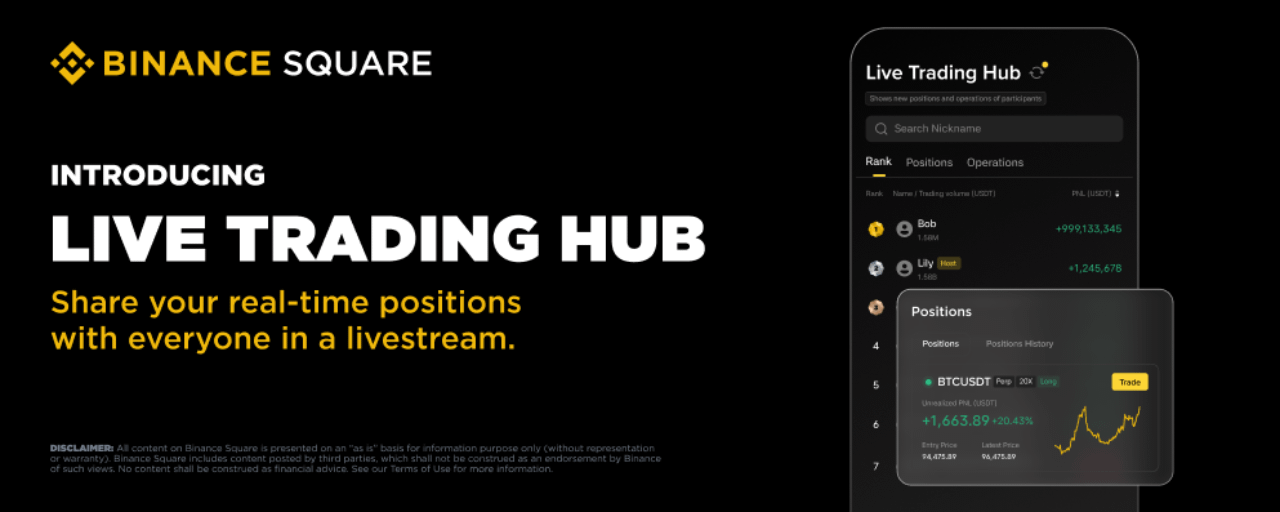
How to Use Live Trading Hub: Trade Live, Trade Social
What is Live Trading Hub?
Live Trading Hub is a new social trading feature in Binance Square Live. Once a streamer enables it, viewers can join and publicly share their real-time trading data — positions, PnL, and trade activity — all displayed on a live leaderboard.
Note: Currently only supports USDT-M Delivery Futures data. This feature may not be available in your region.
For Streamers: How to Enable Live Trading Hub
1. Set Up Before Going Live
Open the broadcast editor (available for audio livestreams, video livestreams and third-party streaming)Toggle on [Live Trading Hub] and choose a mode:
New Positions (default): Only shows positions opened after joiningAll Positions: Shows all current open positions plus new ones
Tap [Save]
Note: The streamer is automatically added to the leaderboard once enabled. If they have no trading activity, their ranking will simply appear blank.
2. Enable During a Live Stream
You can also enable it mid-stream: tap the [Live Trading Hub] button in the bottom toolbar, select a mode, and save.
3. Manage Participants
Tap the [Live Trading Hub] button to open the leaderboard. From here you can:
View participant data: Rankings, PnL, and trade volume update in real time. Tap any user to see their positions and trade details.
Remove a participant: Tap a user and select "Remove". Once removed, they cannot rejoin this live session.
4. End the Session
Tap [End Live Trading Hub] on the leaderboard and confirm. All participants' trading data will stop being displayed and the dashboard will close. You can start a new session anytime from the toolbar.
For Viewers: How to Join Live Trading Hub
1. Find a Live Trading Hub Stream
Streams with Live Trading Hub active are tagged with "Online · X Trading" on the live card.
Once inside, tap the [Live Trading Hub] widget to open the leaderboard.
2. Participate
Tap [Join] at the bottom of the leaderboard and confirm.
Please note:
Your account balance must be above 10 USDTYou can only join one Live Trading Hub session at a time — joining a new one will automatically exit the previous oneEach session has a cap of 100 participants
3. View Live Trading Performance
The dashboard has three tabs:
Leaderboard: All participants ranked by PnL. Tap any user to view their positions or trade history.Positions: View open positions (sorted by PnL) and closed positions (sorted by time).Trade Activity: Real-time feed of all buy/sell actions.
A yellow dot on the refresh button means new data is available.
You can also search for a specific user by nickname.
4. Exit
Tap [Exit Live Trading Hub] at the bottom of the dashboard. Your data will no longer be visible to others, but you can rejoin anytime.
FAQ
Q1: Will Live Trading Hub expose all my trading data?
No personal data is included. Only USDT-M Delivery Futures data is shown. What's visible depends on the streamer's chosen mode — "New Positions" only shows trades made after you joined, while "All Positions" includes your existing positions.
Q2: Can I join multiple sessions in different live room at once?
No. You can only be in one session at a time. Joining a new one automatically exits the previous one.
Q3: What happens if I leave the live stream?
Leaving the stream counts as exiting Live Trading Hub (picture-in-picture mode does not). Your data will no longer be displayed.
Q4:Why can't I join?
Possible reasons:
account balance below 10 USDT you've been removed or blocked by the streamerthe session is full (100 participants)you're currently in another session
Q5: What does the ranking show?
Participants are ranked by PnL (USDT) from high to low by default. You can toggle the sort order. Your own ranking is highlighted for easy reference.
Q6: How often is the data updated?
The system checks for updates every 30 seconds. A yellow dot on the refresh button indicates new data is available — tap to refresh manually.
Q7: Can I still see data after the streamer ends the session?
No. Once ended, all dashboards close and previous data is no longer accessible.
Q8: Eligibility to be a streamer
Livestream access is unlocked automatically once you reach 1,000 Binance Square followers.
If you have not yet met the follower requirement but already have livestreaming experience or a strong content creation background, you can apply for livestream access through our survey (Approved applicants will be contacted via DM).
Live Trading Hub is a new social trading feature in Binance Square Live. Once a streamer enables it, viewers can join and publicly share their real-time trading data — positions, PnL, and trade activity — all displayed on a live leaderboard.
Note: Currently only supports USDT-M Delivery Futures data. This feature may not be available in your region.
For Streamers: How to Enable Live Trading Hub
1. Set Up Before Going Live
Open the broadcast editor (available for audio livestreams, video livestreams and third-party streaming)Toggle on [Live Trading Hub] and choose a mode:
New Positions (default): Only shows positions opened after joiningAll Positions: Shows all current open positions plus new ones
Tap [Save]
Note: The streamer is automatically added to the leaderboard once enabled. If they have no trading activity, their ranking will simply appear blank.
2. Enable During a Live Stream
You can also enable it mid-stream: tap the [Live Trading Hub] button in the bottom toolbar, select a mode, and save.
3. Manage Participants
Tap the [Live Trading Hub] button to open the leaderboard. From here you can:
View participant data: Rankings, PnL, and trade volume update in real time. Tap any user to see their positions and trade details.
Remove a participant: Tap a user and select "Remove". Once removed, they cannot rejoin this live session.
4. End the Session
Tap [End Live Trading Hub] on the leaderboard and confirm. All participants' trading data will stop being displayed and the dashboard will close. You can start a new session anytime from the toolbar.
For Viewers: How to Join Live Trading Hub
1. Find a Live Trading Hub Stream
Streams with Live Trading Hub active are tagged with "Online · X Trading" on the live card.
Once inside, tap the [Live Trading Hub] widget to open the leaderboard.
2. Participate
Tap [Join] at the bottom of the leaderboard and confirm.
Please note:
Your account balance must be above 10 USDTYou can only join one Live Trading Hub session at a time — joining a new one will automatically exit the previous oneEach session has a cap of 100 participants
3. View Live Trading Performance
The dashboard has three tabs:
Leaderboard: All participants ranked by PnL. Tap any user to view their positions or trade history.Positions: View open positions (sorted by PnL) and closed positions (sorted by time).Trade Activity: Real-time feed of all buy/sell actions.
A yellow dot on the refresh button means new data is available.
You can also search for a specific user by nickname.
4. Exit
Tap [Exit Live Trading Hub] at the bottom of the dashboard. Your data will no longer be visible to others, but you can rejoin anytime.
FAQ
Q1: Will Live Trading Hub expose all my trading data?
No personal data is included. Only USDT-M Delivery Futures data is shown. What's visible depends on the streamer's chosen mode — "New Positions" only shows trades made after you joined, while "All Positions" includes your existing positions.
Q2: Can I join multiple sessions in different live room at once?
No. You can only be in one session at a time. Joining a new one automatically exits the previous one.
Q3: What happens if I leave the live stream?
Leaving the stream counts as exiting Live Trading Hub (picture-in-picture mode does not). Your data will no longer be displayed.
Q4:Why can't I join?
Possible reasons:
account balance below 10 USDT you've been removed or blocked by the streamerthe session is full (100 participants)you're currently in another session
Q5: What does the ranking show?
Participants are ranked by PnL (USDT) from high to low by default. You can toggle the sort order. Your own ranking is highlighted for easy reference.
Q6: How often is the data updated?
The system checks for updates every 30 seconds. A yellow dot on the refresh button indicates new data is available — tap to refresh manually.
Q7: Can I still see data after the streamer ends the session?
No. Once ended, all dashboards close and previous data is no longer accessible.
Q8: Eligibility to be a streamer
Livestream access is unlocked automatically once you reach 1,000 Binance Square followers.
If you have not yet met the follower requirement but already have livestreaming experience or a strong content creation background, you can apply for livestream access through our survey (Approved applicants will be contacted via DM).
Log in to explore more content