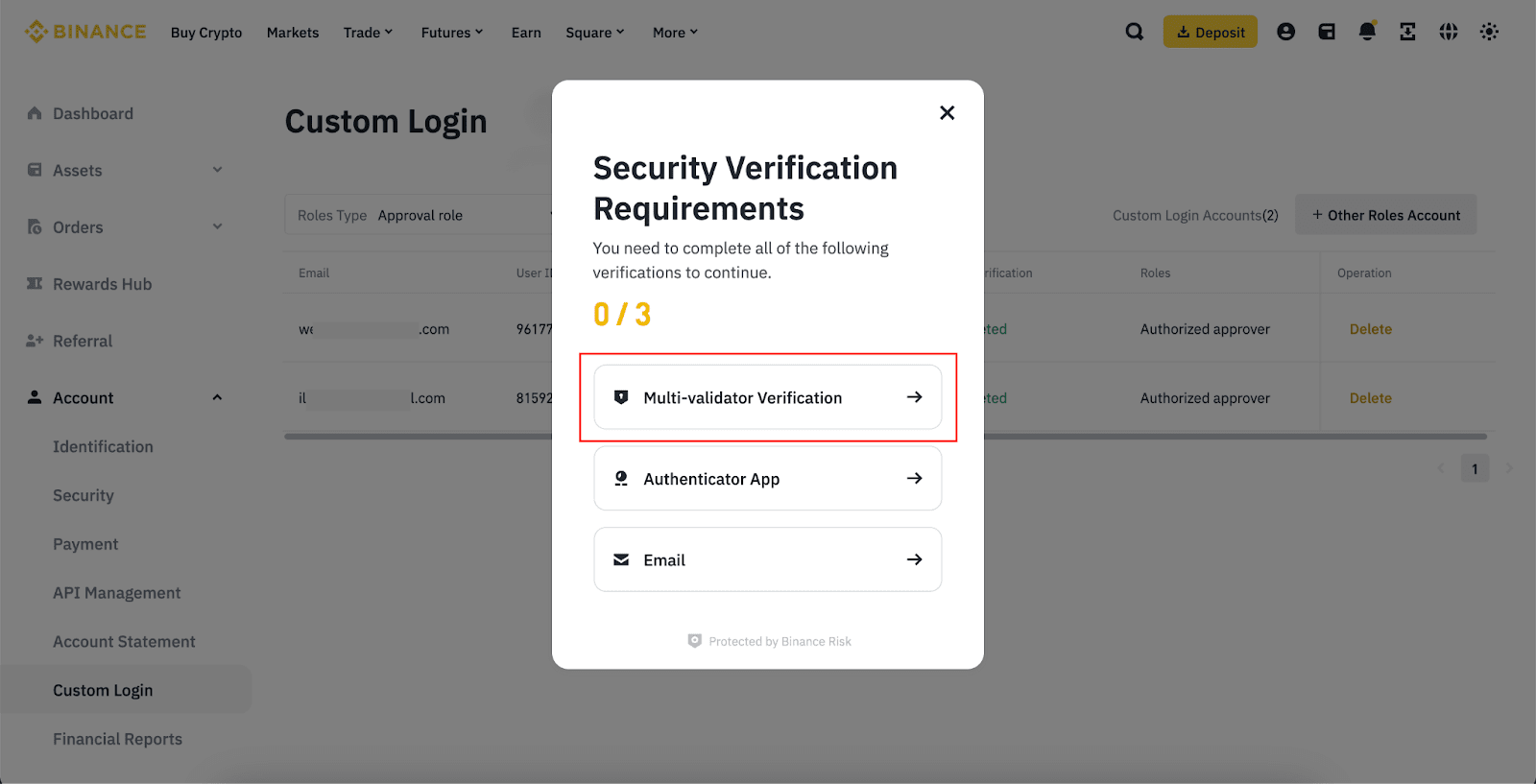
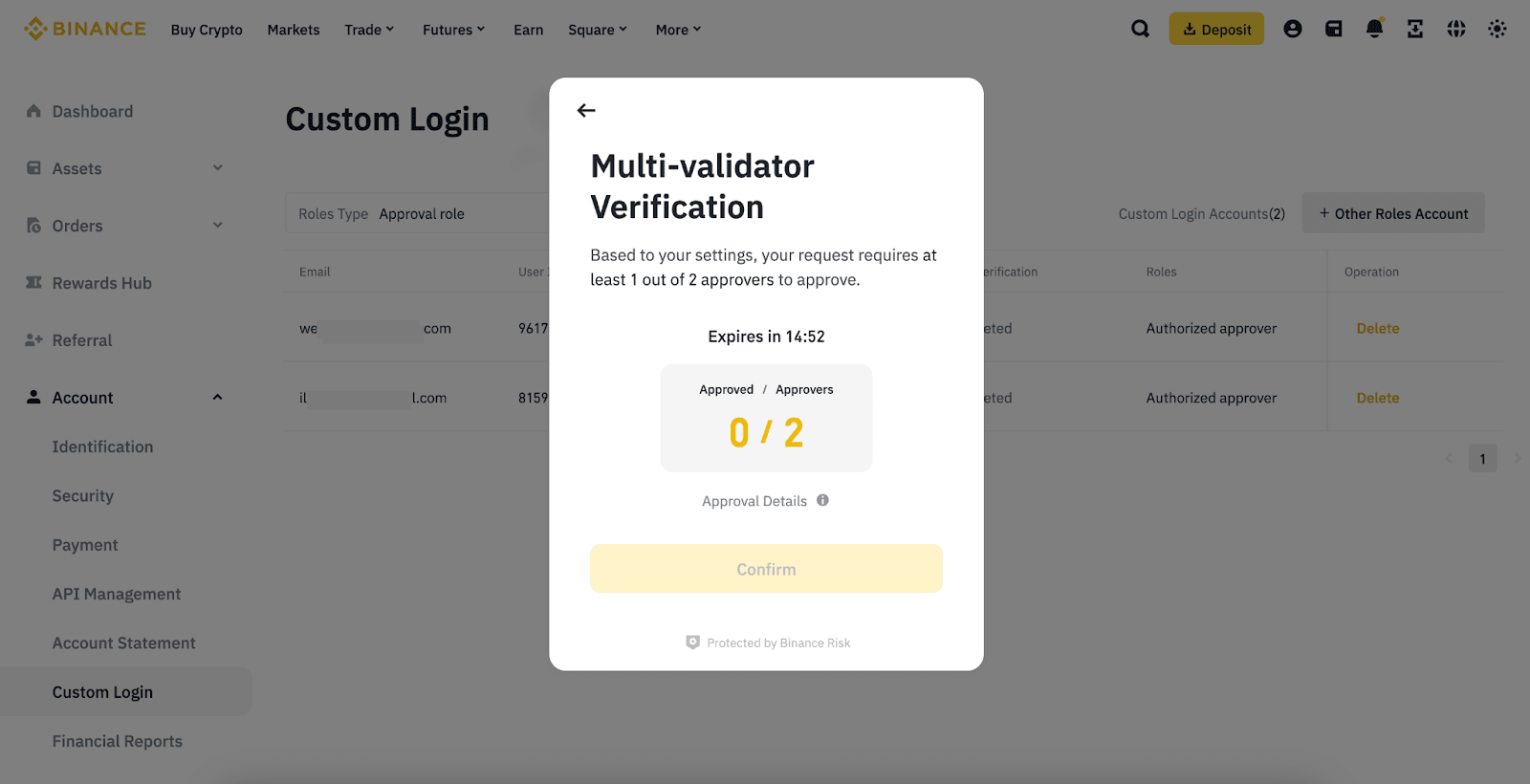
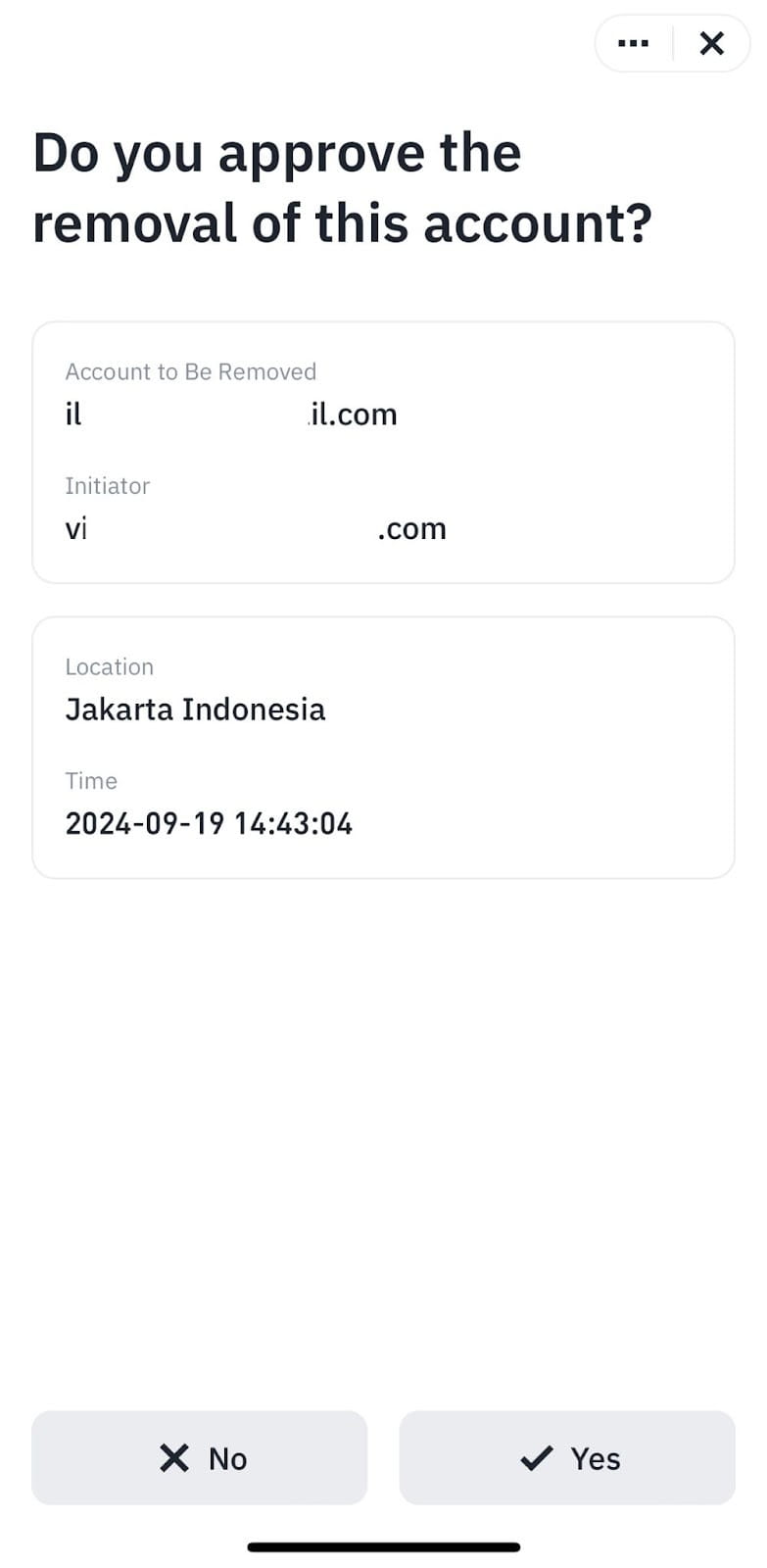
As a Binance VIP, you can use the Custom Login function to add new login credentials to your master account. These Custom Login accounts will have limited permission to access the trade and order history of the master account and the related sub-accounts, and the asset balance and deposit addresses of the master account.
Custom Login is only available for institutional users and whitelisted users. Please contact your Account Manager to understand how multi-validator and other security features can protect your account.
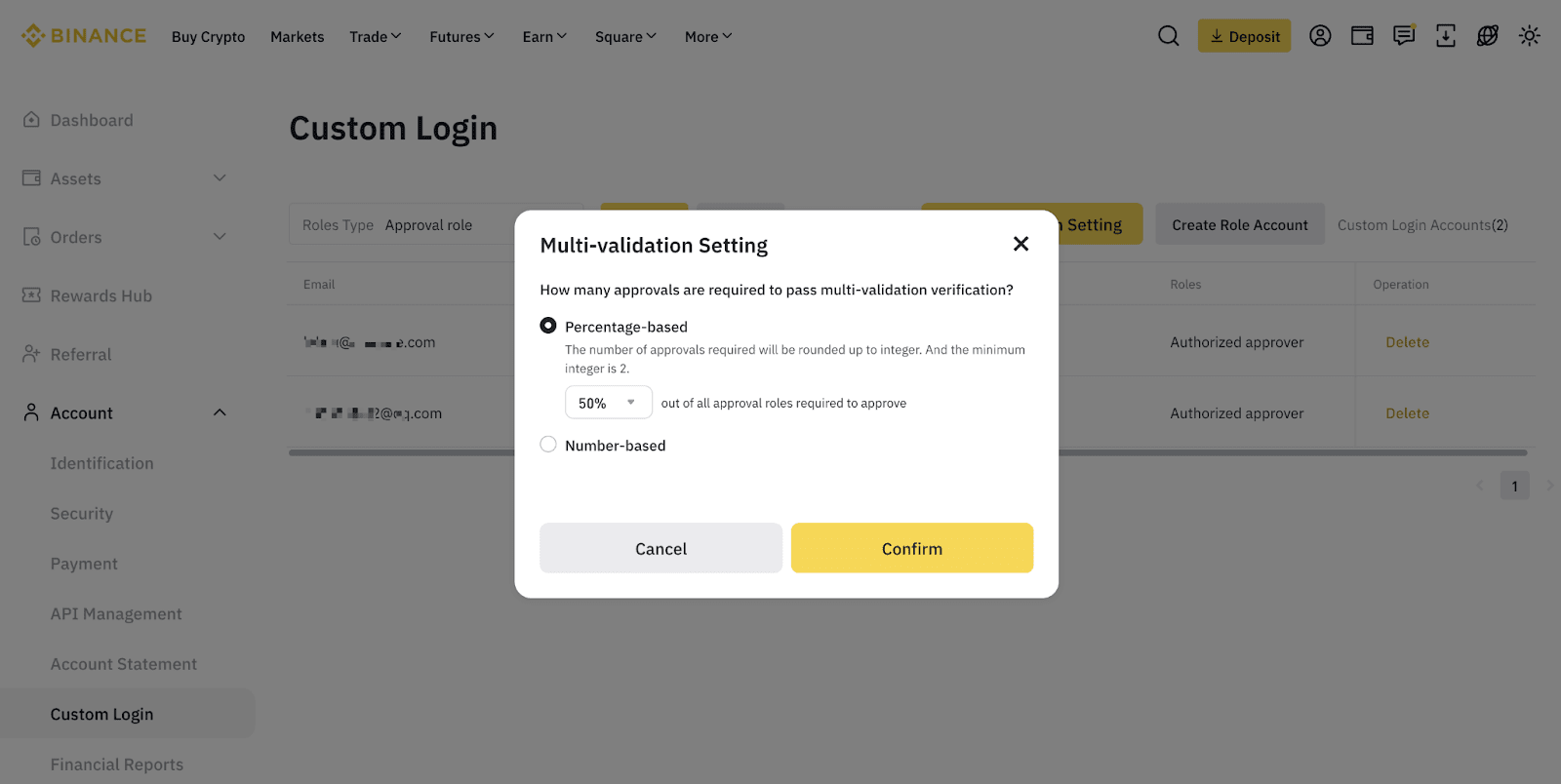
To see how to enable multi-validator verification, click to view the next tab on this page.
For more information about sub-accounts, please refer to Binance Sub-Account Functions and Frequently Asked Questions.
What are the features of a Custom Login account?
Please note: There are 3 Custom Login account roles:
| Role | Read-only | Finance Manager | Approval |
| View master account balance | ✓ | X | X |
| View master account deposit address | ✓ | X | X |
| View sub-account and master account order history | ✓ | X | X |
| Transfer assets between master and sub-accounts | X | ✓ | X |
| Request for customer service from Binance Support | ✓ | X | X |
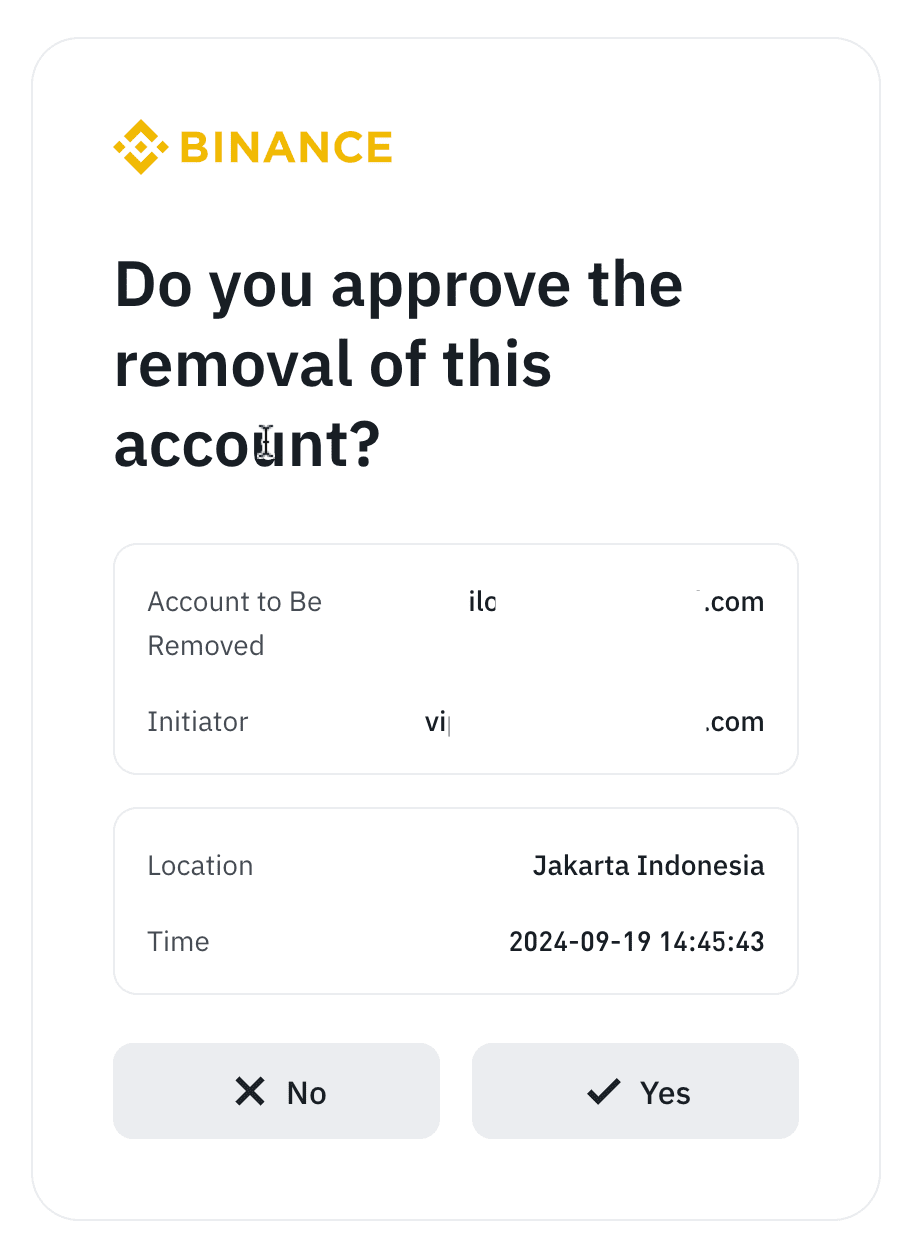
| Multi-validator verification | X | X | ✓ |
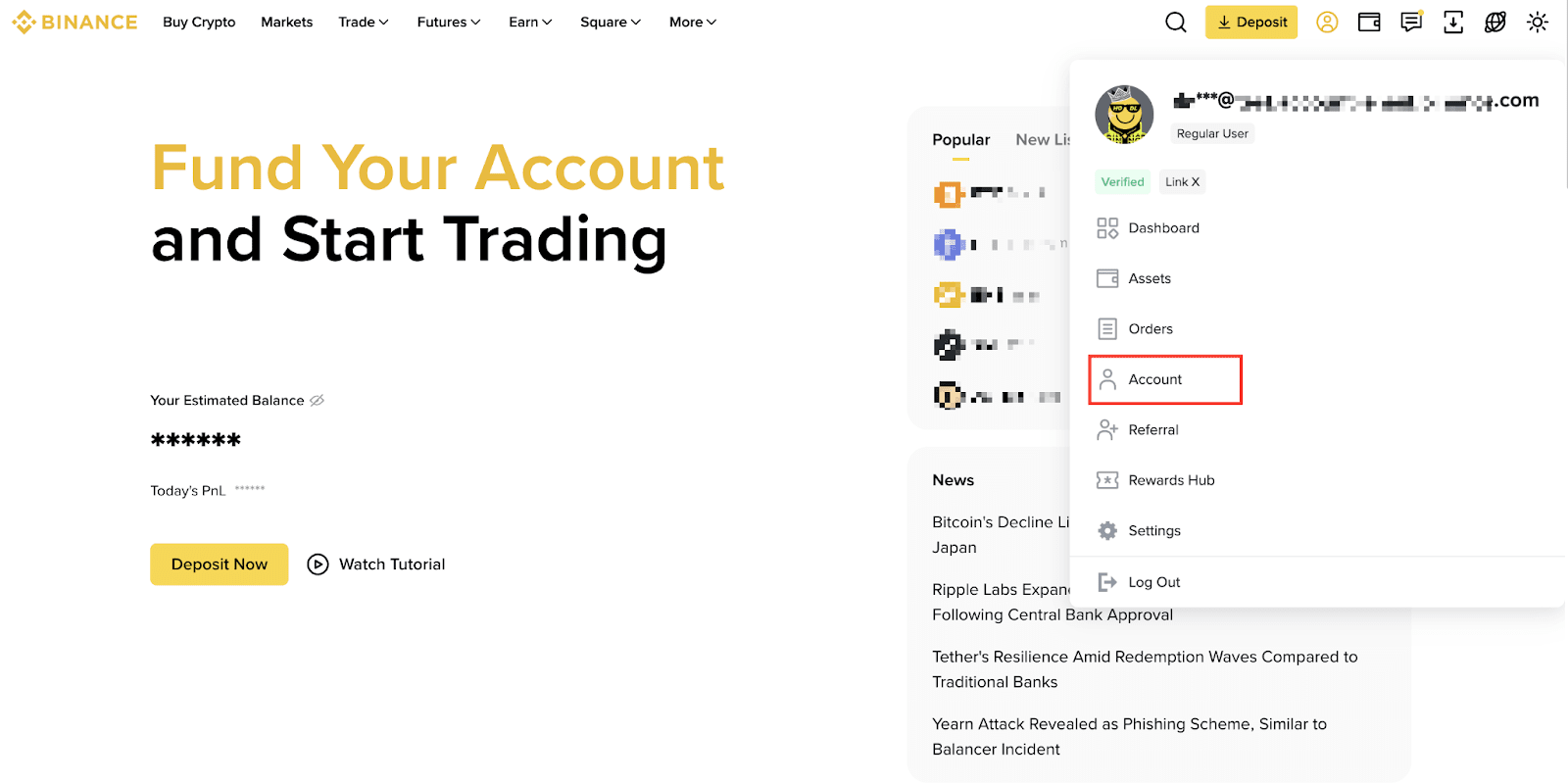
1. Log in to your Binance account. From the profile icon, click [Account].
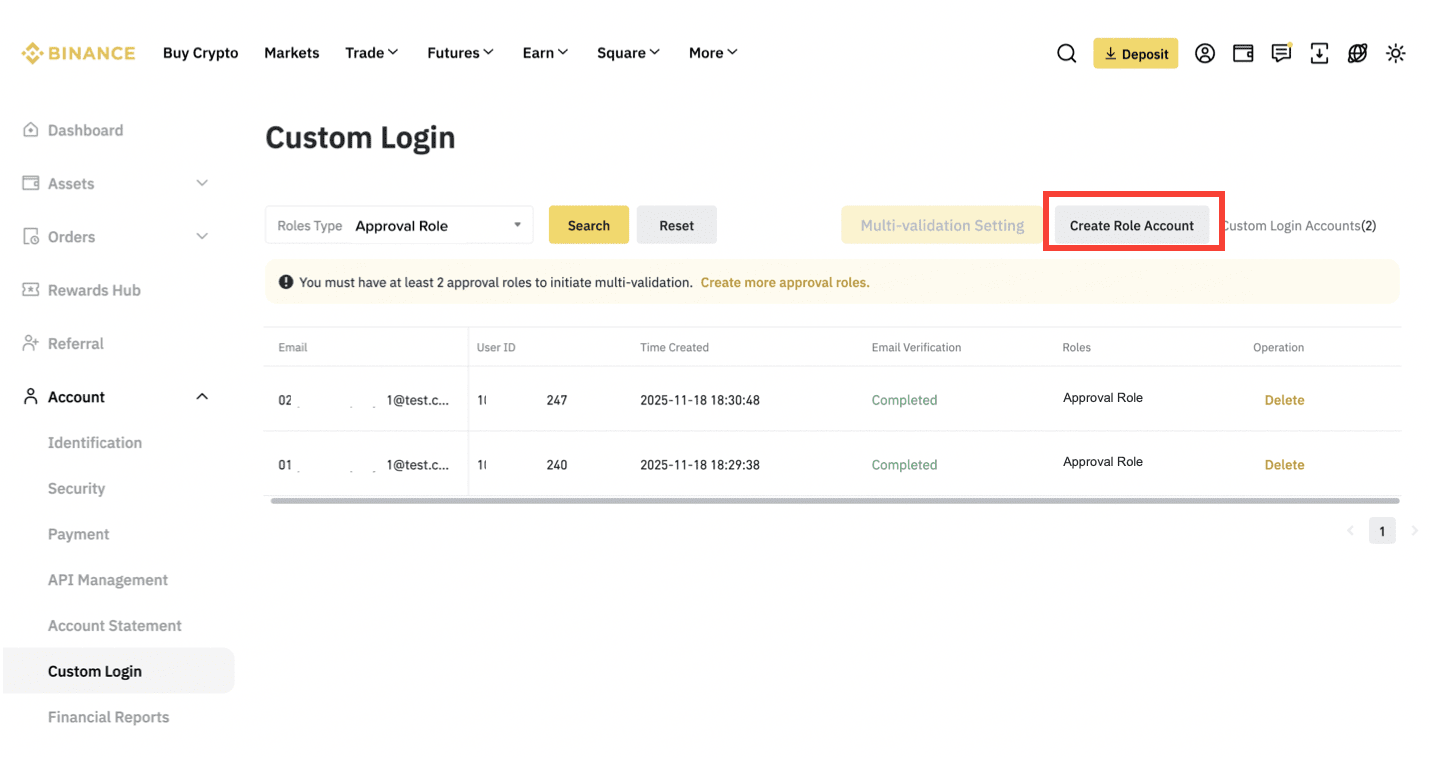
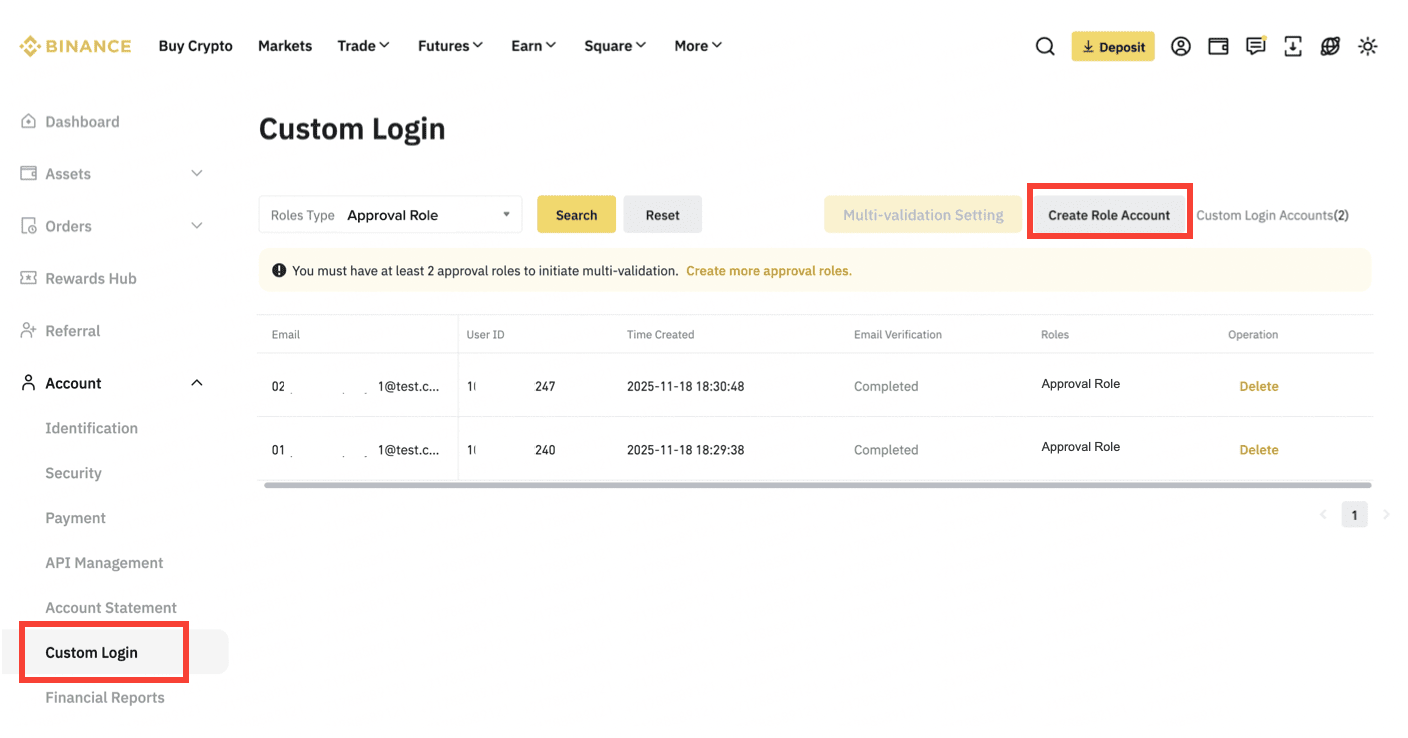
2. Select [Custom Login] - [Create Role Account].
Important Notes:
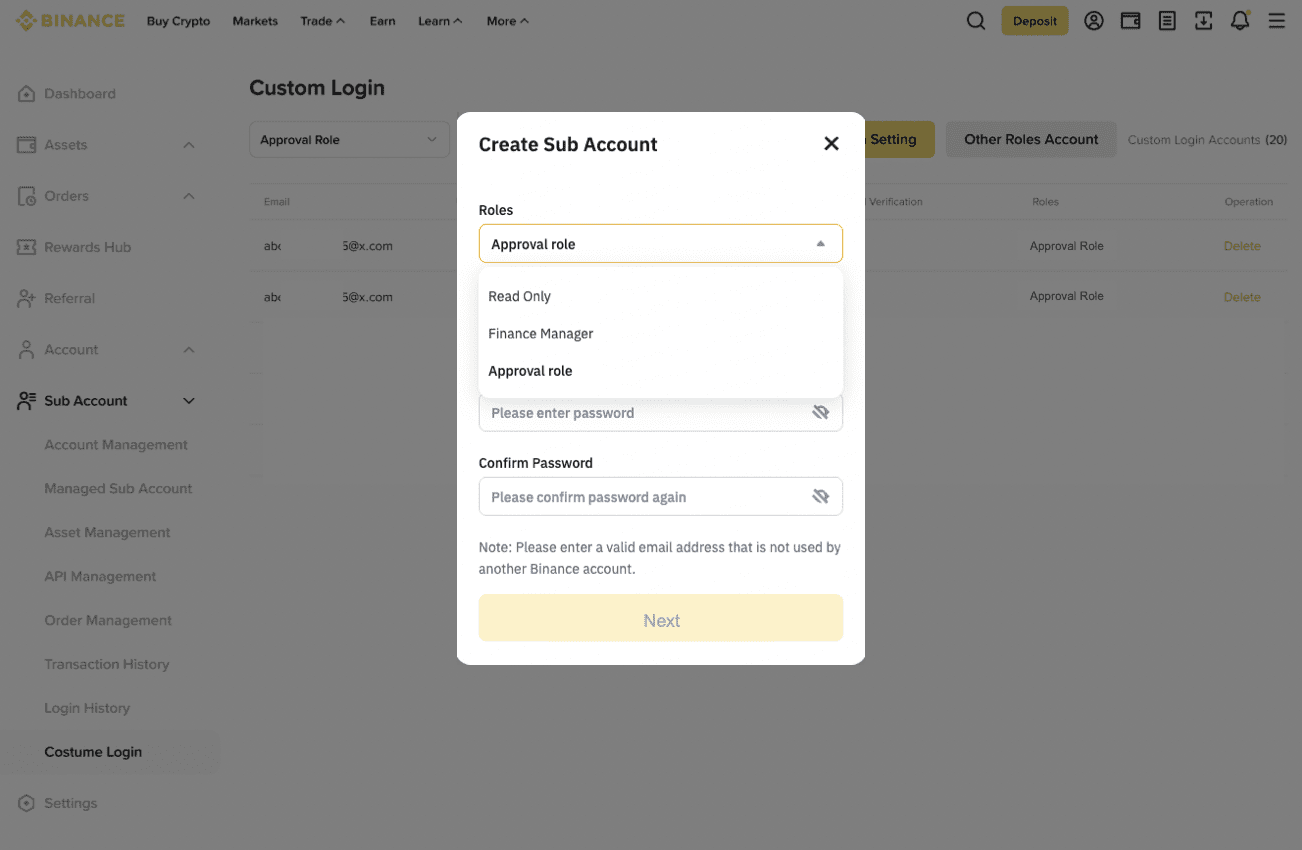
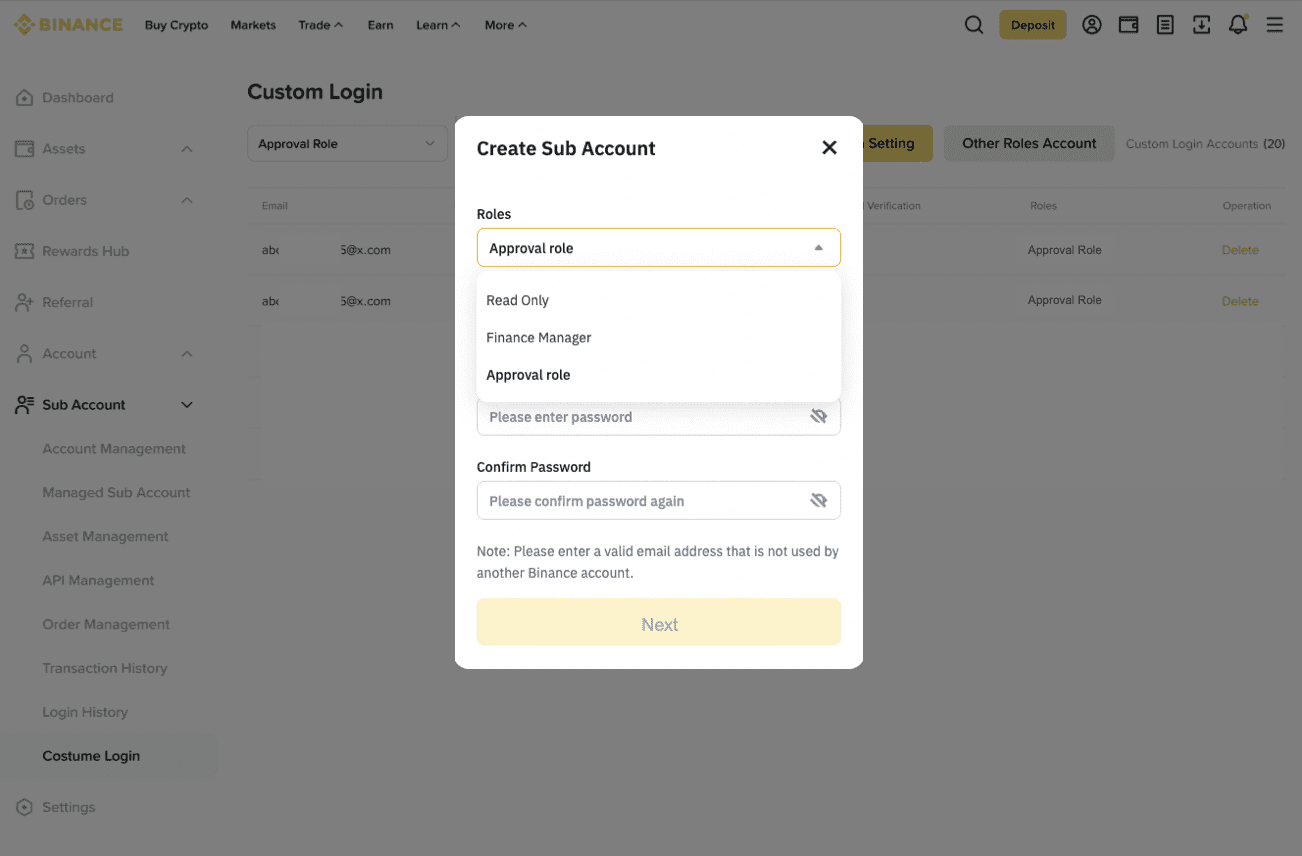
3. Create login credentials for the Custom Login account.
Please note: The newly created account needs to complete email verification, so please enter the email address carefully. Click [Next].
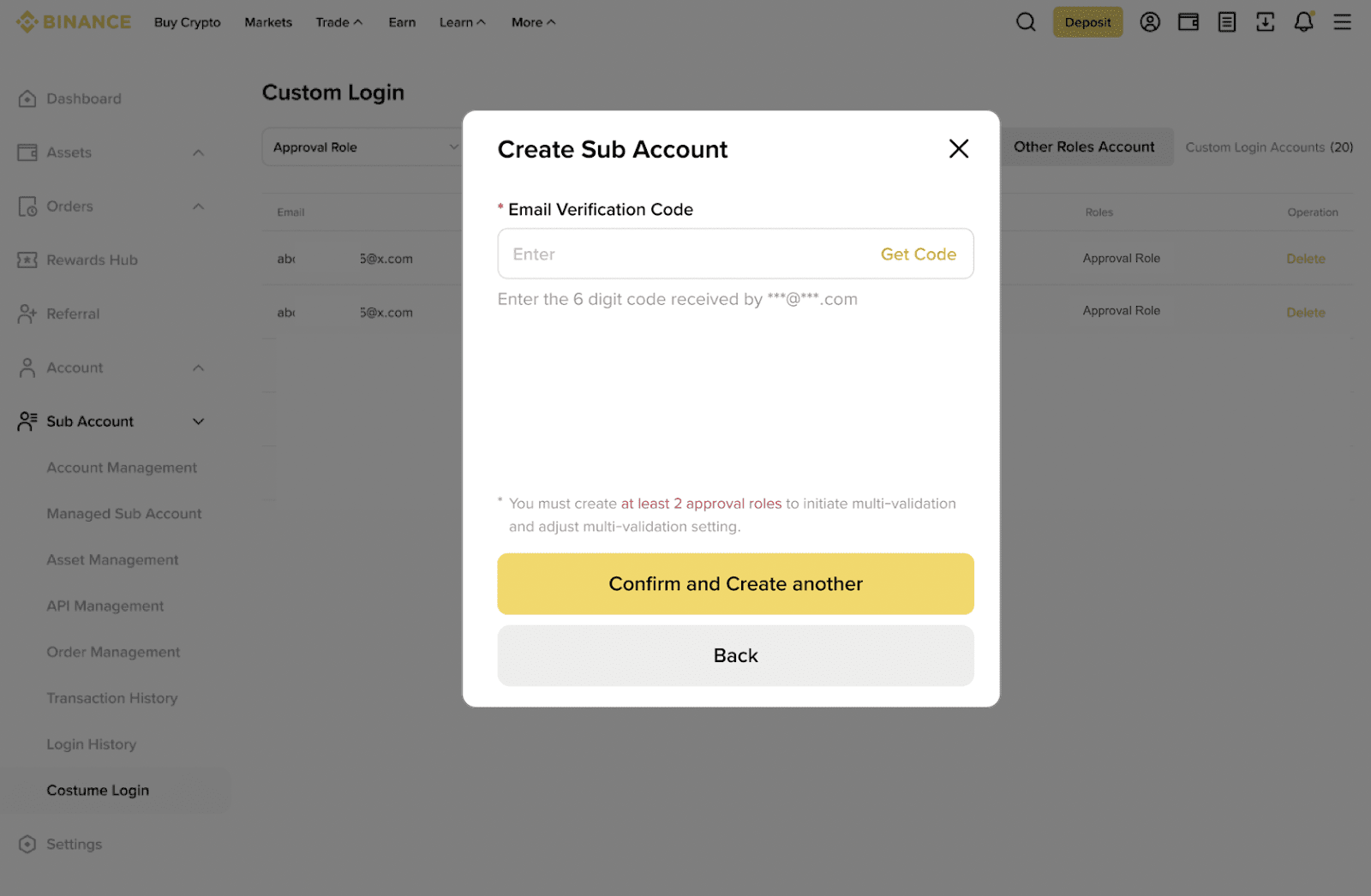
4. Enter the email verification code received in the Custom Login account email. Then, complete 2FA verification with the master account and click [Confirm and Create another].
1. You can directly log in to your Custom Login accounts, no registration is required.
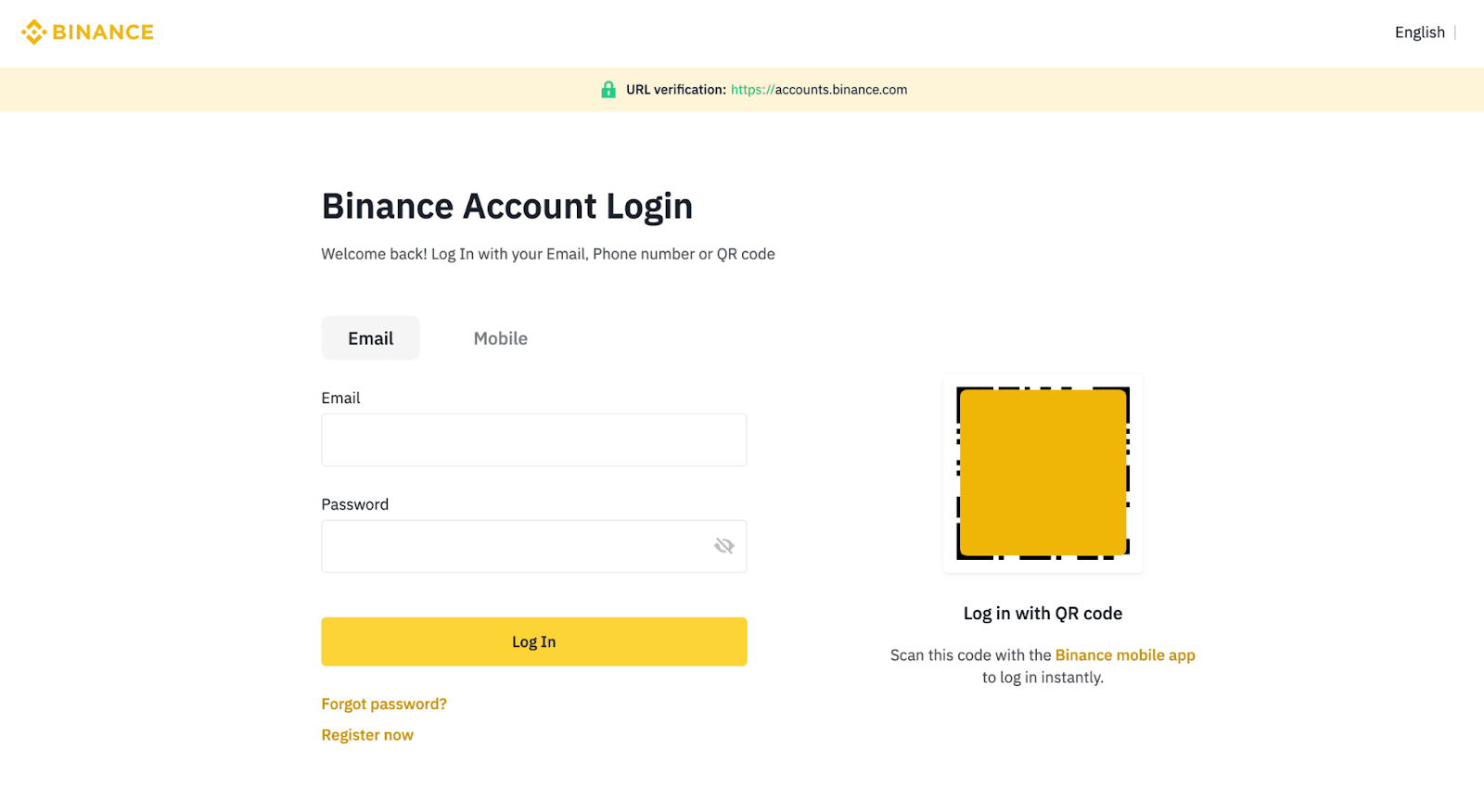
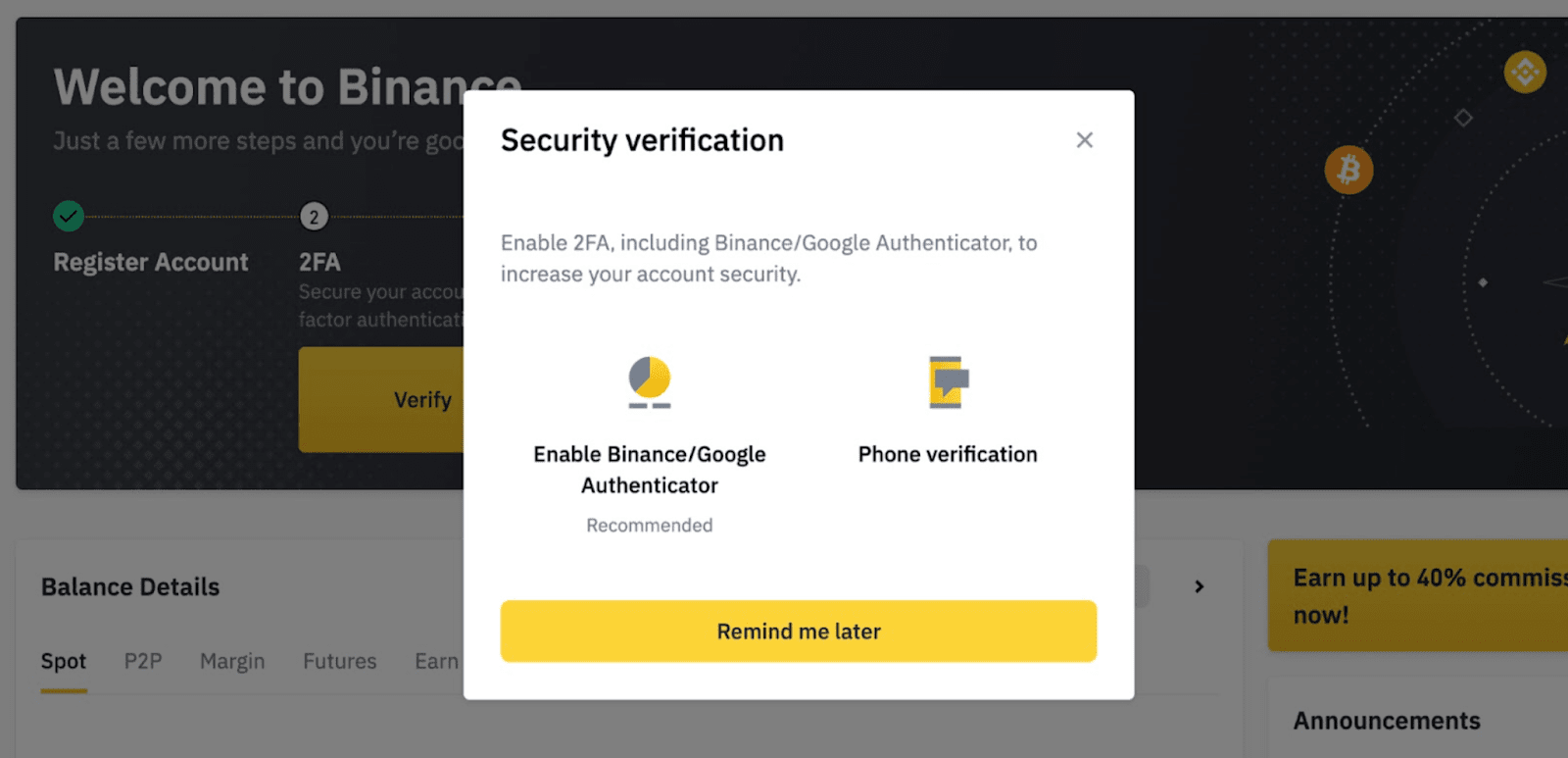
2. Click [Profile] - [Dashboard] to proceed to the User Center. For first-time login, you will be prompted to enable 2FA. For more details please refer to How to Enable Google Authenticator for 2FA on the Binance Website?
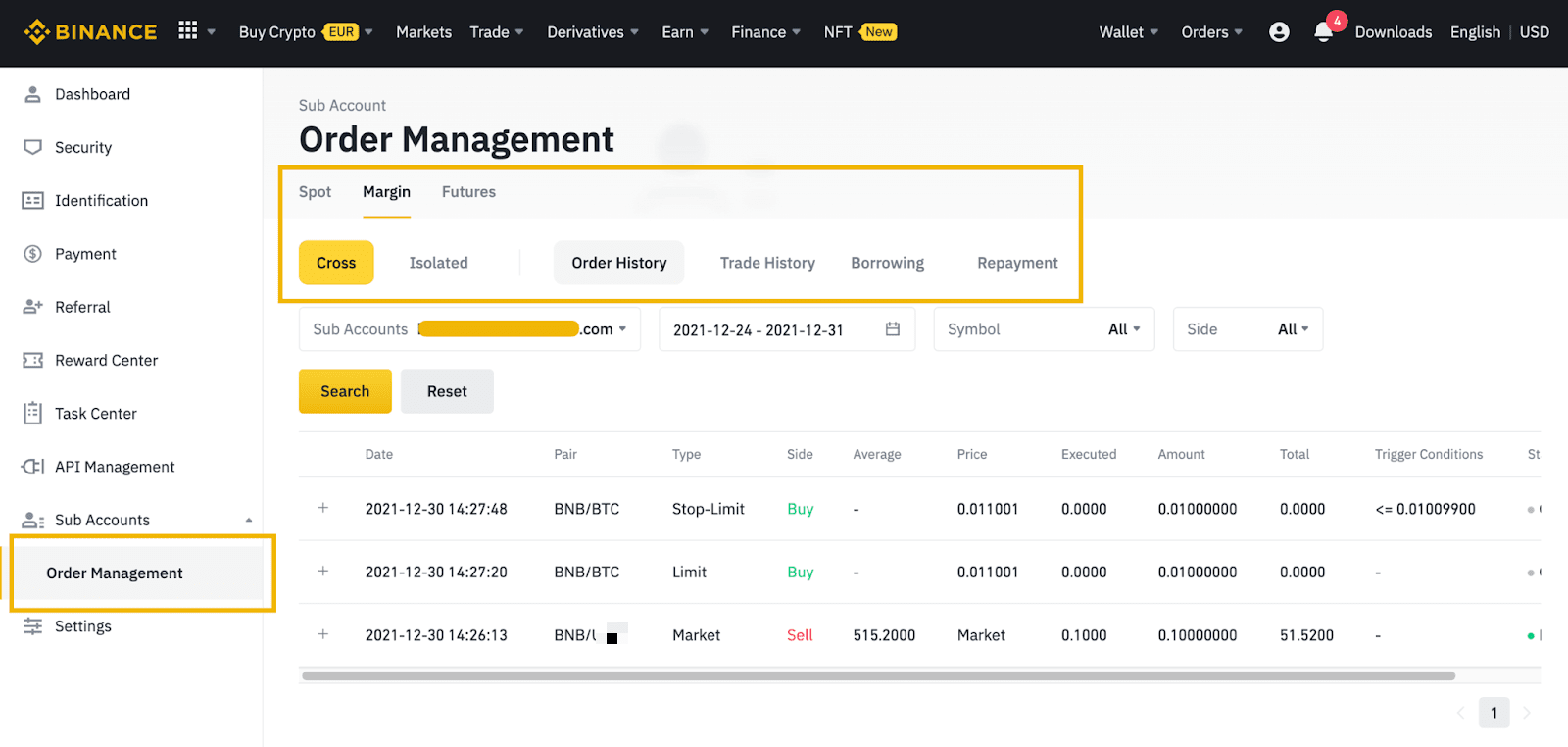
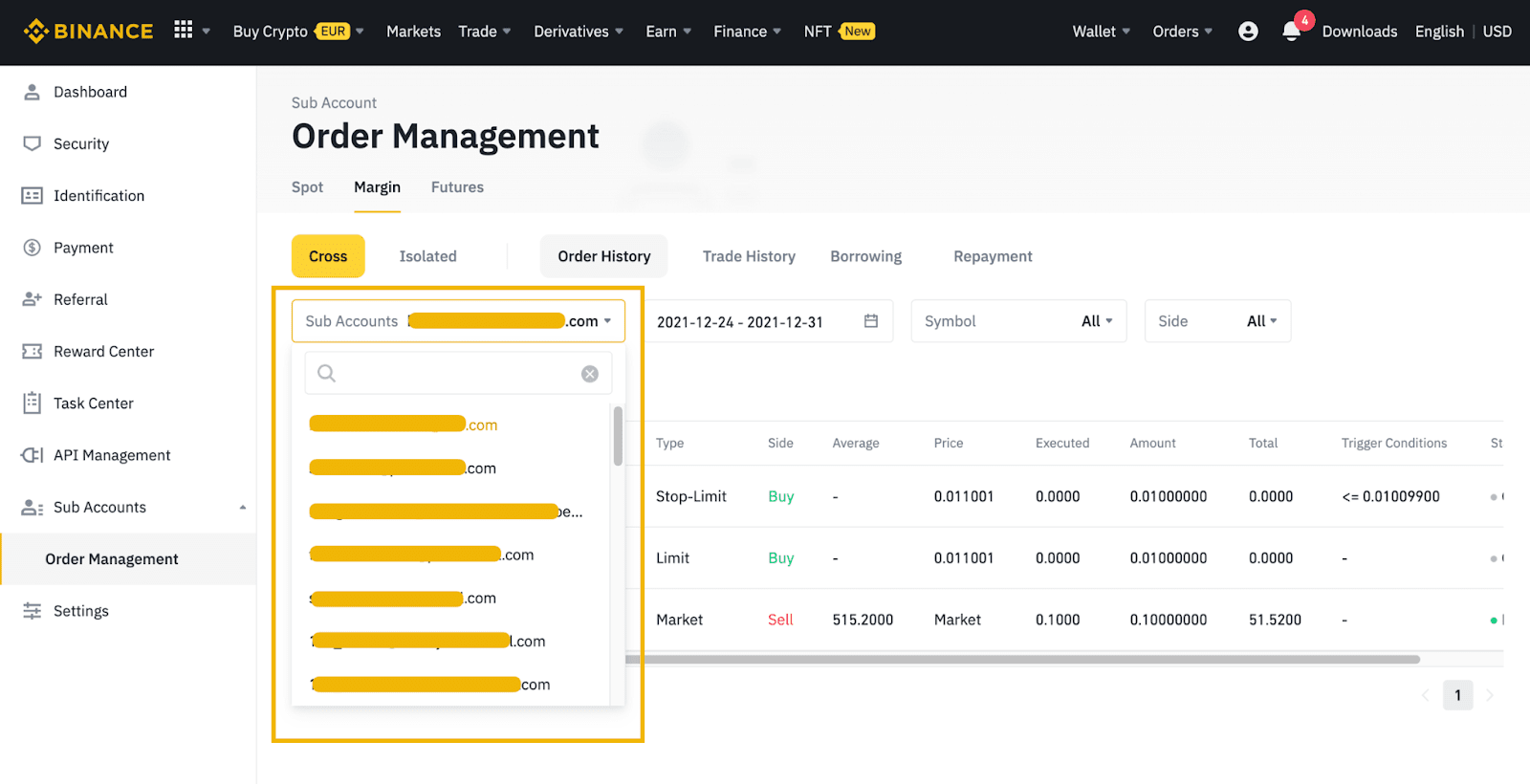
3. After enabling 2FA, click [Sub Accounts] - [Order Management]. You can view different accounts’ Spot or Margin or Futures trading history. Additionally, you can choose between the master account and the sub-accounts to view their respective history.
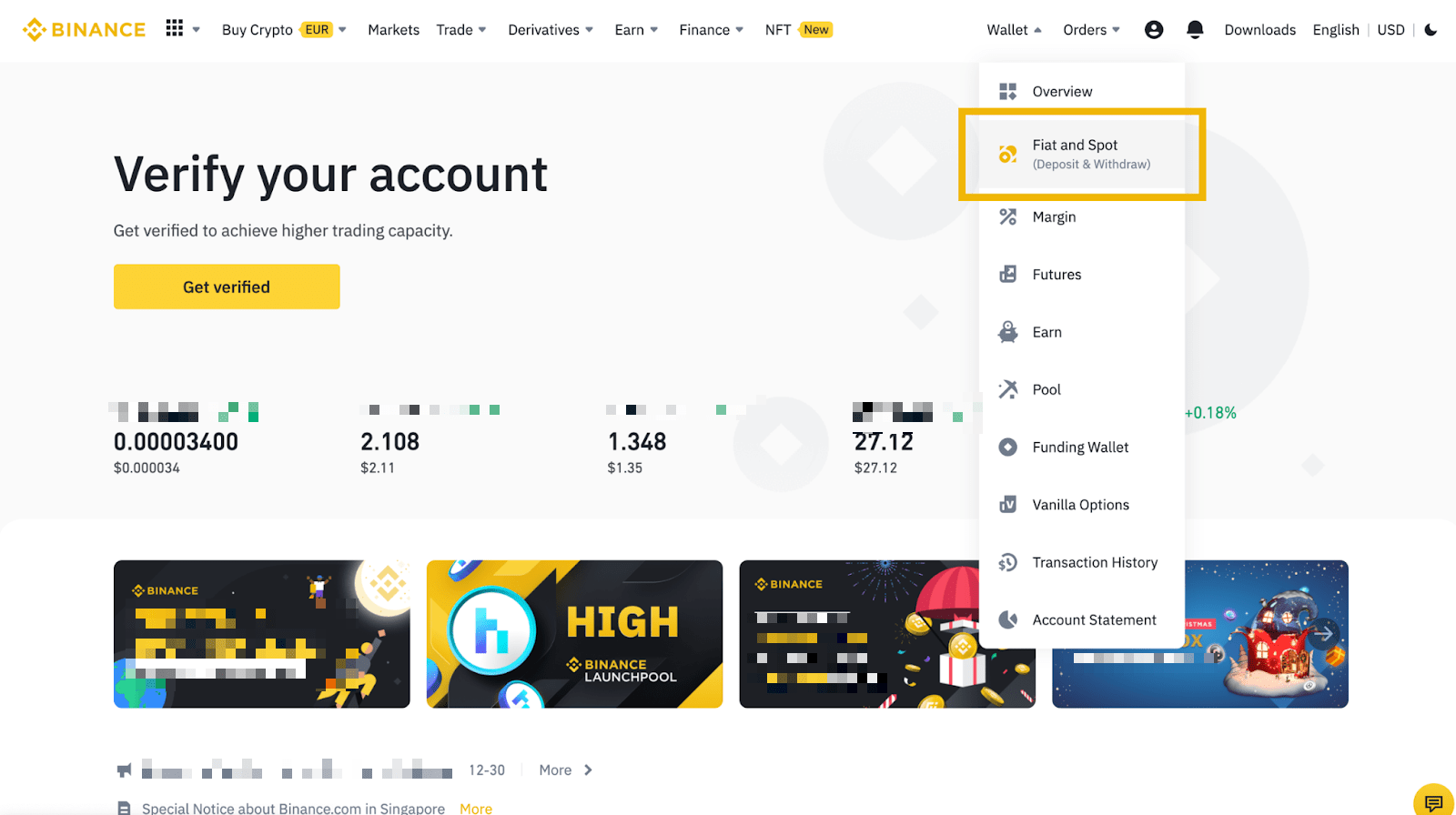
1. Log in to the Custom Login account and click [Wallet] - [Fiat and Spot].
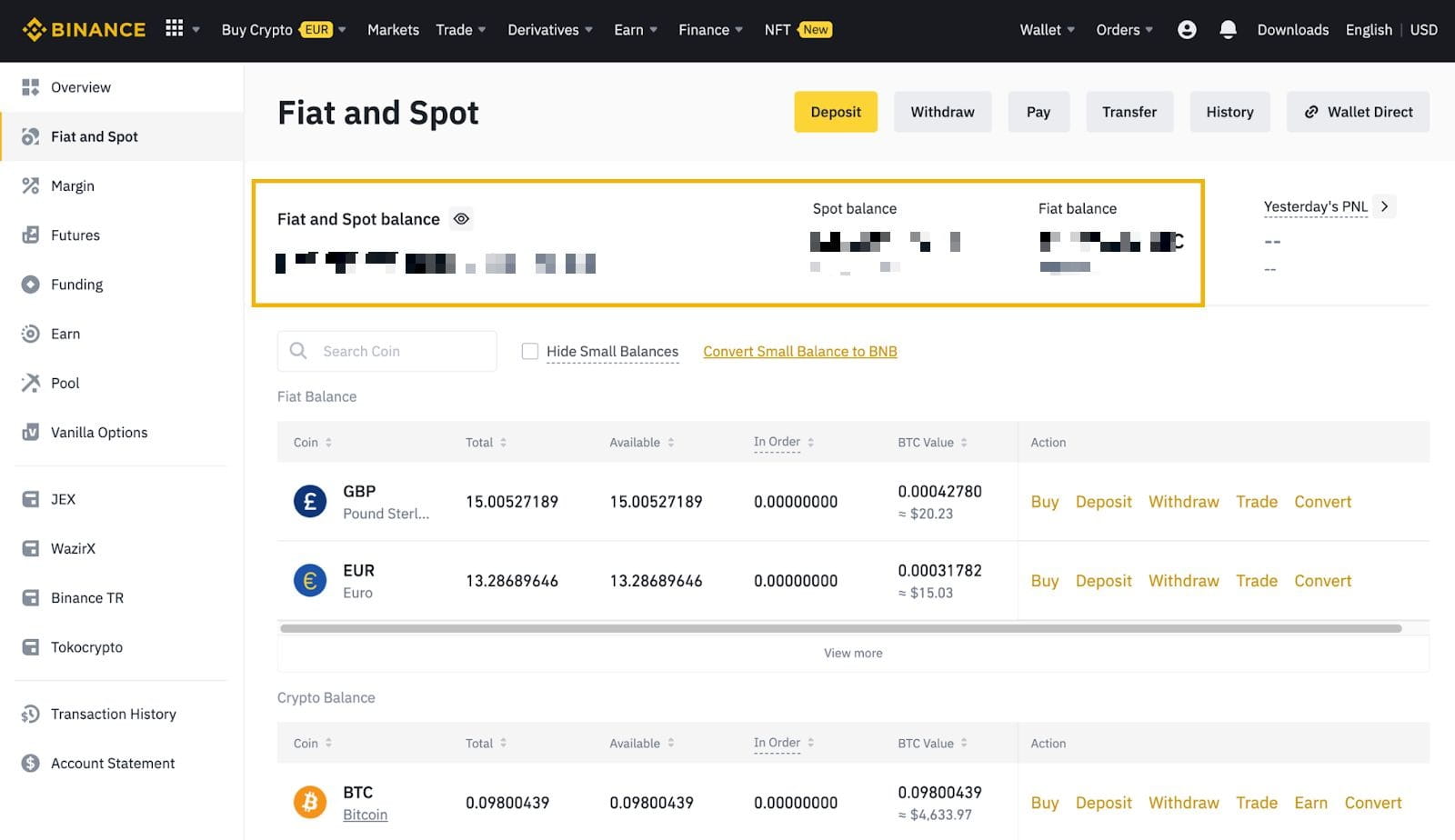
2. You can view the Fiat and Spot balance and all fiat and crypto assets here.
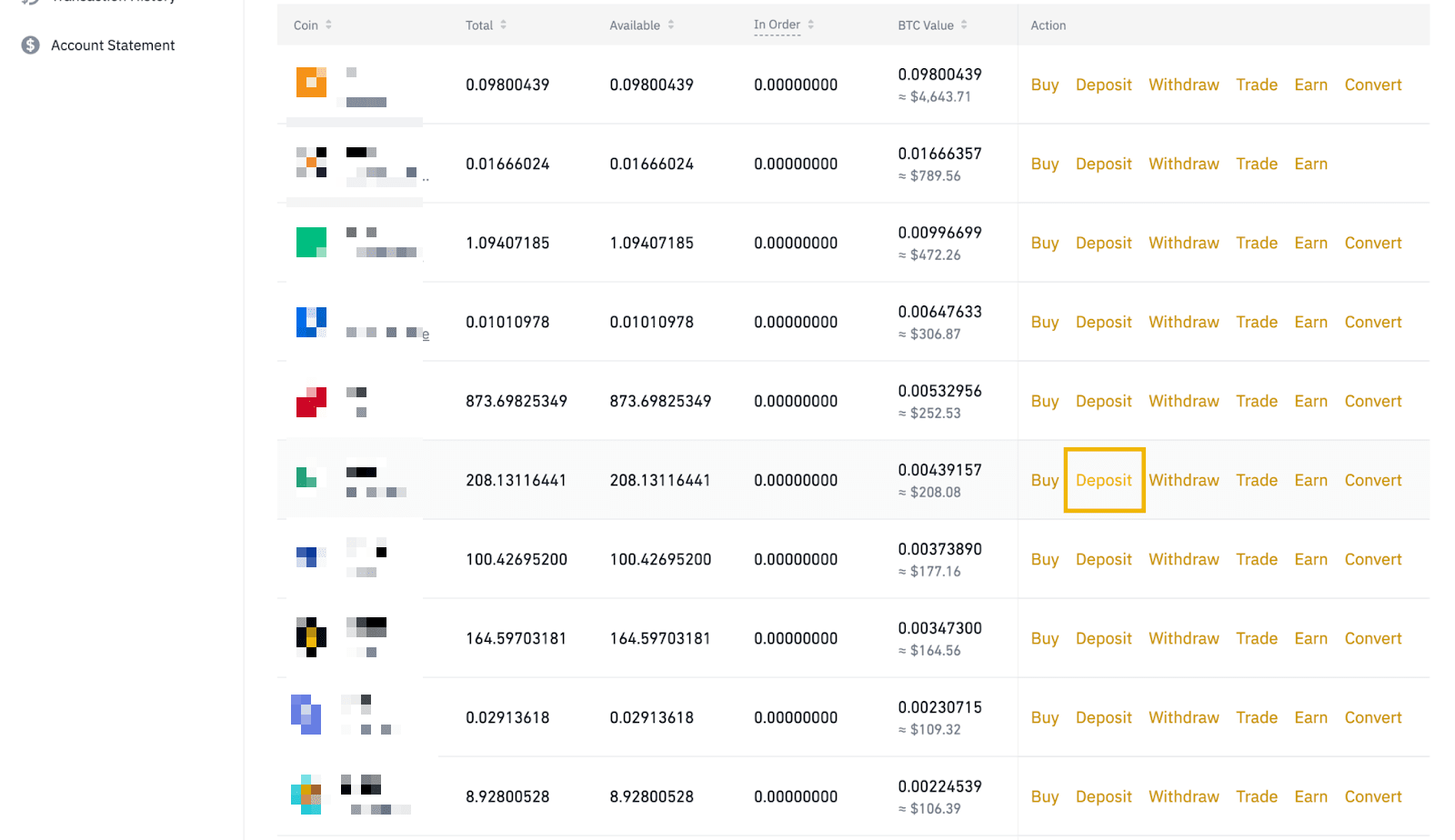
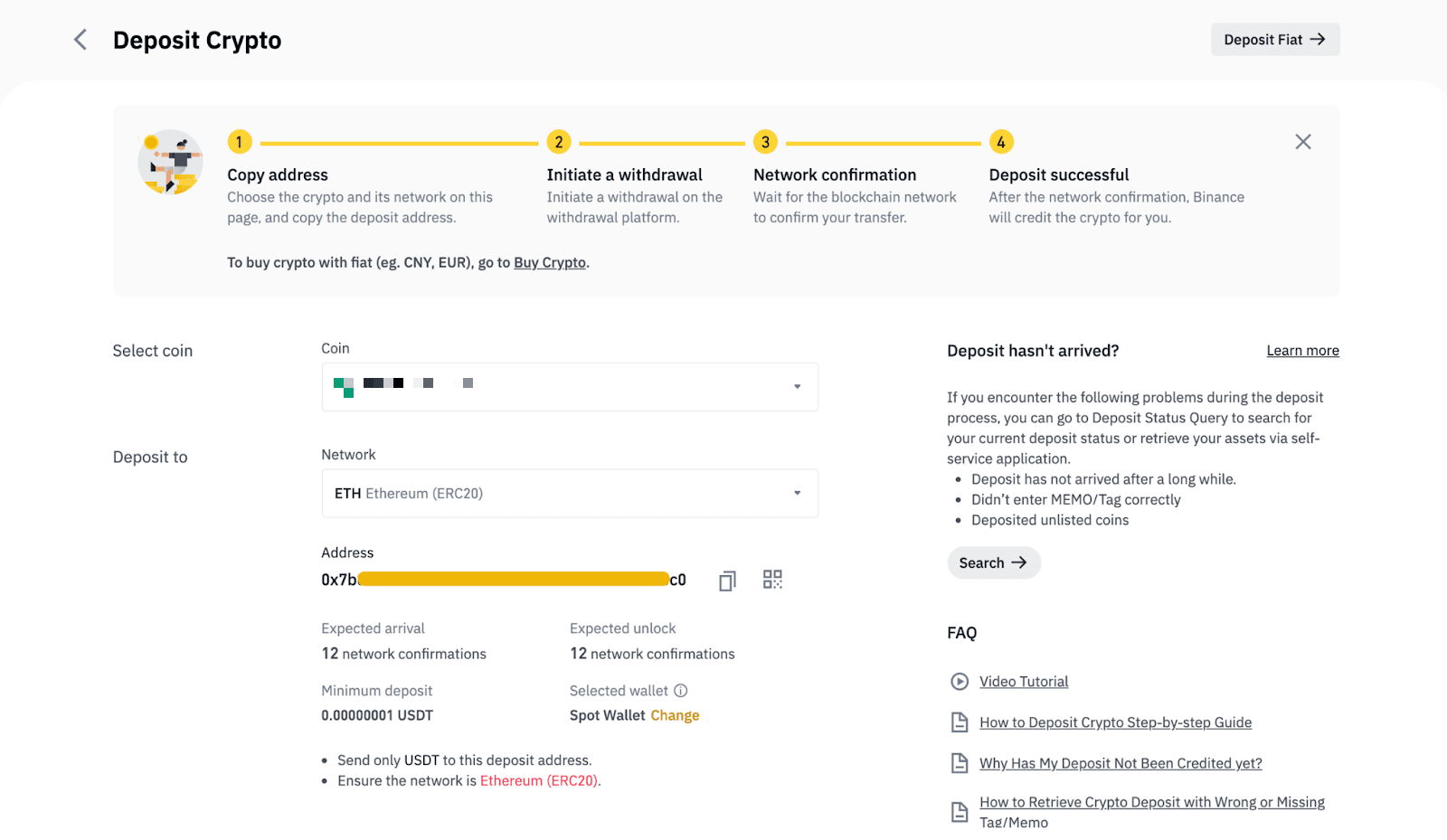
3. To view a crypto asset’s master account deposit address, click [Deposit] next to the asset.
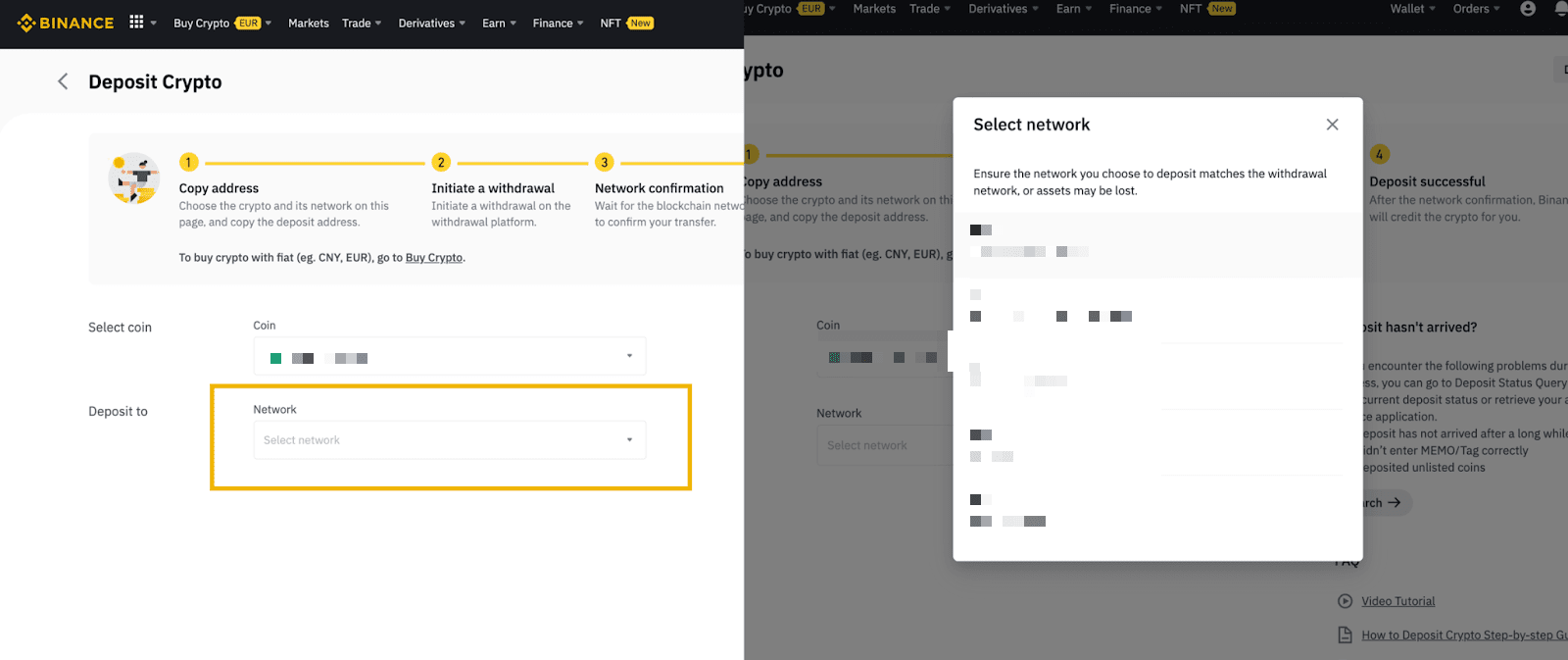
4. Select the network and you can see the master account’s deposit address.
1. You can directly log in to your Custom Login accounts, no registration is required.
2. Click [Profile] - [Dashboard] to proceed to the User Center. For first-time login, you will be prompted to enable 2FA. For more details please refer to How to Enable Google Authenticator for 2FA on the Binance Website.
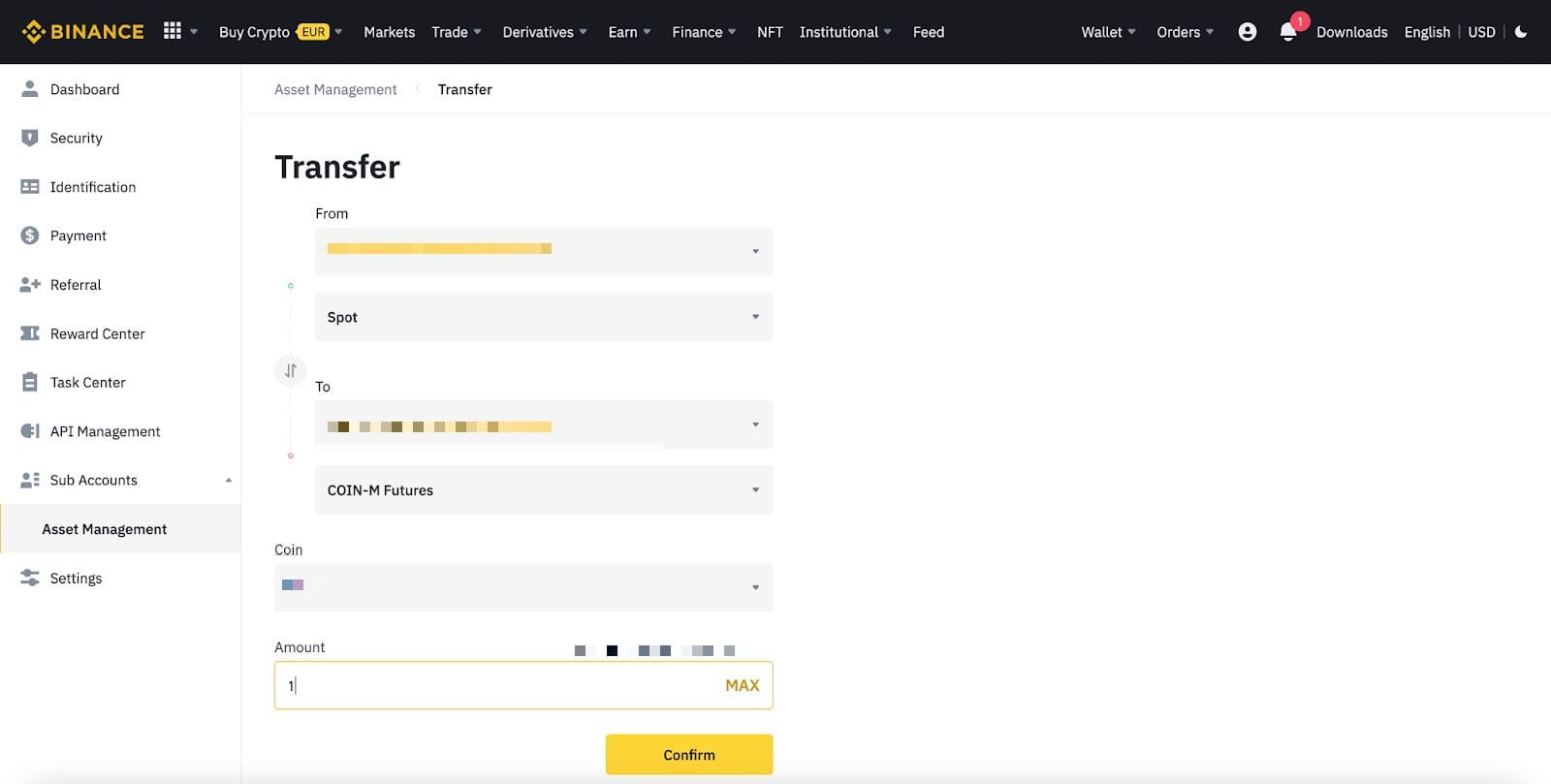
3. After enabling 2FA, click [Sub Accounts] - [Assets Management]. You will enter the same transfer assets page as the master account, where you can transfer assets between different sub-accounts or between sub-accounts and master accounts in the same way as the master account.