


Bạn có mệt mỏi vì liên tục phải xem biểu đồ, tự phân tích thị trường và đặt lệnh thủ công không?
Không còn phải lo nữa. Binance Agent OS đã sẵn sàng.
Binance Agent OS cung cấp một cách đơn giản để truy cập và phân tích thị trường, đặt lệnh và quản lý tài khoản Binance của bạn trực tiếp từ các công cụ được hỗ trợ bởi AI như ChatGPT, Claude AI, VS Code và hơn thế nữa.
Mọi thứ vừa được tự động hóa và dễ dàng hơn rất nhiều.
Binance Agent OS là gì?
Binance Agent OS cho phép bạn kết nối tài khoản Binance của mình với một tác nhân AI và tương tác với tài khoản của bạn bằng ngôn ngữ tự nhiên.
Thay vì liên tục chuyển đổi giữa các trang khác nhau trên Binance để kiểm tra số dư, phân tích thị trường hoặc quản lý giao dịch, bạn có thể dùng giao diện AI để thực hiện các tác vụ này.
Đối với những trader đã dùng các công cụ AI, điều này có thể giúp việc tương tác với tài khoản Binance của họ thuận tiện hơn nhiều.
Bạn bắt đầu như thế nào?
Việc bắt đầu khá đơn giản.
Bước 1: Truy cập tài liệu Binance Agent OS
Điều đầu tiên bạn cần làm là truy cập tài liệu chính thức của Binance Agent OS.
Tài liệu cung cấp hướng dẫn chi tiết để thiết lập mọi thứ và bắt đầu chỉ trong vài phút.
Tài liệu Binance Agent OS: https://developers.binance.com/en/docs/agent-native/mcp-server/agentic
Hãy chắc chắn rằng bạn đã đọc kỹ tài liệu trước khi kết nối tài khoản Binance của mình.
Bước 2: Chọn nền tảng AI của bạn
Tiếp theo, chọn nền tảng AI agent mà bạn muốn sử dụng.
Có một số tùy chọn có sẵn, bao gồm:
ChatGPT
Claude
VS Code
Các môi trường AI tương thích khác
Trong hướng dẫn này, chúng ta sẽ dùng ChatGPT.
Nếu bạn đã có sẵn môi trường AI cục bộ của riêng mình chạy qua VS Code, bạn cũng có thể khám phá lựa chọn đó.
Bước 3: Thiết lập Developer Mode trong ChatGPT
Trong ChatGPT, vào hồ sơ của bạn và mở Cài đặt.
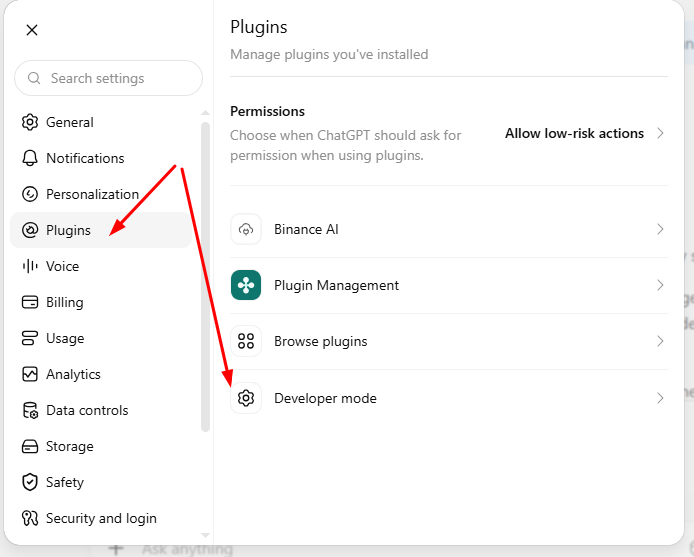
Từ đó, hãy điều hướng đến các cài đặt dành cho nhà phát triển liên quan và bật Developer Mode.
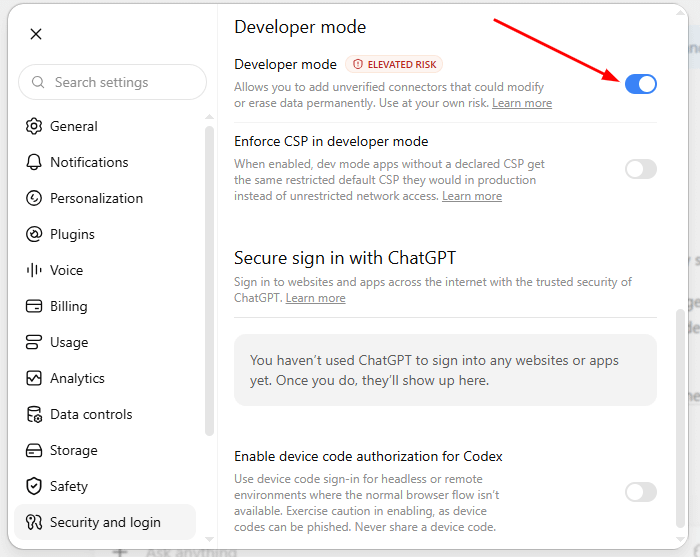
Điều này cho phép bạn cấu hình kết nối cần thiết để tương tác với Binance Agent OS.
Sau khi hoàn tất thiết lập, hãy truy cập trang chủ ChatGPT.
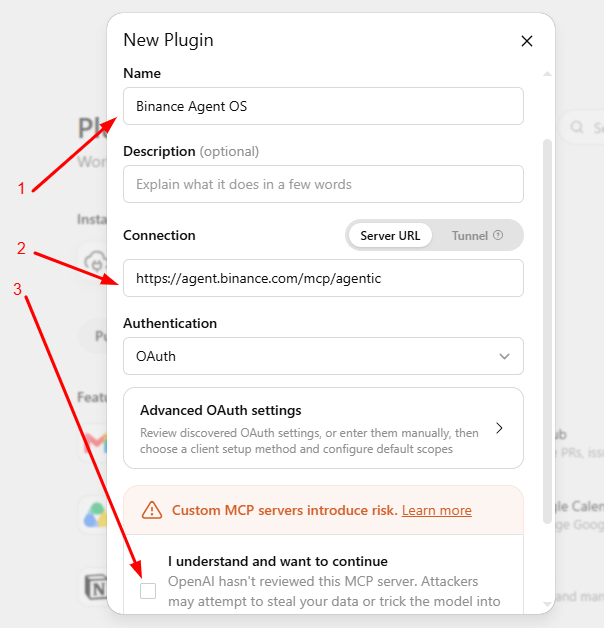
Tiếp theo, nhấp vào Plugins ở menu thanh bên trái.
Sau đó tạo một kết nối mới.
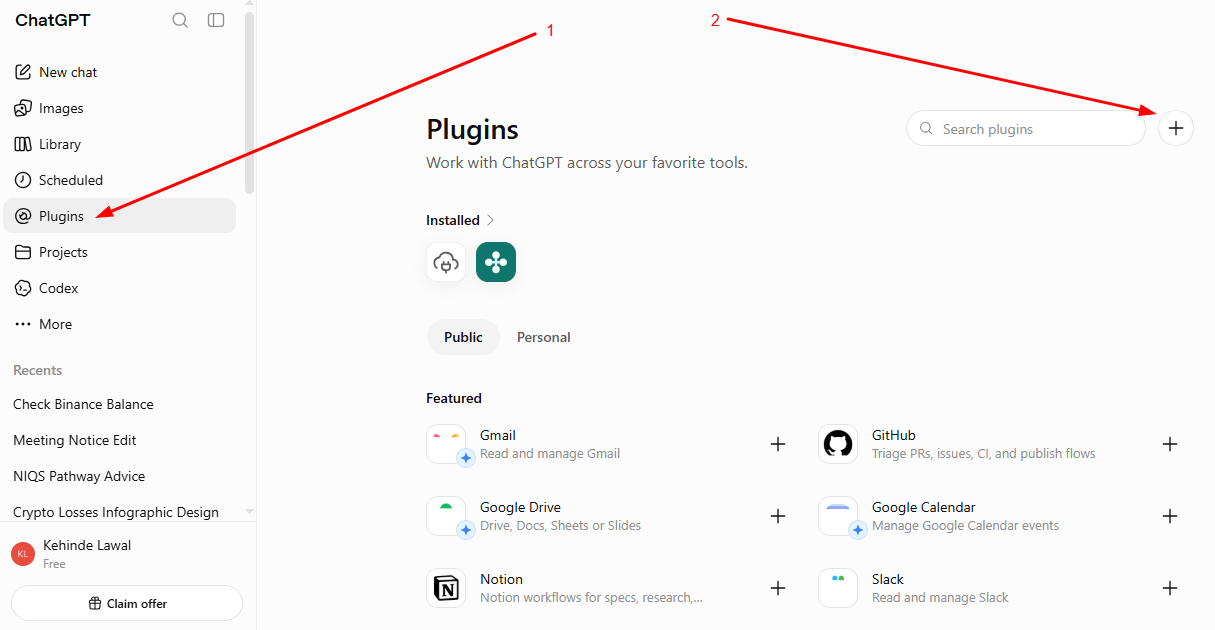
Ở phần tên, nhập: Binance Agent OS
Sau đó sử dụng endpoint kết nối MCP của Binance: https://agent.binance.com/mcp/agentic
Và nhấp tạo.
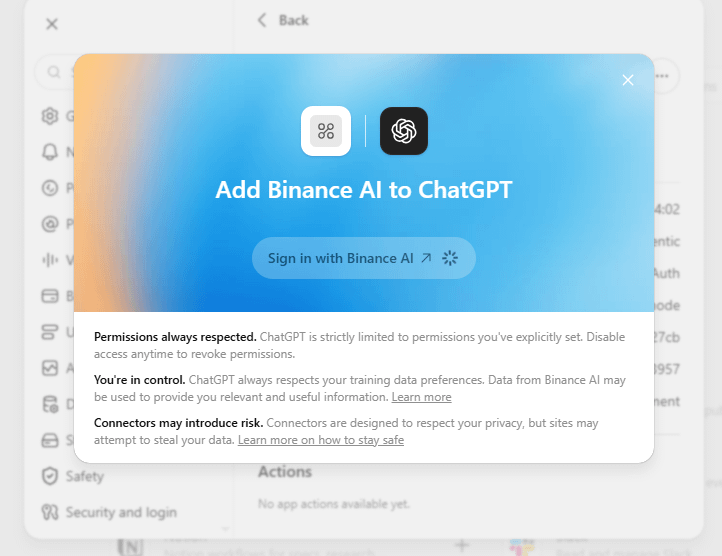
Cuối cùng, hệ thống sẽ nhắc bạn đăng nhập vào Binance.
Bạn đã sẵn sàng để bắt đầu
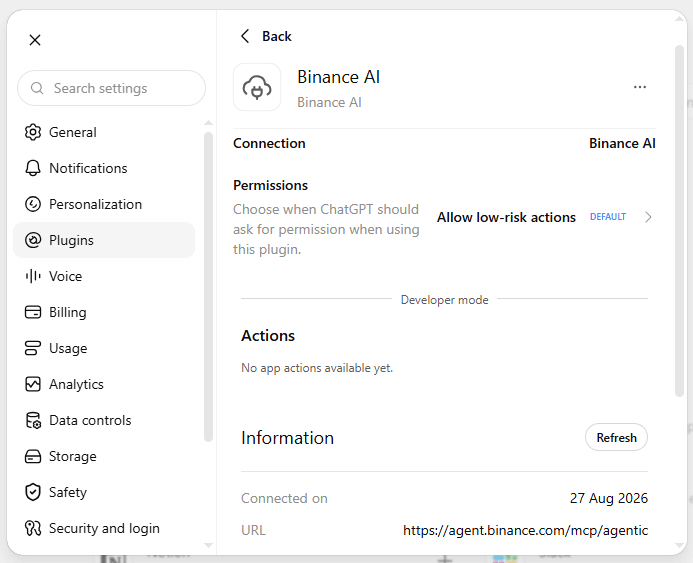
Sau khi hoàn tất thiết lập và đăng nhập, bạn có thể bắt đầu truy cập tài khoản Binance của mình trực tiếp từ giao diện ChatGPT.
Bạn có thể dùng giao diện AI để truy cập thông tin về tài khoản, phân tích thông tin thị trường và quản lý các hoạt động giao dịch được hỗ trợ.
Bạn không nhất thiết phải liên tục chuyển qua lại giữa các biểu đồ hoặc duyệt qua nhiều trang trong ứng dụng Binance chỉ để tìm thông tin tài khoản cơ bản.
Ví dụ, bạn có thể yêu cầu AI kiểm tra số dư tài khoản Binance của bạn và lấy thông tin đó cho bạn.
Bây giờ, hãy thực hiện ba tác vụ cơ bản trên tài khoản Binance của chúng ta bằng ChatGPT.
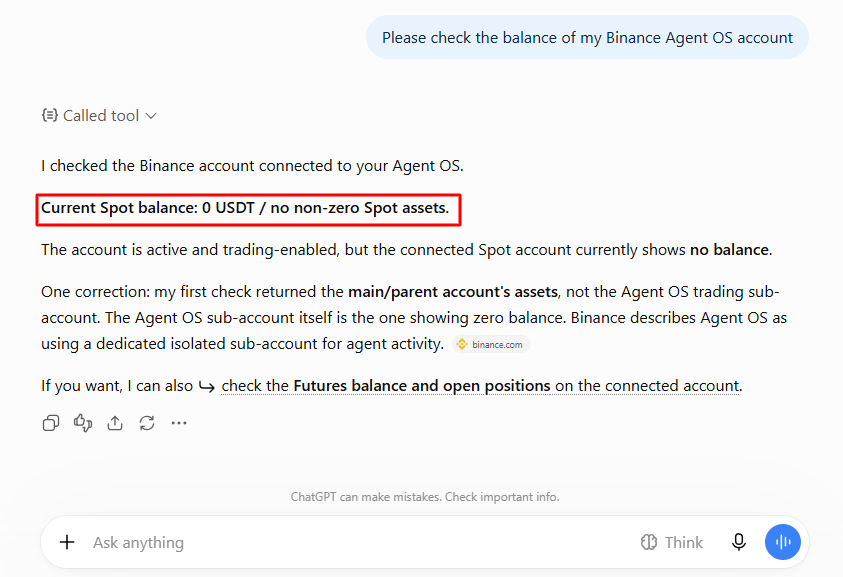
Tác vụ 1: Kiểm tra số dư tài khoản Binance Agent OS của tôi
Tôi đã dán lời nhắc bên dưới và nhấn enter.
"Hãy kiểm tra số dư tài khoản Binance Agent OS của tôi"
Như bạn thấy, số dư hiện tại là 0 USDT.
Cách nạp tiền vào tài khoản Binance Agent OS của bạn
Tôi chắc rằng bạn muốn biết cách nạp tiền vào tài khoản Binance Agent OS của mình. Nó rất đơn giản.
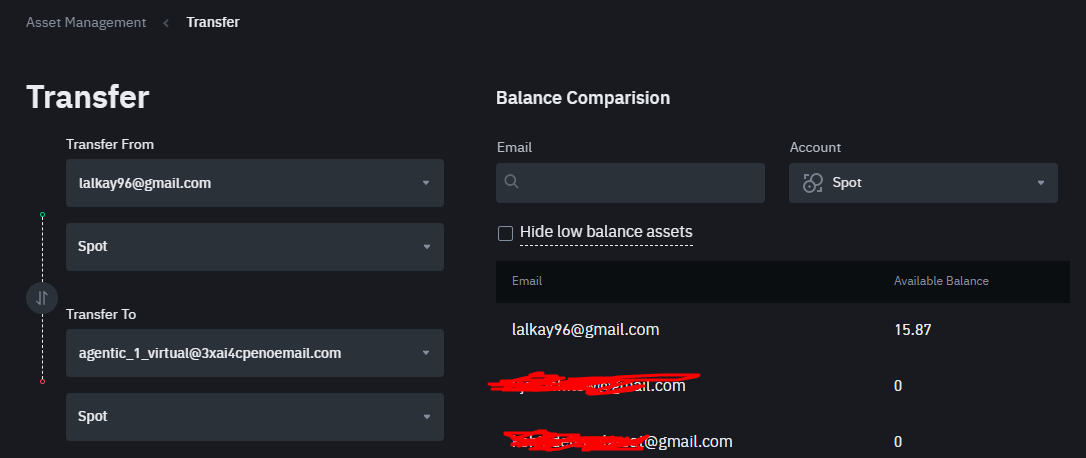
Trong ứng dụng Binance của bạn, vào Hồ sơ → Bảng điều khiển → Sub-account → Quản lý tài sản và nhấp Transfer để chuyển tài sản giữa tài khoản chính và sub-account ngay lập tức.
Bạn cũng có thể chọn dùng trực tiếp liên kết này:
Lưu ý: Transfer chỉ cho phép agent chuyển tiền giữa các ví trong sub-account (ví dụ: Spot → USDⓈ-M). Nó không thể rút tiền từ tài khoản chính của bạn; khoản nạp ban đầu đó luôn là bước thủ công.
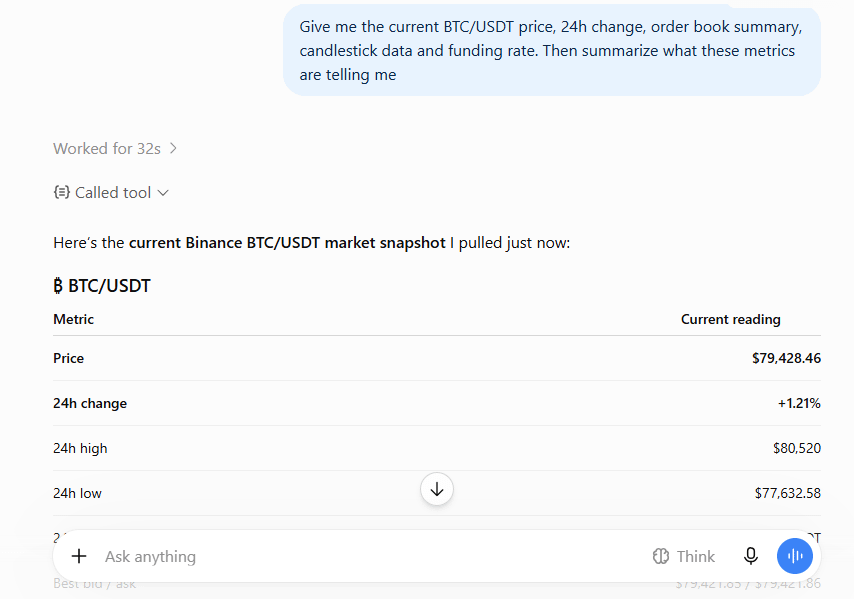
Tác vụ 2: Phân tích BTC/USDT và giải thích các chỉ số
Tôi đã dán lời nhắc bên dưới và nhấn enter.
"Cho tôi giá BTC/USDT hiện tại, mức thay đổi trong 24h, tóm tắt sổ lệnh, dữ liệu nến và tỷ lệ funding. Sau đó hãy tóm tắt những chỉ số này đang nói gì với tôi"
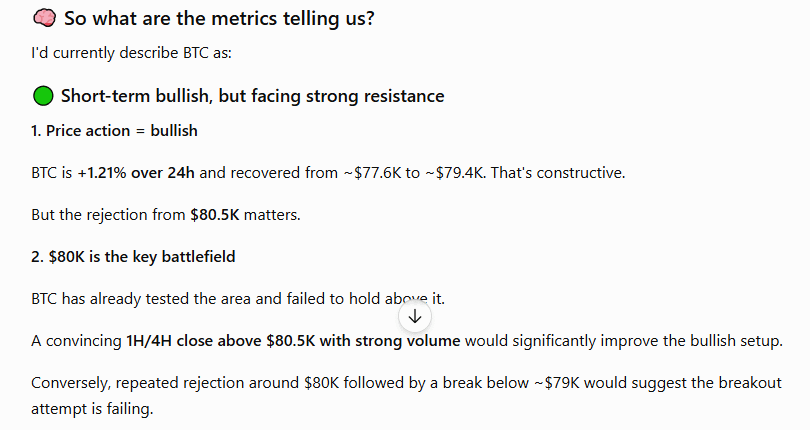
Tác vụ 3: Kiểm tra các vùng hỗ trợ & kháng cự cho BTC, BCH, ZEC
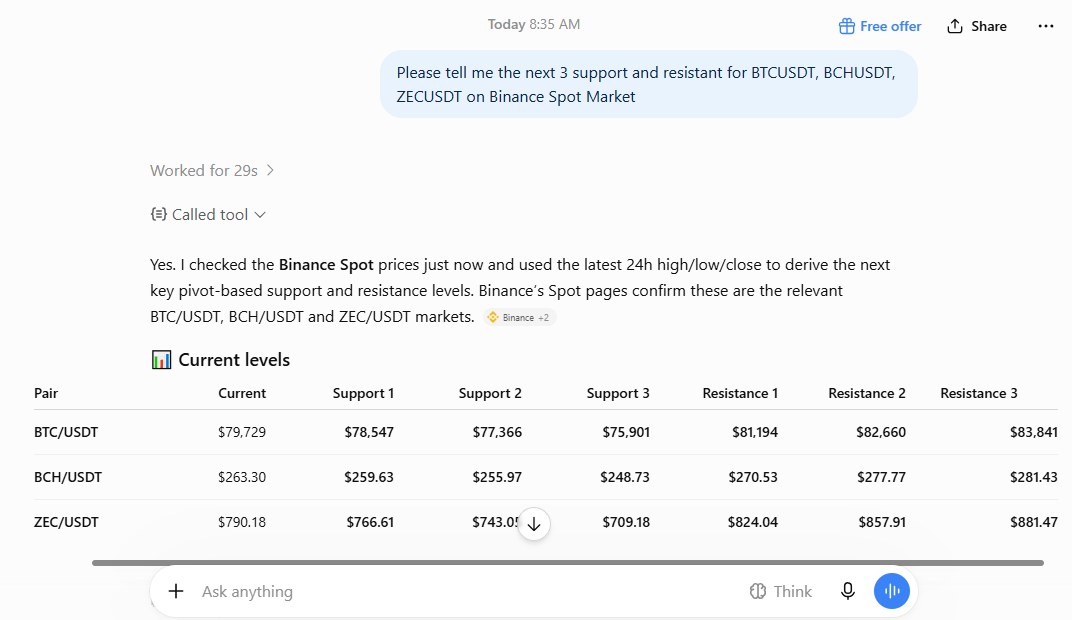
Tôi đã dán lời nhắc bên dưới và nhấn enter.
"Hãy cho tôi biết 3 mức hỗ trợ và kháng cự tiếp theo cho BTC, BCH, ZEC trên thị trường Binance Spot"
Nó đã làm rất tốt.
Tại sao điều này thú vị?
Điểm hấp dẫn lớn nhất của Binance Agent OS là khả năng kết hợp AI và quy trình giao dịch của bạn.
Thay vì xem trợ lý AI và tài khoản Binance của bạn như hai công cụ hoàn toàn tách biệt, Agent OS tạo ra một cách để chúng hoạt động cùng nhau.
Điều đó có nghĩa là những tác vụ trước đây cần nhiều bước thủ công giờ đây có thể được xử lý thông qua một giao diện AI duy nhất.
Tuy nhiên, tự động hóa không có nghĩa là bạn nên giao phó các quyết định giao dịch của mình một cách mù quáng cho AI.
Luôn hiểu AI agent đang làm gì trước khi cho phép nó tương tác với tài khoản giao dịch của bạn, và hãy đặc biệt thận trọng khi cấp các quyền cho phép đặt hoặc quản lý giao dịch.
Kết luận cuối cùng
Binance Agent OS là một bước phát triển thú vị đối với bất kỳ ai đang thử nghiệm các công cụ giao dịch được hỗ trợ bởi AI.
Khả năng tương tác với tài khoản Binance của bạn thông qua các nền tảng như ChatGPT, Claude và VS Code có thể giúp việc quản lý tài khoản và phân tích thị trường trở nên thuận tiện hơn rất nhiều.
Nếu bạn muốn thử, nơi tốt nhất để bắt đầu là tài liệu Binance chính thức và làm theo hướng dẫn thiết lập một cách cẩn thận.
Giao dịch được hỗ trợ bởi AI đang ngày càng dễ tiếp cận hơn, và Binance Agent OS là một bước tiến nữa theo hướng đó.
Bạn có tin tưởng một AI agent để quản lý tài khoản Binance của mình không?
Hãy bình luận bên dưới.👇