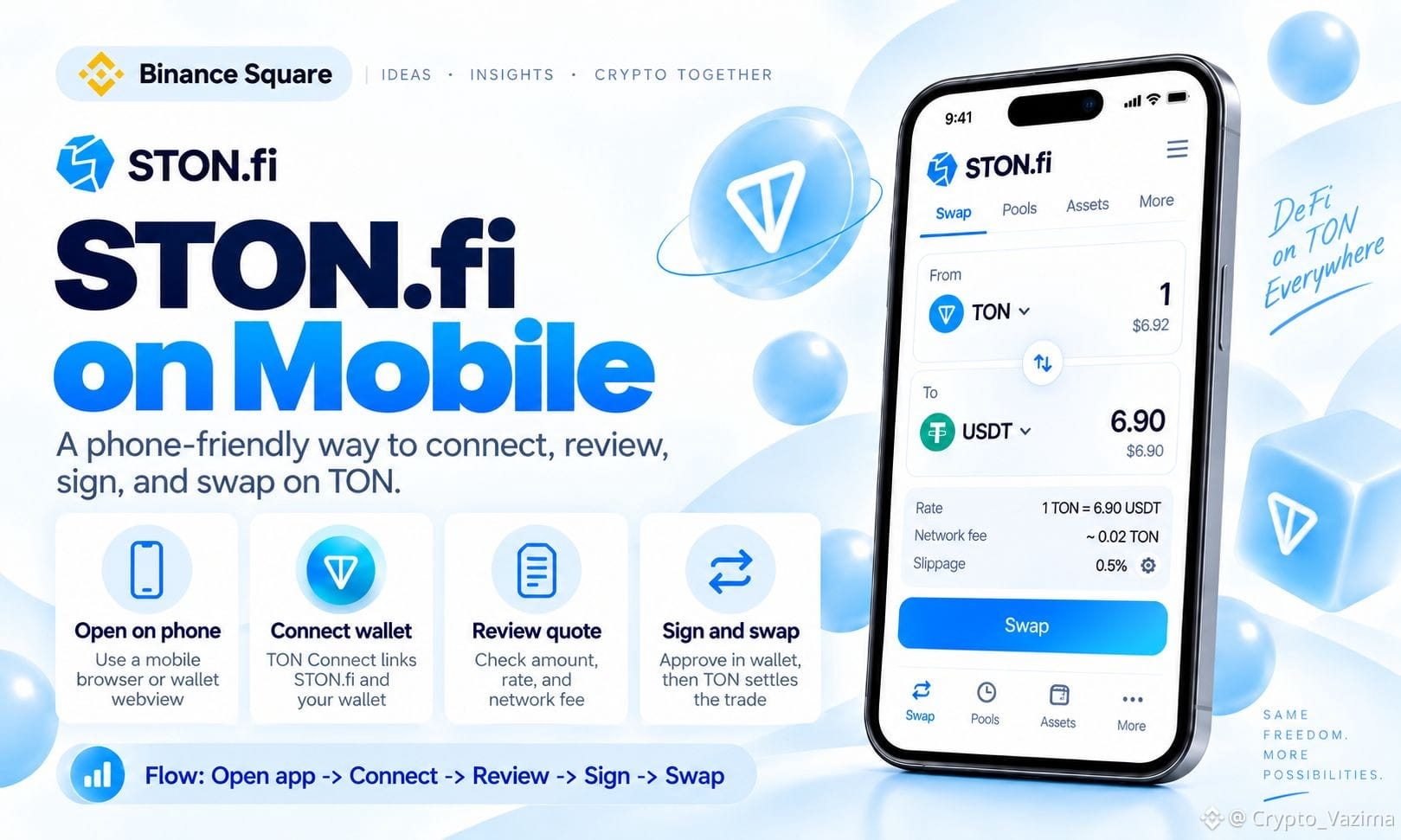
How to Use STON.fi on Mobile: Connect a Wallet and Complete a Swap
Yes, STON.fi works on a phone. You can connect a TON wallet, check a swap quote, sign the transaction, and stay in the DEX flow without opening a computer. STON.fi is a web app. TON Connect is the layer that moves the request between that app and your wallet.
🔥 What changes on a phone
- The on-chain swap itself does not change.
- Your browser and wallet pass the request through links or a webview.
- You still approve every spend inside the wallet, not inside STON.fi.
That handoff is the whole mobile puzzle.
🧠 Mobile setup checklist
- Install a compatible wallet such as Tonkeeper or another listed TON wallet
- Hold the assets you want to trade
- Keep some TON for fees even if you swap another token
- Open only the official STON.fi web app
Do not type a seed phrase into any site. Connection is not the same as signing.
🚀 Connect wallet on mobile
1. Open STON.fi on your smartphone.
2. Tap Connect wallet.
3. Pick a supported wallet.
4. Follow the deep link or universal link into the wallet.
5. Approve the session and return to STON.fi.
WalletConnect can appear under Connect wallet > View all wallets > WalletConnect for compatible multi-chain wallets.
⚡ Run one full swap
1. Select the token you send and the token you want.
2. Enter the amount and read rate, price impact, minimum received, and fees.
3. Tap swap so the wallet can show the exact request.
4. Confirm only if the wallet screen matches your intent.
5. Wait for TON confirmation instead of hammering the button again.
💬 My take
A regular mobile browser feels familiar. An in-wallet browser cuts app switching. Neither is automatically safer. Verify the site, the token identity, and the wallet confirmation every time.
Would a first STON.fi mobile swap feel easier with Tonkeeper or another TON wallet? 👇
Drop the exact step where your phone usually pauses.
Not investment advice - research on your own! 🚀
$GRAM @STONfi DEX
Yes, STON.fi works on a phone. You can connect a TON wallet, check a swap quote, sign the transaction, and stay in the DEX flow without opening a computer. STON.fi is a web app. TON Connect is the layer that moves the request between that app and your wallet.
🔥 What changes on a phone
- The on-chain swap itself does not change.
- Your browser and wallet pass the request through links or a webview.
- You still approve every spend inside the wallet, not inside STON.fi.
That handoff is the whole mobile puzzle.
🧠 Mobile setup checklist
- Install a compatible wallet such as Tonkeeper or another listed TON wallet
- Hold the assets you want to trade
- Keep some TON for fees even if you swap another token
- Open only the official STON.fi web app
Do not type a seed phrase into any site. Connection is not the same as signing.
🚀 Connect wallet on mobile
1. Open STON.fi on your smartphone.
2. Tap Connect wallet.
3. Pick a supported wallet.
4. Follow the deep link or universal link into the wallet.
5. Approve the session and return to STON.fi.
WalletConnect can appear under Connect wallet > View all wallets > WalletConnect for compatible multi-chain wallets.
⚡ Run one full swap
1. Select the token you send and the token you want.
2. Enter the amount and read rate, price impact, minimum received, and fees.
3. Tap swap so the wallet can show the exact request.
4. Confirm only if the wallet screen matches your intent.
5. Wait for TON confirmation instead of hammering the button again.
💬 My take
A regular mobile browser feels familiar. An in-wallet browser cuts app switching. Neither is automatically safer. Verify the site, the token identity, and the wallet confirmation every time.
Would a first STON.fi mobile swap feel easier with Tonkeeper or another TON wallet? 👇
Drop the exact step where your phone usually pauses.
Not investment advice - research on your own! 🚀
$GRAM @STONfi DEX