


Author: Lisa & Aro
Editor: Liz
In today's internet environment, threats such as malware, viruses, and phishing attacks are rampant. Installing antivirus software (such as AVG, Bitdefender, Kaspersky, Malwarebytes, and other internationally recognized products) can help users defend against malicious programs and enhance system security. However, the role of antivirus software is to provide basic security protection; it can only reduce risks and cannot guarantee absolute security. The fight against threats is a dynamic process, and installing antivirus software is just the first step in enhancing security. Meanwhile, the antivirus software itself may also produce false positives, bringing additional risks.
Recently, users have reported that after using antivirus software, some browser extensions (especially cryptocurrency wallet extensions) were falsely flagged as malware, causing the JavaScript files of the extensions to be quarantined or deleted, ultimately damaging the extension wallet and rendering it unusable.
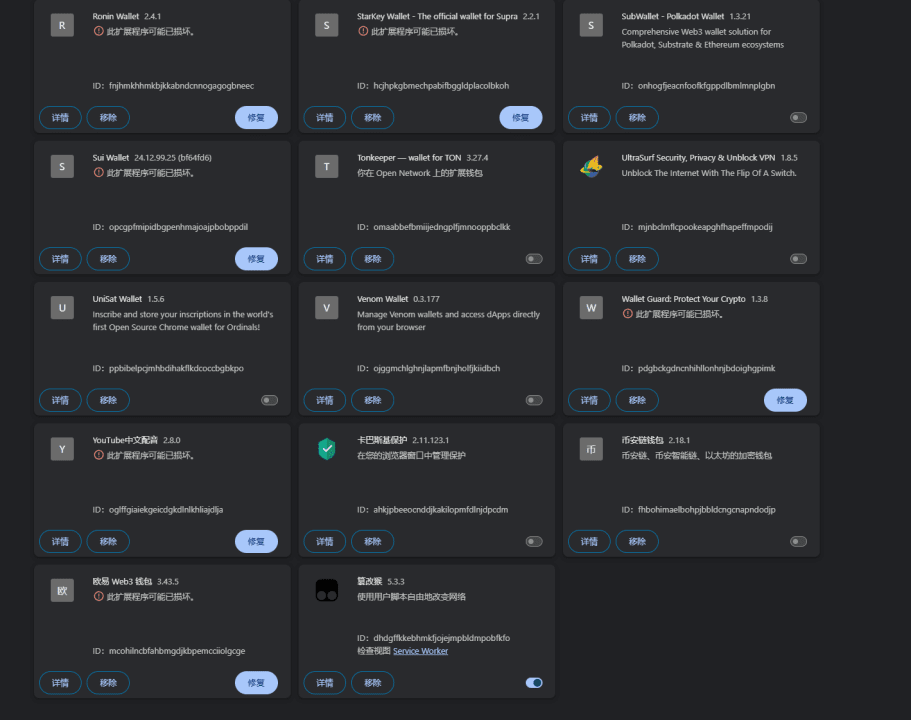 For Web3 users, this situation is particularly severe because cryptocurrency wallet extensions usually store private keys, and improper handling may lead to wallet data loss or even inability to recover assets. Therefore, understanding how to properly recover extension data that has been falsely flagged is crucial.
How to deal with it?
If you find that antivirus software false positives have caused browser extensions to be damaged, it is recommended to follow these steps for recovery:
1. Restore files from quarantine; do not uninstall the extension.
If you find that a software or extension is not functioning, check the antivirus software's 'Quarantine' or 'History' for falsely flagged files immediately, and do not delete quarantined files.
If the file is still in the quarantine, select 'Restore' and add the file or extension to the trust list to prevent future false positives.
If the file has been deleted, check for automatic backups or use data recovery tools to retrieve it.
Remember: Do not uninstall the extension! Even if the extension is damaged, there may still be files related to the encrypted private key stored locally, and recovery is still possible.
2. Backup and locate local extension data.
Extension data is usually stored on the local disk, and even if the extension cannot be opened, relevant data can still be found for recovery (using MetaMask as an example: nkbihfbeogaeaoehlefnkodbefgpgknn):
Windows path reference: C:\Users\USER_NAME\AppData\Local\Google\Chrome\User Data\Default\Local Extension Settings\nkbihfbeogaeaoehlefnkodbefgpgknn
Mac path reference:
~/Library/Application Support/Google/Chrome/Default/Local Extension Settings/nkbihfbeogaeaoehlefnkodbefgpgknn
It should be noted that if Chrome has multiple account configurations, 'Default' in the path may change to 'Profile 1'/'Profile 2', and you need to check the specific Profile directory and adjust the path accordingly. It is recommended to back up the full directory of the target extension immediately to facilitate recovery in case of issues.
3. Rough recovery method: Overwrite the local extension directory.
If a false positive causes the extension to be damaged, the most direct method is to directly overwrite the backup extension data to the corresponding local path in a new computer or new browser environment, and then reopen the extension.
4. Advanced recovery method: Manually decrypt private key data
If the extension still cannot be opened or data is missing, you can try more advanced recovery methods, such as manually decrypting private key data to recover it. Taking MetaMask as an example:
Search for the MetaMask extension ID locally on your computer to find the following directory: C:\Users\[User]\AppData\Local\Google\Chrome\User Data\Default\Local Extension Settings\nkbihfbeogaeaoehlefnkodbefgpgknn
This directory may contain ldb/log files that store encrypted private key data. You can use MetaMask's official Vault decryption tool (https://metamask.github.io/vault-decryptor/) for decryption.
Decryption steps: Open MetaMask Vault decryption tool -> Copy encrypted content from ldb/log files -> Use the original password of the extension for decryption -> After obtaining the private key, re-import the wallet.
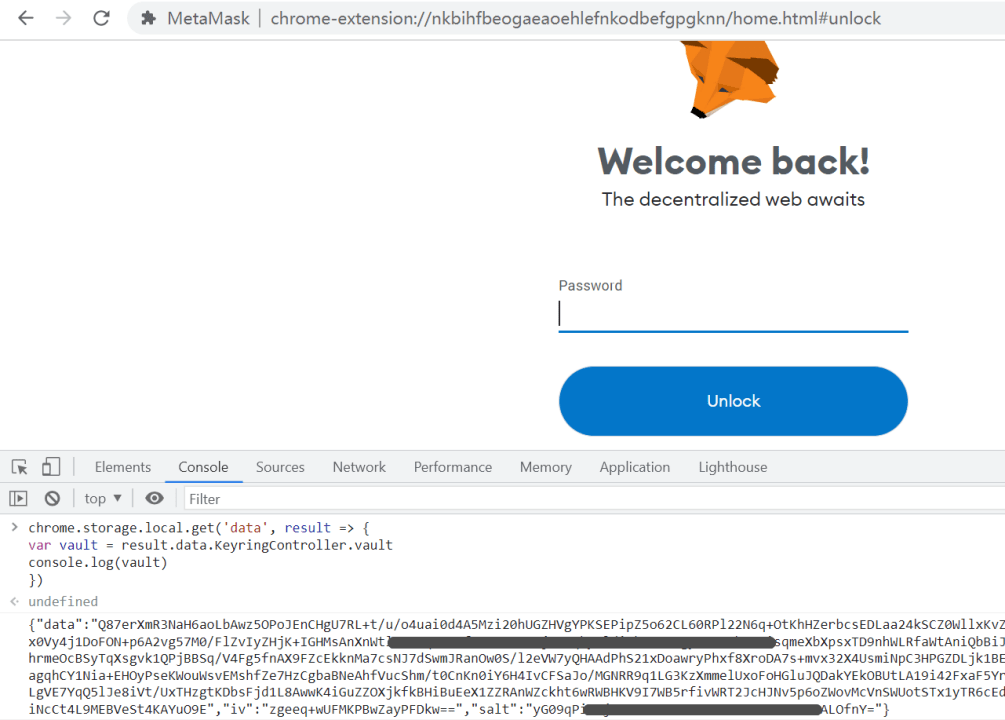
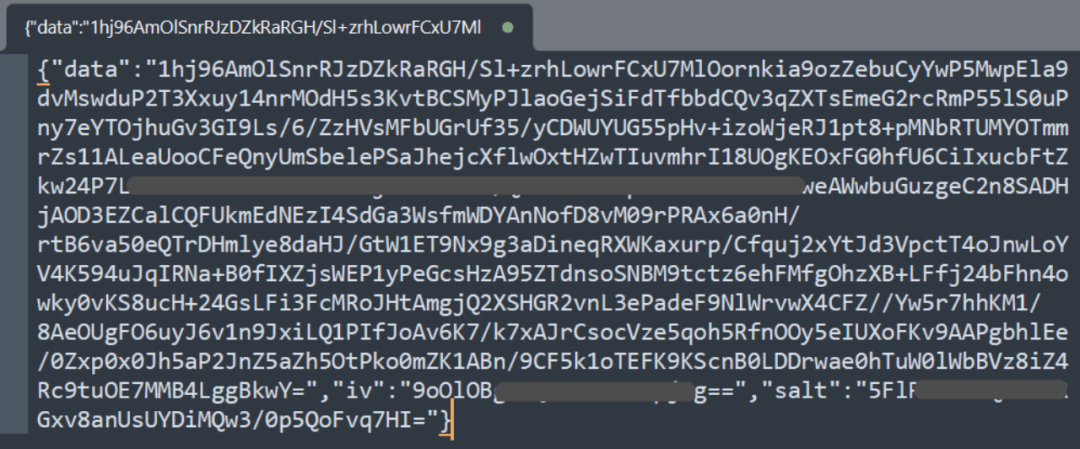 If the MetaMask extension can still open certain pages (such as chrome-extension://nkbihfbeogaeaoehlefnkodbefgpgknn/home.html), you can try running the following code to obtain encrypted private key data:
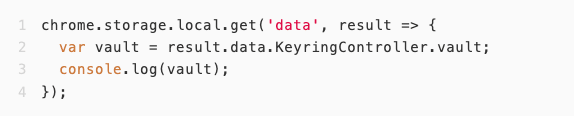
Then, copy the vault data to the MetaMask Vault decryption tool for decryption.
 5. Write custom recovery tools
If the above methods cannot recover wallet data, users can write scripts themselves to extract extension storage data from the local database file and then decrypt it. Here, using PhantomKeyRetriever as a template, the underlying principles and implementations of different wallet recovery tools are as follows:
Wallet plugins usually store sensitive data in the database or files of the local system. Browser extension wallets (such as Phantom, MetaMask, etc.) use the storage API provided by the browser to store encrypted data in the browser's local storage area, typically in database systems like LevelDB or IndexedDB. Regardless of the wallet type, a key principle is that data is always stored in an encrypted form, ensuring that even if the data is copied, it cannot be accessed without the correct password.
Most cryptocurrency wallets adopt a multi-layer encryption architecture to enhance security. First, the user's main password is used to encrypt an intermediate key (often referred to as the 'encryption key' or 'decryption key'). Then, this intermediate key is used to encrypt the actual private key or mnemonic phrase. This design ensures that even if the wallet application's code is tampered with, an attacker would still need to know the user's password to access the private key. This multi-layer design also allows wallet applications to only decrypt the intermediate key after user login, without requiring the main password to be re-entered for every operation.
The process of writing a wallet recovery tool typically includes:
Locate and extract encrypted data (reading data from LevelDB/IndexedDB).
Analyze data structures to identify encrypted private keys/mnemonic phrases.
Prompt the user to enter the wallet password and calculate the decryption key using KDF (such as PBKDF2 or Scrypt).
Decrypt the intermediate key and then decrypt the private key/mnemonic phrase.
This process requires a precise understanding of the wallet's encryption scheme and data storage format, which typically requires reverse engineering or analyzing the wallet's open-source code.
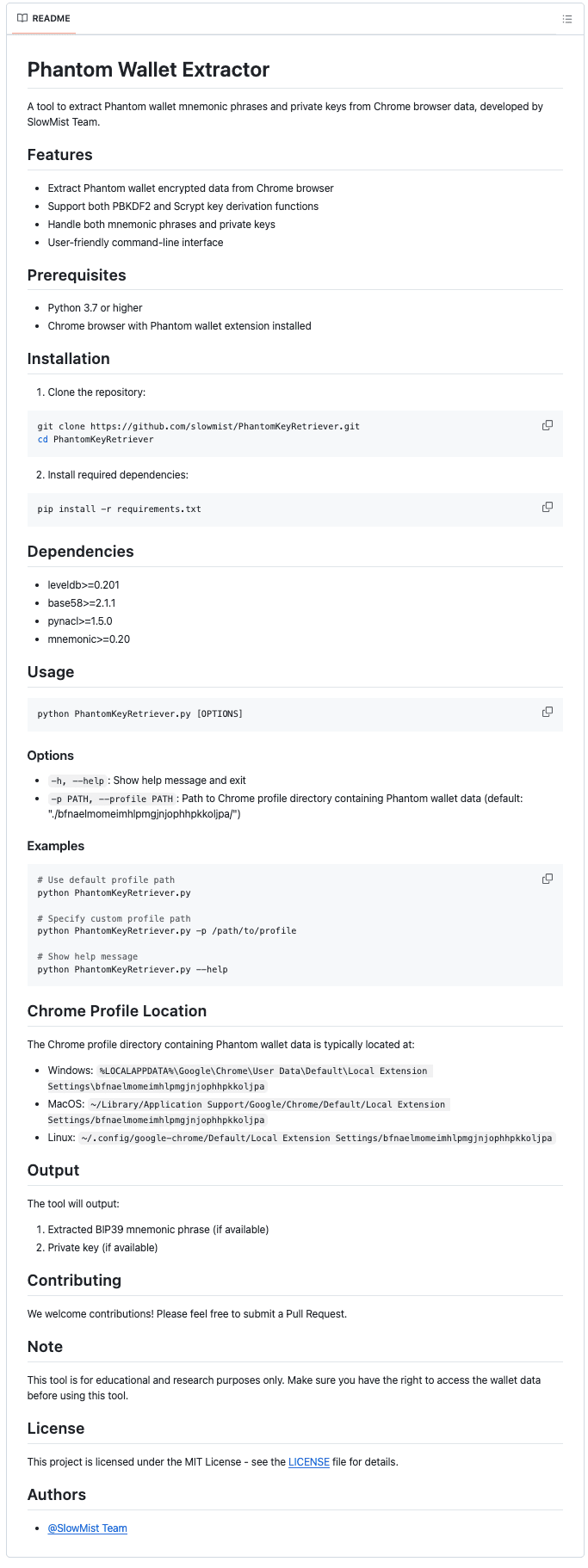
For the PhantomKeyRetriever tool, it is a script specifically designed to extract Phantom wallet mnemonic phrases or private keys from Chrome browser data. SlowMist has currently open-sourced this tool on GitHub (https://github.com/slowmist/PhantomKeyRetriever), and its core principles are as follows:
Read Chrome LevelDB database and copy relevant data to a temporary directory.
Traverse the database to find encrypted keys and wallet seed information stored by the Phantom wallet.
Users enter their Phantom password, and the script uses PBKDF2/Scrypt to calculate the decryption key.
Decrypt wallet vault data and extract BIP39 mnemonic phrases or Base58 private keys.
In this dual-layer decryption process, the script supports two key derivation functions, PBKDF2 and Scrypt, and uses the NaCl library's SecretBox for secure decryption. Finally, based on the type of decrypted data, the script will generate BIP39 standard mnemonic phrases or extract Base58 encoded private keys.
 It should be noted that other browsers supporting extension wallets (such as Edge and Firefox) operate on similar principles, which will not be elaborated here.
How to prevent?
To reduce the risk of false positives, users can take the following measures:
Regularly back up important files and browser extension data to quickly recover in case of false positives.
Manually add trust rules in the antivirus software for important software or extensions (like MetaMask) to prevent false positives.
Download software through official channels to avoid installing unofficial or modified applications, reducing the likelihood of being flagged as a potential risk by antivirus software.
Summary
The fight against threats is always dynamic, and security policies need to be continuously adjusted. While it is important to install antivirus software, ultimately, the user is the last line of defense for their own assets. When encountering false positives, users should handle the situation calmly, avoid directly deleting critical files, and use appropriate recovery methods. Only by mastering the right security knowledge can one truly ensure the safety of their data.