Binance Wallet Extension is a secure, self-custody browser wallet designed to connect users seamlessly to the decentralized world. Serving as a gateway to blockchain-based applications (dApps), it allows users to manage crypto assets, and interact with dApps directly from their web browser. It brings the enhanced security and convenience of MPC (Multi-Party Computation) technology to Web3 users while ensuring users retain full control.
Currently Binance Wallet Extension’s main features involve:
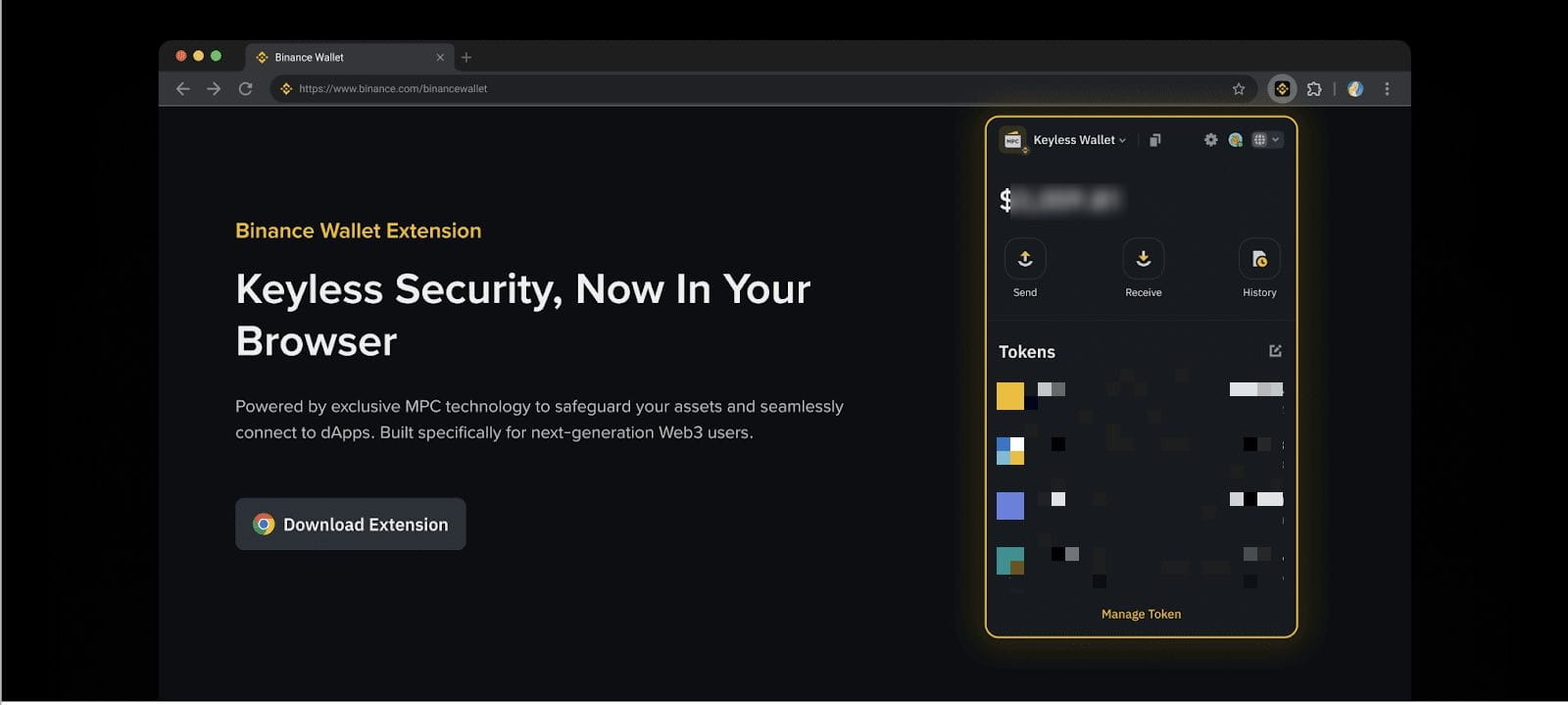
1. Visit Binance Wallet on your Chrome or Brave browser and download the extension.
2. Click [Add to Chrome] and follow the on-screen instructions to add the extension to your browser.
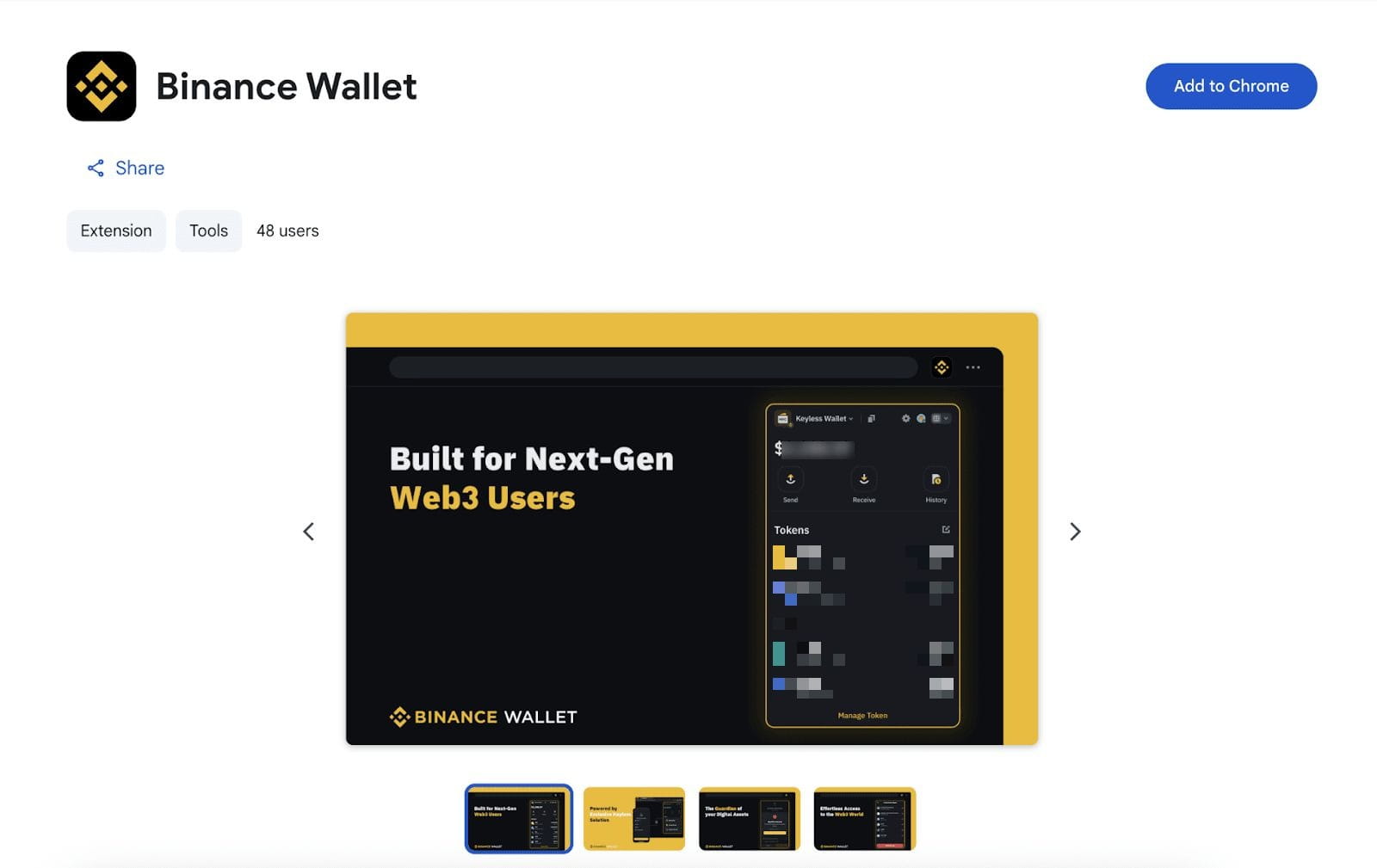
3. Verify that the extension is enabled in your browser's Extensions or Add-ons section.
Please note: Binance Wallet Extension may not be available in your region.
Binance Wallet Extension currently supports (1) accessing your Binance Keyless Wallet through the Extension, and (2) importing other existing wallets (seed phrase or private key wallets) to the Binance Wallet Extension. After setting up your Wallet, you’ll be able view your assets, send and receive tokens, and interact with the available dApps as you wish.
Please note: You must have a backed up Binance Keyless Wallet to proceed.
1. Open Binance Wallet Extension on your browser. Click [Set Up Wallet] - [Log In Binance Keyless Wallet].
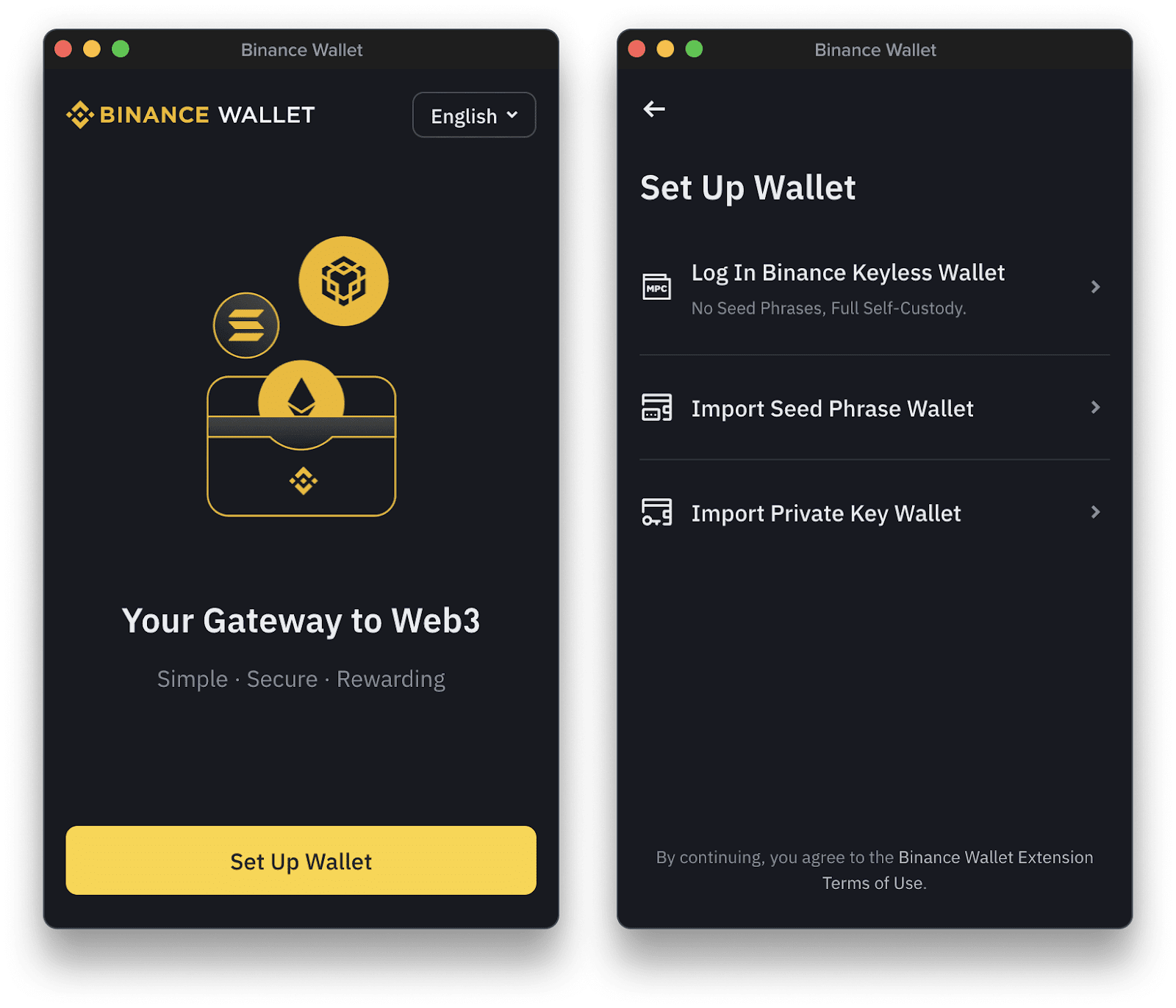
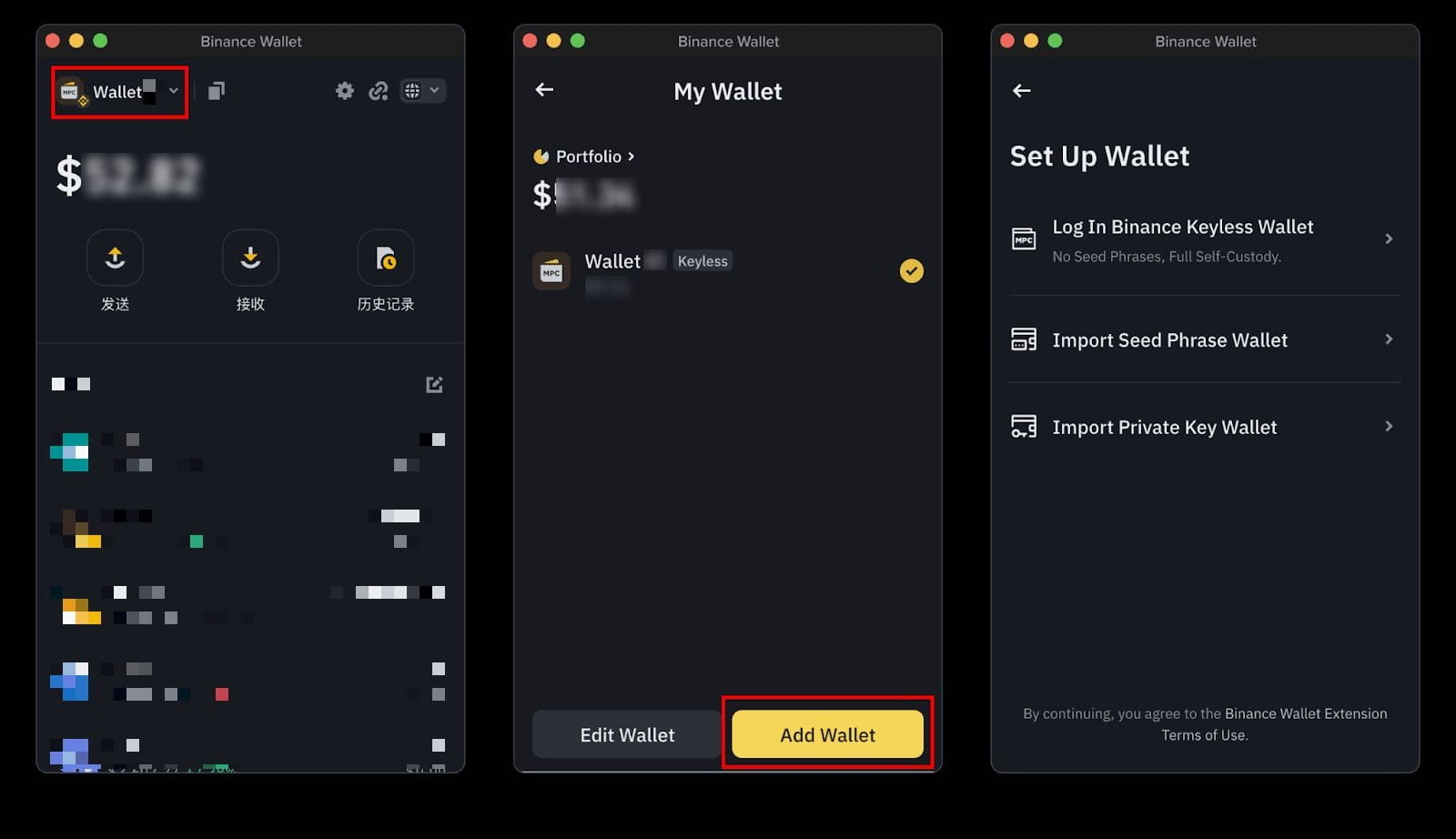
Alternatively, click [My Wallet] to open the Wallet page. Select [Add Wallet] - [Log In Binance Keyless Wallet].
2. You'll see a QR code. Use your mobile device’s camera or the Binance app scanner to scan the QR code.
Please note: Please make sure your Binance app is at version 2.102.2 or above.
3. After successfully scanning, you’ll see a pairing code on both devices. Check that the pairing code matches before proceeding.
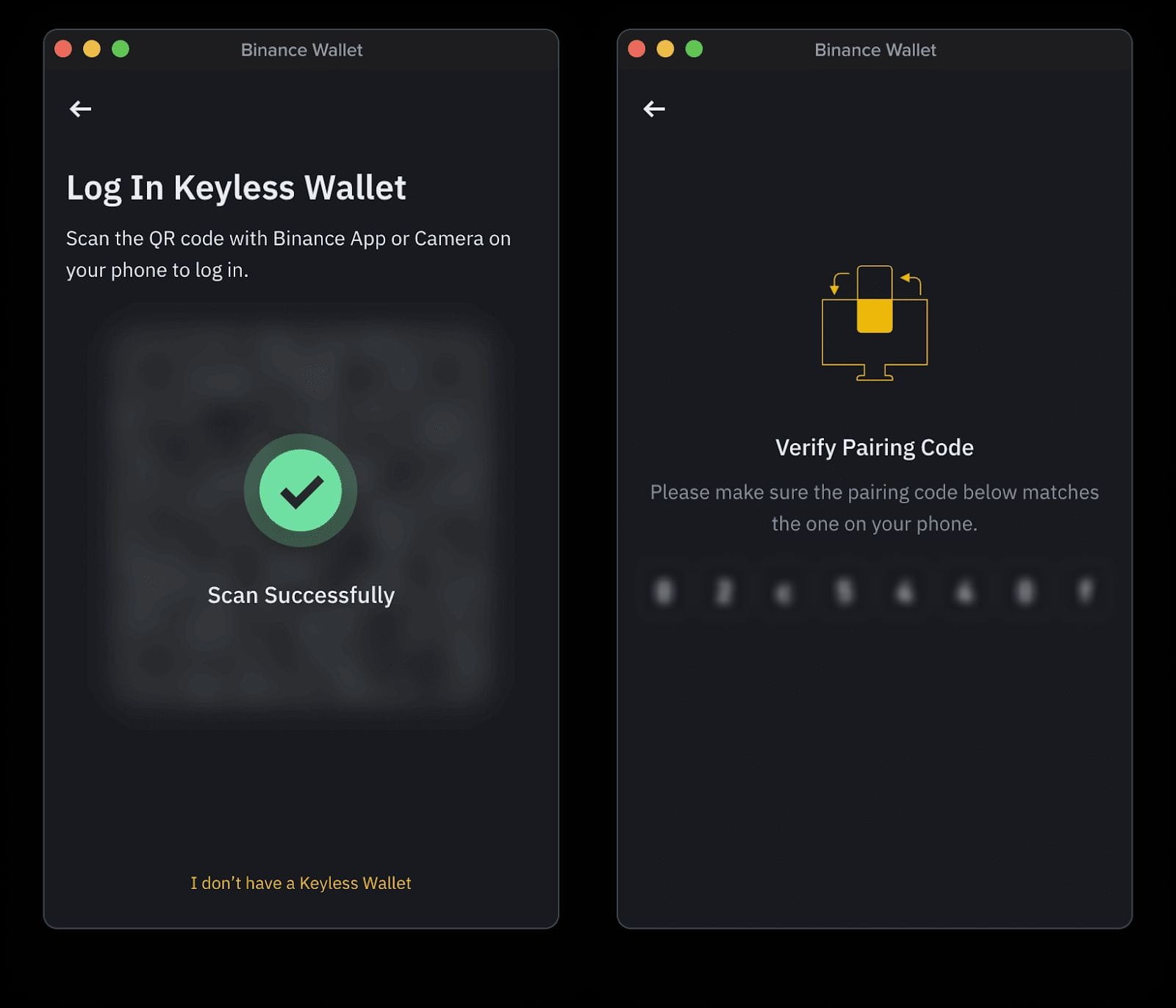
4. If you have only 1 keyless wallet, tap [Confirm] on your Binance app to complete the login.
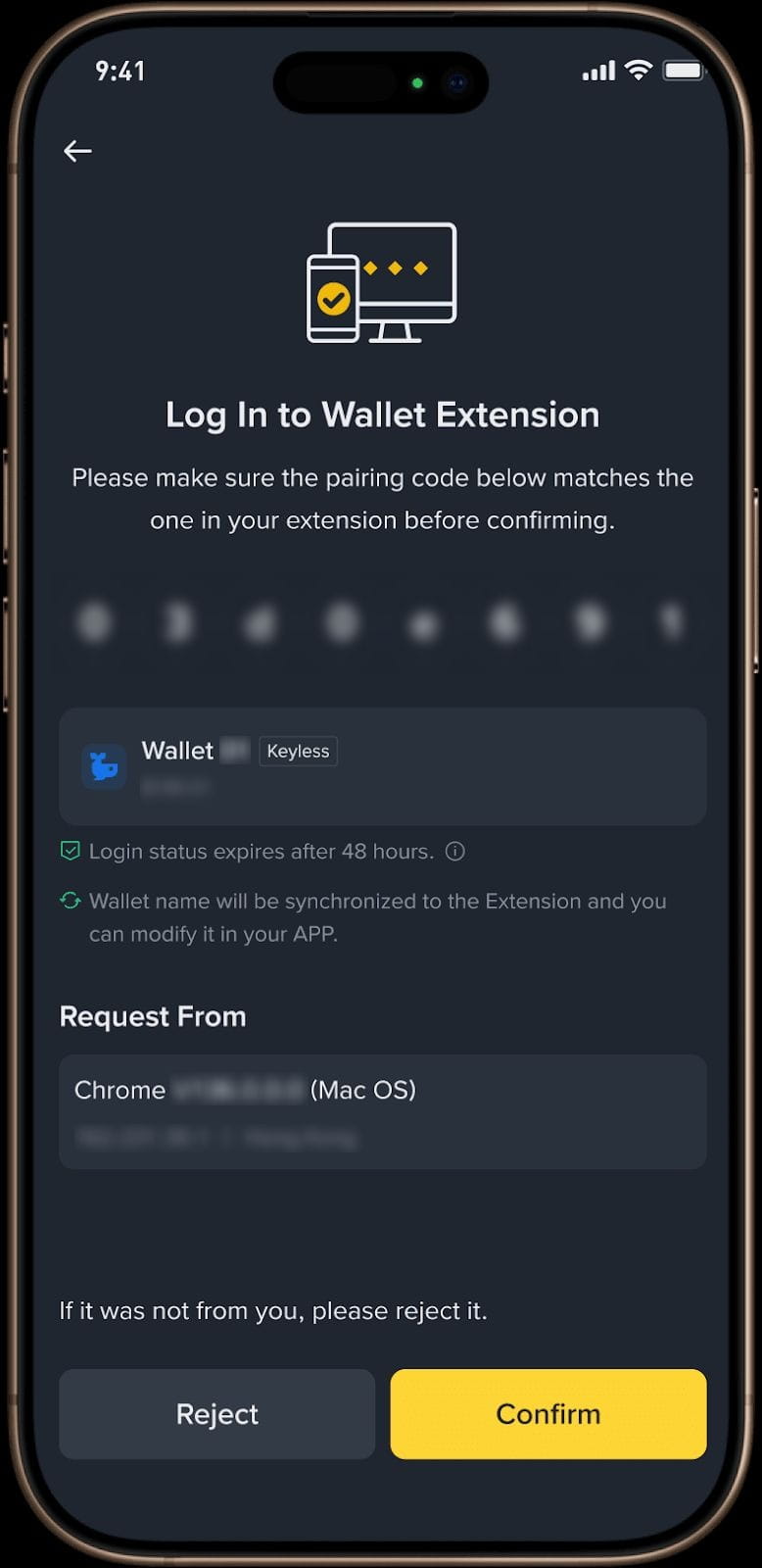
5. If you have multiple keyless wallets, you will find a “Log In to Wallet Extension” page first, tap [Next] to select available keyless wallet(s) that you wish to add to the extension. After selection, tap [Confirm] to complete the login.
Please note:
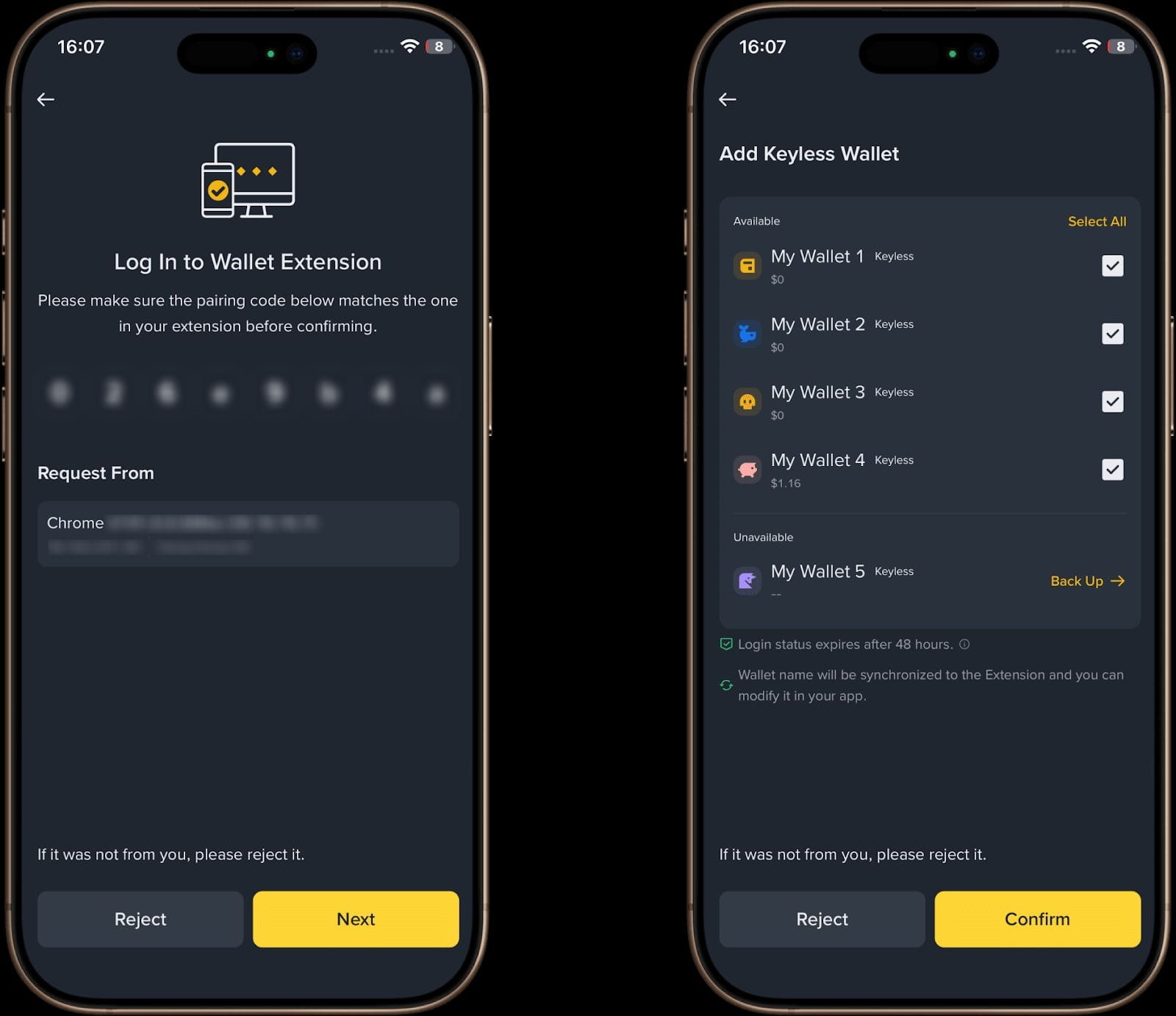
6. Set up a password and click [Confirm].
Please note: Password is only required if this is the first time setting up your Wallet.
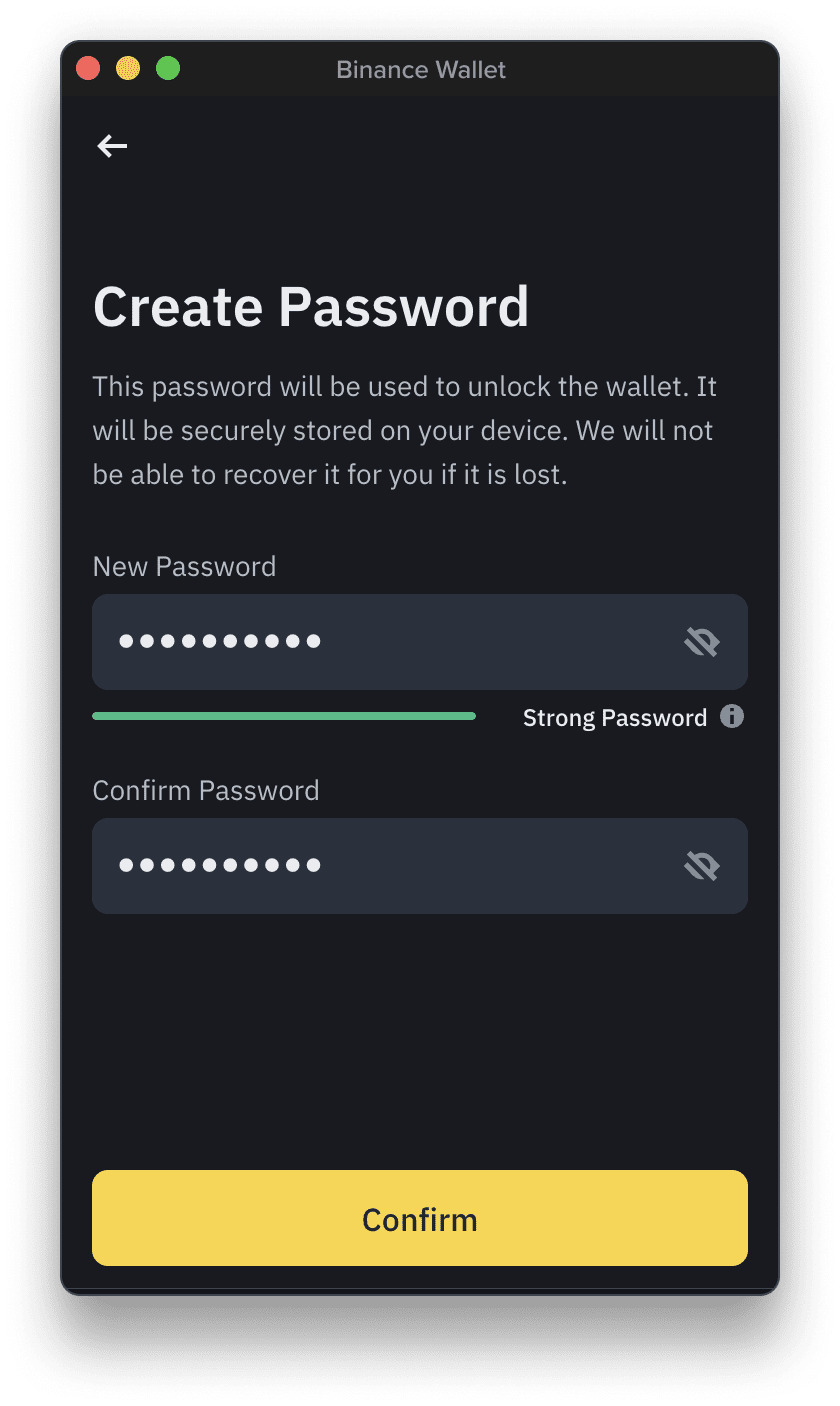
7. You have successfully logged in your Binance Keyless Wallet on the extension.
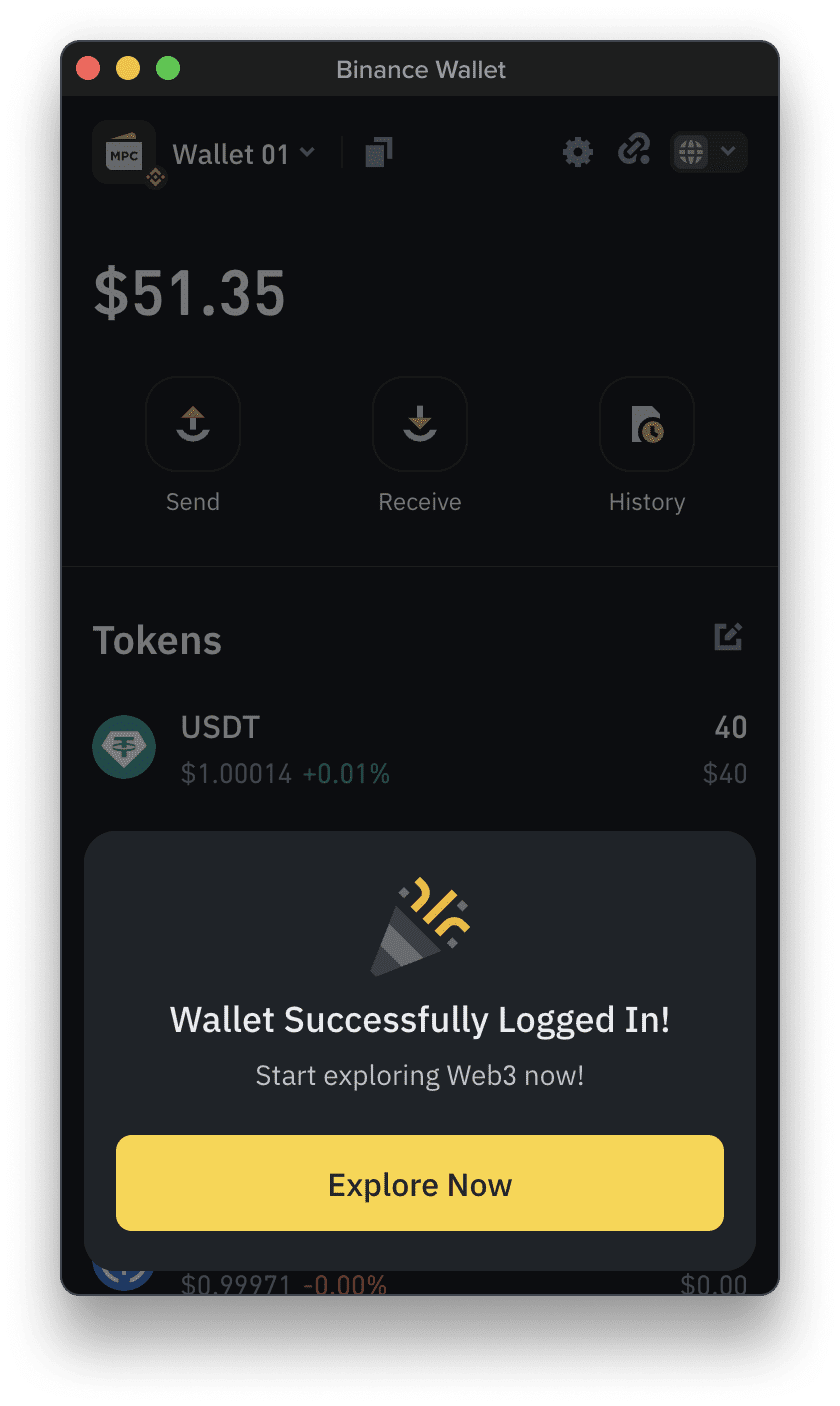
If you’ve created multiple keyless wallets in the Binance App (currently 5 at most), you can add them to the Binance Wallet Extension either all at once or separately over time — offering you maximum flexibility to manage your wallets as you prefer.
Please note:
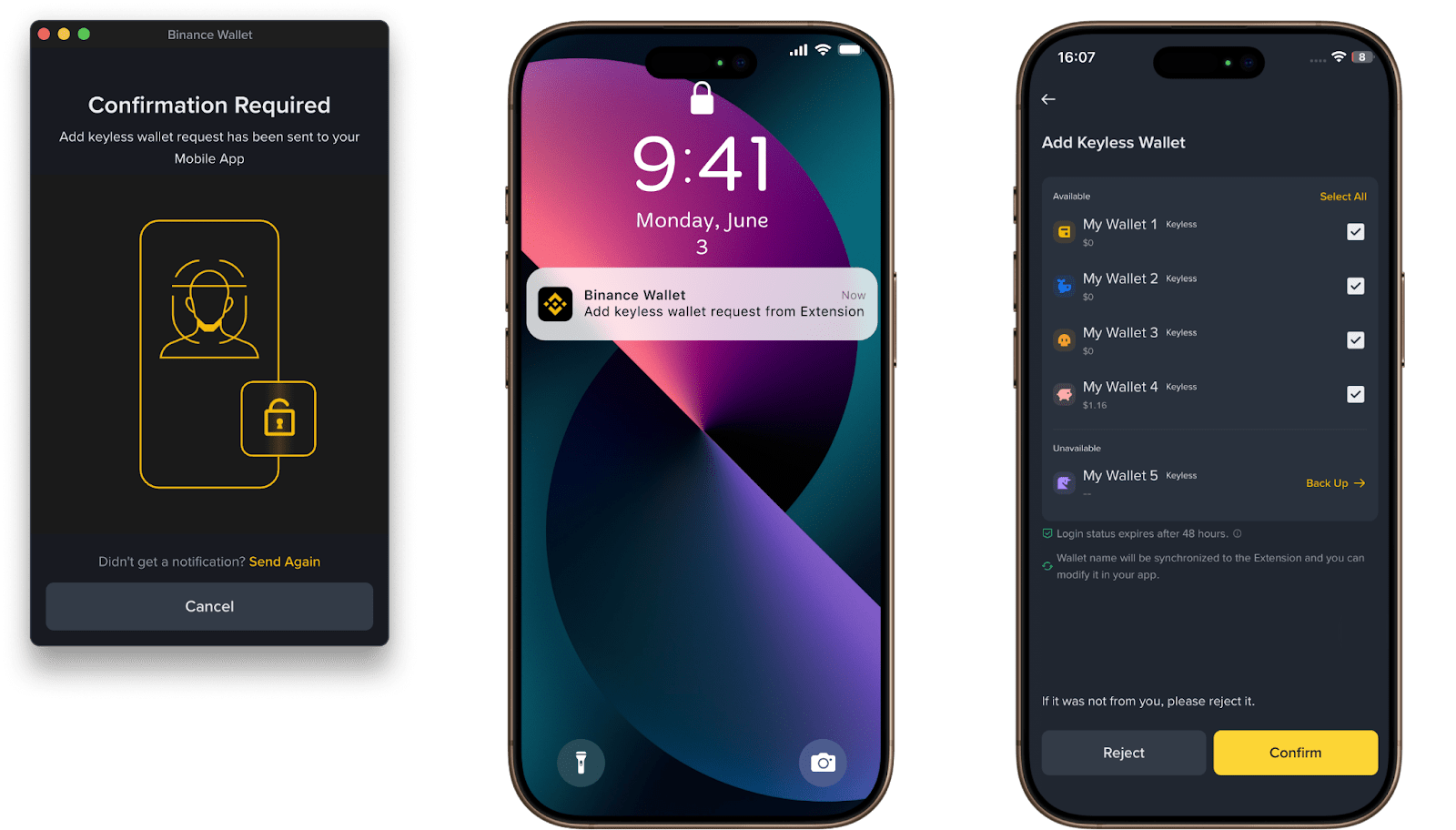
1. Open Binance Wallet Extension on your browser. Click the top left of Binance Wallet Extension to open [My Wallet]. Click [Add Wallet] and choose [Binance Keyless Wallet].
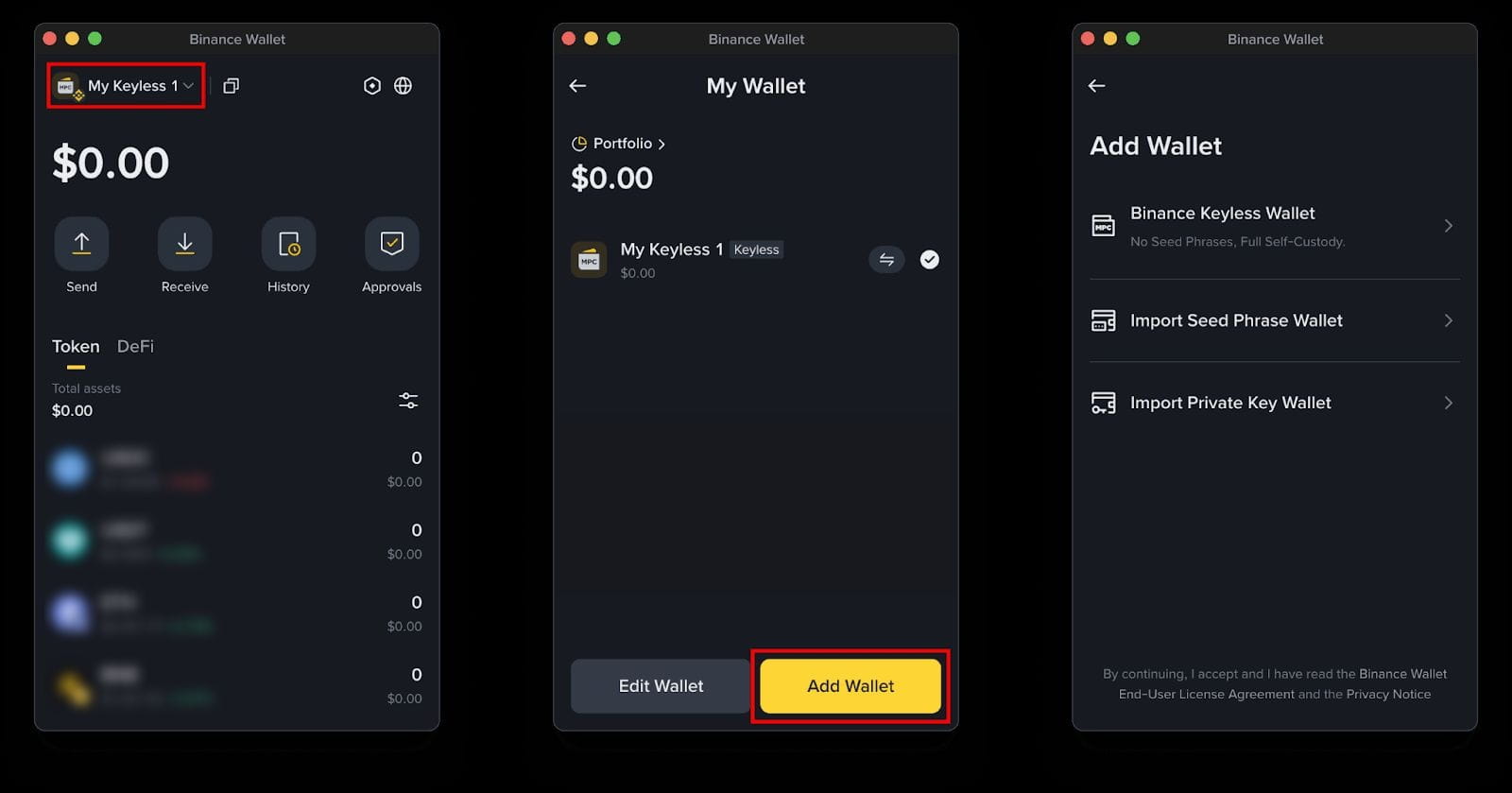
2. Alternatively, click the top left of Binance Wallet Extension to open [My Wallet]. Click the [Switch] button on the keyless wallet option. Click the [Add other keyless wallets] button.
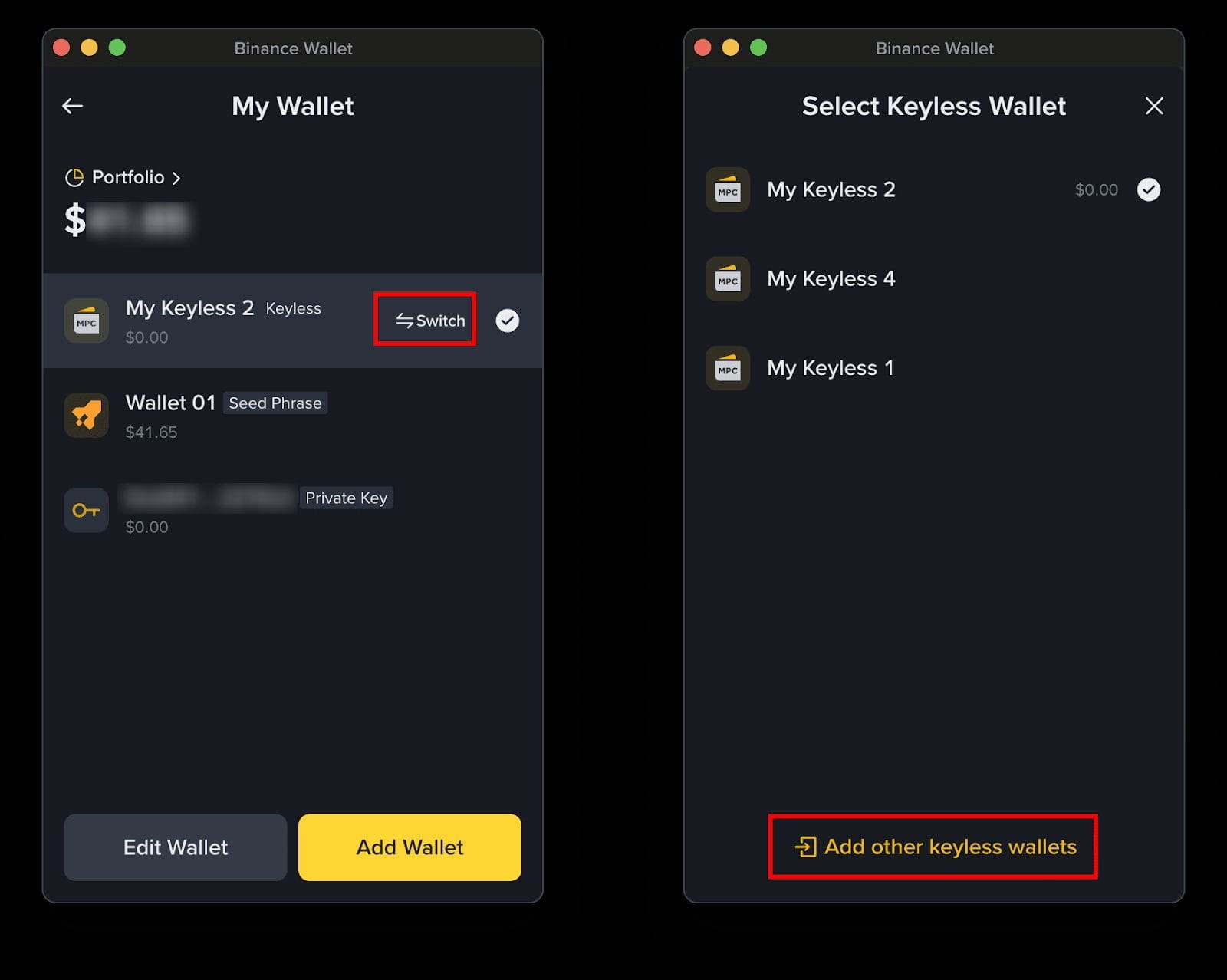
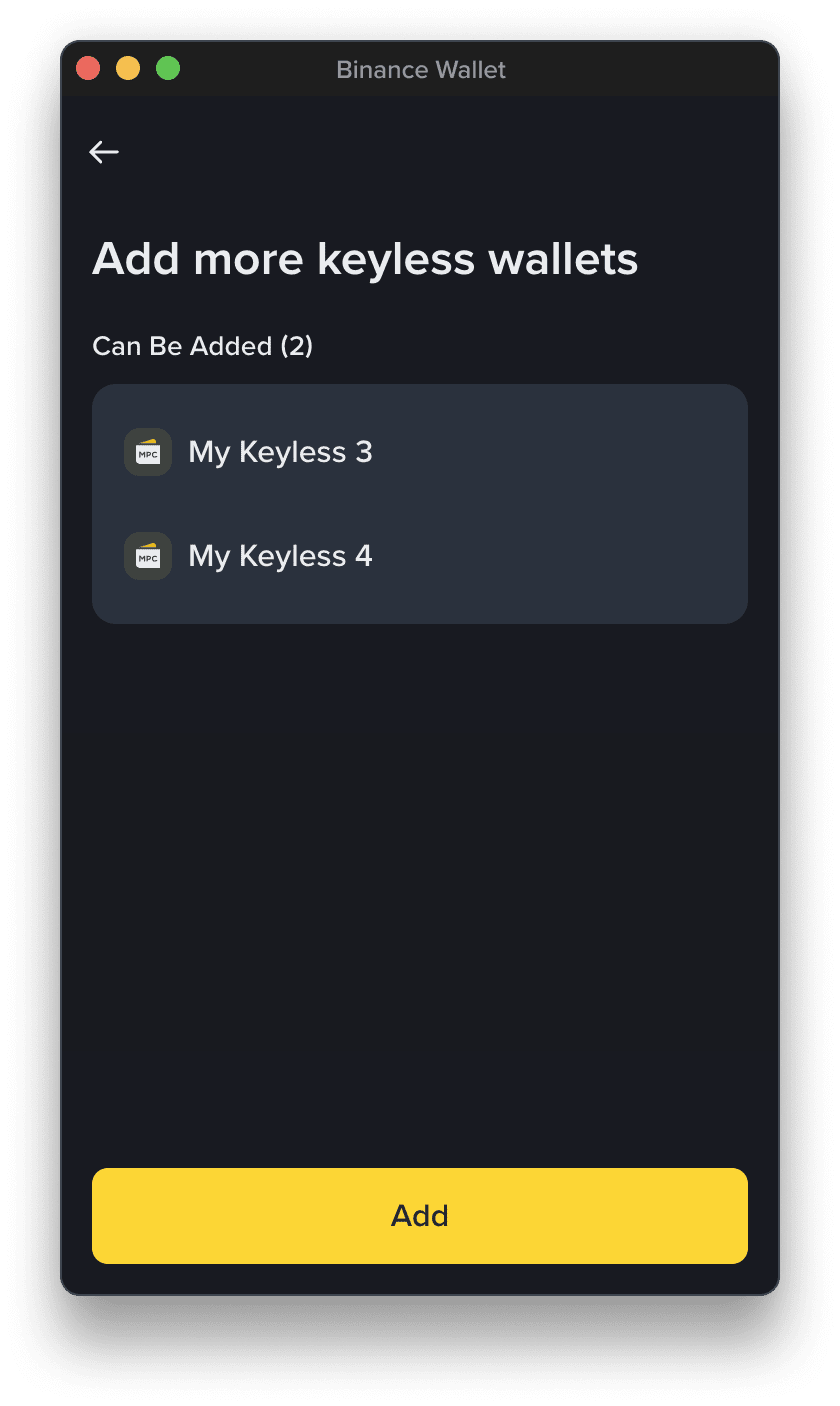
3. Check available keyless wallet(s) on this page and click [Add] to send an adding request to the Binance app.
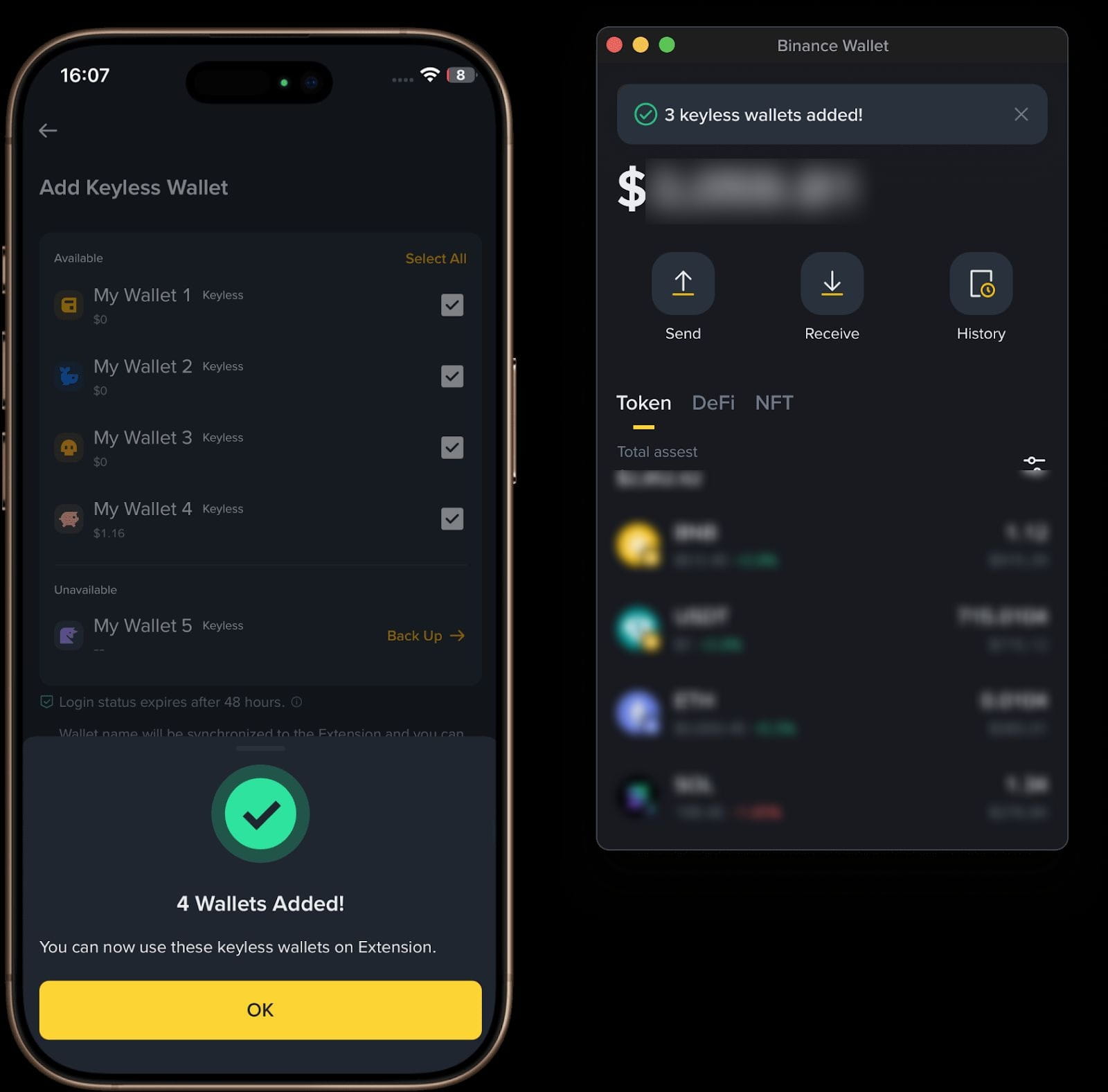
4. Open Binance app and confirm the adding keyless wallets request.
5. A success notification will be displayed in both the Binance app and the extension.
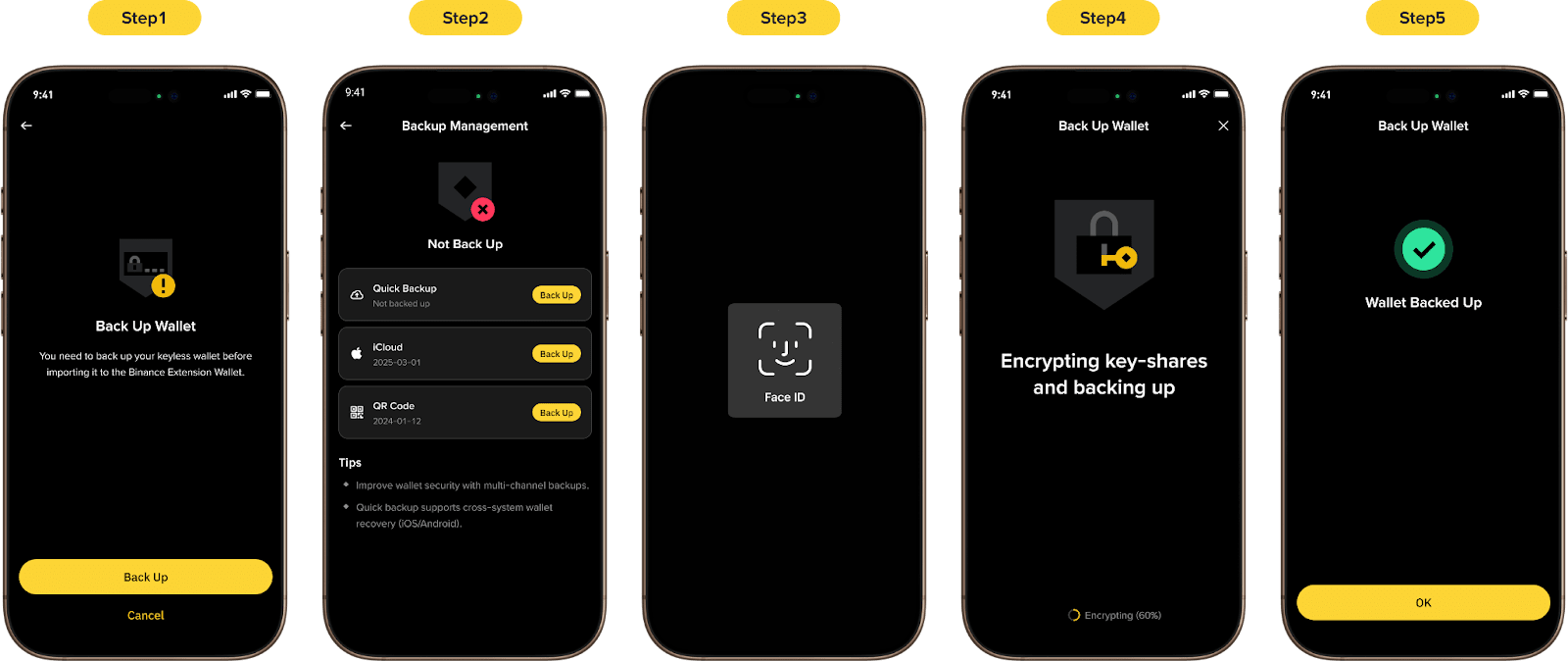
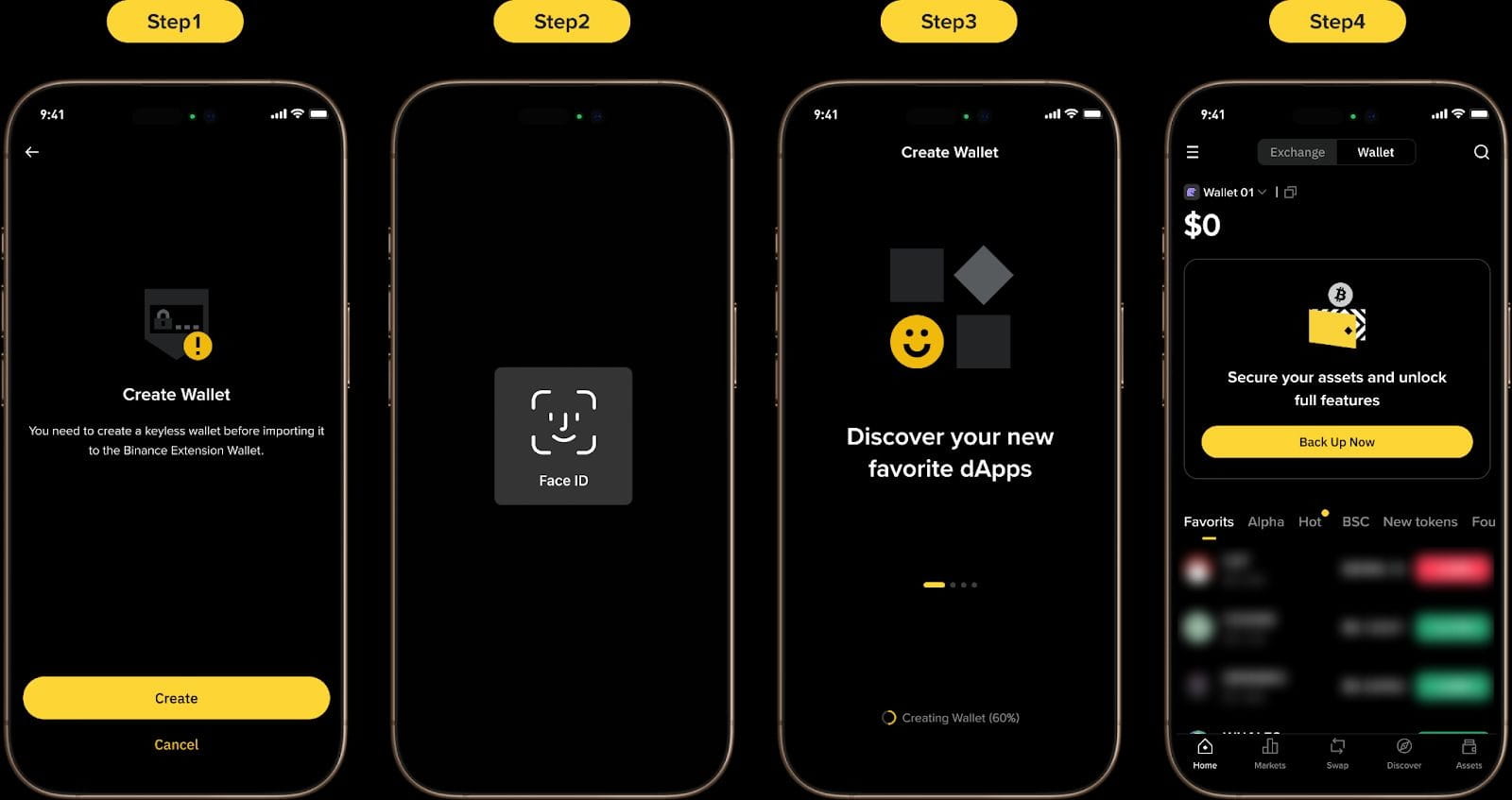
If you haven't (1) backed up your Binance Keyless Wallet, (2) don't have a Binance Keyless Wallet, or (3) have to restore your Binance Keyless Wallet, you won’t see a pairing code.
1. If you haven't backed up your Binance Keyless Wallet in the Binance App, please back it up first. Then you'll be able to log in to the Extension.
2. If you haven't created a Binance Keyless Wallet, please refer to the instructions here to create one. Then you'll be able to log in to the Extension.
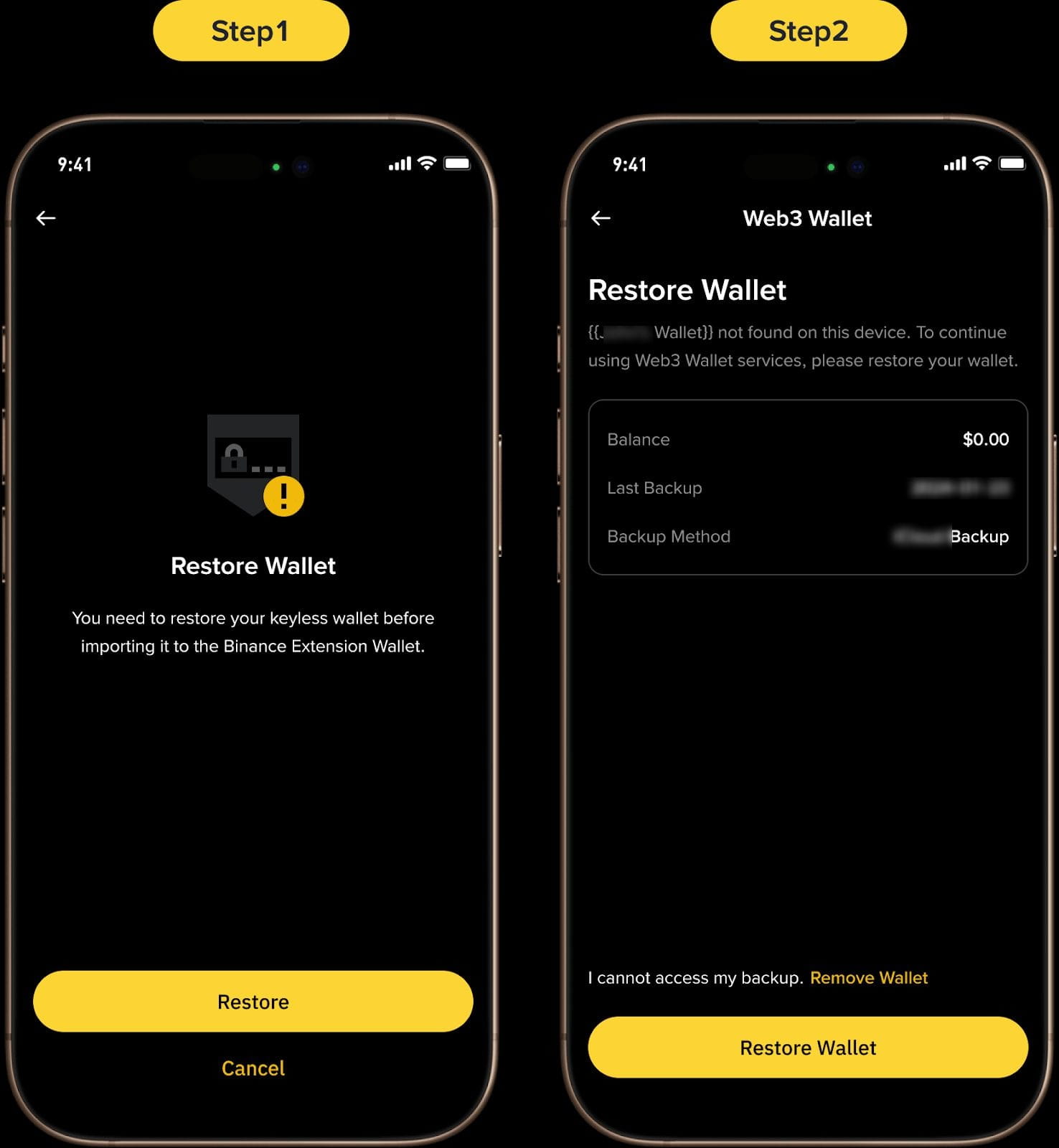
3. If you‘ve created a Binance Keyless Wallet before, you need to restore it first, then you'll be able to log in to the Extension.
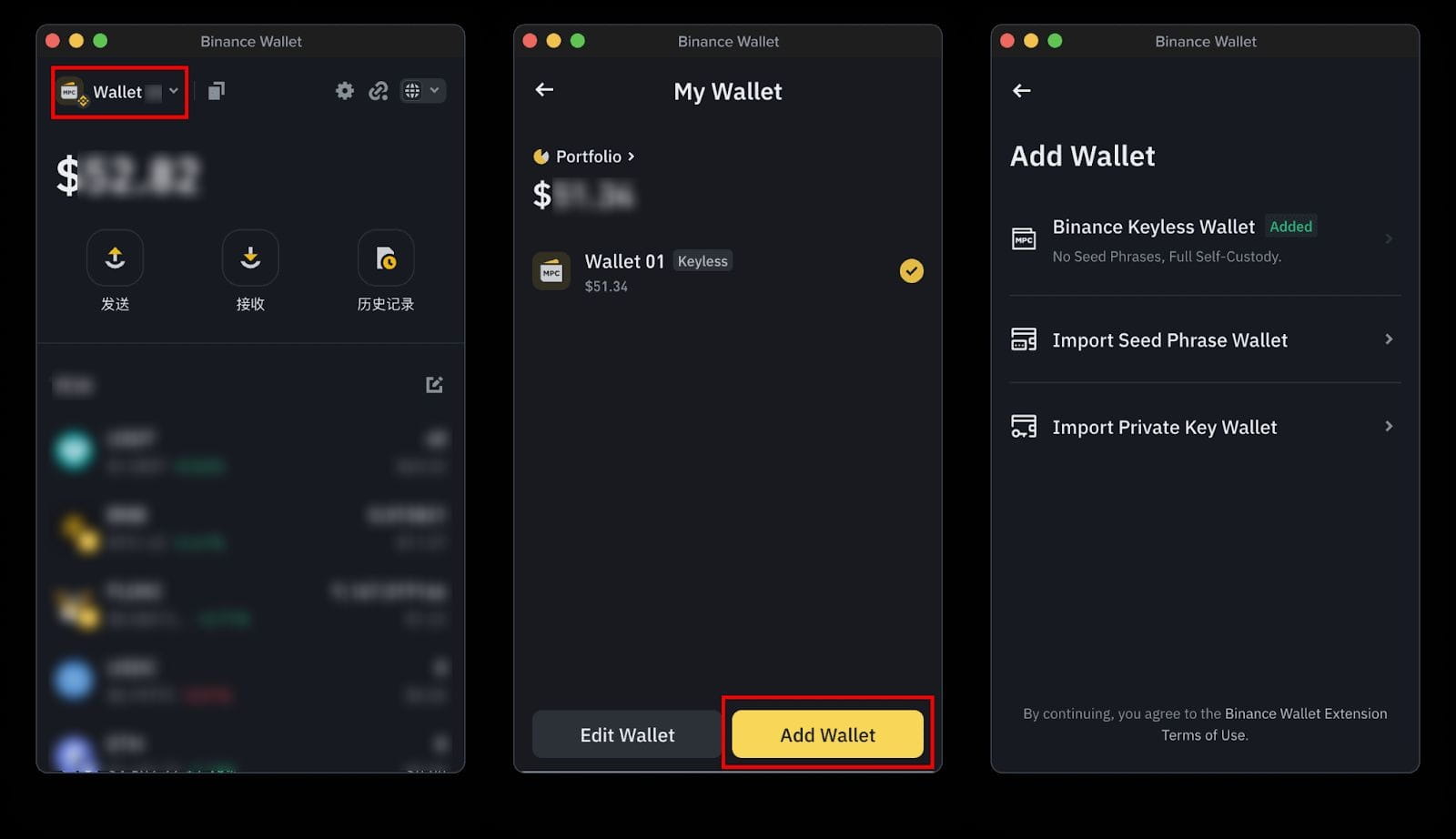
When importing another wallet to Binance Wallet Extension, you’ll need the seed phrase or private key from the other wallet.
1. Click the top left of Binance Wallet Extension to open [My Wallet]. Click [Add Wallet] and choose an option.
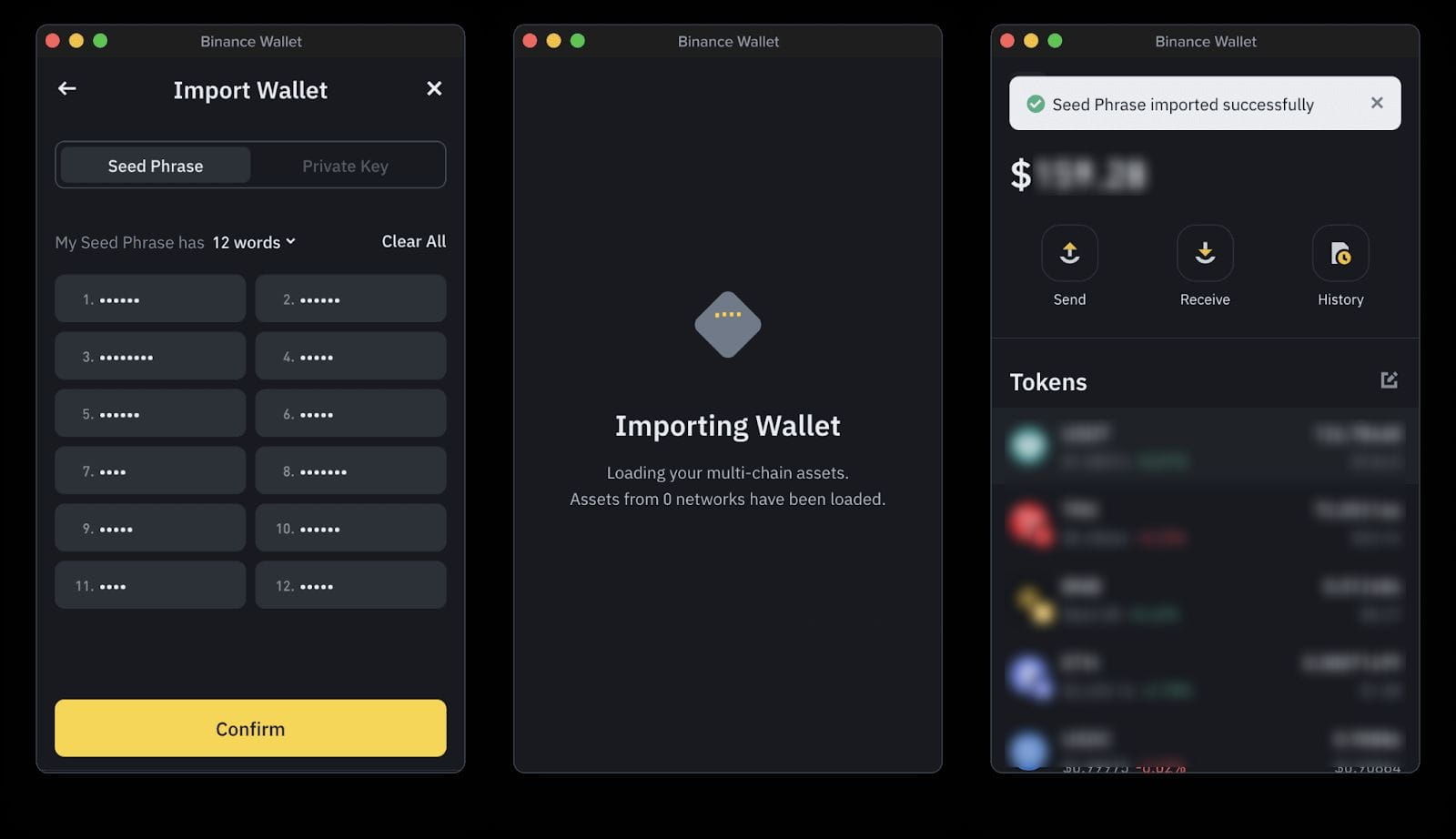
2.1. Click [Import Seed Phrase Wallet] and enter the seed phrase of the wallet you wish to import. Click [Confirm] to proceed.
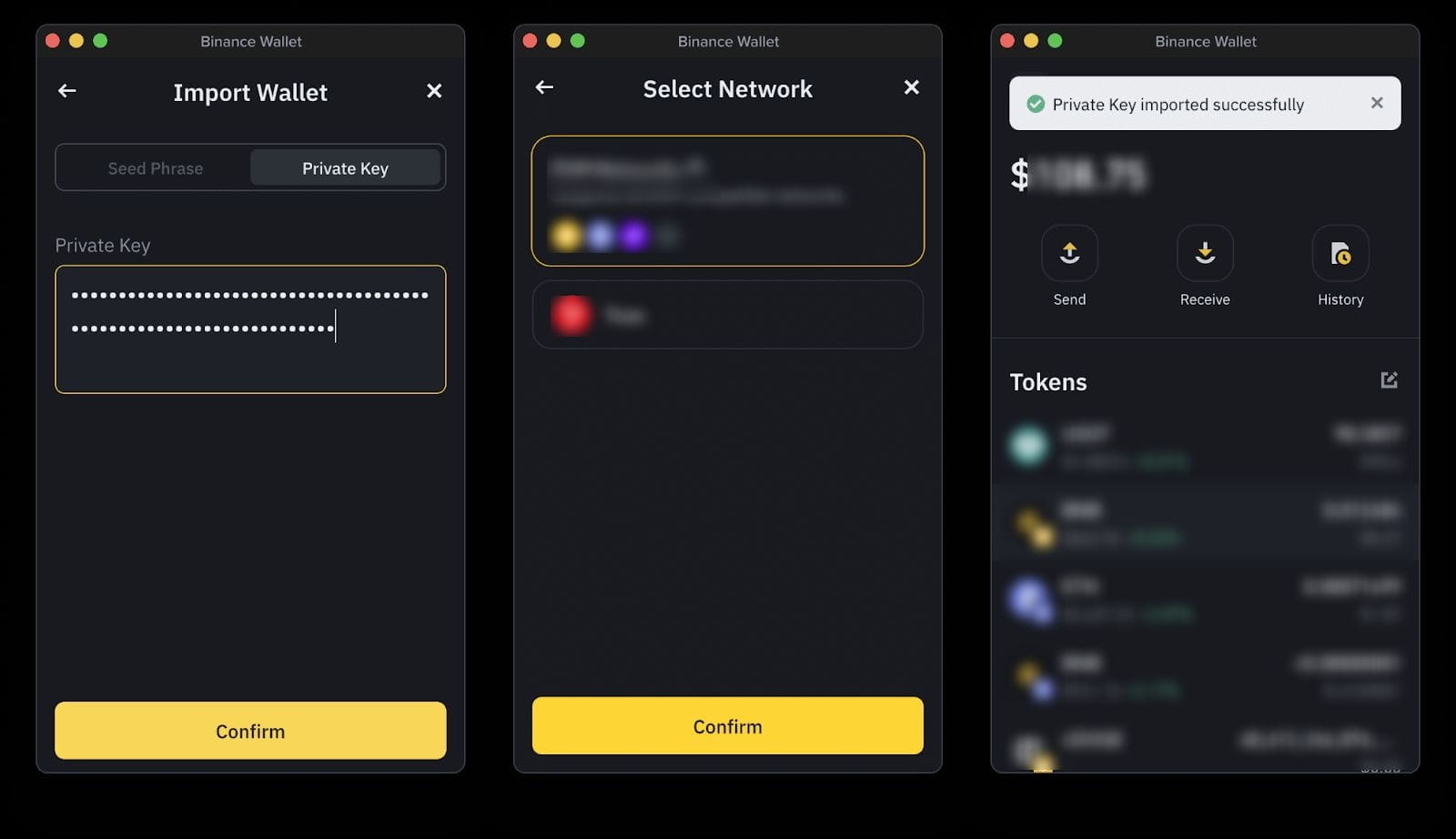
2.2. Click [Import Private Key Wallet] and enter the private key of the wallet you wish to import. Then, click [Confirm] to proceed. Choose the network and click [Confirm] to import.
You can easily connect to all your favorite dApps by visiting their official websites and click [Connect] or [Connect Wallet]. You should then see a pop-up window to confirm the connection.
Please note: Always ensure that you’re on the official website of the dApp you intend to use before connecting Binance Wallet Extension.
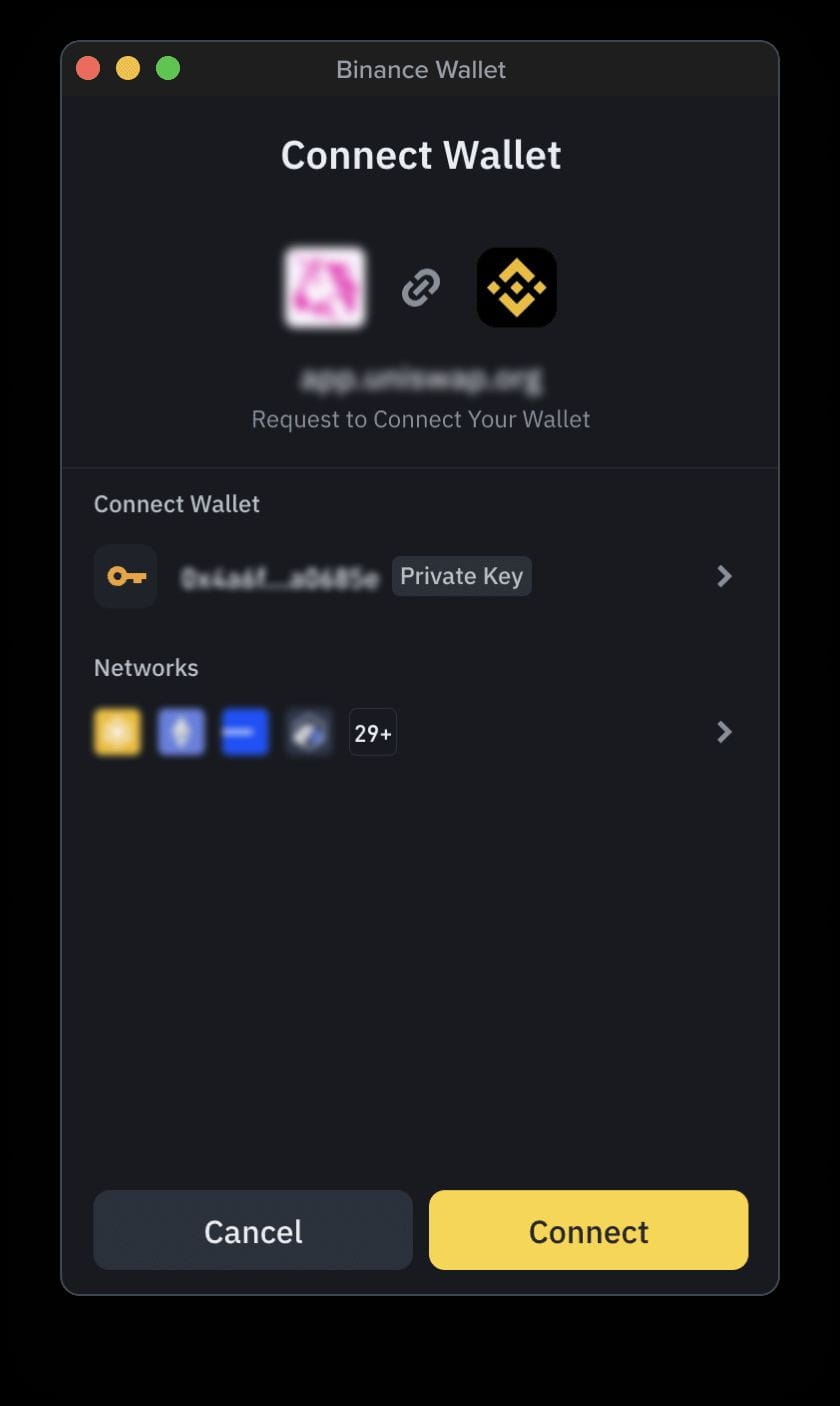
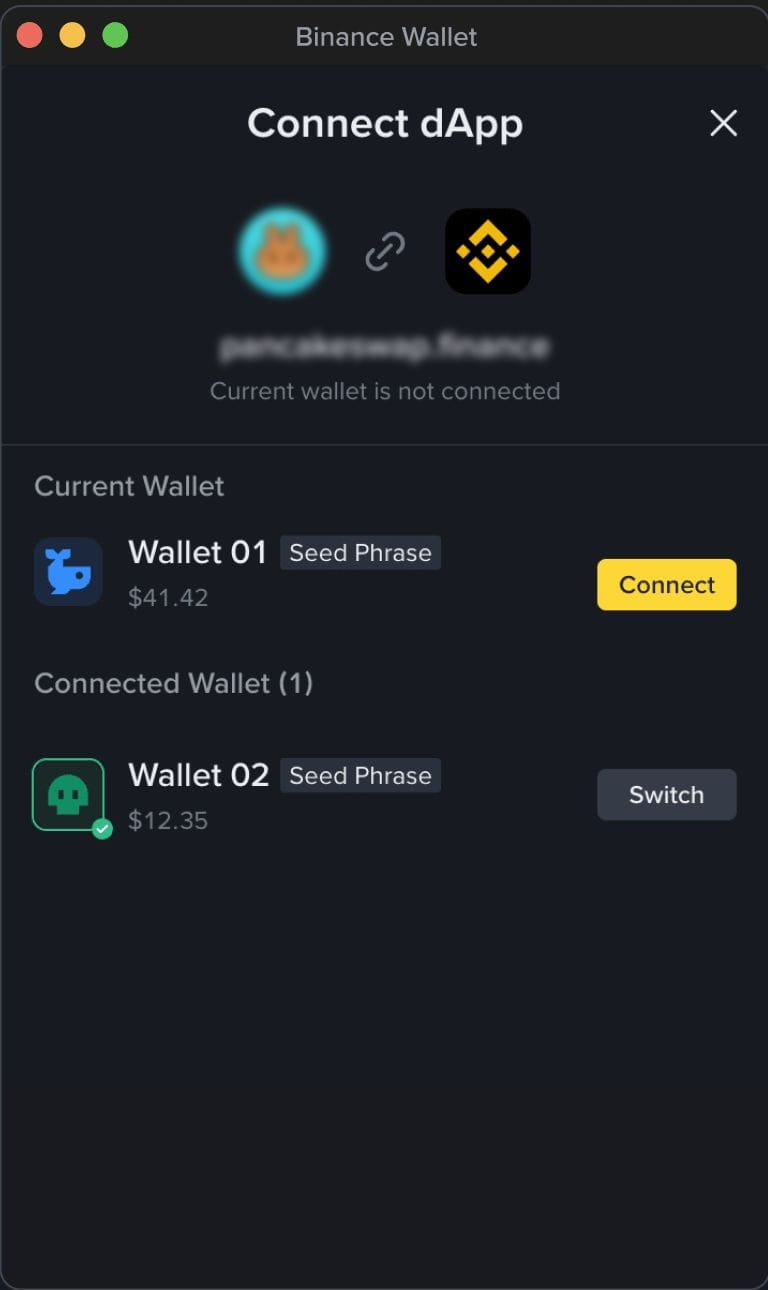
When you switch to a different seed phrase or private key wallet, we will prompt you whether you want to switch the dApp's connection. However, if you switch to a different keyless wallet, your connection to the dApp will be automatically disconnected. You need to raise the connection request again from the dApp.
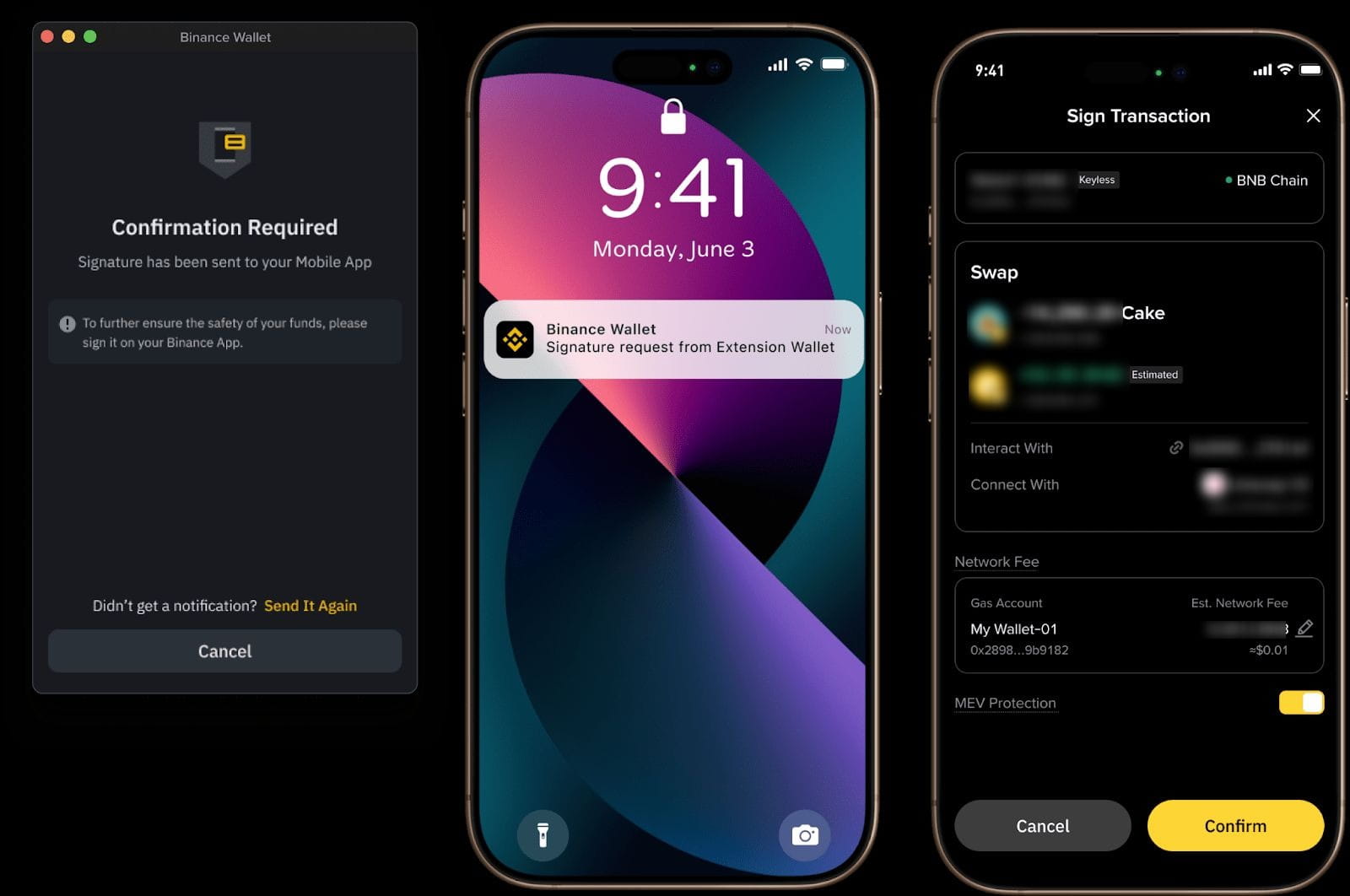
You can sign a transaction or message directly in Binance Wallet Extension. It utilizes an enhanced security mechanism and may require you to sign certain transactions from your Binance app instead. This typically occurs when:
From Binance App:
After logging in to your Binance Keyless Wallet from the Extension, you'll see the following icon on your Binance Wallet homepage on the app.
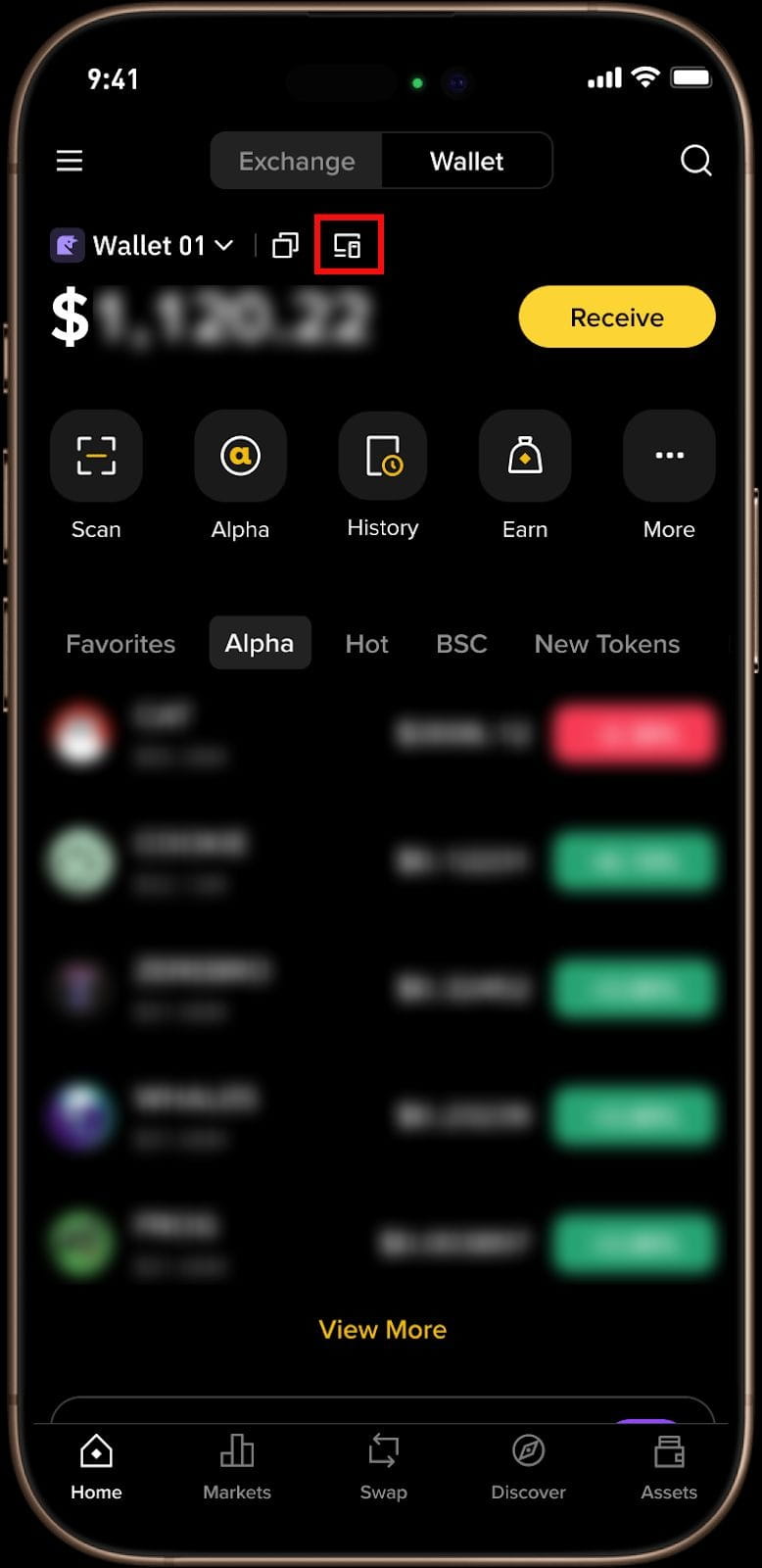
Click on the remove icon and double confirm to remove a specific keyless wallet from wallet extension.
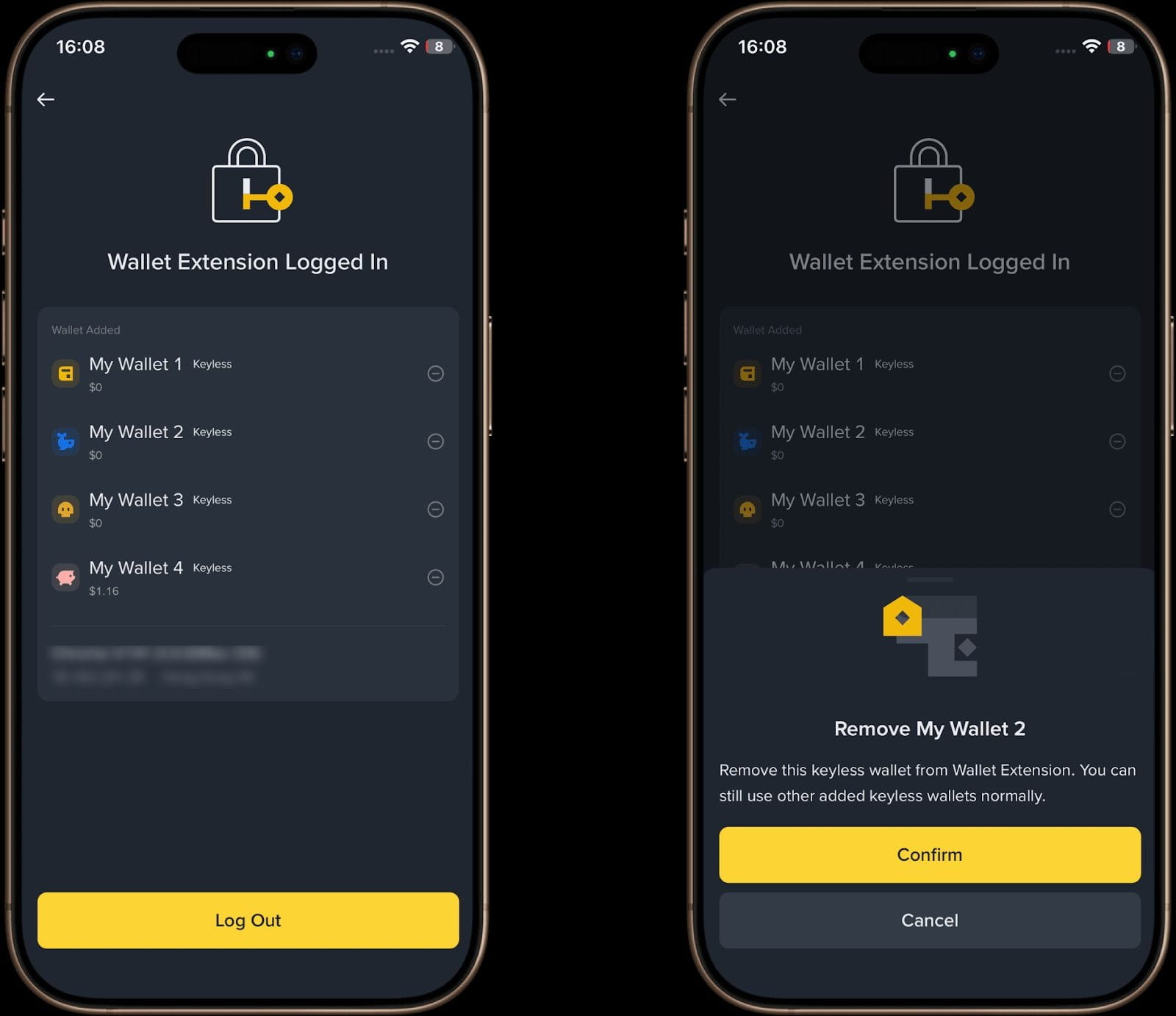
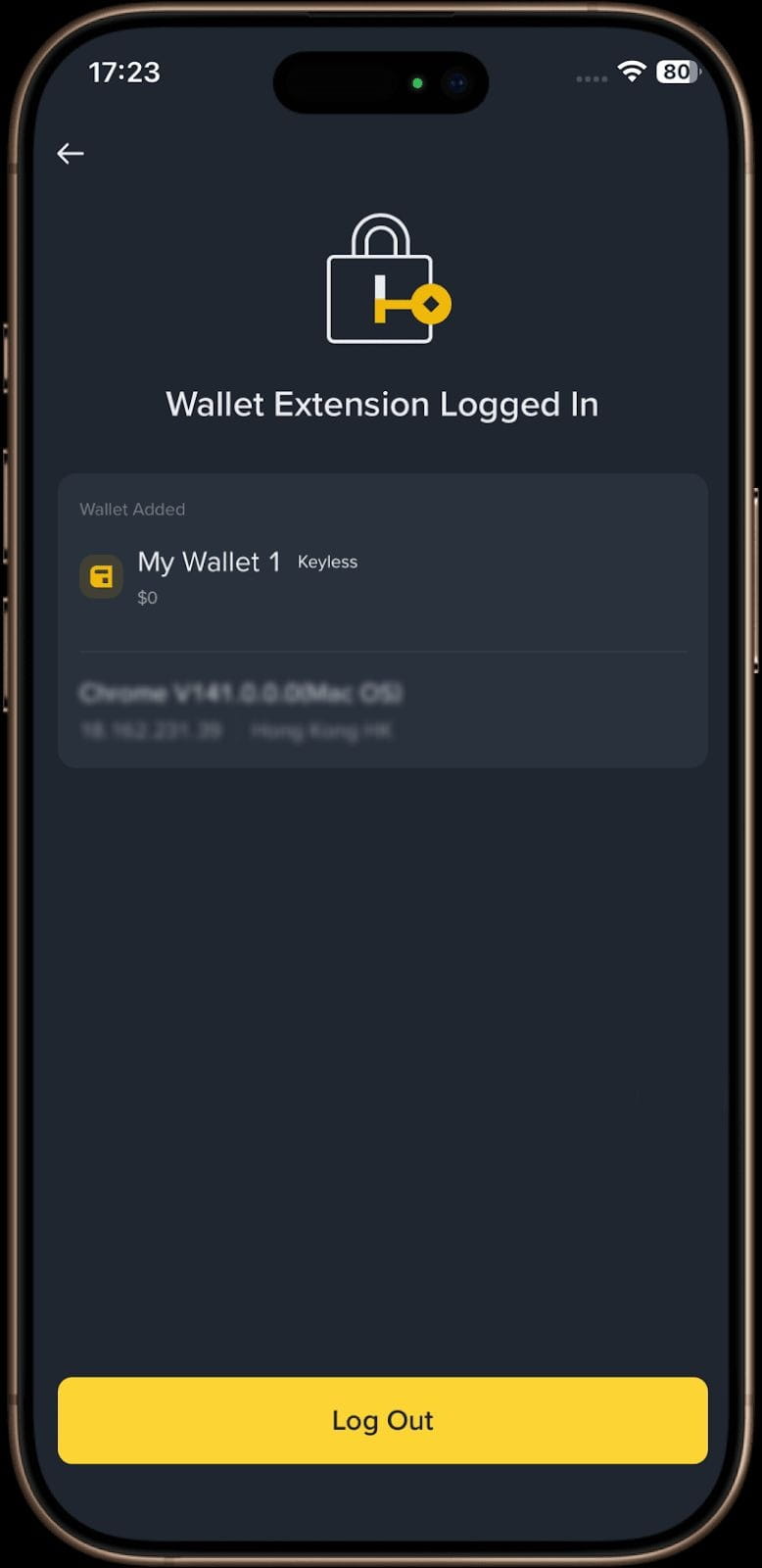
Please note: When you only have 1 keyless wallet added to wallet extension, there will be no remove option and you can only log out.
From Binance Wallet Extension:
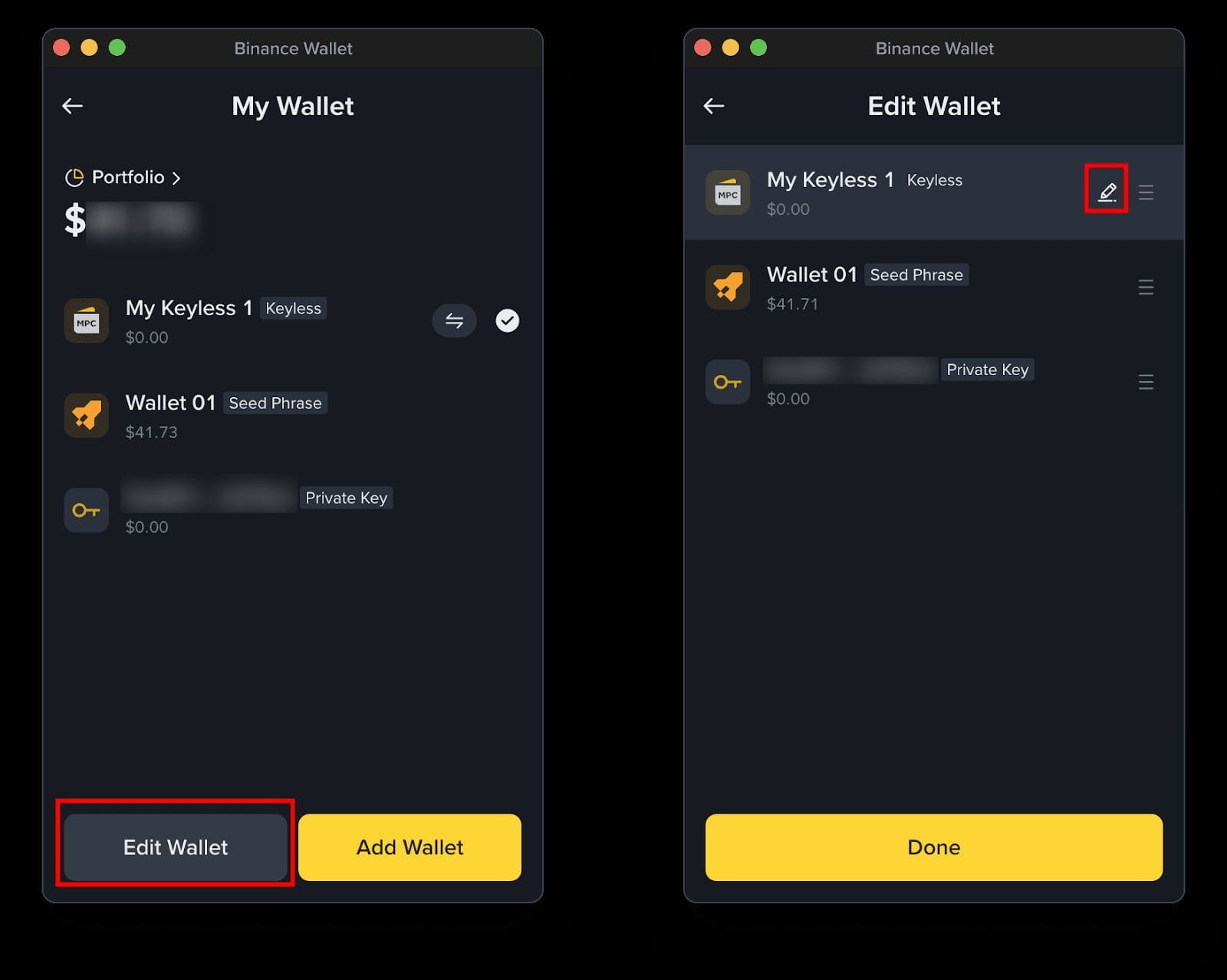
Click [My Wallet] to open the Wallet page. Select [Edit Wallet] and click the edit icon for the keyless wallet option.
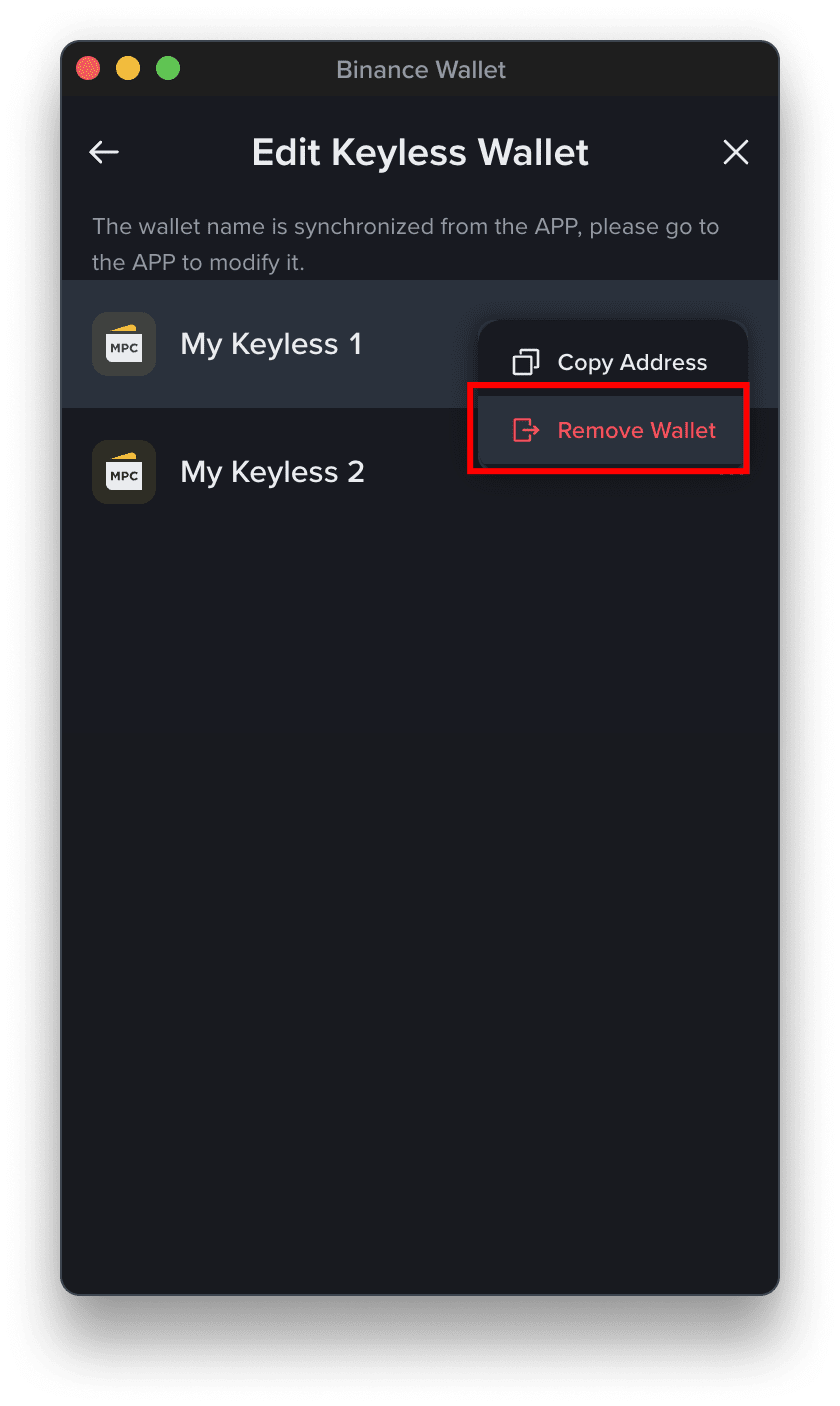
Click the [...] button for a specific keyless wallet to find the [Remove Wallet] option. You need to enter your password to remove it.
Please note: Removing the last keyless wallet will log you out as well. You need to scan the QR code again to login.
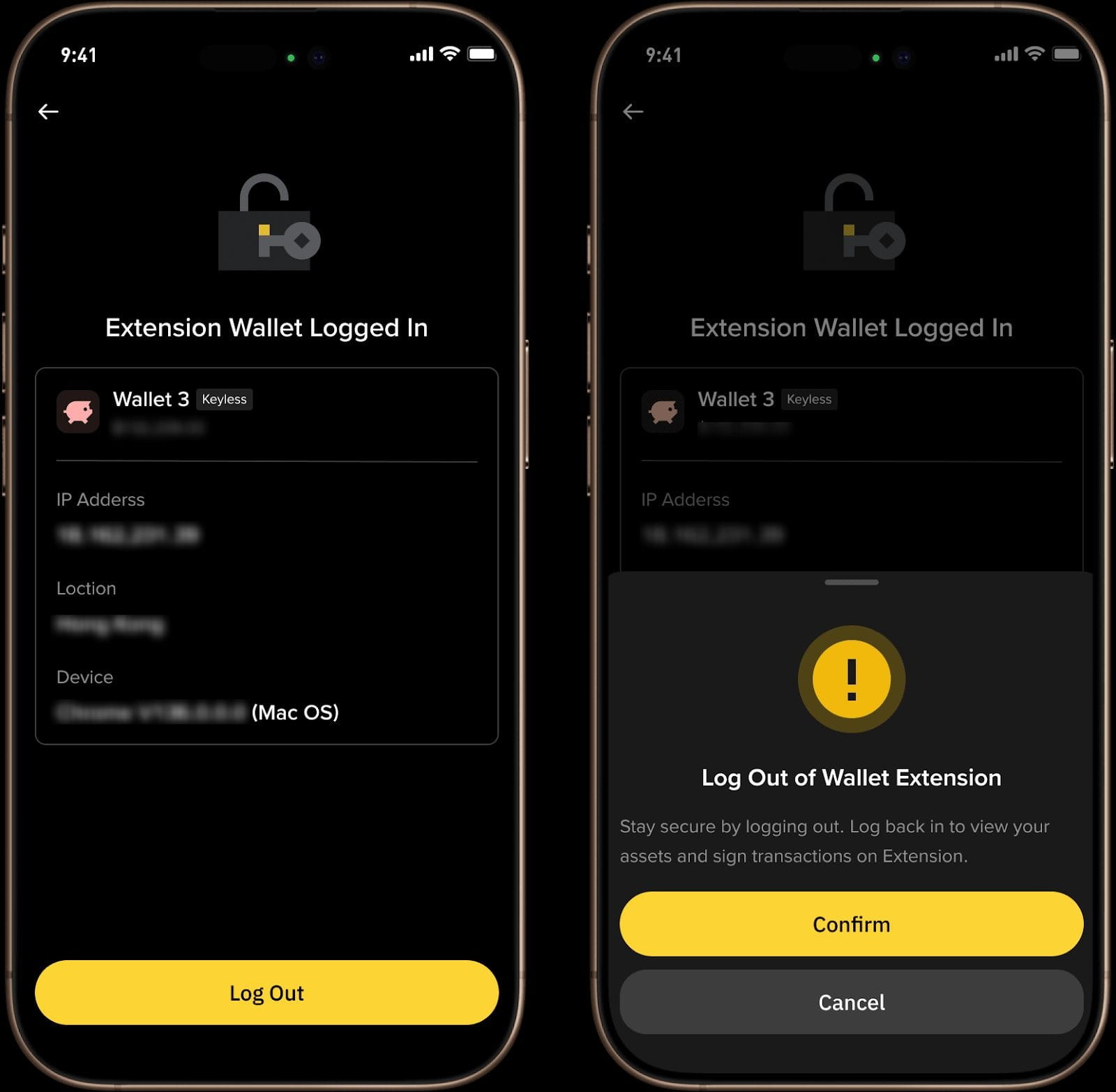
From Binance App:
After logging in to your Binance Keyless Wallet from the Extension, you'll see the following icon on your Binance Wallet homepage on the app.
To view details or log out of the extension, tap the icon.
From Binance Wallet Extension:
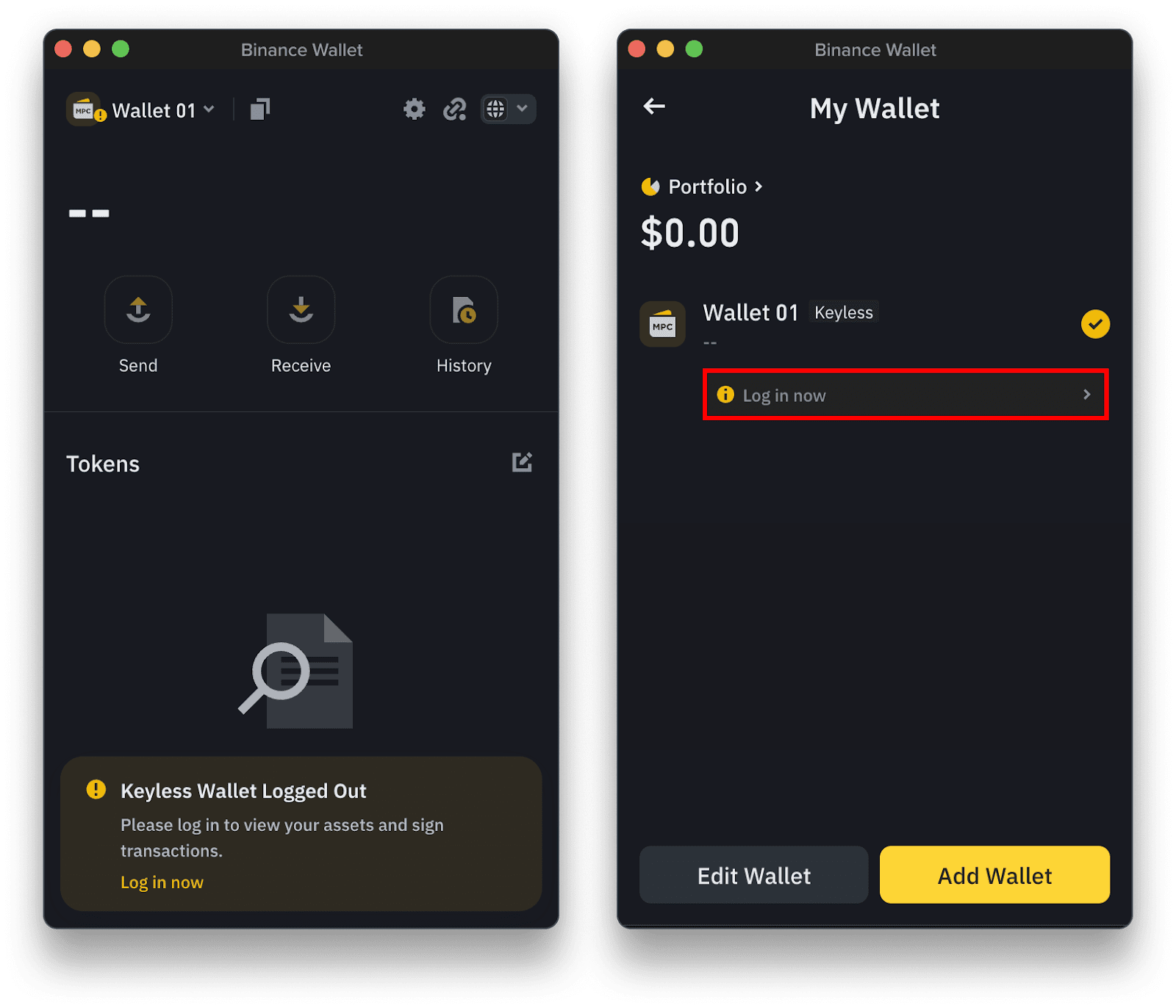
For security reasons, you’ll automatically be logged out of the extension after a certain period of inactivity (typically 24 to 48 hours). You can log back in at any time by scanning the QR code again.
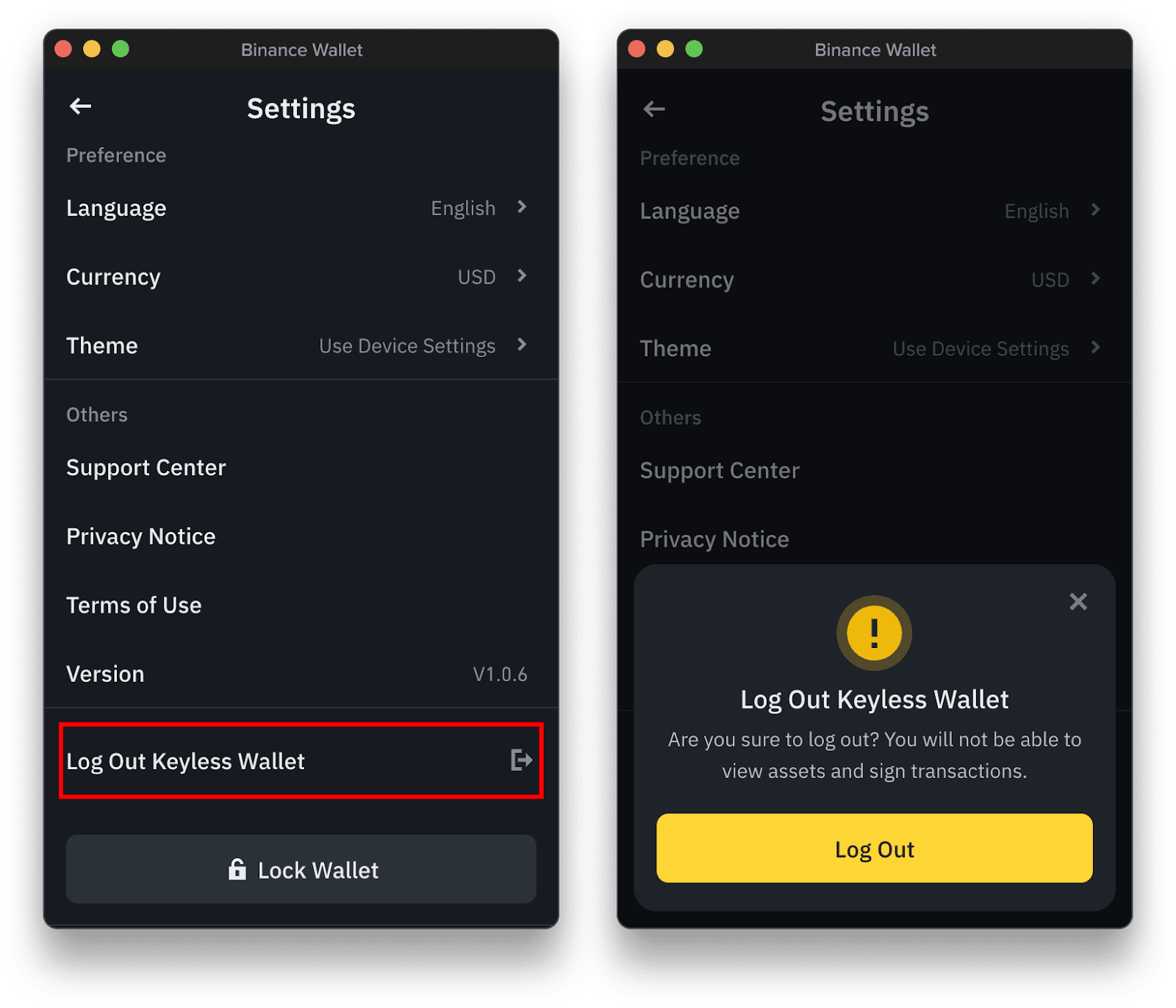
If you wish to log out manually, click [Settings] at the top right and select [Log Out Keyless Wallet]. Click [Log Out].
No. Currently Binance Wallet Extension only supports importing existing wallets and logging in to Binance Keyless Wallet, which must be created and backed up first in the Binance app.
We currently support 35 EVM-compatible networks, Solana, TRON and SUI, with more networks to be added in the future.
For DeFi assets, we now cover Ethereum, BSC, Base, Sei, Arb and Bitlayer networks.
No, you can import your seed phrase wallet or private key wallet without a Binance account. However, to log in to the Binance Keyless Wallet, you must have one created in your Binance app first, which requires a Binance account.
For security reasons, when you attempt to send large amounts of funds from your Binance Keyless Wallet , interact with unknown or untrusted dApps, or no extension actions have been confirmed in the Binance App for a certain period of time, you’ll receive a notification in your Binance App. In these cases, you’ll be required to sign the transaction directly in the app for added security.
Binance Keyless Wallet employs Multi-Party Computation (MPC) to create three key-shares, which are then stored in different locations for added security. These locations include your cloud storage and your device. Additionally, you're mandated to secure these key-shares by encrypting them with a recovery password that's solely known to you, or when using the Quick Back-up feature, you can use Face ID detection instead of a recovery password.
The keyshare is stored in Chrome extension storage after encryption. For more details, please refer to What Is a Keyless Wallet and Why Do I Need to Back It Up?
Currently these features are not supported. Please stay tuned for future updates.
Binance Wallet Extension won’t store your password and can’t help you recover it. If you lose your password, you can reset your Binance Wallet Extension by deleting all the wallets, importing your wallets with seed phrases or private keys, and setting a new password.
Please note: Always remember to back up your wallet, and keep your seed phrases and private keys safe. You’ll permanently lose your wallets and assets if you haven’t backed them up.
Disclaimer: By using the Binance Wallet Extension, you acknowledge and accept that this product involves risks including, but not limited to: the irreversible nature of blockchain transactions, potential loss or theft of private keys or recovery credentials, and exposure to volatile digital asset markets. You may also gain access to third-party services or protocols such as decentralized applications (“dApps”) through the Binance Wallet Extension. Binance does not control, endorse, or guarantee any third-party services, dApps or tokens accessible through the Binance Wallet, and you bear full responsibility for conducting your own due diligence and making your own decisions. You are solely responsible for keeping your private keys safe, and Binance is not able to unilaterally help you regain access to your Wallet Extension if you lose access to your private keys (this applies in the unfortunate event where users pass away as well). Network congestion, transaction fees, slippage, and technical failures may also adversely affect your experience and result in losses. You are solely responsible for your investment decisions and Binance is not liable for any losses you may incur.
