Installation Guide
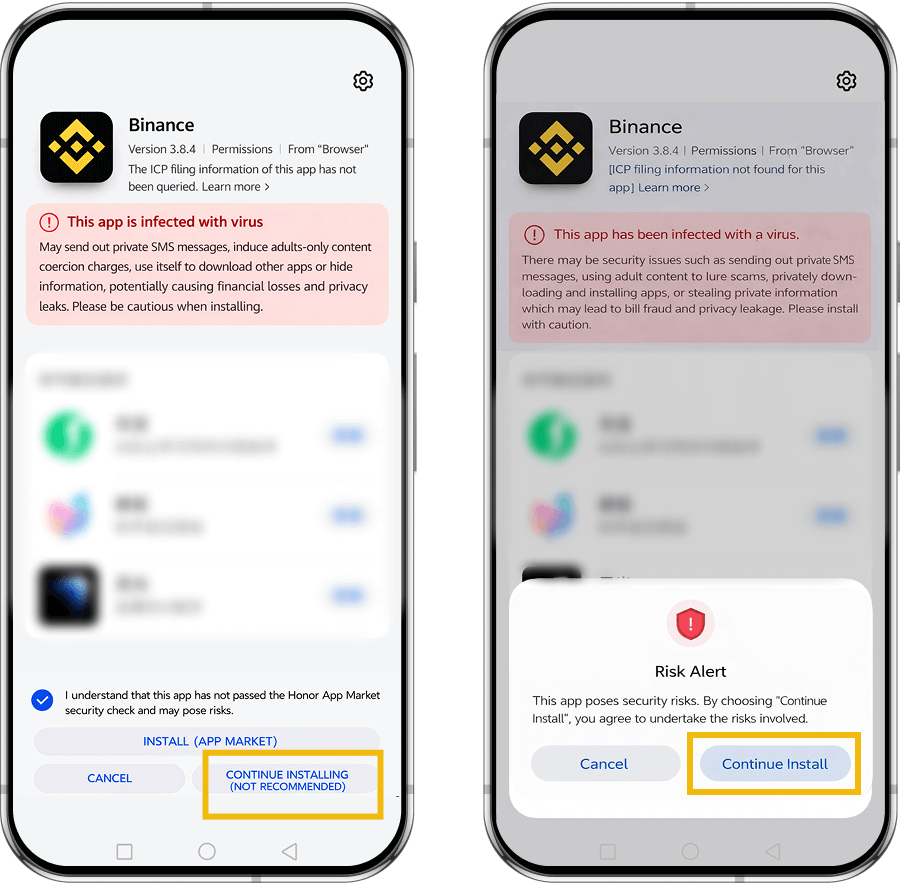
After successfully downloading the Binance App on an Android device, if you see warnings such as “Security risk” or “Virus risk” and are unable to complete the installation, please follow the instructions below.
Huawei / Honor Phones
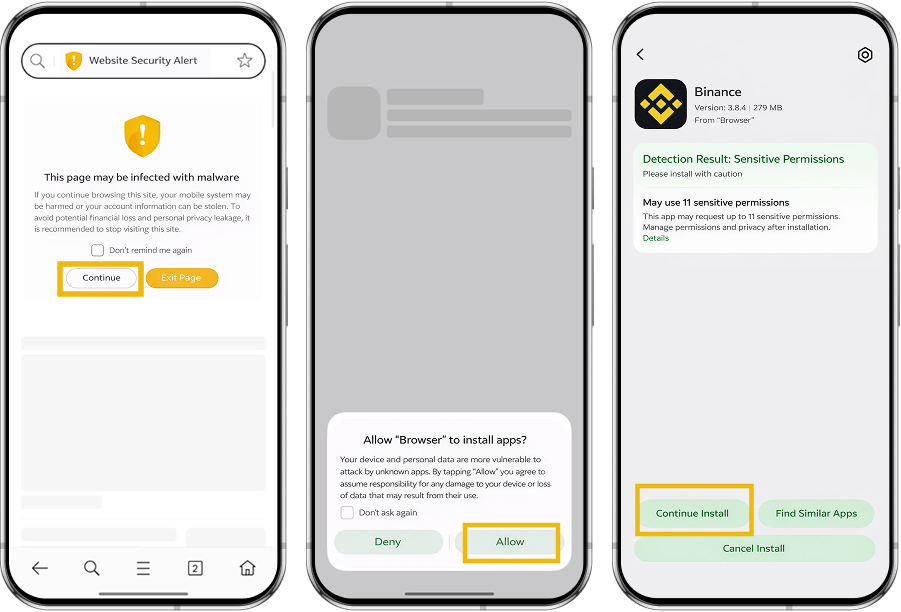
Tap “Allow and continue installation”, do not move the app to managed control, and follow the on-screen steps to complete the installation.
Huawei Phones (HarmonyOS 4.0)
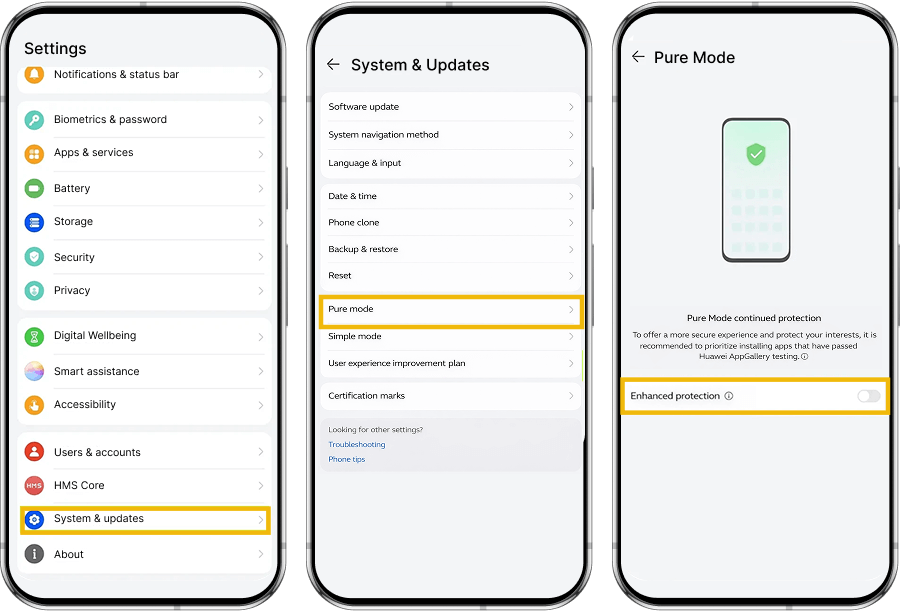
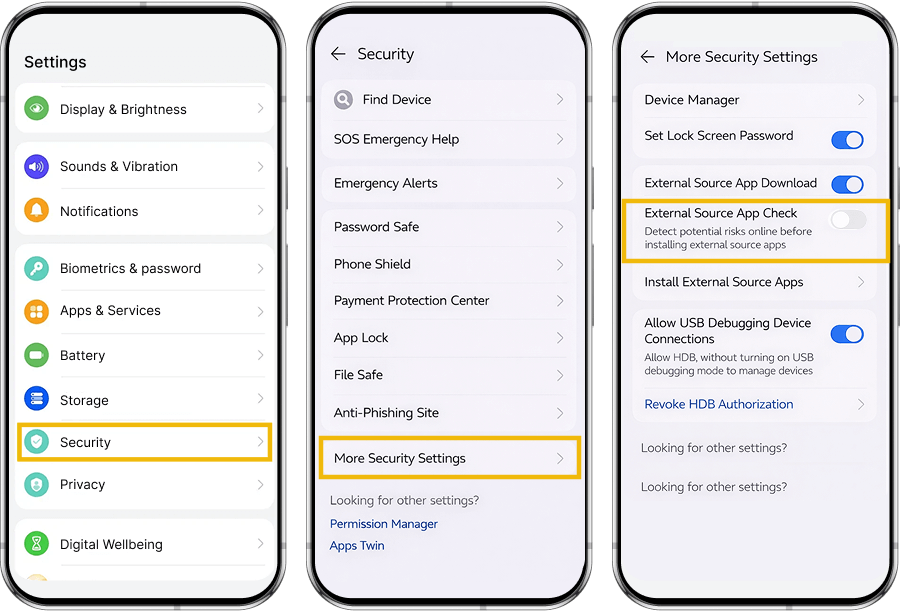
Exit Pure Mode and disable external source app checks:
1. From the home screen, go to Settings → System & updates → Pure Mode, and turn off Enhanced Protection.
2. Go to Settings → Security → More security settings, and disable External source app check.
Tips
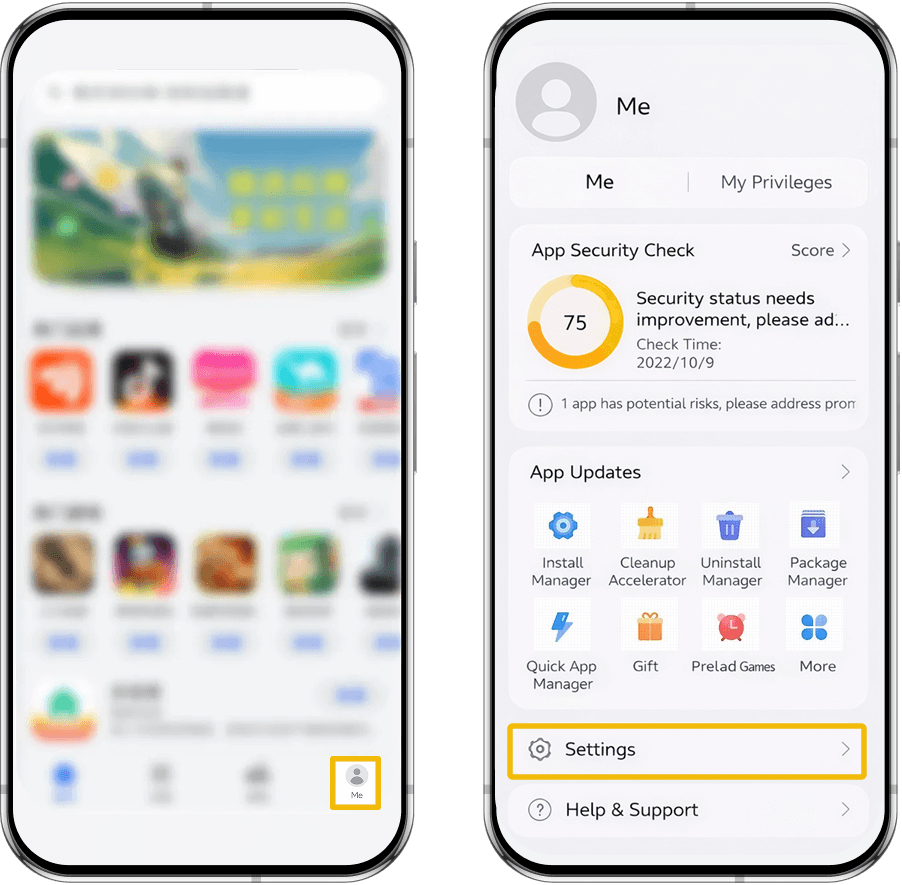
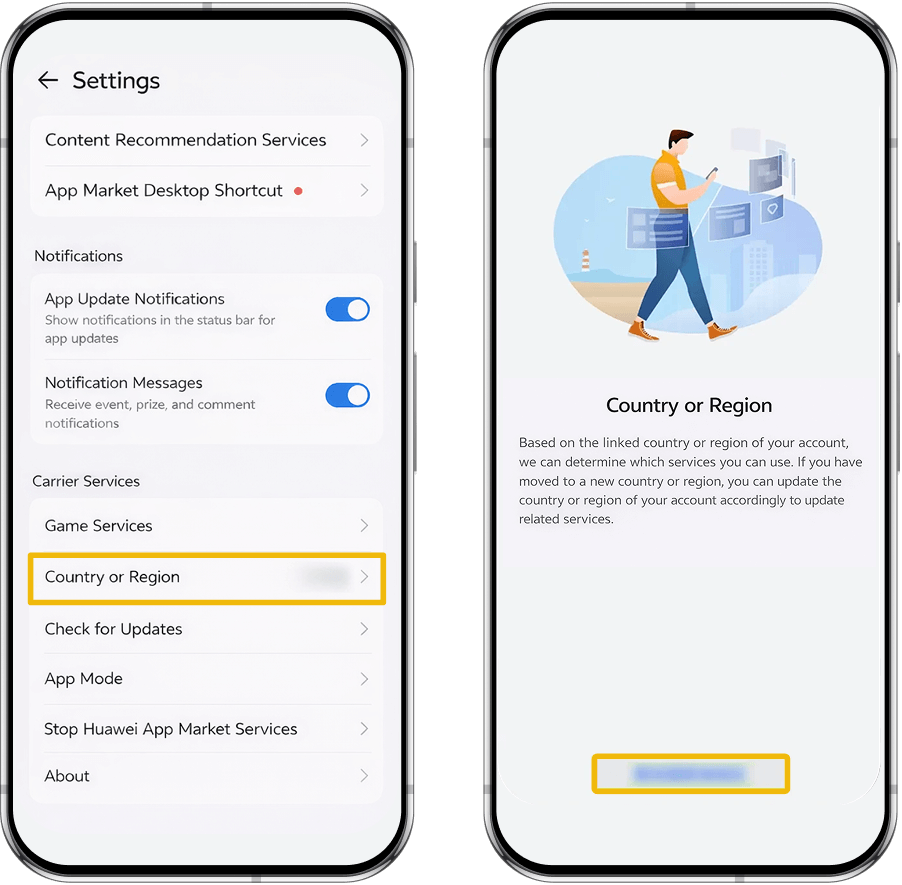
If Pure Mode cannot be disabled, go to AppGallery → Me → Settings, check Country/Region, and try switching to a different country or region.
Please note that Binance App downloads may not be supported in some countries or regions via the AppGallery.
Xiaomi Phones
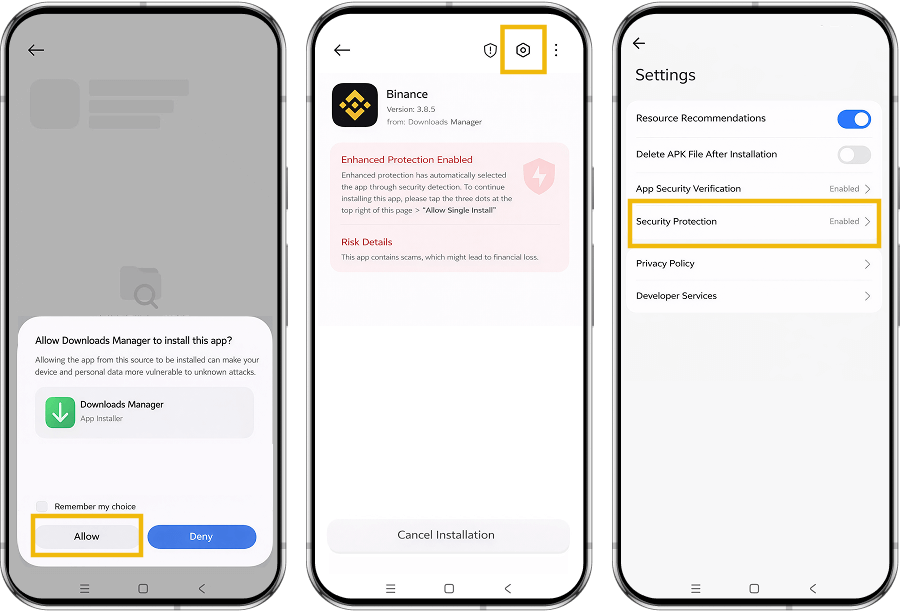
On the installation page, tap Settings in the top-right corner, enable Security Protection, then follow the prompts to complete the installation.
OPPO Phones
Follow the on-screen instructions on the installation page to complete the installation.
Vivo Phones
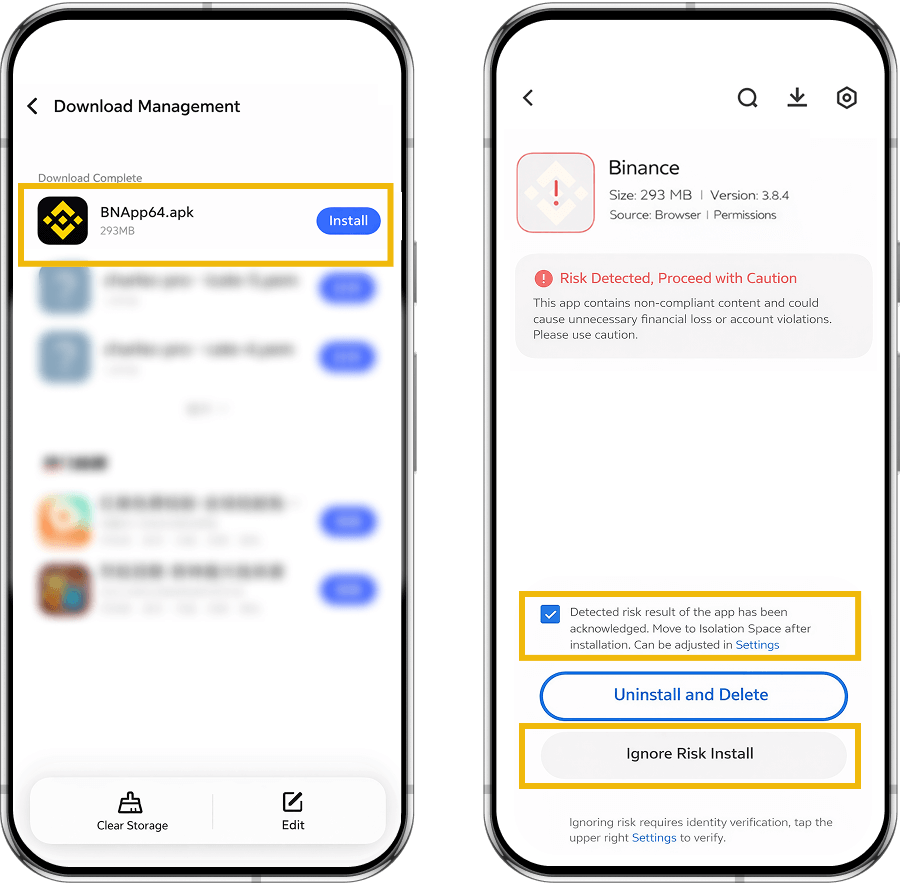
Check “I understand the risk detection result”, tap Install, and follow the on-screen steps to complete the installation.