


A Binance statement is the export of your account activity: deposits, withdrawals, trades, conversions, fees and distributions, listed line by line with the date, the coin and the change in balance. You generate it yourself from the history pages on the website or in the app, pick the date range and the wallet, and download the file when it is ready. Binance does not post or email statements on a schedule, so if you need one for a bank, an accountant or your own records, you have to request it.
👉 Open a Binance account with code GETREWARD
Which kind of Binance statement do you need?
Start with the person who will read the file, because each reader wants something different. A tax adviser wants every movement for a full year. A bank or a landlord usually wants proof that a balance existed on a certain date. You, checking your own trading, want trade-level detail with fees.
Transaction history export: The broad one. Every balance change across the wallets you select, one row per change, with columns such as UTC_Time, Account, Operation, Coin and Change. This is the file most tax tools import.
Spot trade history: One row per filled trade, with pair, side, price, amount, total and fee. Better than the transaction export when you want to see what each fill cost.
Futures history: Realized profit and loss, funding and commission lines for futures positions. It lives under the futures orders, not under Spot.
Deposit and withdrawal history: Useful on its own when someone asks where money came from or where it went, with network, address and transaction ID.
Convert history: Conversions made on the Convert page, with the quoted rate. These also appear in the transaction export, but the Convert view shows the rate you accepted.
Balance snapshot: Some accounts see an "Account Statement" option that summarises holdings on a chosen date. Where you have it, it is closer to what a bank asks for than a raw spreadsheet.
Menu names shift a little between app versions and regions. If a label in this guide reads slightly differently on your screen, look for the export or download icon on the relevant history page.

What should you decide before you press export?
Five quick decisions save most of the rework. Go through them in order and write the answers down, because you will need them again when you check the file.
Purpose: Tax year, proof of funds, a dispute with a counterparty, or your own review. The purpose tells you which export from the list above to use.
Date range: Exact start and end dates. For tax, use the official tax year of your country, which is not always January to December.
Time zone: The transaction export is stamped in UTC. If you live far from UTC, trades near midnight can land on a different day, or in a different year, than you expect.
Wallets: All accounts, or only Spot, Funding, Futures or Earn. When in doubt, export all of them, since moves between wallets explain many gaps.
Coins: All coins, unless the reader asked about one asset only.
Here is how the time zone point bites in practice. Say you live in a UTC+8 city and sell 0.05 ETH at 06:30 on 1 January 2026, local time. In UTC that sale happened at 22:30 on 31 December 2025. A UTC export for calendar year 2026 will not contain it, while the 2025 export will. If your country taxes by local dates, move that line to the right year in your own spreadsheet and keep a note of why.
How do you download the transaction history step by step?
The website gives the most control over the range and the wallets, so use it if you can. The app version works the same way with fewer options on one screen.
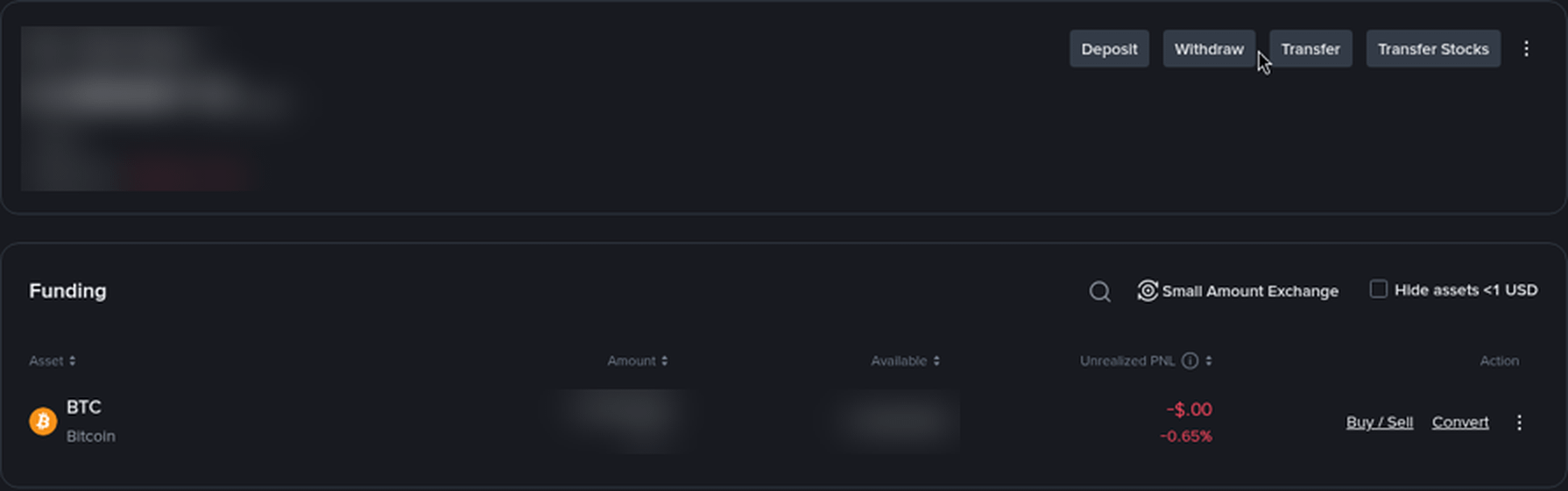
Open the wallet: Log in, go to "Wallet" and then "Overview". The "History" button sits on the right of the balance card.
Find the export: On the transaction history page, choose the export or "Export Transaction Records" option.
Set the filters: Pick the time range, the account (or all accounts) and the coins.
Generate the file: Submit the request. Large ranges are prepared in the background, and the file appears in a list of exports on the same page when it is ready.
Download and store it: Download the file, rename it with the range and wallet (for example "binance-all-2025-q1.csv") and keep a copy off your computer.
Binance limits how many exports you can request in a period and how long a range one request can cover, and download links expire after a while. So plan the ranges before you start instead of experimenting. For a full year, four quarterly files are easy to manage and easy to check, and the request budget lasts.
For trade-level detail, go to "Orders", then "Spot Order", then "Trade History", and use the export there. Futures history is under "Orders" and "Futures Order".
Why does one wallet look empty in the statement?
Because your account is not one balance. Spot, Funding, Futures and Earn are separate wallets, and an export filtered to one of them leaves out everything that happened in the others. A classic case is a deposit that arrived in Funding, was moved to Spot and then traded. A Spot-only export shows the transfer in and the trade, but not the original deposit, so the money looks as if it came from nowhere.
Moves between your own wallets show up as transfer lines in pairs, one negative and one positive. They are neither income nor a sale. If you only ever see one half of the pair, the other wallet was filtered out. For a longer walk through where each part of your money sits, see this guide on why the Binance account balance total can look wrong.
Three other things often confuse readers of a statement:
Small balance conversions: Tiny leftovers swapped into BNB appear as many small lines on one timestamp. They are real disposals, just very small ones.
Fee lines: When trading fees are settled in BNB, the fee is a separate BNB line rather than a cut from the coin you bought.
Distributions: Airdrops, promotional rewards and similar credits come in with their own operation name. Keep them, because a tax adviser may treat them differently from purchases.
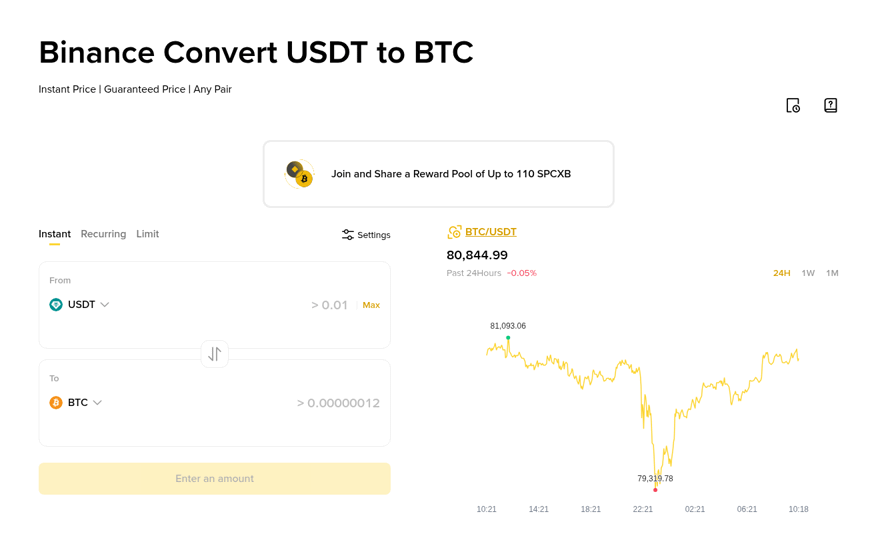
Conversions are worth a separate look. On the Convert page, the history icon at the top right lists every conversion with the rate you accepted. That rate is what you need if someone asks what a swap was worth at the time.
How do you check that a statement adds up?
Take the opening balance, apply every line, and compare the result with the balance you can see for the end date. If they match, the file is complete. If not, the gap tells you what is missing. Here is a one-month example with round numbers, all in the Spot wallet except where noted.
Opening balance: 1,250.00 USDT on 1 March.
Deposit: +500.00 USDT.
Buy: 0.01 BTC at 68,000 USDT, so −680.00 USDT and +0.01 BTC. The 0.1% fee taken in BTC is −0.00001 BTC.
Withdrawal: −200.00 USDT. The network fee of 1 USDT was taken from that amount, so the receiving wallet got 199.00 USDT.
Convert: 100.00 USDT to EUR at 0.892 EUR per USDT, so −100.00 USDT and +89.20 EUR.
Closing USDT should be 1,250 + 500 − 680 − 200 − 100 = 770.00 USDT. Closing BTC should be 0.01 − 0.00001 = 0.00999 BTC, and EUR should be 89.20. If the wallet shows 770.00 USDT and the file adds up to the same number, you are done.
Now suppose your sum comes to 770.00 but the wallet shows 1,020.00 USDT. A difference of exactly 250.00 is rarely random. Most often it is a transfer from Funding that the Spot-only filter left out. Export all wallets for the same range and the missing pair of lines appears. Differences of a few cents usually come from small balance conversions or a distribution line.
The withdrawal is the other line that trips people up. The statement shows −200.00, but the bank or wallet on the other side shows 199.00 arriving. Both are correct. Keep the network fee as its own note, because it is a cost of moving money, not a sale.
Which statement works as proof of funds?
A bank, a landlord or a visa office usually wants three things: your name, a date, and the value held on that date. A raw CSV has none of that in a readable form. What tends to work better:
Balance snapshot: The "Account Statement" balance summary for the date, if your account offers it.
Supporting history: The deposit history for the last few months, which shows where the funds came from.
A value in money: Holdings priced on the statement date. For example, 0.00999 BTC at a price of 84,000 USD on that day is 839.16 USD. Write the price you used and where it came from.
Ask the reader in advance which format they accept. Some only accept documents downloaded in their presence or sent from the platform, and a spreadsheet you produce yourself will not pass.
What mistakes make a statement useless?
Exporting one wallet only: The file is correct but incomplete, and every transfer looks like money appearing or vanishing.
Ignoring UTC: Year-end and month-end trades land in the wrong period. Fix it in your spreadsheet with a note, not by editing the original file.
Opening the CSV with default settings: Spreadsheet programs often turn 0.00000012 into 1.2E-07, and in some regional settings 0.892 becomes 892. Import the file with the number columns set as text, or with a full stop as the decimal mark.
Editing the original: Keep the downloaded file untouched and work in a copy. If anyone questions a number, the original proves it.
Sharing too much: A statement can include your UID, addresses and transaction IDs. Send only what the reader asked for, delete unneeded columns in the copy, and never share login details or 2FA codes with anyone who asks for a "statement check".
Waiting until the deadline: Request limits and background generation mean a rushed export can fail on the day you need it.
A short checklist to keep next to your exports
Every quarter: Export all wallets for the quarter, plus Spot trade history and futures history if you used futures.
Same day: Run the opening-plus-lines-equals-closing check on your main coins.
Label: Name each file with the range and the wallets it covers.
Store: Keep a copy outside your computer for several years, since tax offices can ask about old periods.
Note the odd lines: Write one sentence next to anything unusual, such as a distribution or a reversed deposit.
If the reason you need a statement is tax, these eight worked tax scenarios for Binance trades, swaps and rewards show how the lines in your export usually turn into numbers on a return. If you are opening an account with code GETREWARD and plan to complete the welcome tasks on the Binance new user bonus page, export those reward lines too, since they appear in the history like any other credit.
FAQ
Can I get a Binance statement as a PDF?
The transaction exports come as spreadsheet files. Where the "Account Statement" balance summary is available, it can be downloaded as a document that is easier to hand to a bank. If you only have the spreadsheet, a clean printout of the relevant rows with your own summary on top is the usual workaround.
How far back can I export?
As far back as the account history goes, as long as the account is open. Long periods have to be split into several requests, so plan quarter by quarter or year by year.
Why does the export show my trades at the wrong time?
Because the times are in UTC. Add or subtract your own offset in a separate column, for example plus eight hours for UTC+8, and keep the original column as it is.
Does a closed account still give me statements?
Do not count on it. Export everything you might need before you close an account, since access to history afterwards is limited.
Is a screenshot of my wallet enough as a statement?
For your own records it can help, but most banks and advisers want a downloaded file or an official balance summary with a date. A screenshot is easy to edit, so it carries little weight on its own.
Disclosure: the sign-up link in this article uses my code GETREWARD. The figures above are simplified examples to show how a statement is checked, not a forecast of anything. This is general education, not tax or financial advice.