Author: Mohammed. Compiled

Introduction
Parrot is an operating system based on Debian, the most advanced and recognized general-purpose operating system that can run anywhere. From your laptop to your phone, the Parrot kernel can run in a variety of environments, including servers, IoT boards, cloud containers (such as docker and podman), etc.
In this article, we will cover three topics:
Parrots OS Linux - This is a free and open source GNU/Linux distribution based on Debian Stable, designed for security experts, computer forensics, reverse engineering, hacking, penetration testing, anonymity, privacy and cryptography. Developed by Frozenbox, the default desktop environment is MATE.
Features of ParrotOS provided by Techlatest.net.
Step-by-step guide - A guide on how to set up a ParrotOS Linux environment on Amazon Web Services (AWS).
Features of ParrotOS from Techlatest.net:
Easy to set up: Installing ParrotOS is very simple, which makes it ideal for both beginners and experienced users. The installation process is straightforward and the user-friendly interface ensures that even novices can use the operating system smoothly. You can install the operating system in just a few clicks.
GUI-based interface: GUI-based interface: ParrotOS's interface can be accessed anywhere and at any time, which enhances usability, improves work efficiency, and contributes to a more pleasant user experience when performing penetration testing tasks.
Predefined ParrotOS Packages: ParrotOS by Techlatest comes with more than 1000 preinstalled packages.
A step-by-step guide to install, set up, and run the ParrotOS Linux environment on Amazon Web Services
Precautions
If you want to save time setting up an out-of-the-box ParrotOS environment on AWS, you can choose ParrotOS Linux from Techlatest, available on the AWS Marketplace.
If you are looking to quickly set up and explore ParrotOS, Techlatest.net provides out-of-the-box setup of ParrotOS on AWS, Azure, and GCP. Please click on the following link to learn step-by-step how to install ParrotOS on the cloud platform of your choice.
For ParrotOS Linux: AWS, GCP, and Azure.
first step
Open the ParrotOS Linux virtual machine listing on the AWS Marketplace.

Step 2
Click Continue Subscription.
Log in with your credentials and follow the instructions, click on the Continue Configuration button.
Select the region (for example, US East (N. Virginia)) where you want to launch the VM.
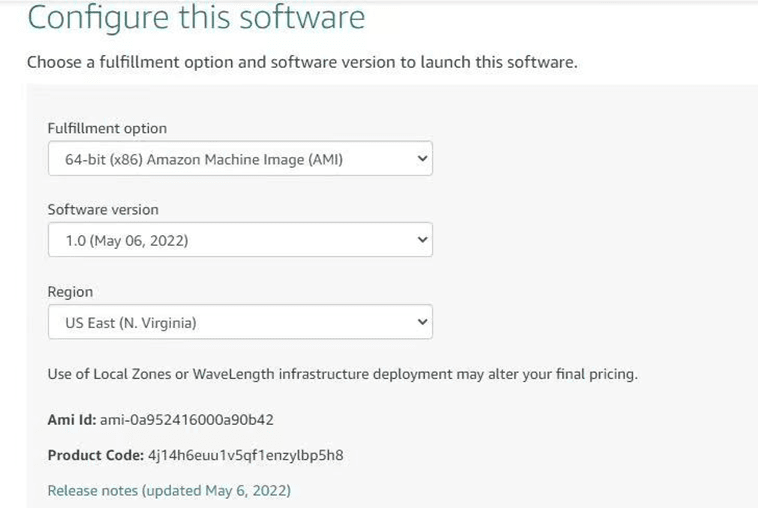
Choose Action: You can launch it via EC2 or from a website (let’s choose Launch from Website).
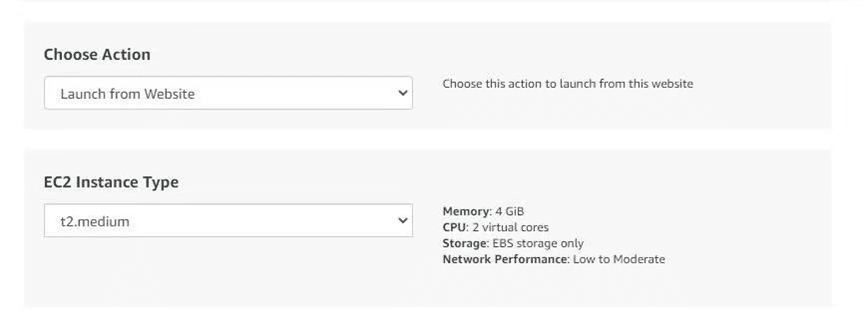
Optionally change the EC2 instance type (default is t2.medium instance type with 2 vCPUs and 4GB of memory).
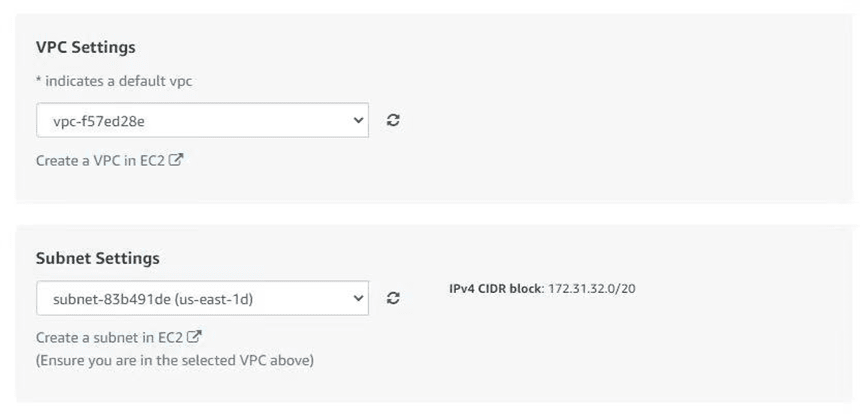
Optionally change the network name and subnet name.
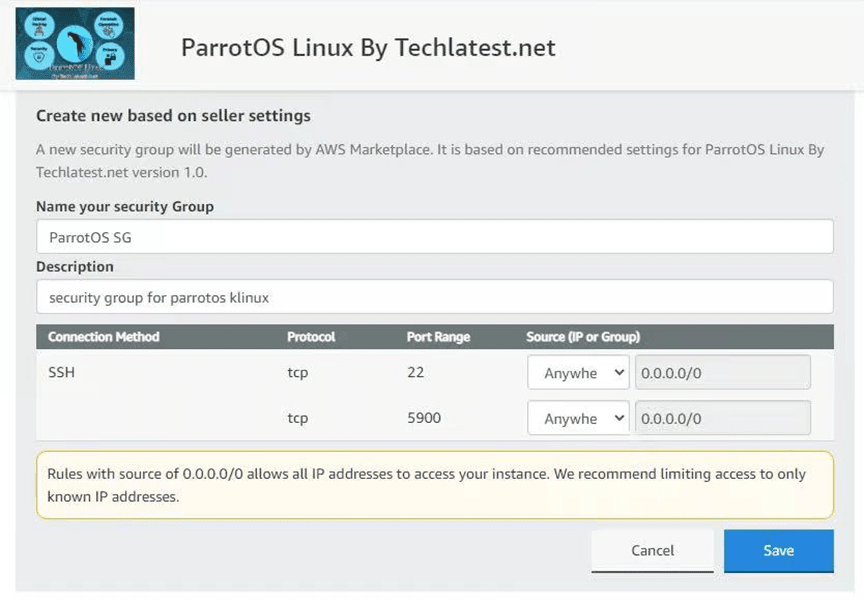
Select a security group. Whichever security group you specify, make sure that port 22 (for SSH) and port 5900 (for VNC) are exposed.
Make sure to download the default key pair, or you can create a new key pair and download it.
Click the Start button.
ParrotOS Linux will begin deployment.
third step
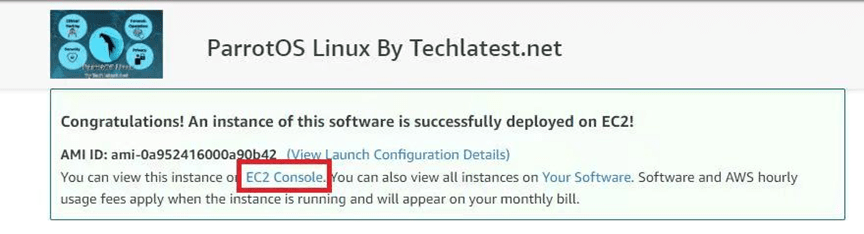
The Summary page appears. To view the instance in the EC2 console, click the EC2 console link.
the fourth step
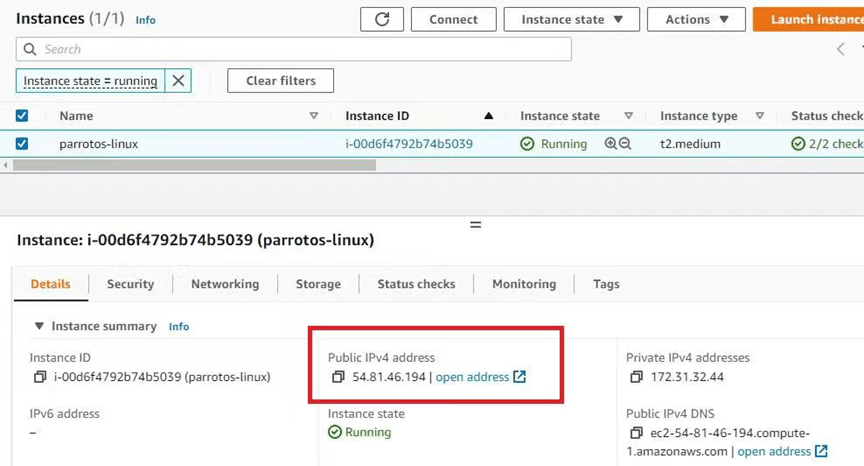
On the EC2 console page, the instance is up and running. To connect to the instance via putty, copy the IPv4 public IP address.
the fifth step
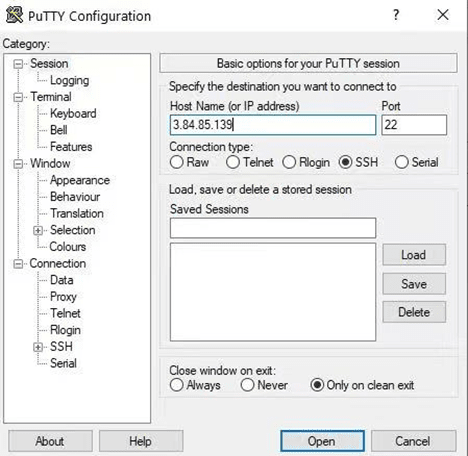
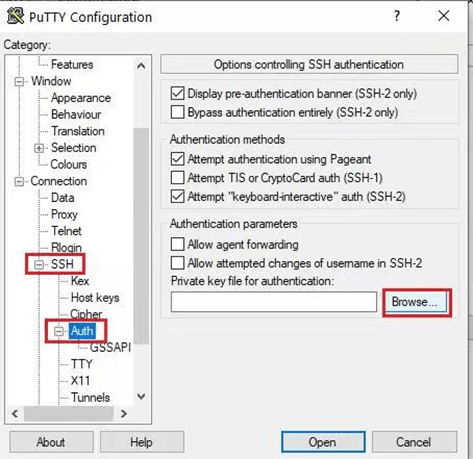
Open putty, paste the IP address, browse to the private key you downloaded when deploying the VM, go to SSH->Auth, click Open.
Step 6
Log in as ubuntu.
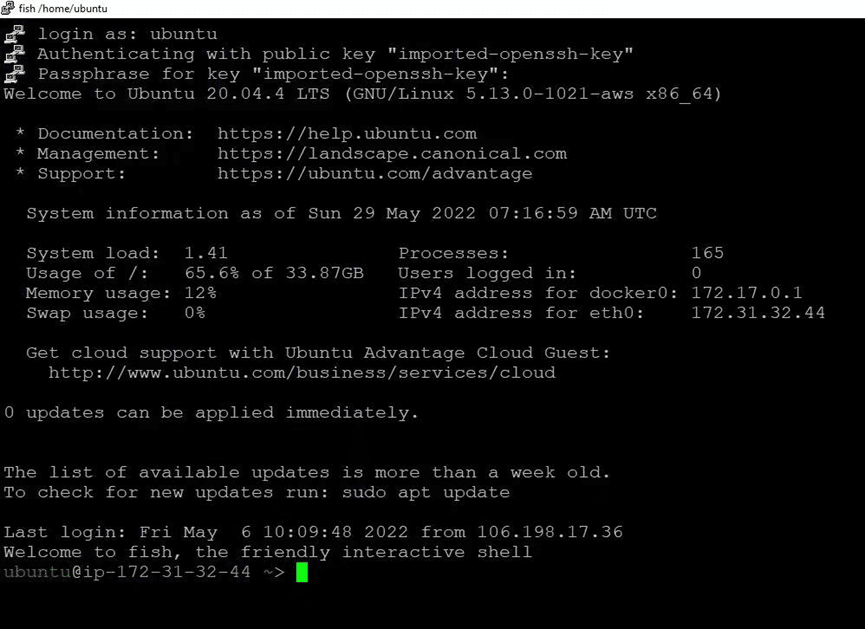
Run the following command to connect to the ParrotOS terminal from the SSH command prompt.
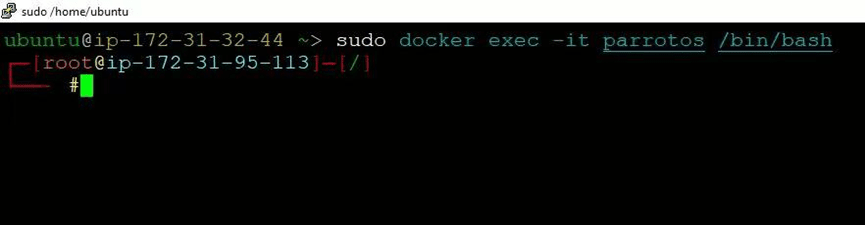
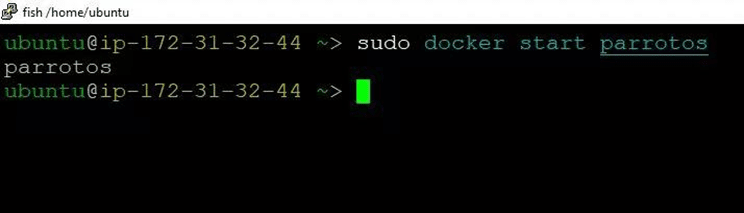
If the above command returns an "Error response from daemon: " error, run the following command to start the ParrotOS container, and then run the above command again.
Step 7
You can connect to the desktop environment of a virtual machine from any local Windows machine using the VNC protocol.
Step 8
To connect using a VNC client from a Windows machine, first note the public IP address of the virtual machine.
Then from your local Windows machine go to the Start menu, type and select "VNC" in the search box.
Note: If VNC is not installed on your Windows machine, please install a VNC viewer based on your device first.
Step 9
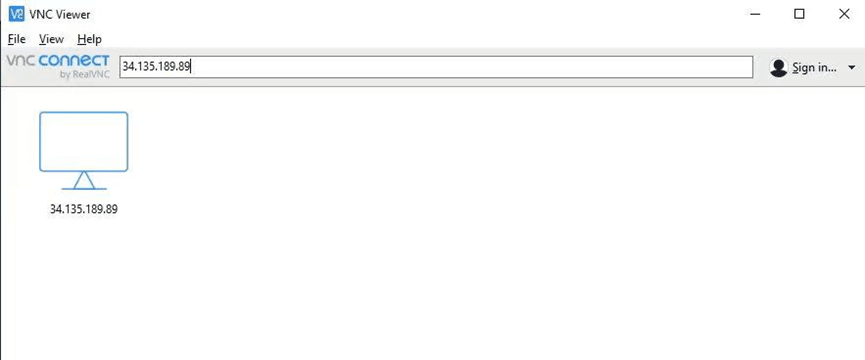
In the VNC Viewer wizard, copy the External IP and click the Connect button, accepting the encryption warning.
Step 10
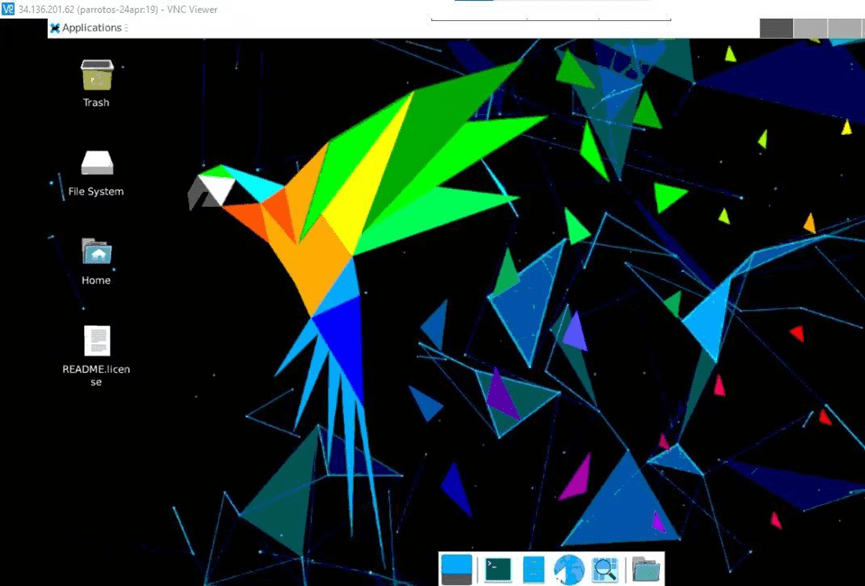
You are now connected to the out-of-the-box ParrotOS Linux environment as root user from your Windows machine.
Step 11
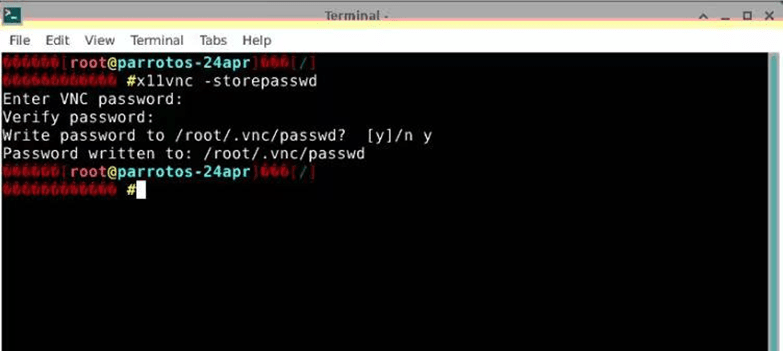
After first login, open terminal and run the following command to change the root user password.
Step 12
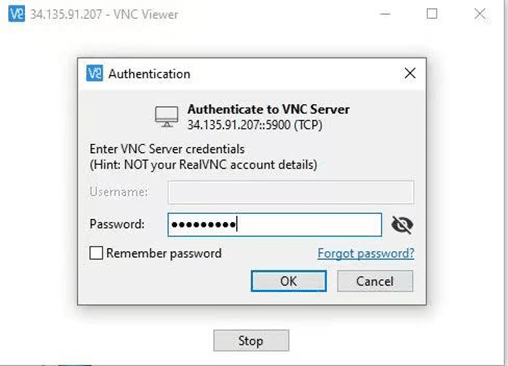
After setting the root user password, log in again using the root user and the new password.
Step 13
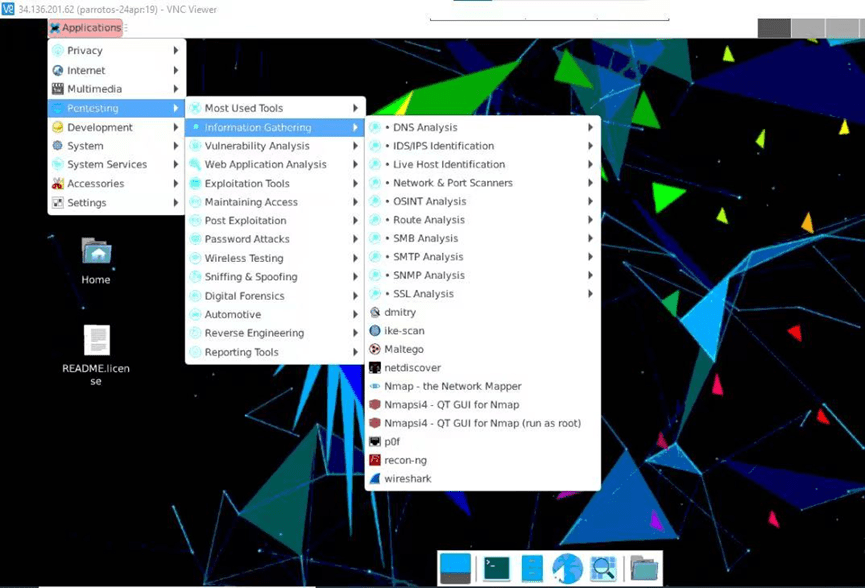
You are now connected to the out-of-the-box ParrotOS Linux environment, which has ParrotOS programs pre-installed.
in conclusion
Finally, this article provides a step-by-step guide on how to install, set up, and run a ParrotOS Linux environment on Amazon Web Services (AWS). ParrotOS Linux is a free, open-source distribution based on Debian designed for security experts and professionals in the fields of computer forensics, reverse engineering, hacking, penetration testing, anonymity, privacy, and cryptography.
Overall, this guide is designed to help users set up a ParrotOS Linux environment on AWS, allowing them to leverage the power of the operating system and cloud computing platform for their security and penetration testing needs.