


Highlights:
Before trading on Binance Futures, you should familiarize yourself with how the platform works and all its functionalities.
In our guide, review the main questions and settings you will encounter when trading a Binance perpetual futures product.
Always be aware of the risks associated with futures trading. Make sure you have sufficient preparation and knowledge about how futures work before trading them.

If you are interested in futures trading, there is a lot to learn. You should carefully study the technical skills and underlying trading concepts before experimenting. At first glance, the Binance Futures user interface may seem intimidating, but with the following guide, you will soon recognize the key functionalities and facets.
How to Open an Account on Binance Futures
Before opening a Binance Futures account, you need a regular Binance account. If you do not have one, you can go to Binance and click on Sign Up in the top right corner of the screen. Then follow these steps:
Enter your email address and create a secure password. If you have a referral ID, enter it in the referral ID box. Click [Create Account] to continue.
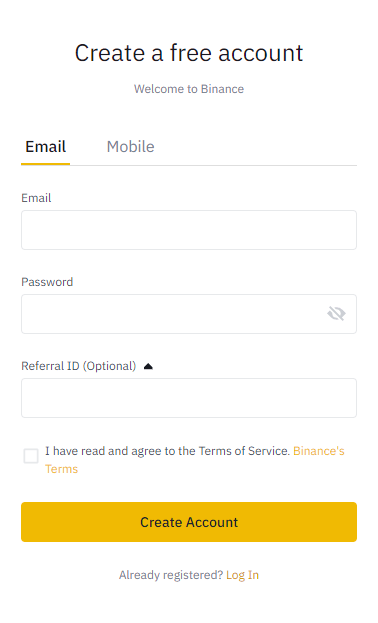
Shortly after, you will receive a confirmation email. Follow the instructions in the email to complete the registration.
Next, log in to your Binance account, hover the mouse over the top bar of the page to [Derivatives], and click on USD(S)-M Futures.
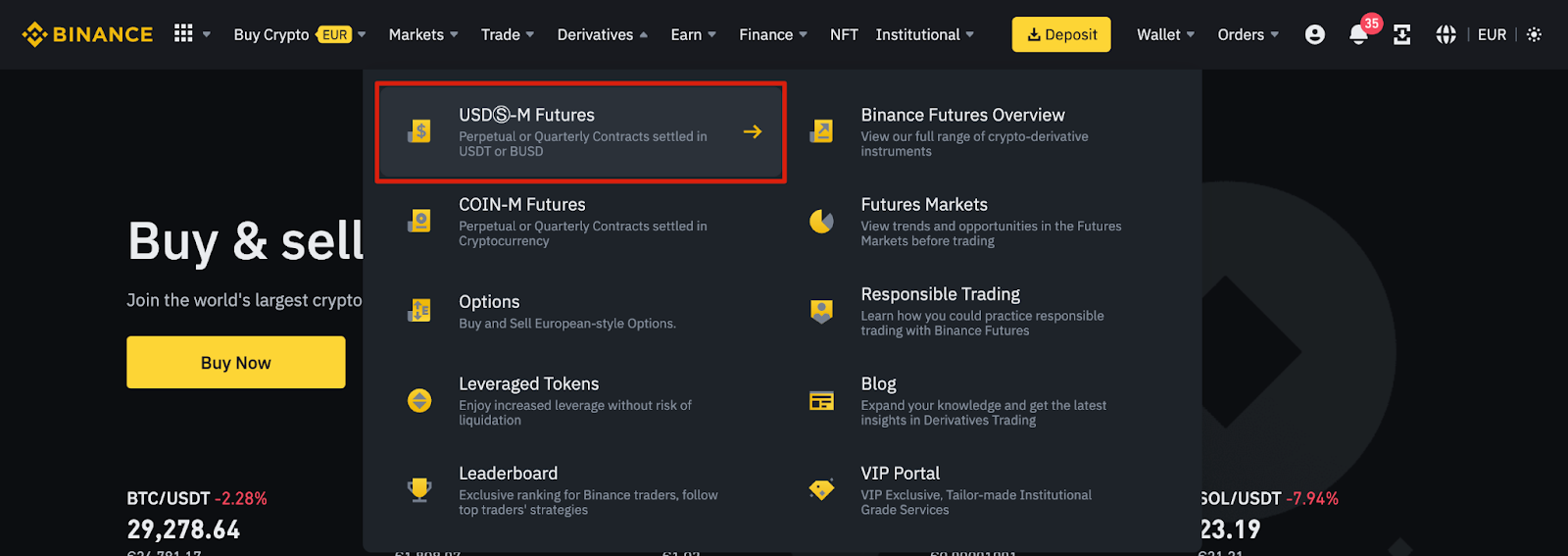
Click the [Open Now] button to activate your Binance Futures account. You can now trade futures products on Binance. Please note that you still need to prepare and learn before you can use this product responsibly.

If this is your first approach to futures trading, check the Binance Futures FAQs for an overview of the specifications of the contracts offered. If you want to try the platform without risking real funds, you can try the Binance Futures testnet.
How to Fund Your Binance Futures Account
To fund your Futures account, you first need to have available funds in your regular Binance account that you can transfer. These funds may be in the Funds, Fiat and Spot, Margin, or Options wallets. If you do not have sufficient funds deposited in Binance, we recommend reading our guide How to Deposit on Binance.
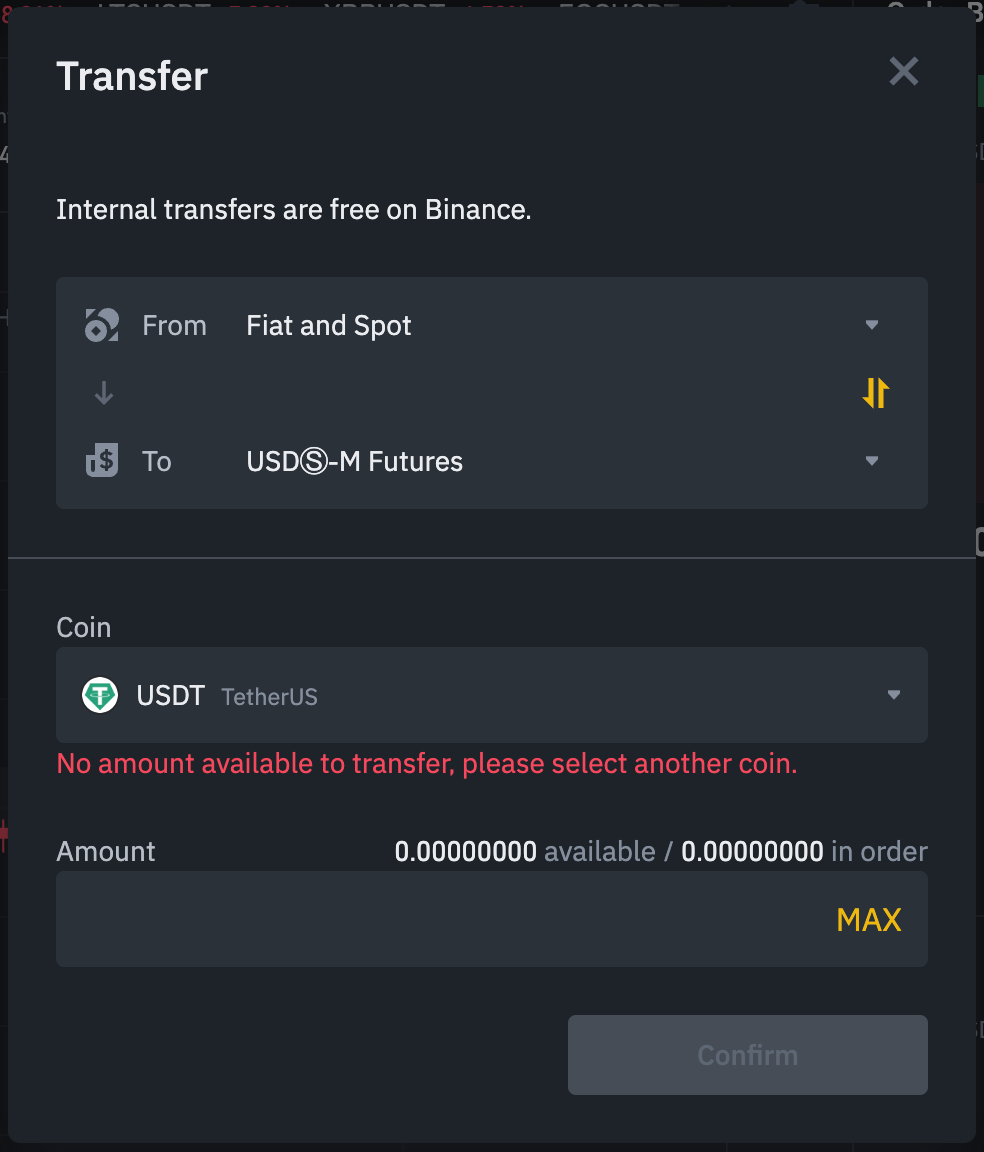
To transfer funds to your Futures wallet, click on the Transfer button in the lower right corner of the Binance Futures page.
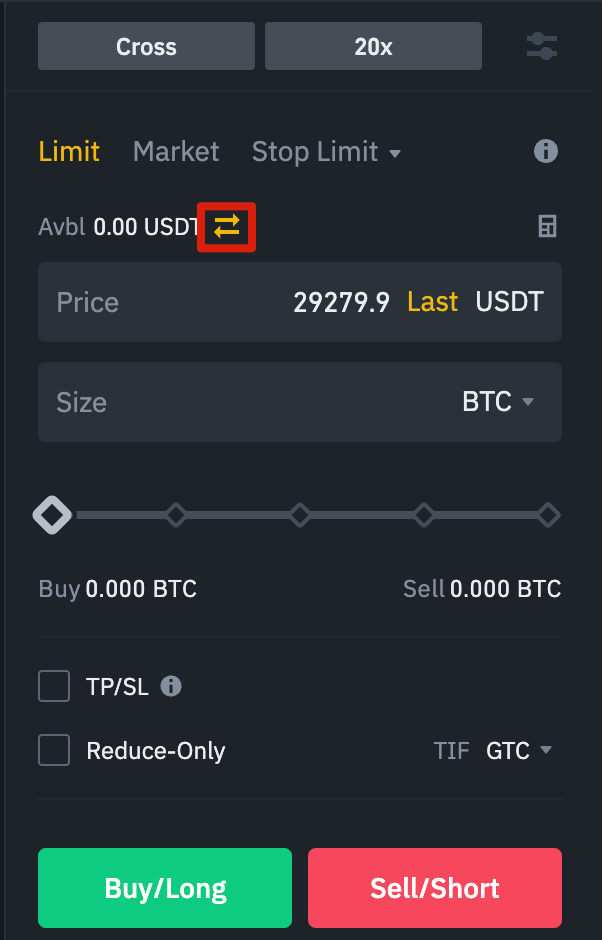
Set the amount you wish to transfer and the wallet you want to use before clicking [Confirm]. Shortly thereafter, you should see the balance added to your Futures wallet. If you wish, you can also change the transfer address.
Understanding the Binance Futures Interface
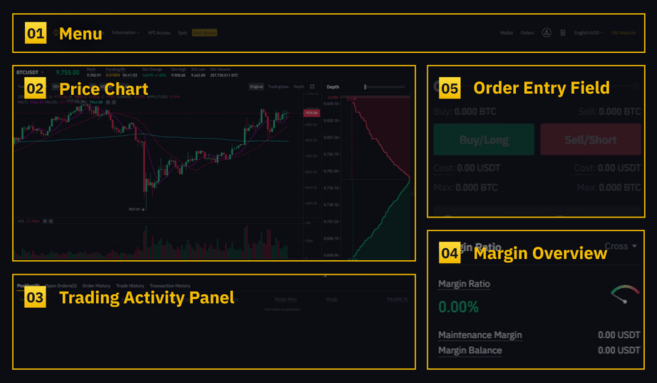
1. In the top [Menu] area, you will find links to other Binance pages, such as COIN-M Futures, Options, Strategic Trading, and Activities. In the [Information] tab, you can find links to the Futures FAQ, API access, funding rates, price index, and other market data.
On the right side of the top bar, you can access your Binance account. You can easily check the balances and orders of your wallets across the entire Binance ecosystem.
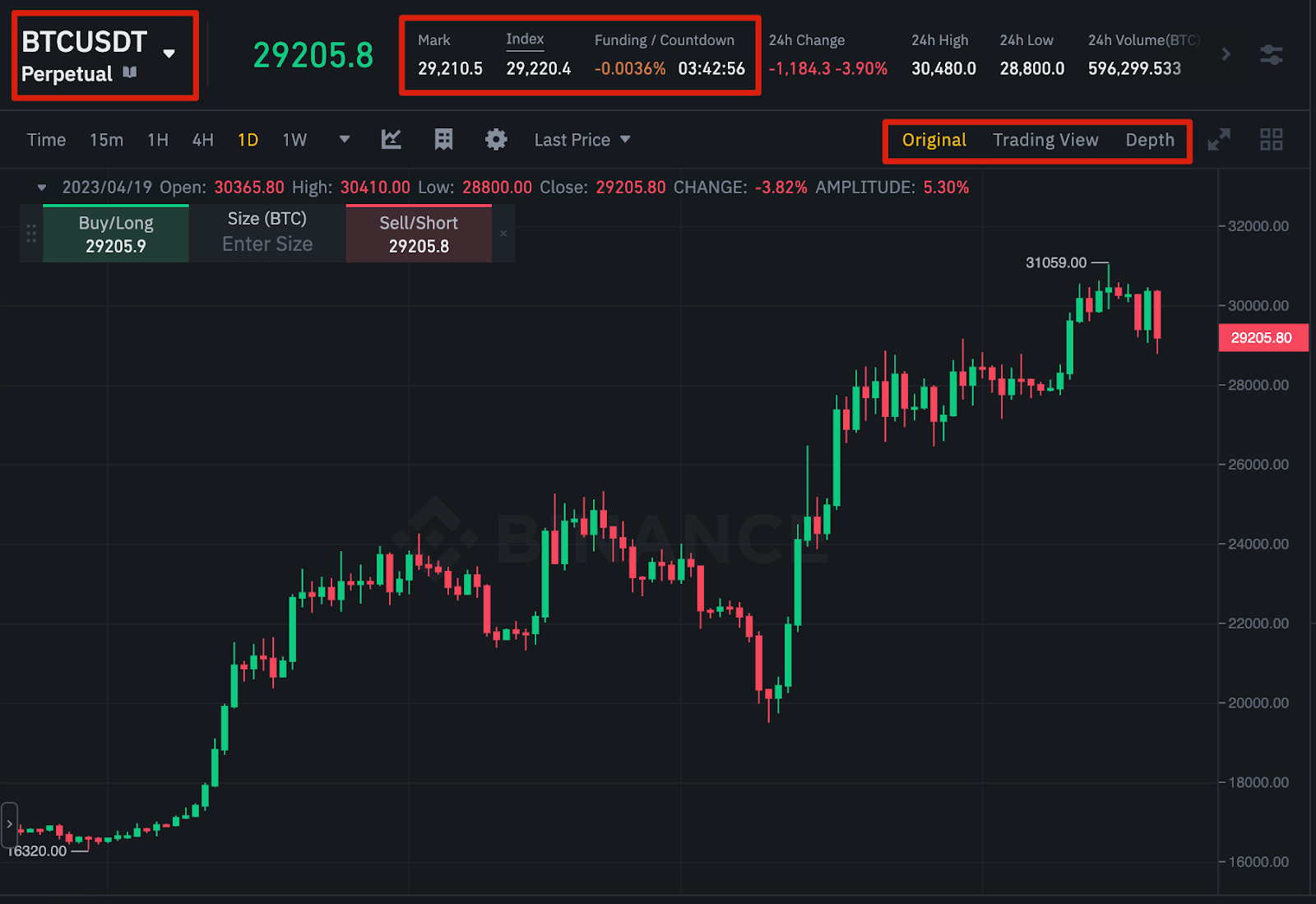
2. In the [Price Chart] section, you can:
Choose the contract by hovering your mouse over the name of the current contract (defaulting to BTCUSDT).
View the Mark Price. This data is especially important, as liquidations are made based on the Mark Price.
View the expected funding rate and the countdown to the next funding round.
View your current chart. You can switch between the original chart or the integrated TradingView chart. You will get a real-time view of the current order book depth by clicking on [Depth].
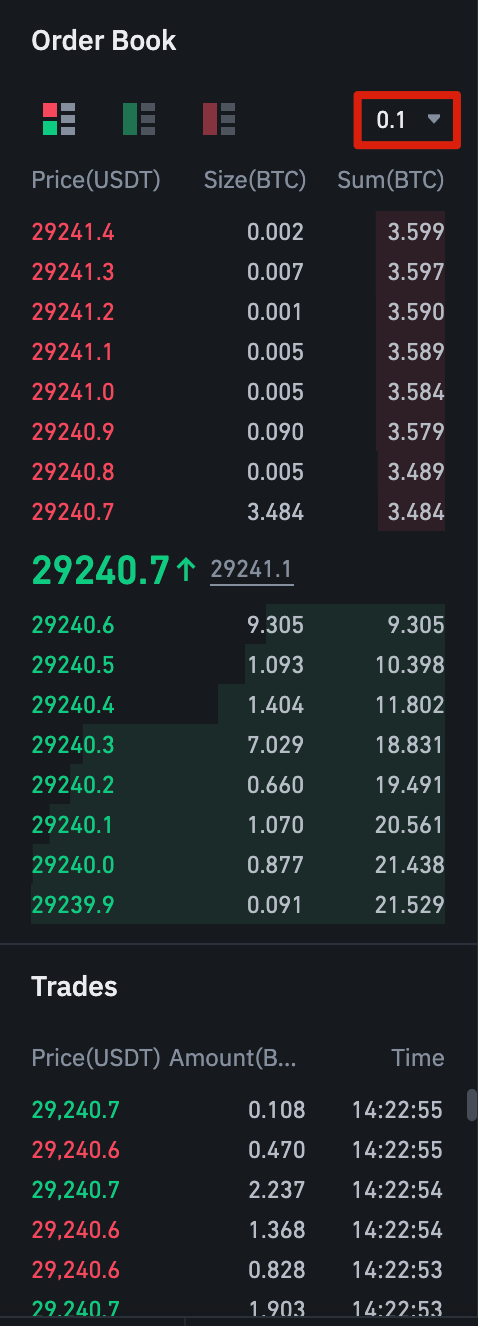
View live order book data. You can adjust the precision of the order book in the dropdown menu in the upper right corner of this section (defaulting to 0.01).
View a live feed of trades previously executed on the platform.
3. The [Trading Activity Panel] allows you to monitor your futures trading activity. You can switch tabs to see the current status of your position, as well as currently open orders and previously executed ones. You can also obtain a complete trading and transaction history for a specific period.
In this section, you can also monitor your position in the automatic deleveraging queue in ADL. It is especially important to pay attention to this during periods of high volatility.

4. In the [Margin Summary] section, you can view your available assets, as well as transfer and buy more cryptocurrencies. Here you can also see information related to the current contract and your positions. Make sure to pay attention to the margin rate to avoid liquidations.
By clicking on [Transfer], you can transfer funds between your Futures wallet and the rest of the Binance ecosystem.

5. The [Order Entry] section is where you enter your Buy/Long and Sell/Short orders. Later in this article, we will provide a detailed explanation of the types of orders available. You can also switch between Cross Margin and Isolated Margin at the top of the view. If you want to adjust your leverage, click on the current leverage (defaulting to 20x).

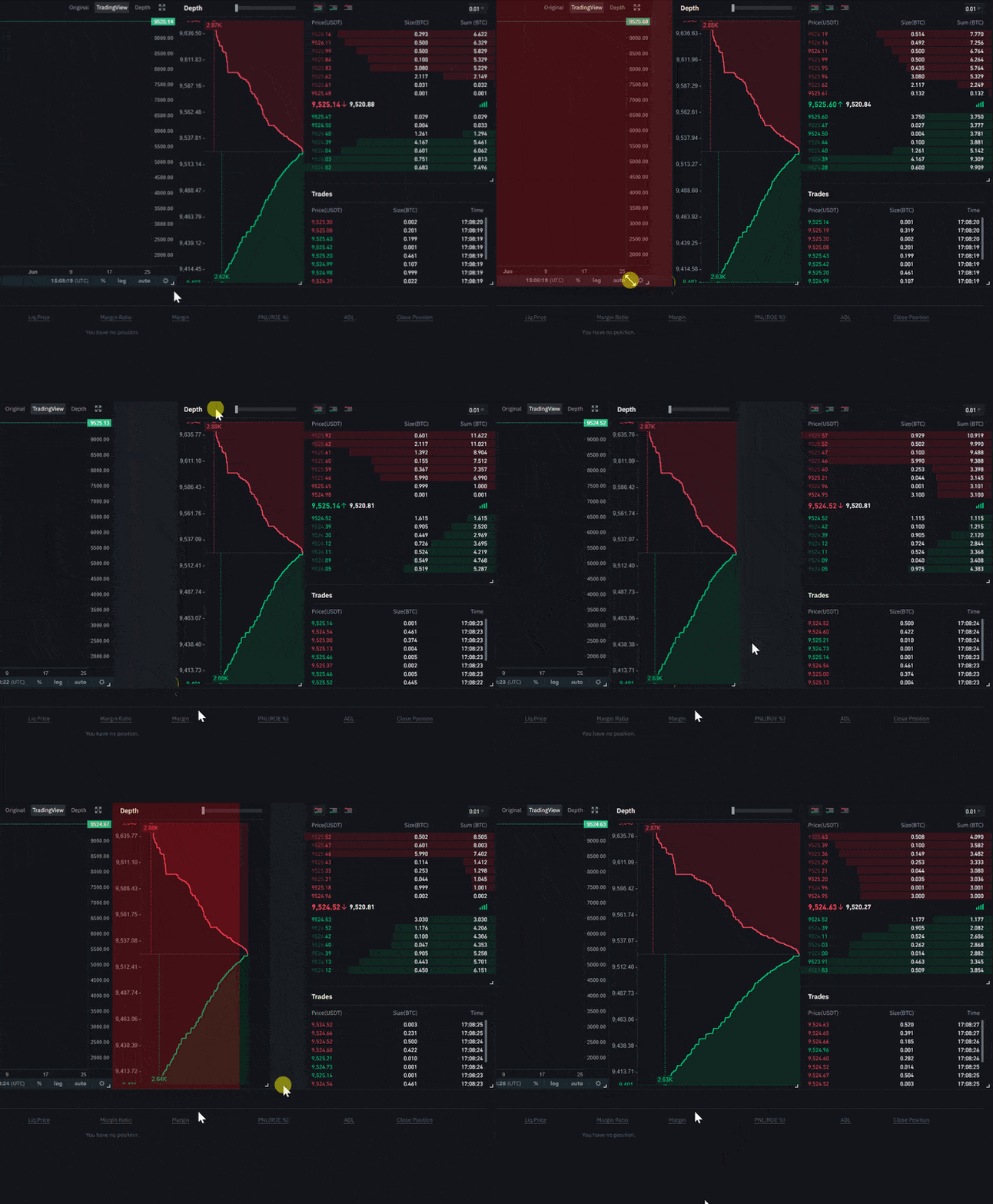
In the case of all these modules or sections, you can resize the elements to your liking. As long as you see an arrow in the bottom right corner of a module, you can drag it to get the layout you prefer. This way, you can easily create your own customized interface.
How to Adjust Leverage
Binance Futures allows you to manually adjust the leverage of each contract. To choose a specific contract, go to the top left of the page and hover the cursor over the current contract (defaulting to BTCUSD).

To adjust the leverage, go to the [Order Entry] section and click on your current leverage (defaulting to 20x). You can specify the amount of leverage by adjusting the slider or typing in the amount; then click [Confirm].

Keep in mind that the larger the position size, the less leverage you will be able to use. Likewise, the smaller the position size, the more leverage you will be able to use. Using higher leverage also comes with a greater risk of liquidation.
As always, each trader must carefully consider the amount of leverage they use and the associated risks.
What is the difference between Mark Price and Last Price?
To avoid extreme spikes and unnecessary liquidations during periods of high volatility, Binance Futures uses the last price and the mark price.
The last price is an easy concept to understand, as it designates the last price at which the contract was traded. In other words, the last trade in the trading history defines the 'last price'. It is used for calculating your realized PnL (profits and losses).
The mark price is designed to prevent price manipulation. It is calculated using a combination of funding data and a basket of price data from different spot market exchanges. Your liquidation prices and unrealized PnL are calculated based on the mark price.

Keep in mind that the mark price and the last price may differ.
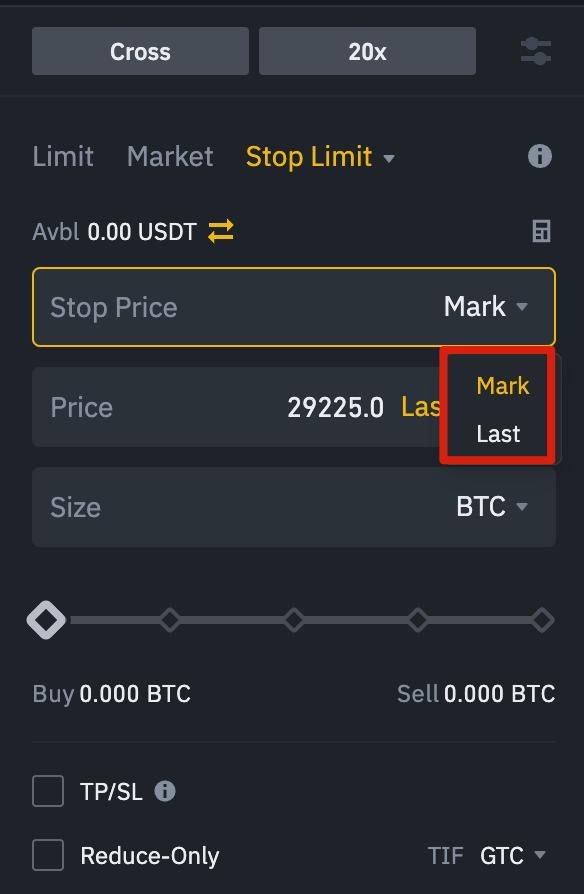
Set Stop Price Triggers
When setting an order type that uses a stop price as a trigger, you can select either the last price or the mark price as the trigger price. To do this, select the price you want to use from the [Trigger] dropdown menu at the bottom of the order entry field.
What types of orders are available and when to use them?
When entering orders, you have a variety of options to choose from:
Limit Order
A Limit Order is an order that is entered into the order book with a specific limit price. When you generate the Limit Order, the trade will only execute if the market price reaches your limit price (or a better price). You can use Limit Orders to buy at a lower price or sell at a higher price than the current market price.
Market Order
A Market Order is a buy or sell order at the best current available price. It executes against previously entered Limit Orders in the order book. When generating a Market Order, you will pay taker fees on the market.
Stop Limit Order
The easiest way to understand a Stop-Limit order is to divide it into two prices: stop and limit. The 'stop' price is the price that triggers the Limit Order, and the 'limit' price is the limit price of the activated Limit Order. This means that once your stop price is reached, your Limit Order will be immediately entered into the order book.
Although the stop price and limit price can be the same, it is not a requirement. In fact, you could set a stop price (activation price) slightly higher than the limit price for sell orders and slightly lower than the limit price for buy orders. This could increase the chances of your Limit Order being filled once the stop price is reached.
Stop Market Order
Similar to a Stop Limit order, a Stop Market order uses a stop price as a trigger. However, when the stop price is reached, a Market Order is triggered.
Take Profit Limit Order
A Take-Profit Limit order is similar to the Stop-Limit order. It involves an activation price (the price that triggers the order) and a limit price, meaning the price of the Limit Order that is then added to the order book. The key difference between a Stop-Limit order and a Take-Profit Limit order is that the latter can only be used to reduce open positions.
A Take-Profit Limit order can be a useful tool for managing risk and securing profits at specific price levels. It can also be used alongside other types of orders, such as Stop-Limit orders, allowing you to have more control over your positions.
Keep in mind that these are not OCO orders. For example, if your Stop-Limit order is triggered while you also have an active Take-Profit Limit order, the Take-Profit Limit order will remain active until you manually cancel it. You can set a Take-Profit Limit order in the [Stop Limit] option of the order entry field.
Take-Profit Market Order
Similar to a Take-Profit Limit order, a Take-Profit Market order uses a stop price as a trigger. However, when the stop price is reached, a Market Order is triggered. You can set a Take-Profit Market order in the Stop-Market option of the order entry field.
Trailing Stop Order
A Trailing Stop order helps you secure profits while limiting potential losses on your open positions. For a long position, this means that the Trailing Stop will rise with the price if it goes up.
However, if the price drops, the Trailing Stop stops moving. If the price moves a specific percentage (this is called the Callback Rate) in the opposite direction, a sell order is issued. The same happens in the case of a short position, but in reverse. The Trailing Stop moves down with the market, but stops moving if the market starts to rise. If the price moves a specific percentage in the opposite direction, a buy order is issued.
The activation price is the price that triggers the Trailing Stop order. If you do not specify an activation price, it will default to the last price or the current mark price. You can set which price to use as a trigger at the bottom of the order entry field.
The callback rate is what determines the percentage amount at which the Trailing Stop will follow the market price. Therefore, if you set the callback rate at 1%, the Trailing Stop order will follow the market price by 1% if the trade goes in your direction. If the price moves more than 1% in the opposite direction to your trade, a buy or sell order is issued (depending on the direction of your trade).
How to Use the Binance Futures Calculator
You can access the calculator icon at the top of the order entry field. It allows you to calculate values before entering a long or short position. You can move the leverage slider in each tab to use it as a basis for your calculations.
The calculator has the following tabs:
PnL: use this tab to calculate your Initial Margin, Profits and Losses (PnL), and Financial Return (ROE) based on the expected entry and exit prices and the position size.
Target Price: use this tab to calculate at what price you should exit your position to achieve the desired return percentage.
Liquidation Price: use this tab to calculate the estimated liquidation price based on your wallet balance, expected entry price, and position size.
Here you will find an available tutorial video.
How to Use Hedge Mode
In hedge mode, you can maintain long and short positions simultaneously for a single contract. A trader can do this if they are bullish on an asset in the long term but bearish in the short term. With hedge mode, your quick short positions will not affect your long positions.
The default position mode is unidirectional. This means you cannot open long and short positions at the same time for a single contract. If you try to do so, the positions will cancel each other out. If you want to use hedge mode, you will need to enable it manually:
Go to the top right of your screen and select [Preference].
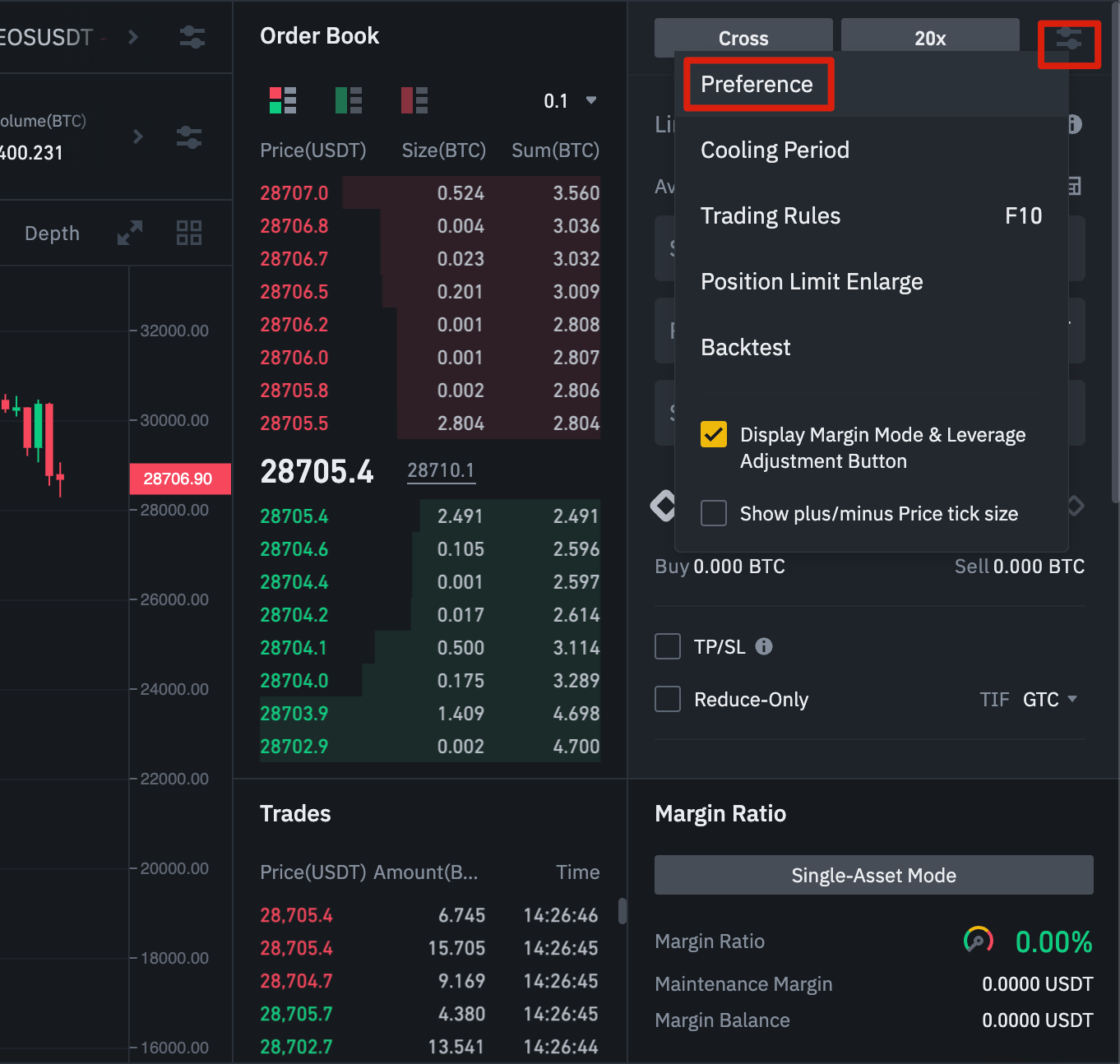
Go to the [Position Mode] tab and select [Hedge Position].

Keep in mind that if you have open orders or positions, you will not be able to adjust your position mode.
What is the Funding Rate and how to check it?
The funding rate ensures that the price of a perpetual futures contract remains as close as possible to the spot price of the underlying asset. Basically, traders pay each other depending on their open positions. What dictates which side receives the payment is determined by the difference between the price of perpetual futures and the spot price.
When the funding rate is positive, long positions pay shorts. When the funding rate is negative, short positions pay longs.
If you want to read more about how this process works, check our guide What are perpetual futures contracts?
What does this mean for you? Depending on your open positions and the funding rates, you will either pay or receive funding payments. In Binance Futures, these funding payments are made every 8 hours. You can check the timing and estimated funding rate of the next funding period at the top of the page, next to the mark price.
If you want to check previous funding rates for each contract, hover your cursor over [Information] and select [Funding Rate History] in 'Contract Info.'
What are Post-Only, Time in Force, and Reduce-Only?
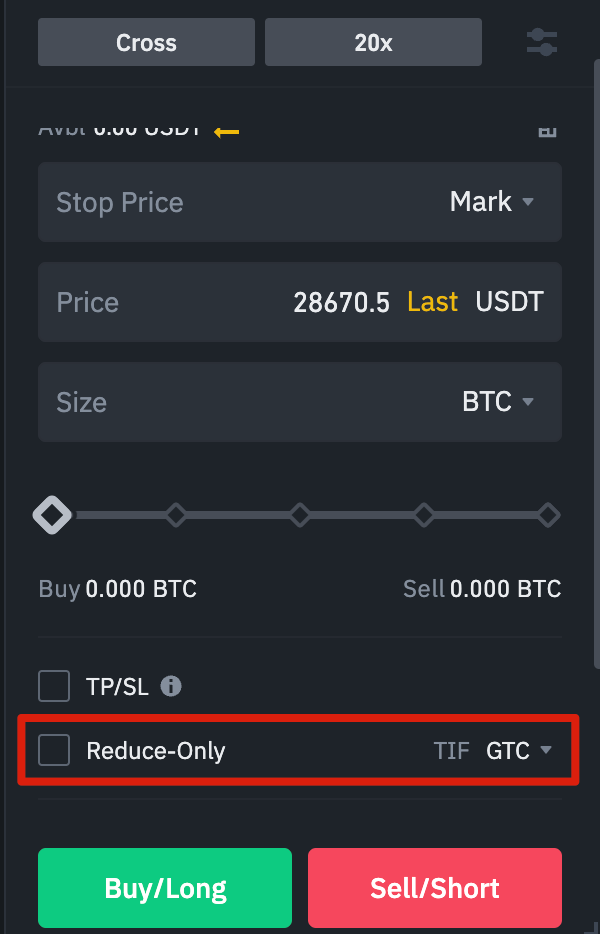
When you use Limit Orders, you can set additional instructions alongside your orders. In Binance Futures, these can be Post-Only or Time in Force (TIF) instructions and determine additional characteristics of your Limit Orders. You can access them at the bottom of the order entry field. Post-Only means that your order will always be added to the order book first and will never execute against an existing order in the order book. This is useful if you only want to pay maker fees.
The TIF instructions allow you to indicate how long your orders will remain active before being executed or expiring. For TIF instructions, you can select one of these options:
GTC (Good Till Cancel): the order will remain active until completed or canceled.
IOC (Immediate Or Cancel): the order will execute immediately (either fully or partially). If only partially executed, the unexecuted portion of the order will be canceled.
FOK (Fill Or Kill): the order must be completed immediately. If it is not completed, it will not execute at all.
When you are in unidirectional mode, checking [Reduce-Only] will ensure that new orders you set will only decrease and never increase your current open positions.
When are your positions at risk of being liquidated?
Liquidation occurs when your margin balance falls below the required maintenance margin. The margin balance is the balance in your Binance Futures account, including your unrealized PnL (profits and losses). Therefore, your gains and losses will change the value of your margin balance. If you are using Cross Margin mode, this balance will be shared across all your positions. If you are using Isolated Margin mode, this balance can be assigned to each individual position.
The maintenance margin is the minimum amount you need to maintain your open positions. It varies depending on the size of your positions. Larger positions require a higher maintenance margin.
You can check your current margin rate in the lower right corner. Once the margin rate reaches 100%, your positions will be liquidated.
When liquidation occurs, all your open orders are canceled. Ideally, you should track your positions to avoid automatic liquidation, which incurs an additional fee. If your position is close to being liquidated, it may be good to consider manually closing the position instead of waiting for automatic liquidation.
What is automatic deleveraging and how can it affect you?
When a trader's account size falls below zero, the Insurance Fund covers the losses. However, in some exceptionally volatile market environments, the Insurance Fund may not be able to handle the losses, and open positions must be reduced to cover them. This means that, during such times, your open positions may also be at risk of being reduced.
The order of these position reductions is determined by a queue, where the most profitable traders with the highest leverage are at the front. You can check your current position in the queue by hovering over [ADL] in the [Positions] tab.

Learn Before You Risk
Traditional futures contracts are derivatives that give traders the obligation to buy or sell an asset in the future. But unlike traditional futures contracts, perpetual futures contracts do not have a settlement date. Still, derivatives can be confusing for inexperienced traders, so it is crucial to understand how these contracts work before taking financial risks. As mentioned earlier, you can access the Binance Futures testnet to test the platform without risking real funds.
You might also be interested in...
Binance Futures FAQs
What is the long-short ratio and what does it indicate in crypto futures?
Six strategies to minimize liquidation risks in cryptocurrency futures trading
This content is generic for the Spanish-speaking community and does not refer to any specific jurisdiction. Risk Warning: Fiat currency services are provided to users directly by licensed providers for processing transfers. Users will be able to use the services of these licensed providers through Binance Pay to trade directly virtual assets and digital value units associated with the value of a fiat currency and/or transfer assets and digital units so that their recipients receive equivalent funds in fiat currency directly into their bank accounts. This process does not involve the receipt or collection of fiat currency resources nor the sending or transfer of fiat currency resources between users and recipients. Virtual assets and digital units are not backed by the government or any financial institution and are not legal tender. Conducting transactions with these types of assets and units carries certain risks, under the responsibility of the person performing them. Binance.com operates internationally. Please refer to our Terms of Use and Risk Warning.