The complete series of tutorials will be urgently uploaded step by step on Binance Square soon.
The entire tutorial will explain the use of Openclaw in a simple and detailed style, suitable for friends with poor hands-on ability.
I. Description
This chapter mainly introduces the layout and functional notes of the web console after the installation of openclaw.
II. Directory
1. Chat Box
2. Overview Box
3. Channel
4. Instances
5. Scheduled Tasks
6. Proxy
III. Tutorial
1. Chat Box
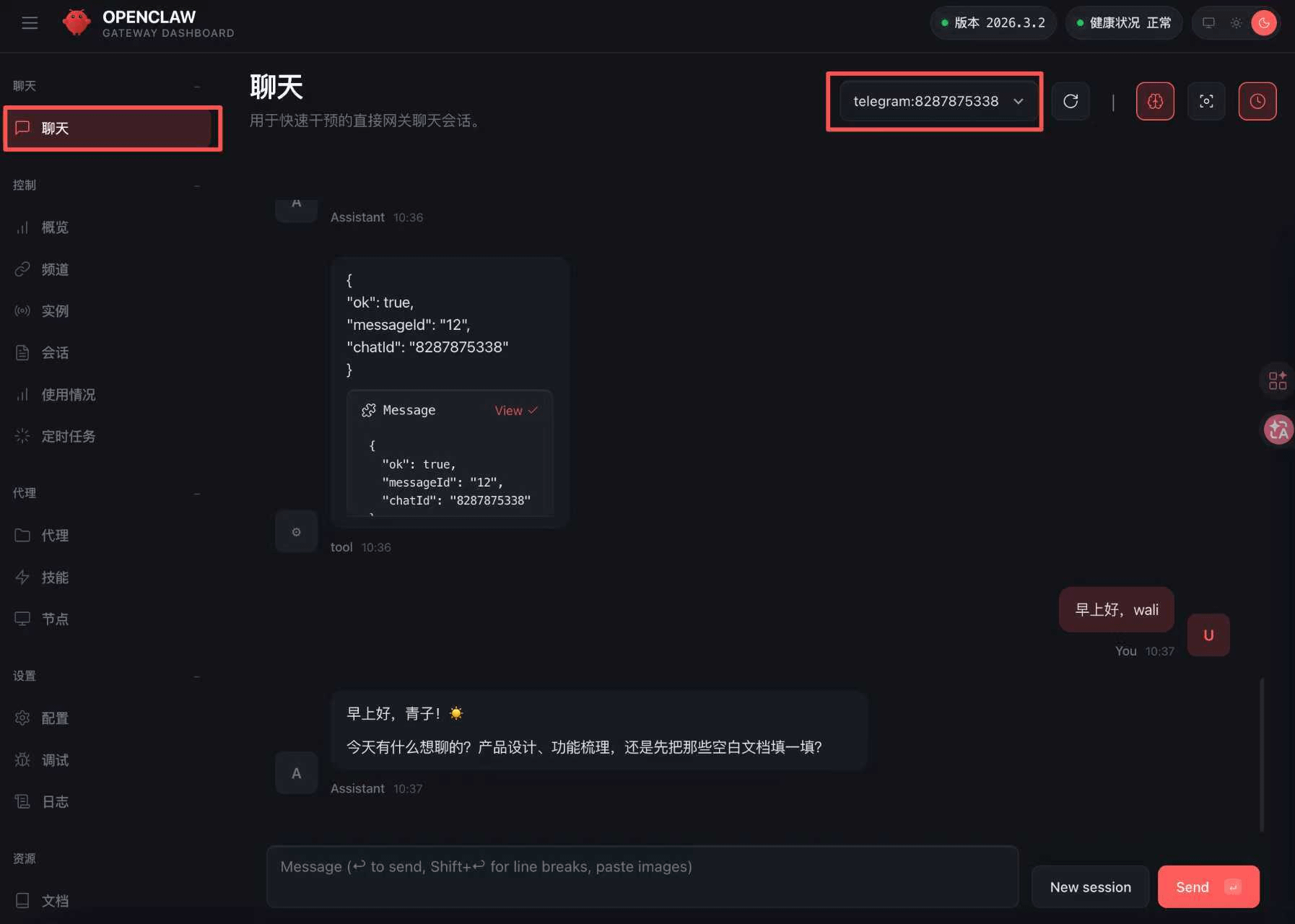
Note: The chat box on the web side can conduct human-machine dialogue, similar to operating on Telegram. By default, it starts with a new chat box based on the web side. If you need to sync with Telegram, you can click to expand and select the corresponding chat box.
Illustration:
2. Overview Box
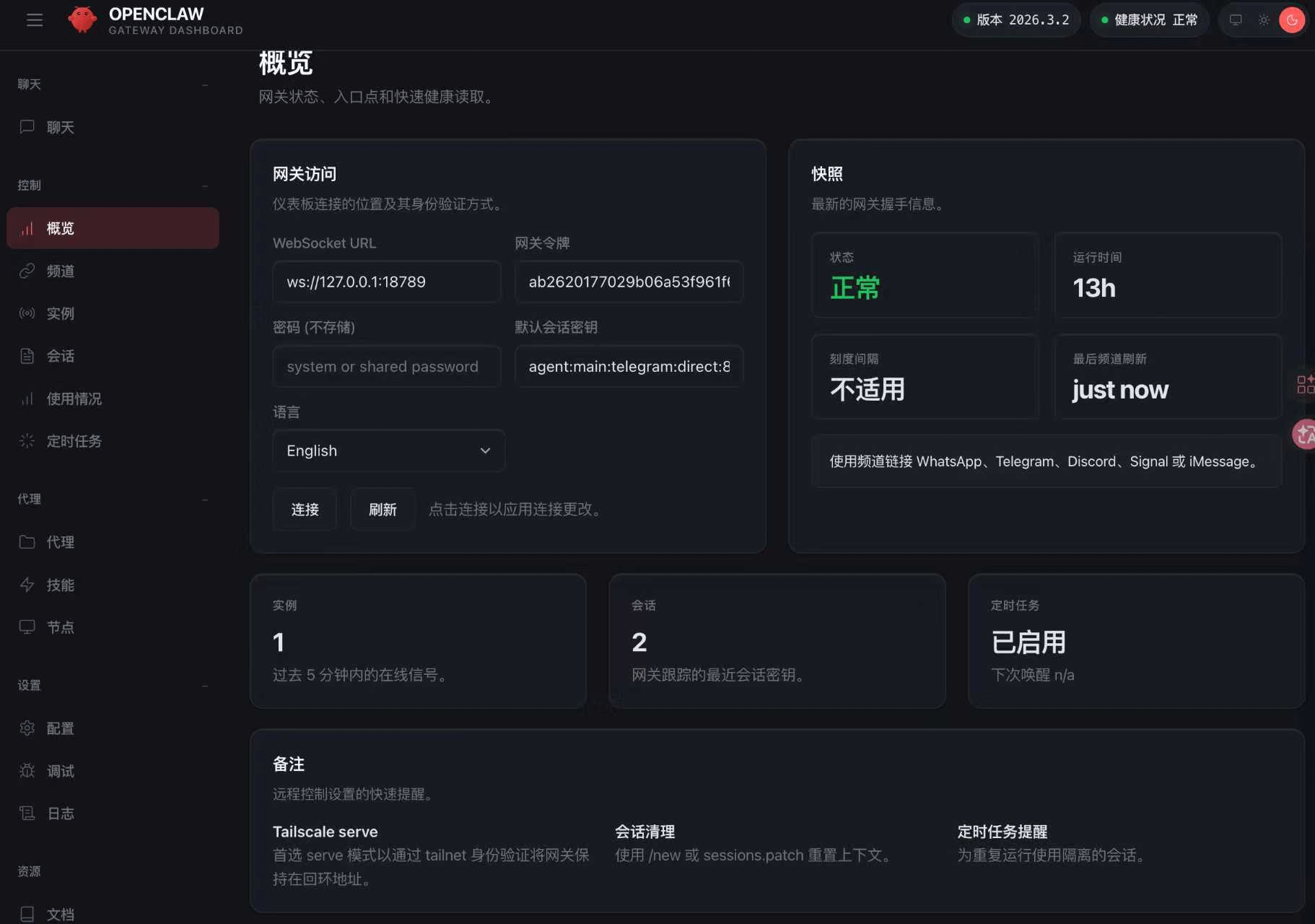
——Gateway Access
Description: Data panel for monitoring and managing the entire AI agent system.
Gateway Access: This is the address for the dashboard to connect to external clients (App, CLI) via the Gateway, default is localhost (127.0.0.1).
Gateway Token: Token for remote authentication (not stored in plaintext in password mode), must be included when accessing remotely.
Password: The password in shared password mode (leave blank or customize) for simple authentication.
Default Session Key: The identifier for the current default session (this is the Telegram direct session), indicating that the session tracked by the dashboard is the main Telegram session.
Language: English (can switch to Chinese, etc., supports multilingual UI).
——Snapshot
Status: Normal (green), indicating running normally.
Runtime: Has been running continuously for 13 hours (reset after restart).
Sampling Interval: The sampling interval for certain monitoring metrics (such as heartbeat frequency), not applicable here.
Last Channel Refresh: The time of the last message pulled/synchronized from channels like Telegram (indicating channel activity).
——Instances
Current number of running Node/agent instances (there is only 1 main instance here). How many independent 'execution units' (Node) are in the system. Multiple instances are used for load balancing or task isolation.
——Session
Current number of active/tracked sessions (there are 2 here, possibly one Telegram direct and one Webchat test session).
——Scheduled Tasks
OpenClaw supports heartbeat, scheduled reports, automated processes, and other cron tasks. This displays whether they are enabled and the scheduling status.
——Remarks
Tailscale serve: If you are using Tailscale VPN, this displays serve mode (remote secure access to Gateway).
Session Cleanup: Use /new or sessions.patch to reset context (clear session history).
Scheduled Task Reminder: Set a wake-up (heartbeat/scheduling) for recurring tasks.
Illustration:
3. Channel
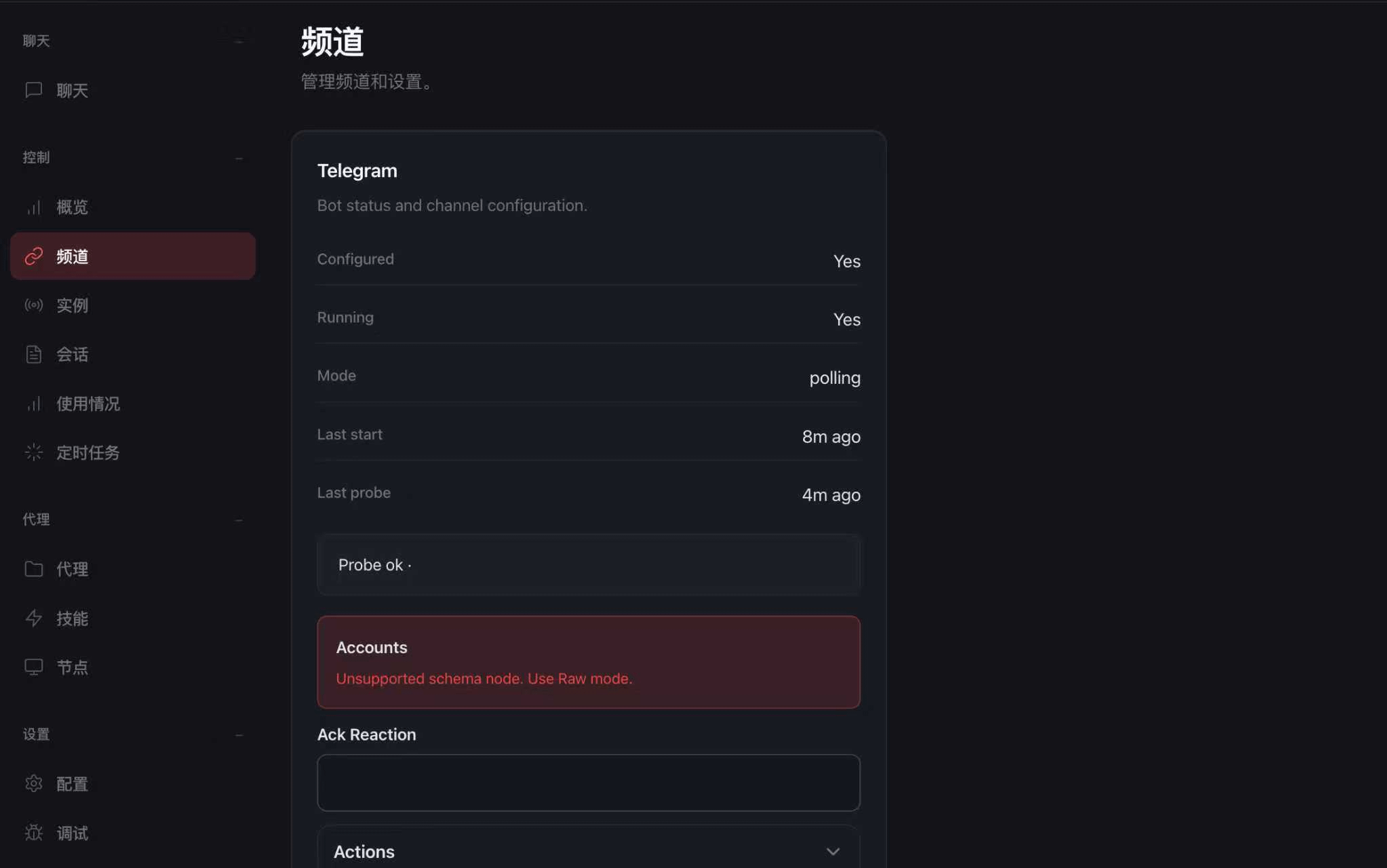
Description: The channel section mainly displays the configuration of social channels. Usually, command configurations are done at the terminal; this is mainly for viewing the completed configurations.
Illustration:
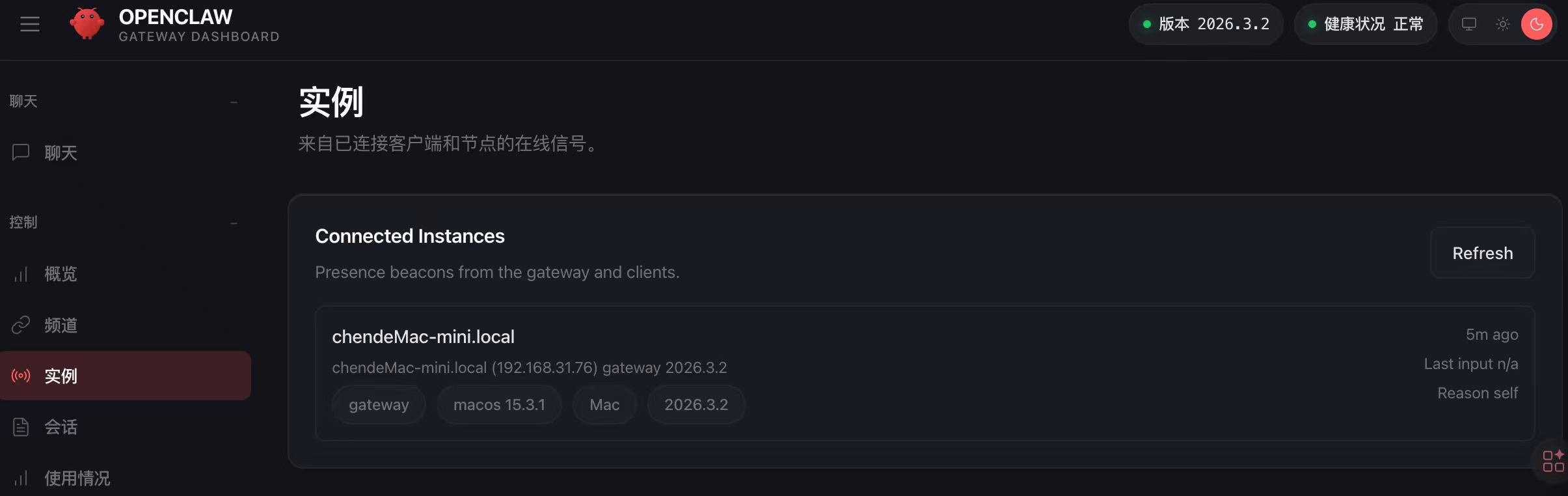
4. Instances
Description: Which terminals have sessions with openclaw.
Illustration:
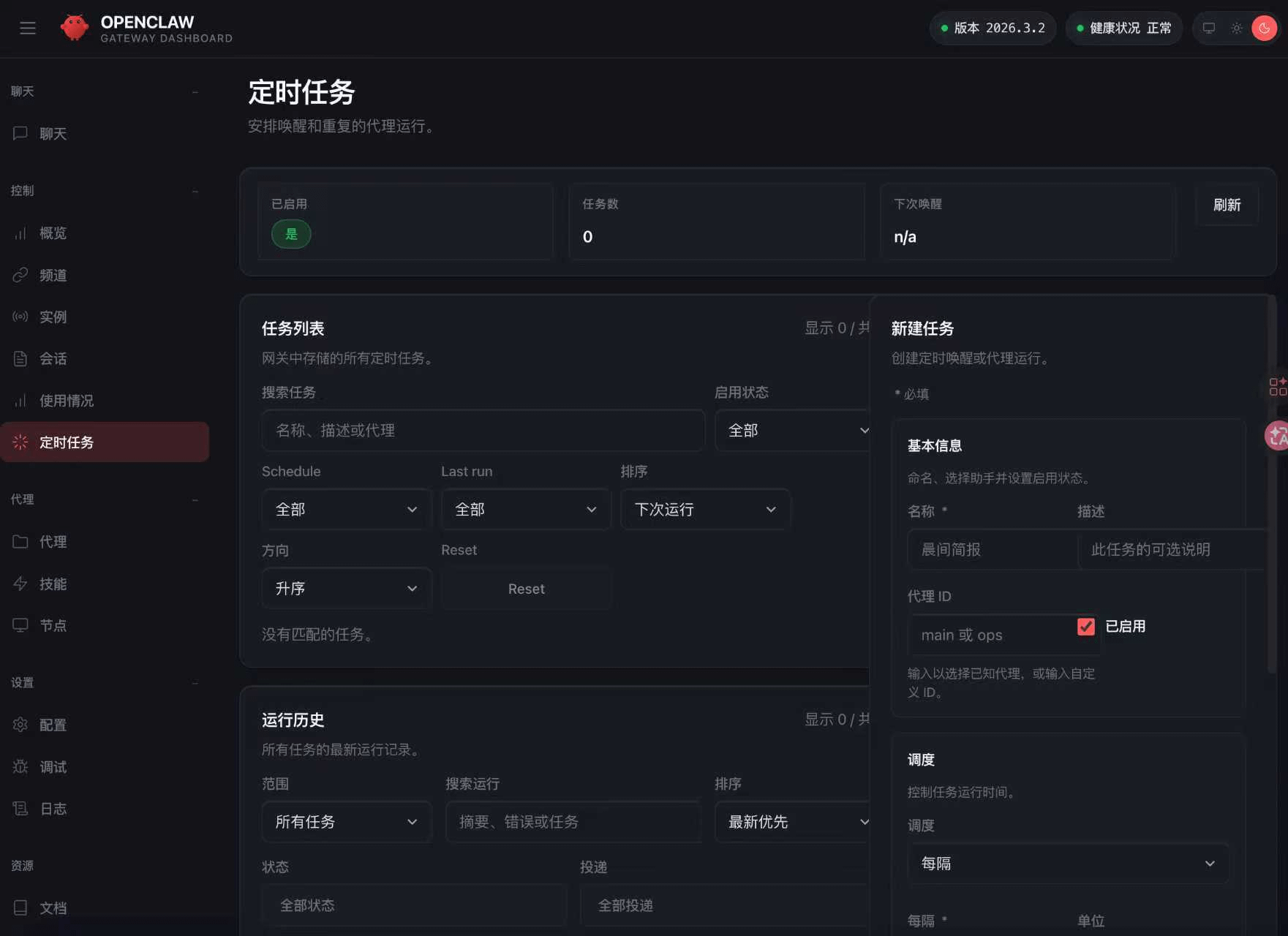
5. Scheduled tasks
Description: For example, send information briefs at regular intervals daily; similar tasks are set here.
Illustration:
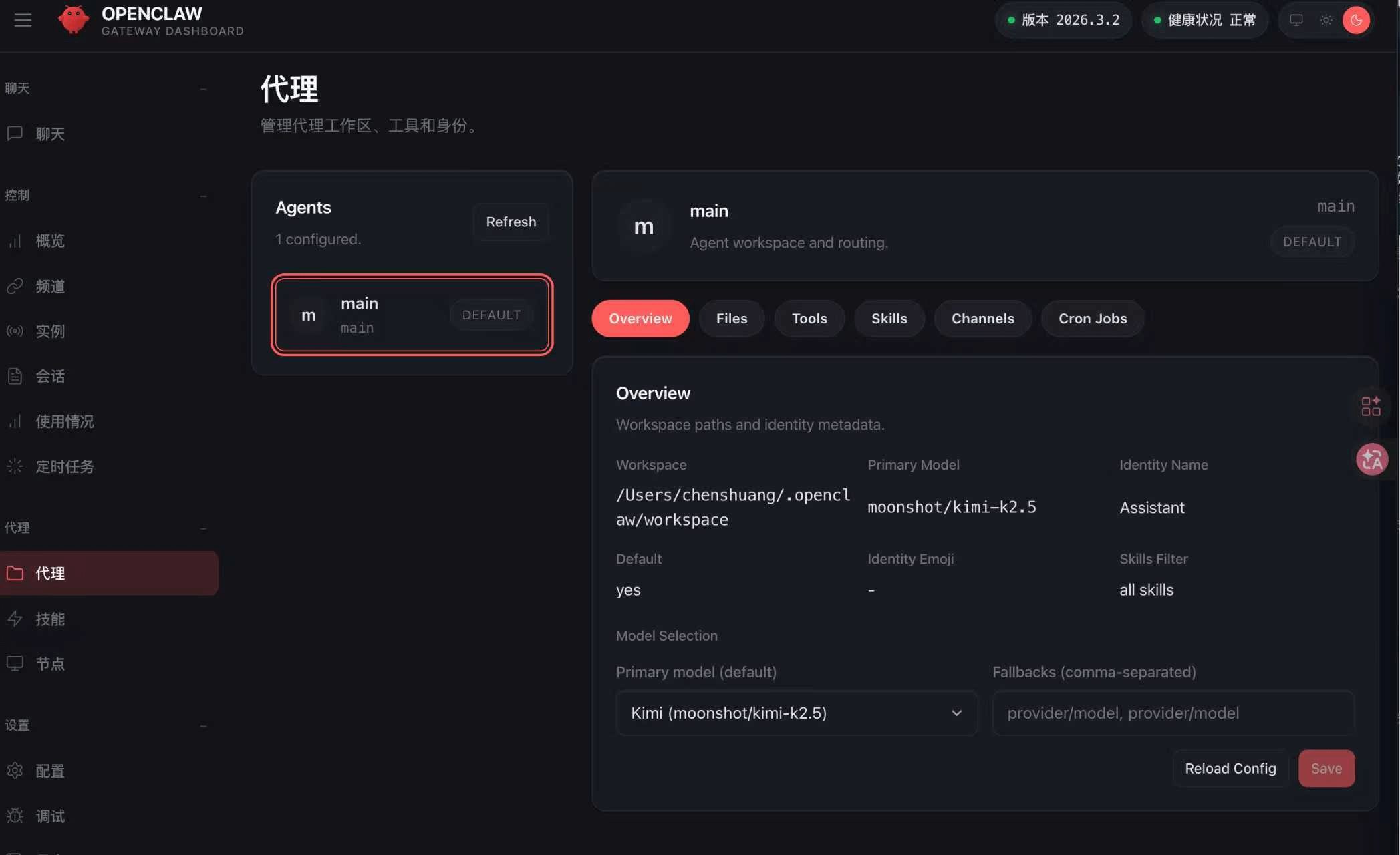
6. Agent
Description: The configuration page for the agent, where multiple agents can be configured to handle different tasks. Currently, this page is configured for only one AI of moonshot kimi. All tasks are completed through AI, which is a relatively important section.
Illustration:
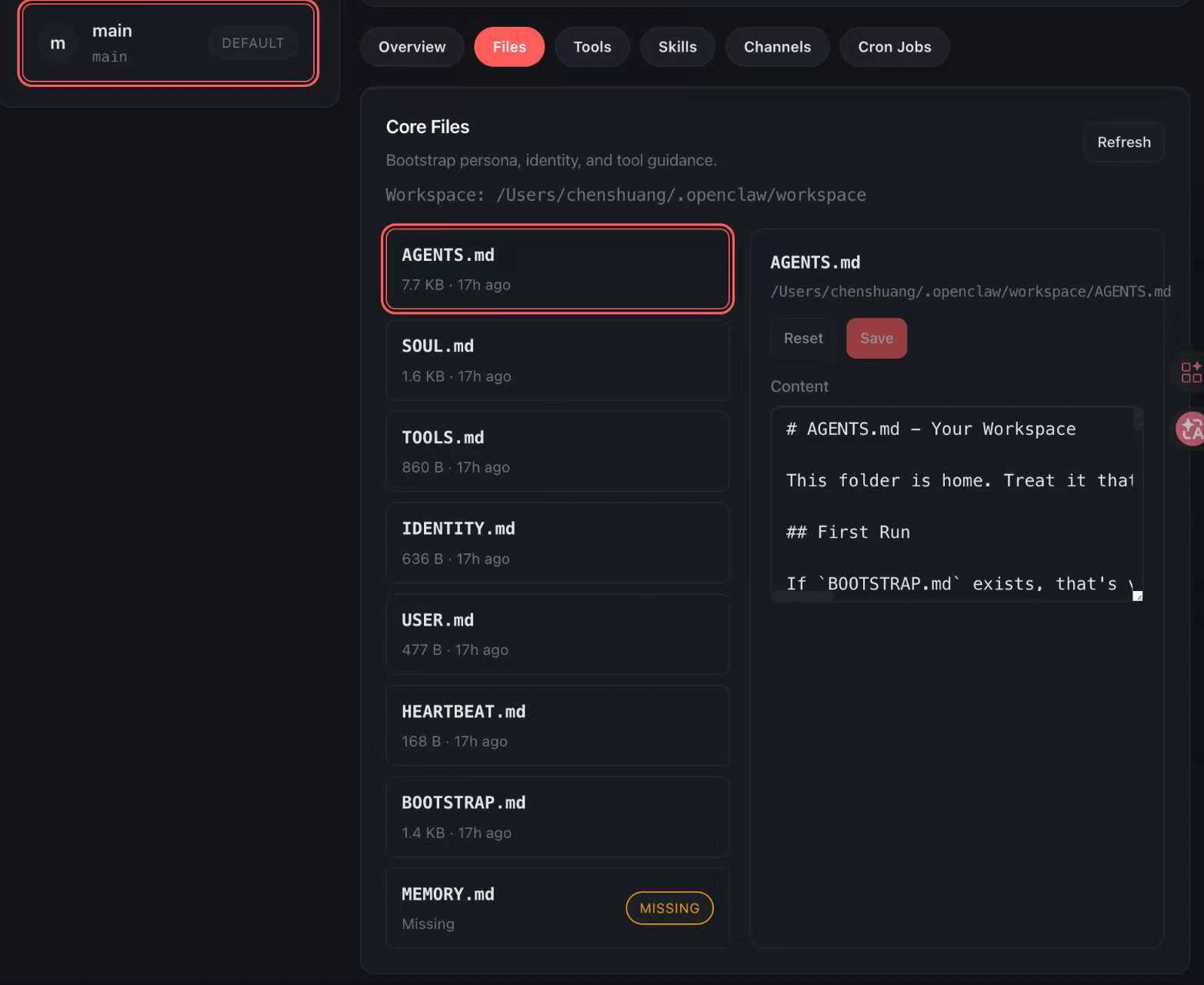
Common file functions in the files section:
agent.md: Operation instructions, continuity rules, important memories
soul.md: Personality definition, tone, boundaries
tools.md: Environment-specific tool descriptions
user.md: User information, preferences, project background
identity.md: Assistant identity (name, expression, avatar)
memory.md: Long-term memory (sensitive content)
Illustration:
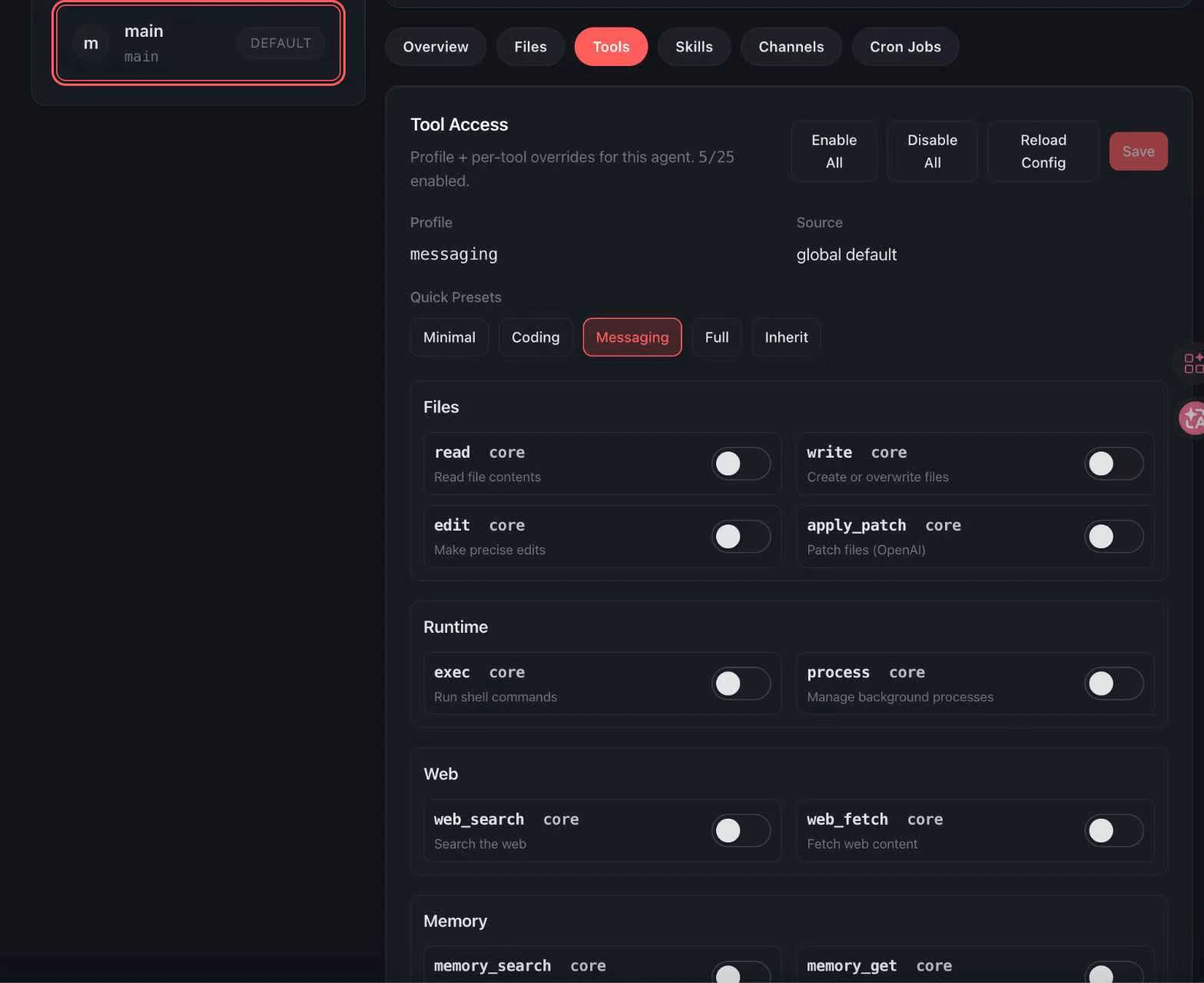
Tools bar: The agent performs actual operations (such as reading and writing files, running commands, searching the web, etc.) by calling these tools, and this page is the console for 'what permissions are given to the agent'.
Files: File operations
Runtime: Execution environment
Web: Related to the web
Memory: Memory management
Browser: Browser control (navigation, clicking, filling forms)
Sessions: Manage sessions (spawn sub-sessions, send messages)
Illustration: