

I. Introduction to SafePal and MasterCard
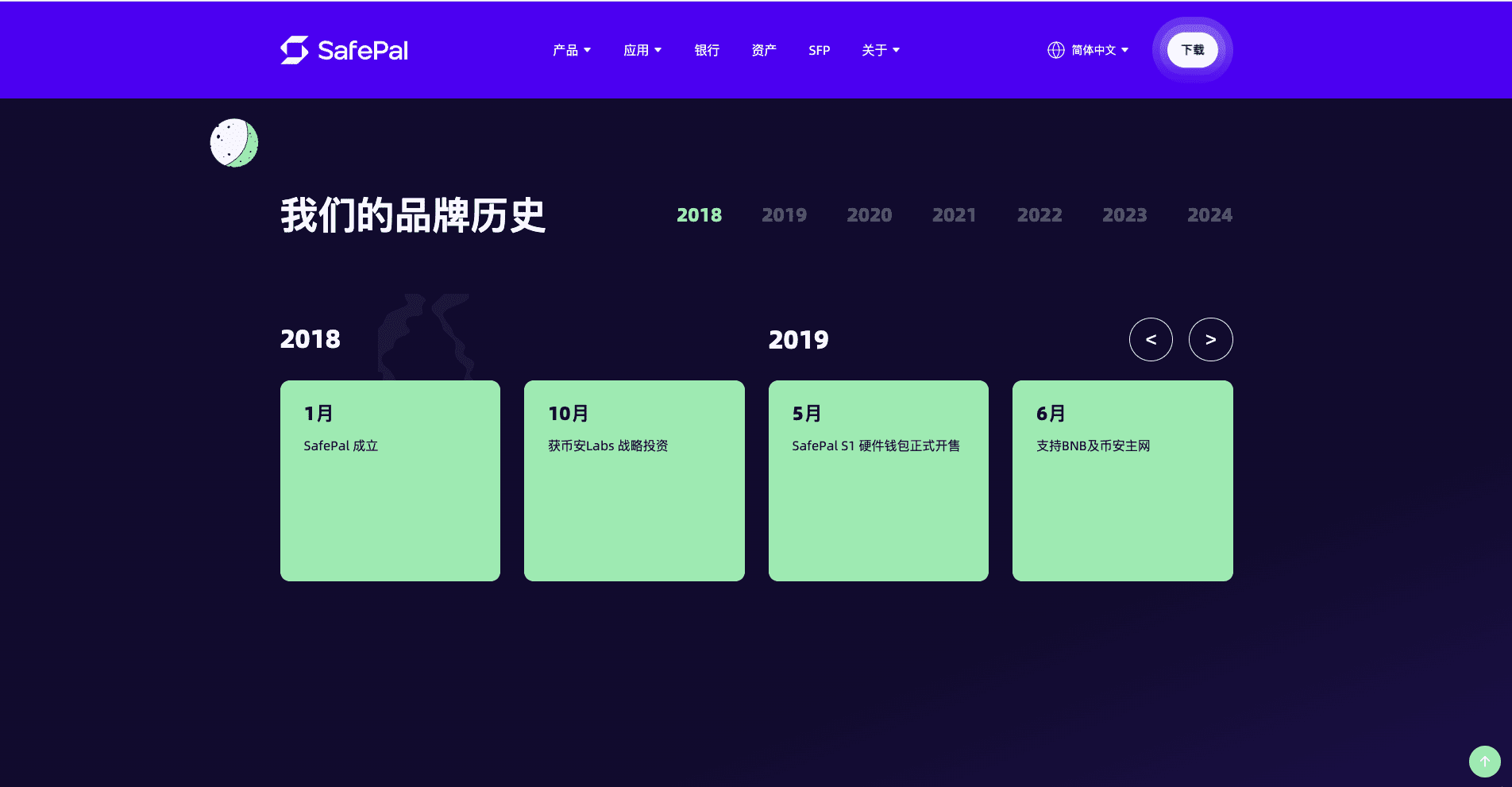
SafePal is an old Wallet project founded in 2018, and received strategic investment from Binance in the same year. Not only Binance, but many well-known investment institutions have also invested in it successively. Therefore, its growth rate is very fast, and it has now expanded to cover hardware Wallet (S1, S1 Pro and X1), software Wallet, browser plug-in Wallet and compliant banking services. It has covered services in more than 200 regions and countries, with more than 20 million users.
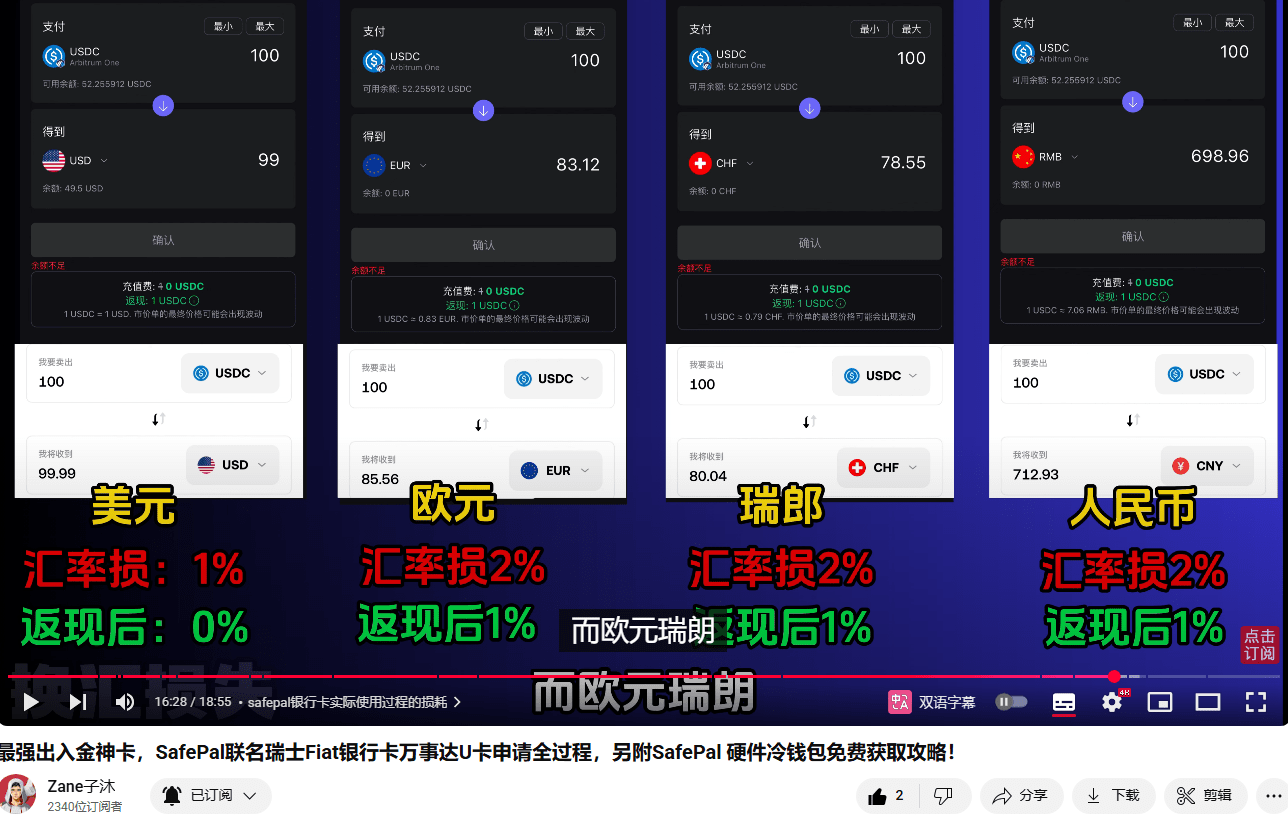
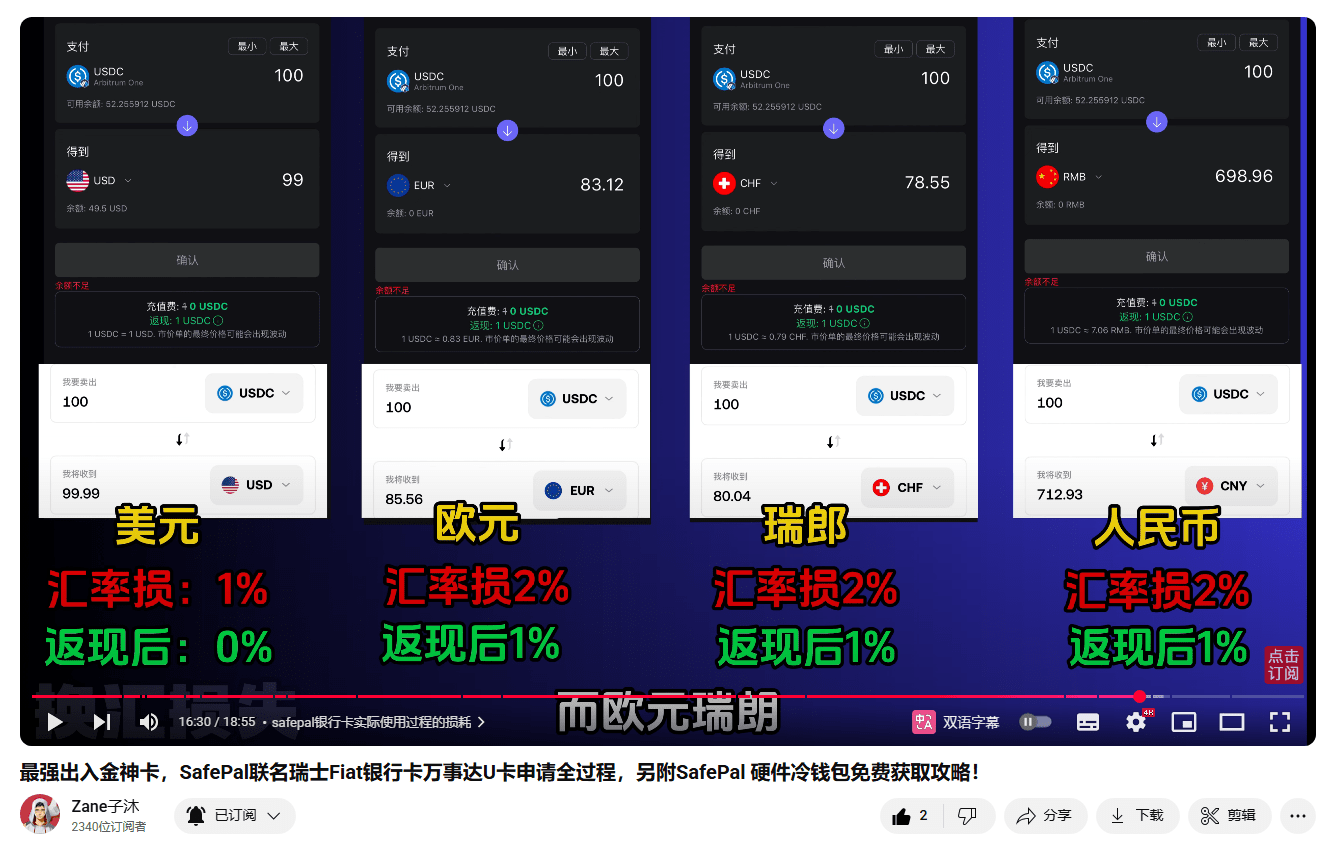
Now SafePal also integrates Fiat24 Swiss bank account with personal IBAN, supports legal currency deposit and withdrawal, currency exchange and other conventional banking services, as well as co-branded 16-digit MasterCard, this U card is also a magic card, the actual test shows that the US dollar consumption is 0 loss, RMB, Euro, Swiss franc loss is only 1%.
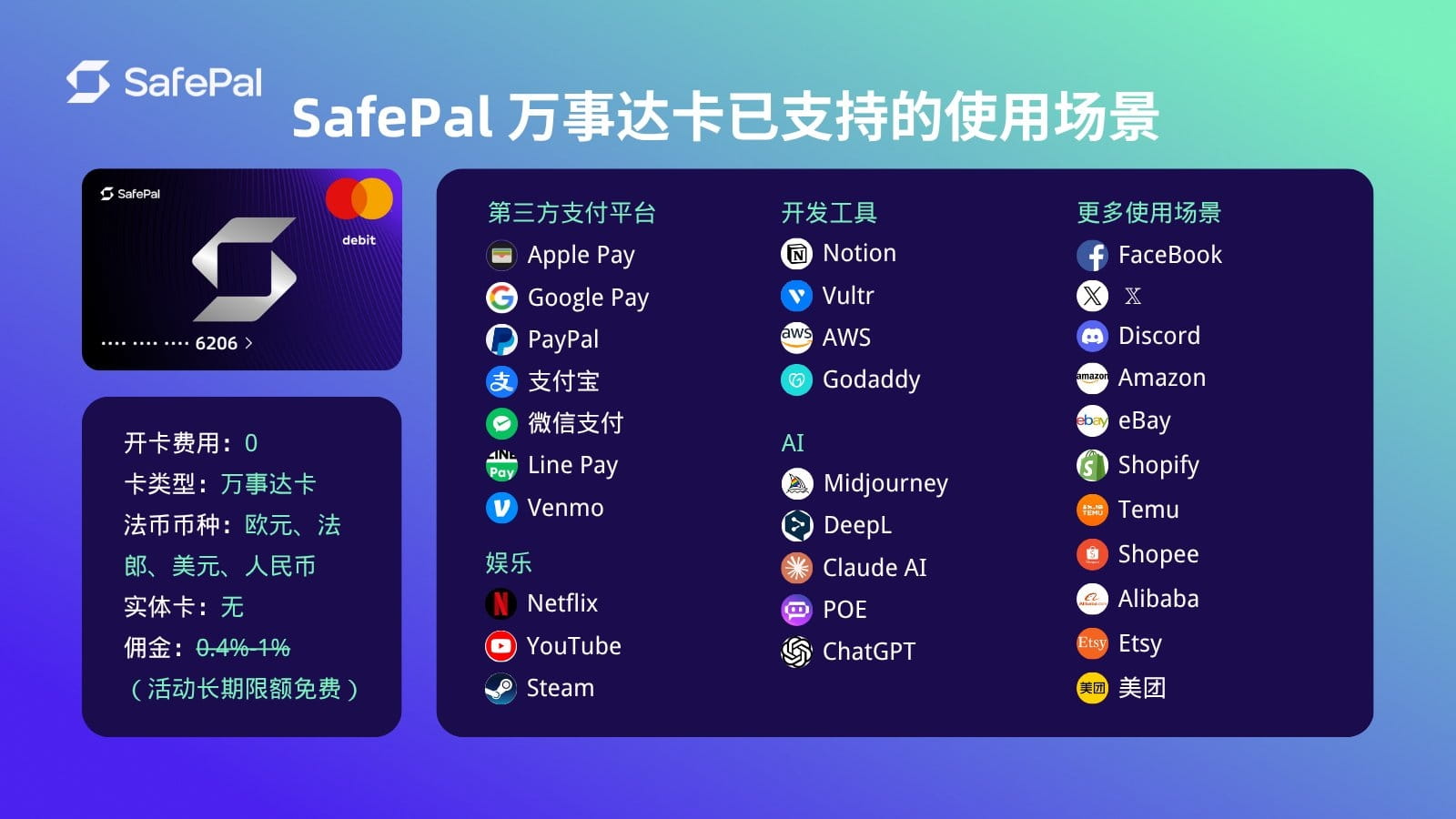
The MasterCard supports direct deposit of USDC (Arbitrum One), and supports binding domestic Alipay, WeChat, Apple Pay for online/offline daily consumption, and can also be used to subscribe to many services such as Twitter YouTube Netflix ChatGPT.
SafePal MasterCard recharge fee rate is 0.6%-1%, and it has always been in the free activity period. The official said that the long-term activity will also be free in the future, and the exchange fee of 1% can be avoided by opening USD / RMB / EUR / CHF accounts and consuming corresponding currencies: for example, use RMB account for domestic consumption, open GPT, Twitter membership with US dollar and other accounts to avoid 1% exchange fee.
II. SafePal MasterCard account opening/application for hardware wallet tutorial
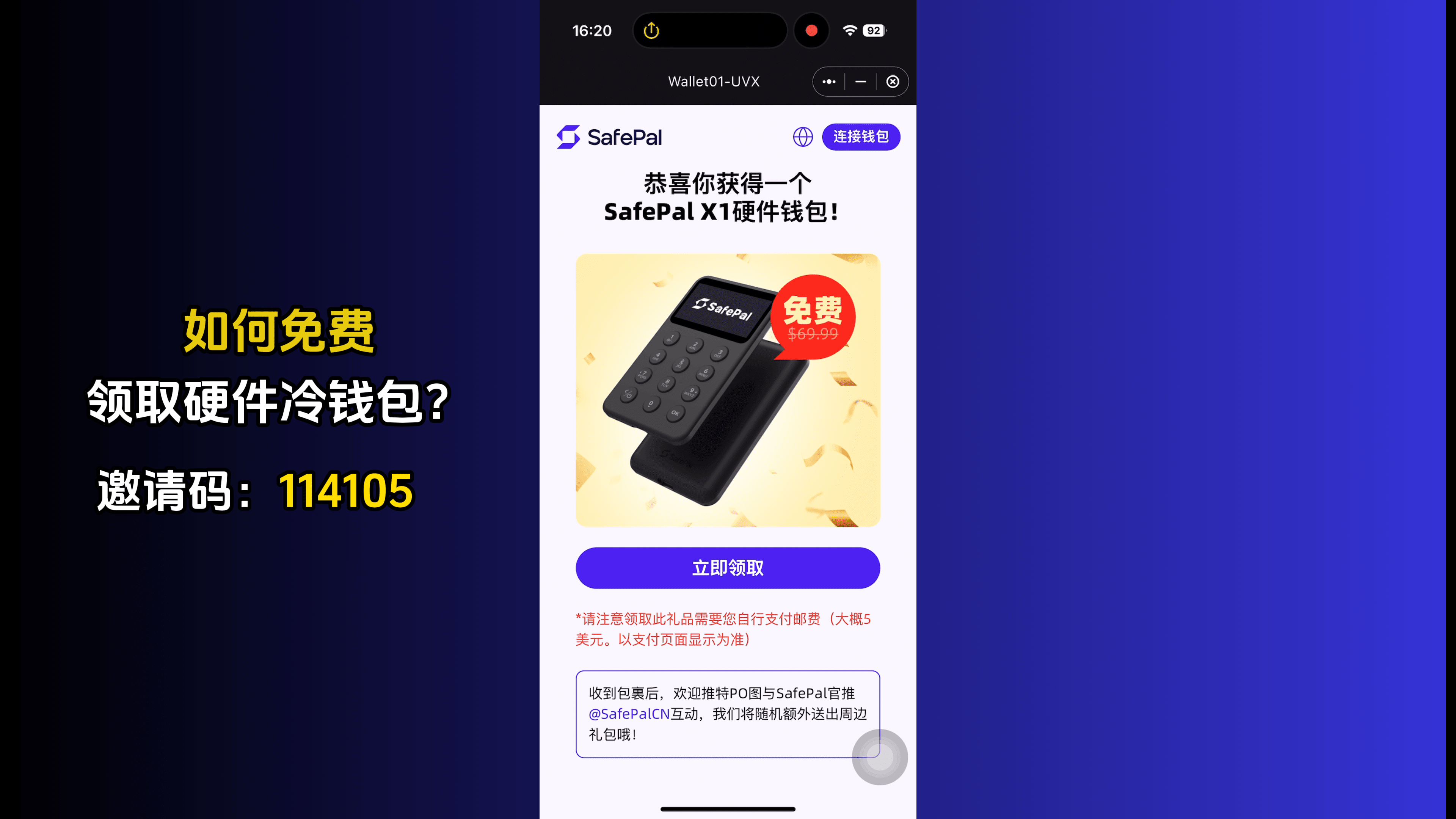
Since SafePal bank account and MasterCard services are both in the SafePal APP, users need to download the SafePal APP first (download requires overseas Apple ID such as Hong Kong and Taiwan areas), and the whole process is operated in the SafePal APP.
MasterCard can only be applied for after completing the bank account opening, and users need to prepare their personal ID or passport in advance.
1. SafePal bank account opening
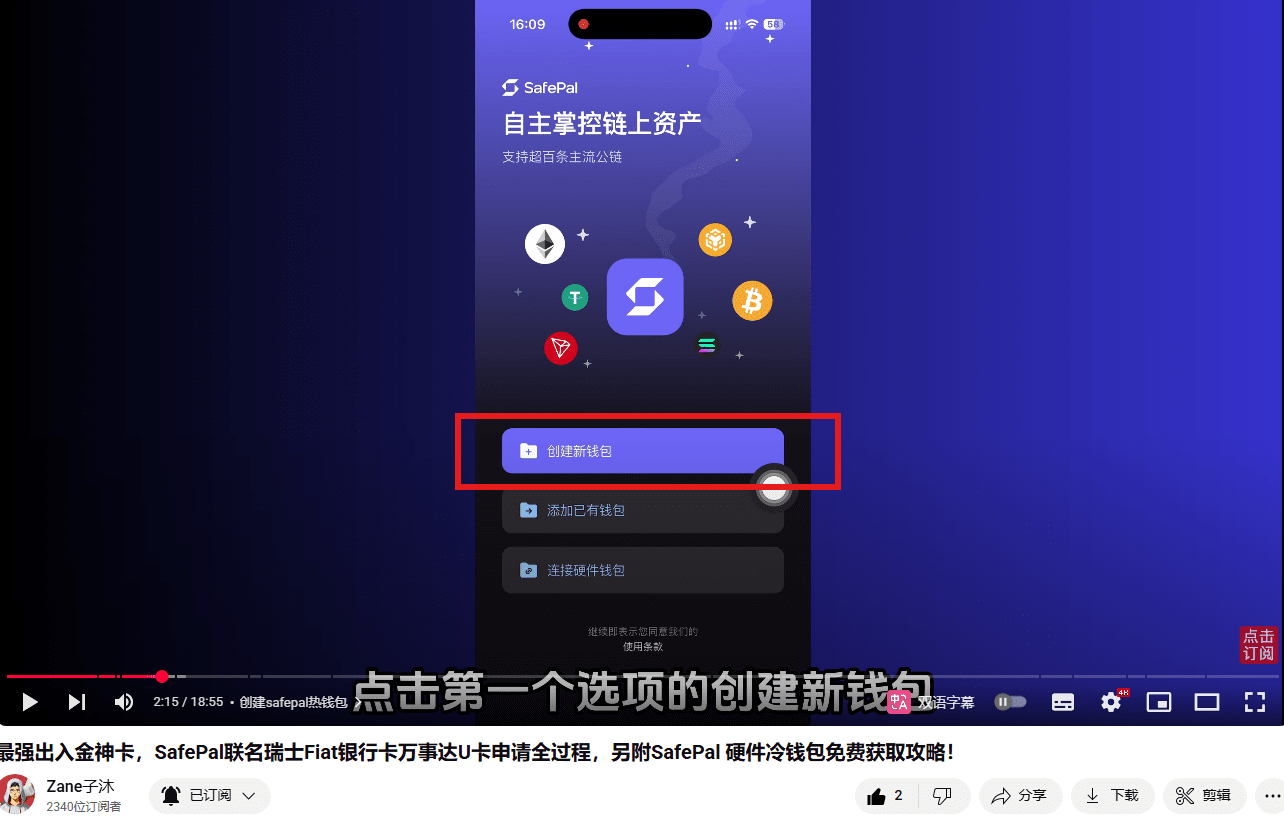
After downloading the SafePal APP and installing it successfully, open the APP and click the first option "Create a new wallet"
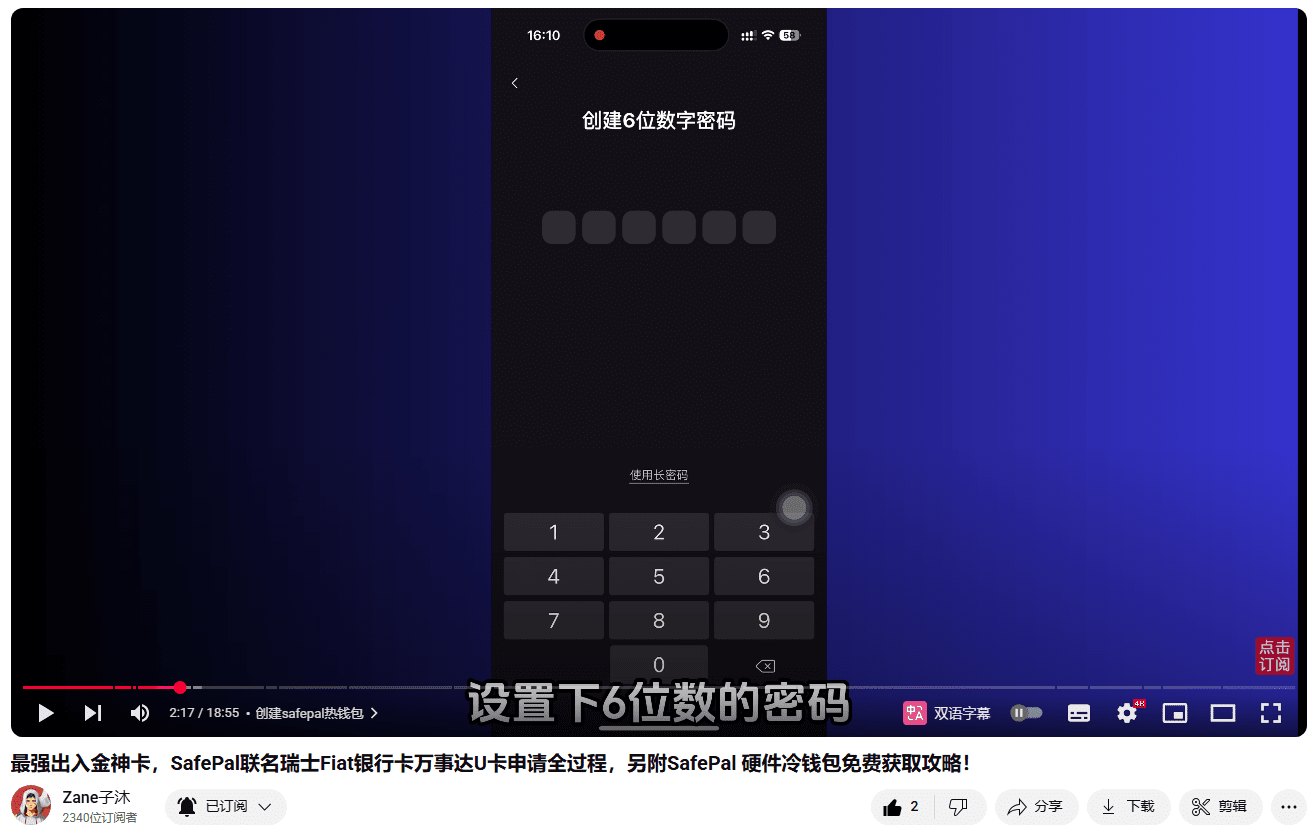
Create a 6-digit password and confirm the password
Backup mnemonic
Note: Mnemonic is very important. Once the mnemonic is lost, it means that the assets in the wallet are also lost. If the mnemonic is known by others, the assets will also belong to others. Therefore, the mnemonic is very important and must be kept properly!
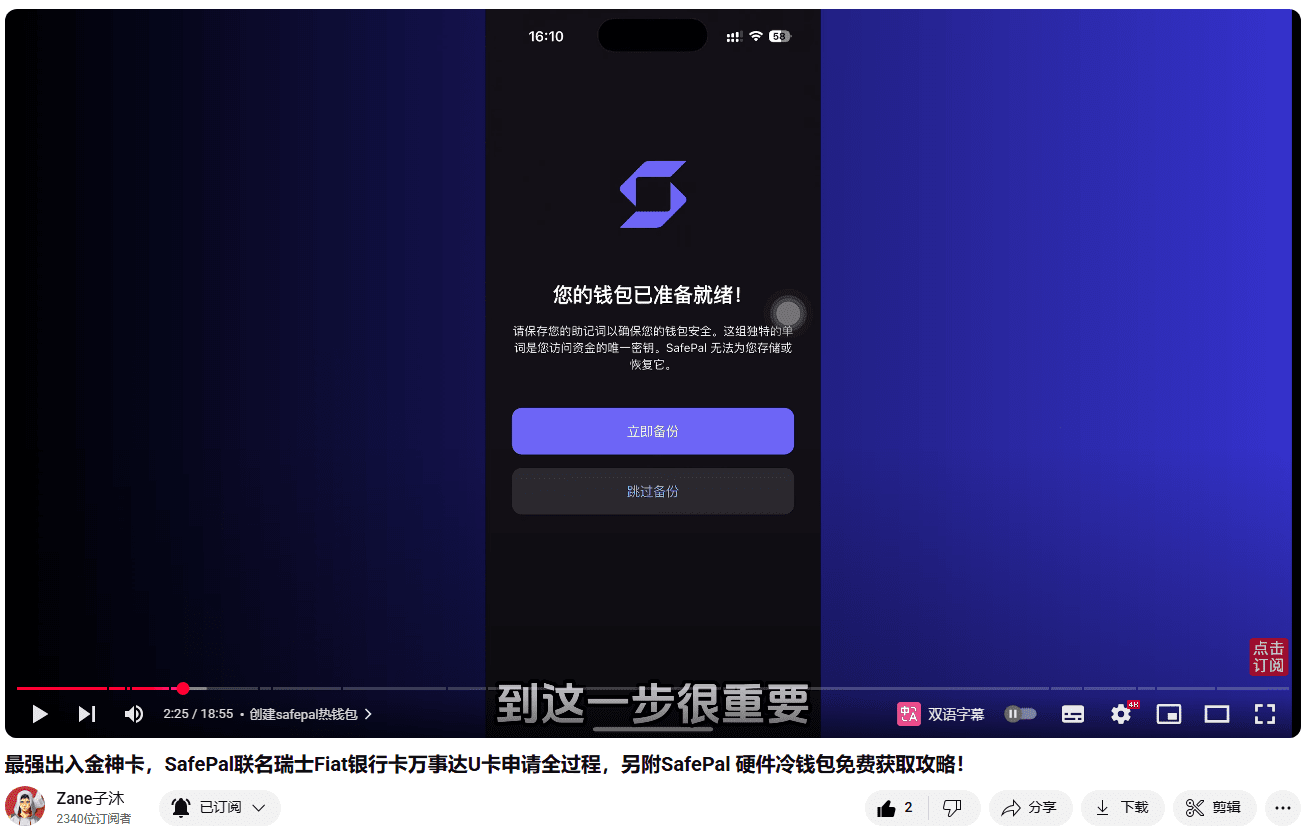
The mnemonic has been verified and seeing the picture below means the wallet has been created successfully
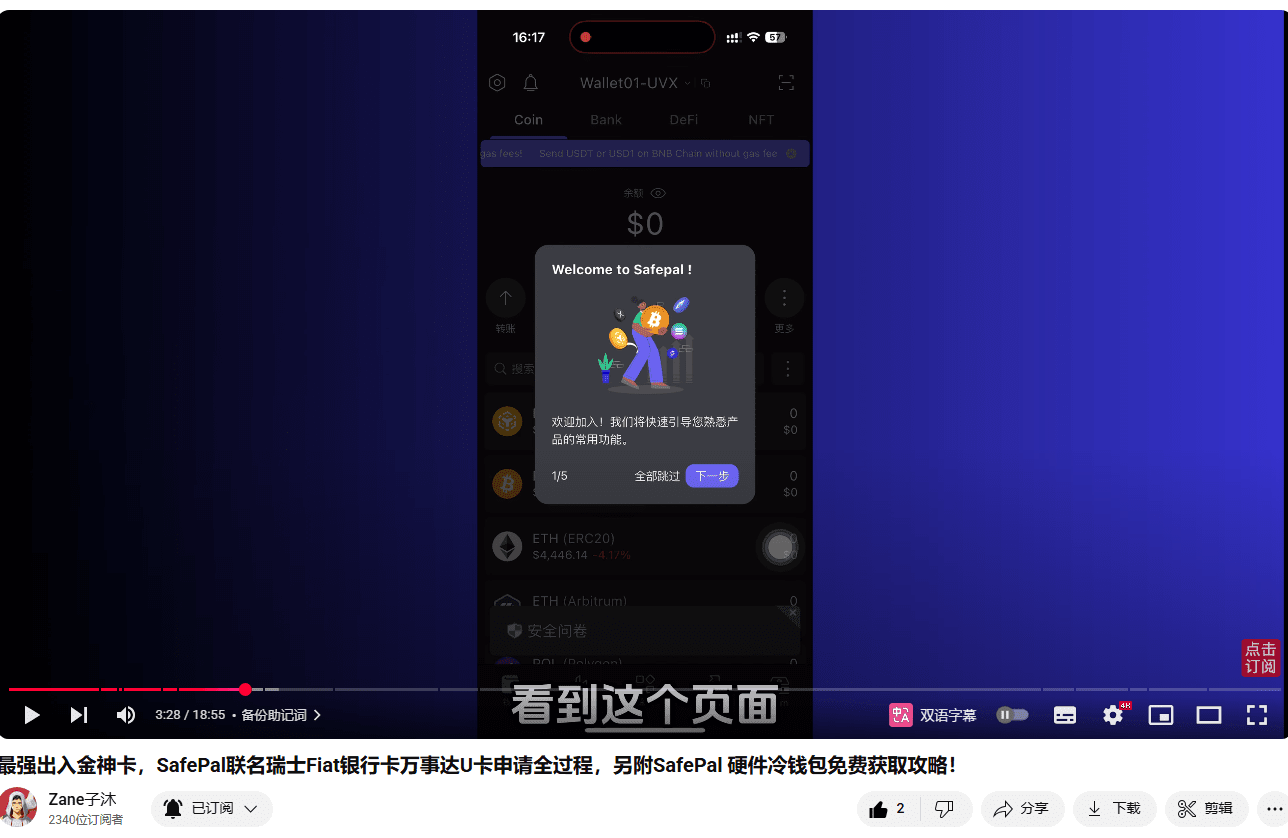
Next is applying for a Fiat24 bank account
Click the "BANK" button in the red box to switch to the bank page, and then click the "Start button" in the second red box
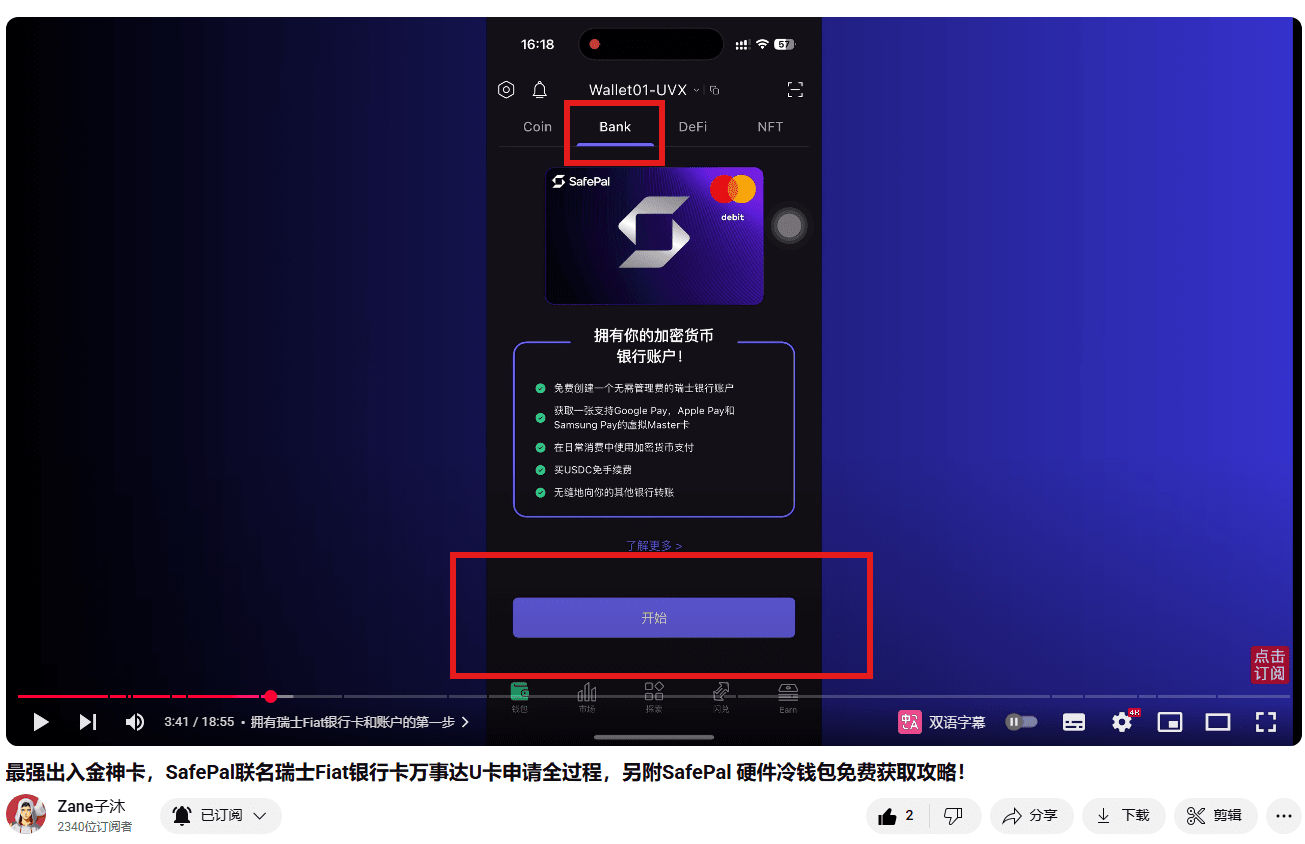
Need to recharge 0.0001 ETH (Arbitrum On network) to the wallet for verification. Recharge according to the prompts. Withdraw from other wallets or exchanges. You can recharge a little more and keep it as gas for slow use.
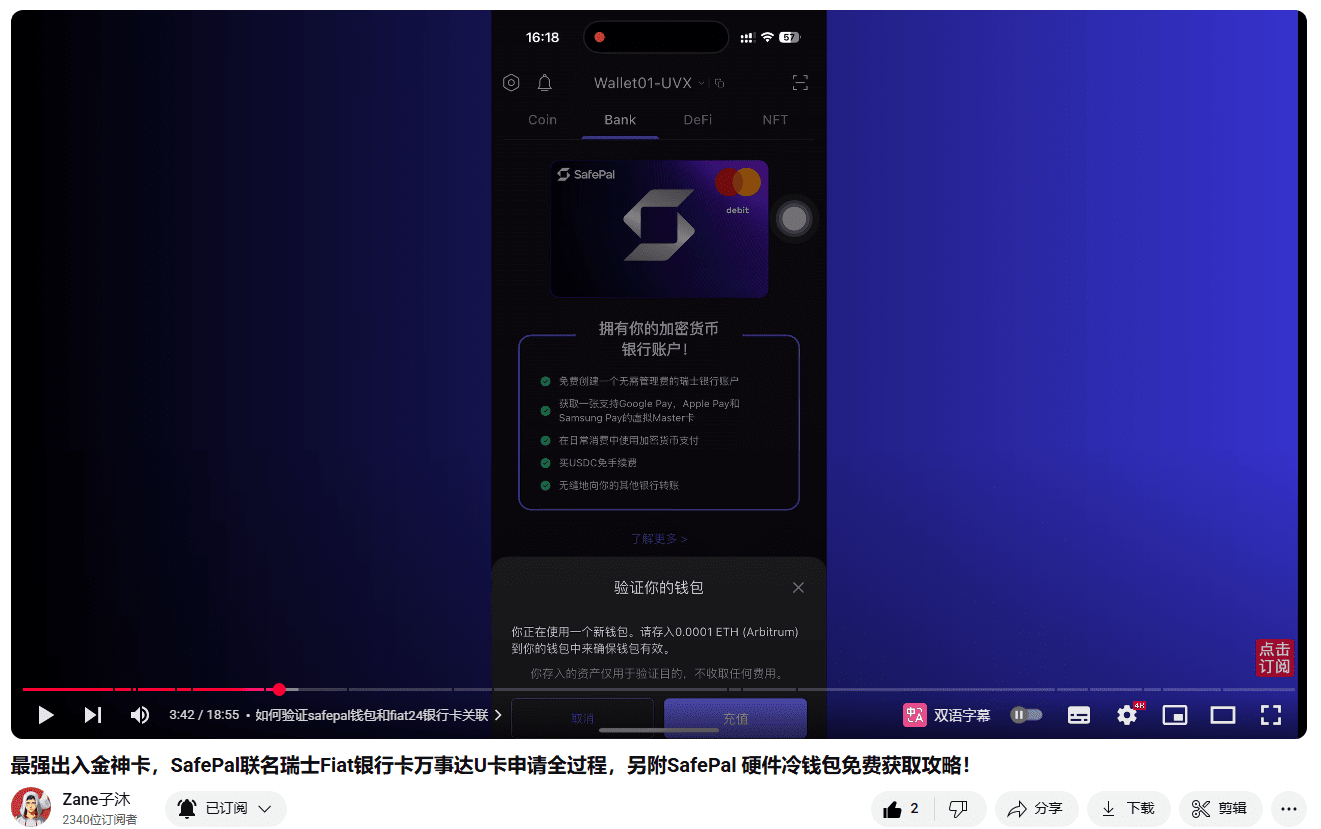
After the recharge arrives, switch to the "BANK" bank page and click the "Start" button again
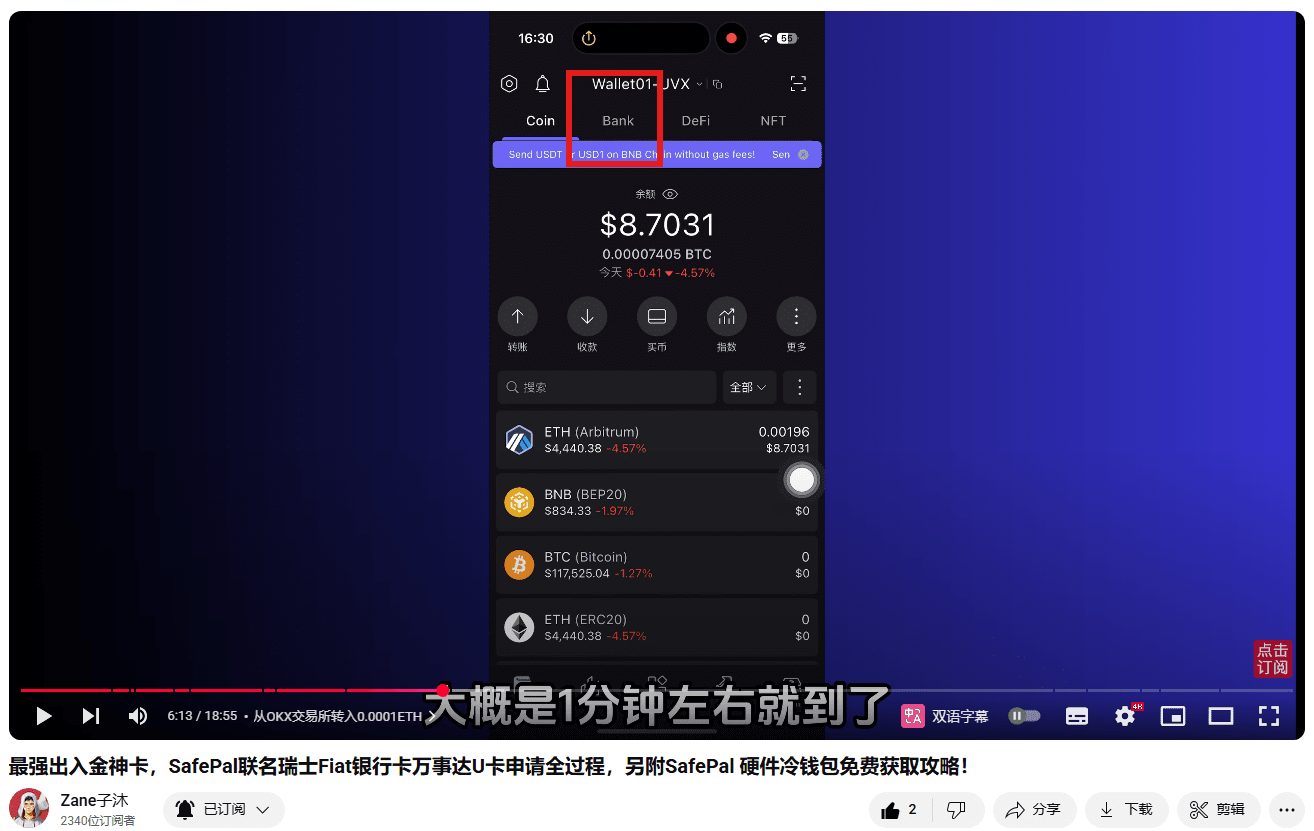
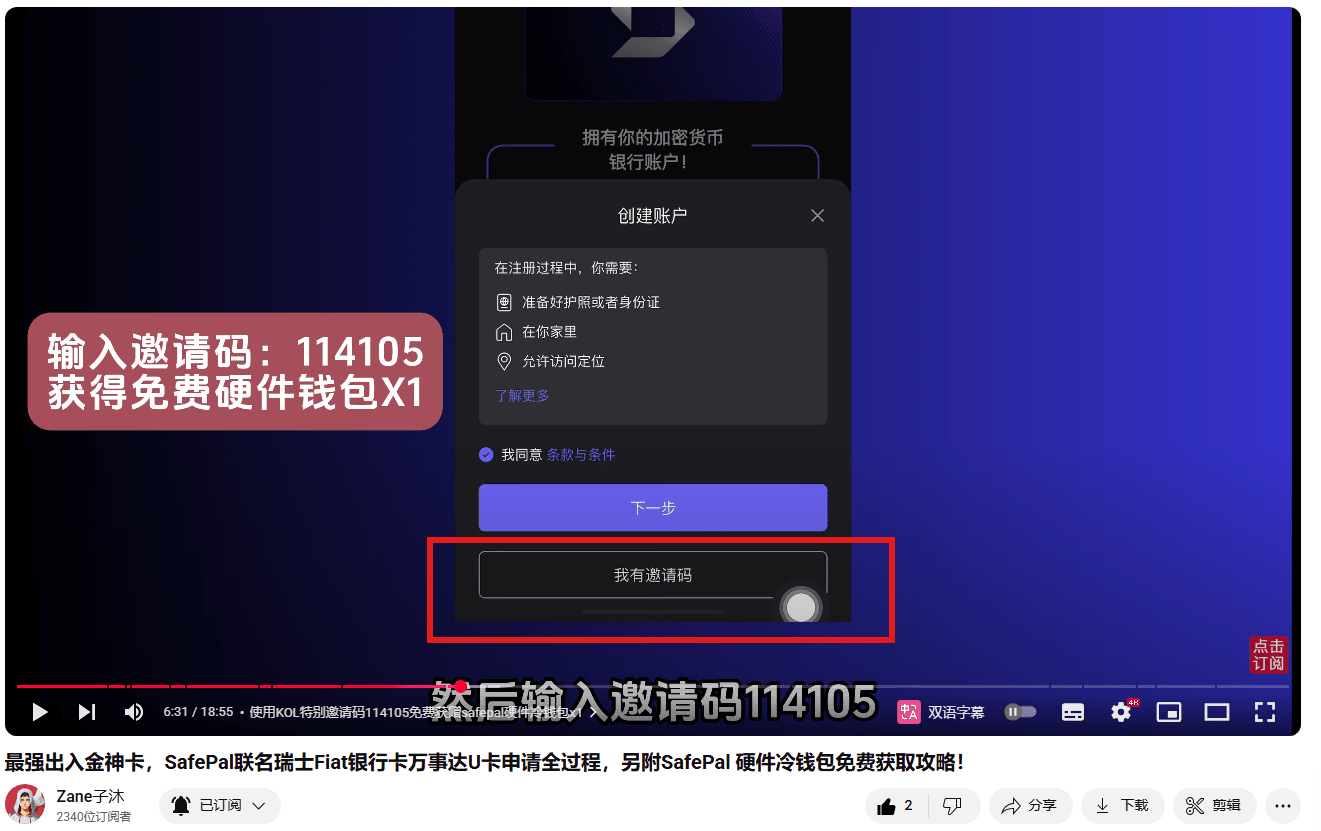
Note: Don't rush to click Next. If you want to get SafePal's hardware cold wallet for free, be sure to click "I have an invitation code" below and then enter the invitation code 114105, so that you can get the qualification to receive the hardware wallet for free. The specific method of receiving it will be discussed at the end. Fill in the invitation code and click Next to wait for the account to be created successfully.
Fiat bank registration verifies identity
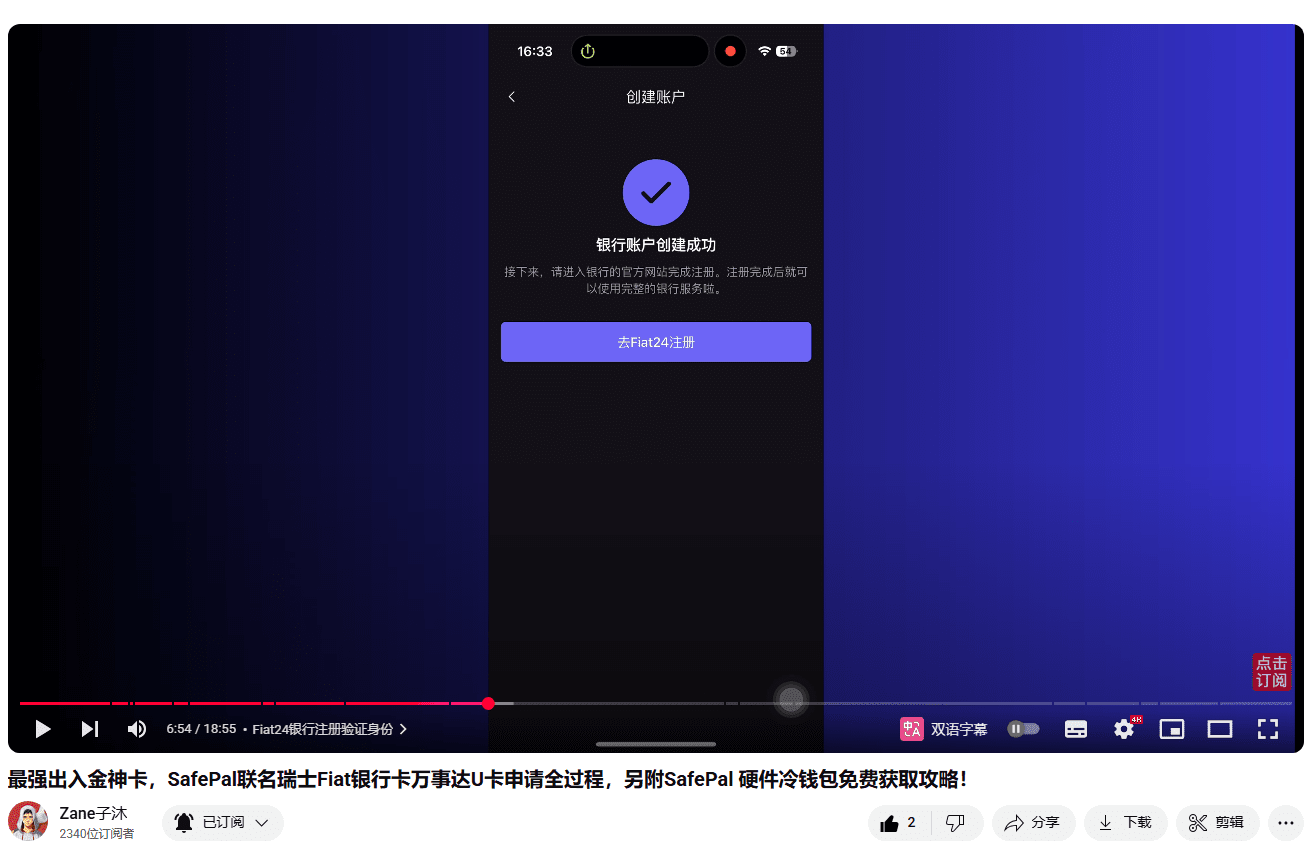
Click Go to Fiat24 Registration
Turn off the VPN, there is no problem with registering on the domestic network
At this time, it will prompt
"Needs to access your location information"
Be sure to click "Allow"
You need to be at your home here
Prepare your ID card or passport
And you must allow your phone to be positioned
Because bank account opening is very strict
Be sure to click "Allow" on the right to allow positioning
Click continue to correctly identify your region
Confirm that the location is correct
You can turn on the switch in the red box
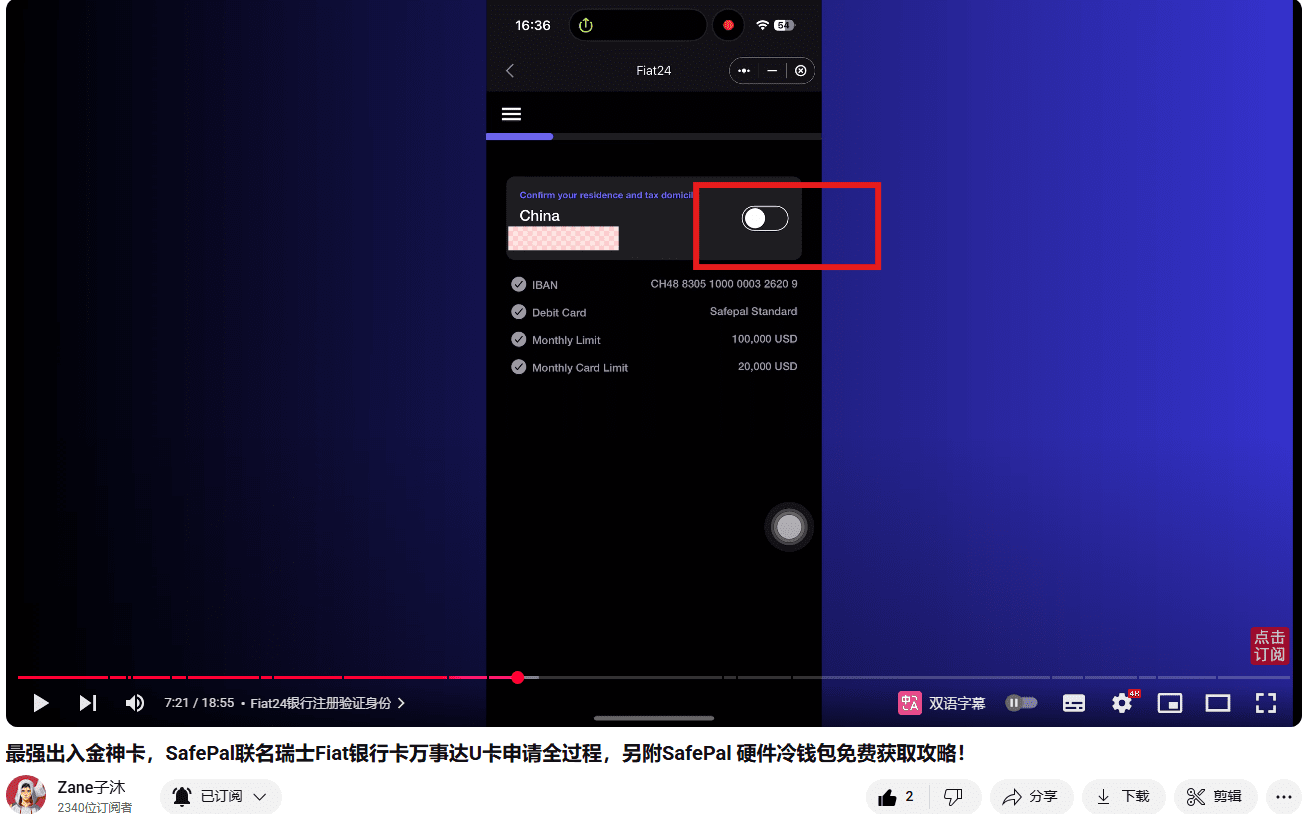
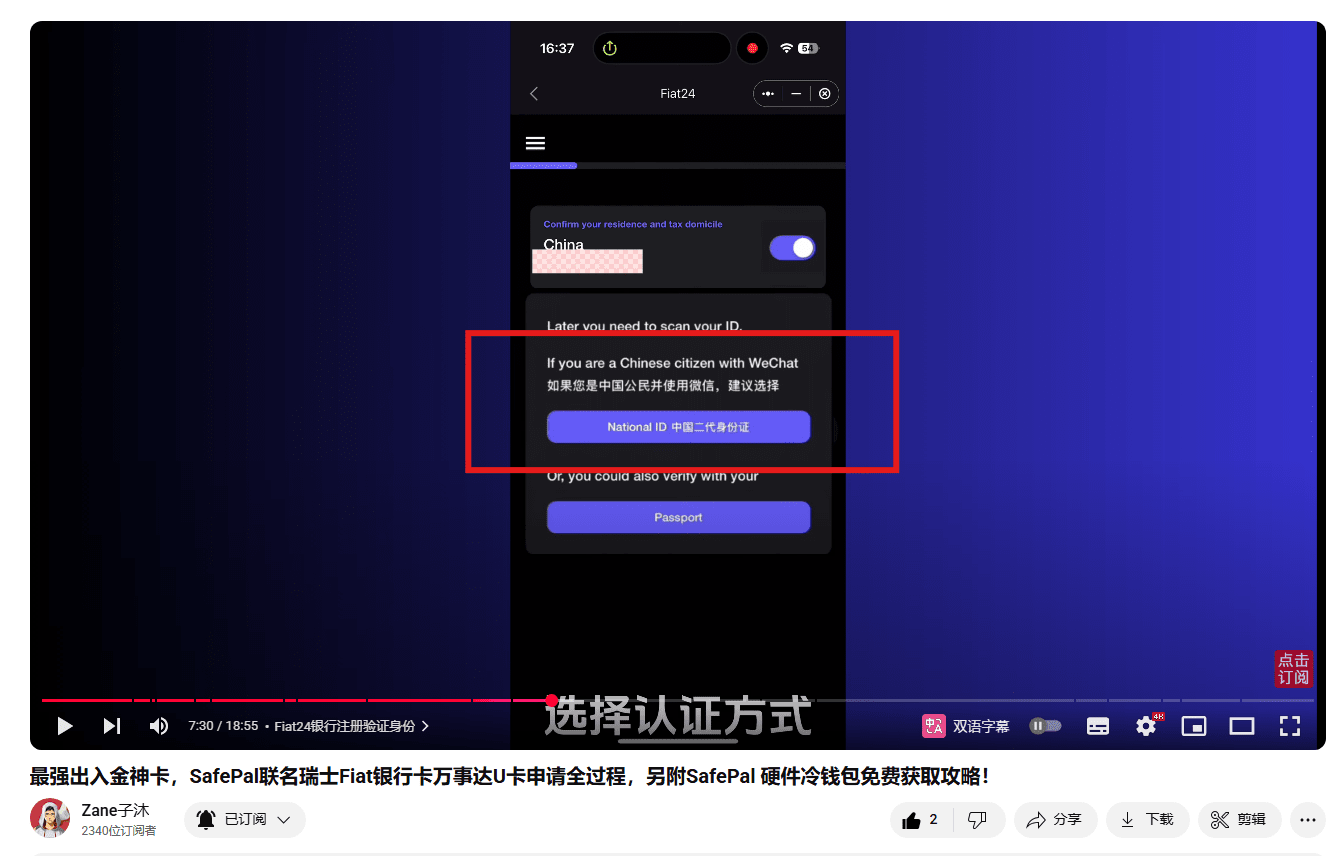
After opening the switch, you will be asked to choose an authentication method
The first is to authenticate with an ID card
The second is to authenticate with a passport
I will use my ID card for authentication here
Check the four statements that appear
After agreeing to the terms
Click Next
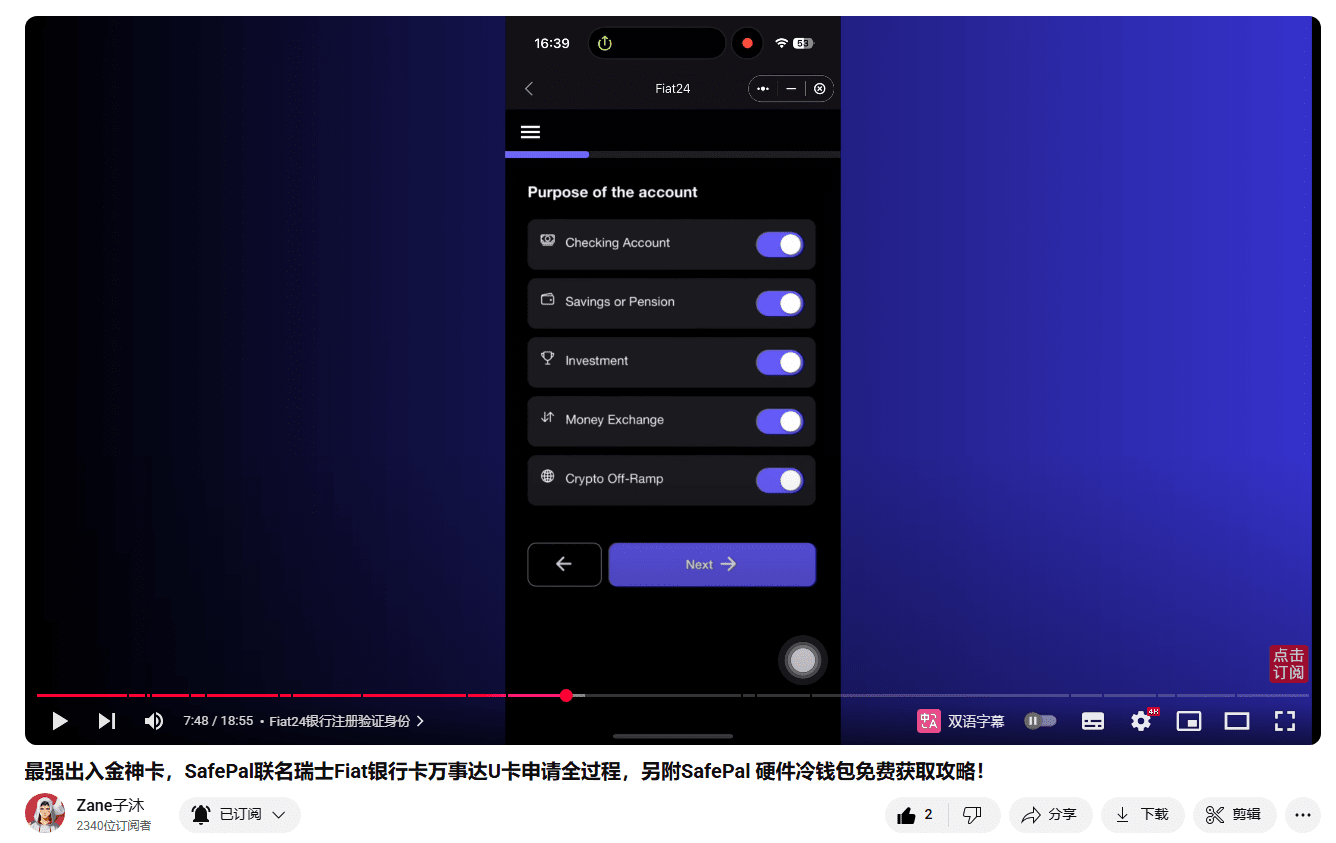
Then the purpose of opening an account
Check all of them too
Then click Next
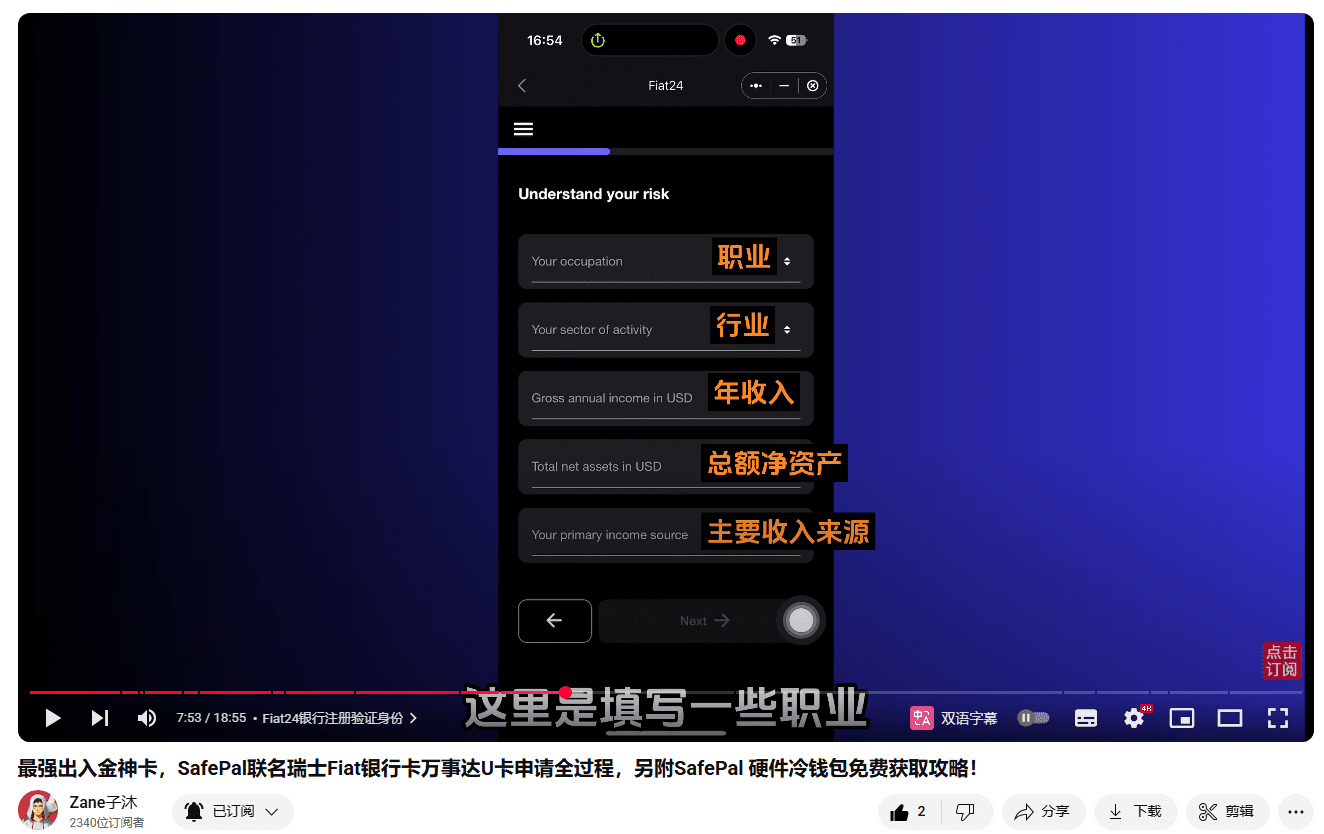
The following picture is to fill in some occupations
Sources of work income, etc.
Everyone choose according to their own situation
Fill in and click next
Then check the two options that appear
Then continue to the next step
Enter an email
Used to receive verification codes
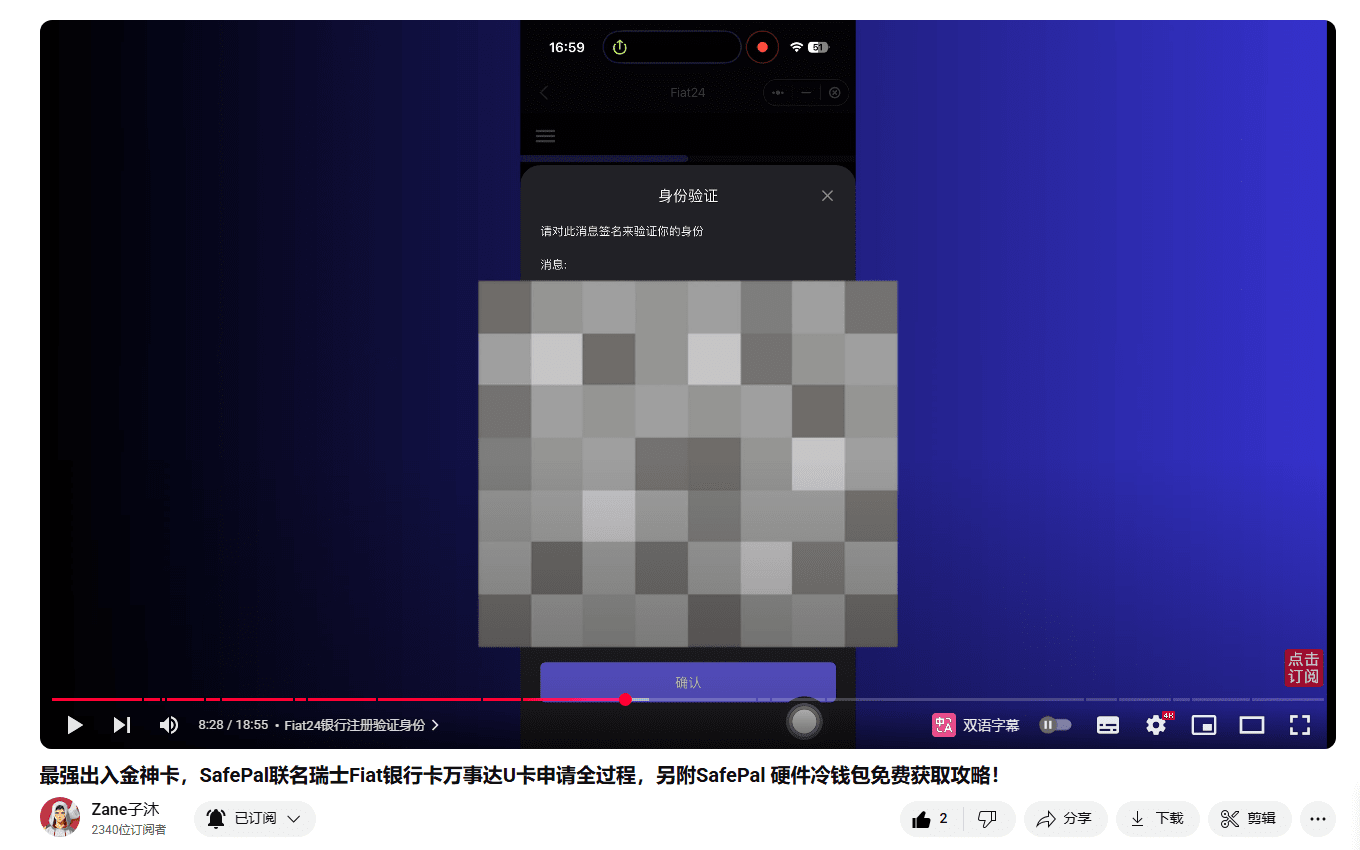
Sign and confirm according to the prompts
Then click "Get Code"
To get the verification code
Enter the verification code received by email
After successful verification
Click "Submit"
Click Confirm
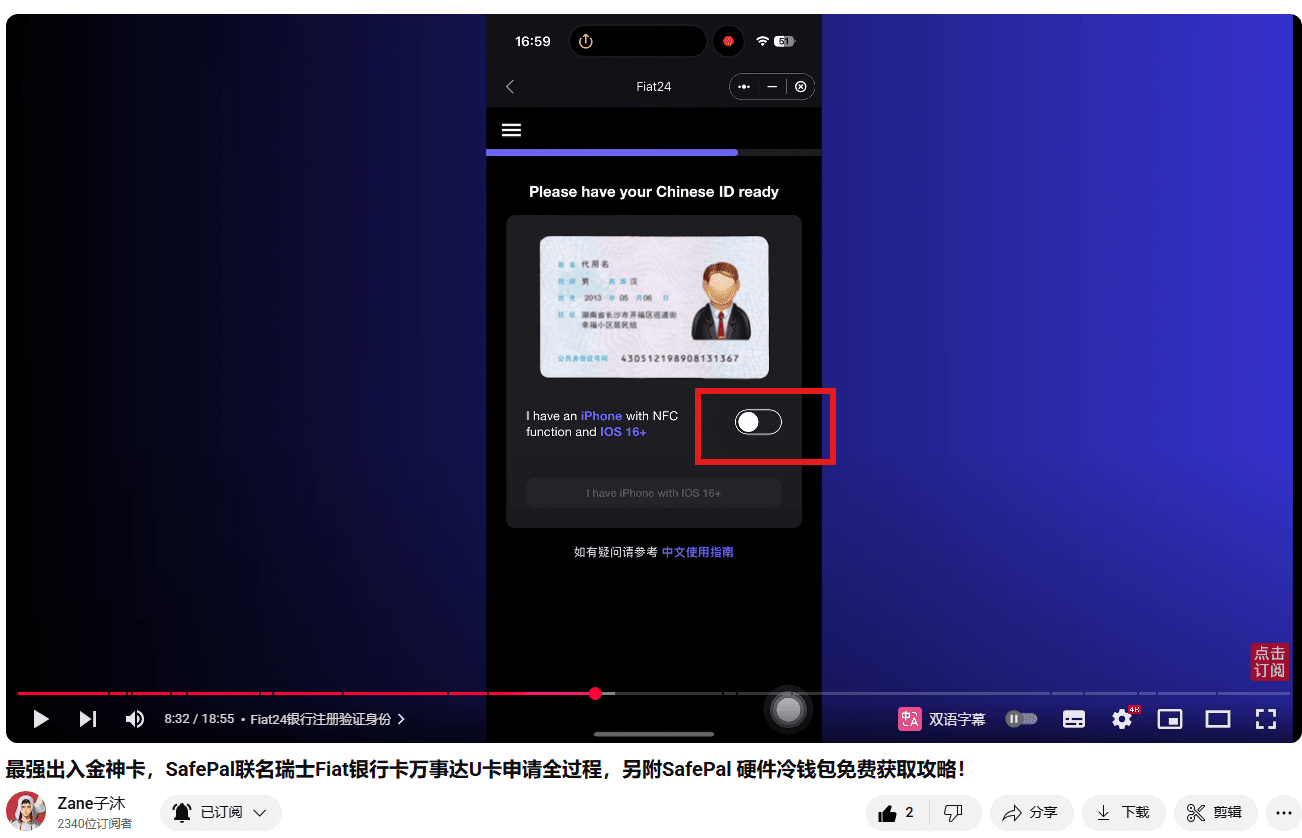
Next, take out your ID card
Open the switch in the red box
Pay attention
It has requirements for the system
If you are an Apple phone
It needs to be iOS 16 or above
If your system version is low
Upgrade the system first
After being prepared
Then click the 'I have iPhone with IOS 16' button
To this page
There is a countdown
There is a time limit for verification
There is a blue access code in the red box
Click this blue access code and it will be copied automatically
The QR code below
Is to guide you to download a specified APP
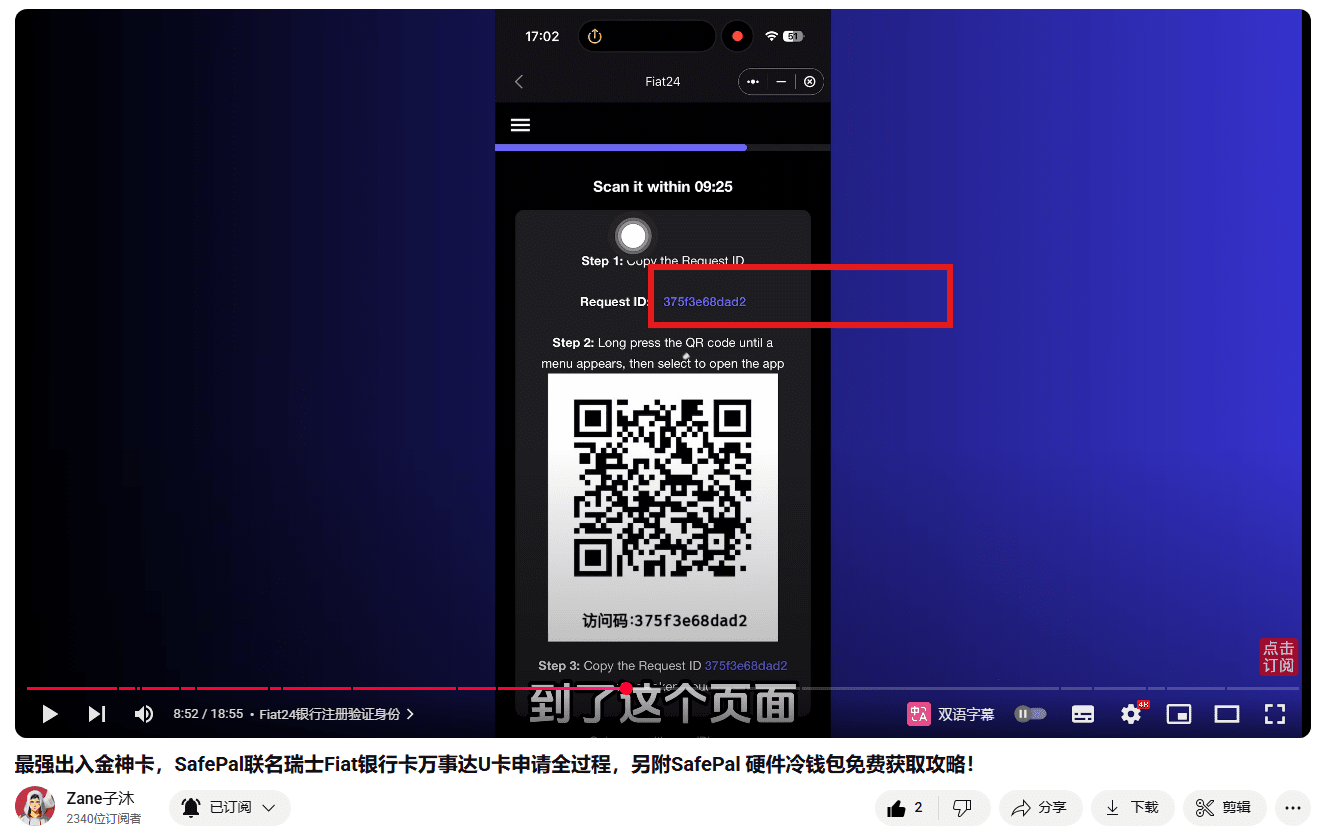
We go directly to the Apple store
Search and download the APP "Identity Witness"
Identify the developer as Toke Cloud
Don't download the wrong one
Open it directly after downloading
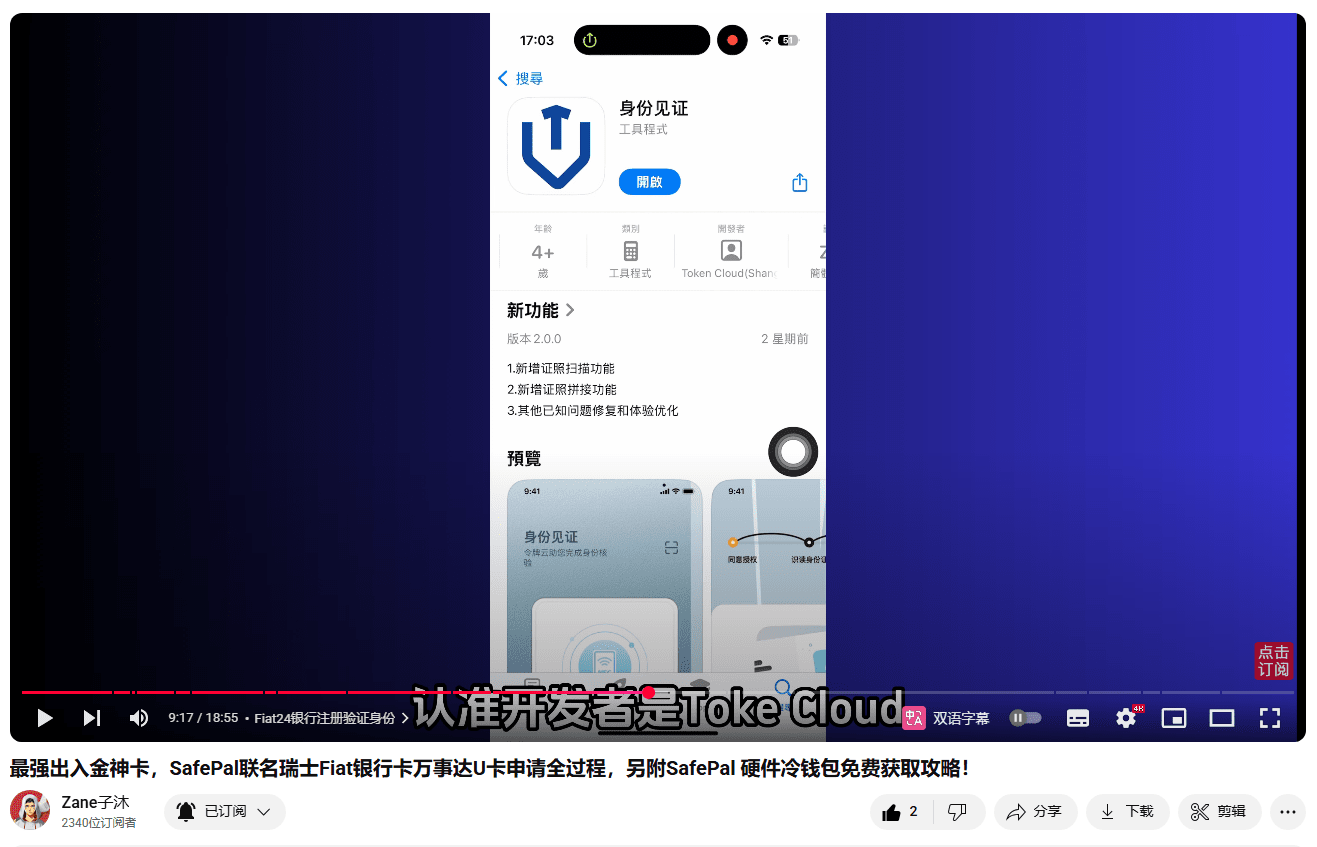
After opening
One-click login
Click Start
Paste the access code you just copied
Click Finish
Then click Agree
Prepare your ID card
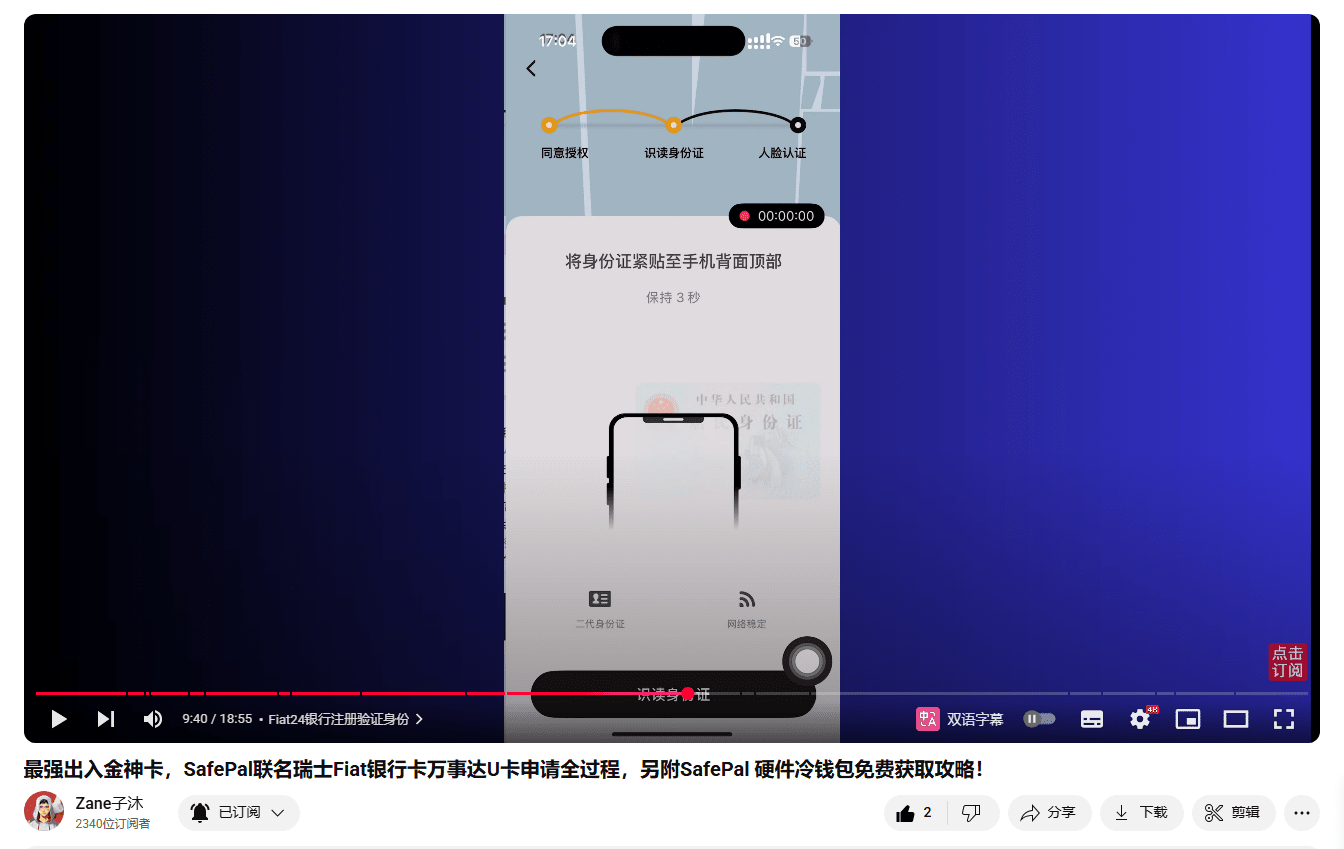
Stick the ID card on the top of the back of the phone
Keep it still for a few seconds
If you can't read it
Adjust the angle more
After reading successfully
Check the identity information
Confirm that it is correct and click Next
Next is face verification
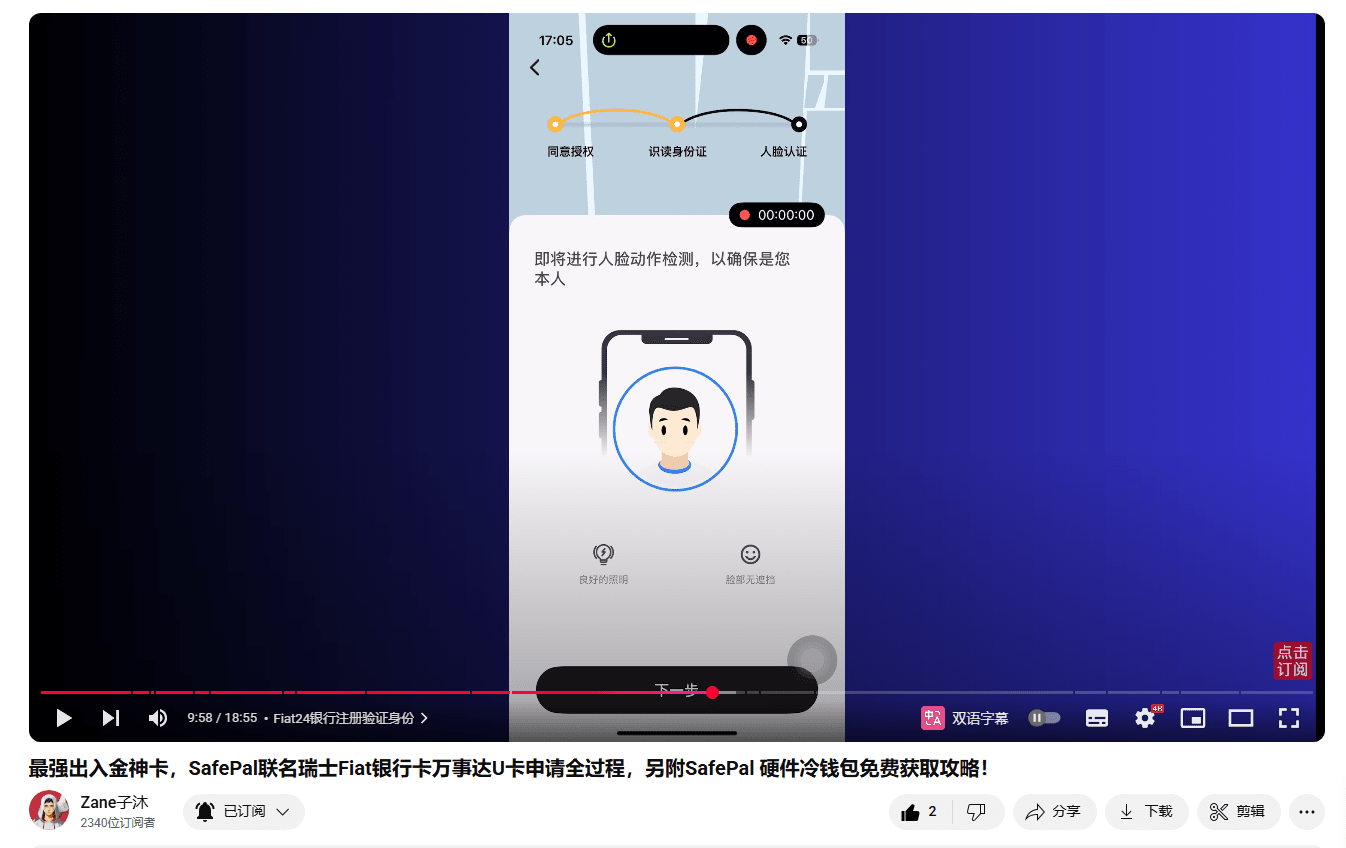
After the face verification is passed
The entire identity verification is completed
This "Identity Witness" APP is no longer needed
Can be deleted
Return to the SafePal APP
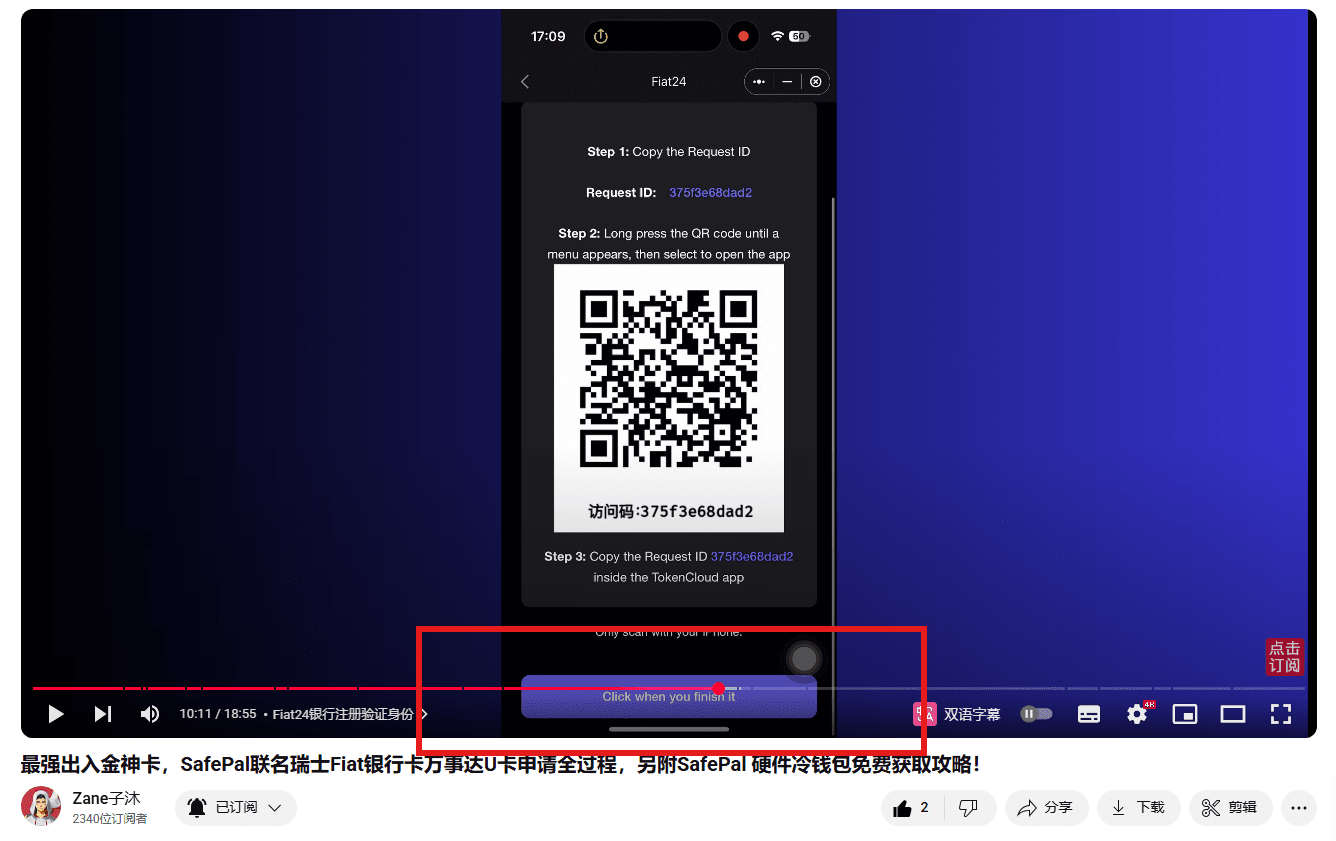
Click the red box below the QR code
Complete confirmation button
Then wait for the review
The waiting time varies from person to person
Some people will pass in seconds
Some people are rejected in seconds
Some people pass after a few days or are rejected
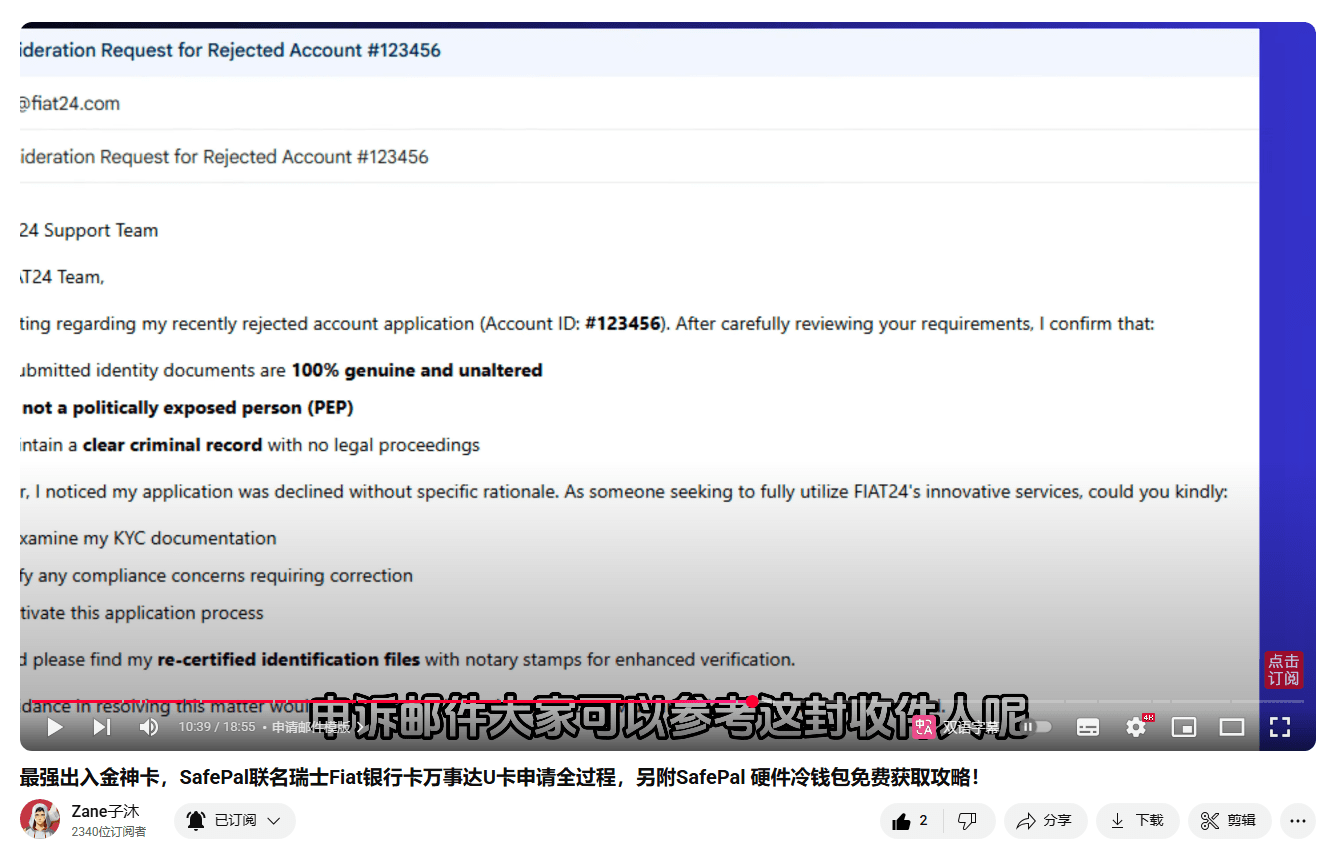
If it is rejected, you can send an email to customer service for appeal and try. The success rate is still very high. The following is an email template for your reference only. It is strongly not recommended to copy it verbatim. Remember
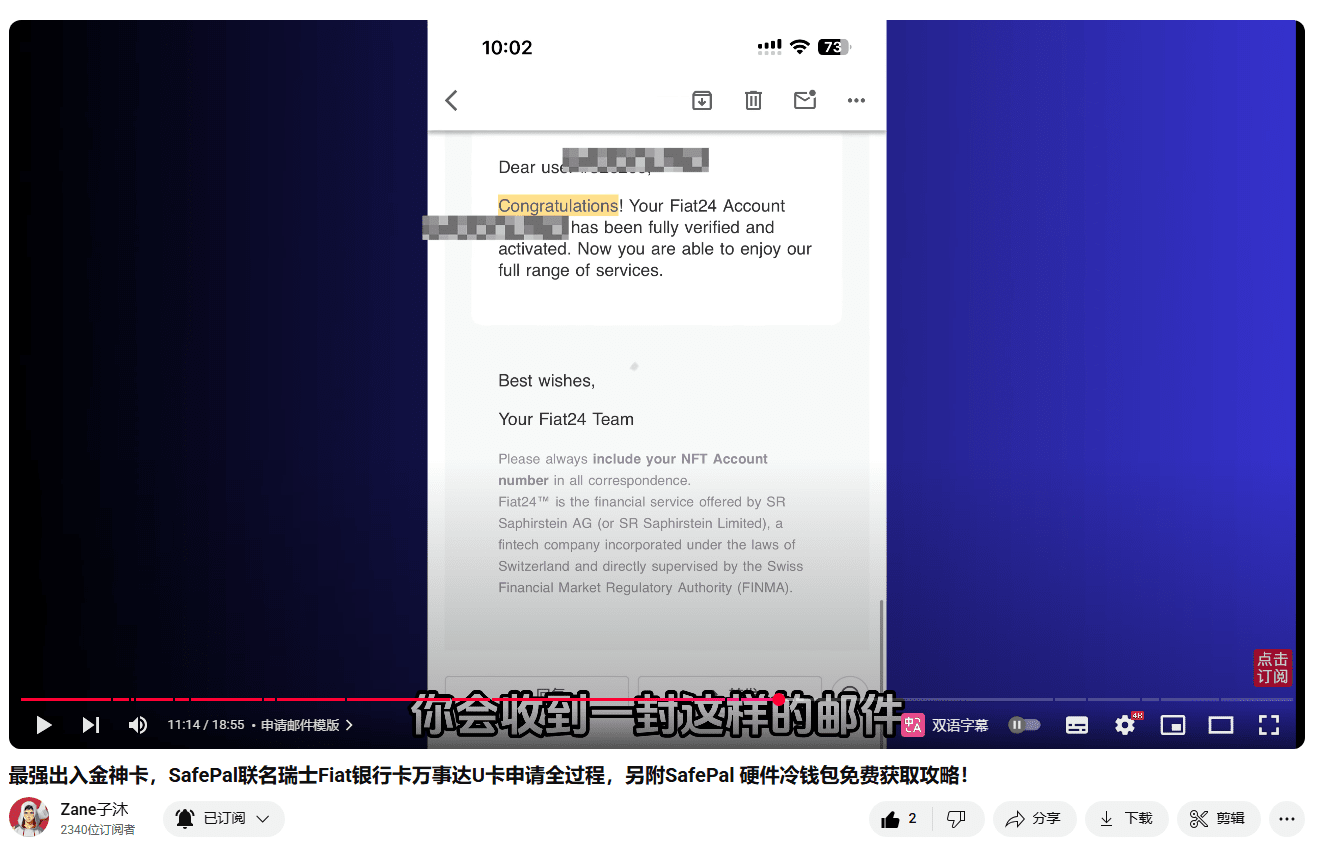
You will, if you receive the email in the picture below, then congratulations, you have passed
The general idea is
Congratulations, your account has been fully verified and activated
Now
You can use all the services we provide
So far, the Fiat24 account is all done
Recharge to Fiat24 bank card
Next, let's take a look at how to recharge and activate the bank card
After the Fiat 24 account is passed
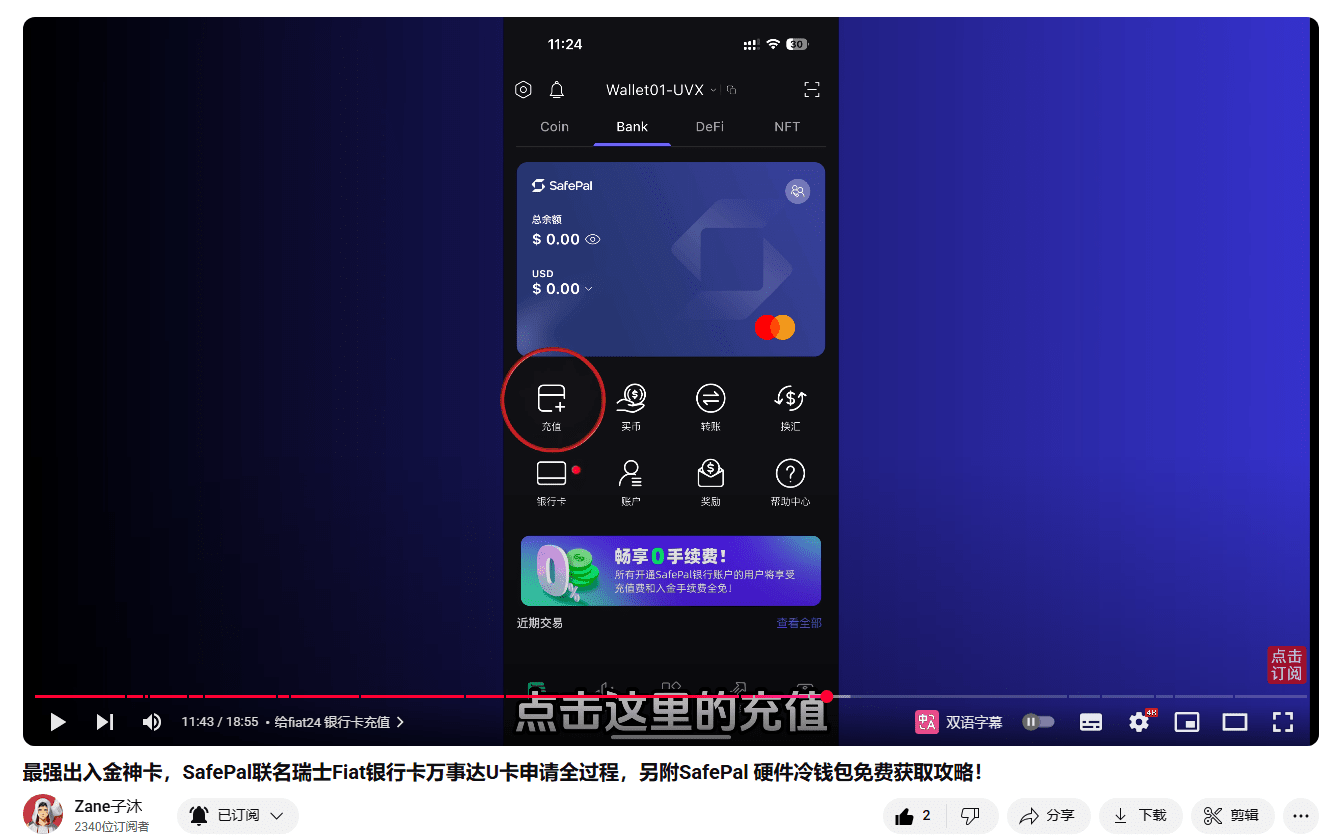
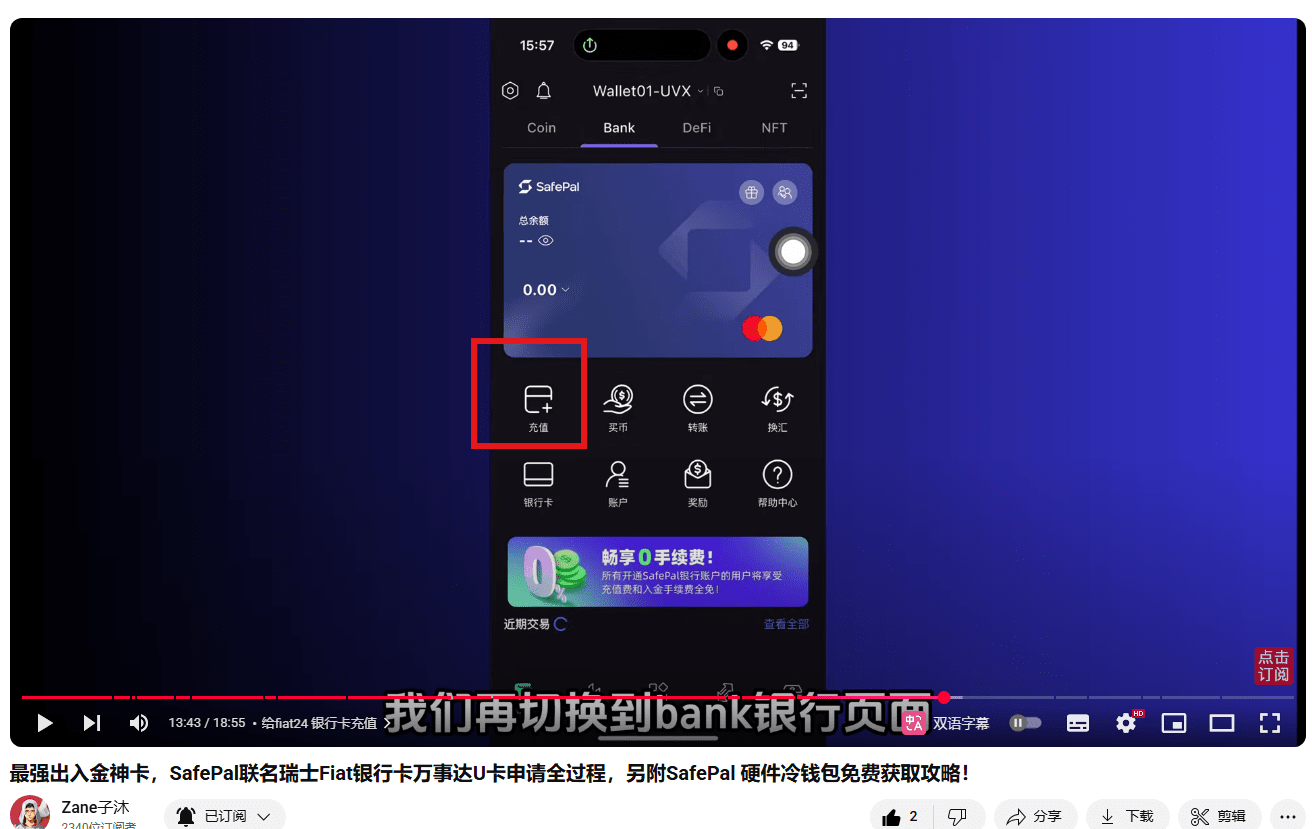
A card will appear on the Bank's bank page
Now the card balance is 0
Need to recharge and activate this card
Click the "Recharge" in the red circle
It supports two recharge methods
One is cryptocurrency
One is bank transfer
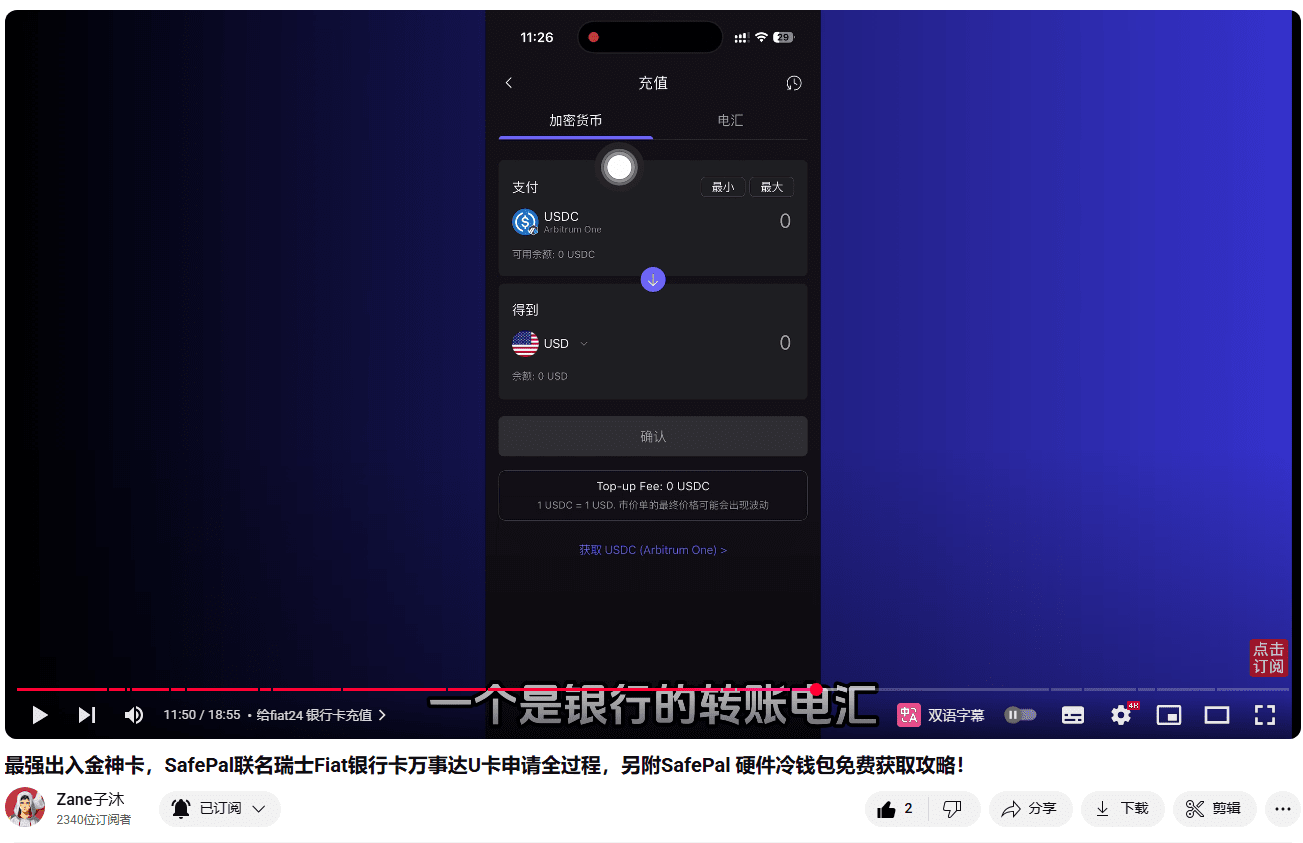
If you recharge with the cryptocurrency stablecoin USDC
Can be directly converted into legal currency
There are four legal currencies to choose from: Euro, US Dollar, Swiss Franc, and RMB
It should be noted that
It currently only supports USDC on the Arbitrum One chain
Next, I will demonstrate the cryptocurrency
Recharge to this account
Return first,
Click Coin in the upper left corner
To the wallet homepage
Click the "Receive" in the red box
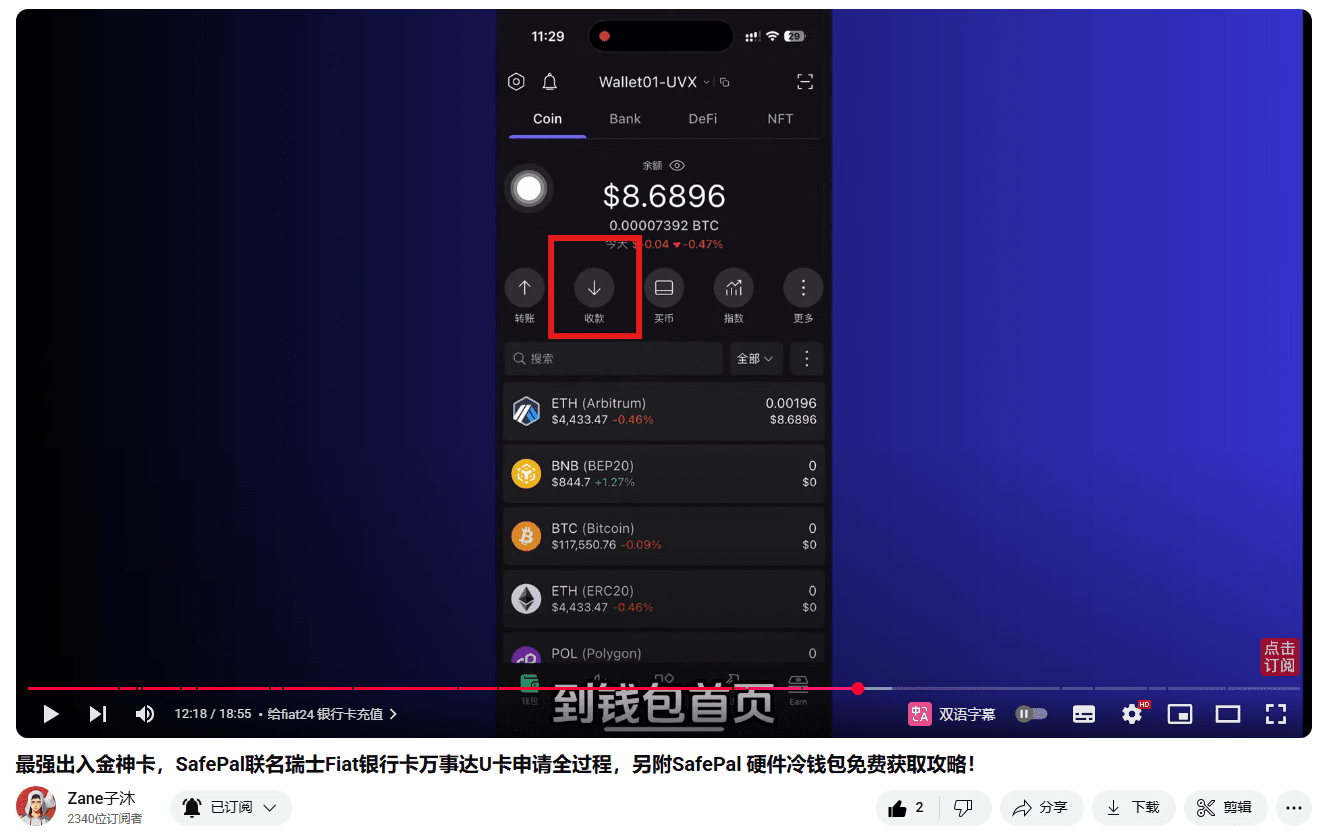
Find USDC in it
Note that it must be Arbitrum one
On this network
Click to enter
Then click the copy button next to the receiving address (an address consisting of a long string of letters and numbers)
Copy the received address
Then open your other wallet or exchange
Withdraw at least 50 USDC according to your situation
Note that you must go through the Arbitrum one network
After the coin wallet arrives, switch to the bank page
Click the Recharge button in the red box
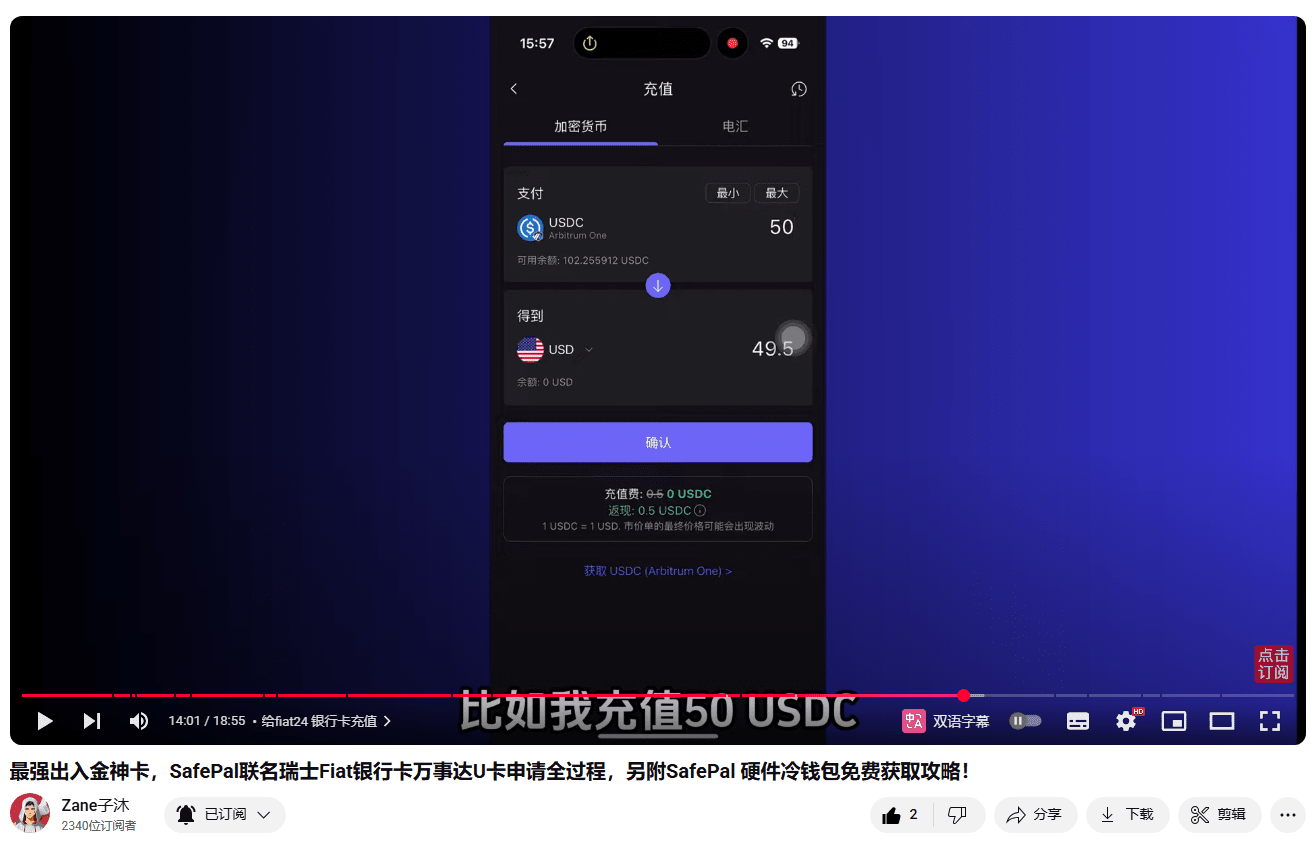
The following picture here
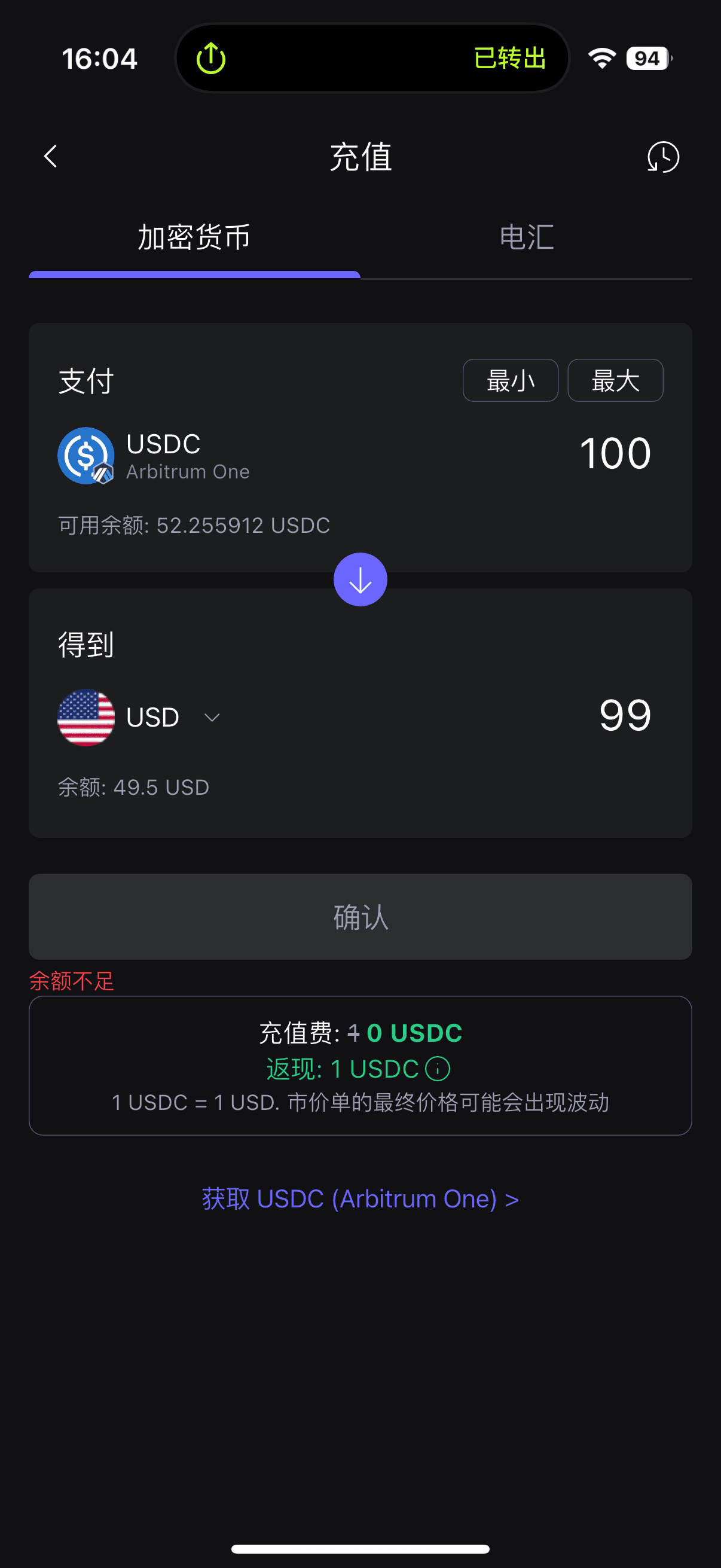
Legal currency here is US dollar USD by default
Enter the amount of USDC to be recharged
Will automatically convert to the US dollars obtained
For example, I recharge 50 USDC
Will get 49.5 US dollars
Because we are all ordinary cards
There will be a 1% recharge fee
But there is cashback now
The handling fee generated by the recharge will be returned
How much is deducted, how much is returned
This is equivalent to no loss
Okay, let's click confirm
Confirm again
Then click Confirm
Okay, the recharge is complete
Click Back to Home
Okay, now there is a SafePal bank card in my card
There will be money
But you still need to activate the card
Click the bank card in the red box
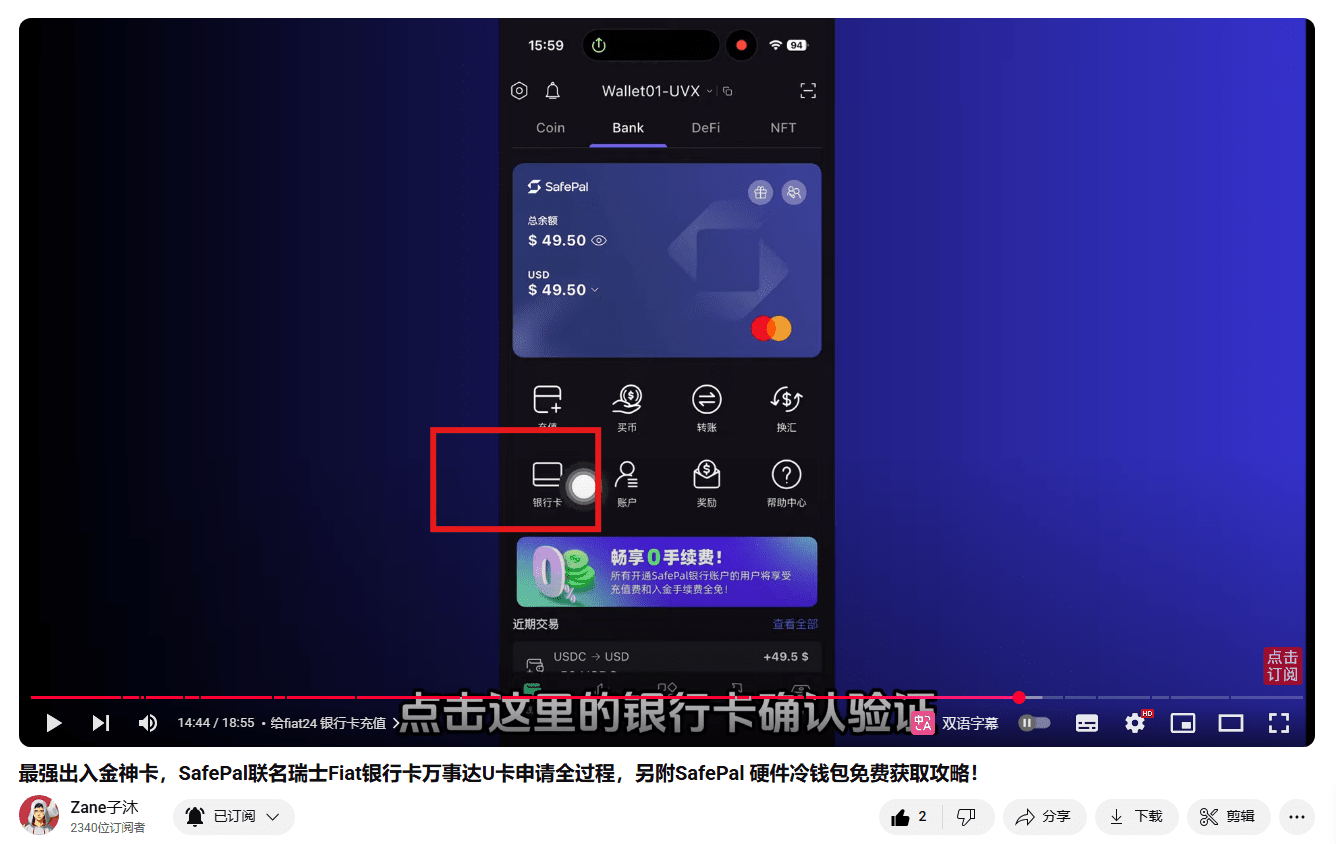
Confirm verification
Here it says that your account needs to have more than 10 US dollars
Can activate the card
We have just recharged 50 US dollars
Coming in is enough
Click the Activate button in the red box
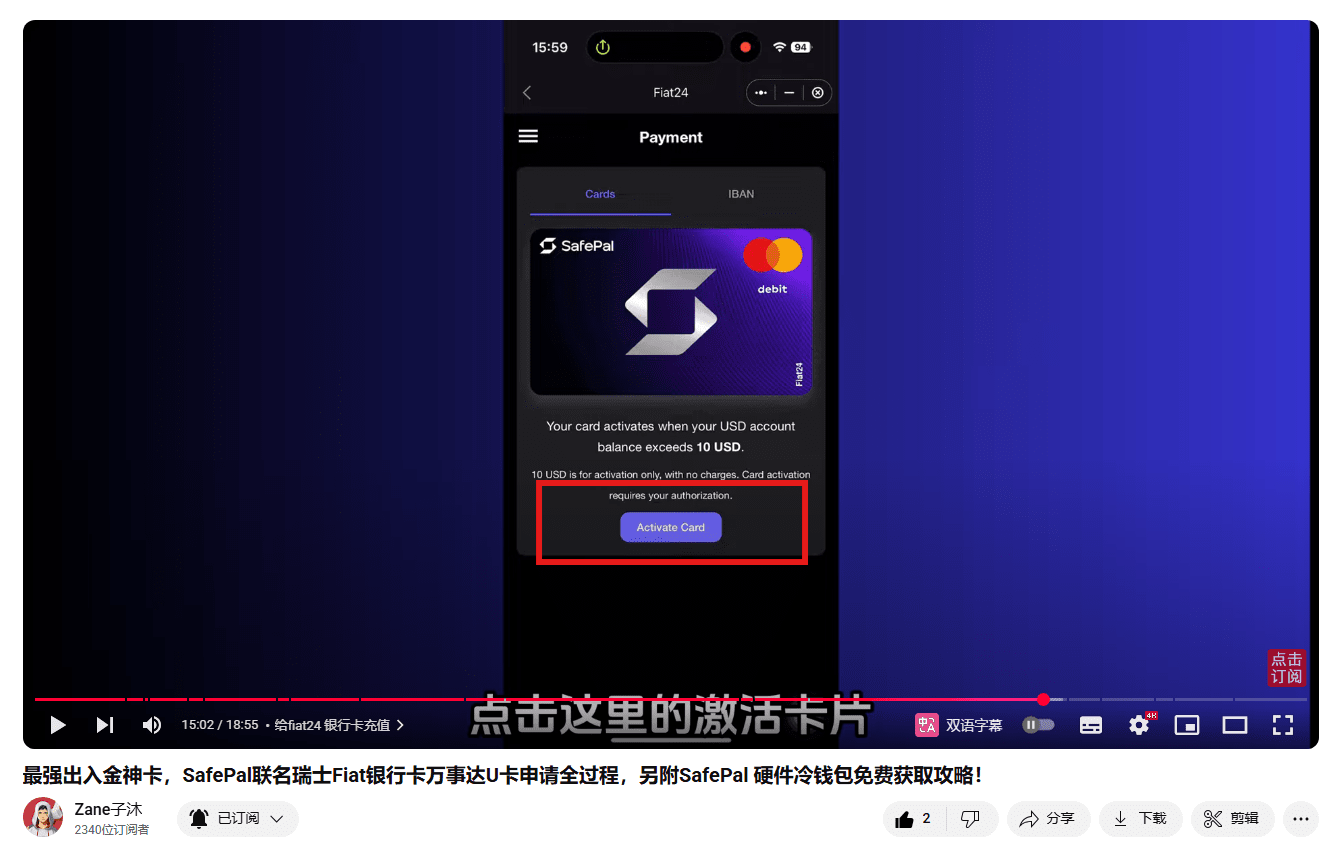
Check the terms
Click Activate
Confirm the authorization
Okay, the card has been successfully activated
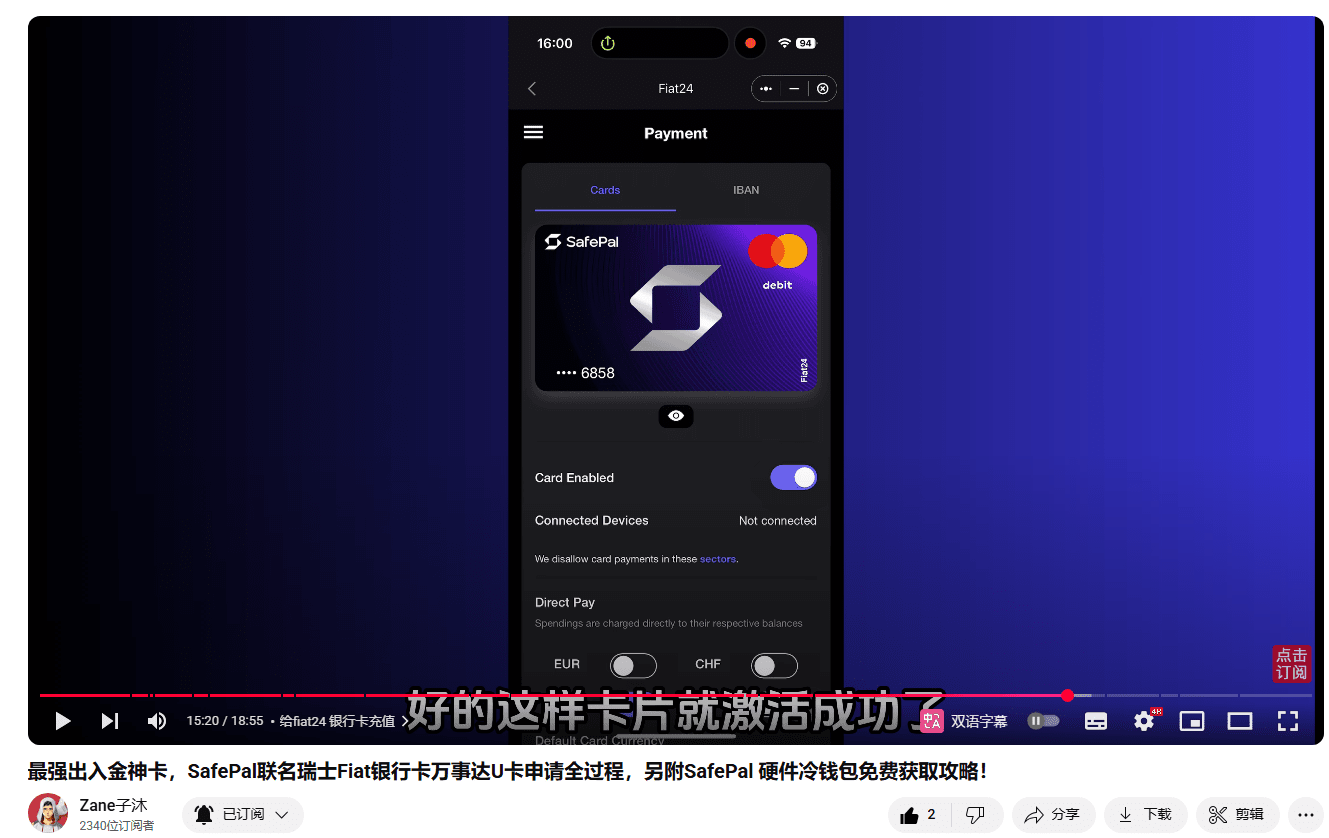
View SafePal MasterCard CVV and other information
Click the small eyes under the card
You can view the card information
There are card number, name, expiration date, CVV, etc.
Are all in here
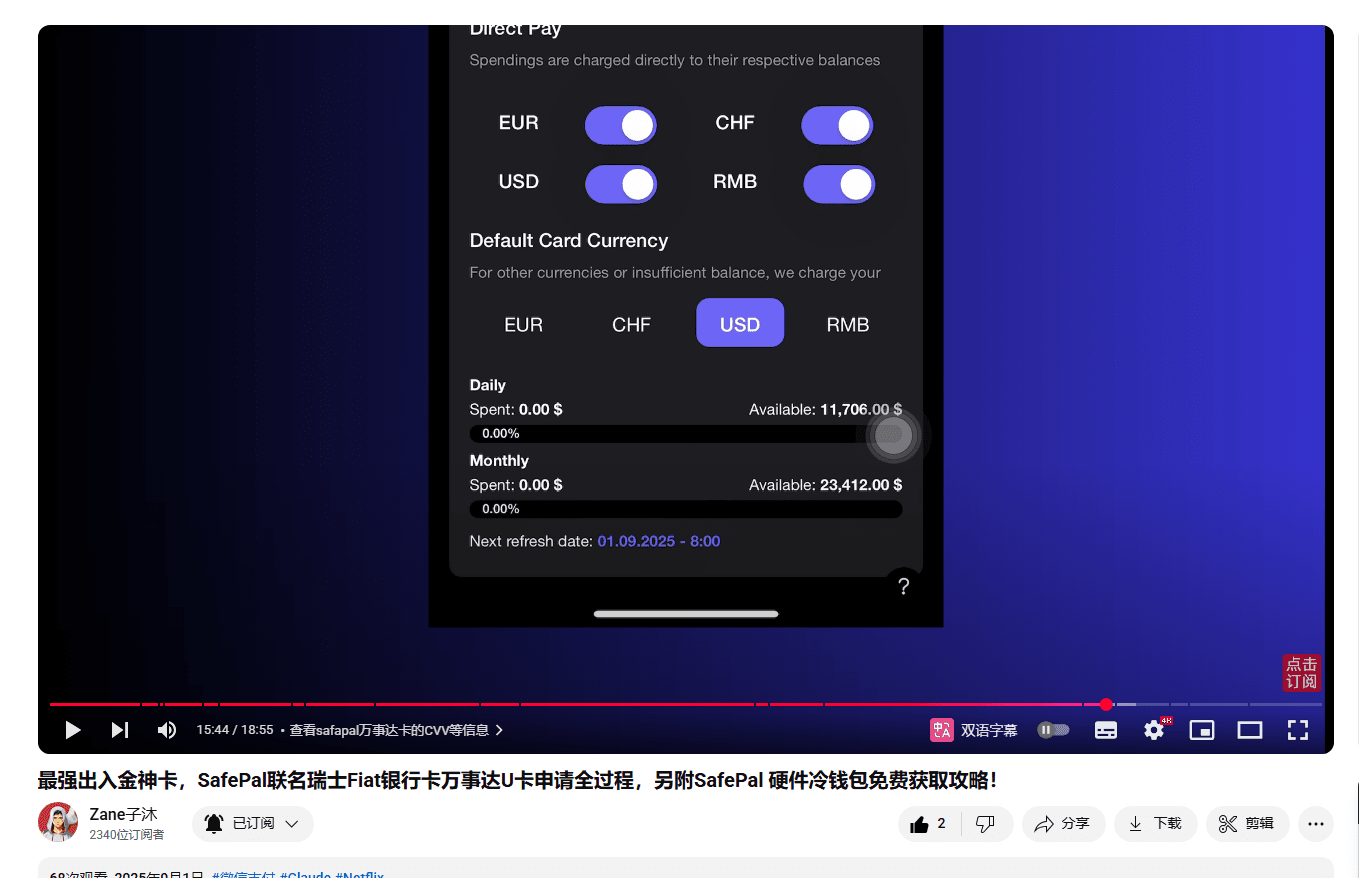
Open all four legal currencies below
The bottom here is the limit of your card
The maximum daily limit is about 11,700 US dollars
The maximum is 23,000 US dollars per month
This limit is enough for most people
Loss in the actual use of SafePal bank card
Loss in the actual use of bank cards
It was said earlier
The recharge fee will be returned
The recharge fee will be returned no matter which currency is recharged
And this card also has no transaction fees
So its only loss is the exchange loss
This is also the value taken at the same time
The approximate result calculated
The red value is the overall exchange loss
The green value is minus 1% cashback
We can see the final loss
The loss of US dollars is 0 after cashback
And Euro Swiss Franc
RMB is only 1% after cashback
Looking at it this way
This card is really good
Because it has zero transaction fees
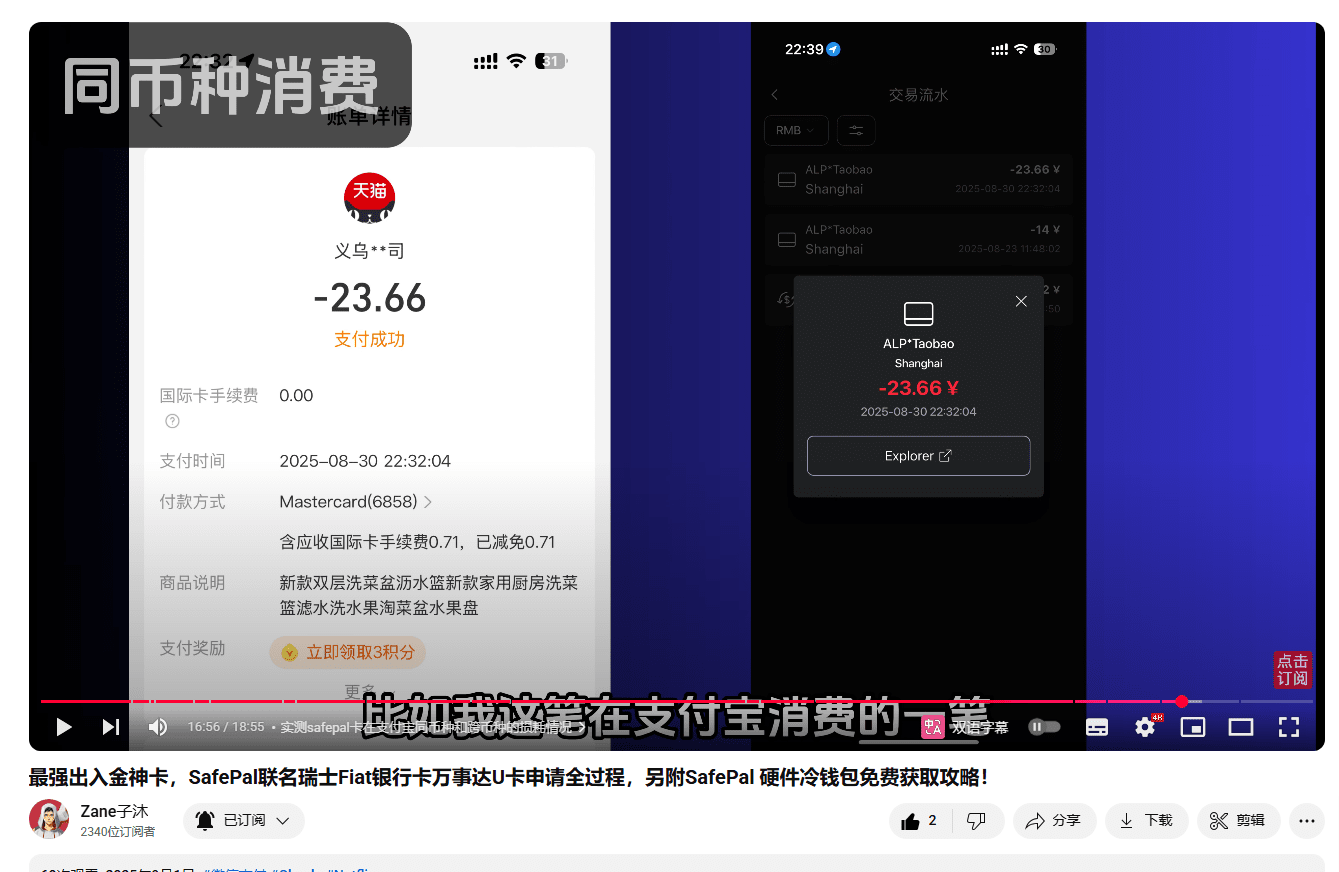
Actual test of SafePal card's loss in Alipay's same currency and cross-currency
For example, this payment of mine consumed in Alipay
How much RMB was spent
Deducted how much RMB
There are no other fees
Of course, this is same-currency consumption
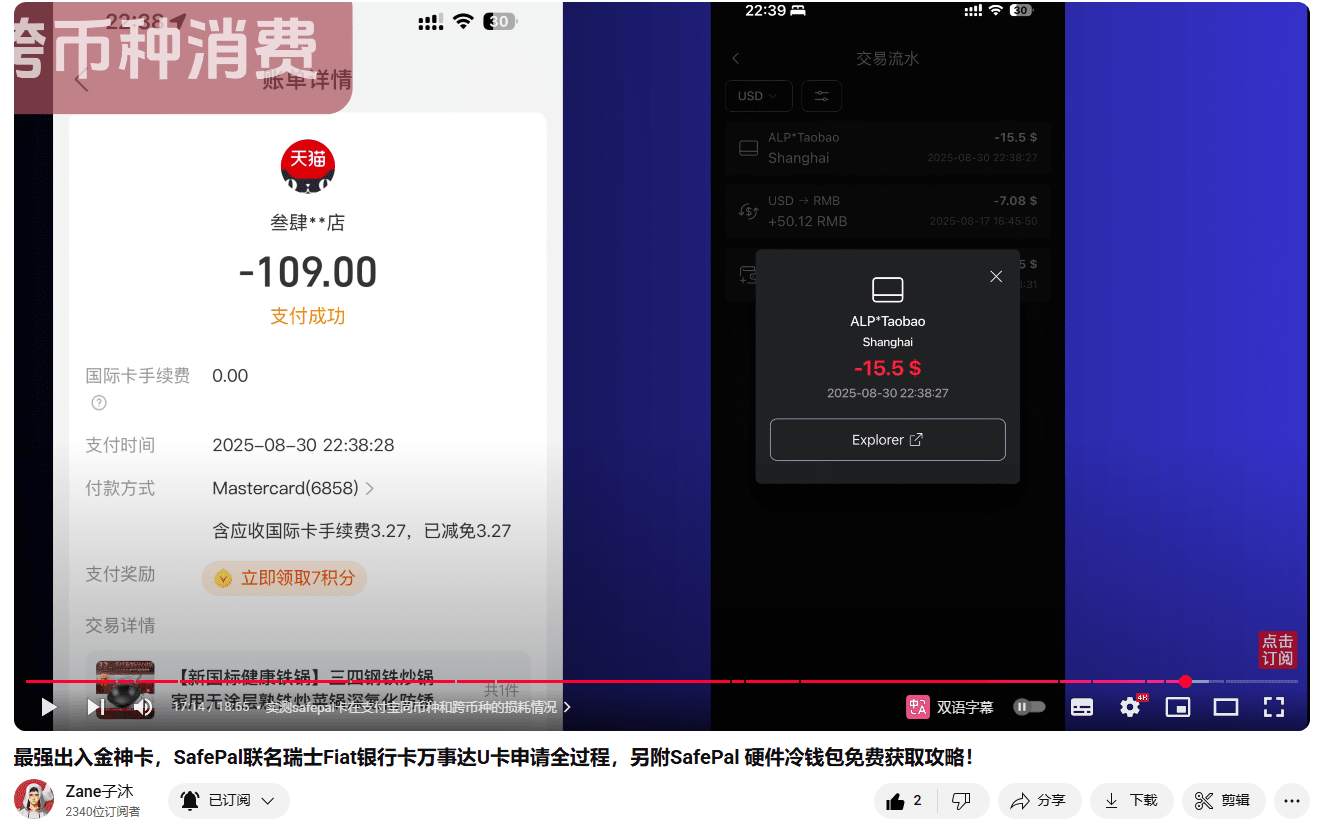
What if cross-currency consumption?
It is recommended to use US dollars for the default deduction currency
For example, this other expense of mine
The consumption is RMB
The deduction is in US dollars
109 RMB deducted 15.5 US dollars
Calculated according to the exchange rate at the time
109 RMB is 15.28 US dollars
The loss is about 1%
Why is it recommended to use US dollars?
As the default deduction
Is because the US dollar is when recharging
Is the only one with no loss
So use US dollars as cross-currency consumption
The final loss is only cross-currency elimination
Time-consuming settlement exchange rate loss
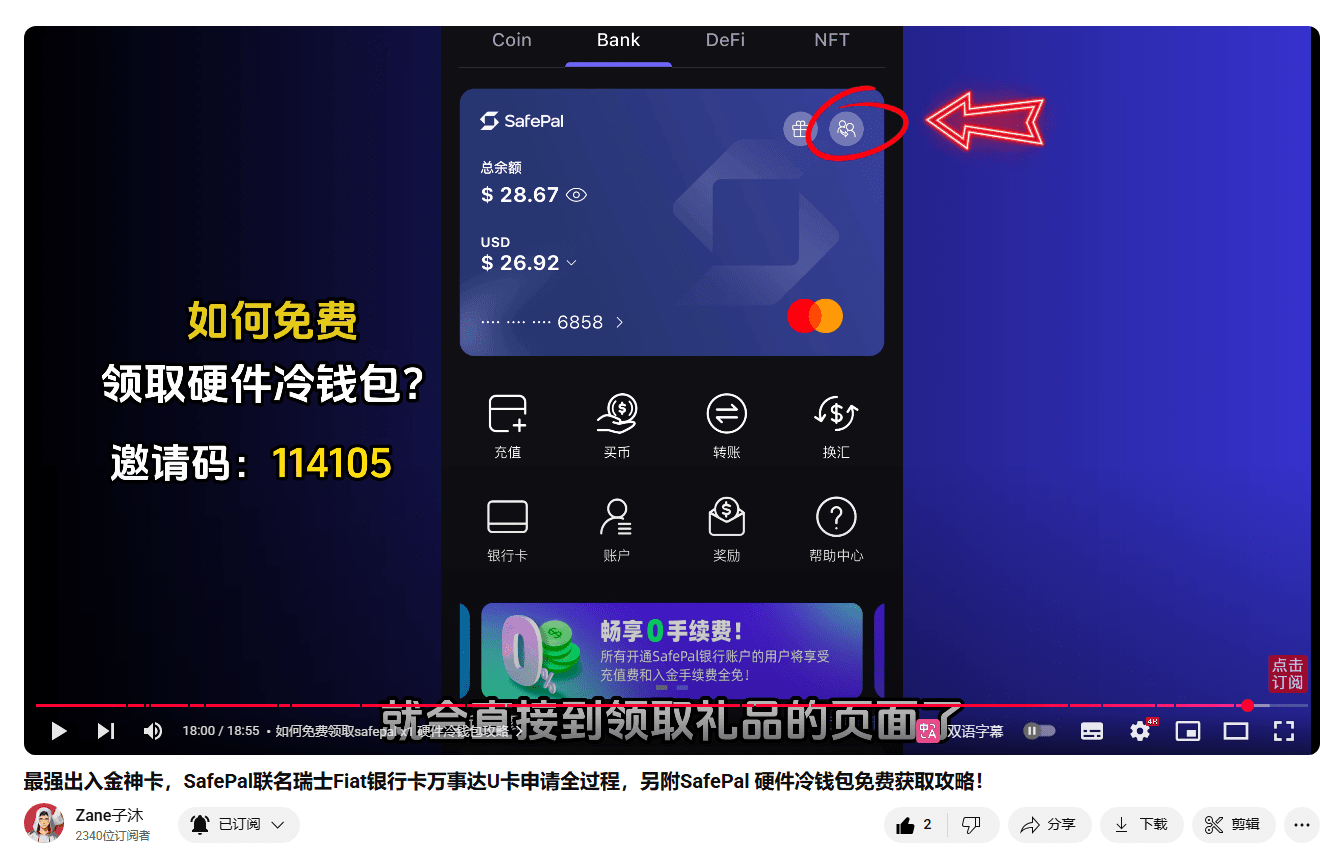
How to get SafePal x1 hardware cold wallet for free
Okay, finally I will demonstrate to everyone
How to get this hardware wallet for free
If you fill in this exclusive invitation code 114105
Click the small icon in the red box
Will directly go to the gift receiving page
No need to do any tasks
Just click on the red arrow to receive the gift
Okay, congratulations
Received a free SafePal X1 hardware cold wallet
If you forgot to fill in the invitation code before
Supplementary filling within 7 days of registration is valid
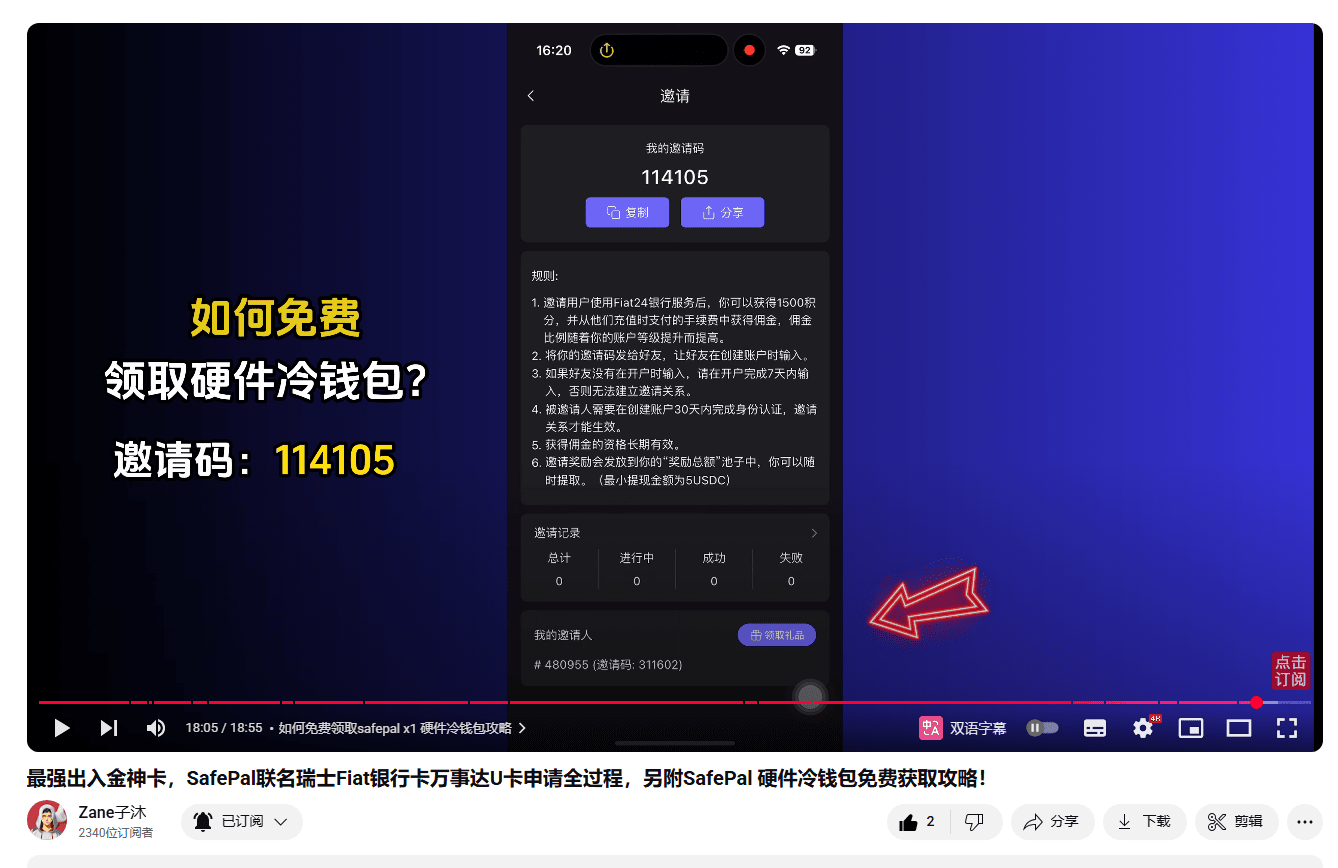
Click Claim Now
Login
Fill in the mailing information
The wallet is given away for free
But we need to pay 5 US dollars for the express fee
A few days later
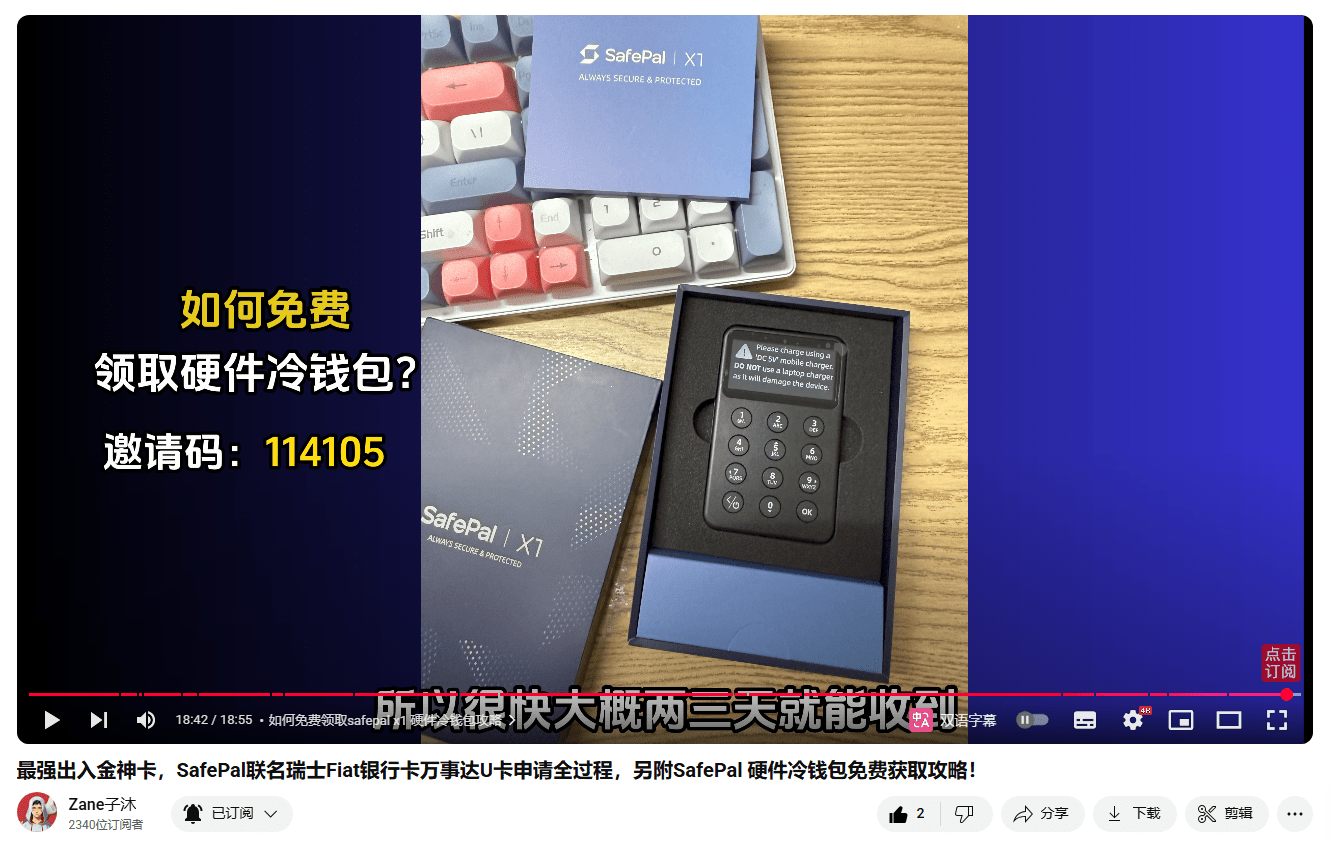
You will receive such a hardware cold wallet
The express delivery is sent from Shenzhen
So it will be received soon in about two or three days
Okay, that's all for this issue
If you have any questions
You can leave me a message in the comments section
If you need to watch the video version of the tutorial, you can also find me on YouTube