About CardB and Binance: In the ever-changing financial world, easy access to various financial instruments and payment methods can greatly optimize your personal finances and give you money freedom. One such tool that will help bridge the barrier between traditional banking and digital currencies is CardB.
What is CardB?
With the CardB crypto card, Binance users can convert their cryptocurrencies and pay for goods and services at any point of sale or online store. You can top up the card using Binance Pay. CardB virtual card can be added to Samsung Pay and Apple Pay.
Binance Pay has partnered with CardB to unlock these benefits, enabling users to easily make purchases and top-up through Binance Pay. You can do this through the CardB mobile app or directly on the Binance marketplace.
About special rates and conditions:
Please note that the product is available for users from Ukraine, Armenia, Kazakhstan, Tajikistan, Azerbaijan, Moldova, Turkmenistan, Kyrgyzstan, as well as for users with advanced verification (proof of address, PoA) in these countries.
As part of the launch, Binance Pay and CardB are presenting a special limited-time promotion. From November 6, 2023 to February 5, 2024, every top-up to your CardB account using Binance Pay will be fee-free. Eligible users will only need to pay a nominal monthly fee of $0.99!
In this blog, we will walk you through how to order a prepaid debit card on the CardB app and give you basic tips on how to use the card.
A step-by-step guide to creating a Card in the Binance app
1. Register an account on Binance and go through full identity verification
To create a card, you need to register a Binance account (you can read the guide) and go through full identity verification (KYC) using your passport or driver's license. If you already have an account, follow the instructions below.
2. Register and receive a card in the CardB application:
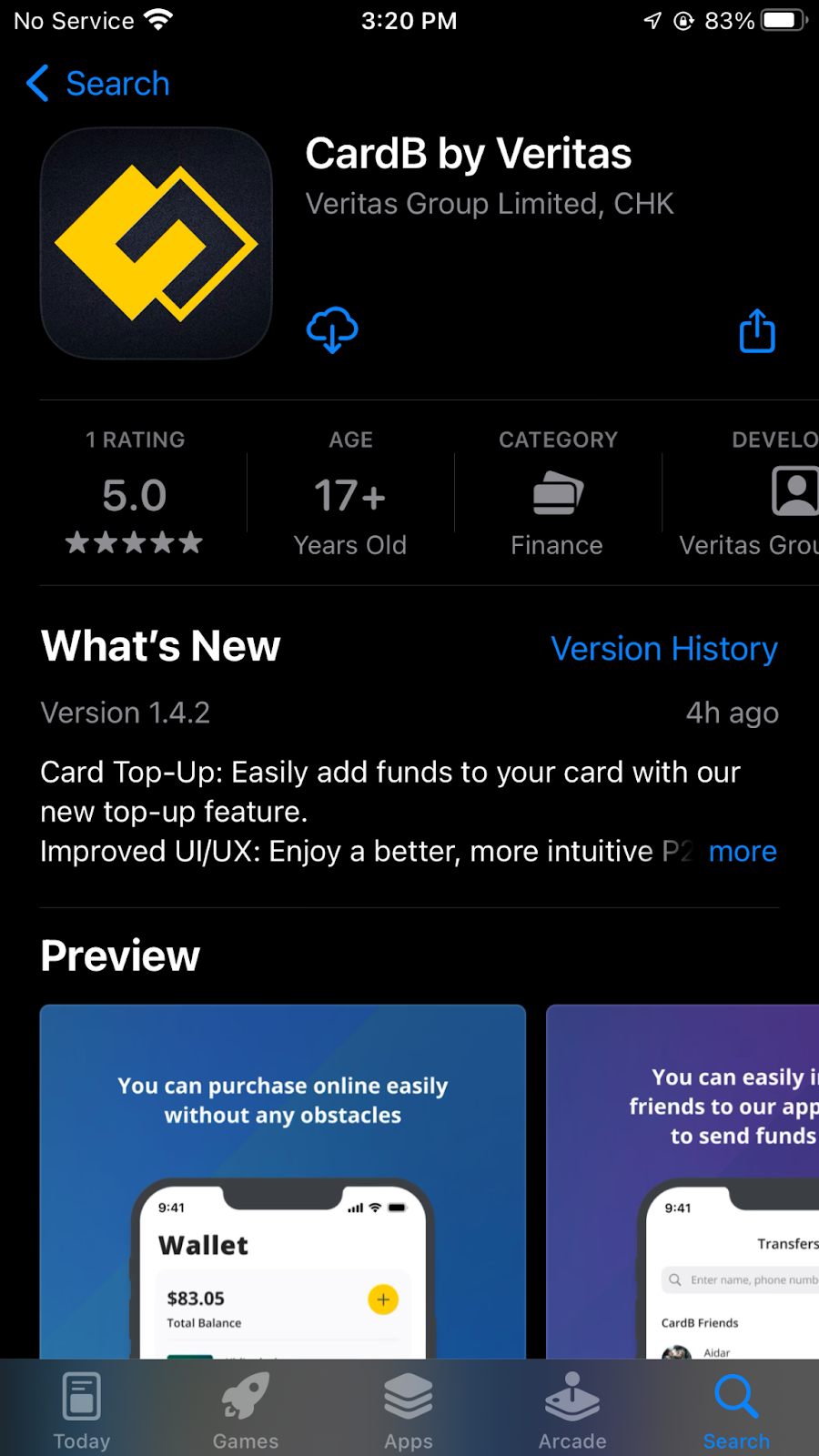
1. Download the CardB application to your smartphone in the Appstore or Play Market.
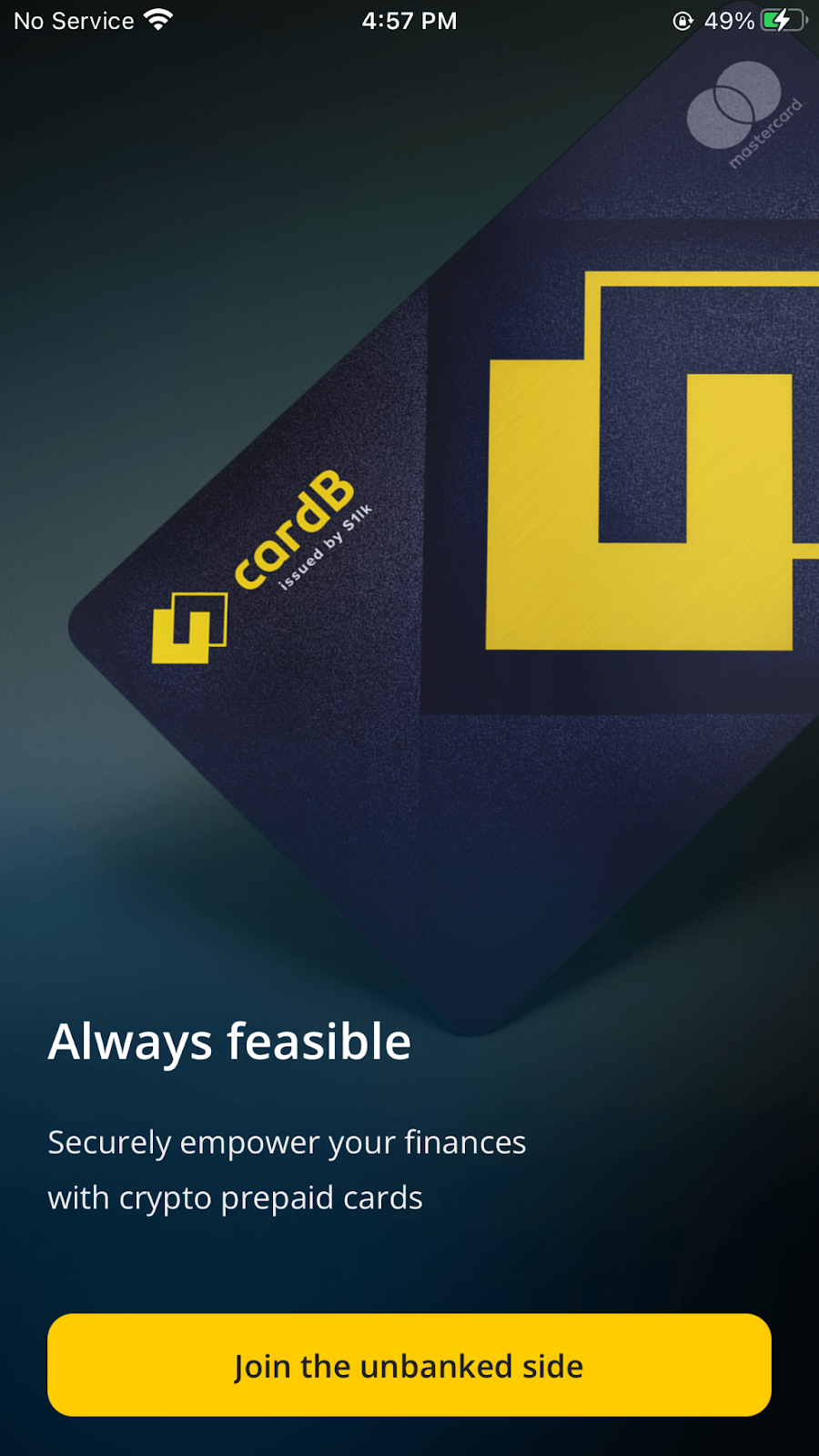
2. Once you install the app on your smartphone, please tap on "Join the Unbanked Side"
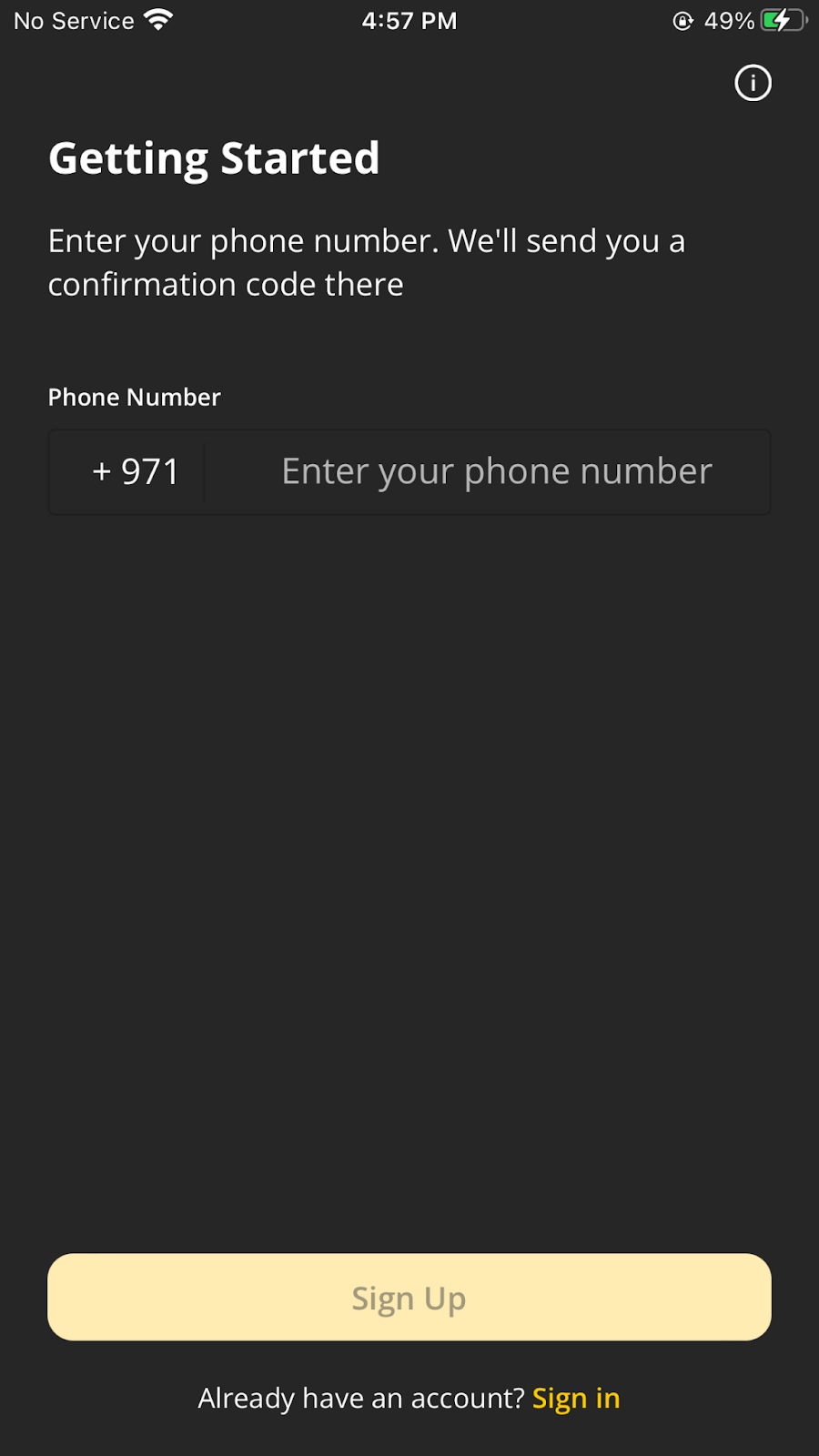
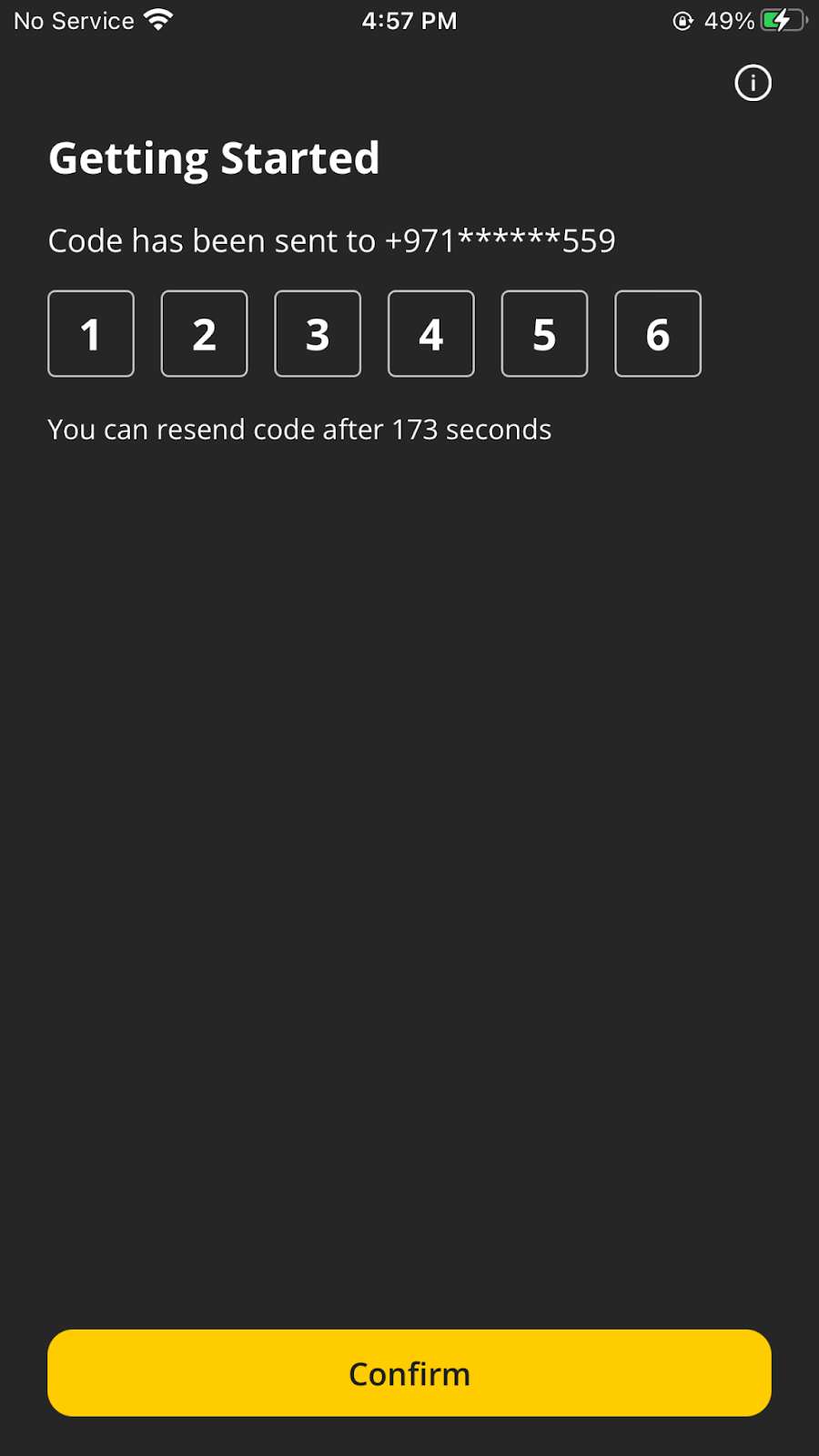
3. Select your country, enter your phone number. On the next screen, enter the code that will be sent to your phone number via SMS for confirmation.
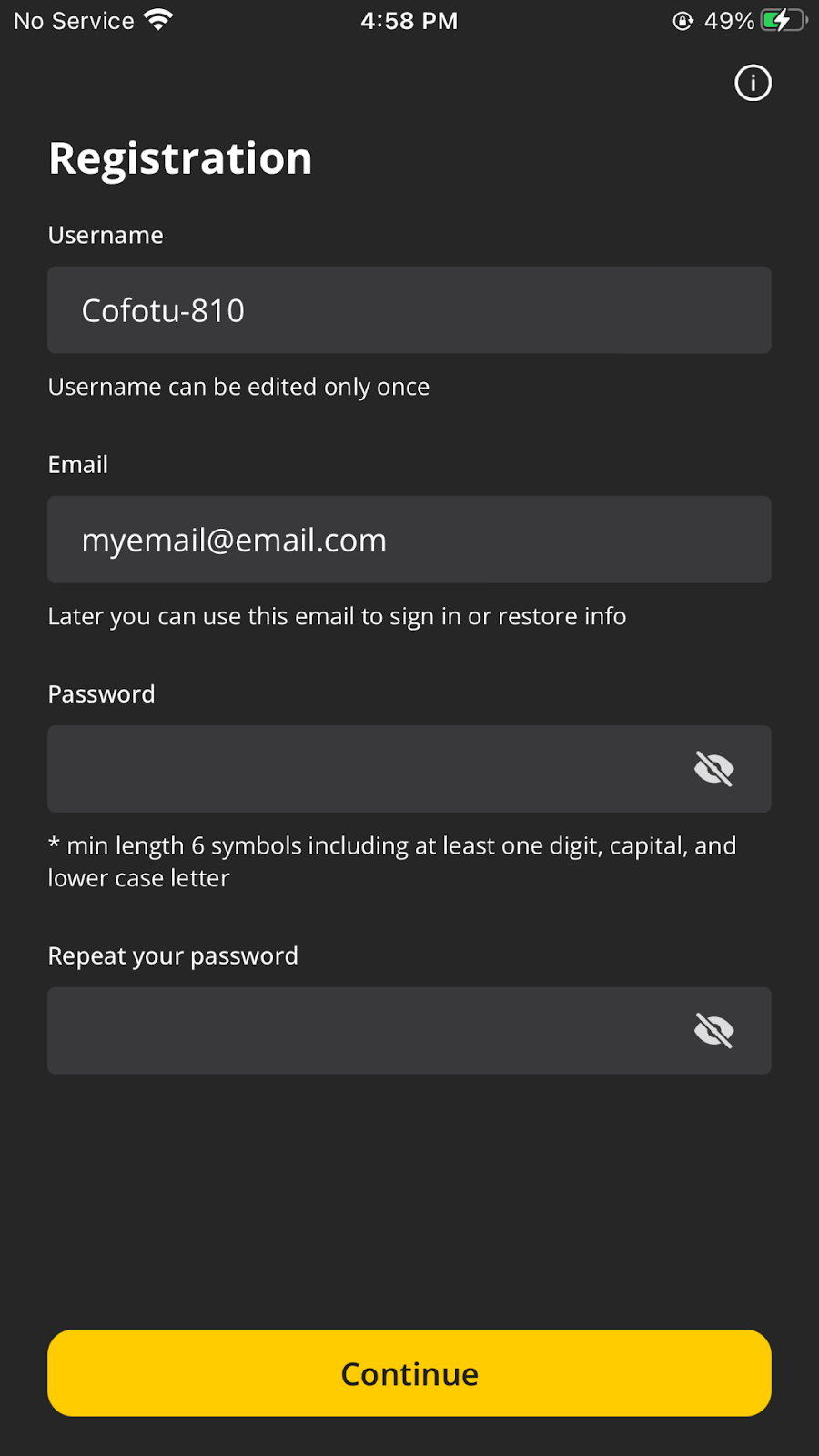
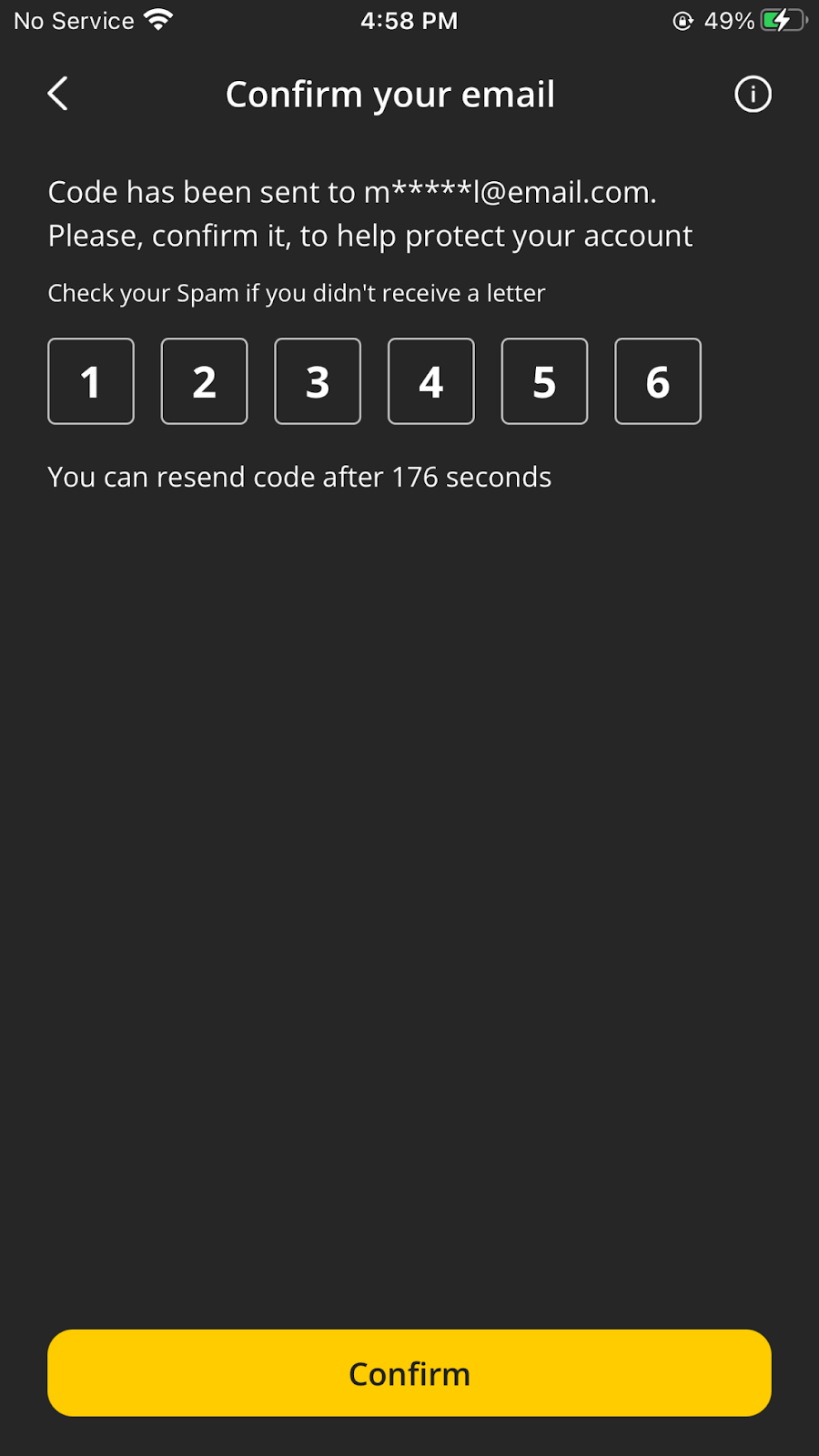
4. Заповніть усі необхідні поля і підтвердіть свою електронну пошту за допомогою введення коду, який ви отримаєте в електронному листі.
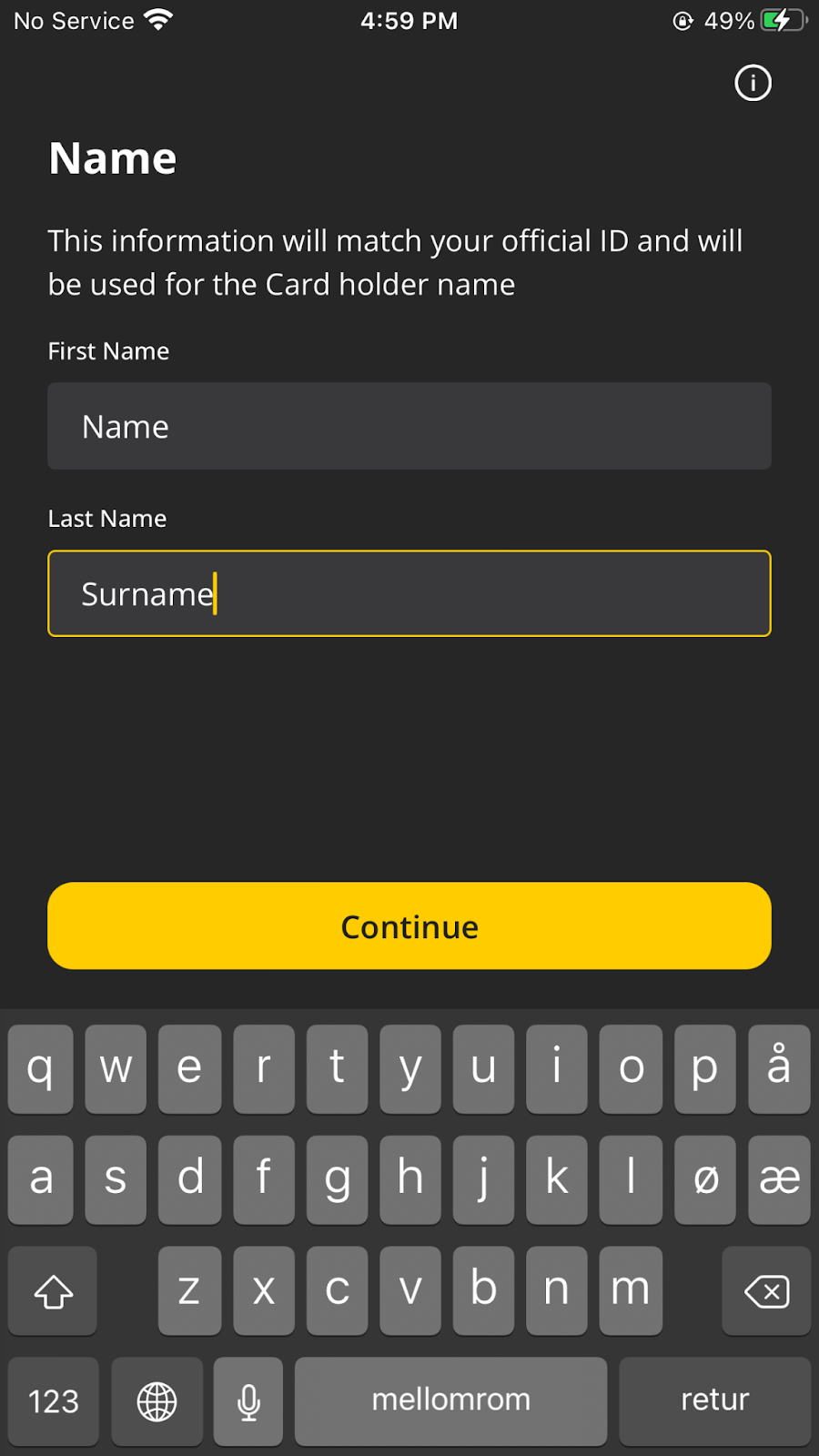
5. Next, enter your first and last name according to the official document. Please note that the name you entered will be used later as the card holder.
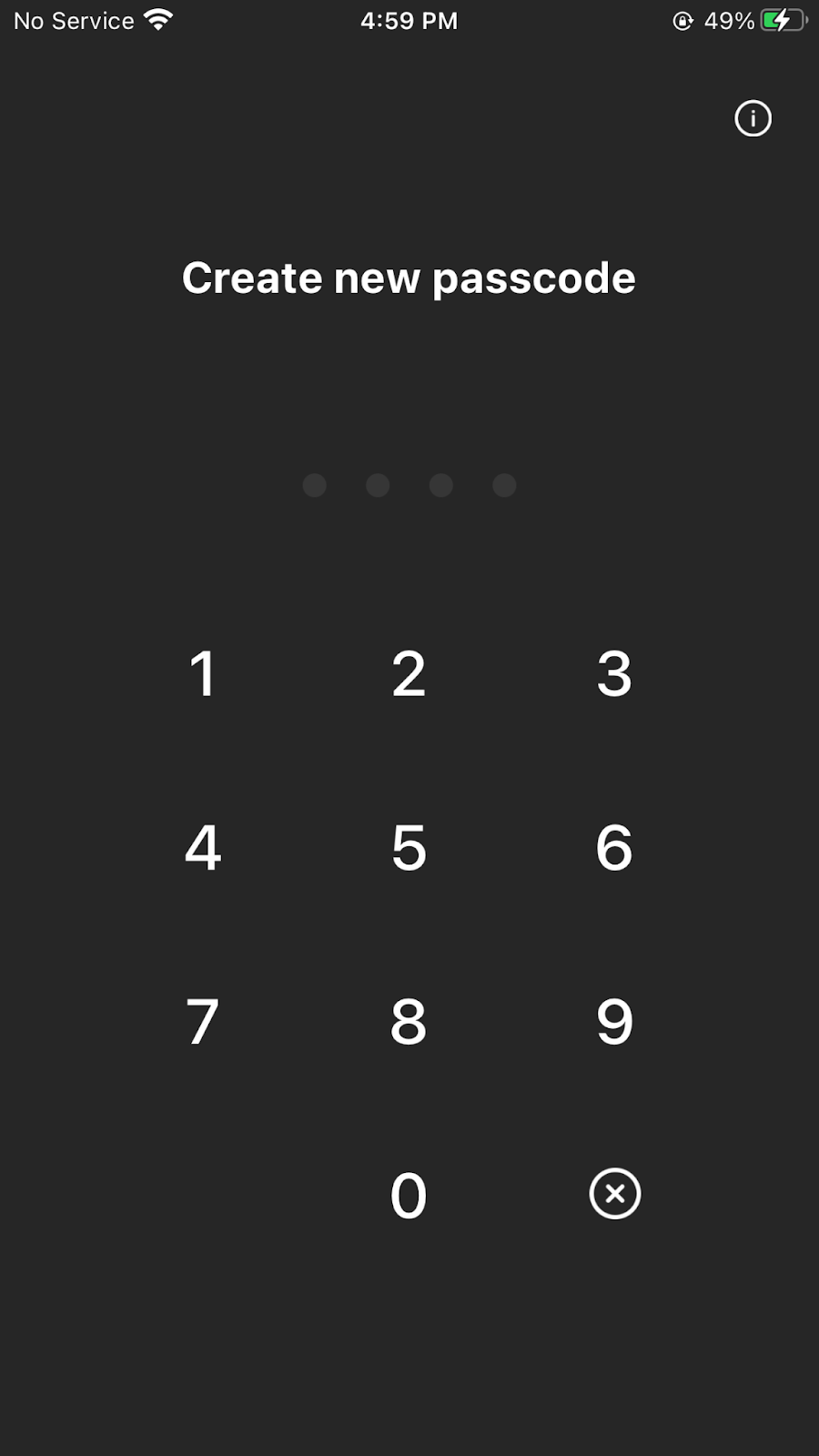
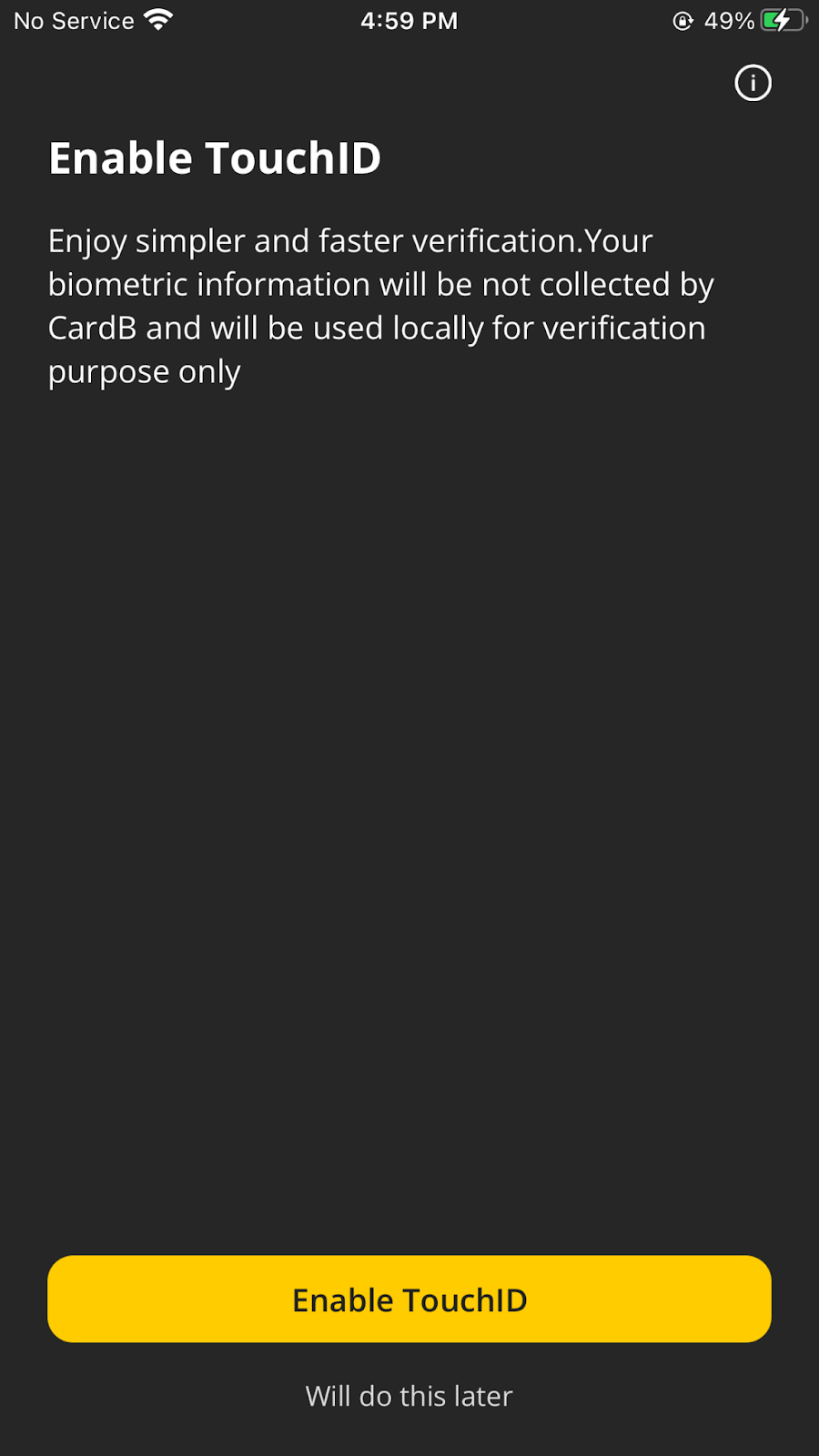
6. Створіть зручний пароль, який ви будете використовувати під час входу в застосунок. Також на цьому етапі ви можете під'єднати біометрію для зручнішого та швидшого відкриття застосунку.
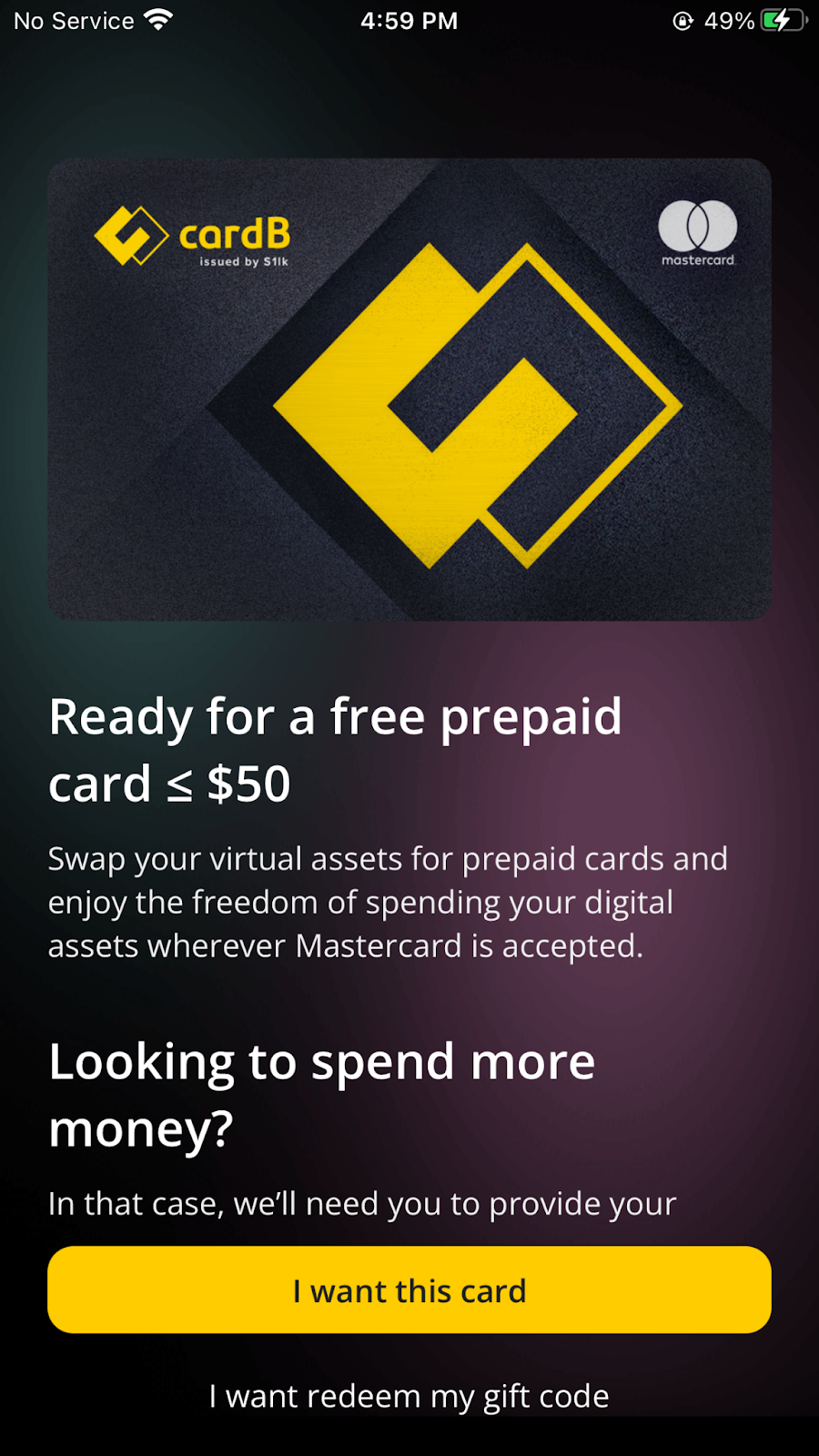
7. Tap - “I want this card”.
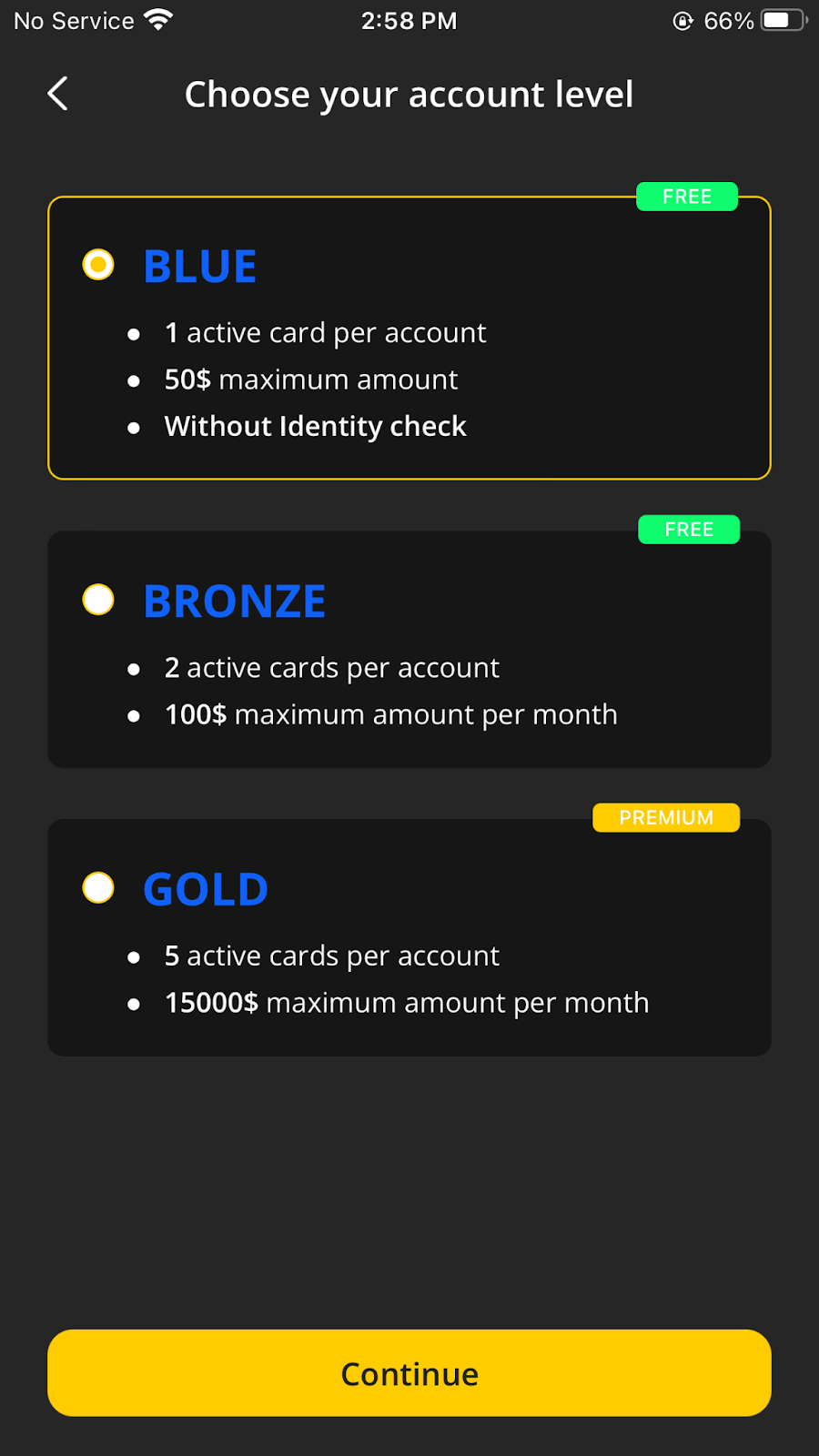
8. Select the account level. We offer you the following user levels: Blue, Bronze and Gold (you can find more details about each of them in the "Subscription types" section)
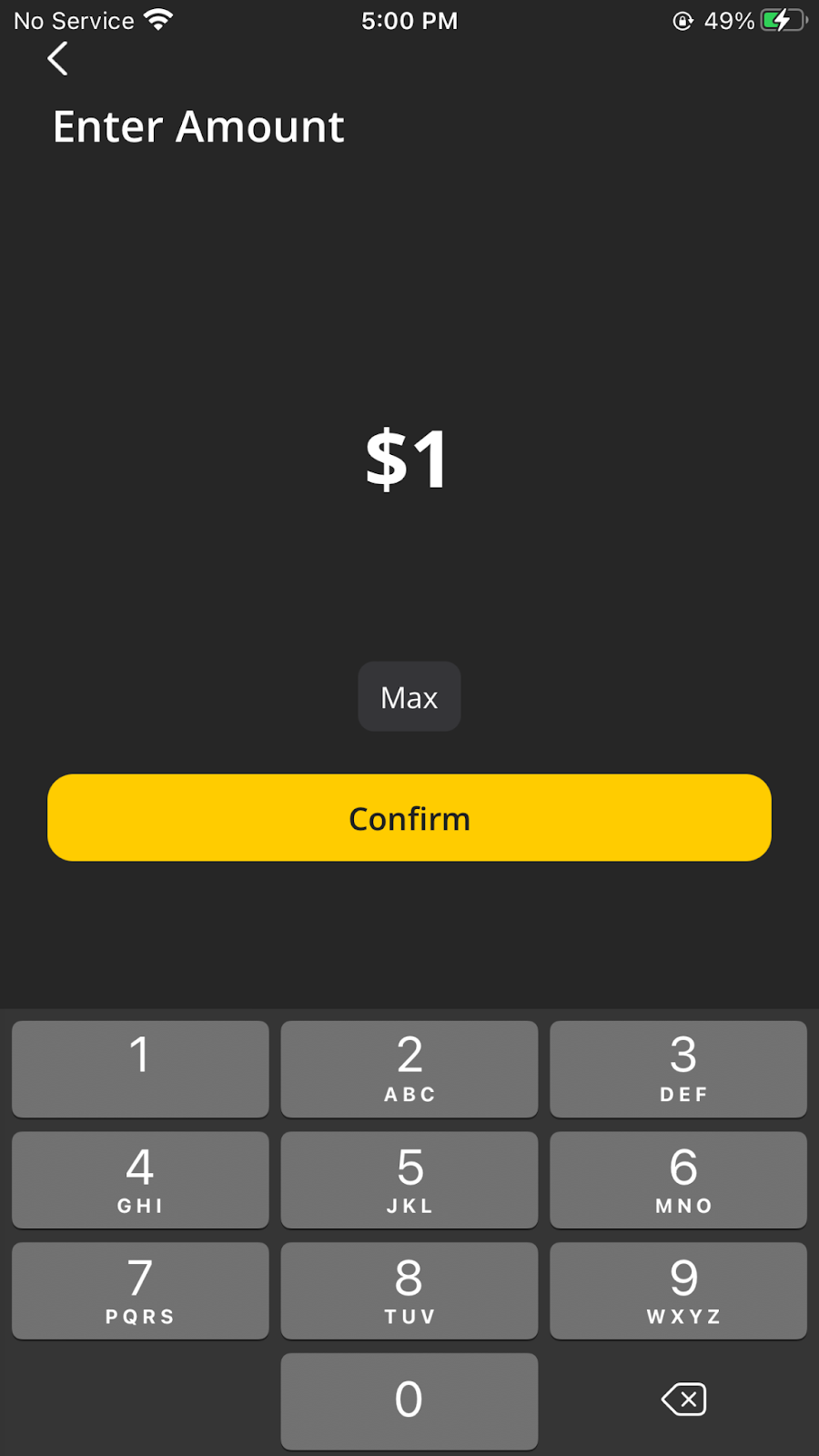
9. Enter the card amount. Next, choose the payment type: One-Time Payment or Binance Contract-Based Payment, also make sure you have pre-loaded the Binance app and completed registration and KYC.
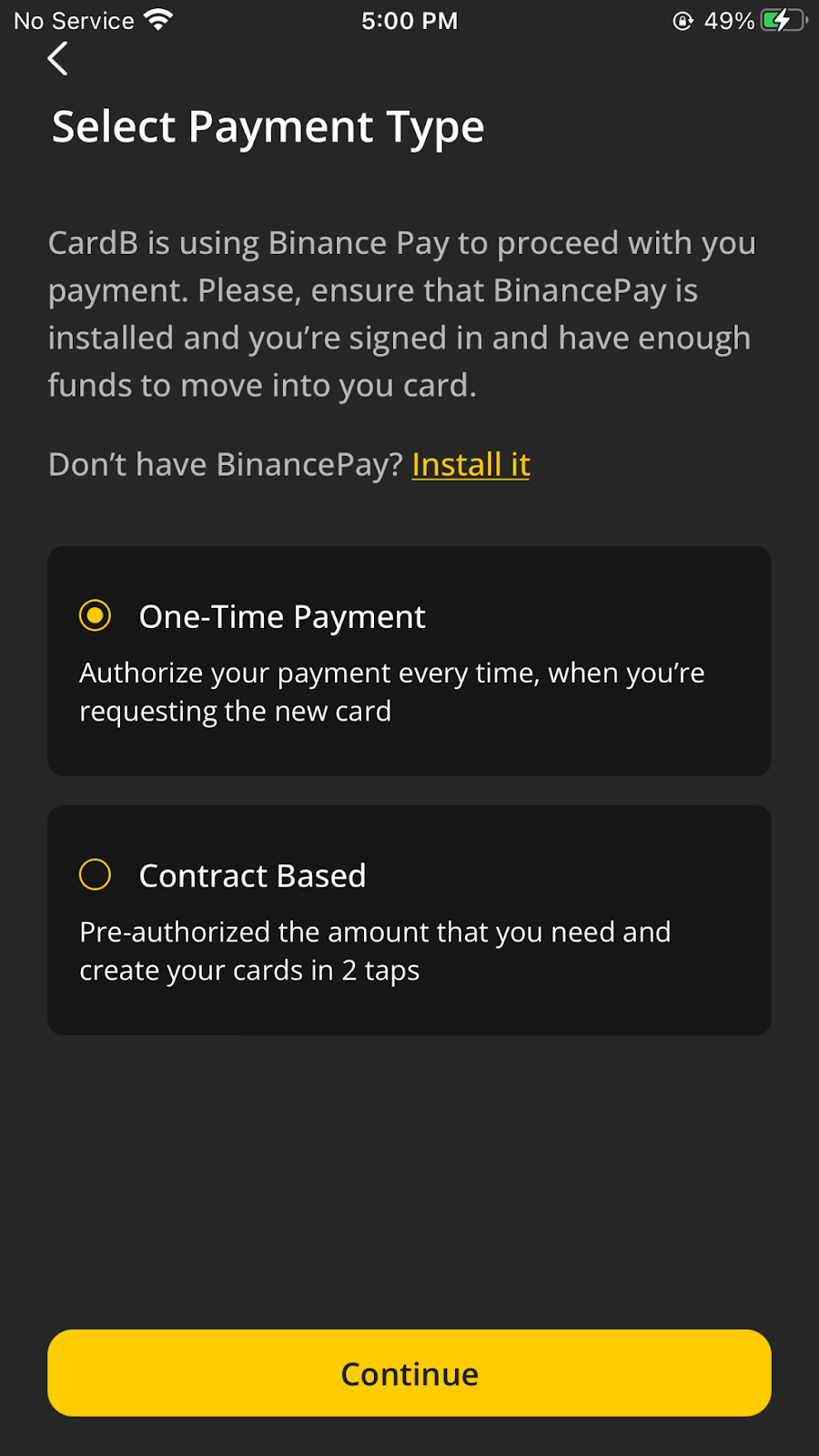
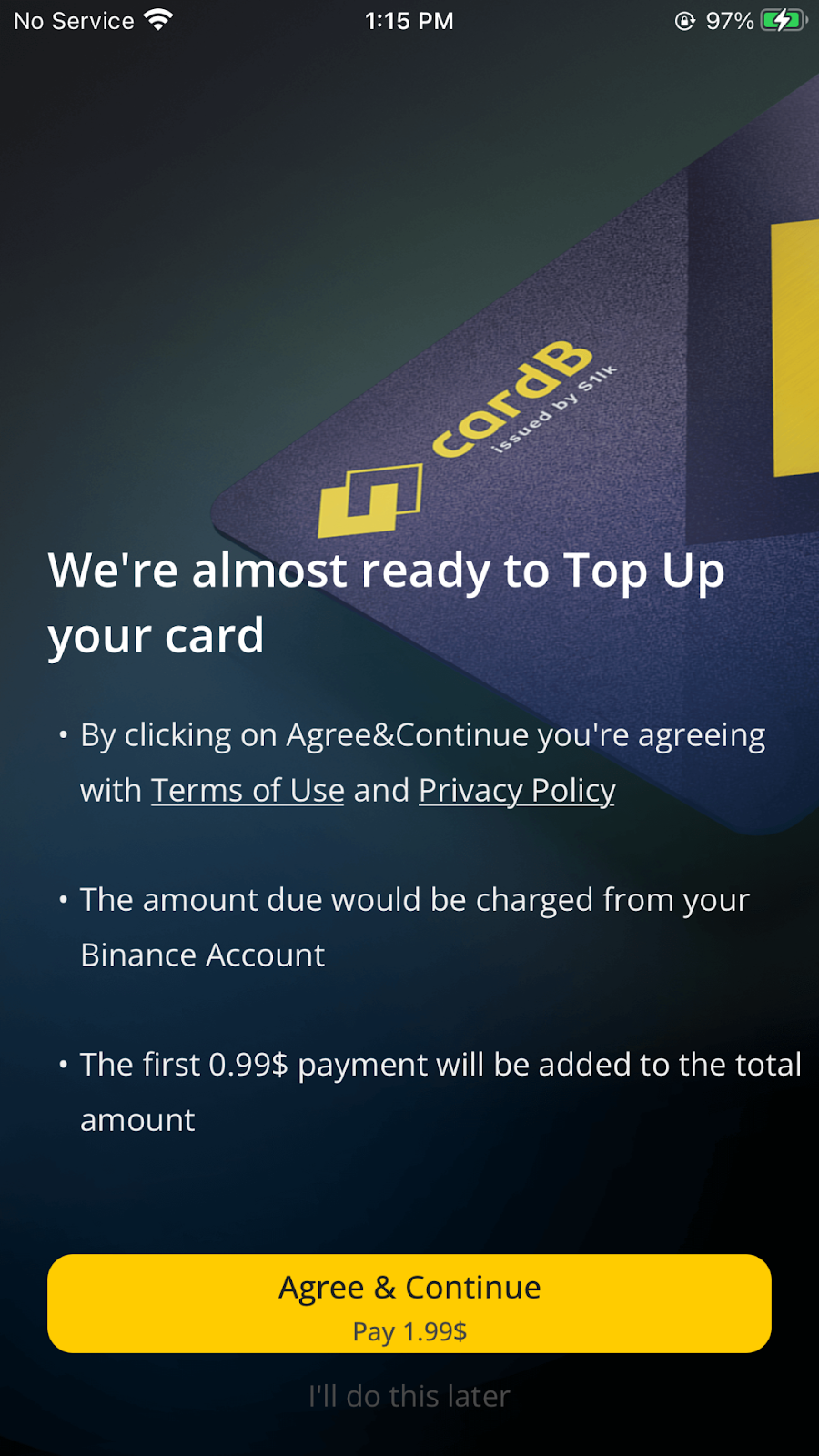
10. Read the Terms of Use and Privacy Policy and proceed with further actions.
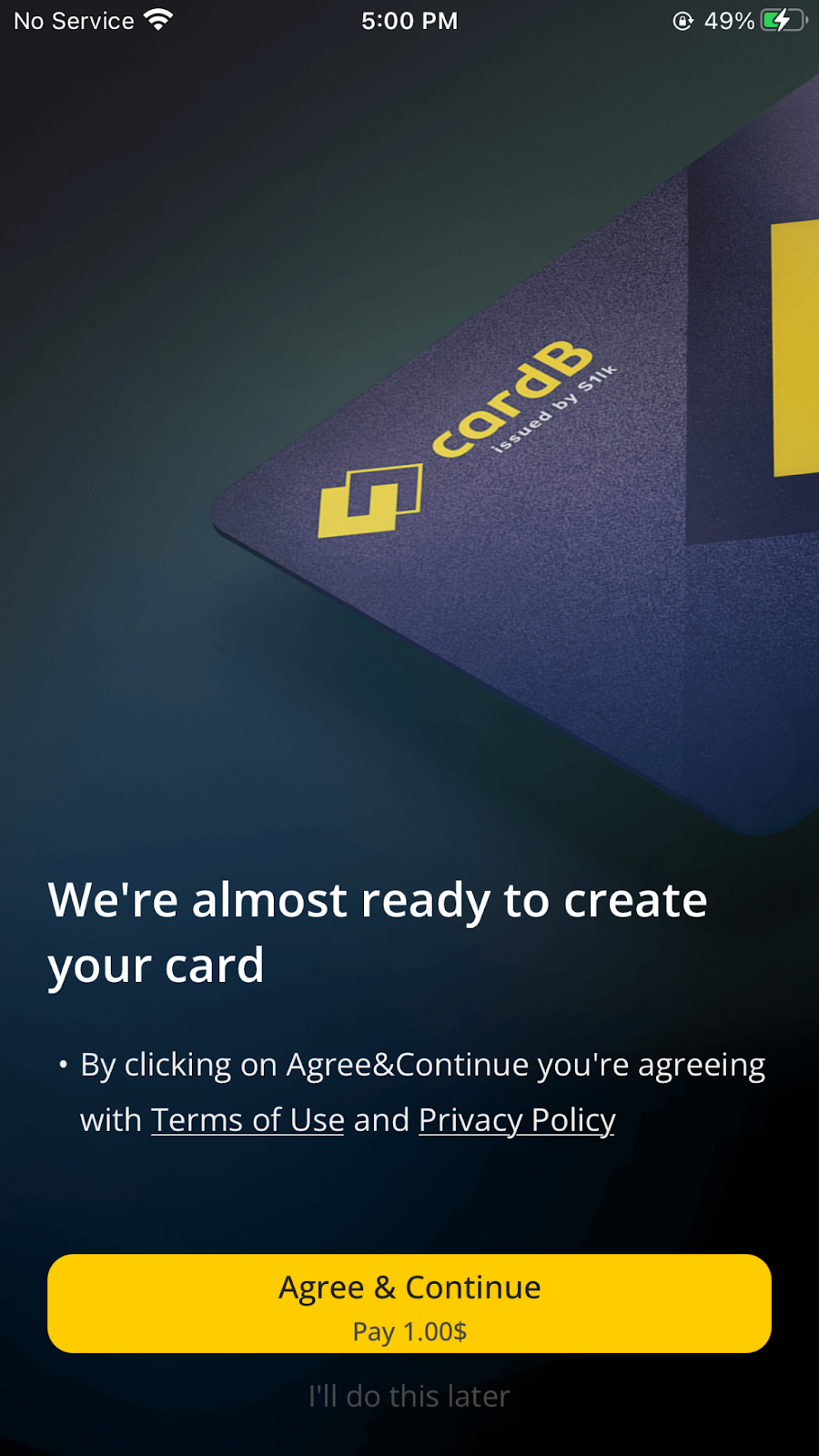
11. Complete the payment in the Binance app: After clicking "Agree & Continue", you will be redirected to the Binance app. Follow the instructions and tap "Done" after making the payment. You will be redirected back to the CardB app.
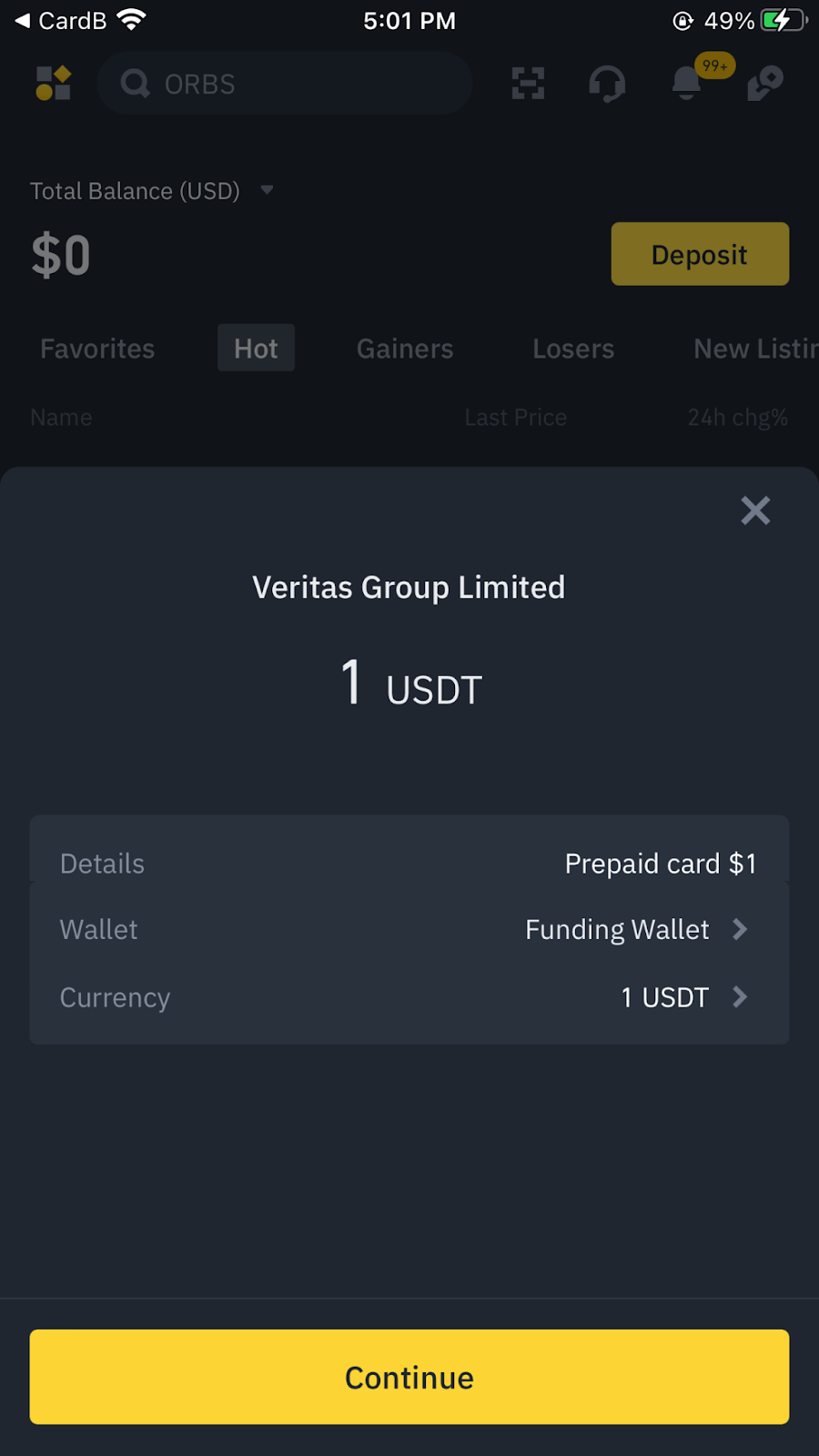
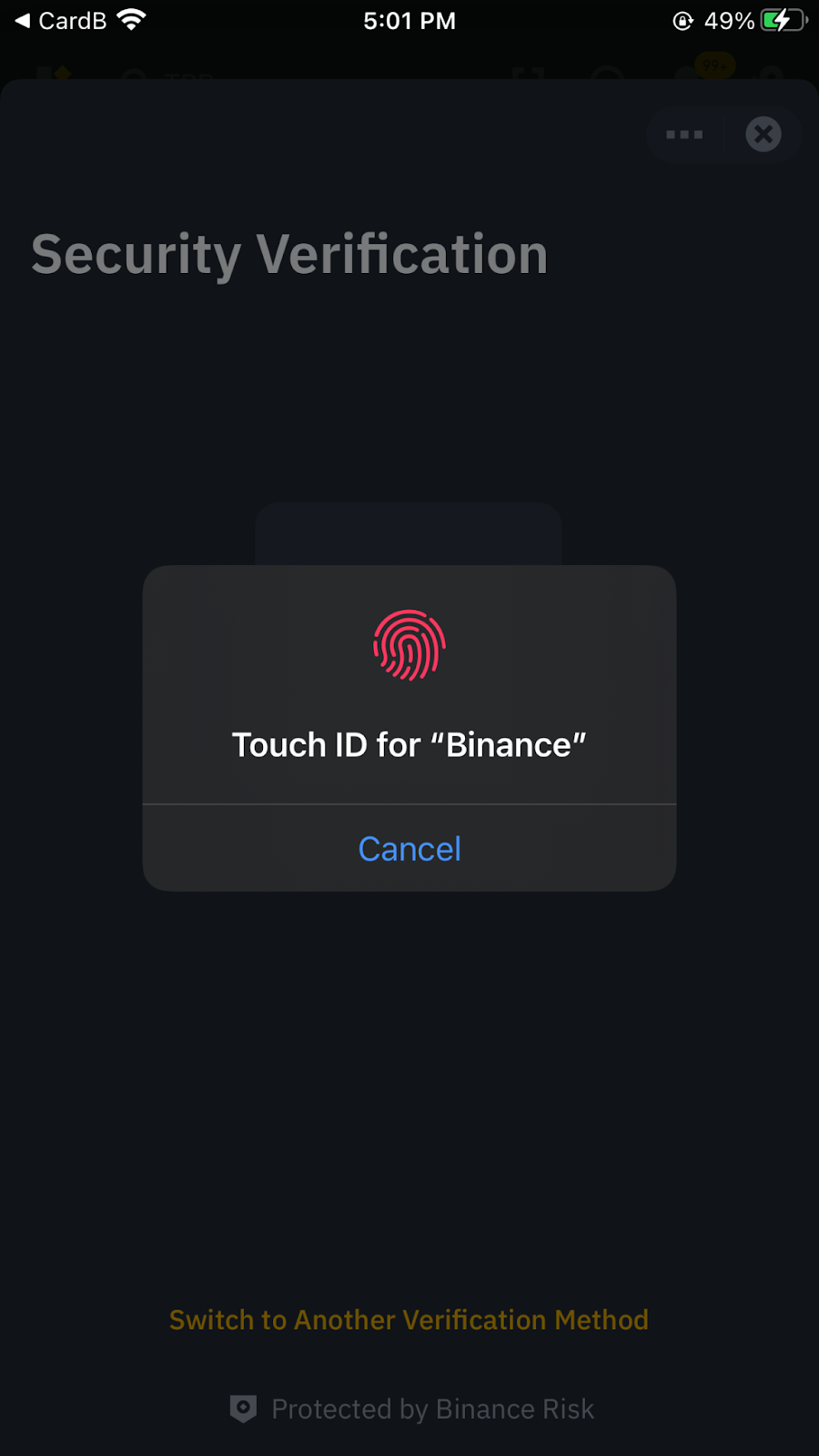
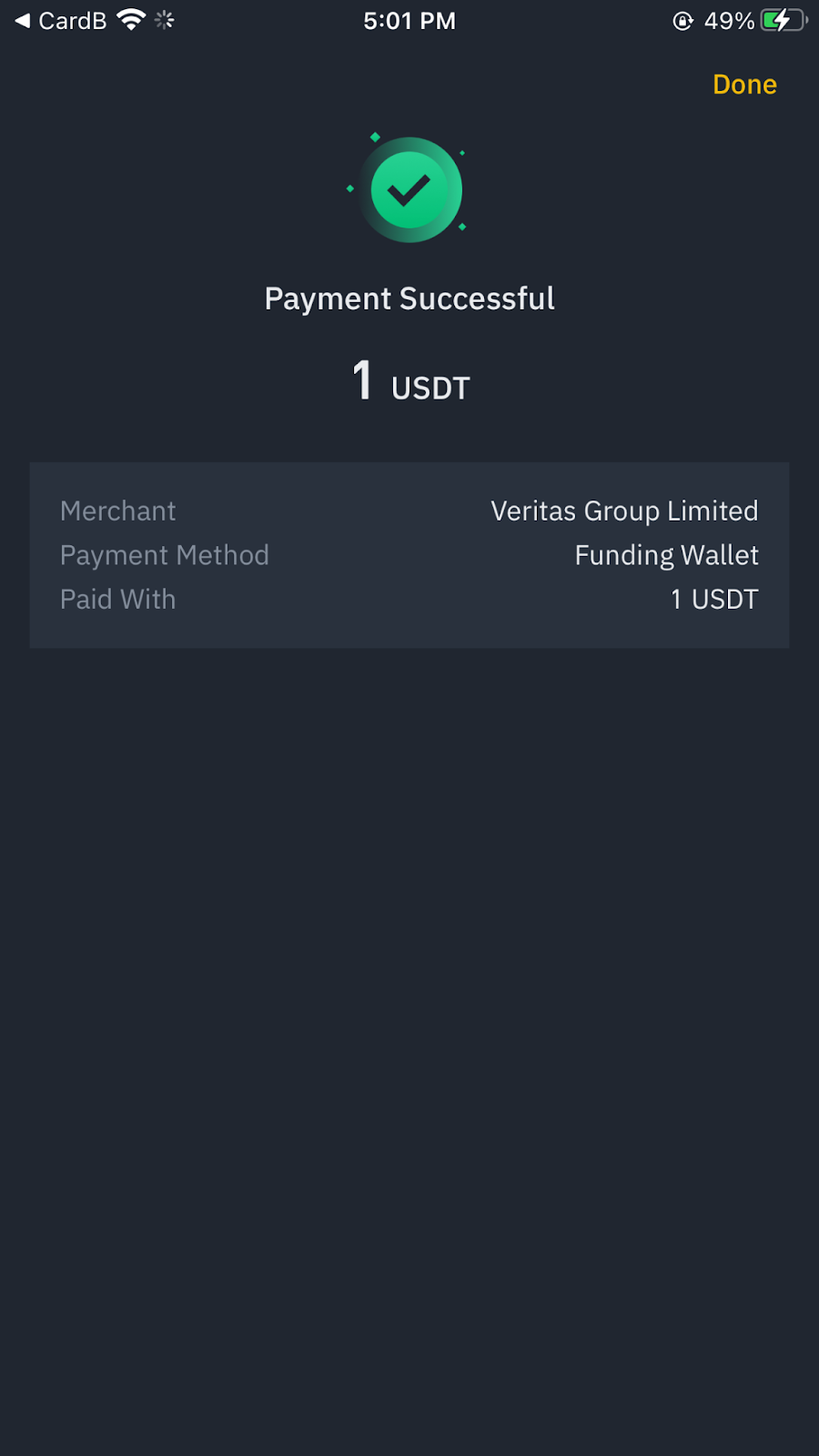
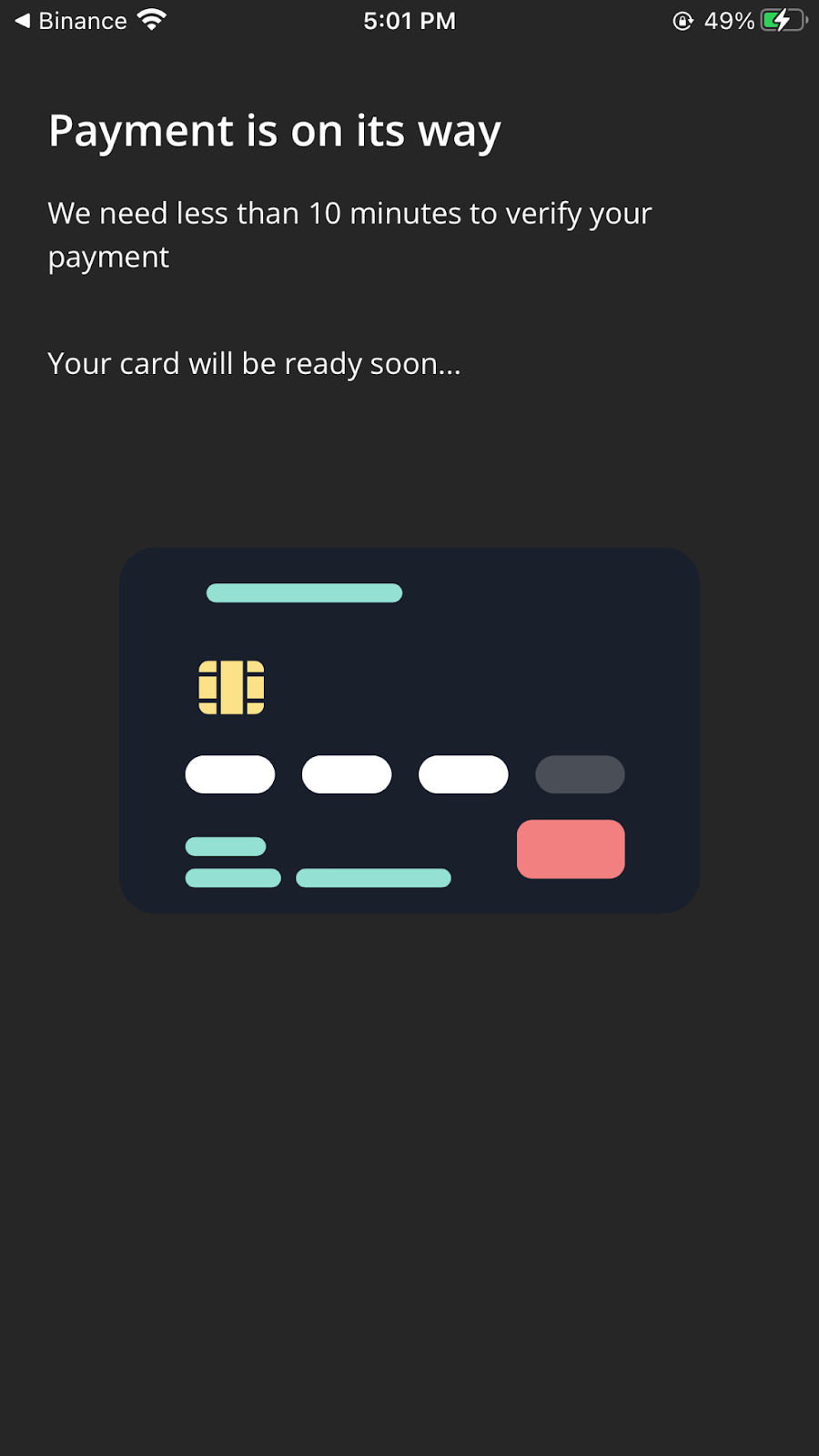
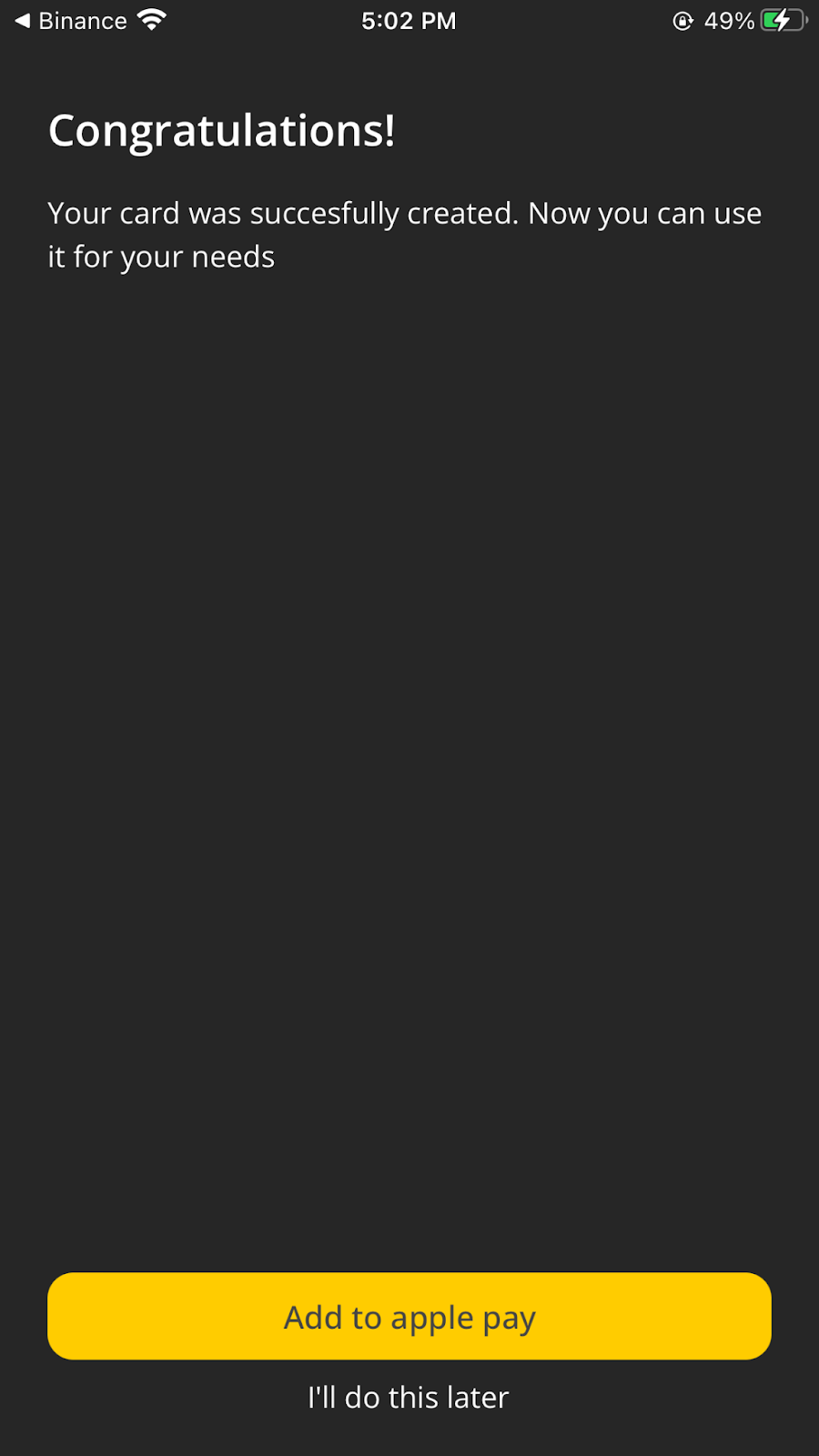
12. Congratulations! Your card has been successfully issued and you can use it for your needs!
3. How to use СardВ on the Binance Marketplace
Under Use Cryptocurrency, tap CardB Top Up.
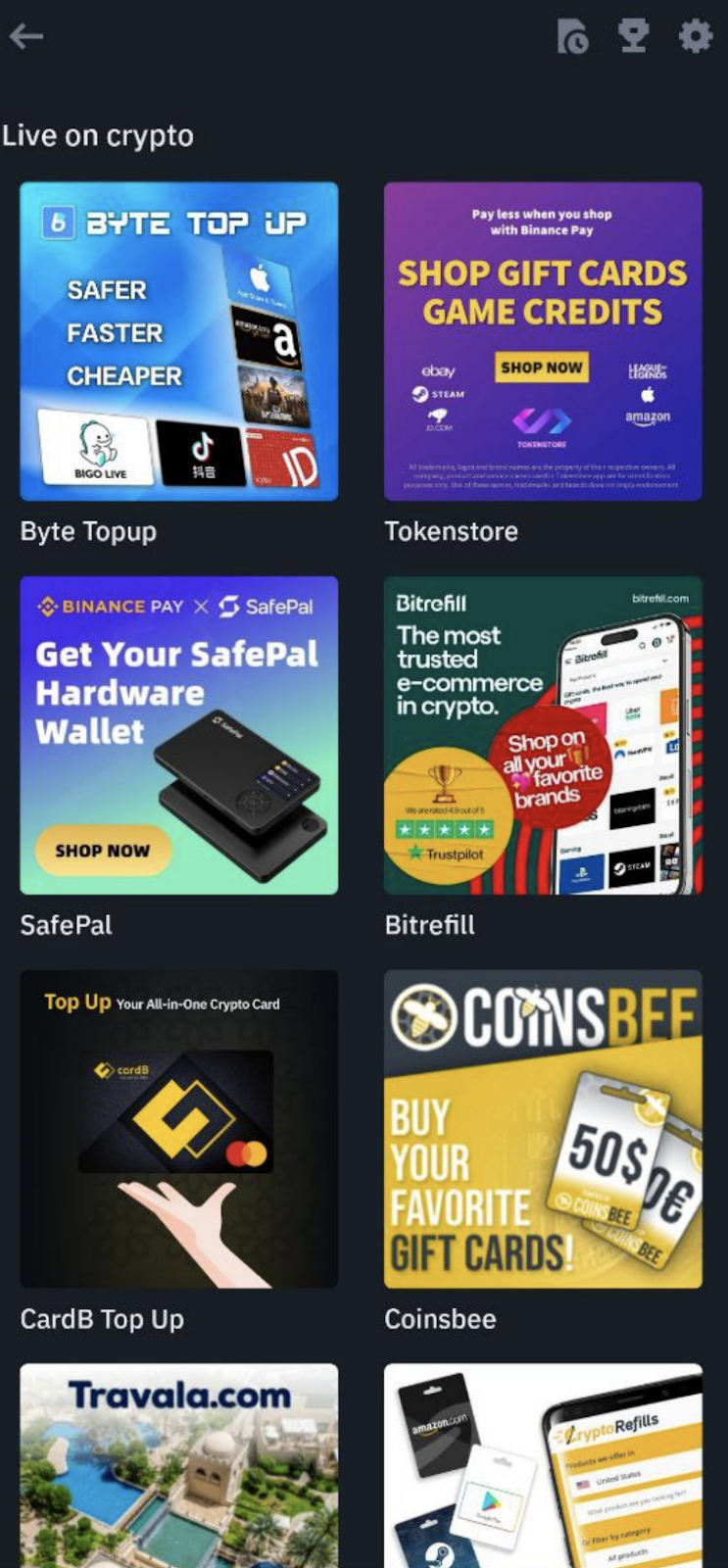
Give the CardB app access to your Binance account to be able to make payments from your Binance account.
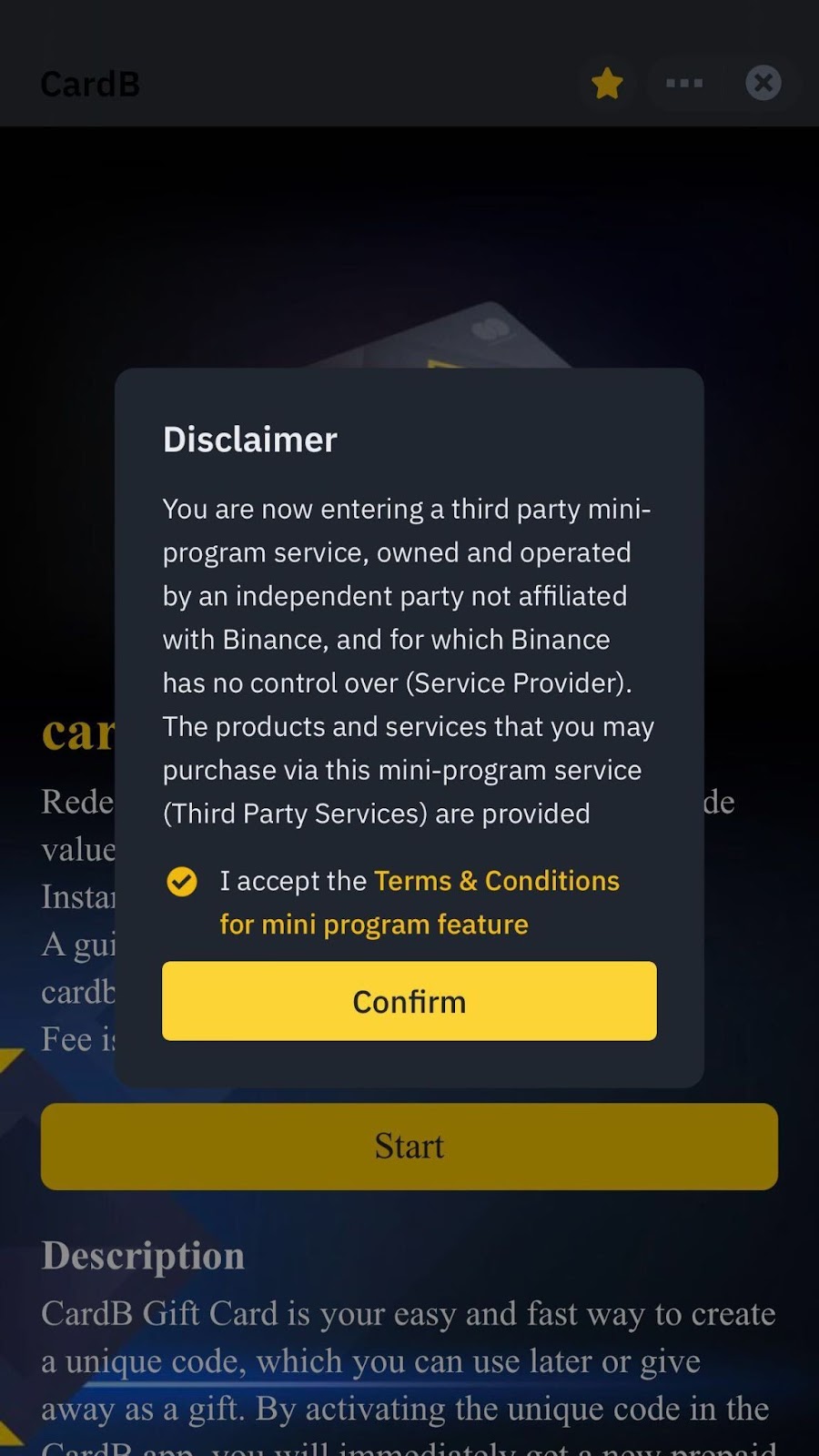
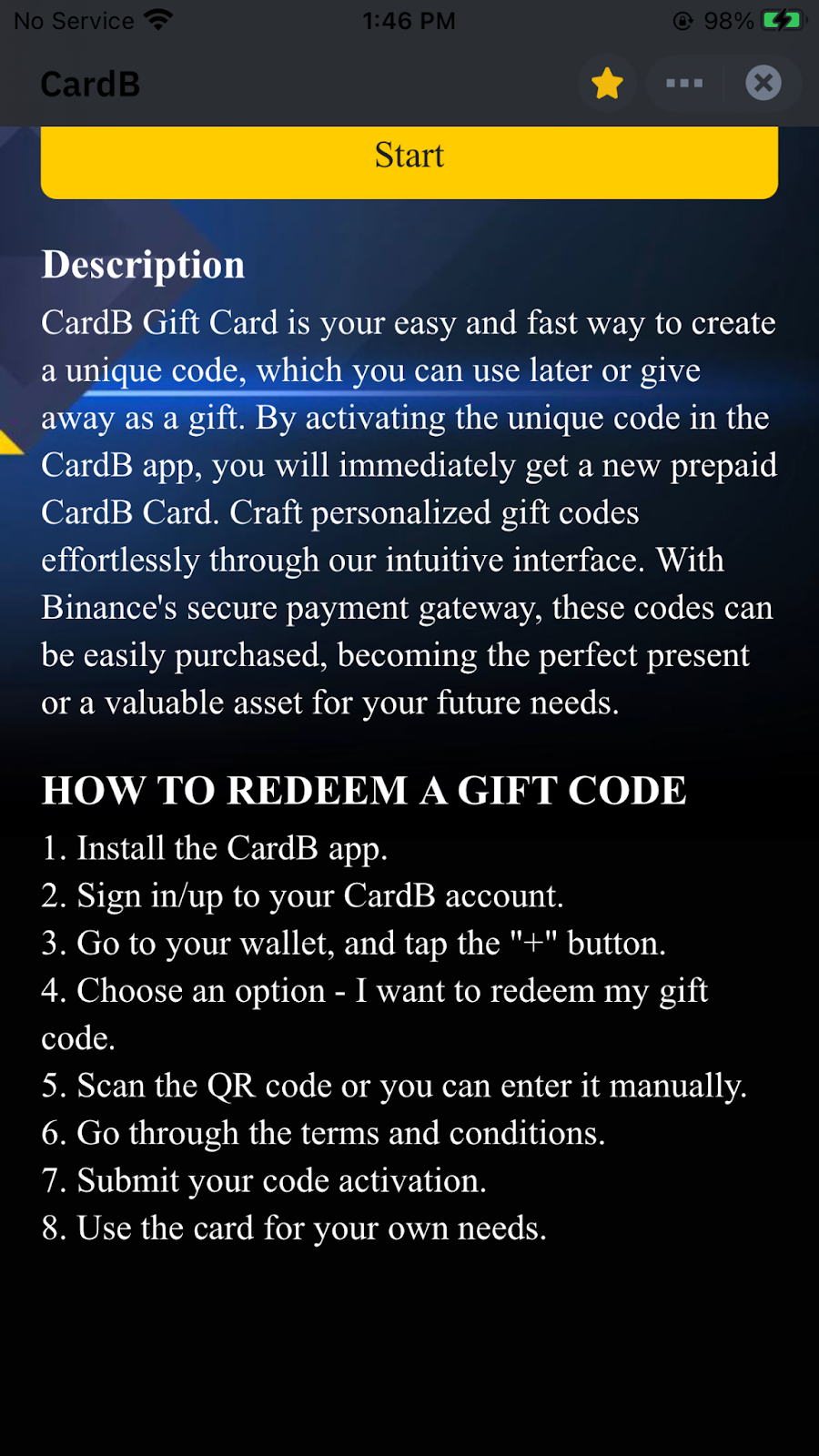
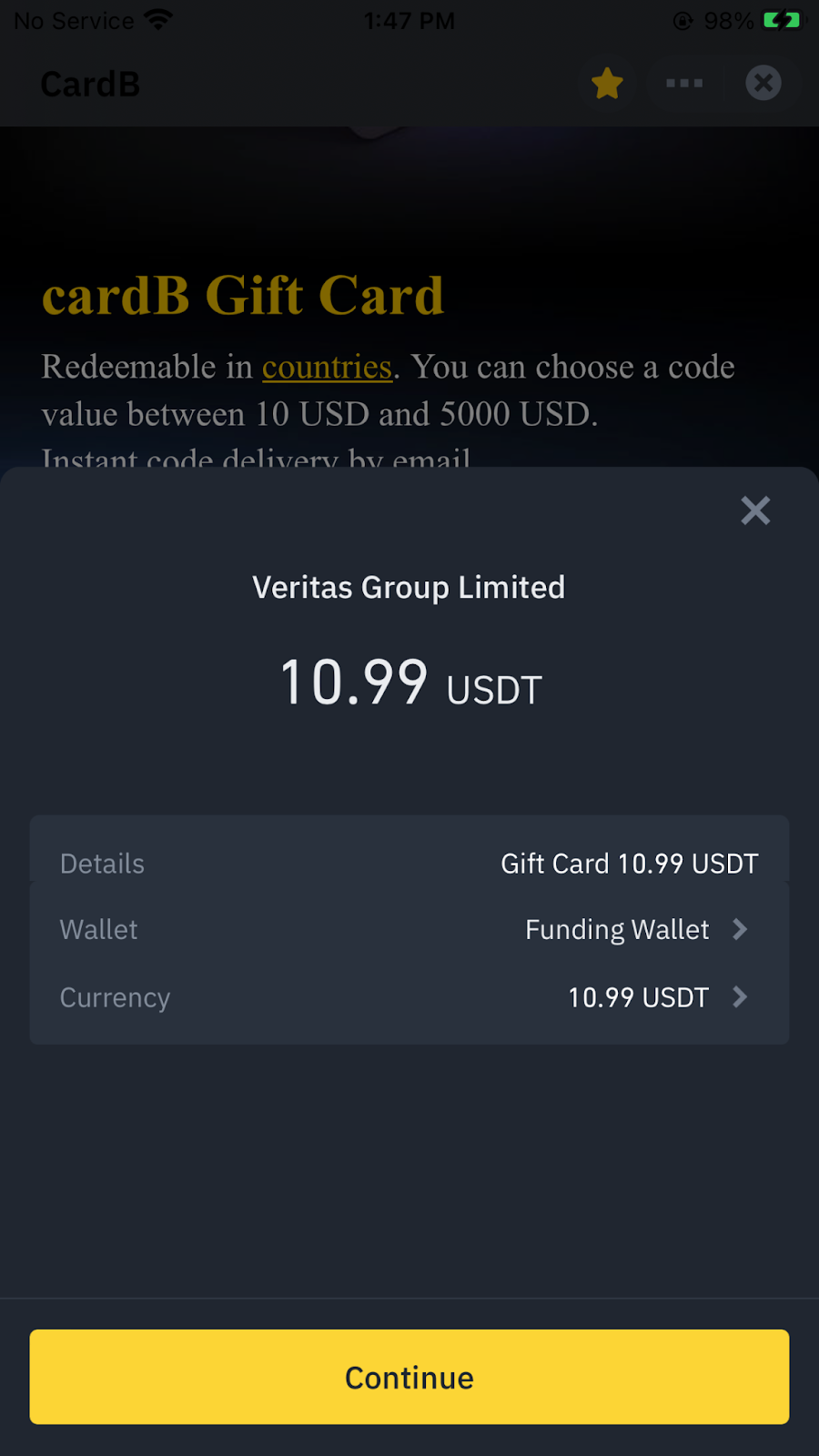
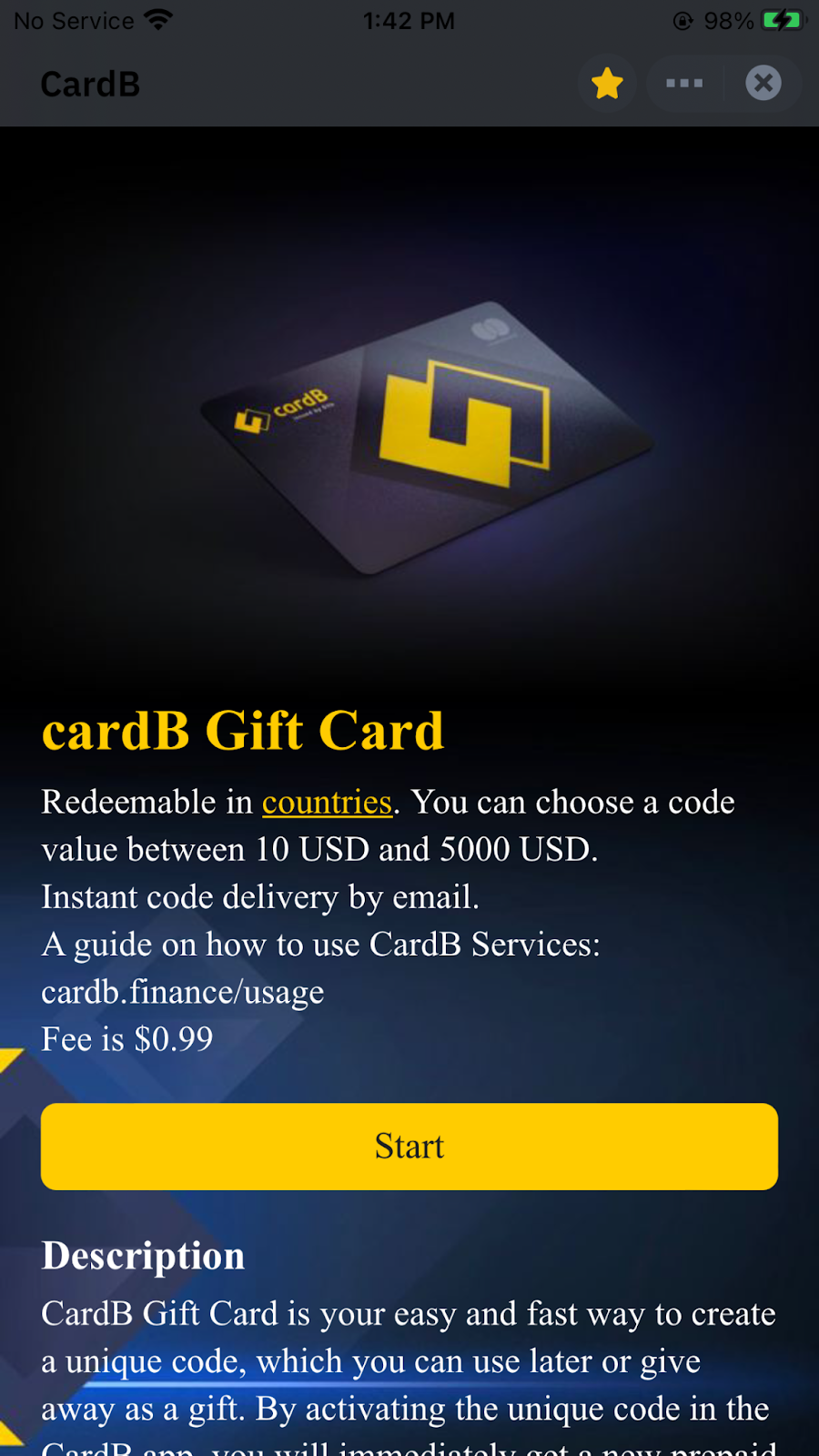
Tap "Start" to get started. Then familiarize yourself with the permitted countries and select the amount you want to top up your future card with.
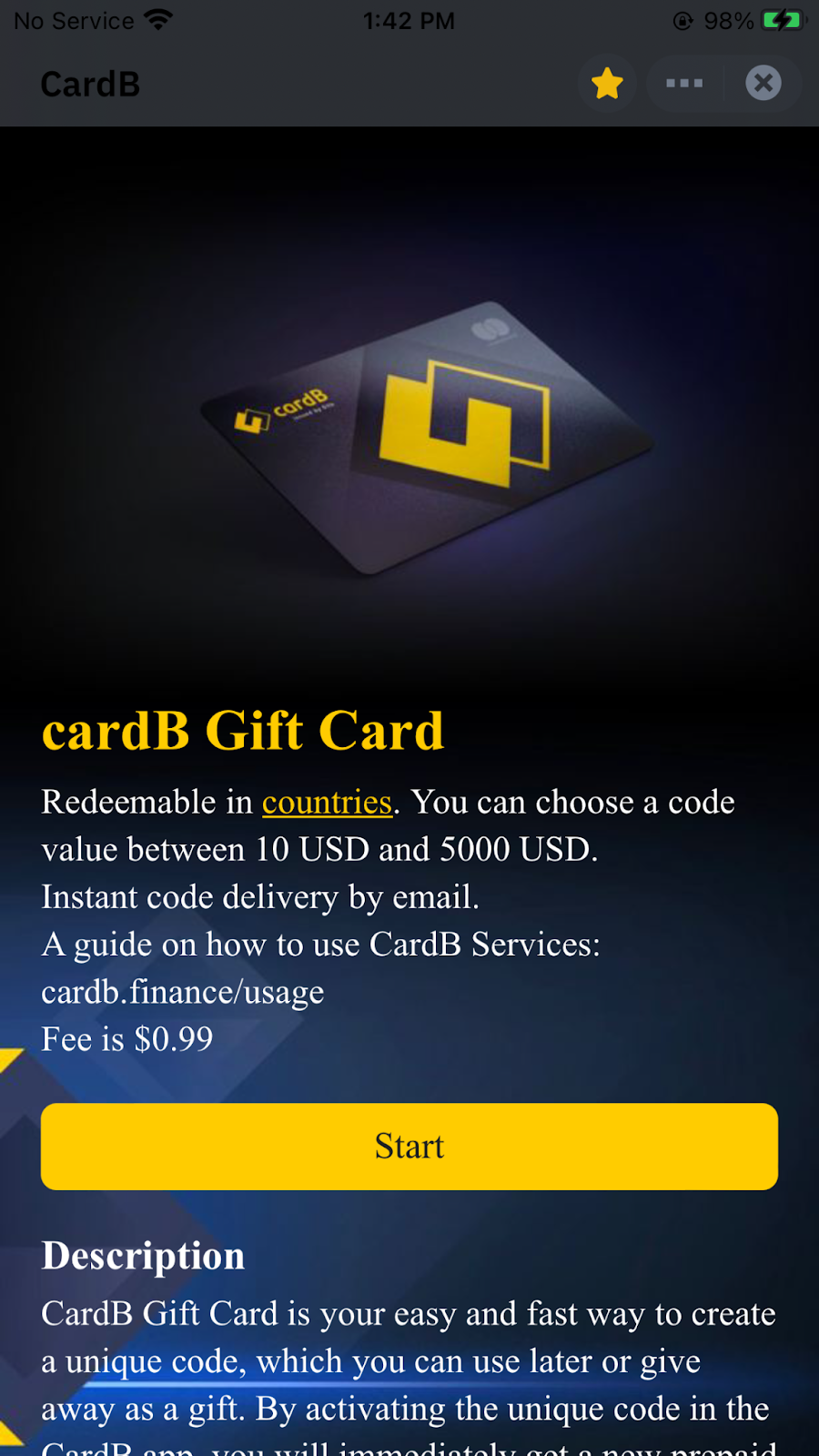
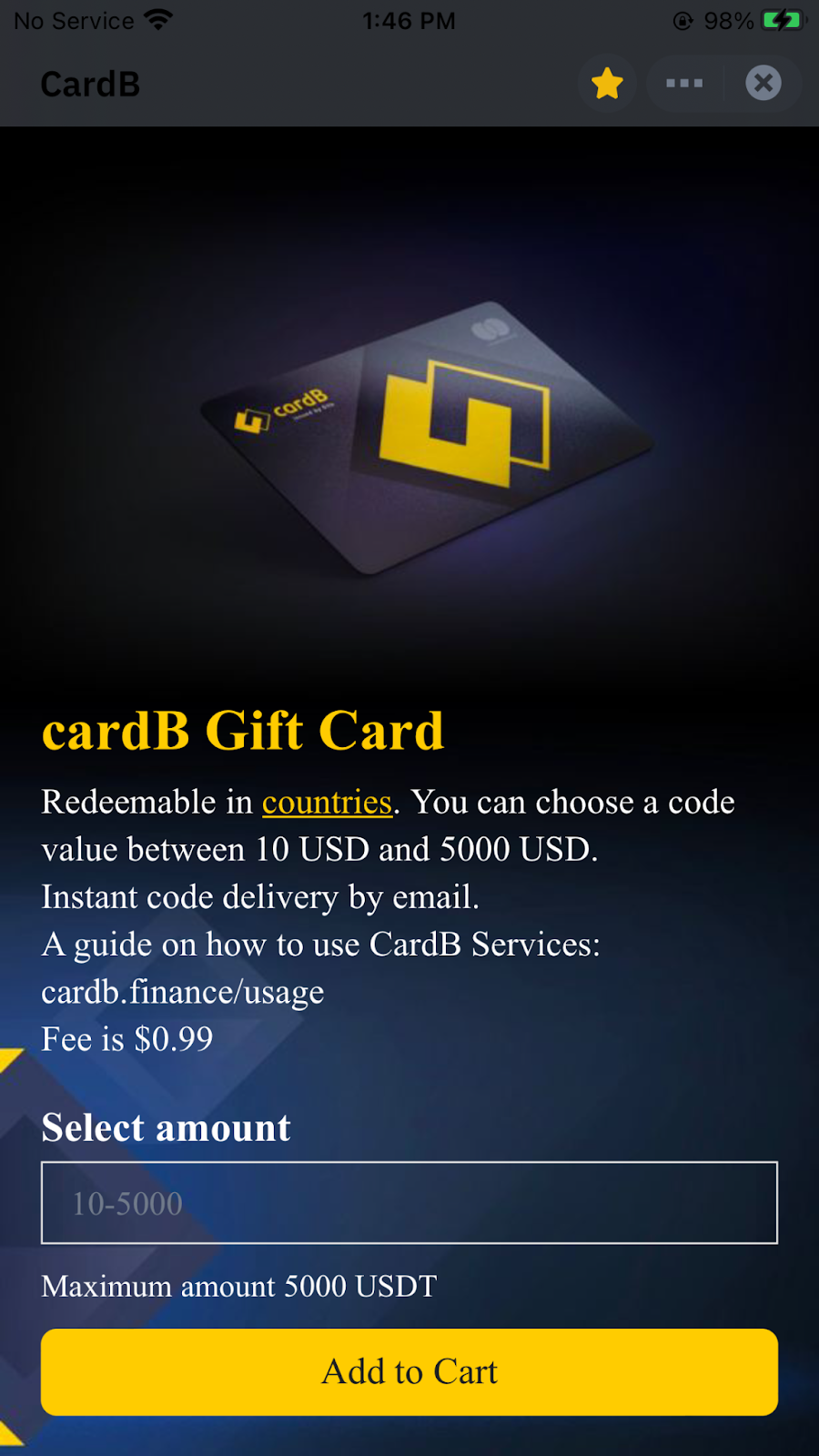
Before starting work or choosing the required amount for a future card, you can familiarize yourself with the description of how to activate the code.
After adding the correct amount, enter your email address and tap Pay.
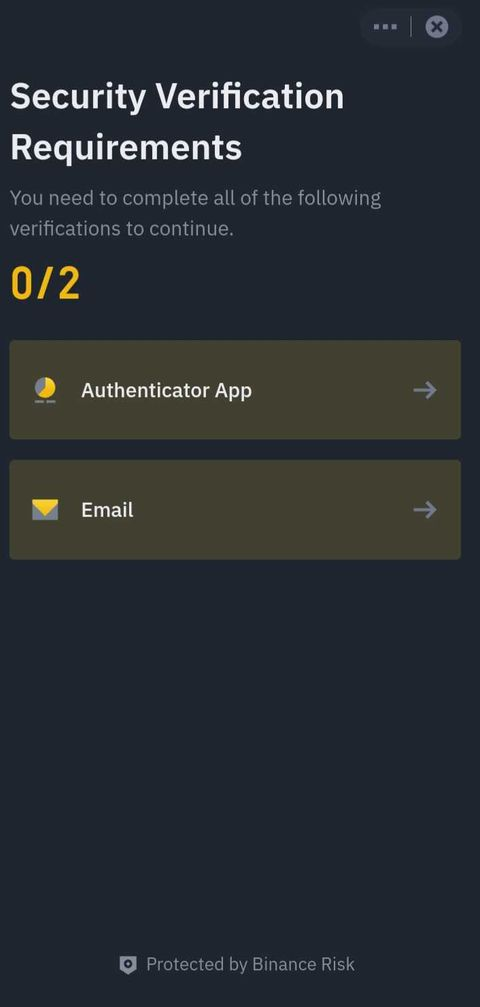
Complete additional validation requirements to confirm a transaction on Binance.
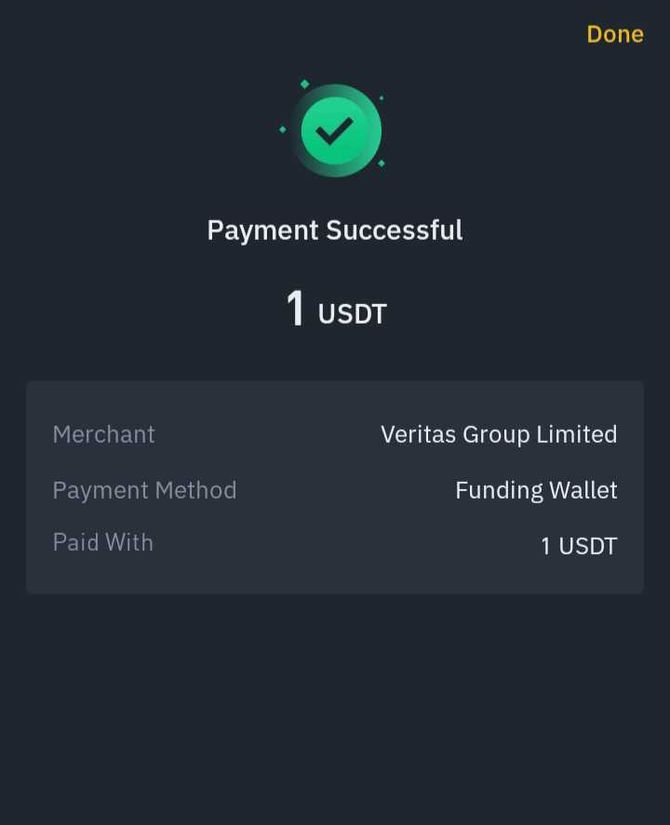
As soon as you fulfill all the requirements listed above, your payment will be made.
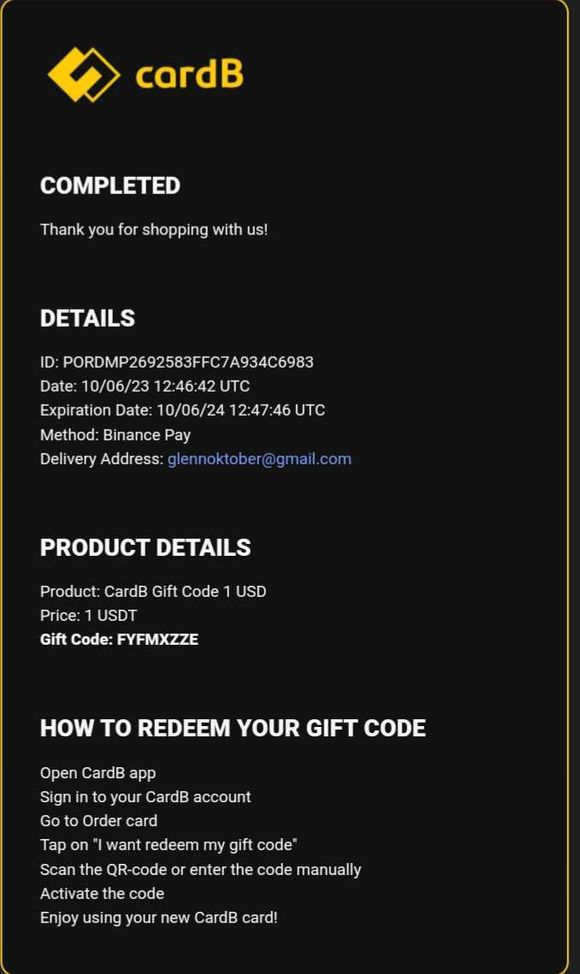
Check your email and you will find an email with instructions on how to start activating your code and card.
4. How to add a card to Apple Pay
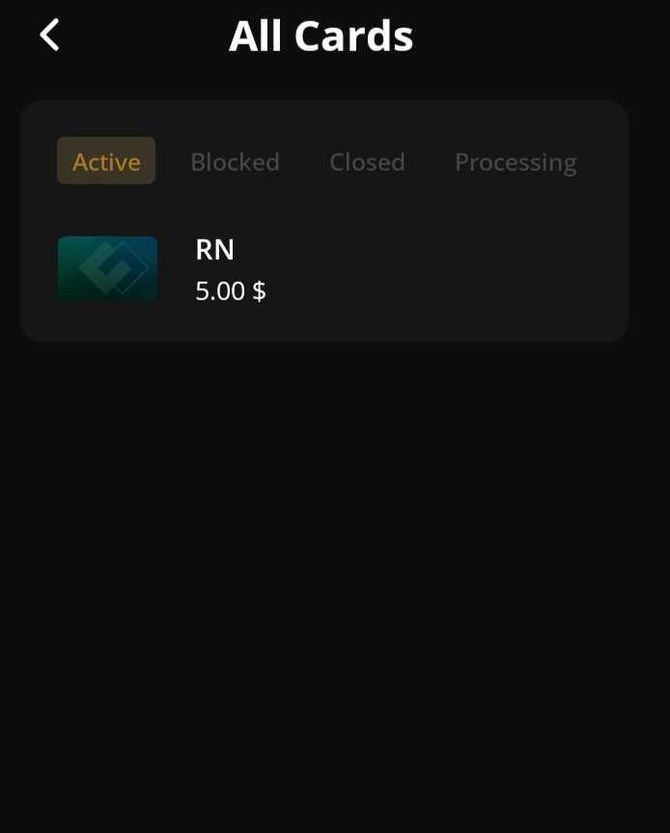
Open the app and select the card you want to add.
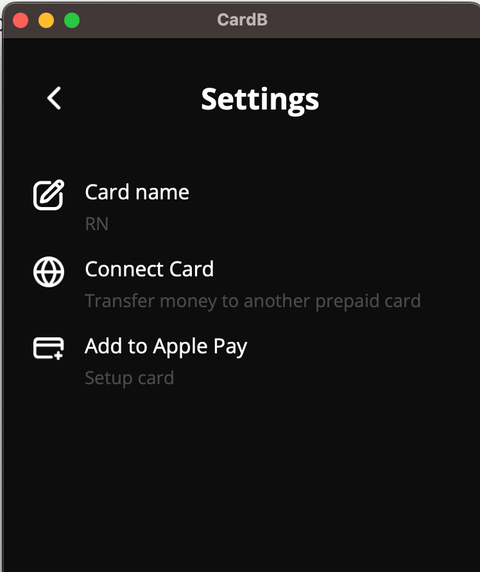
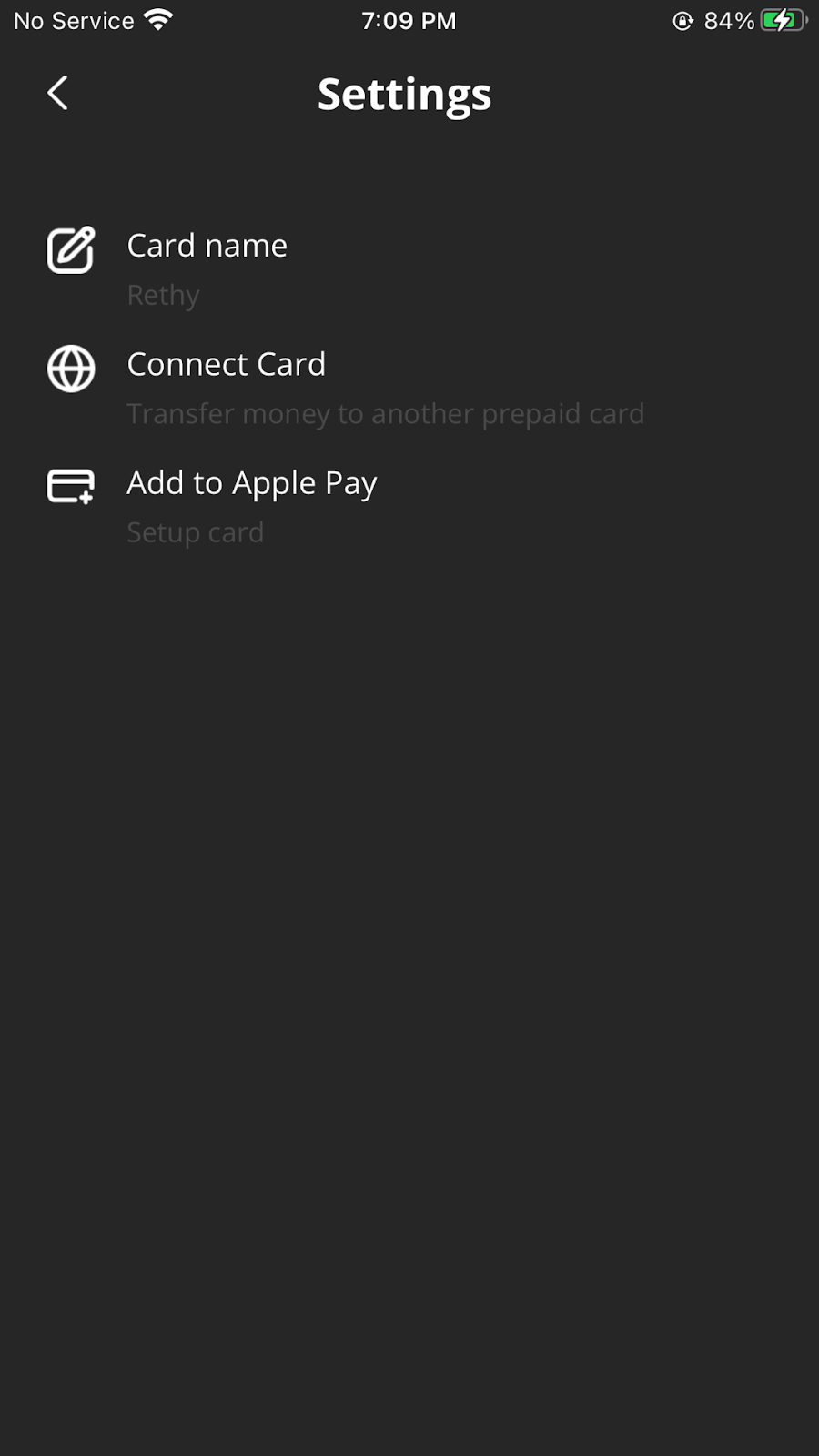
2. Go to settings and select add to Apple Pay.
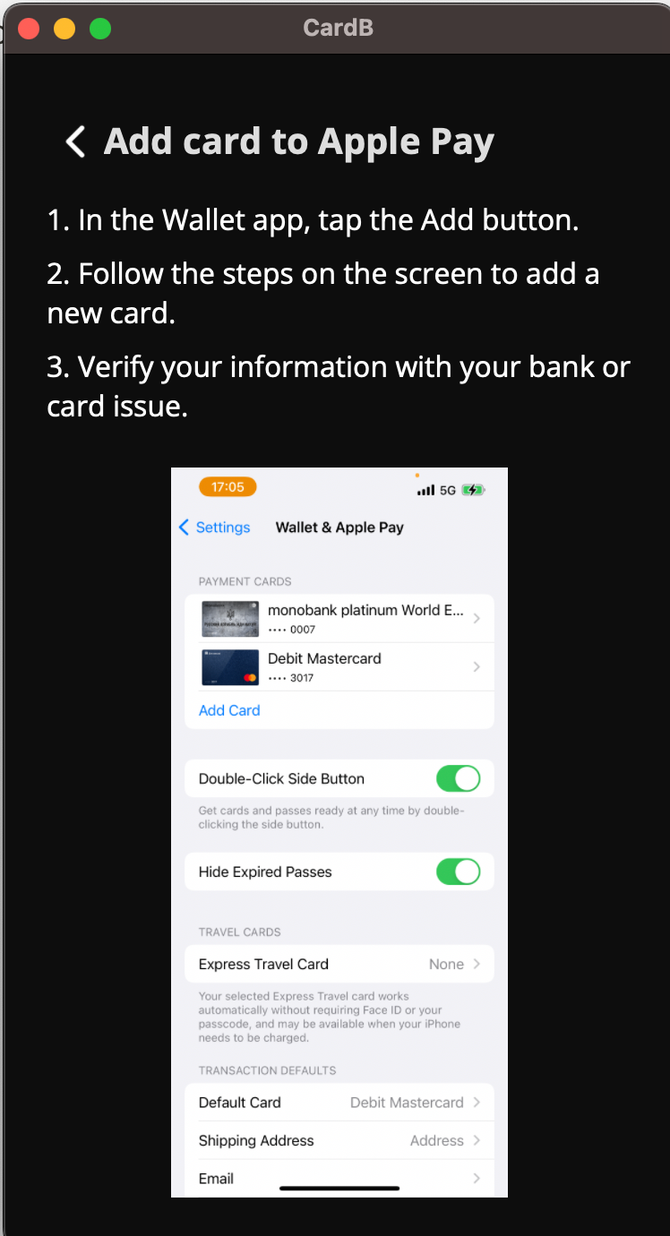
3. Дотримуйтесь наступних інструкцій у вашому Apple Wallet, і картка буде додана.
5. How to add a card to Samsung Wallet
1. Open the app and select the card you want to add to Samsung Wallet.
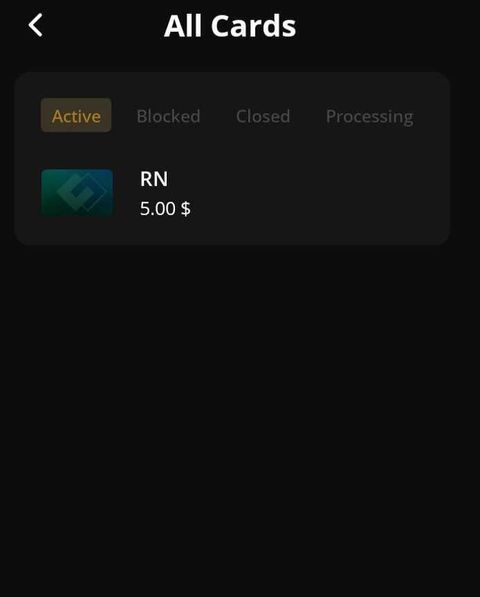
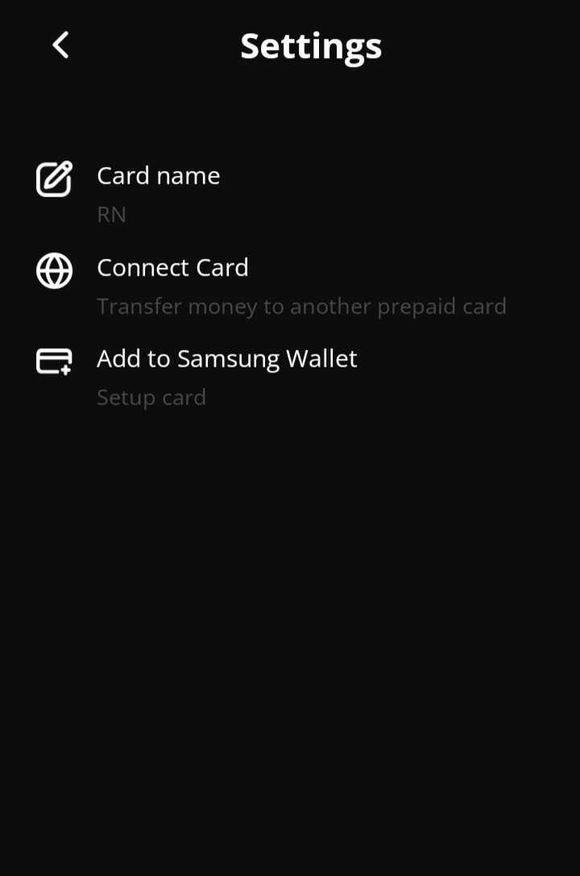
2. Go to settings and find the "Add to Samsung Wallet" option.
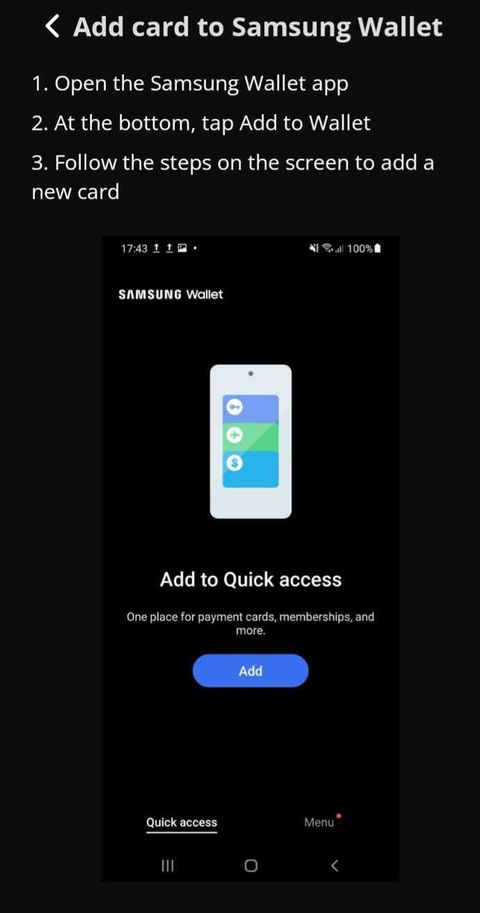
3. Follow the instructions on the screenshot.
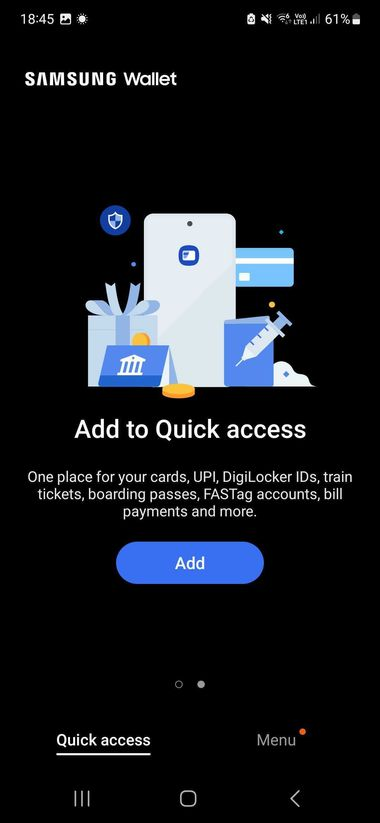
4. Open Samsung Wallet.
5. Please select the option "add your card manually" and enter the card details from the application.
6. Read the terms and conditions.
7. Done! You can use the card.
What features are not supported?
This card does not support only Google Wallet (Google Pay) and Garmin Pay. Regular payments using Samsung Wallet and Apple Pay cards (Apple Wallet) work successfully.
6. Types of subscriptions
BLUE - level is free, you do not need to verify your identity in the CardB application. You can order 1 card for up to 50 USD per month without commission.
BRONZE - this level involves the completion of identity verification (KYC). To do this, you will need to upload a photo of your passport or ID card, as well as a selfie photo. This level allows you to have 2 active cards with a total amount of up to 100 USD per month.
GOLD - at this level you can have up to 5 active cards with a total amount of up to 15,000 USD per month. To get a level, you need to sign up for a subscription (monthly or annual: monthly - 11.99 USD, annual - 59.99 USD) and pass KYC.
More useful information about CardB in the FAQ:
7. Frequently asked questions (FAQ) - Answers
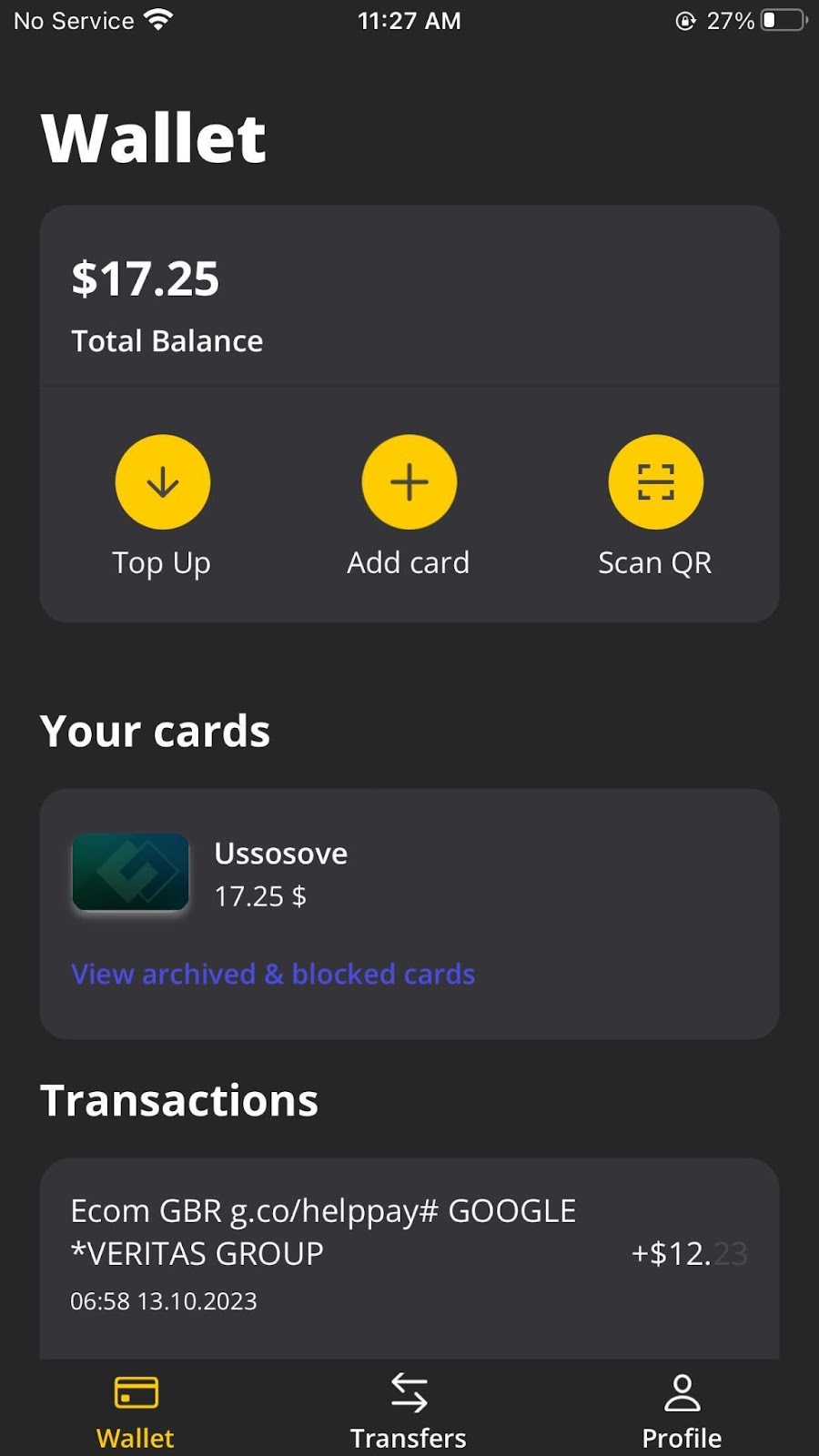
Where can I see my card data?
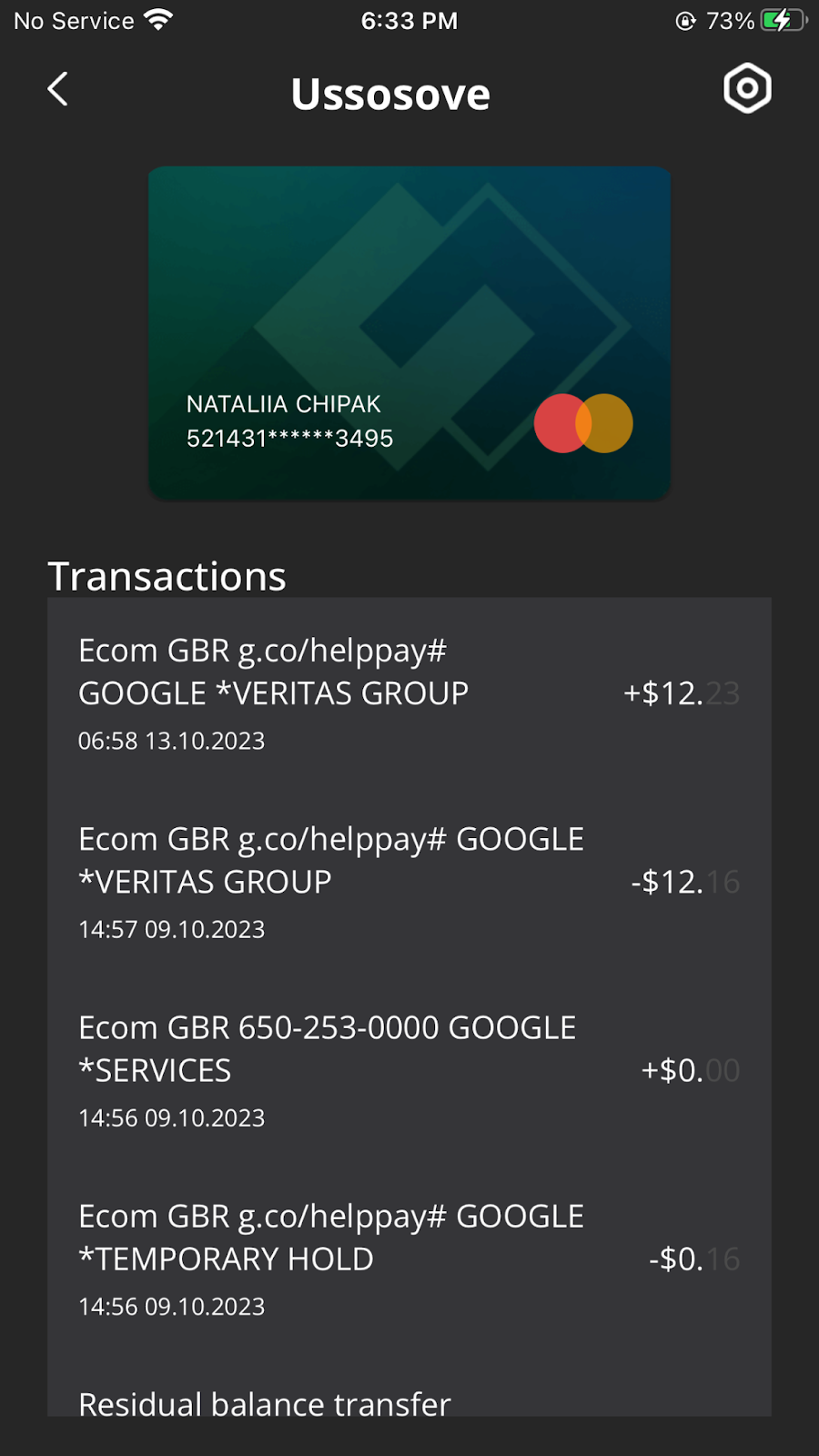
- To see your card details, tap the card in your wallet, and on the card details screen, flip the card over by tapping the card image.
How can I add a new card?
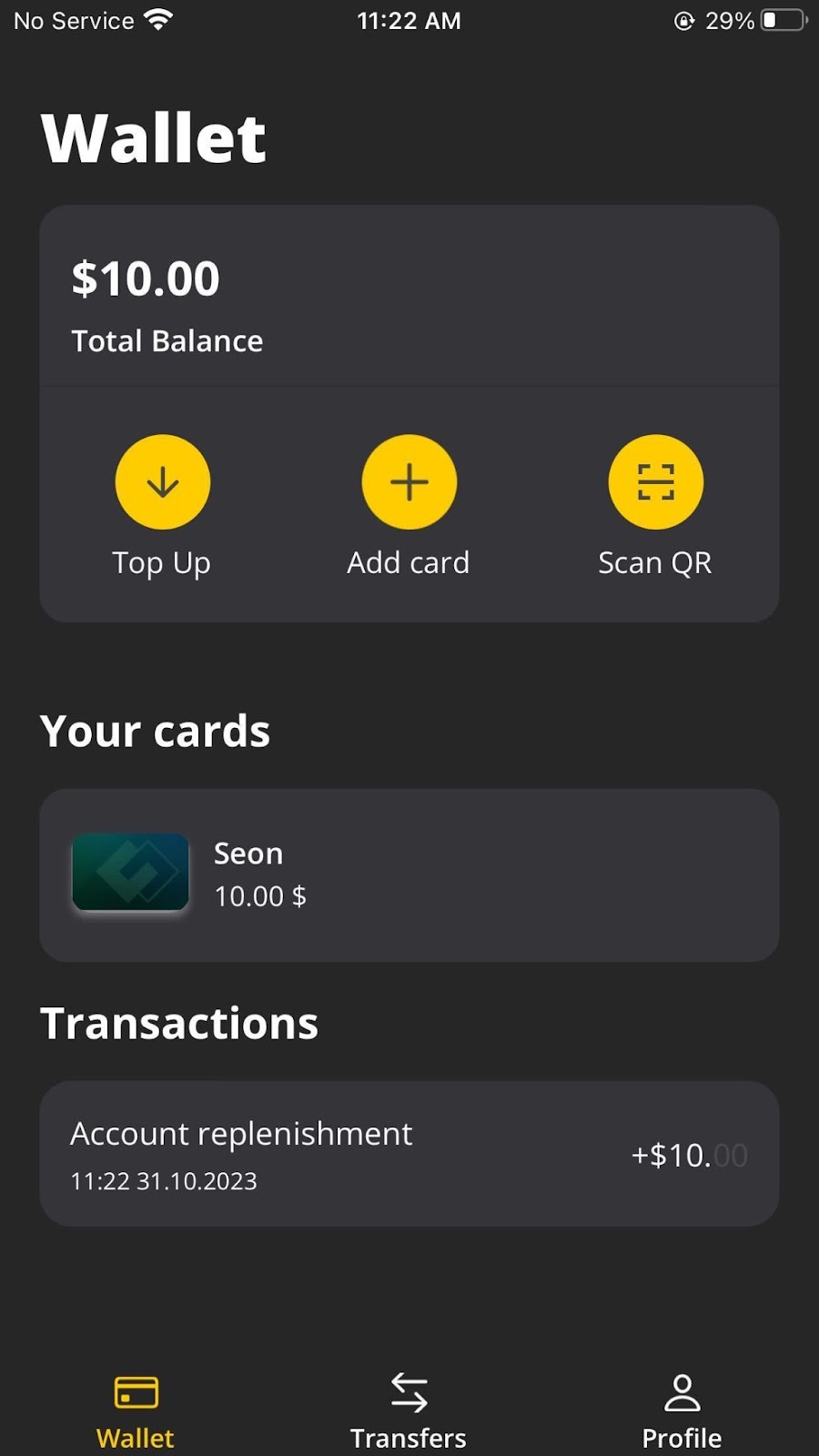
- Please go to your Wallet section by tapping on the yellow "+" button in the upper right corner and follow all the instructions to get a new card.
What cryptocurrencies can I top up my card with?
-You can use any cryptocurrency supported by Binance. The conversion will happen automatically.
If I made a payment by mistake, how do I cancel or dispute it?
- In the event of such a situation, please contact the CardB support service. We will review your case and provide the necessary information.
Where should I contact in case of questions about the operation of the card?
-If you have any questions about the operation of the card, please contact the CardB support service.
How can I contact support?
-In the mobile application, go to the Profile menu, there you will find the option to contact the support service. In the web version, click on the blue icon in the lower right corner of the screen, or find the Support option in the left side menu of your account.
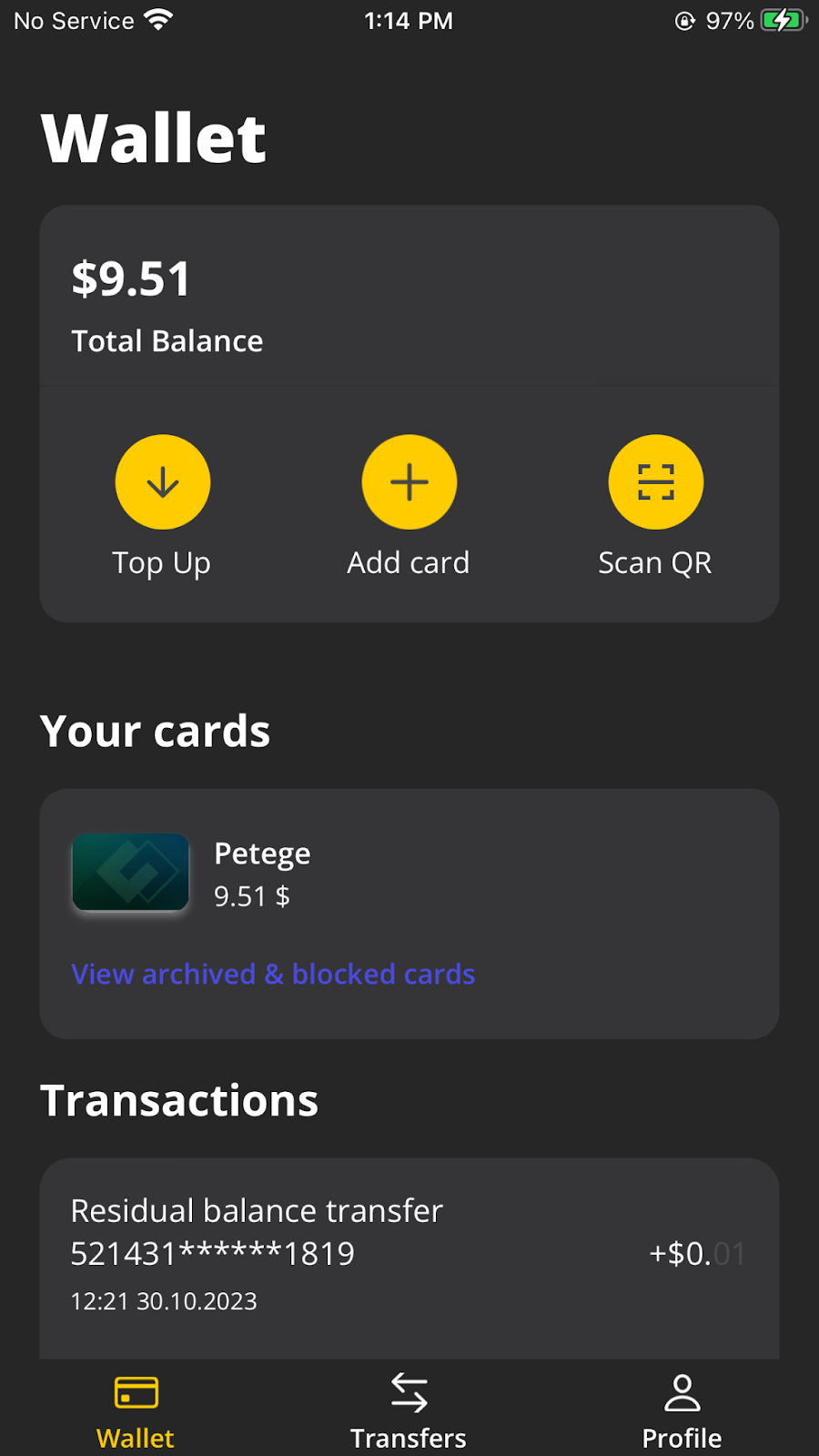
Where is the total balance of my cards displayed?
- It is displayed in your wallet section in the upper left corner.
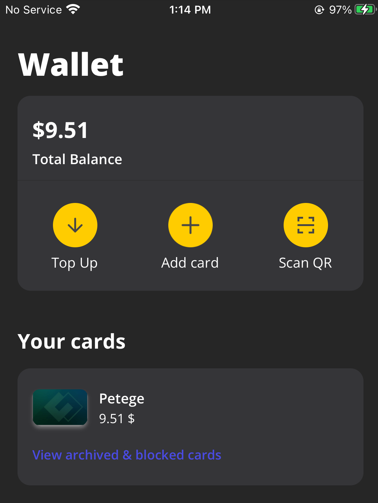
18. How can I top up the card?
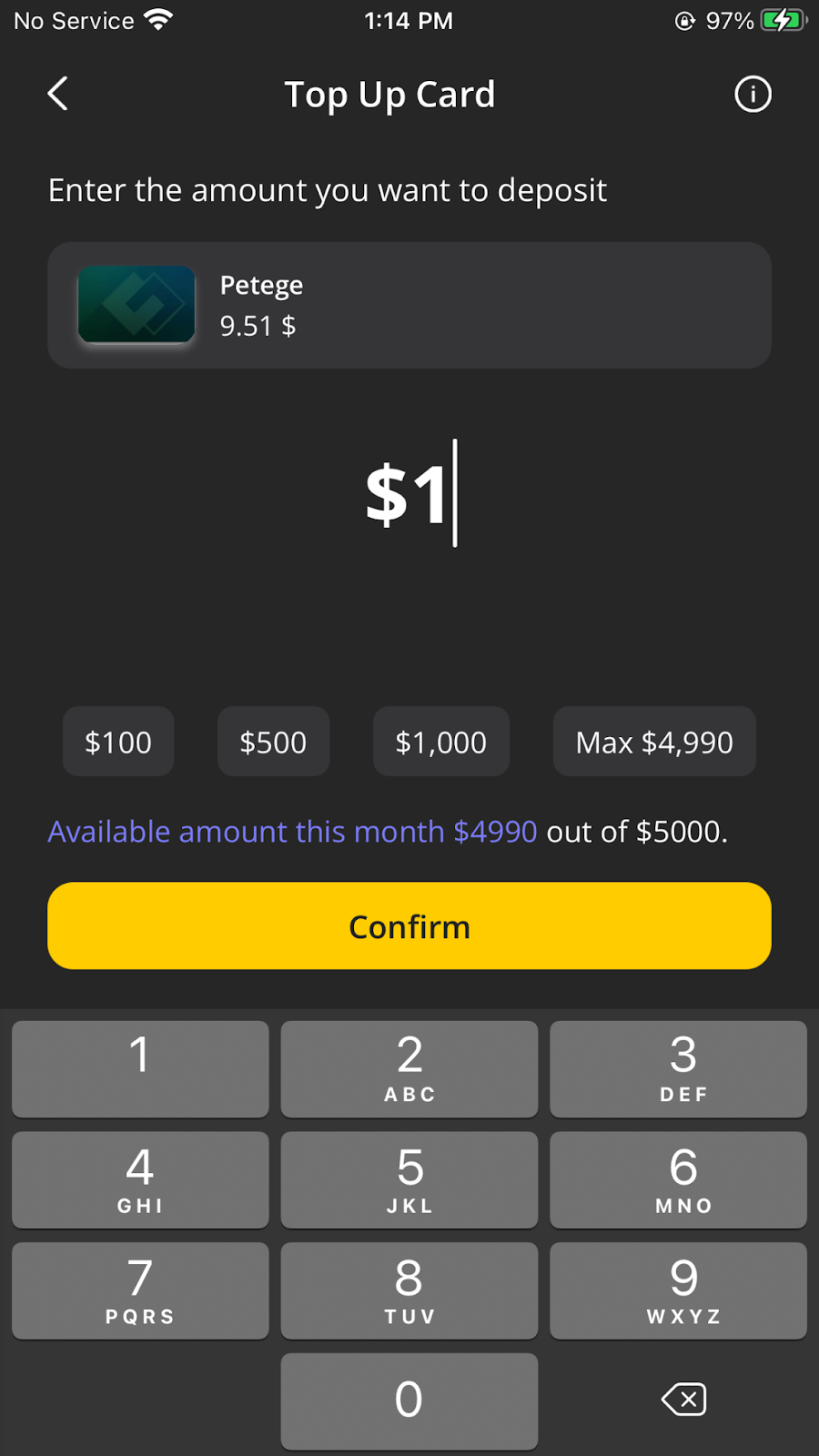
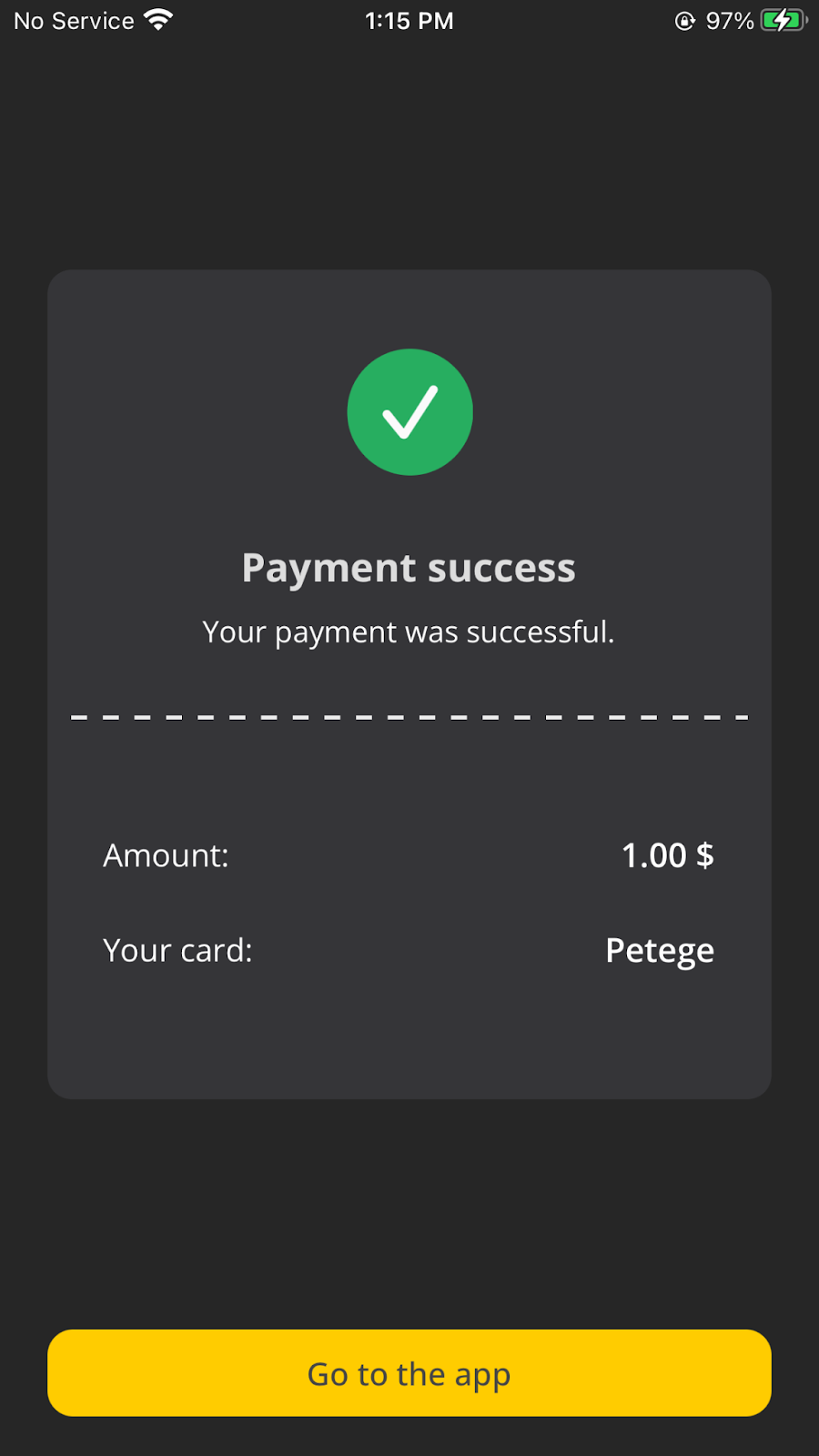
- To top up your card through Binance, you need to select the "Top Up" option in the upper left corner of the wallet menu. Next, enter the required amount and make the payment in the Binance app.
Do I need a subscription?
- It is required only for the GOLD level.
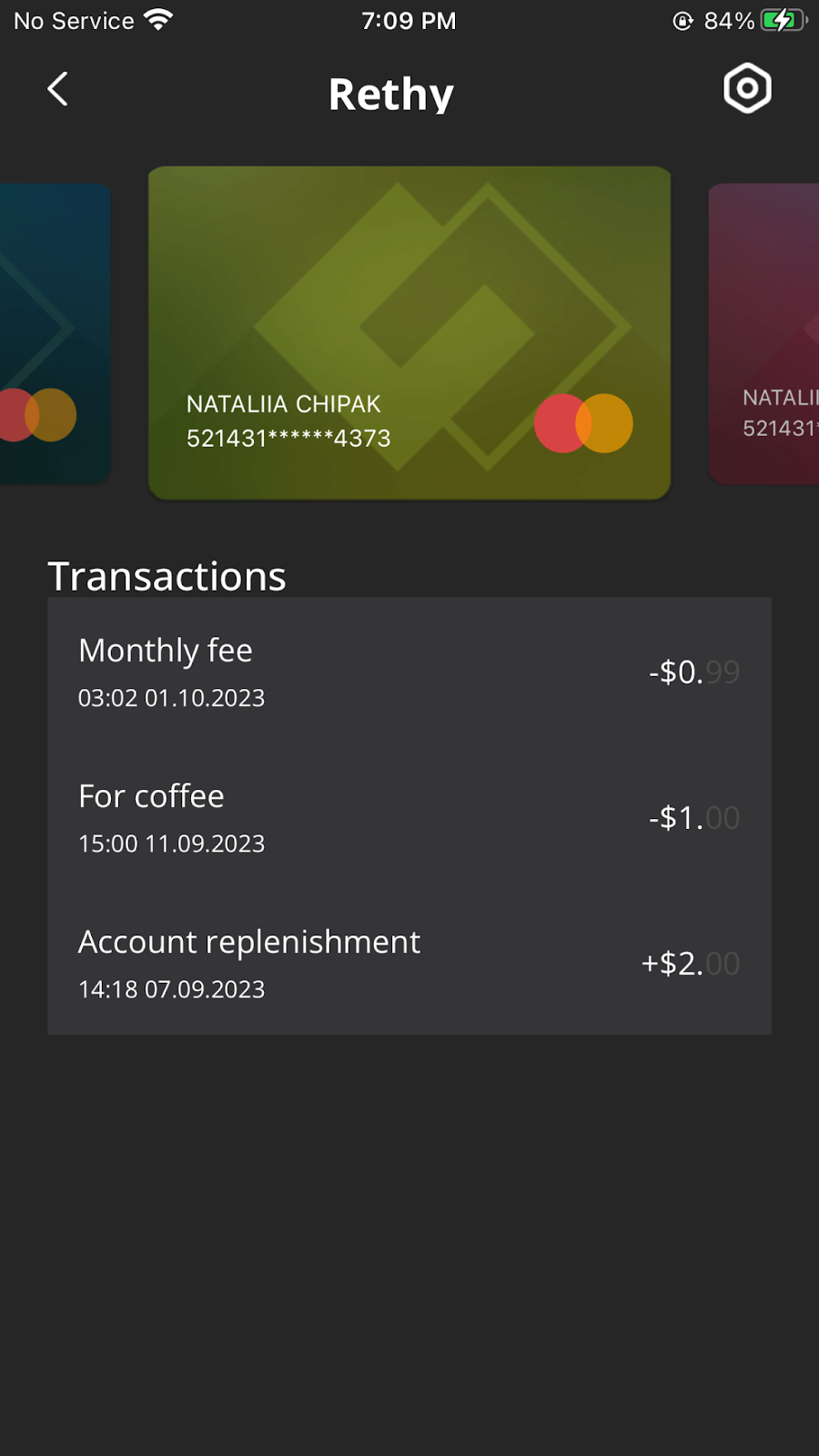
What is card melding?
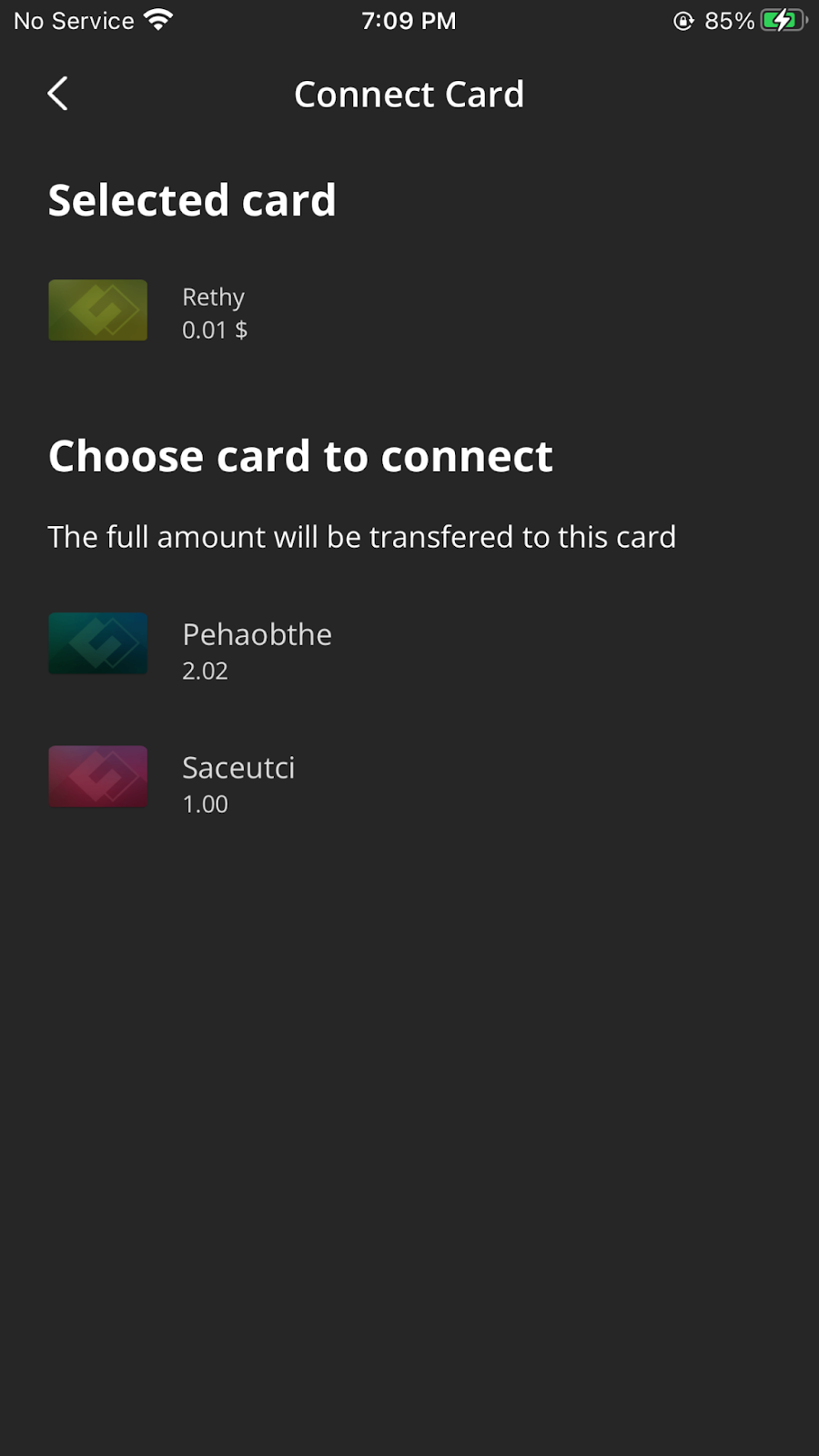
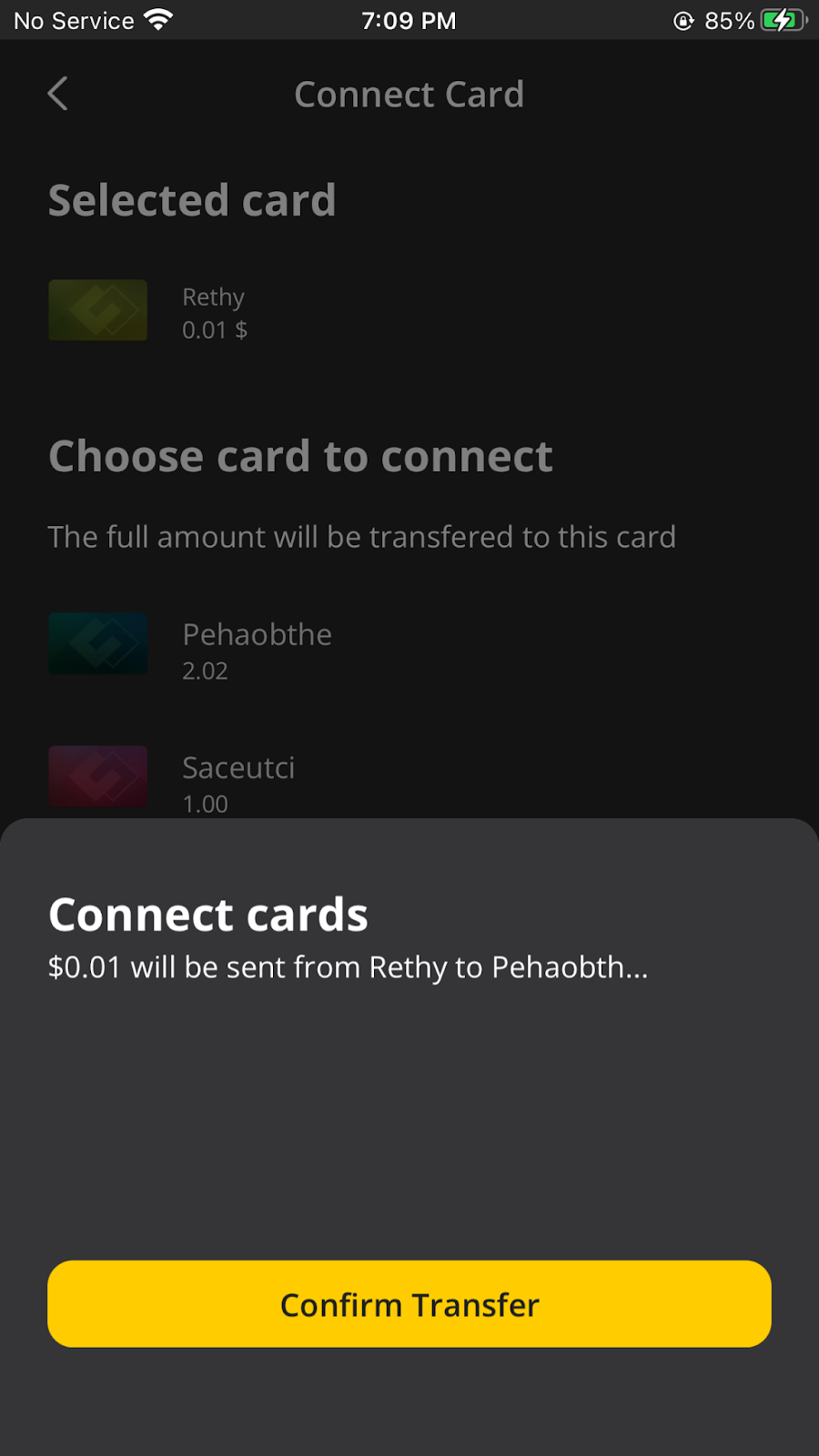
-This is a process where the total balance of one card is transferred to another card, at the same time the card whose balance was transferred is closed and sent to the archive.
To combine cards, you need to enter the settings section of the card (in the upper right corner), which you want to connect to the card you need, and select the "Connect card" item. Follow the on-screen instructions to complete the transaction.
How can I change my mobile phone number?
- Please go to your profile, there you can find the "Phone number" section, go to it and enter a new number.
Can I change my username?
- Unfortunately, it is not possible to change the username.
Do I need to go through KYC again if I want to get GOLD level?
- Yes, you will have to undergo KYC verification again.
Easy financial management has never been so accessible to you. With convenient access and a host of features like CardB, managing your personal finances has become much easier. This is your opportunity to simplify the buying process and bring the future of fintech into the present.
#CryptoNews #BinancePAy #binancesquare #BinanceTreats #Binance $BTC $BNB