
On October 11, Nervos CKB desktop wallet Neuron launched version v0.110.3. This version not only includes a brand new user interface, but also improves transaction search speed by optimizing data storage, while reducing storage space usage and optimizing user experience. In addition, this version also has a built-in CKB light client protocol waiting to be activated.
On November 1, the Nervos CKB mainnet completed an important soft fork upgrade as scheduled. After the upgrade, the CKB mainnet began to fully support the light client protocol.
This morning, Neuron released a new version v0.111.1, which activated the built-in CKB light client protocol, which supports wallets to switch to the CKB light node mainnet and start synchronization from a specified block height. From now on, you no longer have to spend more than ten hours or even one or two days to synchronize data!
Here is a detailed graphic tutorial:
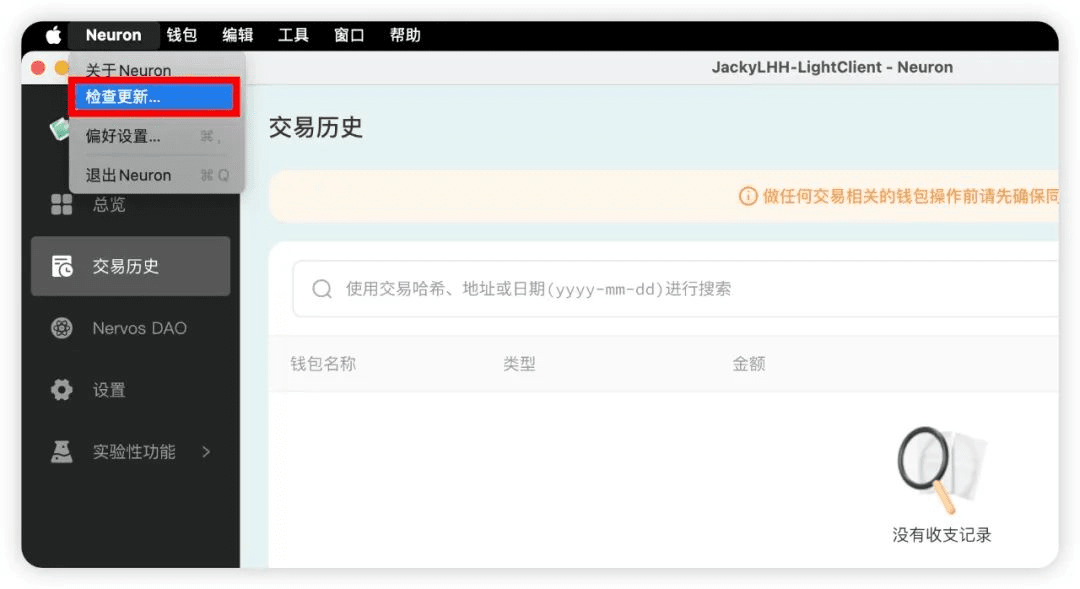
1. If you have Neuron wallet on your computer, just click “Neuron” → “Check for Updates” in the menu bar in the upper left corner of the screen to upgrade to the latest version v0.111.1.
If you don’t have Neuron wallet, you can download and install it directly by opening the following URL in your computer browser:
https://github.com/nervosnetwork/neuron/releases
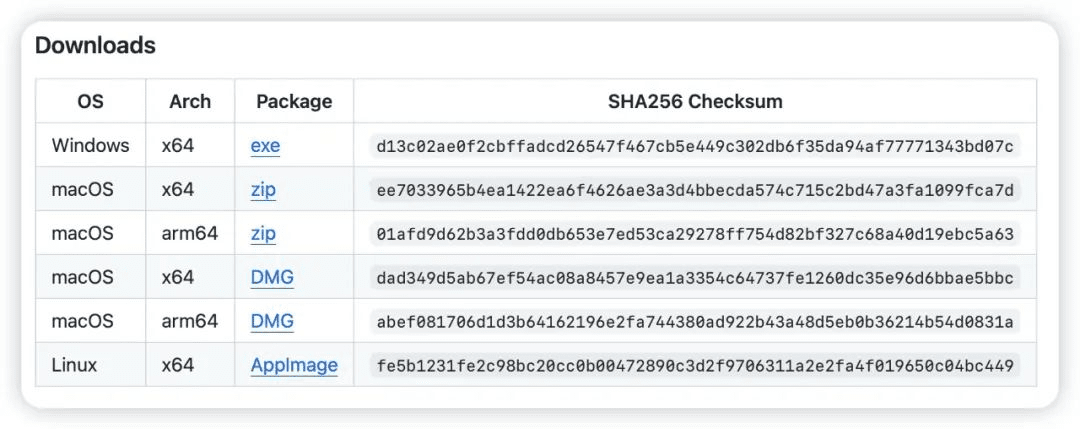
Once installed, follow Neuron’s instructions to create a new wallet, back up your mnemonics, and set your wallet password.
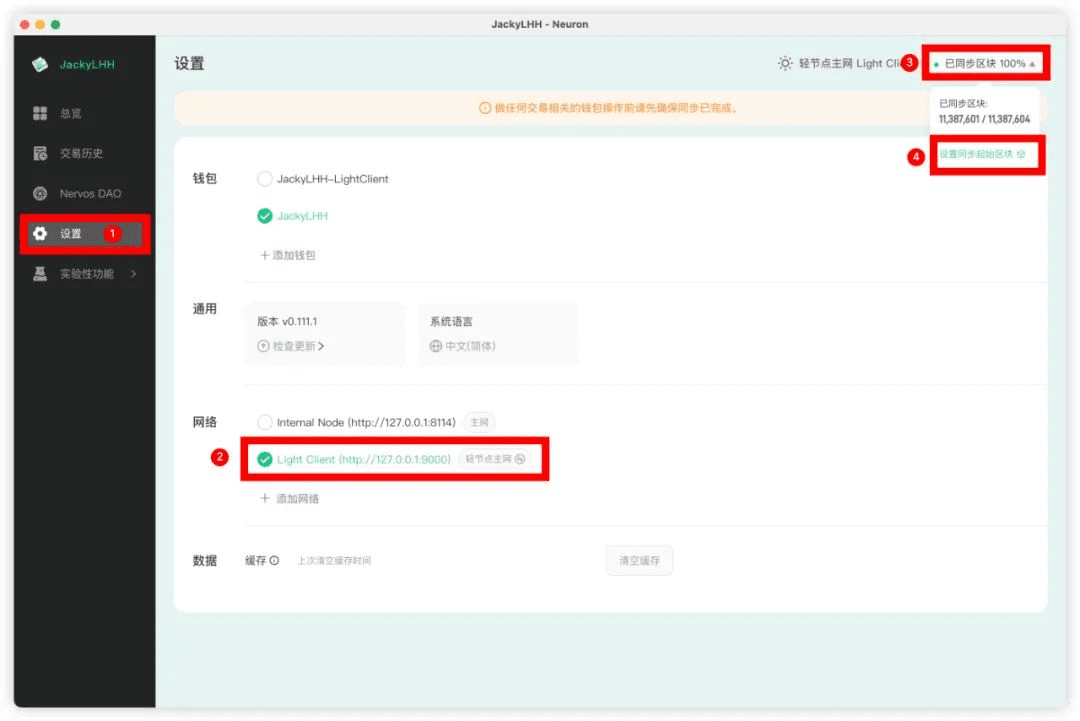
2. Click "Settings" in the menu bar on the left side of the Neuron wallet, check "Light Client" in "Network", then click "Synchronized Block xx%" in the upper right corner of the Neuron wallet, and select "Set Synchronization Start Block":
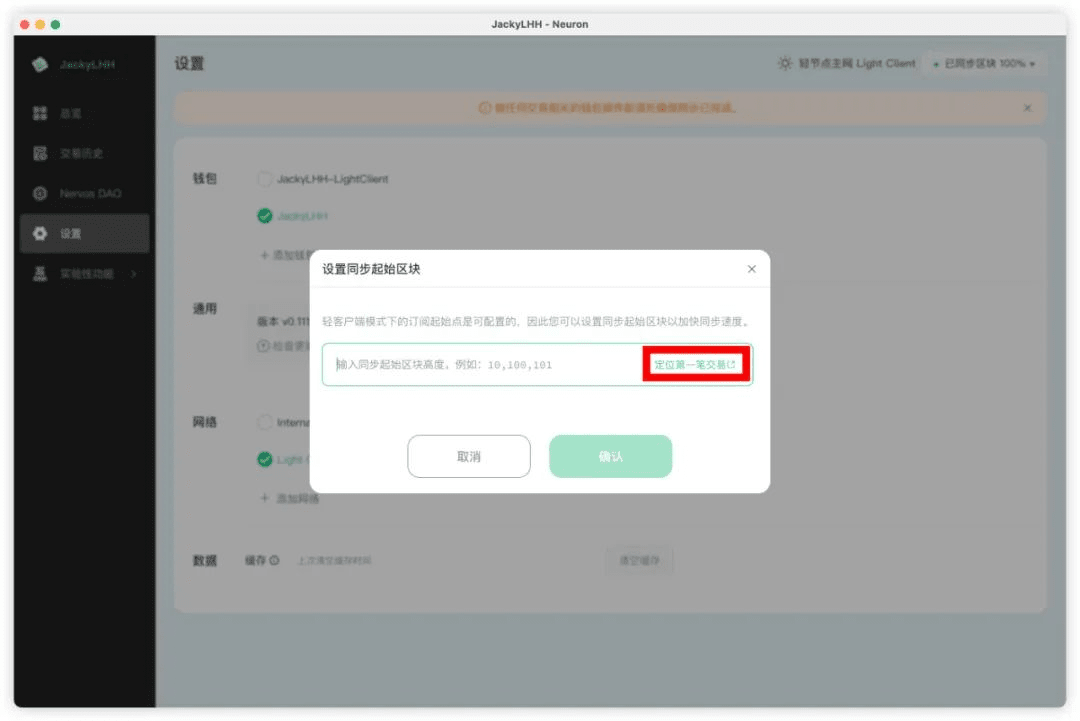
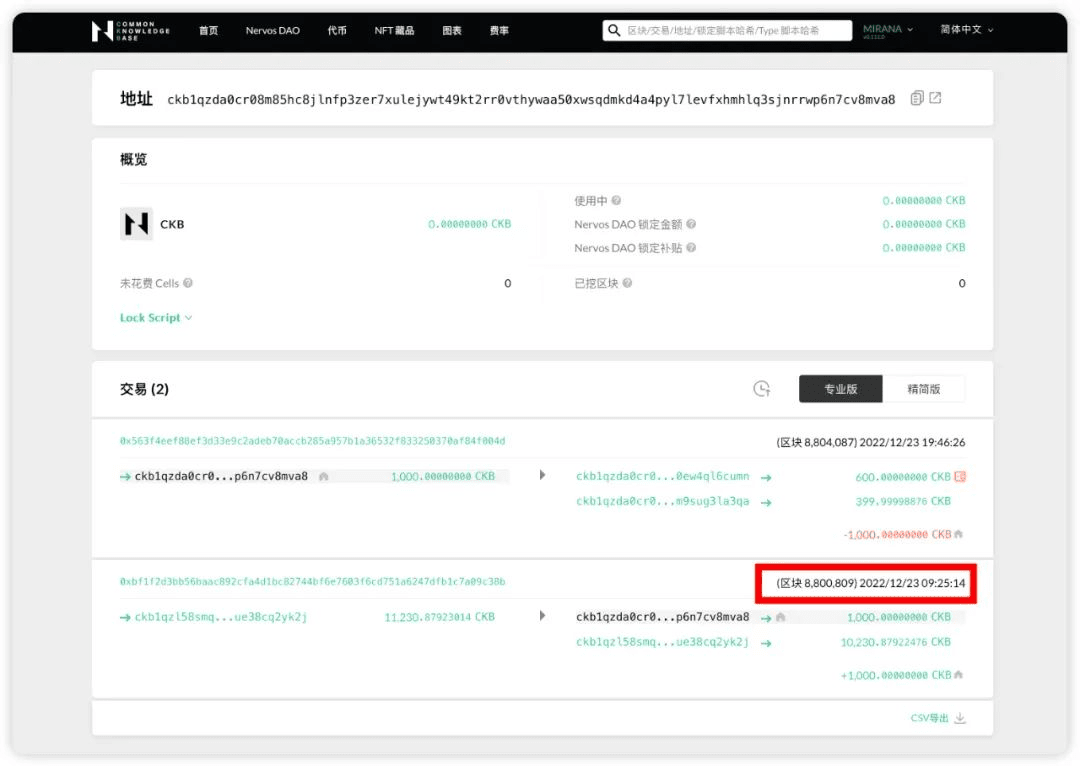
3. If your Neuron wallet has had transactions before, it is recommended to start syncing from the block height of the first transaction of the wallet. Click "Locate the first transaction":
In the open blockchain browser, copy the block height of the transaction output:
(The block height of the transaction output in the above figure is: 8,800,809)
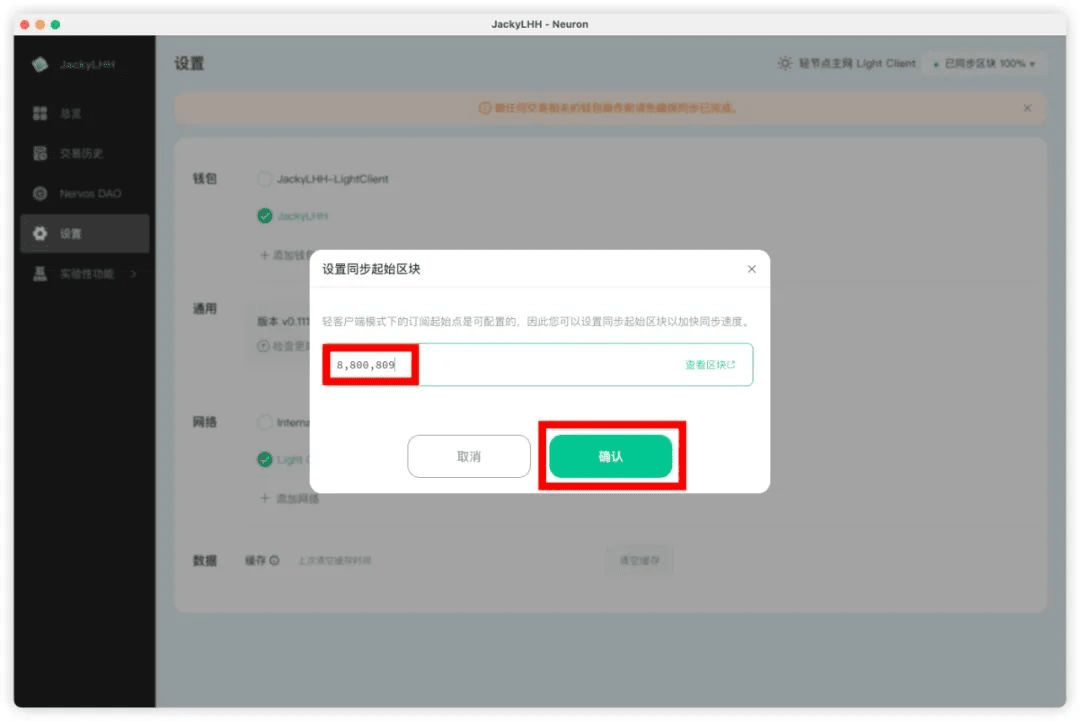
Then return to the Neuron wallet interface, enter the block height data you just copied, and click "Confirm":
If your Neuron wallet is newly created and has no transaction records, it is recommended to start syncing from the current block height. Click "Synchronized Block xx%" in the upper right corner of the Neuron wallet and copy the denominator after the slash (the denominator represents the current block height, and the numerator represents the synchronized block height):
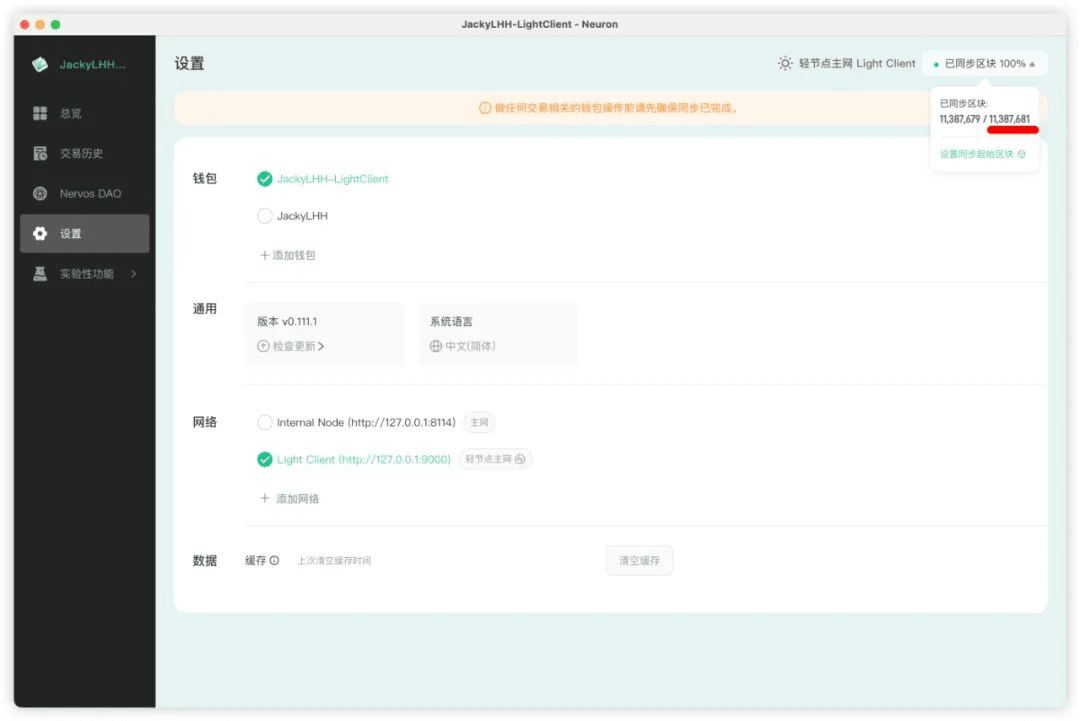
(The denominator in the above figure is: 11,387,681)
Then click "Set Synchronous Start Block", enter the denominator you just copied, and click "Confirm":
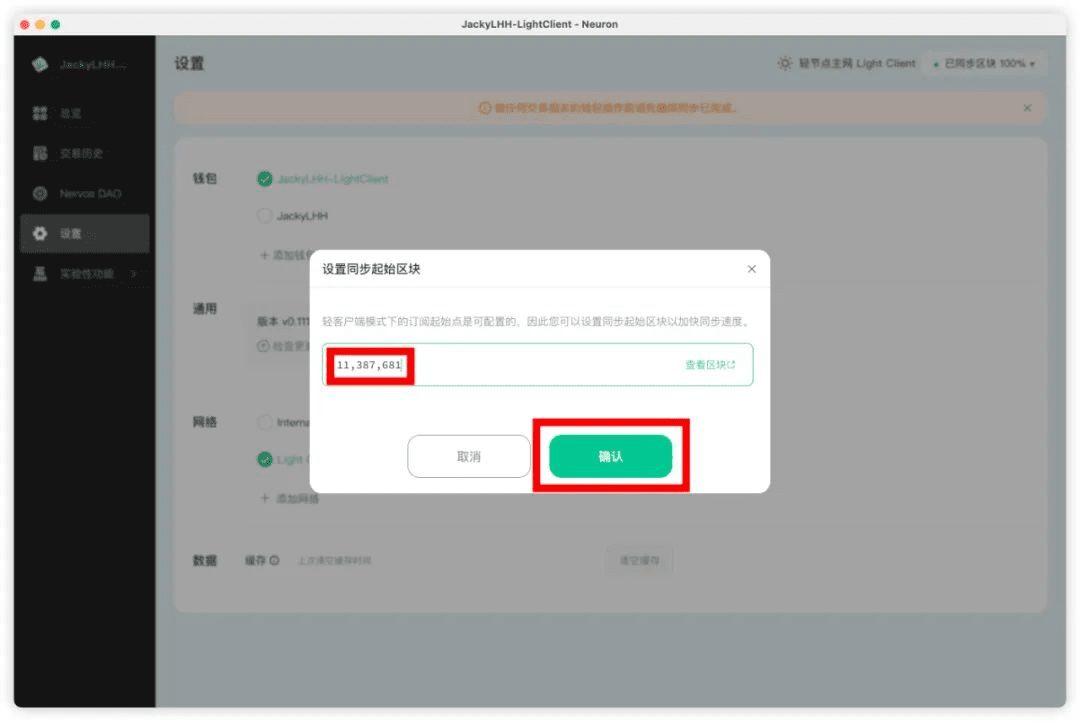
4. When the upper right corner of the Neuron wallet changes to "Synchronized Blocks 100%", you can use it.
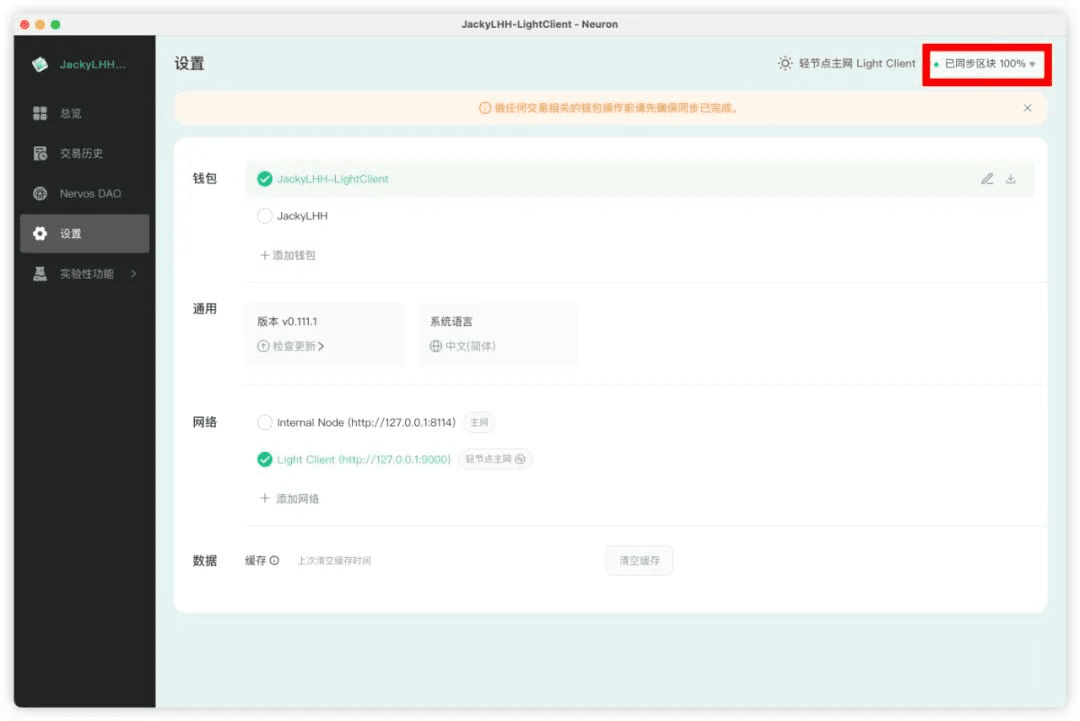
Warm reminder: Each time you open the Neuron wallet to perform on-chain operations (transfer, deposit and withdraw Nervos DAO), you need to complete block data synchronization first; this is not required for receiving payments.
About Neuron Wallet
Neuron Wallet is currently developed and maintained by the Nervos core development team. It is the default desktop wallet of Nervos CKB. Its main functions are CKB transfers and Nervos DAO operations. Other functions and applications will be jointly implemented by the community and the development team.
Neuron is an HD wallet. When the wallet is created, 20 payment addresses and 10 change addresses will be generated for the user by default on the address management page. When the user uses up these addresses, additional addresses will continue to be generated.
Neuron wallet download address:
https://github.com/nervosnetwork/neuron/releases