

Binance Testnet provides a complete interface for futures trading. This interface is divided into the following blocks:
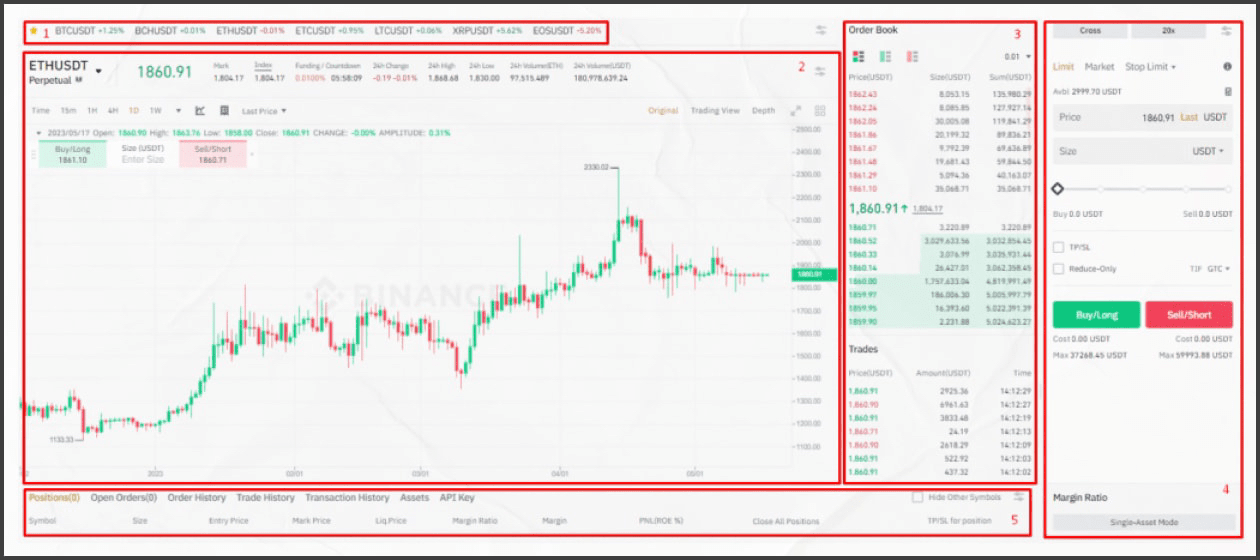
Trading Pairs: Displays all trading pairs for which you can open futures contracts. You can switch between the futures contract type (Coin-M or USD-M) to see all available pairs by clicking on the ticker of the current pair in the upper left corner of the price chart.
Price information: includes a price chart, as well as historical and statistical data for the selected market. When working with the chart, you can use technical indicators, as well as customize the way prices are displayed, compare with other charts, etc.
Order book (glass): here, orders for buying and selling the selected asset are updated in real time. This data is necessary for tracking the market depth and more accurate price forecasting.
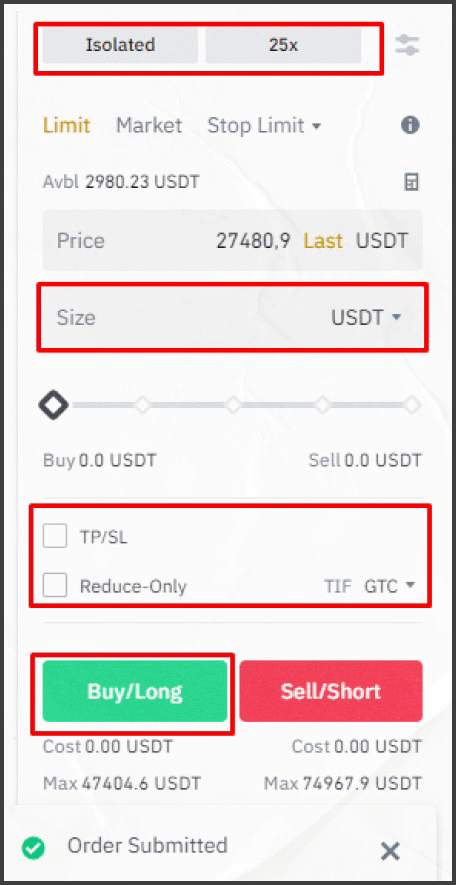
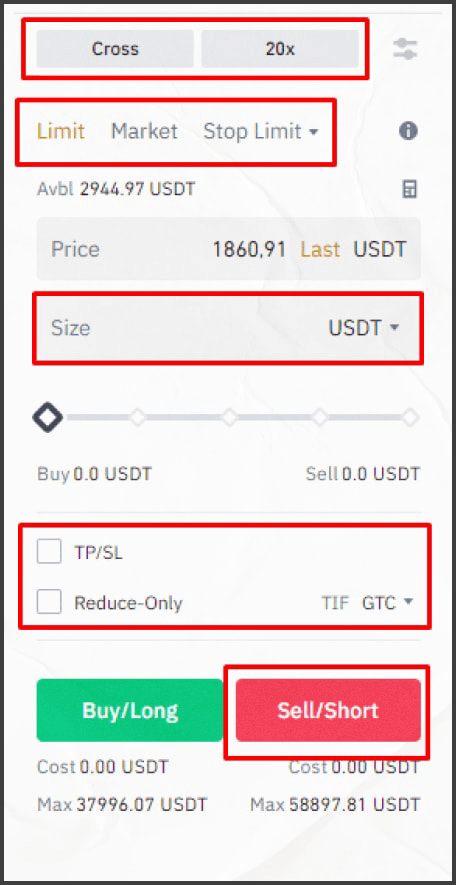
Order opening window: here you can open a position by setting its key parameters: order type, margin type, leverage, stop-loss and take-profit levels, as well as the purchase amount denominated in the selected asset or USDT. If you do not understand these parameters, we recommend starting with our series of articles on trading.
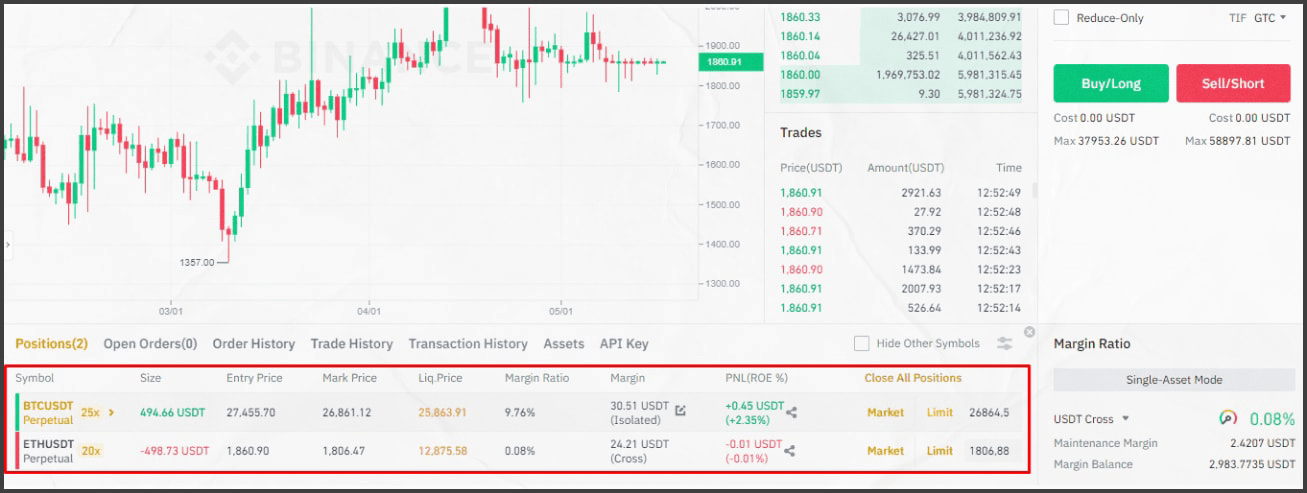
Position tracking and management field: displays already open positions with data on unrealized losses/profits, as well as margin and margin rate. Here you can also close a position or set it to close automatically.
Note: Binance's trading interface is fully customizable, allowing the user to move the main blocks around as they see fit, close unnecessary windows, or change the appearance of some fields. Take advantage of this to create an optimal working environment for yourself and control visual and informational noise while trading.
Now we proceed directly to using the platform: we will open short and long positions. To do this, in the order opening window, we set the main parameters mentioned above. First, we will open a long position for BTCUSDT, and then a short for ETH|USDT:
To close these positions, go to the control area under the main price chart and close them individually (Market button) or all at once using the Close all positions button. You can also set price limits for automatic closing of each position using the Limit function (enter the closing level in the field next to it):
Well, the next important function is the Faucet. The faucet window is located next to the position management field and allows you to request more test tokens if the money on the demo account runs out:
According to the Binance Testnet rules, a user can claim test tokens if the current balance of the demo account is below 1000 USDT. All cryptocurrencies available for futures trading can be claimed, but their value cannot exceed 1000 USDT. In addition, at least 72 hours must pass between requests.