Disclaimer: In compliance with MiCA requirements, unauthorized stablecoins are subject to certain restrictions for EEA users. For more information, please click here.
Binance has introduced a new Chat feature, which allows all ongoing and historical communication with the same counterparty to be consolidated in the Chat.
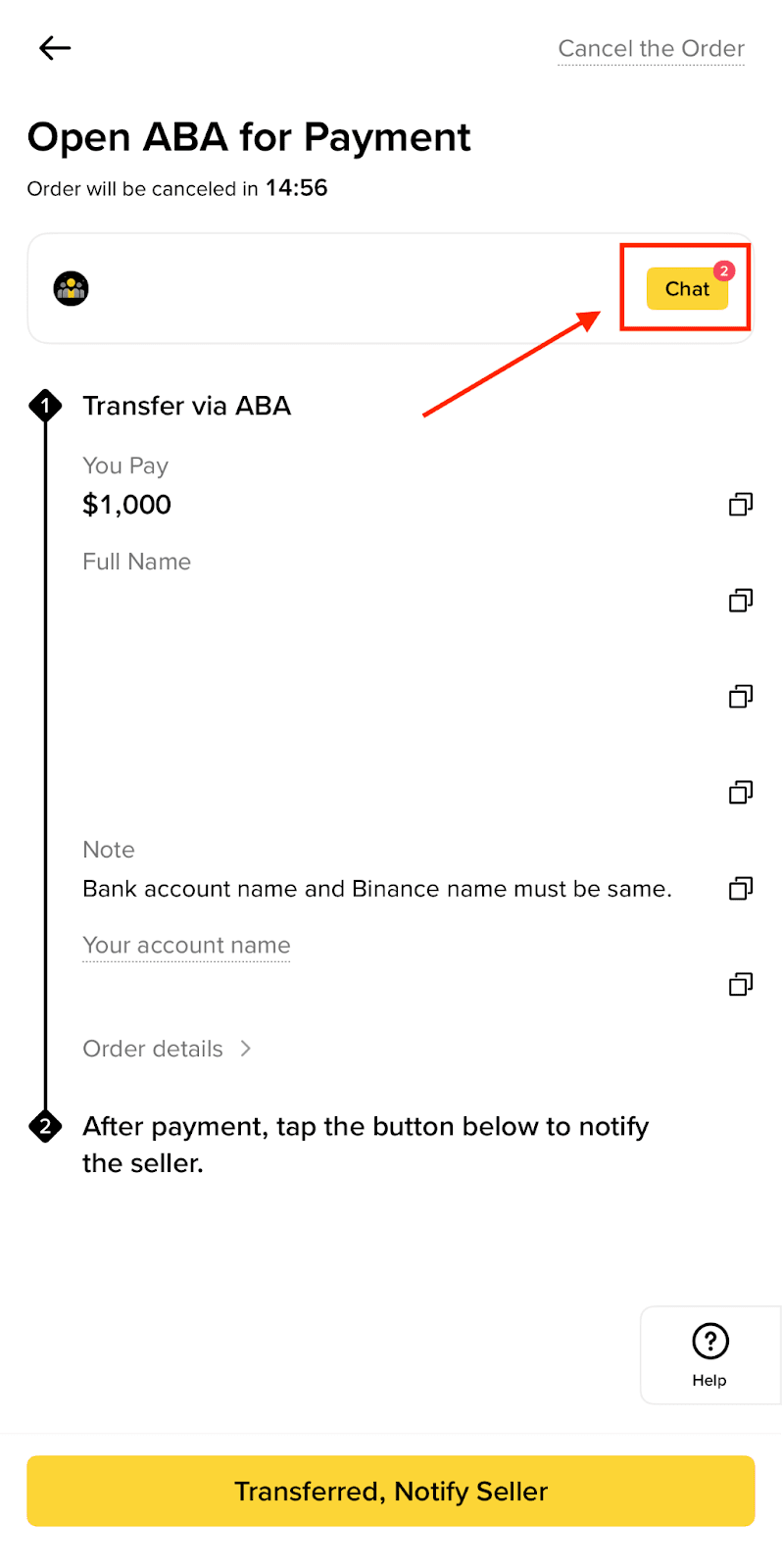
Select [Chat] whenever a new order is created.
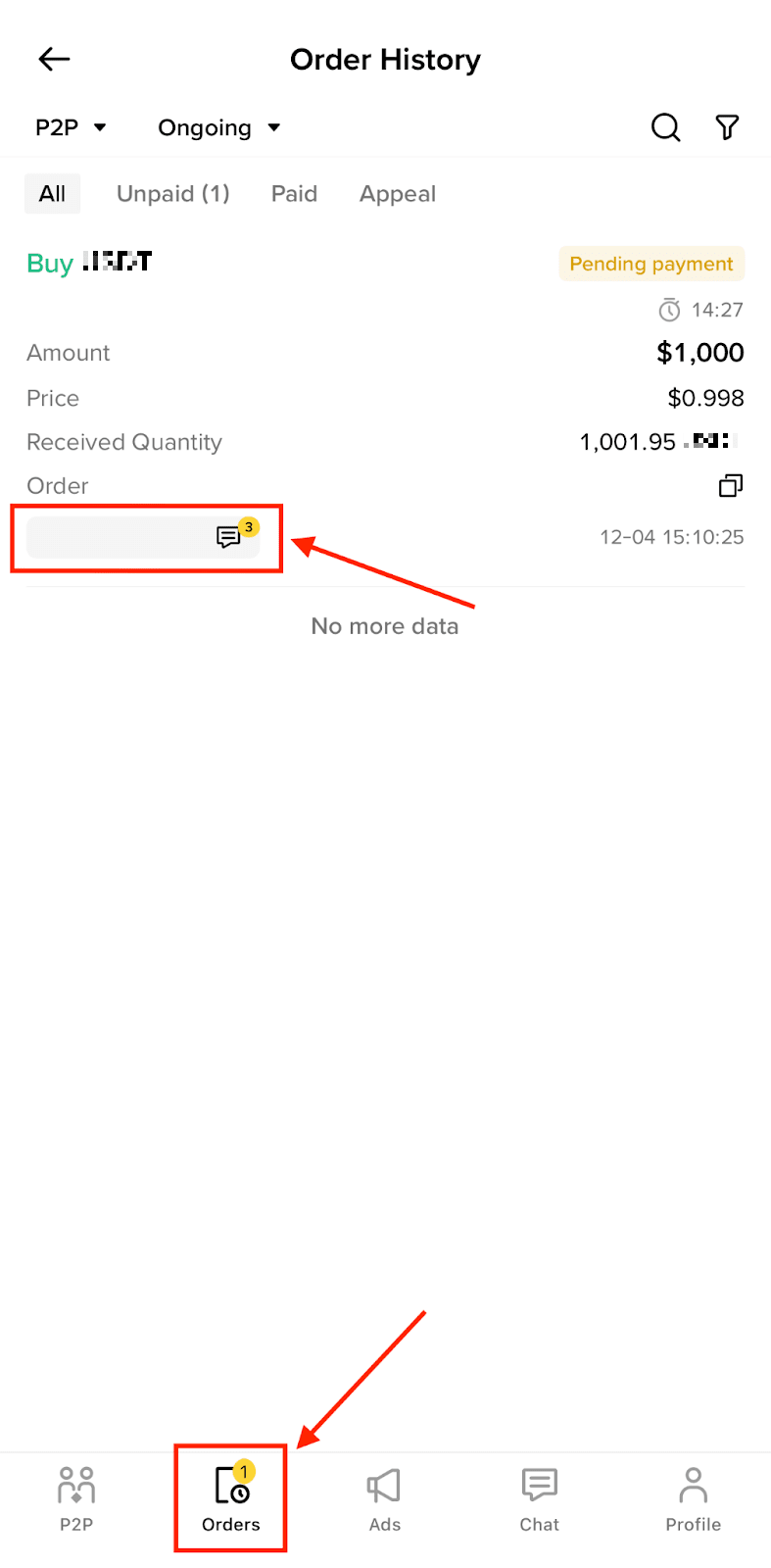
Go to [Orders] - [Order History] and select [Chat] next to the nickname of the counterparty on a specific order.
Go to [Express] and select the [Chat] tab on the bottom bar.
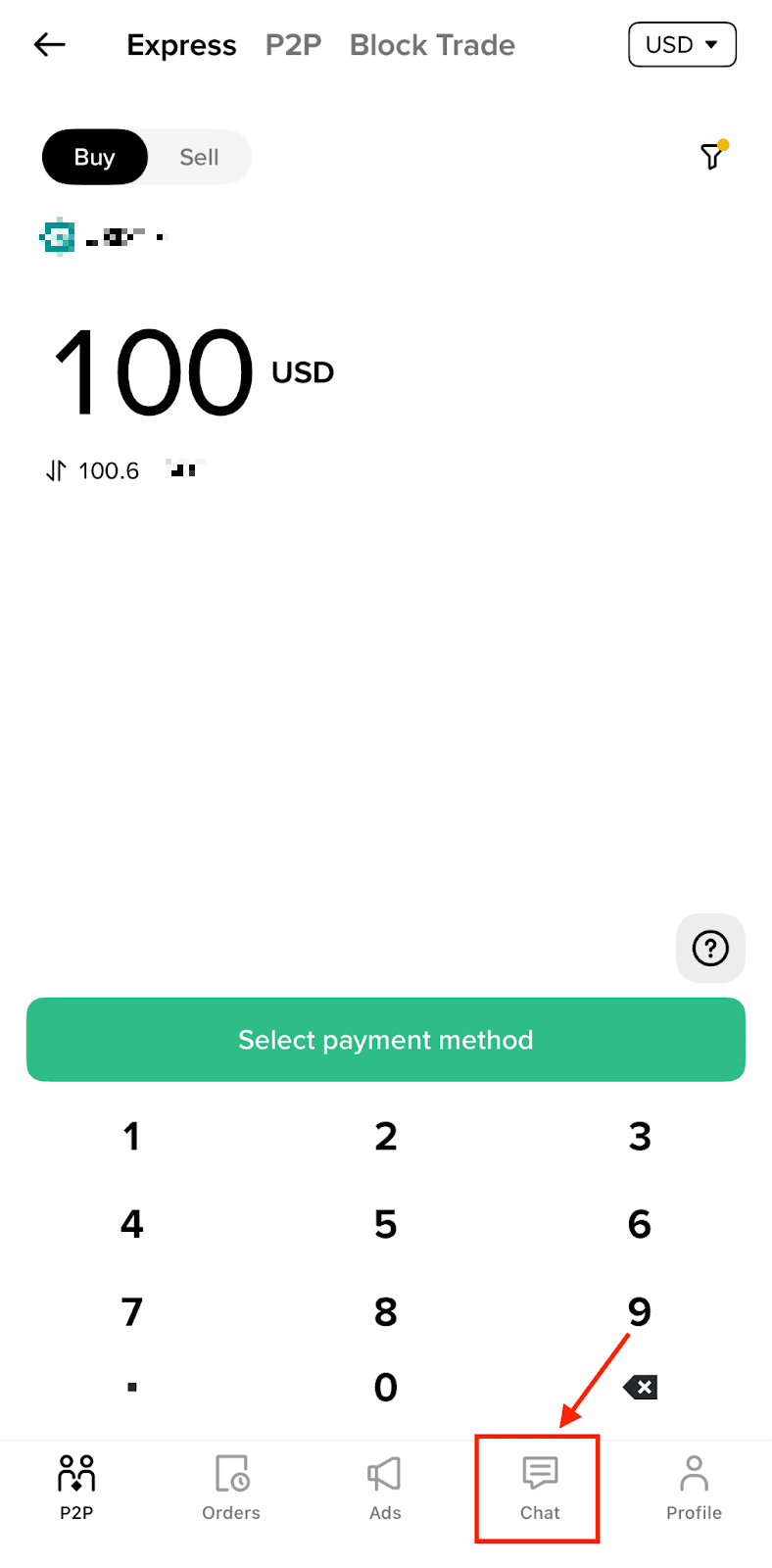
Go to [P2P] and select the [Chat] tab on the bottom bar on the advertisement page.
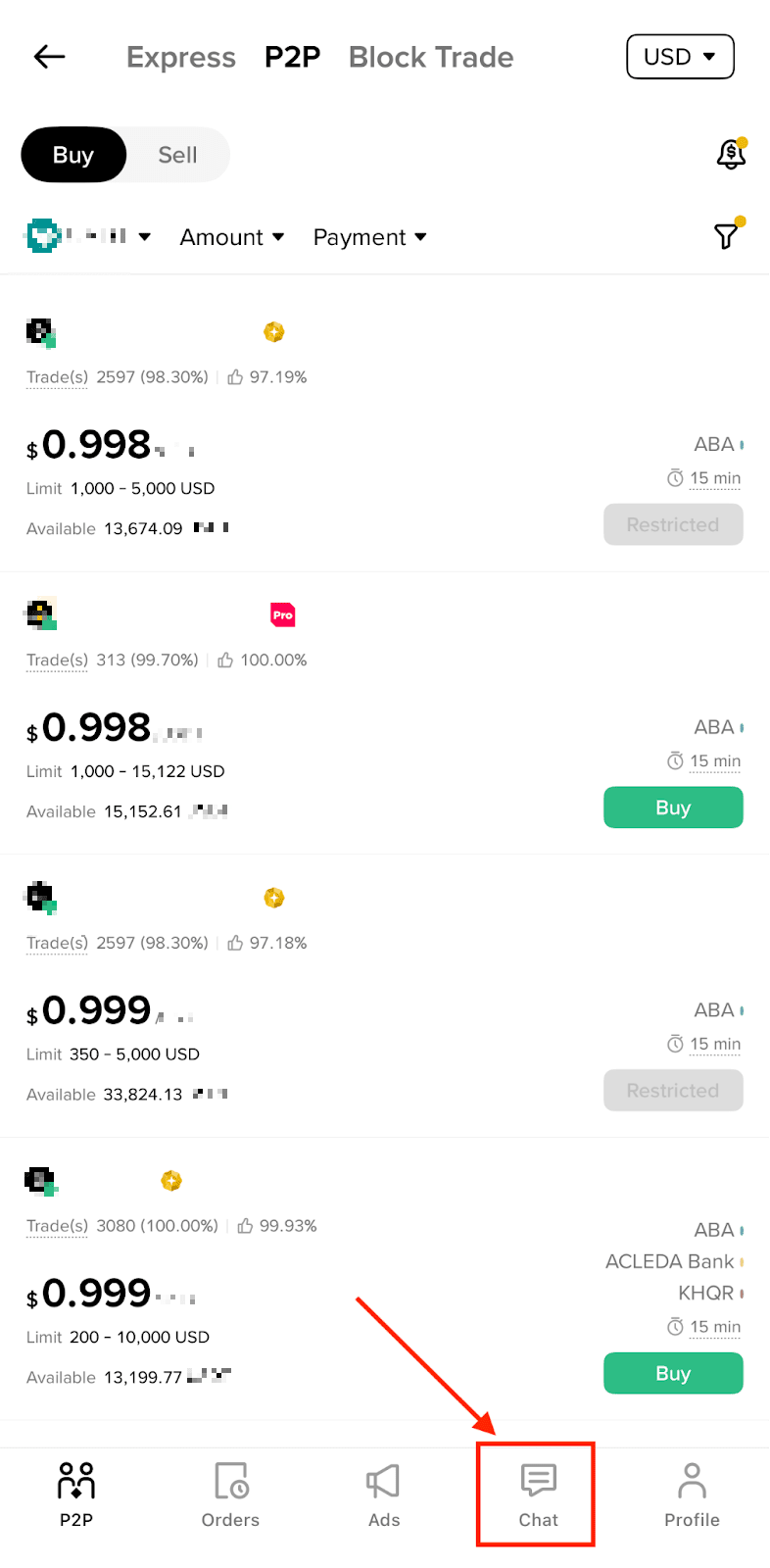
The chat history will be shown if you go to the Chat via P2P Zone.
In the chat history, you will see your chats in two categories: “All” and “Unread”.
Counterparties who you have traded with before will be automatically added to this list.
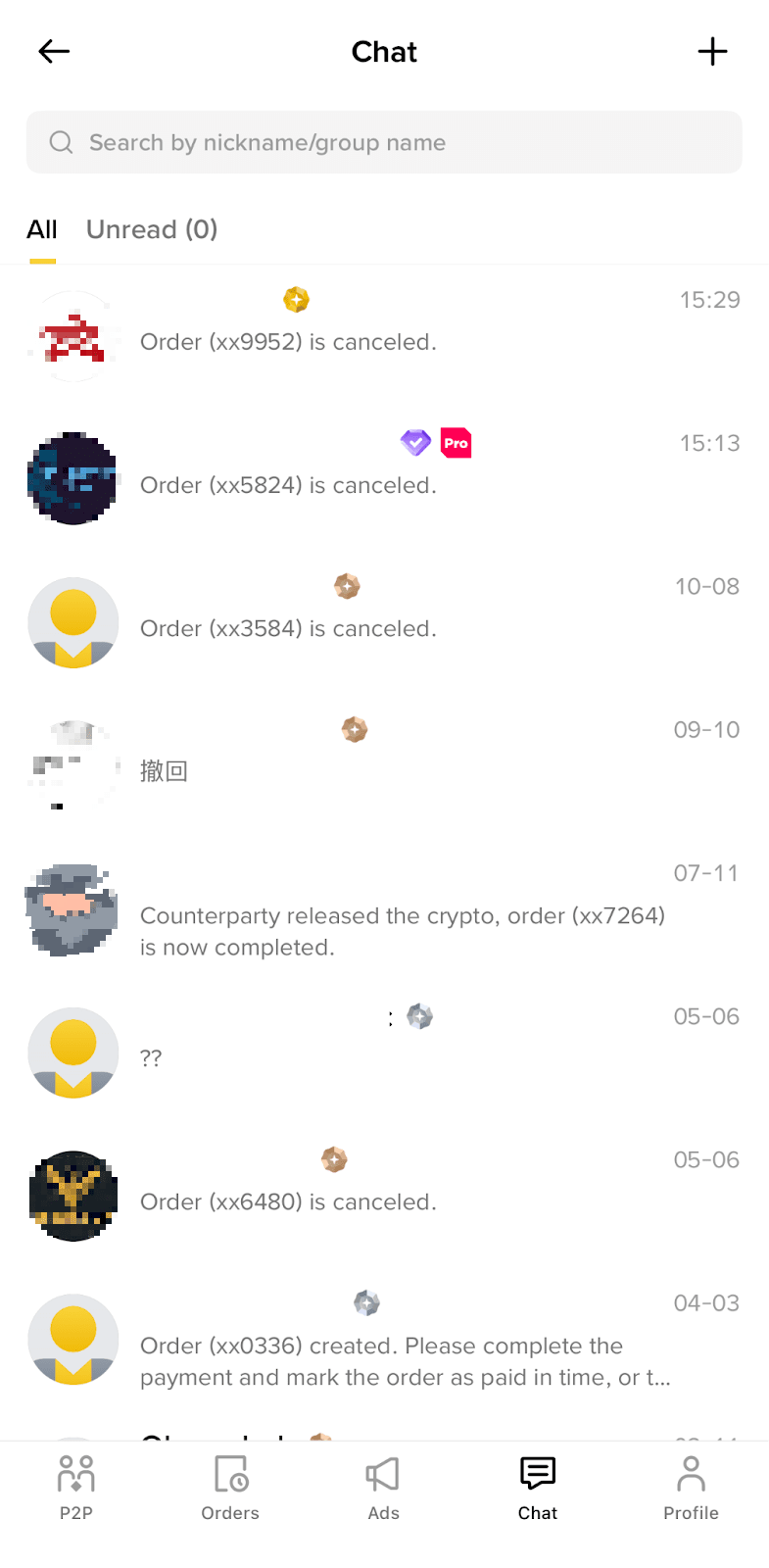
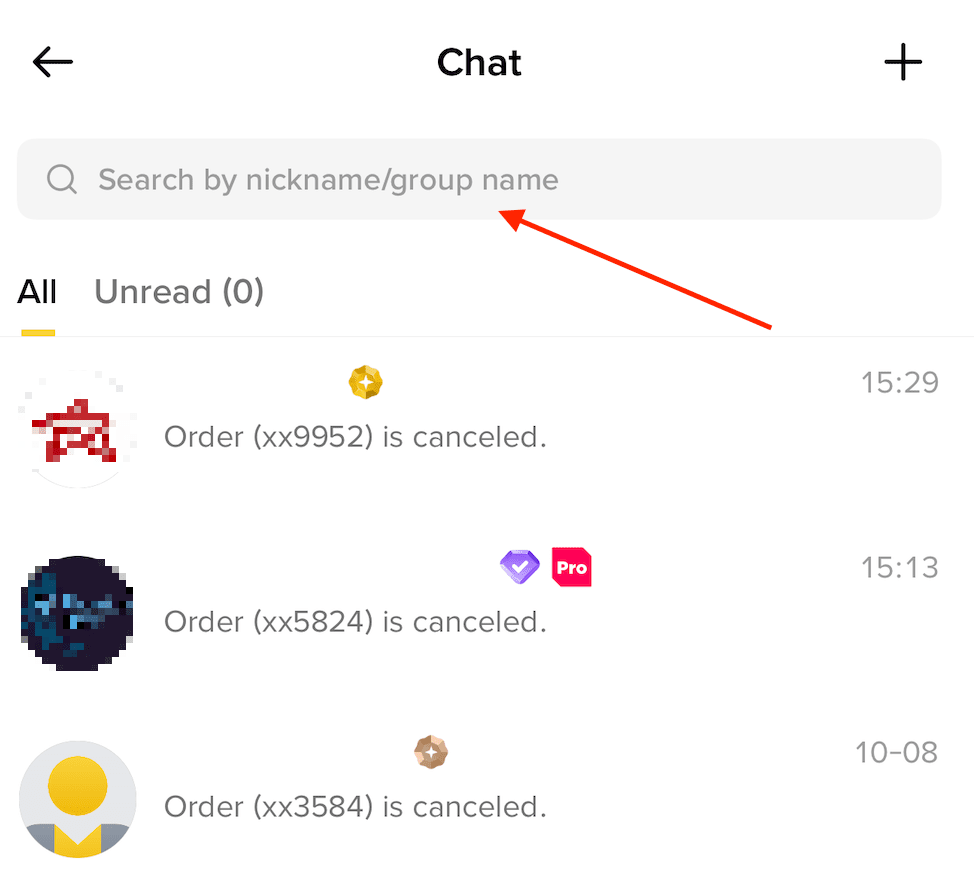
You can also search these counterparties via the “Search” function.
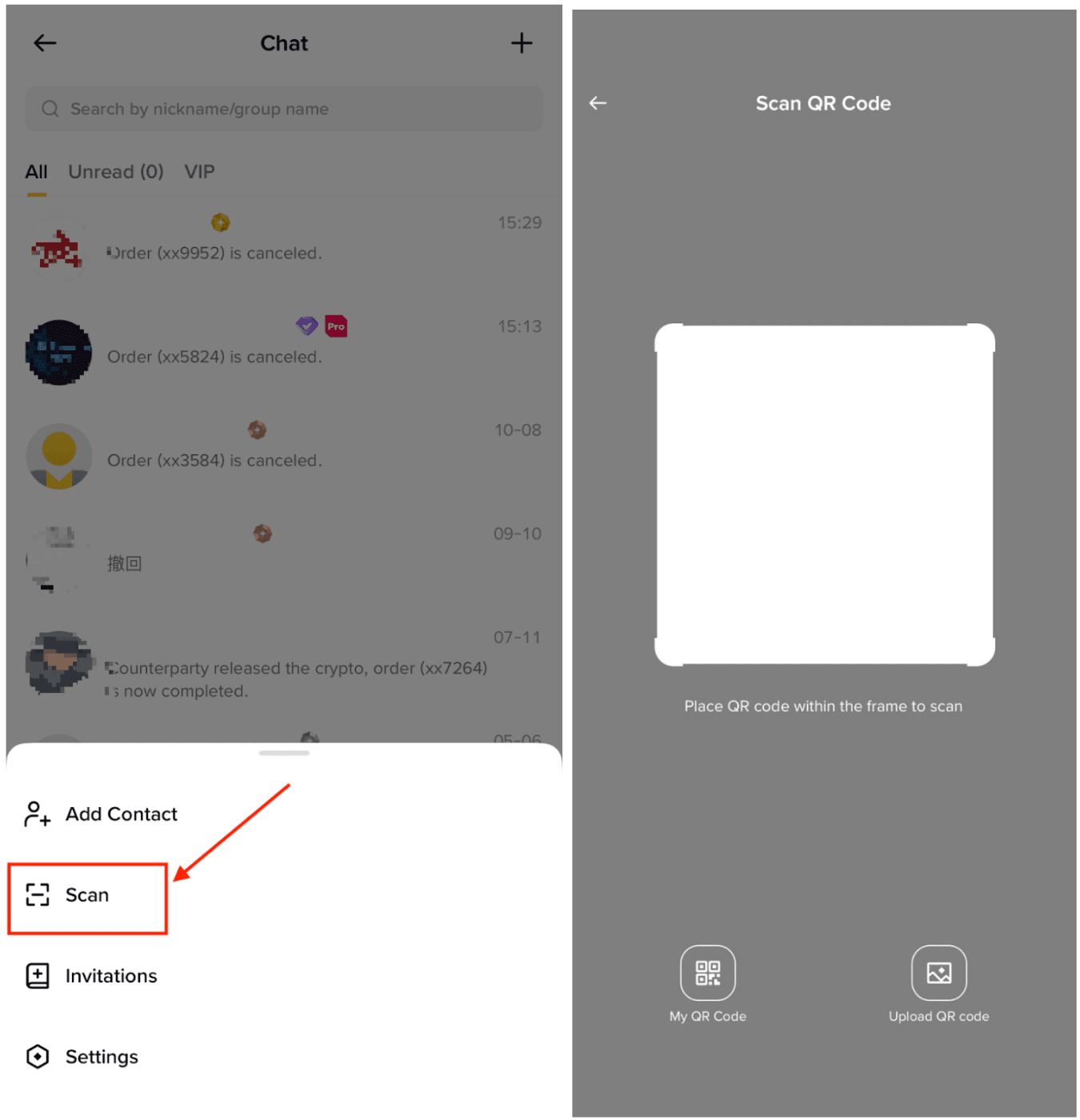
The Chat also supports the use of QR code to allow others to find you.
1. Go to [Profile] - [Share]. A QR code is created and you can share your profile through image or link.
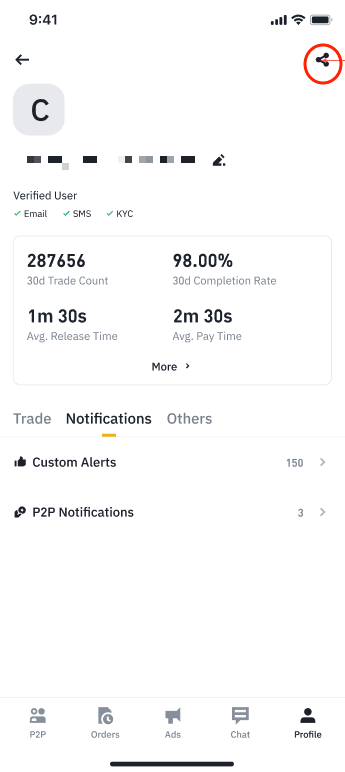
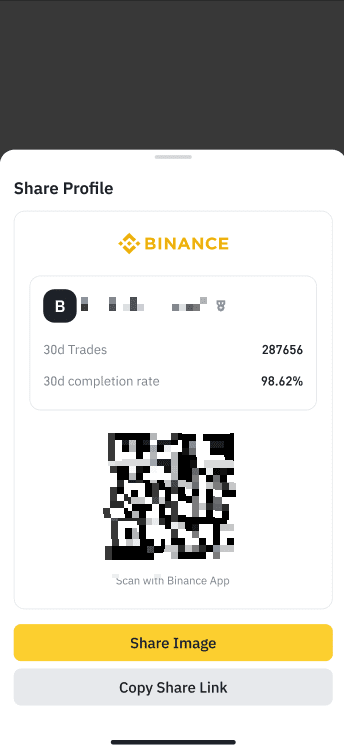
2. Once the QR code is received, the counterparty can enter your profile page.
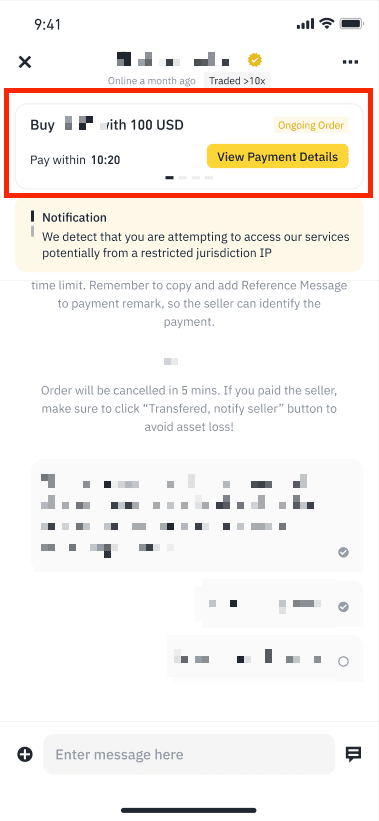
3. Once you enter the Chat, all messages with the same counterparty will be shown here.
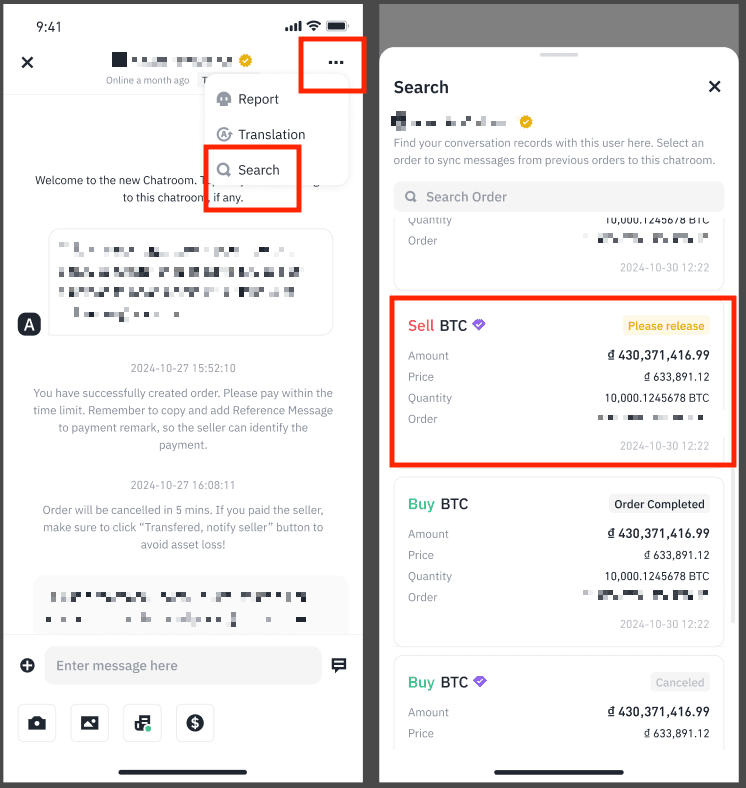
Use the “Search” function to find messages related to the selected order number or synchronize messages from historical orders into this new Chat. “Order Search” is available in the Chat.
1. Tap [...] at the top right of the page, tap [Search].
2. All related orders will be listed.
3. Select the order you want to check.
4. You will be redirected to the first message of this order.
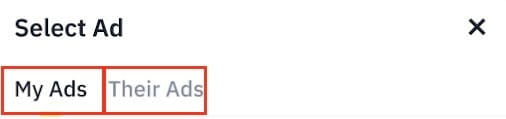
1. Tap [Ads], choose an ad, either from [My Ads] or [Their Ads] tab.
2. Select [Send Ad] to send it to the counterparty.
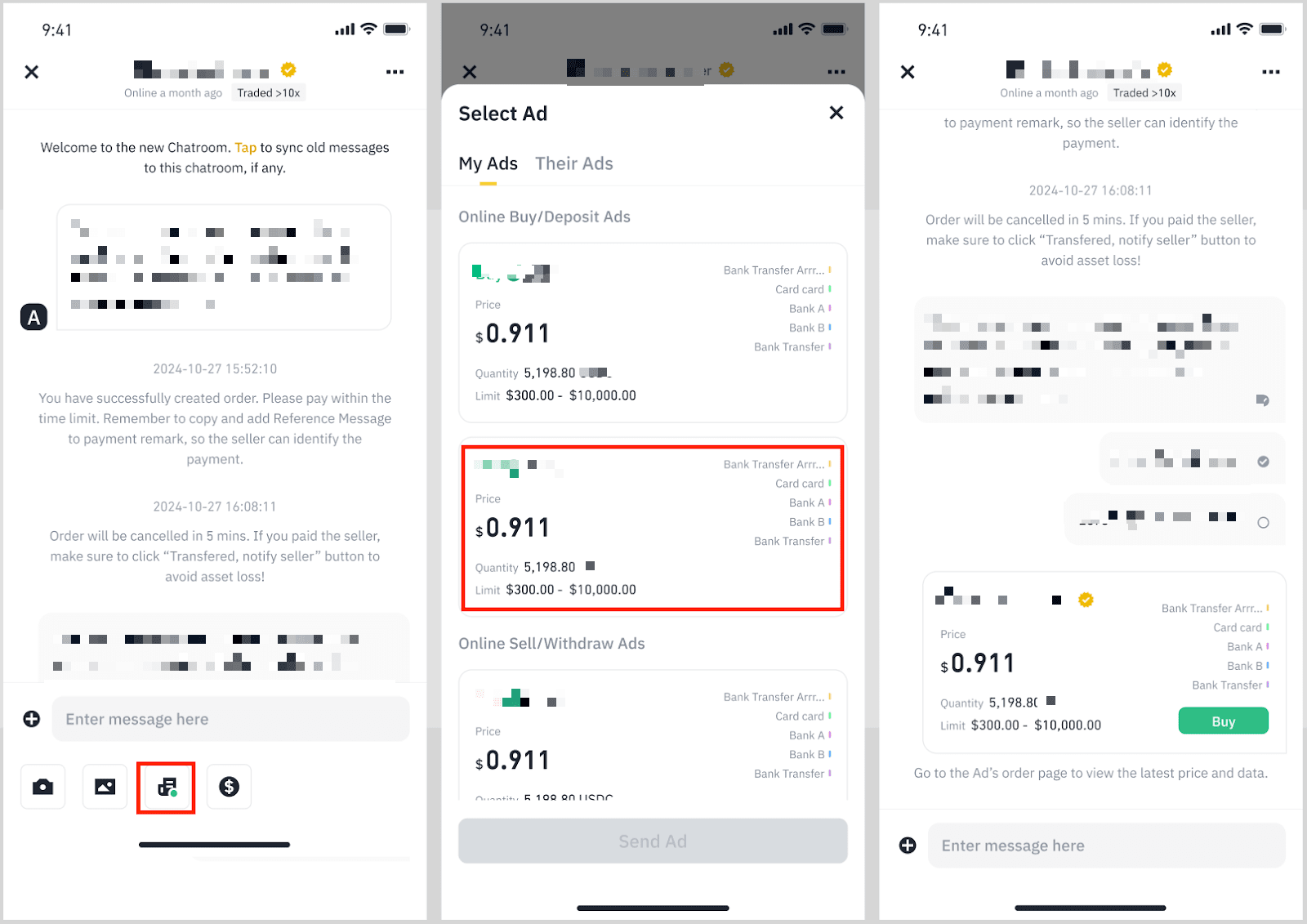
Please note: If you or your counterparty has no ads available, the tab will not show.