


You can now showcase your Copy Trading portfolios directly in your livestream — viewers can copy you with one tap, no redirects needed. Update the Binance app to v3.19 or later to explore the feature.
Step 1: Find the Copy Trading Entry
Once you're live, tap the button on the bottom toolbar.
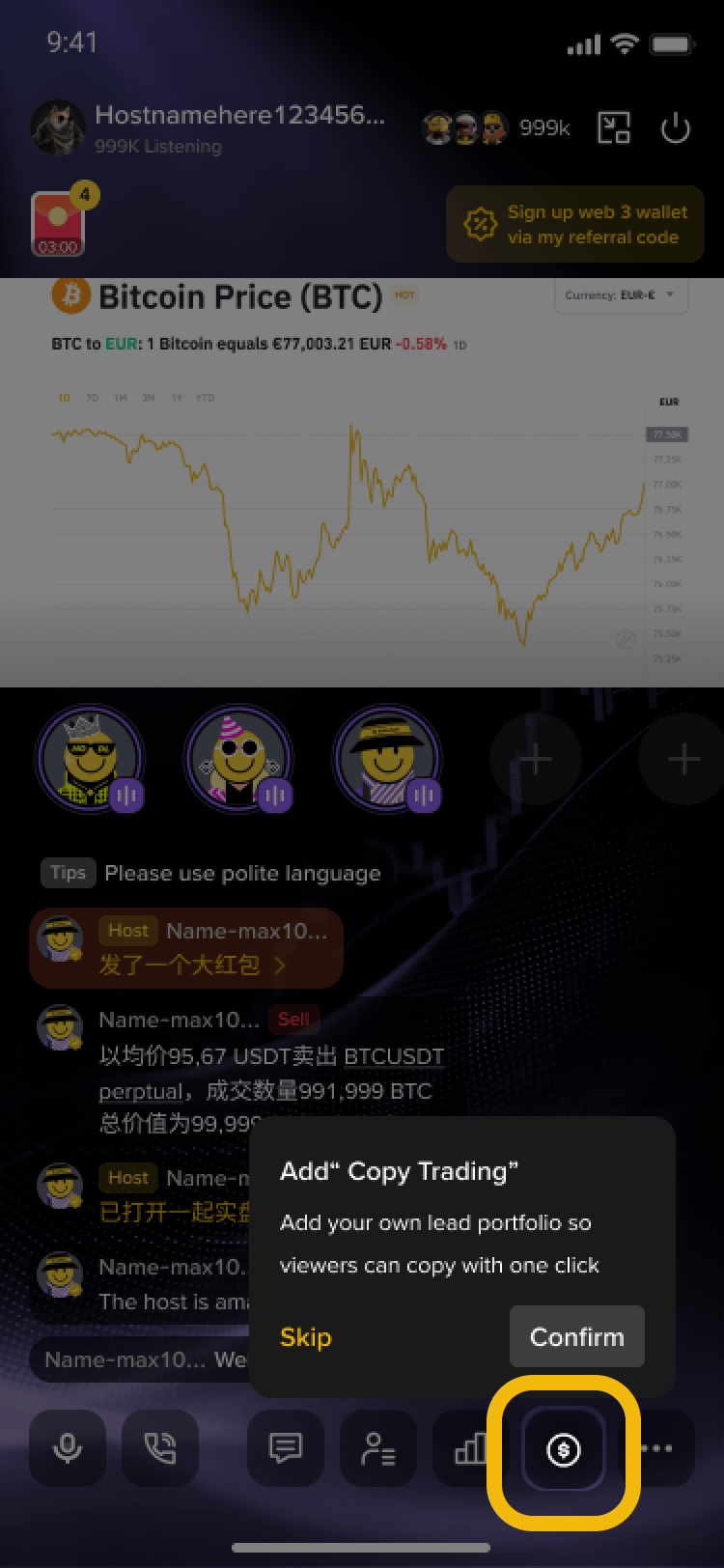
💡 Prerequisite: You need at least one active Futures Copy Trading portfolio (public or private).
Step 2: Manage Your Copy trading
A panel pops up at the bottom — switch to the "Copy Trading" tab. You can:
Toggle on "Auto-add every stream" to load your portfolios automatically next time
Tap "Add Portfolio" to manually select which ones to showcase
Each card shows your copier count, PNL, ROI, and more. Pick one or multiple, then confirm.
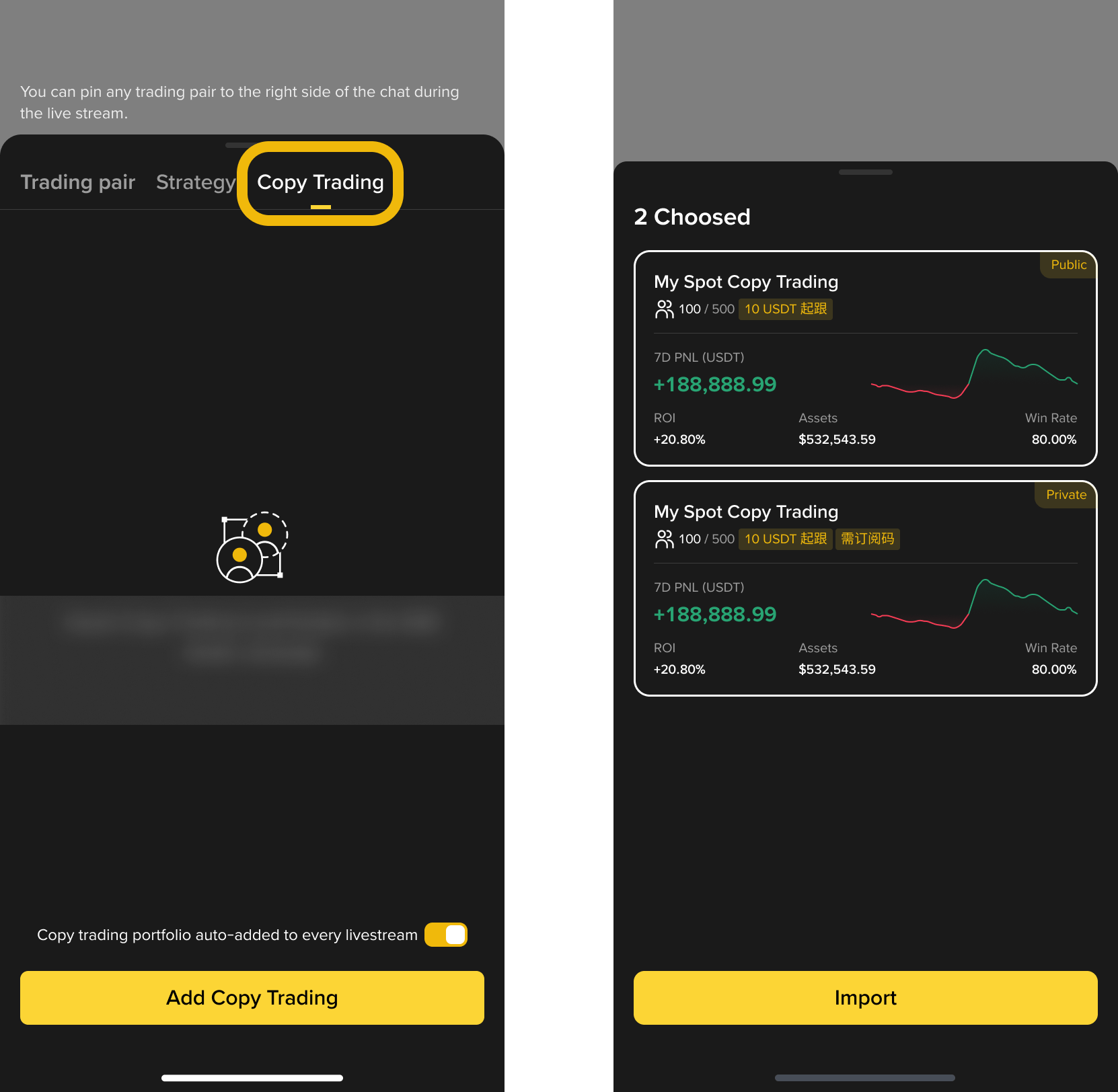
Step 3: Pin & Display to Viewers
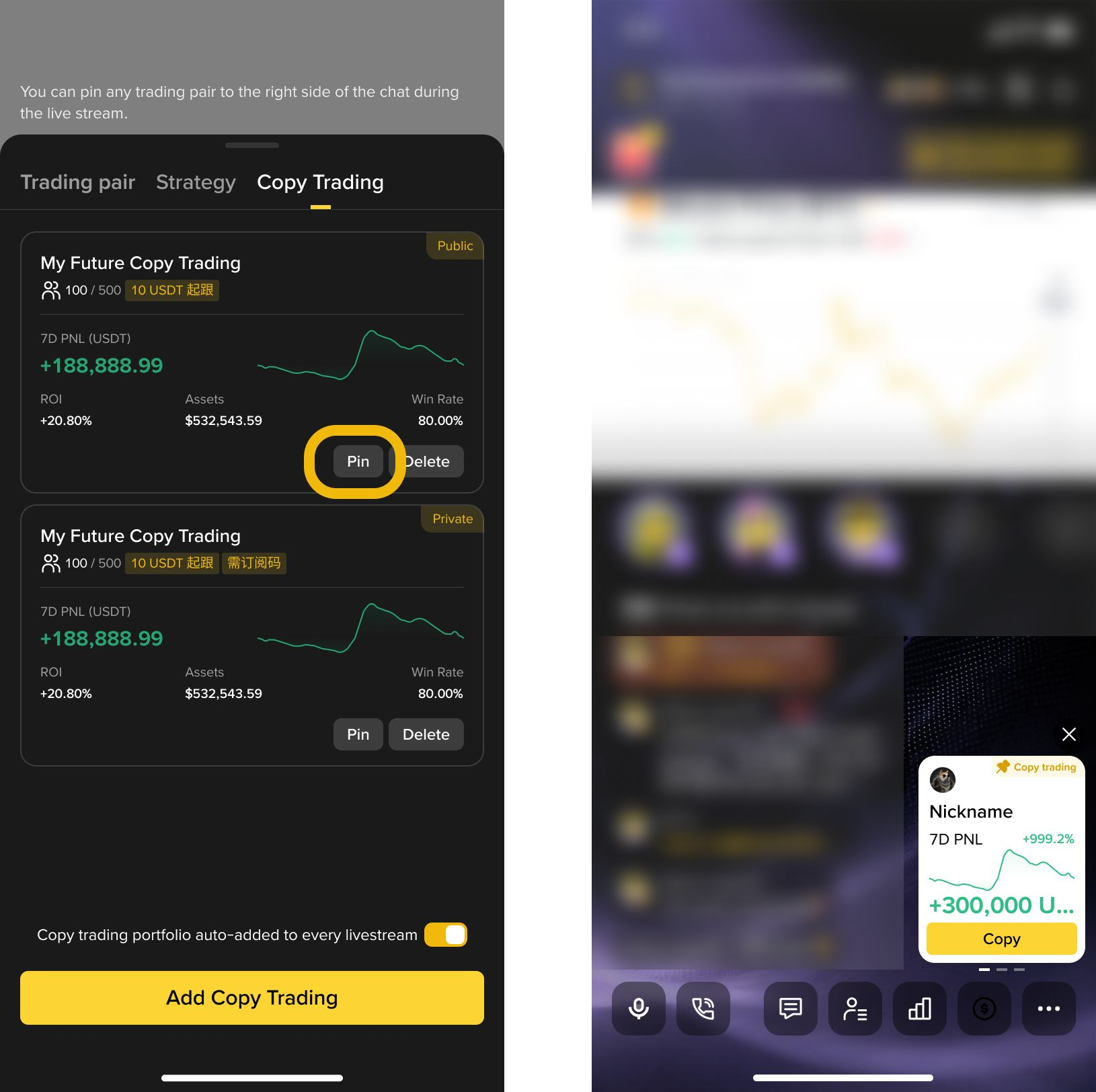
Once added, you can manage each portfolio:
Pin: Moves it to the top and shows a floating card in the chat area — viewers tap "Copy" to follow instantly
Unpin: Removes the floating card
Delete: Removes the portfolio from your stream
⚠️ Full portfolios can't accept new copiers — keep an eye on capacity.
FAQ
Q: Why don't I see the Copy Trading button?
A: Make sure you have at least one active Futures Copy Trading portfolio. Inactive ones won't show up.
Q: What does the auto-add toggle do?
A: When enabled, your active portfolios are automatically loaded into every new stream — no manual setup needed.
Q: Can viewers see my private portfolios?
A: Yes, but they'll need a subscription code to join.
Q: Can all viewers see the pinned card?
A: Viewers must have Futures Copy Trading enabled to see Copy Trading content in your stream.